Where the Template URL comes from
When you create a template, Studio gives it a derived URL: a Template URL it auto-generates from your stack's settings. This page explains where that URL comes from, and how Studio turns it into an address for each entry.
One template can show every blog post on your site, and each post needs its own address. The Template URL makes that work. It's a pattern, like /blog/{{entry.slug}}, and Studio fills in the variables from each entry to build that entry's address.
The example on this page is a Blog post content type whose entries live under /blog. Its entry AI 101 has the slug ai-101 and the URL /blog/ai-101. The names come from the team blog.
The three places Studio checks
When you create a connected template, Studio gives it a URL. Each time you open the template, Studio derives the URL again, so it follows changes to your stack's settings.
That stops once you change the URL by hand. A URL you change by hand is no longer derived. To go back to the derived URL, reset it. See Edit or reset a Template URL.
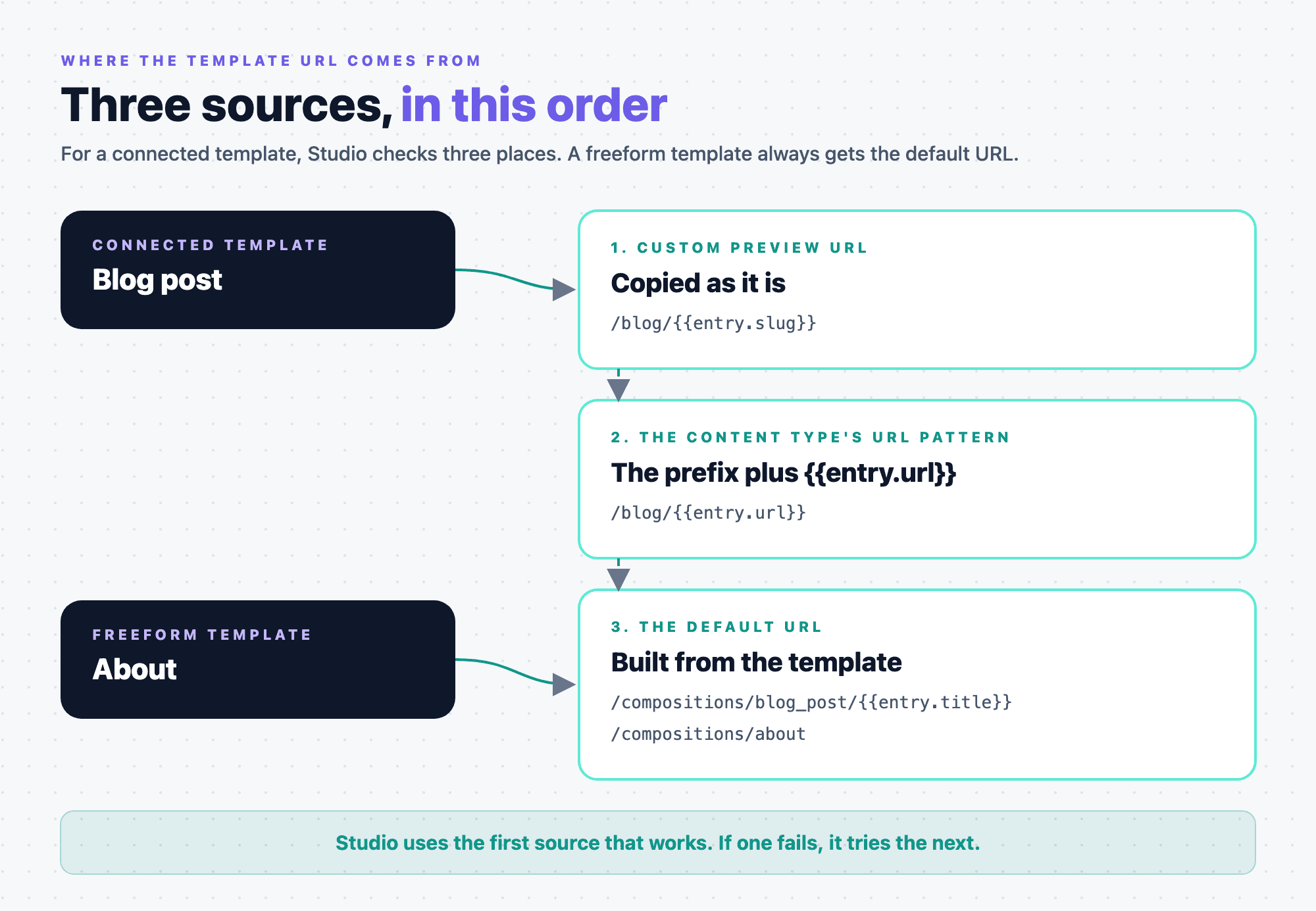
Studio checks three places, in this order, and uses the first one that works.
- The Custom Preview URL for the content type
- The content type's URL pattern
- The default URL
A freeform template has no content type, so it always gets the default URL.
The Custom Preview URL
The Custom Preview URL is a Contentstack setting, not a Studio one. It tells Live Preview and Visual Editor where each entry lives on your site. They use it to open the right address when someone previews an entry. It's one form for the whole stack. Each row in it has a path, a branch, and either specific content types or all content types. Custom Preview URL is available on select Contentstack plans.
To find it, in Contentstack, open Settings, then Visual Experience, then Preview URL.

Studio uses the Custom Preview URL when all of these are true:
- the Custom Preview URL toggle is on;
- there's a row for this content type, or for all content types, for the
mainbranch. Studio always reads the rows formain, whatever branch you work on. A row with no branches counts for every branch. Studio looks for a row for this content type first; - every variable in the path is one Studio can copy. The list is in URL variables.
If all three hold, Studio copies the path as it is. If Blog post's path is /blog/{{entry.slug}}, the template gets /blog/{{entry.slug}}. If any of them fails, Studio skips this source without a message and tries the next one.
The Custom Preview URL can do two more things. Its base URL aliases choose which site the canvas opens a template on. Its transformation rules shape each value before it goes into the address, such as lowercasing entry.title, and the template keeps the plain path. Both apply only to a template whose URL comes from the Custom Preview URL. See Use a Custom Preview URL with Studio.
The content type's URL pattern
In Contentstack, a content type's URL field can have a URL pattern and a prefix. The URL pattern builds each entry's address from its fields, such as /:title. The prefix is fixed text in front of it, such as /blog/. Contentstack uses both to generate each entry's address into its URL field when you create the entry, so AI 101's URL field holds /blog/ai-101.
You set both in the content type builder, in the URL field's URL Properties, under Prefix and URL Pattern. URL patterns are part of Contentstack's URL Management V2, which Contentstack support turns on for your stack.

Only web page content types can have a URL field in Contentstack. So if your content type has a URL field, Studio uses this source. To confirm, open Edit URL on a new template. The note says "Auto-generated from Content Type URL Pattern". See See which source Studio used.
Studio doesn't copy that URL pattern. It takes the prefix and adds {{entry.url}}. For Blog post, that gives /blog/{{entry.url}}. Studio uses the prefix only while URL Pattern is on. Slashes at either end of the prefix don't matter, so /blog, blog/ and /blog/ all give the same result. The URL pattern itself is dropped, because Contentstack has already used it to write each entry's address.
With no prefix, the Template URL is {{entry.url}}, which matches every address on your site. Set a prefix, so the address says which template it belongs to. See A prefix for everything nested.
For this source, each entry's URL field has to hold the full address, such as /blog/ai-101. That's because {{entry.url}} works differently from other variables: Studio compares the entry's URL field with the whole address. See Why entry.url matches the whole address.
The default URL
When neither of the first two applies, and always for a freeform template, Studio builds a URL from the template itself.
| Template | Default URL |
|---|---|
| Connected | /<Compositions content type UID>/<Template UID>/{{entry.title}} |
| Freeform | /<Compositions content type UID>/<Template UID> |
The Compositions content type is the content type your project stores its templates in. It's the Content Type row under Stack Connection on the General tab of your project settings, where you can copy its UID. The Template UID is set when you create the template. Studio fills it in from the name unless you change it.
The default is always unique, but you wouldn't show it to visitors. AI 101 ends up at .../AI%20101, because Studio uses the title exactly as stored. Change it to a pattern you'd want on your site. See Edit or reset a Template URL.
See which source Studio used
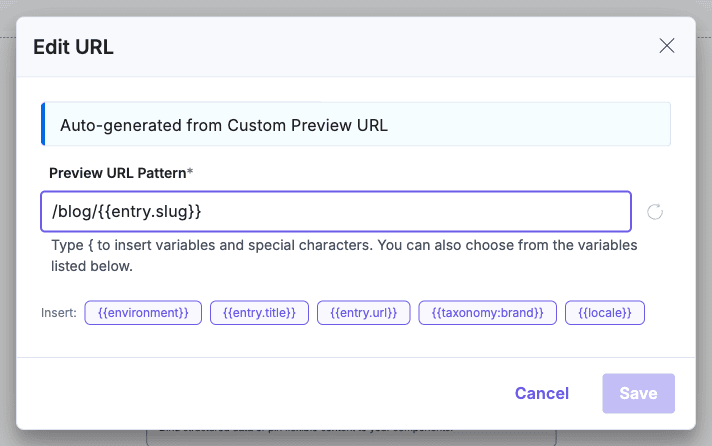
Open Edit URL on the template. A note in the dialog says "Auto-generated from" followed by one of these. The note means the URL is a derived URL:
- Custom Preview URL
- Content Type URL Pattern
- Default URL Pattern
The note goes away once you change the URL by hand.
When the Custom Preview URL or the content type changes
Studio derives the Template URL again each time you open a template, from the same three places. So a change to the Custom Preview URL, or to the content type's URL settings, reaches the template the next time someone opens it.
Say Blog post's Custom Preview URL changes from /blog/{{entry.slug}} to /news/{{entry.slug}}. The next time you open the Blog post template:
- The canvas opens AI 101 at
/news/ai-101. - Your live site keeps serving the template at
/blog/ai-101, the URL on the deployed version.
Deploy the template to move your live site to /news/ai-101. If your site has a route only for the old address, add one for the new address first. See Save, preview, deploy.
Visual Editor and Live Preview open AI 101 at /news/ai-101 straight away, because they work the address out from the Custom Preview URL each time. Your site finds a template by its saved Template URL, still /blog/{{entry.slug}}, so it doesn't show Blog post at /news/ai-101 yet.
If Studio can't save the new URL, for example because your role can't edit the template, it shows "Template URL not saved" with the reason. The canvas still opens the new address.
A URL you changed by hand never moves this way. Neither does a legacy URL, which older templates have.
How Studio fills the Template URL for each entry
A Template URL is fixed text plus variables in double braces. Studio leaves the fixed text alone and fills each variable from the entry. For AI 101, whose slug field holds ai-101, the Template URL /blog/{{entry.slug}} becomes /blog/ai-101.
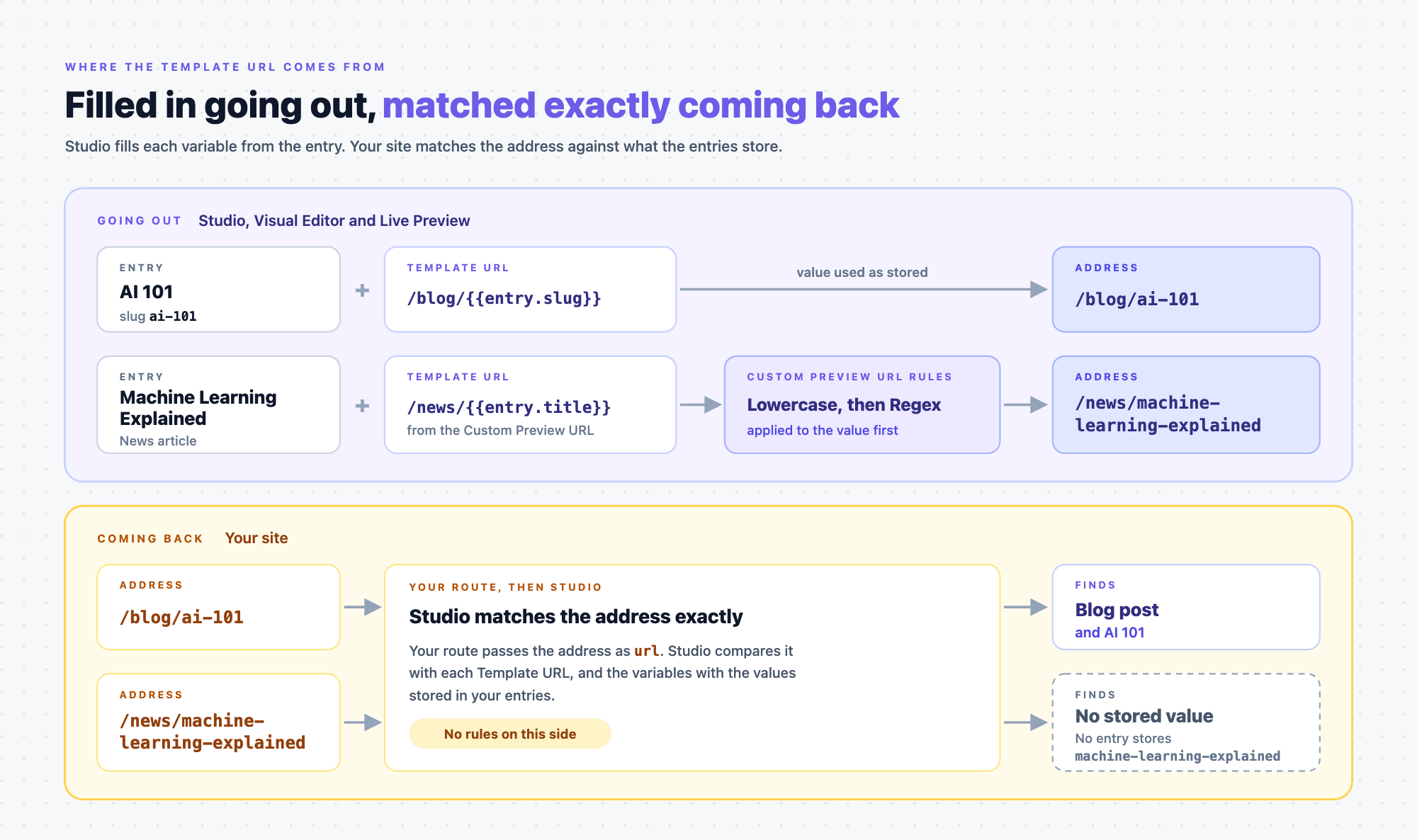
Studio uses the field's value exactly as stored. It doesn't lowercase it, slugify it or trim it. Characters that can't go in an address are encoded, so a space becomes %20. For a clean address, store the slug you want in a field and use that field.
The one exception is a URL that comes from the Custom Preview URL. When that setting has a transformation rule on a variable, Studio applies the rule to the value first. See Transformation rules.
Your site matches the other way. Your route passes Studio the address, and Studio compares it with each Template URL, exactly. Capital letters and a trailing slash count, and the template with the most fixed text wins. See How Studio matches an address to a template.
The variables you can use
| Variable | Connected template | Freeform template | What it fills, and what it needs |
|---|---|---|---|
{{entry.<field>}} | Yes | No | The field's stored value, such as ai-101 for {{entry.slug}}. Works for a field inside a group or global field, such as {{entry.seo.canonical}}. A whole group field is accepted but never matches, so point at a text field inside it. |
{{entry.<reference>.<field>}} | Yes | No | A field on a referenced entry, such as {{entry.author.handle}}. The template's include list needs the reference, author. Studio adds it when you save a URL you typed. |
{{taxonomy:<uid>}} | Yes | No | A term from that taxonomy, such as {{taxonomy:topic}}. Studio matches it against the entry's terms in that taxonomy, with no extra setting. The address holds the term's UID, not its name. |
{{locale}} | Yes | Yes | The language, such as fr-fr. On the canvas, Studio fills it from Visual Editor's language, or else the template's master language. Put the language here or in the base URL, never both. See Put the language in the address. |
A freeform template has no content type, so it can't use entry or taxonomy variables.
A URL from the Custom Preview URL takes its include list from its own row, and Studio doesn't add a reference to it.
A pattern with no entry variables finds the entry whose URL field is exactly that address. Featured post's /blog/featured finds the Featured entry, whose URL field is /blog/featured.
Studio refuses date variables in a URL you save, and skips a Custom Preview URL row that uses one.
For every variable and rule, see URL variables.
Which page each tool opens
Studio, Visual Editor and Live Preview each open a page for an entry. Which address they open depends on where the Template URL comes from. The source shows in the Edit URL dialog. See See which source Studio used.
| Where the Template URL comes from | Studio opens | Visual Editor and Live Preview open | Your live site serves |
|---|---|---|---|
| The Custom Preview URL, the content type's URL pattern or the default URL | The derived URL, worked out when you open the template from the first of those three that applies. The Custom Preview URL's transformation rules apply. | Their own address for the entry, as before Studio. That's the Custom Preview URL with its rules, else the entry's URL field, else the template's default URL. | The URL on the deployed template |
| A URL you changed by hand | That URL, with no rules | That URL | That URL, once you deploy it |
| A legacy URL, on older templates | The entry's URL field | The entry's URL field | The entry's URL field |
For AI 101, with Blog post's Custom Preview URL /blog/{{entry.slug}}, all three tools open /blog/ai-101. Your live site serves it there too, once the template is deployed with that URL.
For the first row:
- Where the URL comes from the content type's URL pattern,
/blog/{{entry.url}}, all three tools open the entry's URL field,/blog/ai-101. - Studio always reads the Custom Preview URL rows for the
mainbranch. Visual Editor and Live Preview use the branch they're on. So on another branch, they can open a different address from Studio. - The default URL needs a route on your site that renders it. Without one, the page doesn't load in Studio, Visual Editor or Live Preview.
- When two Studio templates use Blog post, Visual Editor and Live Preview ask which one to open, even when both give the same address. Visual Editor opened from Studio opens the template you were editing without asking. Both templates take their URL from the content type, so they share it. See When two templates share a URL.
Where to go next
- Change a Template URL, or reset it: Edit or reset a Template URL.
- Find out why an address shows the template it does: How Studio matches an address to a template.
- Use aliases or transformation rules: Use a Custom Preview URL with Studio.
- Look up every variable and rule: URL variables.
- Read a template's current URL from a script, or write it into the draft yourself: Read or update a template's current URL.