Generate from a design
csdx studio:composition:build builds a page from a design you hand it.
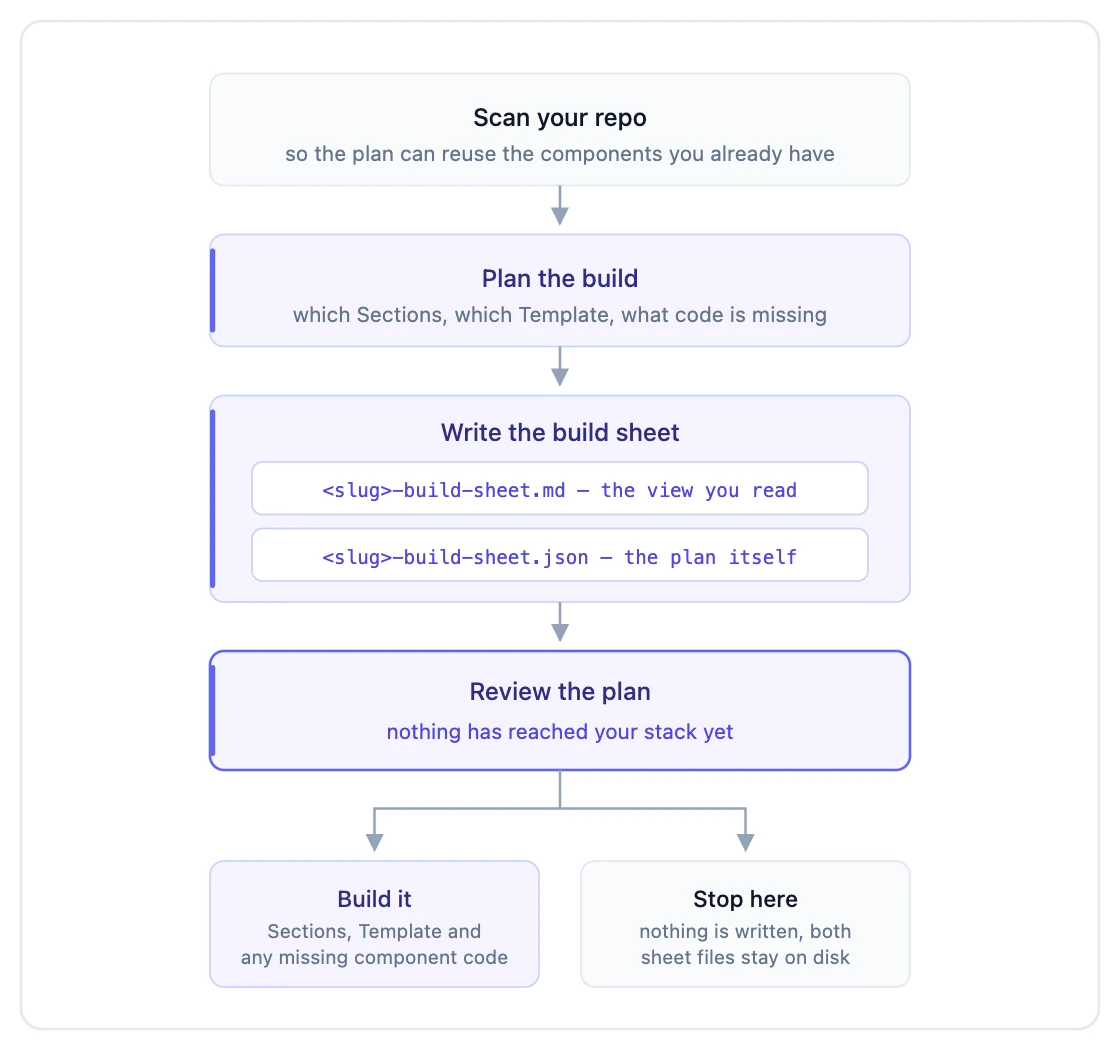
From that design it works out a plan: which Sections the page needs, the Template that assembles them, and any component code you do not have yet. The plan is written to a build sheet you can read and change.
It asks three things along the way: what the page should look like, which content type it uses, and whether you want the whole page or just part of one. You approve at a review gate, and only then is anything created.
The CLI scans your whole repo before it plans. The plan then reuses the components you already have, and proposes new ones only for the pieces you are genuinely missing.
Nothing is ever published.
Prerequisites
| You need | Why |
|---|---|
| The CLI installed and a project linked | Everything is written to the active project. See Set up the CLI |
| A design, or a component file | At least one --reference, unless you pin a component with --component |
| A content type, or the willingness to create one | Every binding in the plan resolves against one. The flow can propose a new one |
Registering your components first is optional, but it is what lets a plan reuse them instead of writing new ones. See Push your code into Studio.
Terms
| Term | Meaning |
|---|---|
| Reference | The design you are building from: a screenshot, a live URL, a description in your own words, or a written brief in a .md or .txt file |
| Build sheet | The plan, written as two files before you are asked to approve anything: a .md you read, and a .json beside it holding the plan itself |
| Scope | Whether this run builds a whole page (several Sections plus a Template) or part of a page (one Section, no Template) |
| Component file | A component you name yourself instead of giving a design. The Section is built around that file, and no design is read |
Syntax
csdx studio:composition:build [--reference <ref>] [--content-type <uid>] [--component <path>] [--scope page|section]
| Flag | Alias | Effect |
|---|---|---|
--reference | The design: a screenshot file, a live URL, a description in quotes, or a .md / .txt brief. Repeatable, and at least one is required unless you pin a component | |
--component | -c | Build around one component you already have. Add #ExportName if the file holds several. Outranks --reference: the component is the plan, so nothing is matched against a design |
--content-type | -t | Page identity by content type uid. Skips step 2 |
--route | Page identity by route, such as /pricing. Resolved to its content type | |
--scope | page or section. Skips step 3 | |
--out | Where to write the build sheet. Defaults to docs/<slug>-build-sheet.md, or the repo root if there is no docs/ | |
--from-buildsheet | Skip planning and go straight to review with a sheet the CLI wrote earlier. Point it at either file: the plan is read from the .json |
The flow
Step 1 · The design
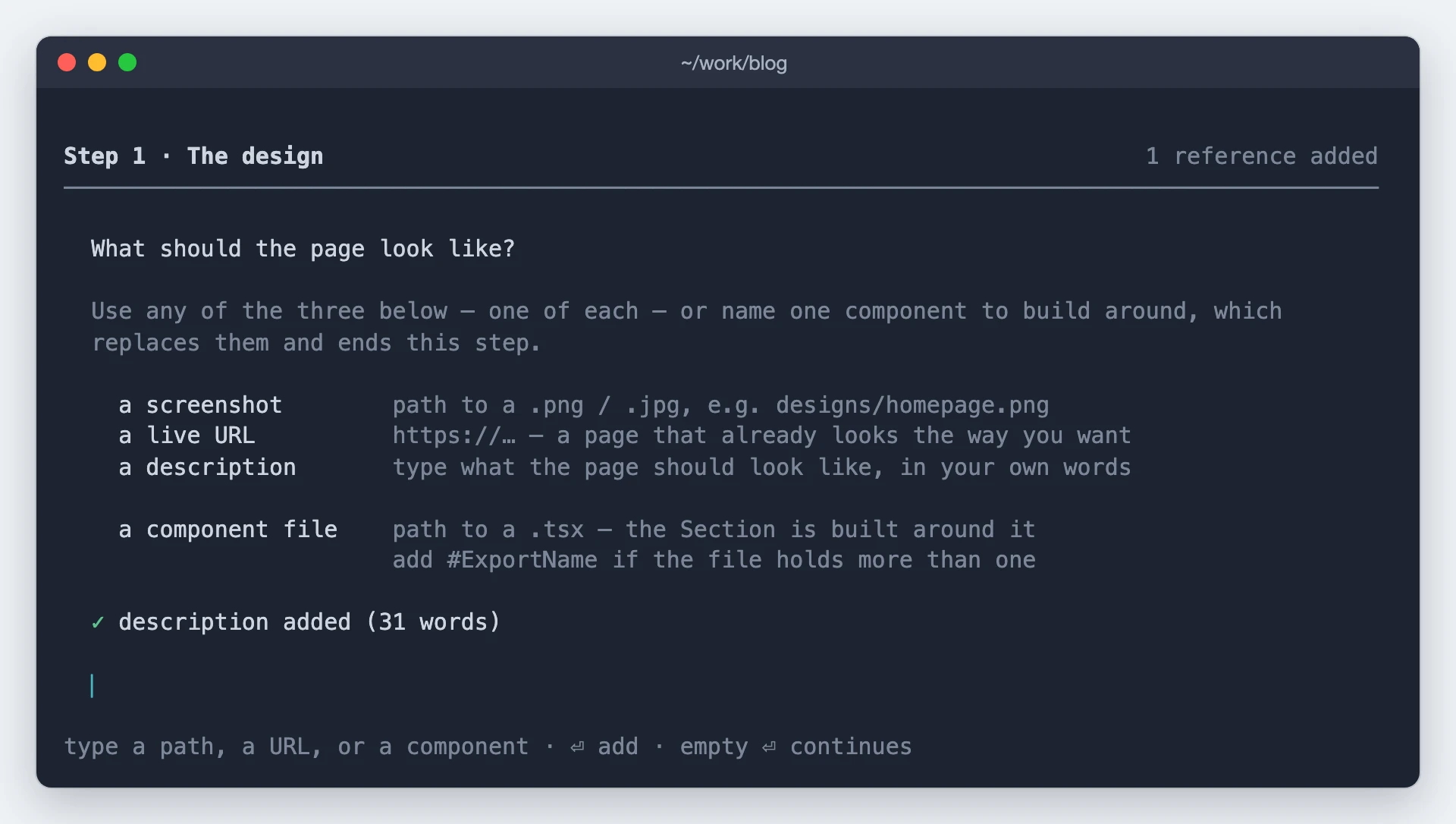
What the page should look like. Two ways to answer, and you pick one or the other.
Give it a design. Up to three references, one of each kind: a screenshot, a live URL, and a description in your own words. They are read together, so a screenshot plus a line of context works better than either alone.
Or name a component file. Type the path and this step ends there. No design is read at all.
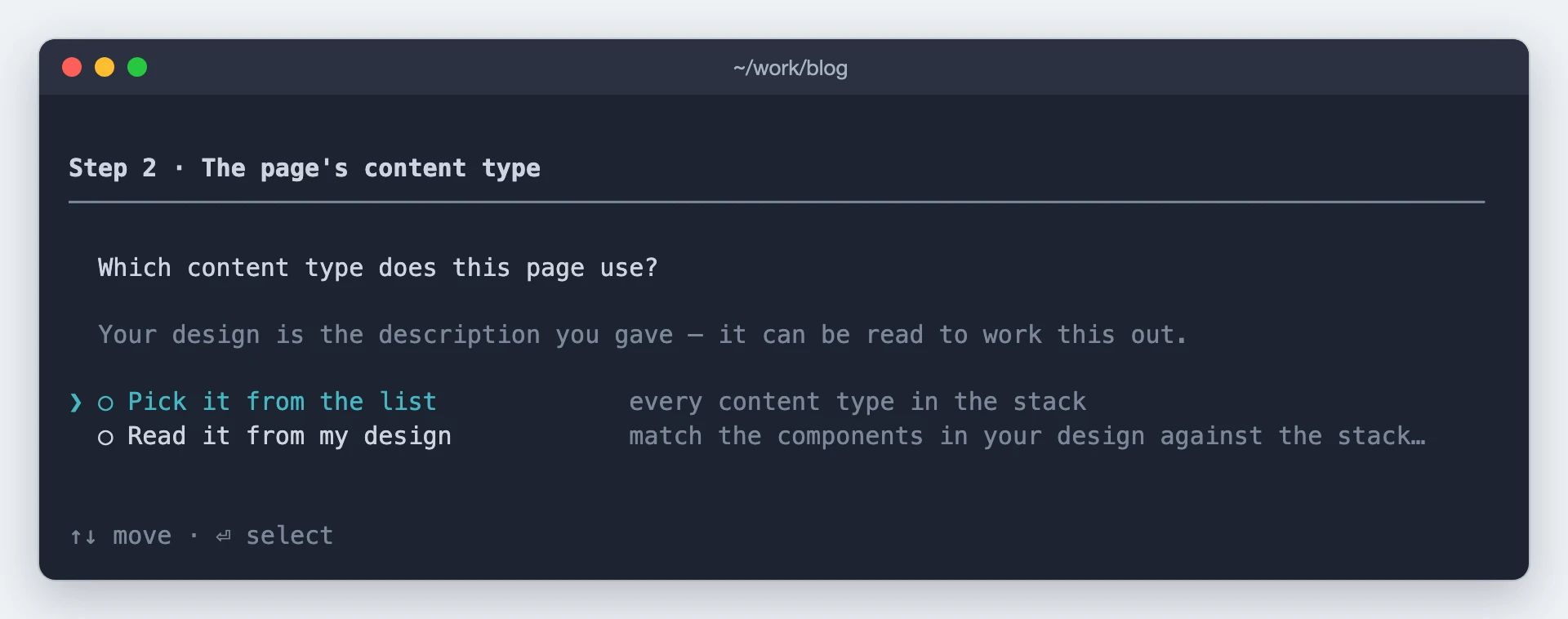
Step 2 · The page's content type
Which content type the page uses. Skipped when you pass --content-type or --route.
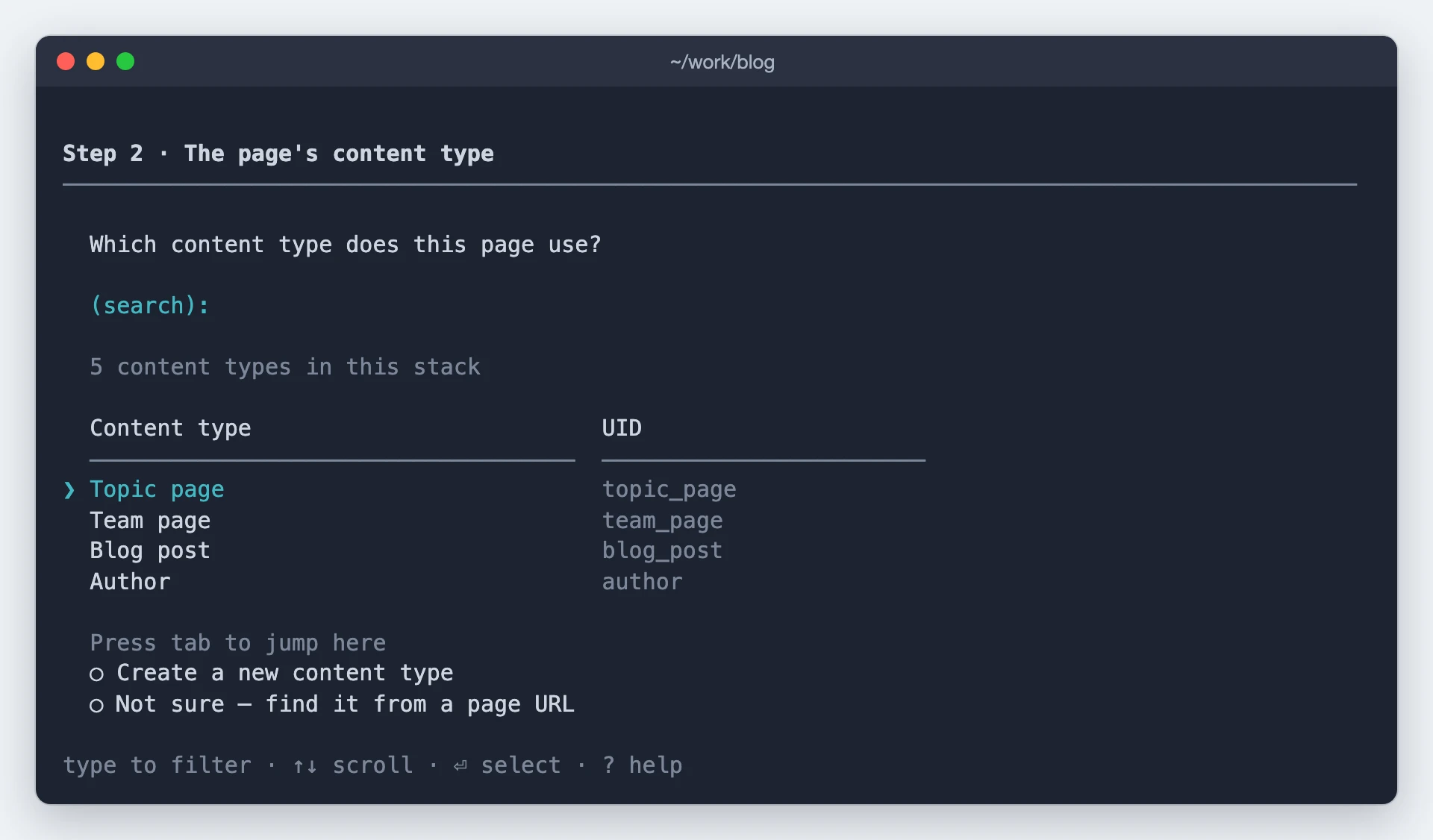
Pick it from the list opens a searchable list of every content type in your stack, where you can also create a new one:
Read it from my design matches your design against the stack and comes back with what it found:
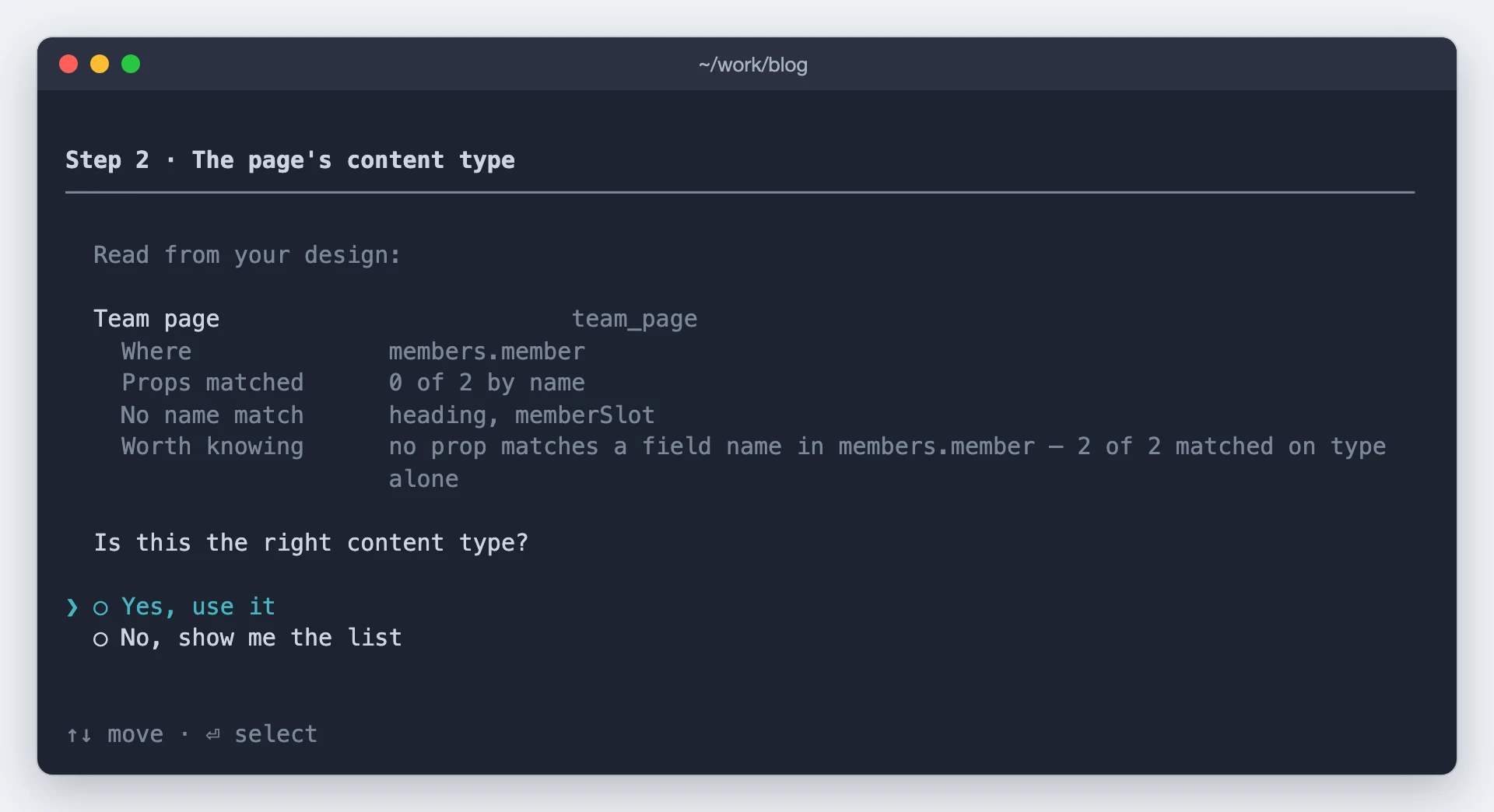
A content type worked out from your design is never used without you saying yes, because every binding in the plan resolves against it. Saying no opens the full list unchanged. If two content types fit equally well, both are shown and you choose.
Step 3 · Page or section
Whether to build the whole page or just part of a page. Always asked unless you pass --scope.
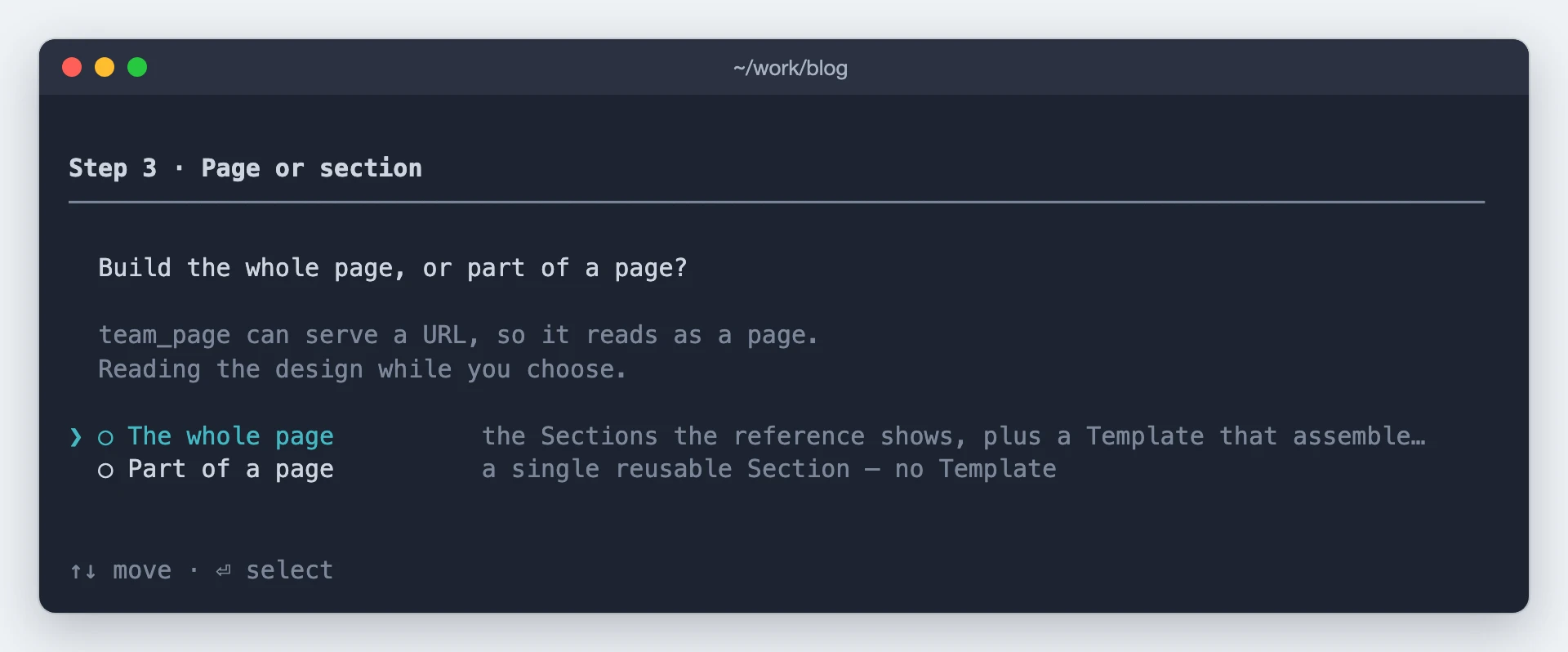
The whole page creates a Section per part of the design, plus a Template that assembles them and binds to a URL. Part of a page creates a single reusable Section and no Template.
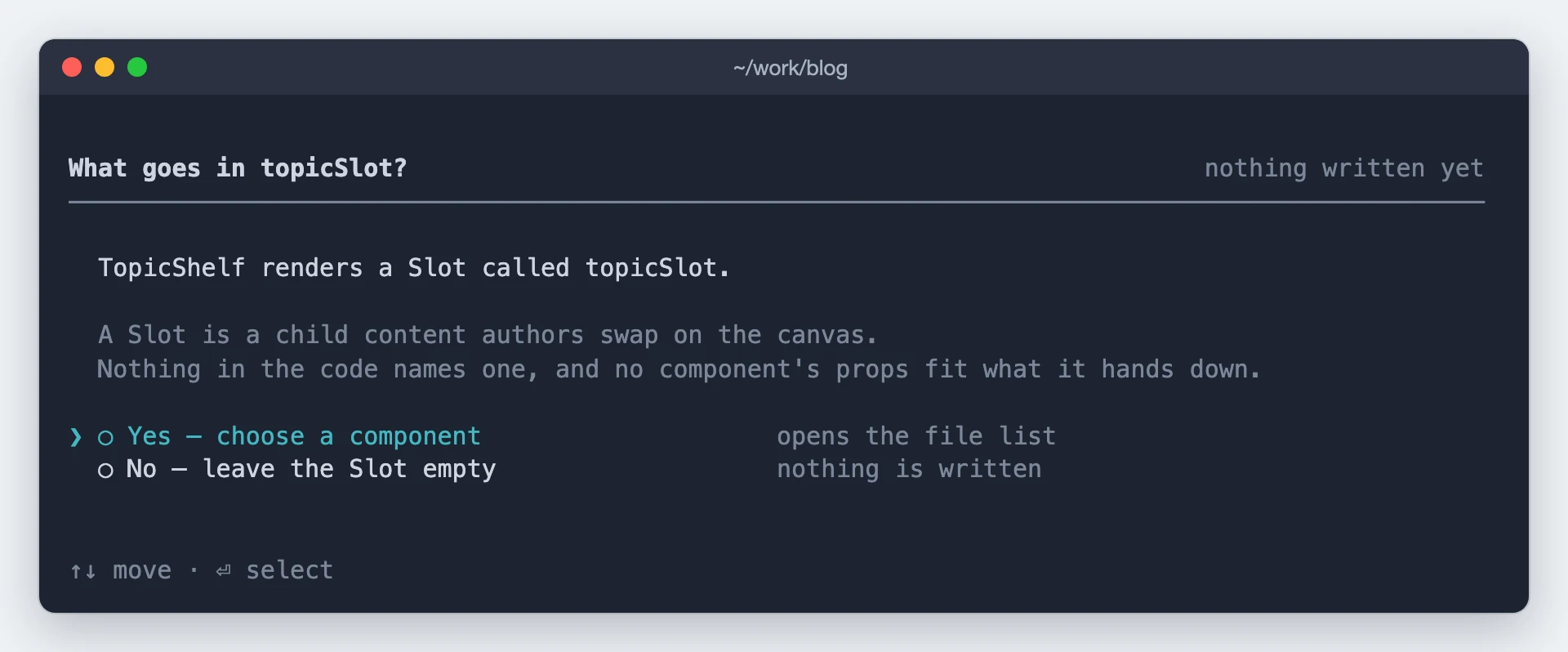
What goes in each Slot?
When the component you pinned has a <Slot> that nothing in its code fills, the CLI asks which inner component to drop into it. A Slot the code already answers, with a studio:slot comment or a component whose props fit what the Slot hands down, is filled without asking and shows on the review. Whatever you pick can be swapped later on the canvas.
Make an inner component composable
When your component passes one of its own props straight down to an inner component, Studio has nothing it can bind: the values arrive as a whole object, so the field names would have to match the child's prop names exactly.
So the CLI offers to replace that child with a <Slot>. Each of its props can then be bound on its own, and the names stop mattering.
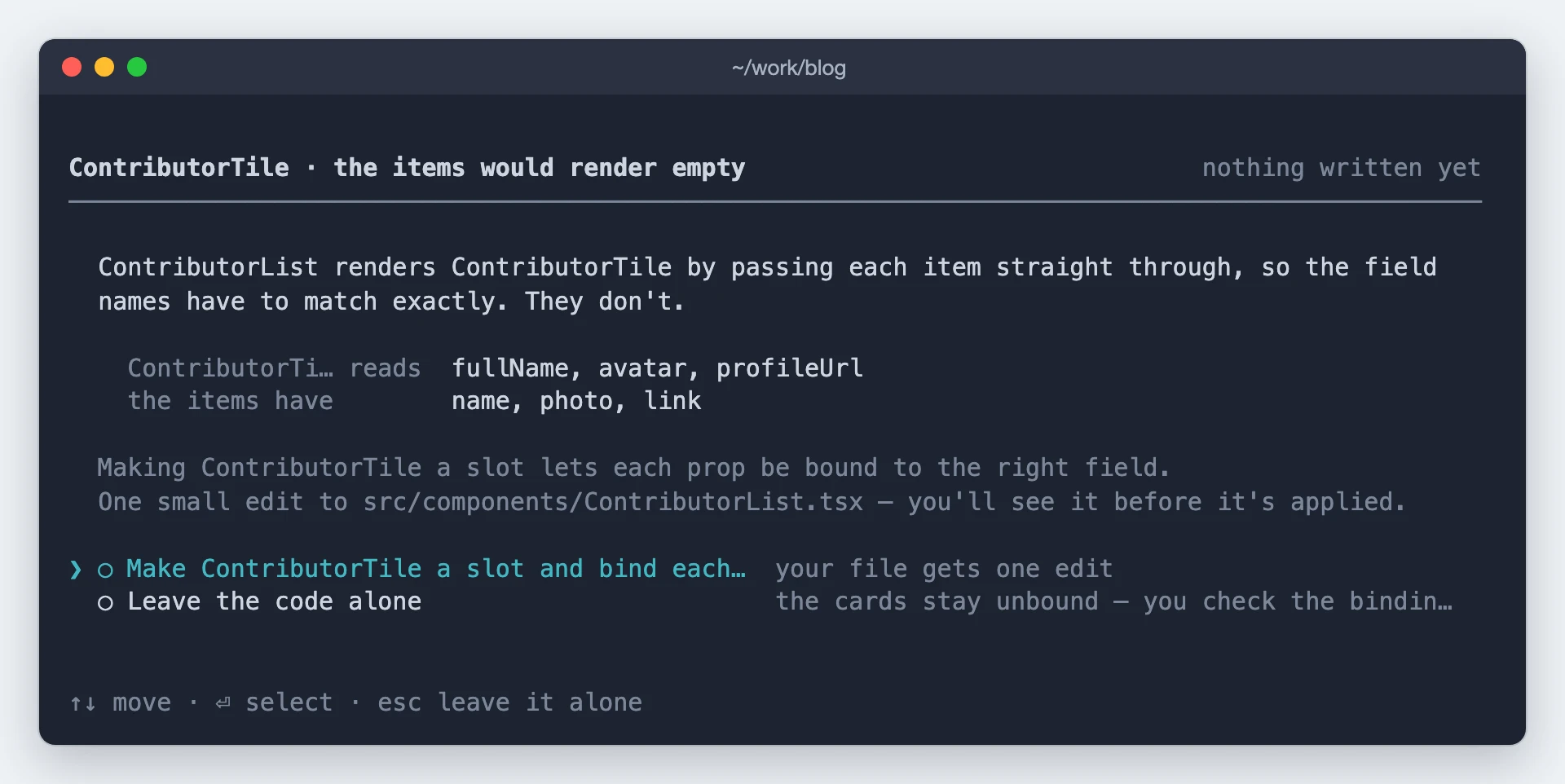
You see the exact edit before it is applied. Saying no leaves your code untouched, and the child's props stay unbound.
Review the plan
The build sheet has been written and the plan is summarised next to the decision. Nothing has reached your stack yet.
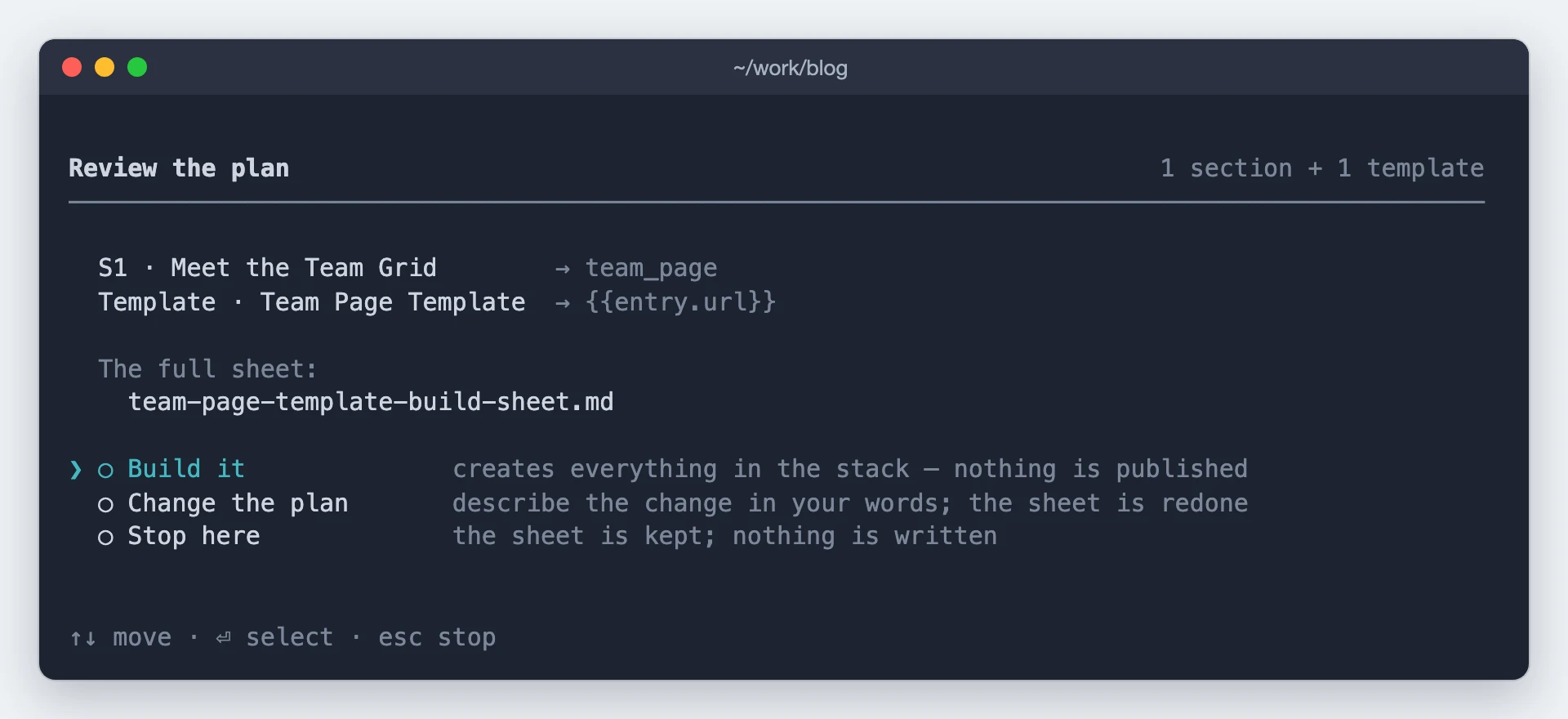
Each Section is listed with the root it binds, and each component the plan registers says whether it already exists in your repo or has to be written. The full sheet is the path to the file, which holds the whole plan, not just this summary.
- Build it creates everything the plan describes.
- Build it without the new fields appears only when the plan proposes adding fields to a content type. It builds everything else and leaves the props that wanted those fields unbound.
- Change the plan takes a description of what you want different, in your own words, and rewrites the sheet.
- Stop here writes nothing. Both files stay on disk, so you can edit the
.jsonby hand and re-run from it later with--from-buildsheet.
What is in the build sheet
The sheet is the plan in full, and it is written before the gate, so it exists even if you stop. It covers the decisions the plan made and why, the design broken into bands, and each Section with its bindings.
Every run writes two files with the same name: the .md shown below, and a .json beside it.
Edit the
.json, not the.md. The.mdis only a readable view; the.jsonis the plan itself and what--from-buildsheetloads, so hand edits belong there. A.mdwith no.jsonbeside it fails. Edit the.mdanyway and the command asks whether to plan afresh from your edits or replay the.jsonand ignore them.
BUILD SHEET · Testimonial Band
Connected → `testimonials` · URL ``

## Decisions made

- One Section covers both Bands: the card row and the CTA share the whole
  'testimonials' content type as root, since the CTA needs top-level fields the
  repeated review list does not carry.
- TestimonialCard and Button both already exist in the repo unregistered —
  registered here rather than rebuilt, per the manifest's match.
- testimonials has no CTA-related field at all, so cta_label/cta_href are
  proposed as an optional ctExtension rather than leaving Button on static
  defaults.

## S1 · Testimonial Band
**Connect:** content type `testimonials` (whole CT)

    drop Repeater · bind Items ← reviews
      drop Condition · content type is review
        Drop TestimonialCard
    Drop Button

**Bind — TestimonialCard**

| Prop            | ← Field                                    |
|-----------------|--------------------------------------------|
| quote           | `review` *(root: Repeater Data)*           |
| attributionName | `reviewer_name` *(root: Repeater Data)*    |

**Assumed** *(inferred, not read from page code)*

| Prop            | Why                                                        |
|-----------------|------------------------------------------------------------|
| attributionRole | matched on type only — nothing in the names connects these  |

## Proposed schema — 2 fields added to `testimonials`

Optional fields, written only after you choose "Build it". Nothing else on this
sheet changes your content model.

| Field     | UID         | Type | Asked for by |
|-----------|-------------|------|--------------|
| CTA Label | `cta_label` | text | Button.label |
| CTA Link  | `cta_href`  | text | Button.href  |

Unmapped fields: `seo_title` (SEO metadata, not rendered by the band) · `slug` (handled by route code)
Two parts are worth reading before you approve. Both appear only when there is something to report:
- Assumed lists props whose bindings the plan inferred rather than read from your code.
- Unmapped fields lists fields inside a Section's root that the design does not use. Fields the design never shows are out of scope and go unlisted.
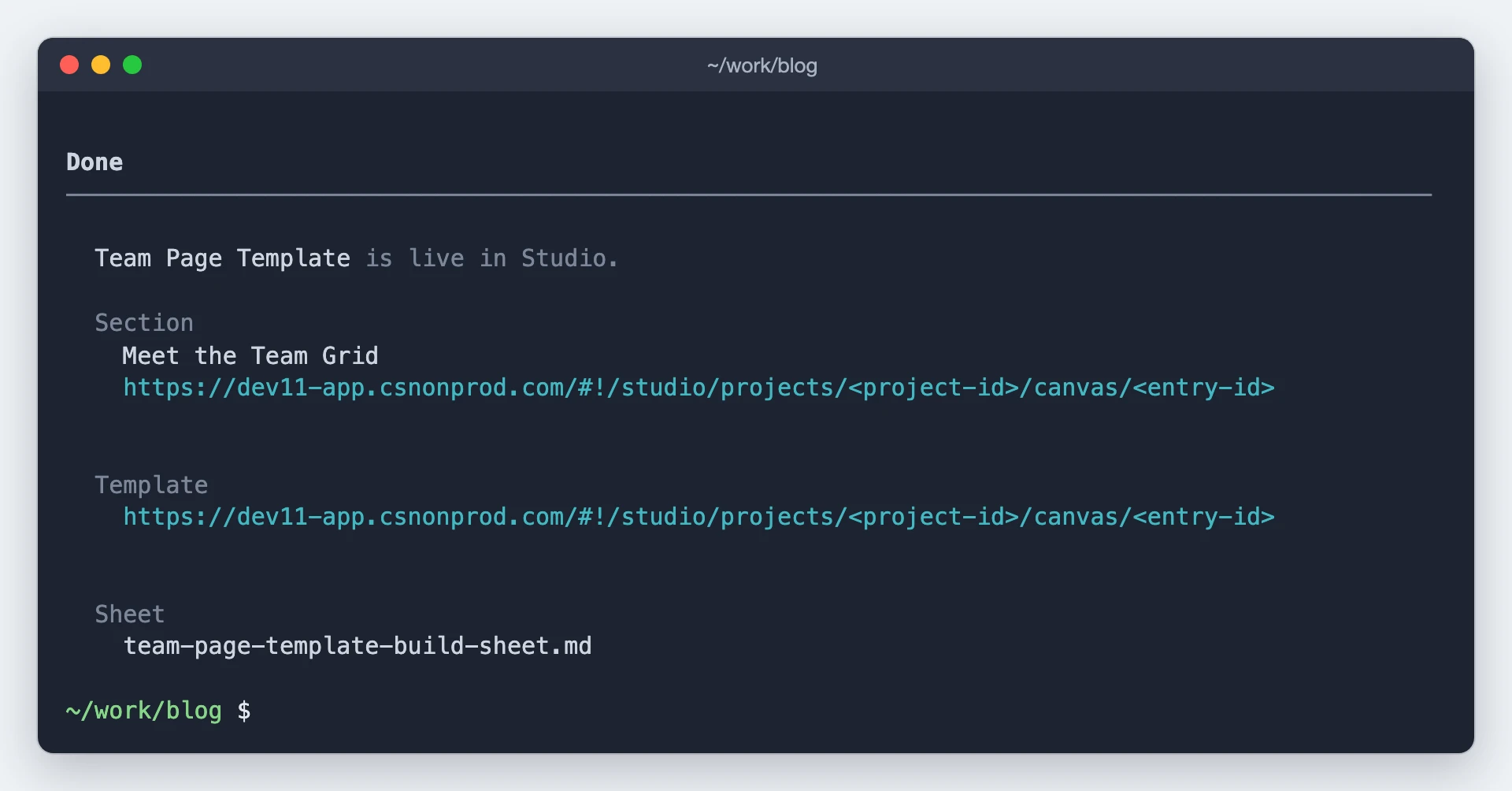
Done
Once everything is created, this screen shows the composition link for each Section, the Template link, and the path to the build sheet.
A full run
The Team page content type, and a description of the page you want. Each screen collapses to a single line once you answer it, so this is the scrollback when the run finishes:
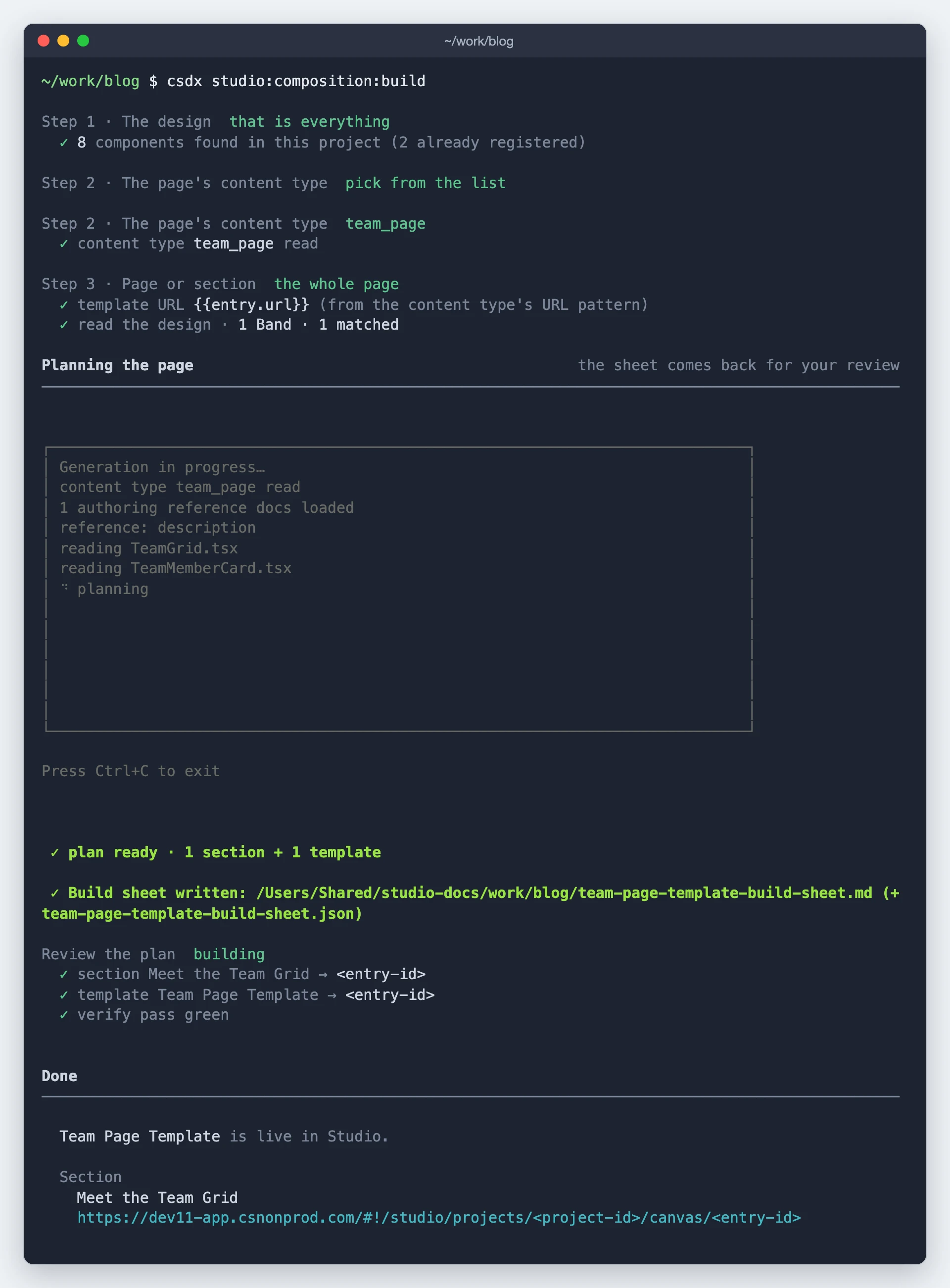
The Slot and composable screens never appeared, because both need a component file to read and this run built from a description. The content type already existed and the plan added no fields to it, so nothing changed there.
Planning is the slow part, and it scales with how much of the design it has to read. A whole page from a large screenshot takes minutes.
Reached from component:add
studio:component:add finishes by handing off to this command. After it writes a component from a Figma design, it runs:
csdx studio:composition:build --component <the file it wrote> --scope section
So the Figma path ends in the same review gate, building one Section around the component that was just generated. You can run that same command yourself at any time.
What it changes
| Where | What |
|---|---|
| Your repo | The build sheet, at docs/<slug>-build-sheet.md by default, plus a .json of the same name beside it. Written before the review gate, and kept even if you stop there |
| Your project source | Code for components the plan genuinely needs and your repo does not have, plus their entries in your register file. Components you already have are reused, never rewritten. Where that register file is chosen is on Push your code into Studio |
| Your stack | The content type, if the plan proposed one. A composition entry per Section, and one for the Template on a page-scope run |
Nothing is published. Everything lands as a draft you can open on the canvas.
Exit codes
| Code | Meaning |
|---|---|
0 | Built, or you stopped at the review |
2 | A reference, component, or sheet path could not be read |
3 | Credentials rejected |
4 | No active project, or the content type was not found |
5 | Preflight or a create step failed |
6 | Planning failed, timed out, or gave up |
If it doesn't work
| Symptom | Cause | Fix |
|---|---|---|
| The plan invented a component you already have | It should not: such a plan is rejected automatically | If one slips through, choose Change the plan and name the component you want used |
Planning timed out, exit 6 | The job was too large to plan in one pass | Re-run, or make it smaller. --scope section plans one Section at a time, and a tighter reference is quicker than a large screenshot of a long page |
| You want to tweak the plan, not redo it | Choose Stop here, edit the .json, then re-run with --from-buildsheet | |
No active project, exit 4 | No project linked on this machine | Run csdx studio:project:set. See Set up the CLI |
| The sheet no longer matches your stack or repo | It was written before something changed | The command lists what drifted and asks whether to build anyway or stop |
Do it with a skill
decompose-design walks the same ground in conversation: hand it a design and it plans the build with you.
See also
- Choose your starting point: this command against
section:create. - Generate a section from a component: the same job for one component you already have, with no design and no plan.
- CLI commands: every
studio:*command, its flags and its output. - Sections and Templates: what this command produces.