Your content model in Studio
Studio uses the stack you already have. It reads your content types and entries where they are, and doesn't copy them. Below is where each part of your stack appears in Studio, and what Studio adds. Read it before you model new content for Studio, or before you connect Studio to a stack that other teams use.
The example is the stack of the team blog. It has a Blog post content type with these fields: title, slug, cover image, body, author and related posts. The author field points to an Author content type. One of its entries is "AI 101", published in English to a production environment.
How your stack maps to Studio
| In your stack | In Studio |
|---|---|
| A content type, such as Blog post | A connected template. Each template is connected to one content type, which Studio shows as its Connected Content Type. |
| An entry, such as AI 101 | One page that the template renders, at its own URL, such as /blog/ai-101. |
| A group, global field, modular blocks, reference, file or link field | A shape you can link a section to. The section then works anywhere that shape appears. You can also link a section to a whole content type. |
| A field, such as title | A value you can bind a component's prop to. |
| An environment, such as production | A project setting. The canvas loads your site from this environment's URL, and Deploy publishes to the environments you choose. |
| A language, such as English | A project setting that picks which of your environment's site URLs the canvas loads. It doesn't change the language your content loads in, which your site decides. Templates and sections are always saved in your stack's master language. |
| A Personalize variant | A variant alias that your site sends when it fetches a layout. You can't pick a variant inside Studio. |
What Studio adds to your stack
When you create a Studio project, Studio adds one content type to your stack, in the main branch. This content type holds the project's templates and sections. Each template or section you build is one entry in it.
The content type is called Compositions, with the UID compositions. You can choose a different name and UID under Advanced Settings when you create the project.
Studio also adds images to your stack's assets. It saves a preview picture of each section, and any image someone uploads in Studio.
That's all Studio adds. It doesn't create or change your other content types, global fields, environments, tokens, webhooks or apps.
Two things to know about the Compositions content type:
- Studio keeps it up to date. Each time a project opens, Studio adds any fields it needs. Don't edit its fields yourself.
- It's deleted with the project. If you delete a Studio project, Studio deletes its content type too, and every template and section in it.
Model shared content once
When you drop a section onto a template, Studio tries to bind it for you. This works when the section is linked to the template's content type and the fields match. It also works when the section matches one of the template's reference fields. If neither is true, you choose what the section binds to.
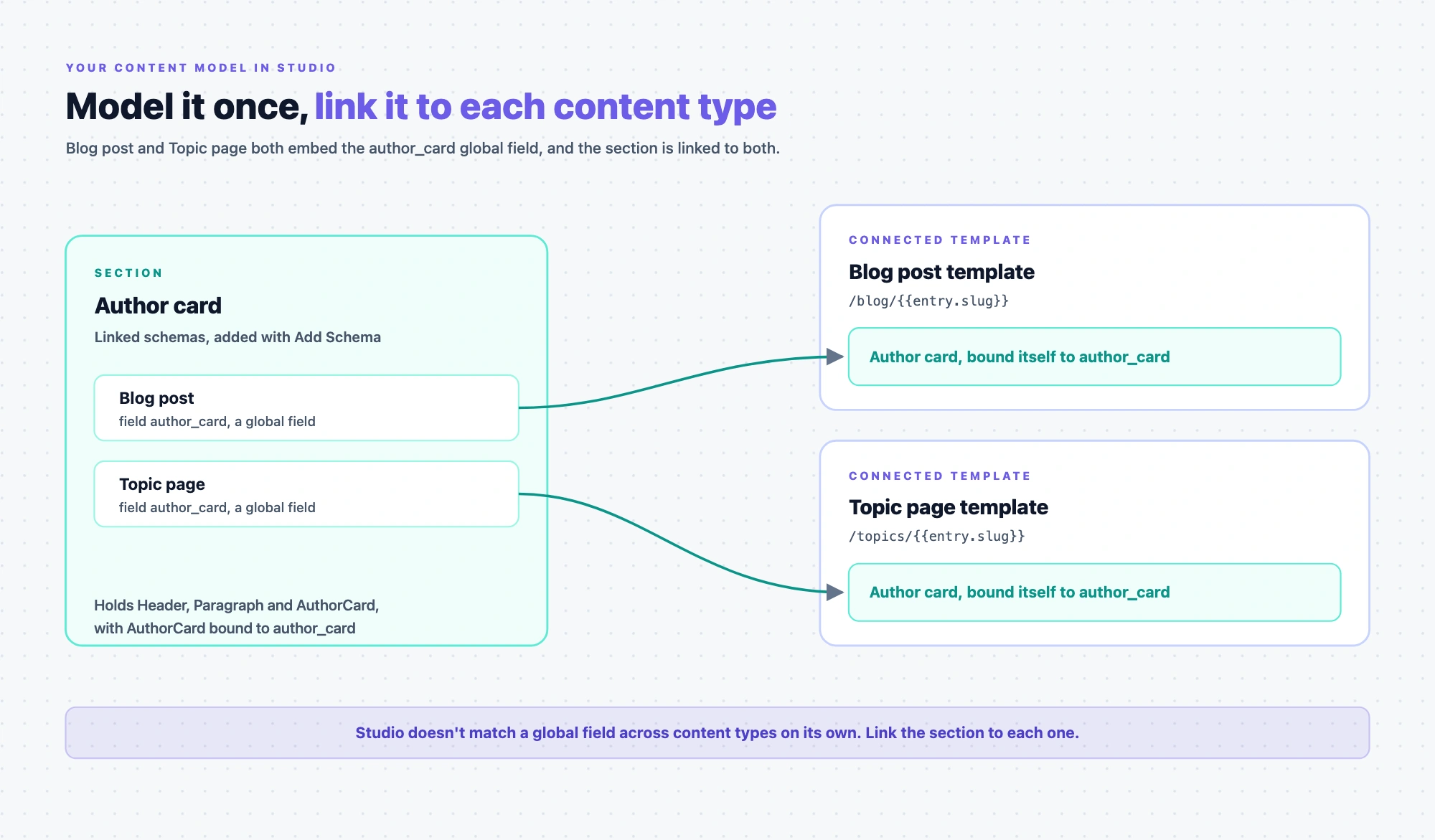
This is a good reason to model shared content once. Say the blog shows the same author card on Blog post and on a Topic page content type. Make the author card a global field, and add it to both content types. Now one Author card section works for both. Link the section to Blog post and to Topic page, and it binds on its own on either template.
Studio won't link the section to other content types for you, even if they use the same global field. Link it to each content type that needs it.
For the full matching rules, see Linked schema matching rules.
Stack settings Studio needs
- A delivery token. Required. Your site uses it to fetch layouts and content. Without it, the canvas shows nothing. See Prerequisites.
- A Base URL. Required to see your own site. This is the URL of your environment for the project's language, and the canvas loads your site from it. Without it, Studio shows its Playground canvas, and you can't deploy. See Configure your project.
- A preview token and the preview host for your region, with Live Preview turned on in your site. Needed to open a template you have not deployed yet, and to show draft content. Without them, the canvas shows only published content from a template you have already deployed. See Install Live Preview.
- A Custom Preview URL. Optional. If your stack has one for a content type, Studio uses it as the starting URL for new templates connected to that content type.
Your site doesn't need a management token for Studio. To connect a project to your stack, see Configure your project.