Choose your starting point
The CLI can build a Studio Section for you in three ways. One starts from a component you have already written in your code. One starts from a design, such as a screenshot or a live URL, and plans the page before it builds anything. One starts from a Figma file, through the Studio plugin.
Find what you already have below, and start there.
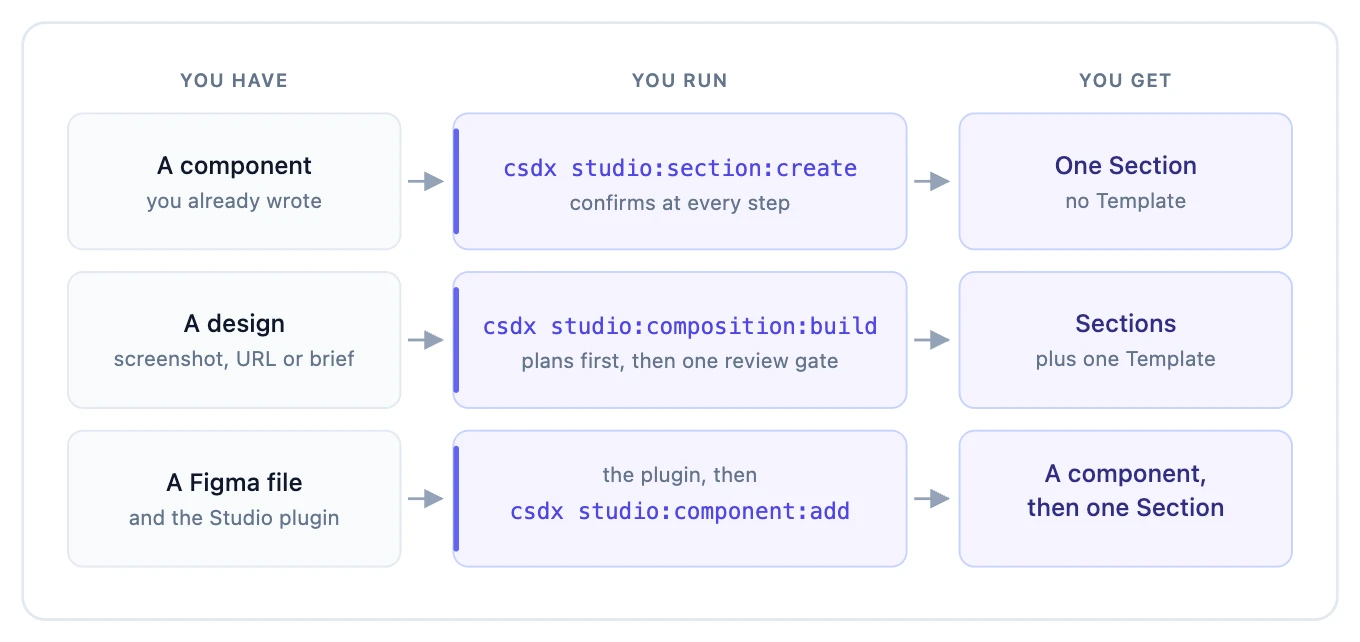
You have a component in your code
Use studio:section:create. It builds one Section out of a component you wrote yourself.
It reads the props straight from your source, matches them to the fields on a content type you choose, and asks you to confirm at each step. Nothing is written until you say so. Your component does not need to be registered first, because the command registers it as part of the run.
csdx studio:section:create --component=src/components/Hero.tsx
You end up with one Section, bound to your content type and ready to open on the canvas.
Full flow, screen by screen: Generate a section from a component.
You have a design
Use studio:composition:build. The design can be a screenshot, a live URL, a description you type in quotes, or a written brief in a .md or .txt file.
This one plans before it builds. It scans your whole repo, works out which of your existing components can build the design, and writes the plan to a build sheet: a Markdown file you can read and edit. Only after you approve it at the review gate does anything get created.
csdx studio:composition:build --reference=designs/homepage.png
The command asks what to build: the whole page — a Section per part of the design, plus a Template that assembles them — or a single Section, with no Template. Pass --scope page or --scope section to answer up front and skip the question.
It also accepts a component you already have, with --component, which pins the build to that file instead of reading a design.
Full flow, screen by screen: Generate from a design.
You have a Figma file
Start in the Studio Figma plugin. Generate the component there, and its export screen gives you a ready-to-run studio:component:add command.
csdx studio:component:add --component-id=<id>
That writes the component into your repo as real code, then carries straight on into building one Section around it. You do not run a second command: this path joins the design path above and ends at the same review gate.
At a glance
| You have | Use | Page |
|---|---|---|
| A component already written in your code | studio:section:create for one Section, or studio:composition:build --component for a whole page built around it | Generate a section from a component |
A design: a screenshot, a live URL, a description in quotes, or a .md / .txt brief | studio:composition:build | Generate from a design |
| A Figma file and the Studio plugin | The plugin, then studio:component:add | You have a Figma file |
What each one produces
section:create | composition:build | component:add | |
|---|---|---|---|
| Starts from | A component file you wrote | A design reference, or a component you pin with --component | A component you generated in the Figma plugin |
| How props are matched | Read from your source and matched to the content type's fields in code | Planned against your repo, which is scanned first | Read from the component it just wrote |
| Produces | One Section | A whole page: several Sections plus one Template. Choosing section scope builds one Section and no Template | The component file in your repo, then one Section around it. Never a Template |
| Before it writes | Confirms each step | Writes a build sheet you can read and edit, then one review gate | Writes and registers the component first, then the Section goes through the same build sheet and review gate |
component:add reaches its Section through composition:build. The component is written and registered before the Section is planned, so if you stop at the review gate you keep the component and skip only the Section.
They overlap in one place
studio:composition:build accepts --component, which outranks --reference: the component becomes the plan and nothing is matched against a design. Combined with --scope section, that lands close to what section:create does.
It exists so a page build can be pinned to one component you already have, not as a second way to generate a single Section. If you have the component and you want one Section from it, use section:create.
Neither needs registration first
Both generators register what they build, and both create a register file if your project has none. You do not have to run studio:component:register beforehand, though pushing your existing components in means a plan can reuse them instead of writing new ones.
Nothing is published
Neither command publishes. composition:build stops at a review gate before anything reaches Contentstack, and section:create confirms before every write.