Create a template
Create a template to give a layout its own address on your site. A connected template renders every entry of a content type. A freeform template renders one address.
The example is the blog. You create the connected Blog post template for the Blog post content type, then the freeform About template.
Prerequisites
- A Studio project connected to your stack. See Create a project.
- For a connected template, a content type with at least one entry, such as Blog post with the entry "AI 101". The entry needs a value for every field the template's URL uses, such as
slug. It doesn't have to be published. - For a freeform template, Enable Freeform Feature turned on. See Connected or freeform template?
What this is and what you get
You get an empty template on the Templates tab, with a starting URL. Studio opens it on the canvas so you can start building. Nothing reaches visitors until you deploy it.
Faster ways to do this
- Skills. Ask your agent to create the template, and it uses
build-connected-templateorbuild-freeform-template. See What are skills?
Create a connected template
-
In Compositions, open the Templates tab and click New Template.
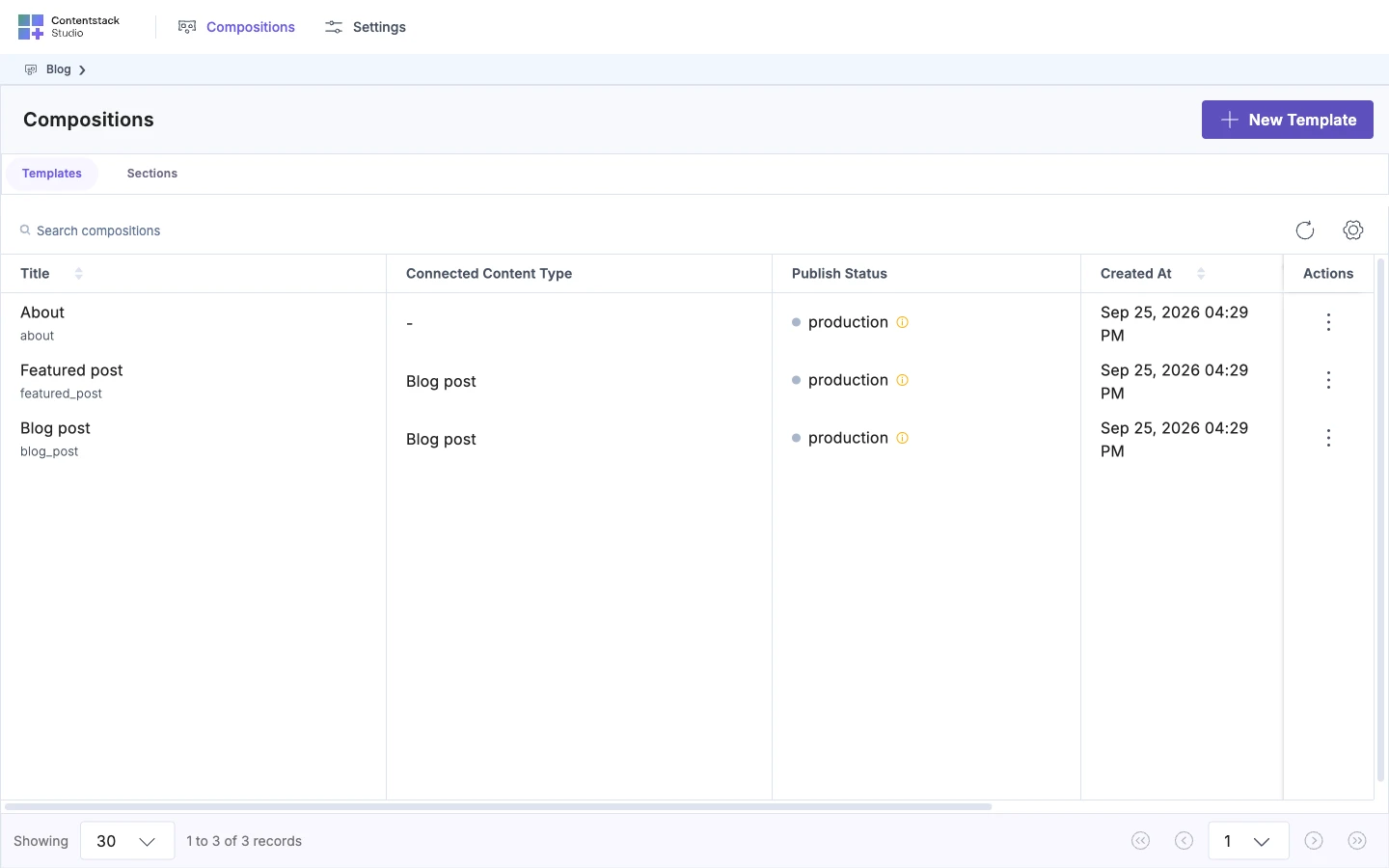
If Enable Freeform Feature is on, the Create New Template dialog asks which kind you want. Click Create Connected Template. If it's off, the next dialog opens straight away.
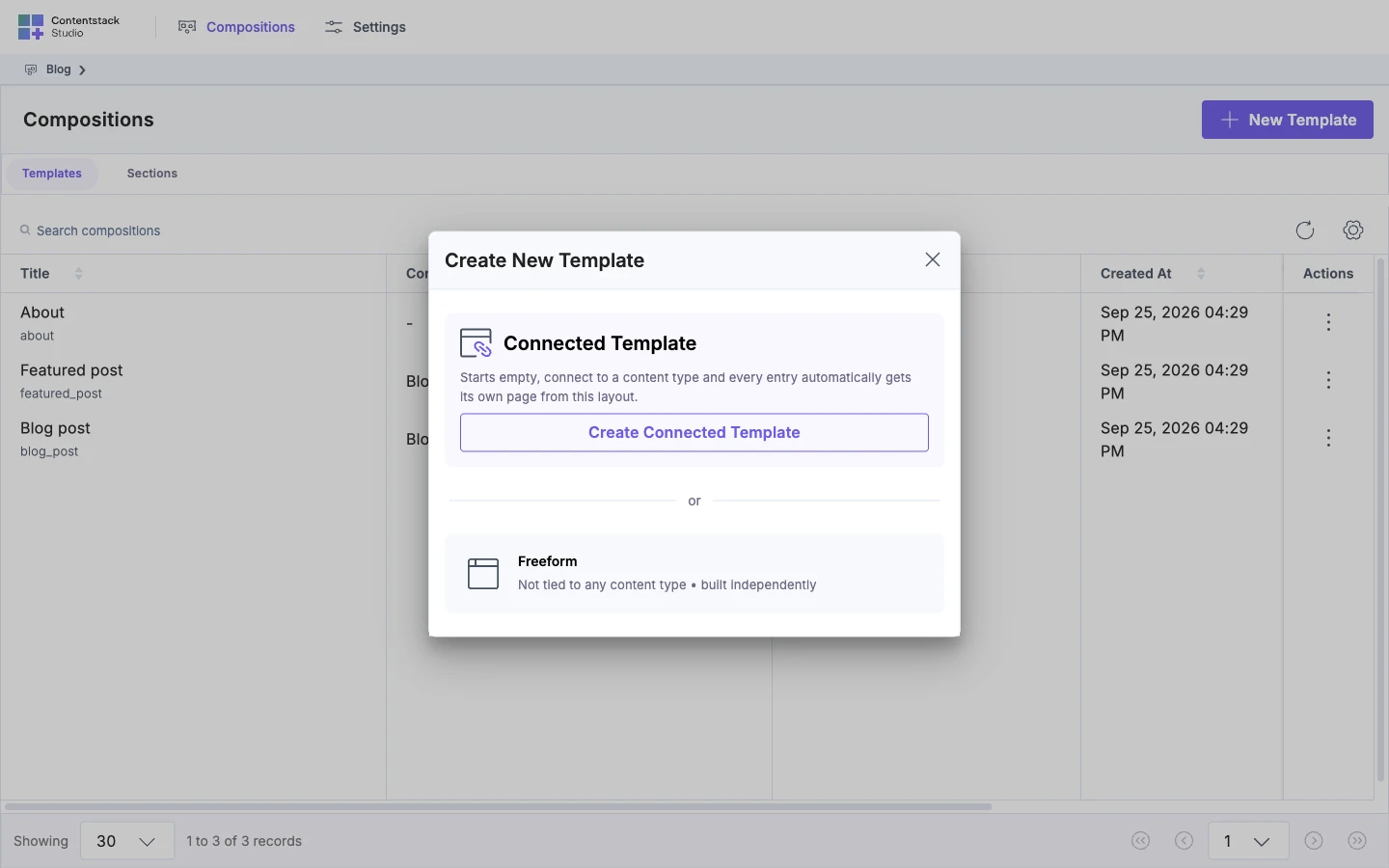
The Create Connected Template dialog opens.
-
Enter a Name, such as
Blog post.Studio fills in Template UID from the name, such as
blog_post. Change it if you want a different one. It's used in the default URL and in code. -
In Connect To Content Type, pick Blog post.
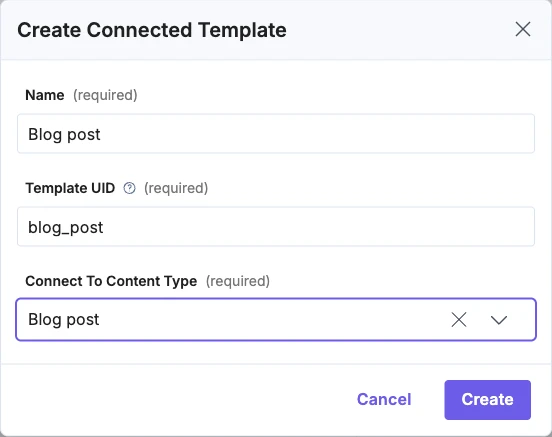
-
Click Create.
Studio shows "Composition created successfully" and opens the template on the canvas. The top bar shows the content type, Blog post, and the entry the canvas is showing, such as AI 101, with its URL,
/blog/ai-101.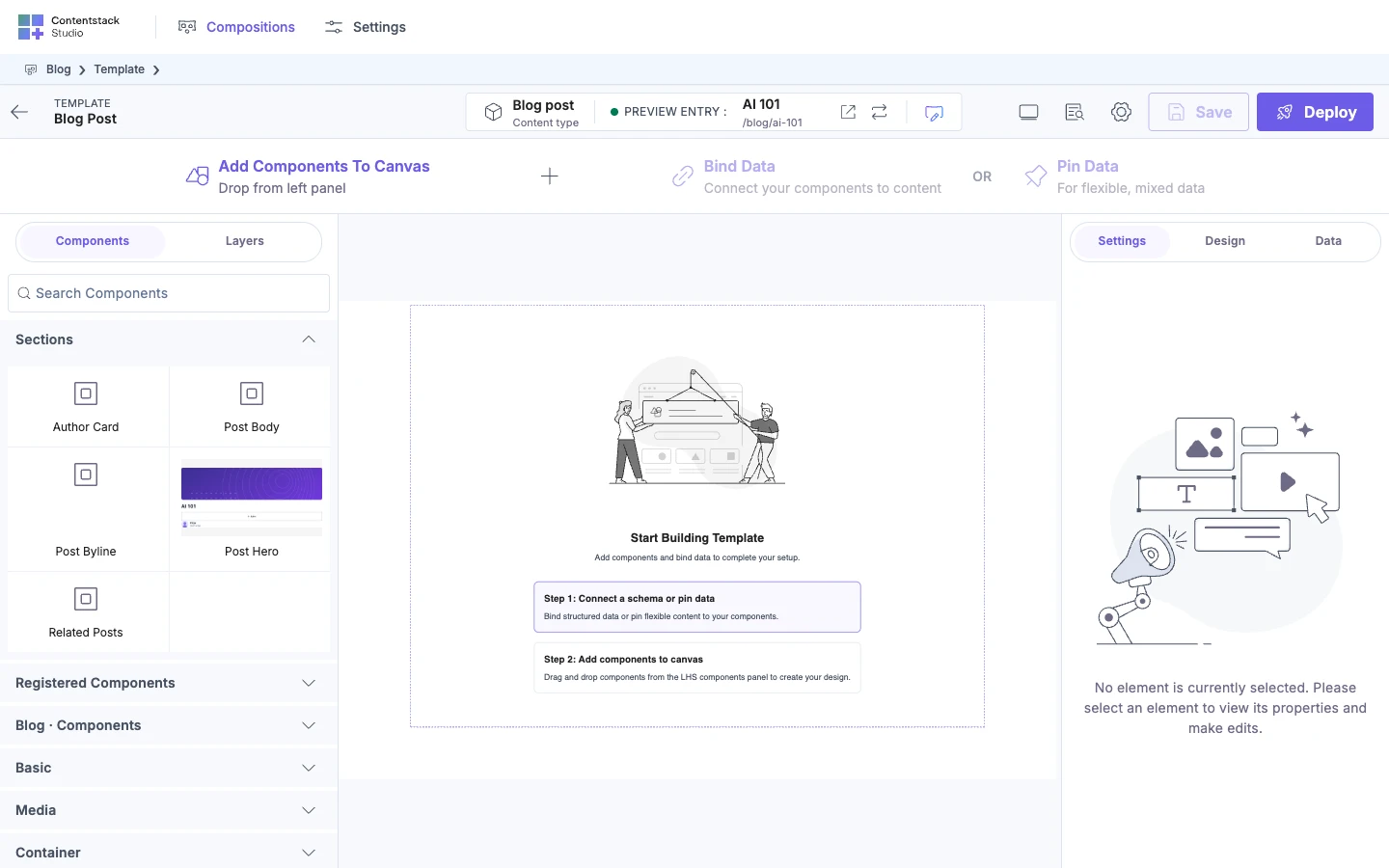
Studio picked that entry for you. It's the most recently updated entry that has a value for every URL variable. To show another entry while you build, see Preview with a different entry.
Studio set the starting URL from the first of these it found: your stack's Custom Preview URL for the content type, the content type's own URL pattern, or a default. The /blog/ai-101 address above comes from a Custom Preview URL of /blog/{{entry.slug}}. To see which one it used, read How template URLs work. To change it, see Edit or reset a template's URL.
Create a freeform template
-
Click New Template, then click the Freeform card.
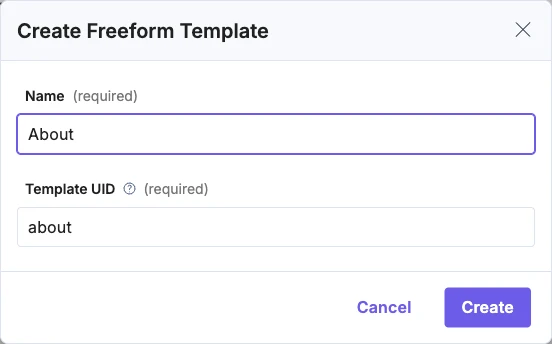
The Create Freeform Template dialog opens. It has no content type field.
-
Enter a Name, such as
About, and check the Template UID, such asabout. -
Click Create.
The template opens on the canvas. The top bar shows FREEFORM MODE and the template's name.
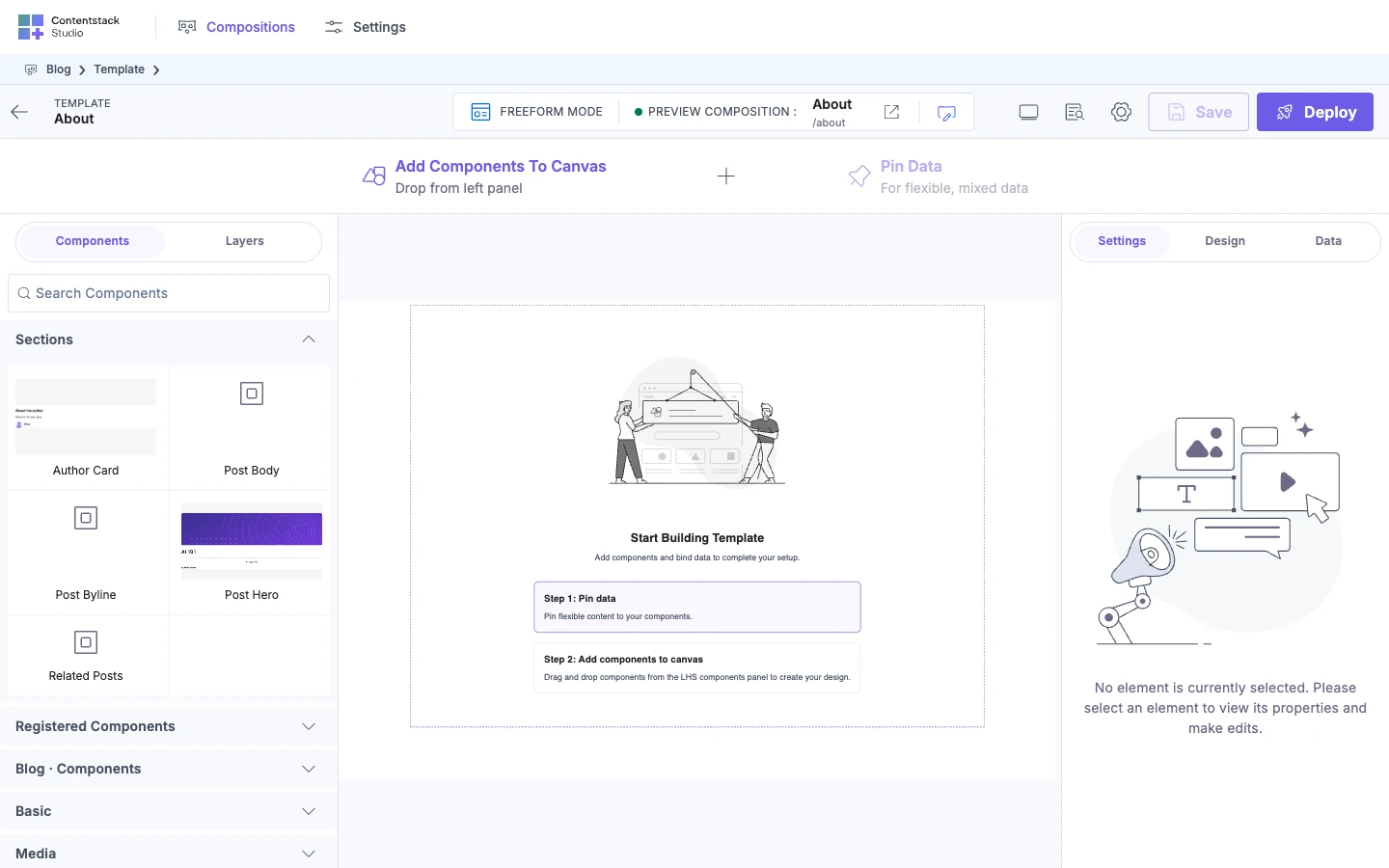
A freeform template starts with a URL made of your project's composition content type UID and its Template UID, such as /compositions/about for a project whose composition content type is compositions. To give it a real address, such as /about, use Edit URL. See Edit or reset a template's URL.
If it doesn't work
-
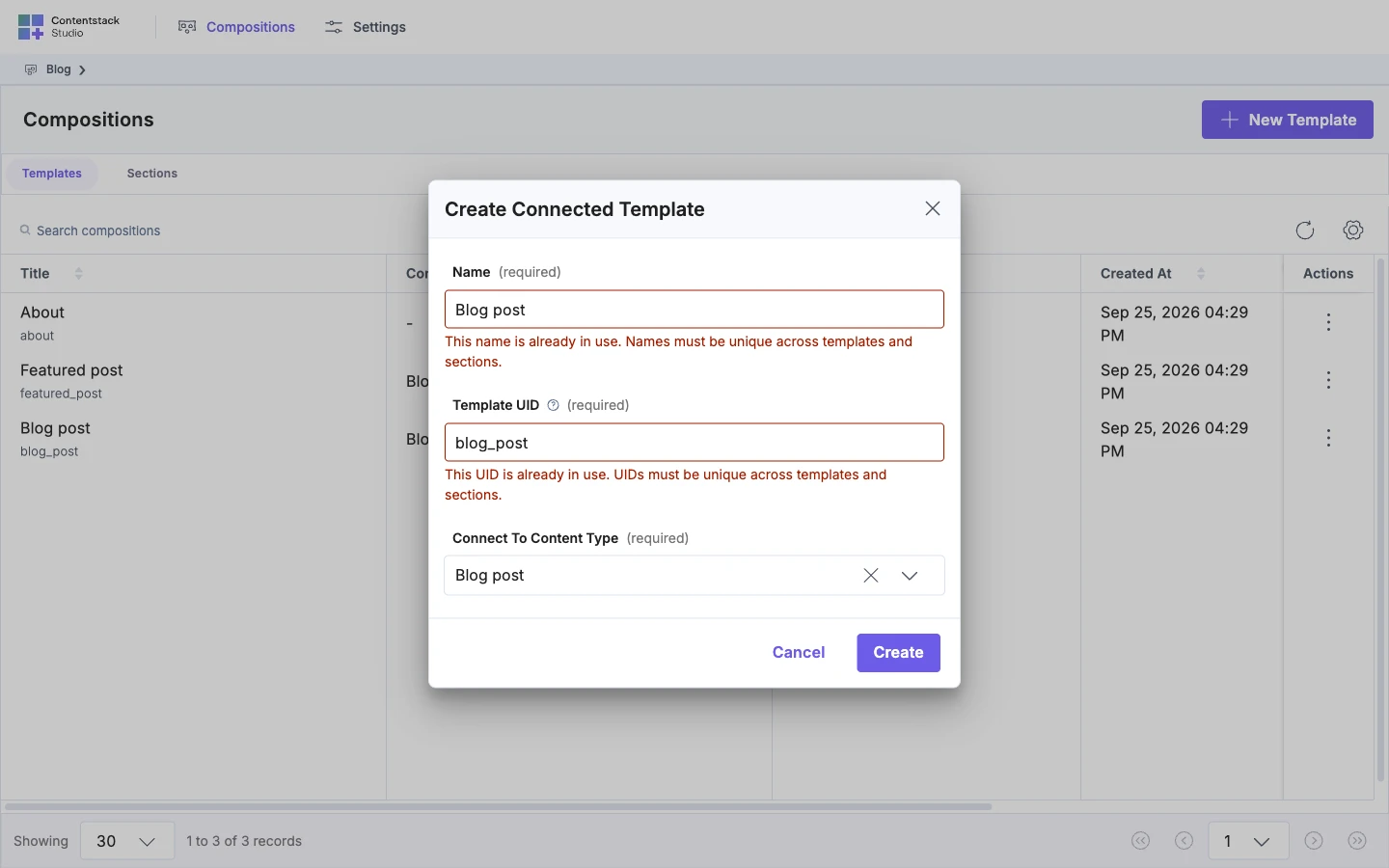
"This name is already in use. Names must be unique across templates and sections." Another template or section has that name. Pick another.
-
"This UID is already in use. UIDs must be unique across templates and sections." Another template or section has that UID. Pick another.
-
"Composition creation failed!" Studio couldn't create it. The message lists each error the server returned.
-
There's no Freeform card. Enable Freeform Feature is off. See Connected or freeform template?
-
Your content type isn't in the list. The list leaves out content types that Studio created, including every project's composition content type, and only lists content types on the
mainbranch. -
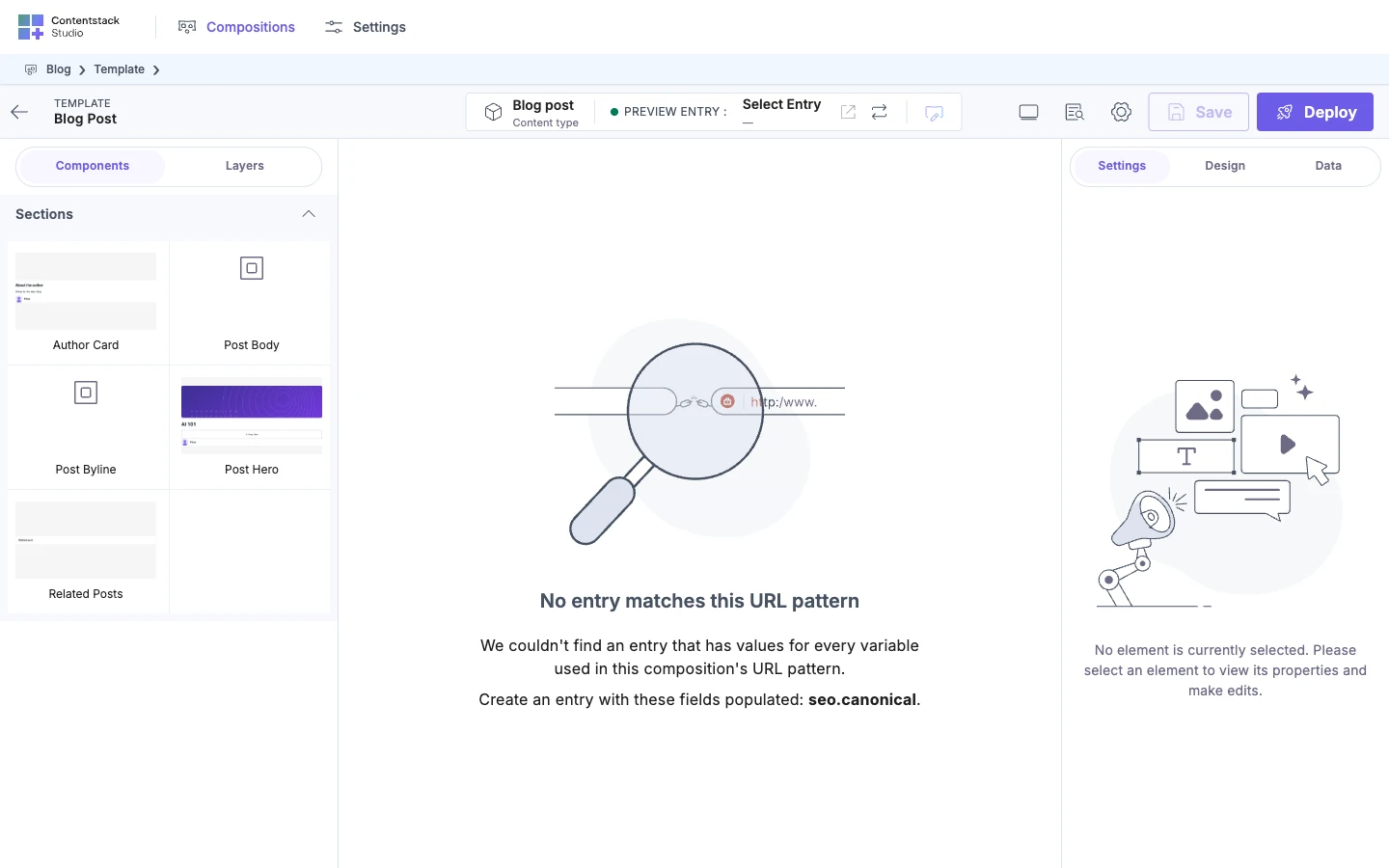
The canvas says "No entry matches this URL pattern". No entry of the content type has a value for every field in the URL. Fill in those fields on an entry, or change the URL.
-
The canvas says "No entry has a URL field populated yet". The URL comes from the content type's URL field, and no entry has one set. Set it on an entry, then reload.
-
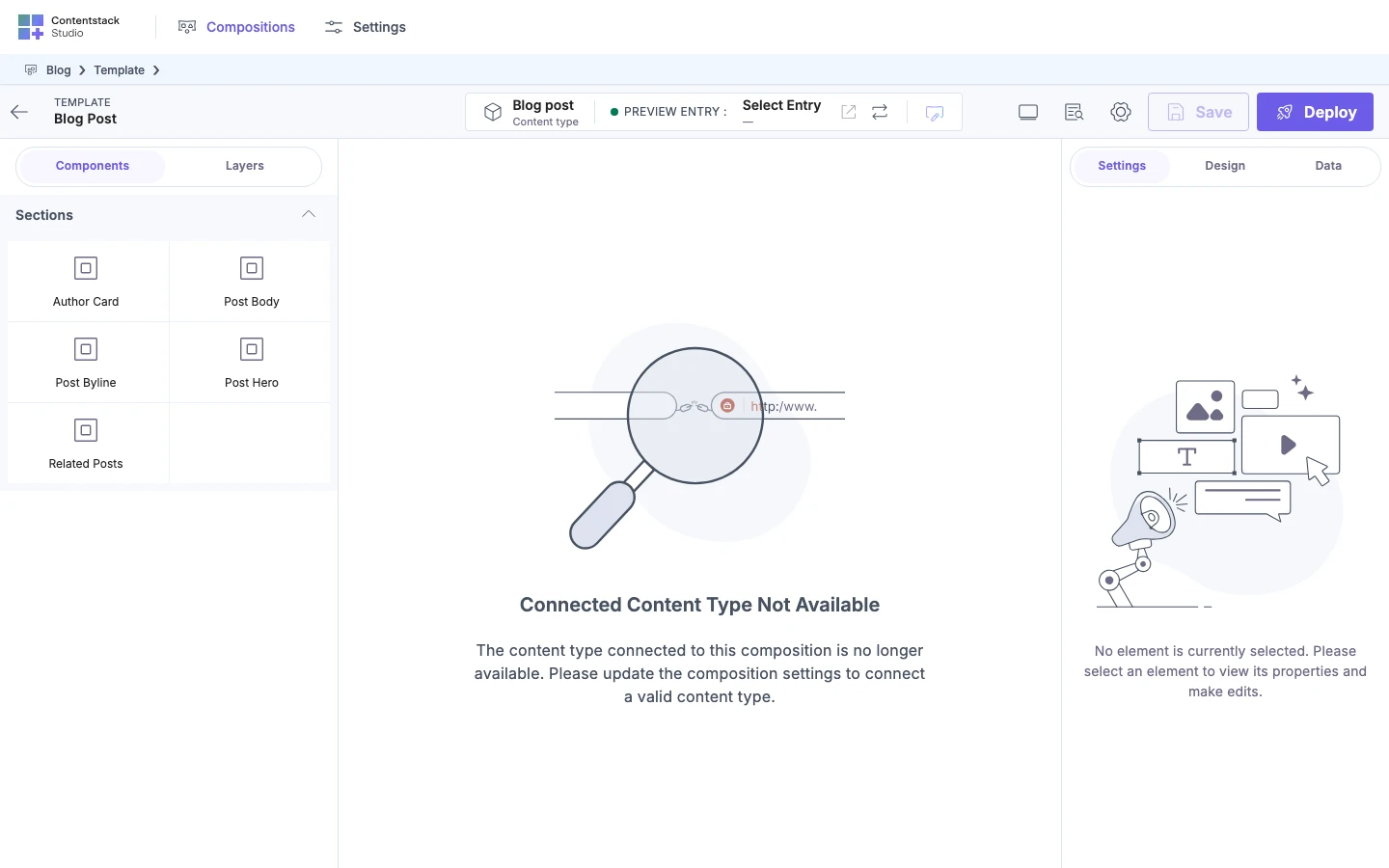
The canvas says "Connected Content Type Not Available". Studio couldn't load an entry of the content type. The content type may have been deleted, or the request failed. Reload the canvas. If the content type was deleted, create the template again, because you can't change a template's content type.
-
The canvas says "We couldn't load your website". Your site's page didn't finish loading within 30 seconds. A slow page or a server that never answers causes it, such as a dev server still compiling. Check that
/blog/ai-101opens in a browser, then click Retry. Check Settings opens the project's Configuration settings, where you can check the environment and language.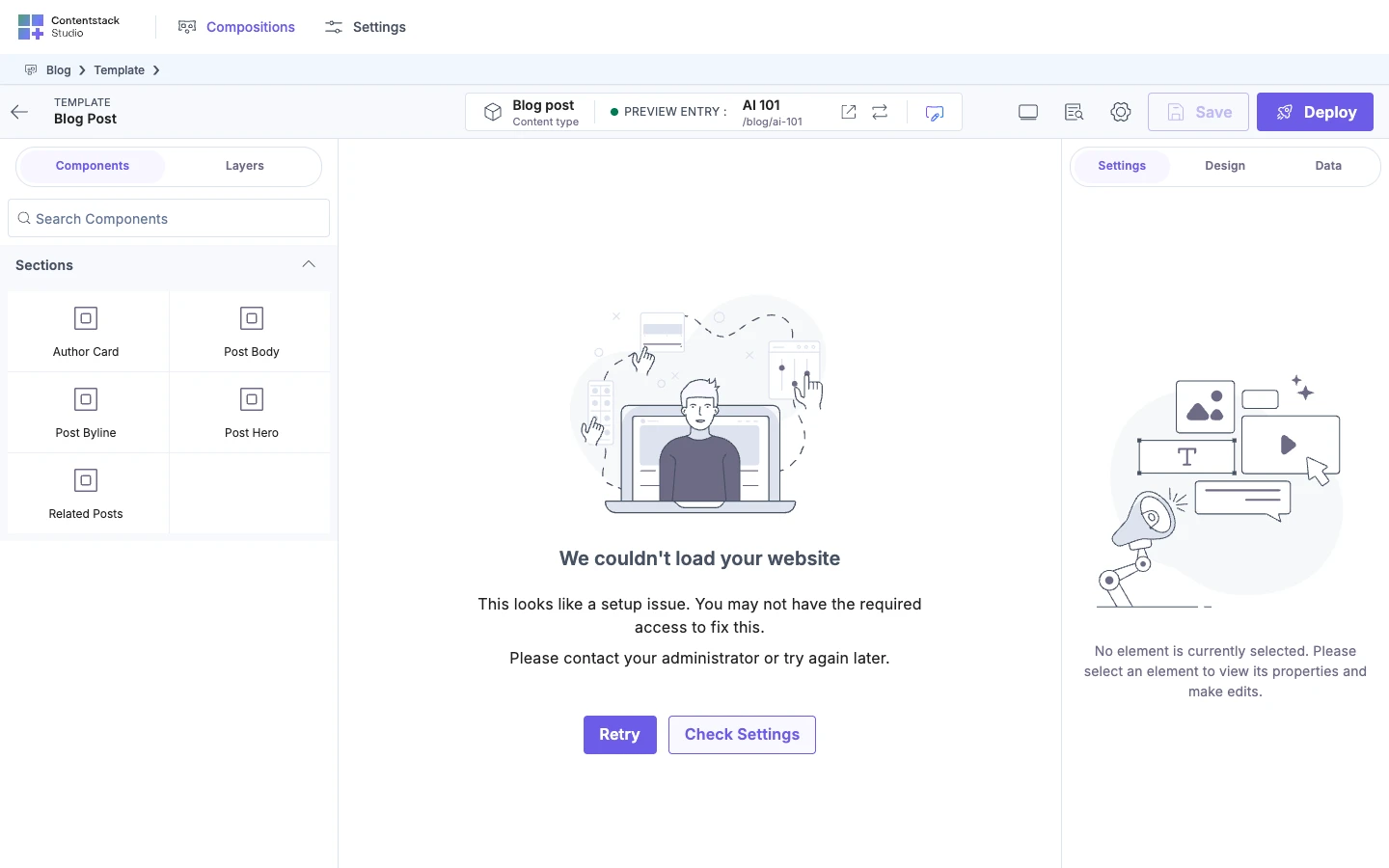
The canvas shows a card about your site
These cards come from your site, not from the template. Most mean your app's code or its Studio setup needs a change. Some don't: a missing entry, or a failure on Contentstack's side that passes if you try again. Each card below says which, and its details have what a developer needs.
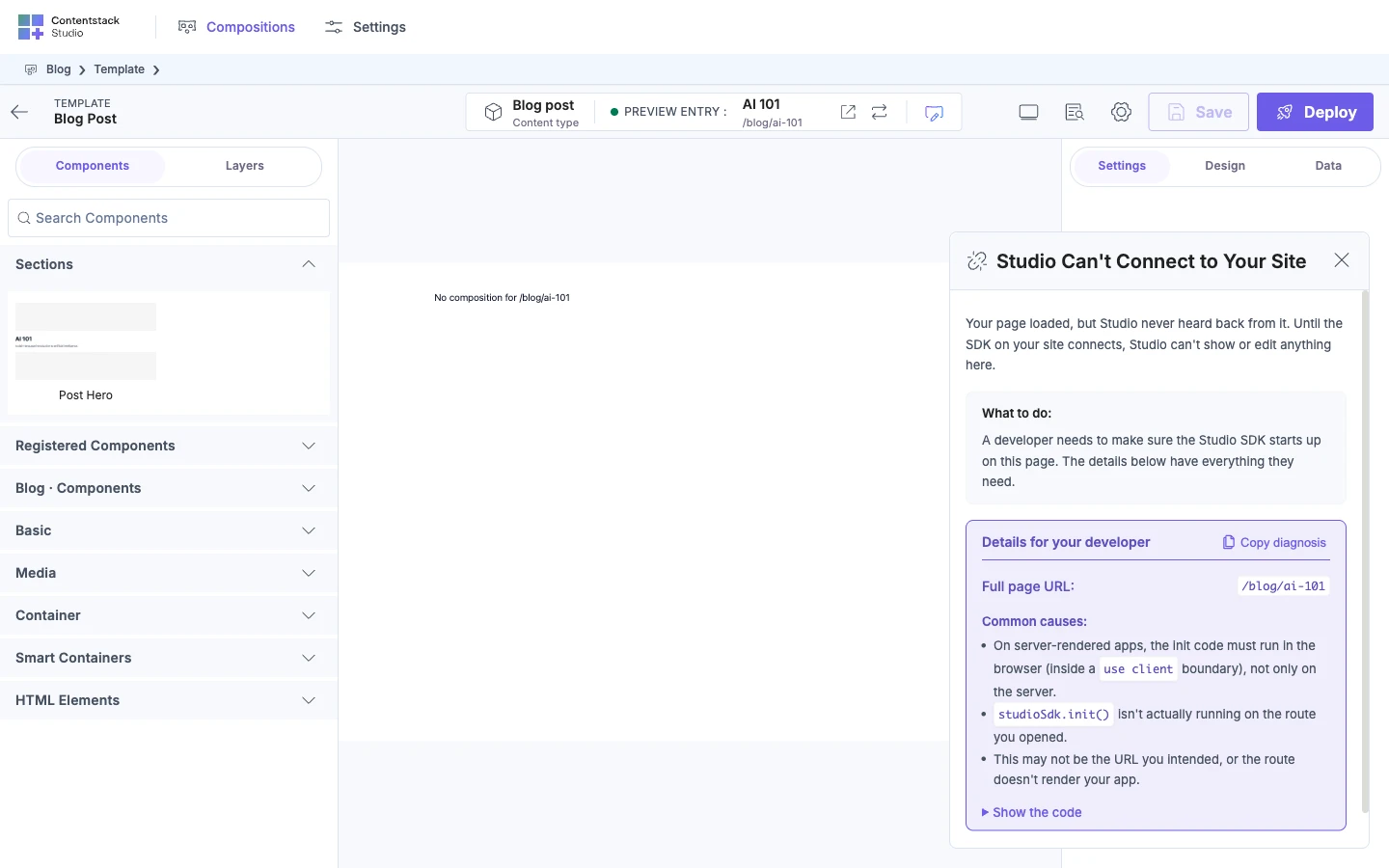
Studio Can't Connect to Your Site. Studio never heard from the Studio SDK on your page. Either your app isn't running at the environment's URL, such as http://localhost:3006, or studioSdk.init doesn't run in the browser on that route. See Install the Studio SDK.
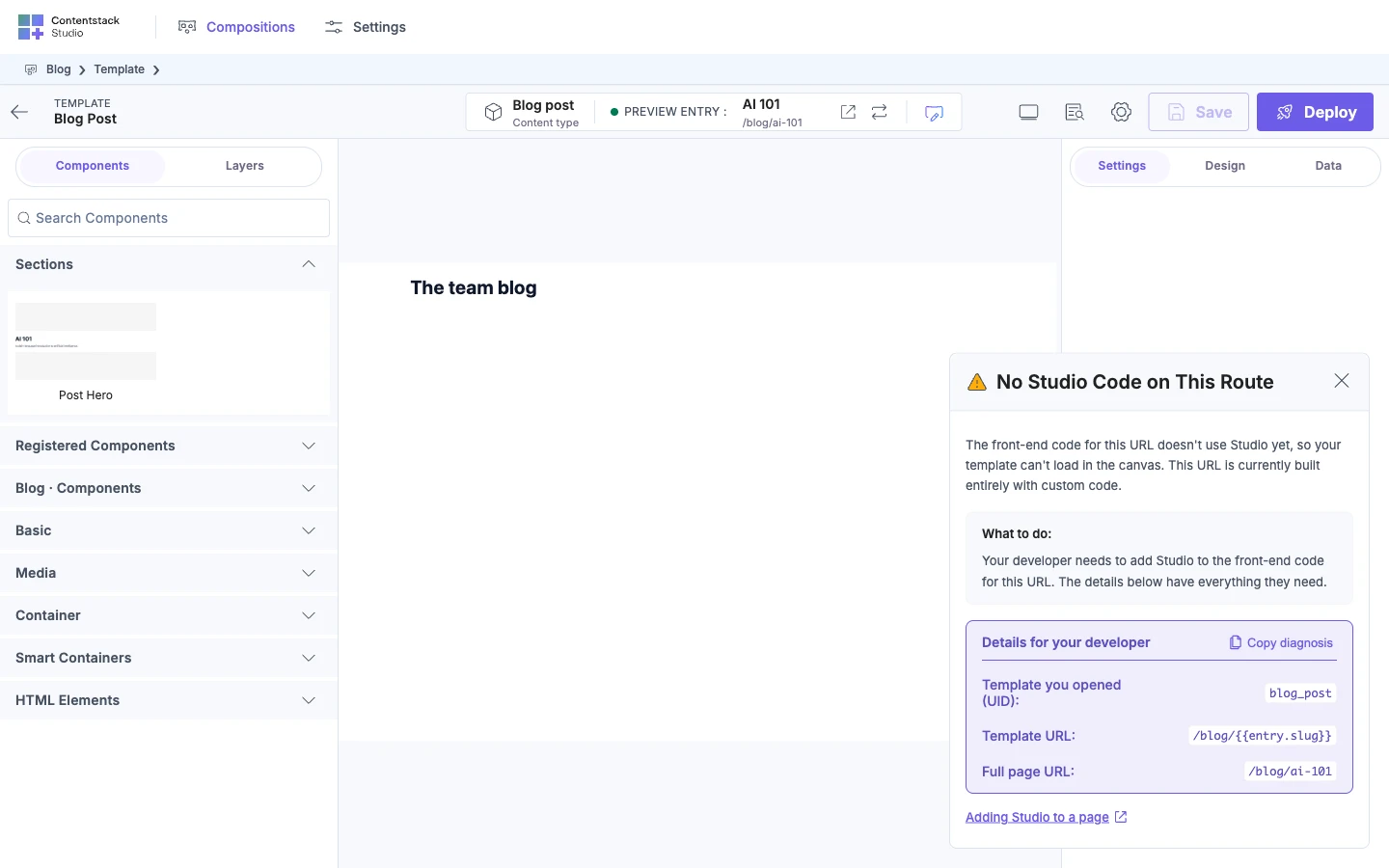
No Studio Code on This Route. Nothing at the template's URL asked Studio for a template. Add a route for that URL that renders <StudioComponent />. If the route already renders it, open /blog/ai-101 in a browser: an error that stops the page before it asks for the template shows this card too. See Wire template preview routes.
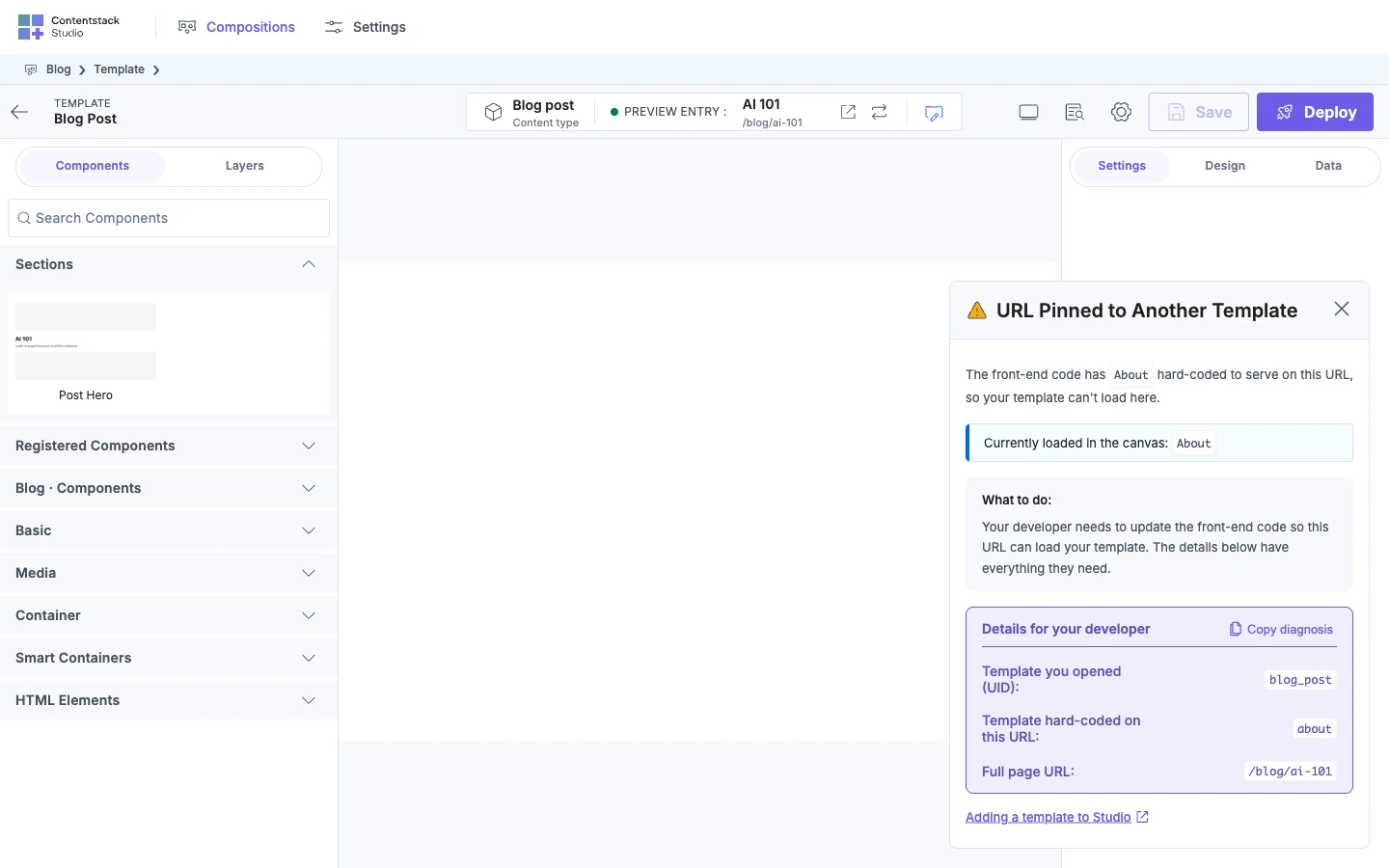
URL Pinned to Another Template. The route at that URL always fetches a different template by its UID. Fetch by url on that route instead. See Wire template preview routes.
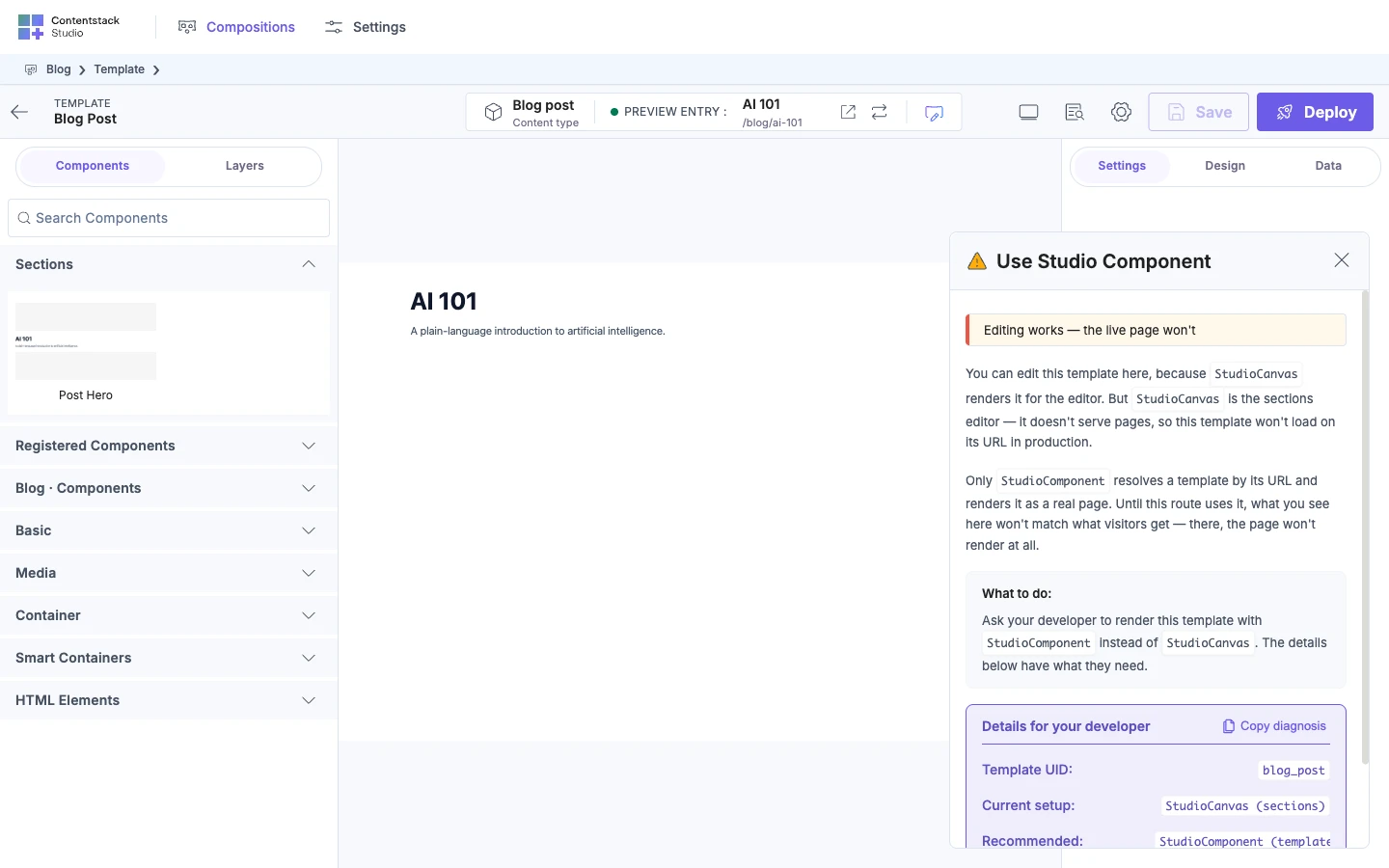
Use Studio Component. The template rendered through <StudioCanvas />, so editing works, but visitors see nothing at that URL. Render templates with <StudioComponent />. See Wire template preview routes.
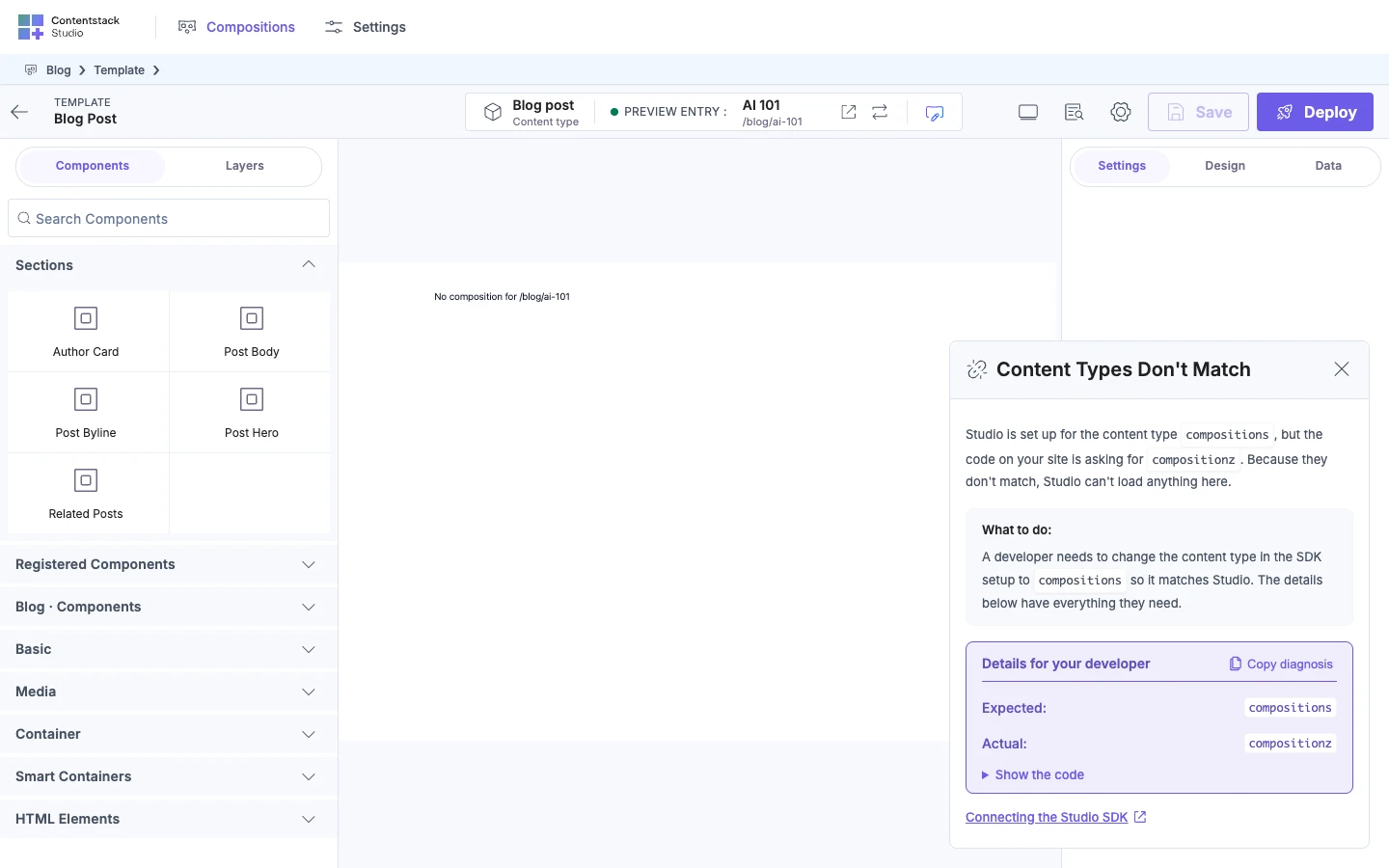
Content Types Don't Match. Your site passes the SDK a different composition content type from the one the project uses, such as compositionz in place of compositions. Change it in your SDK setup to the one the card names. See Create a project.
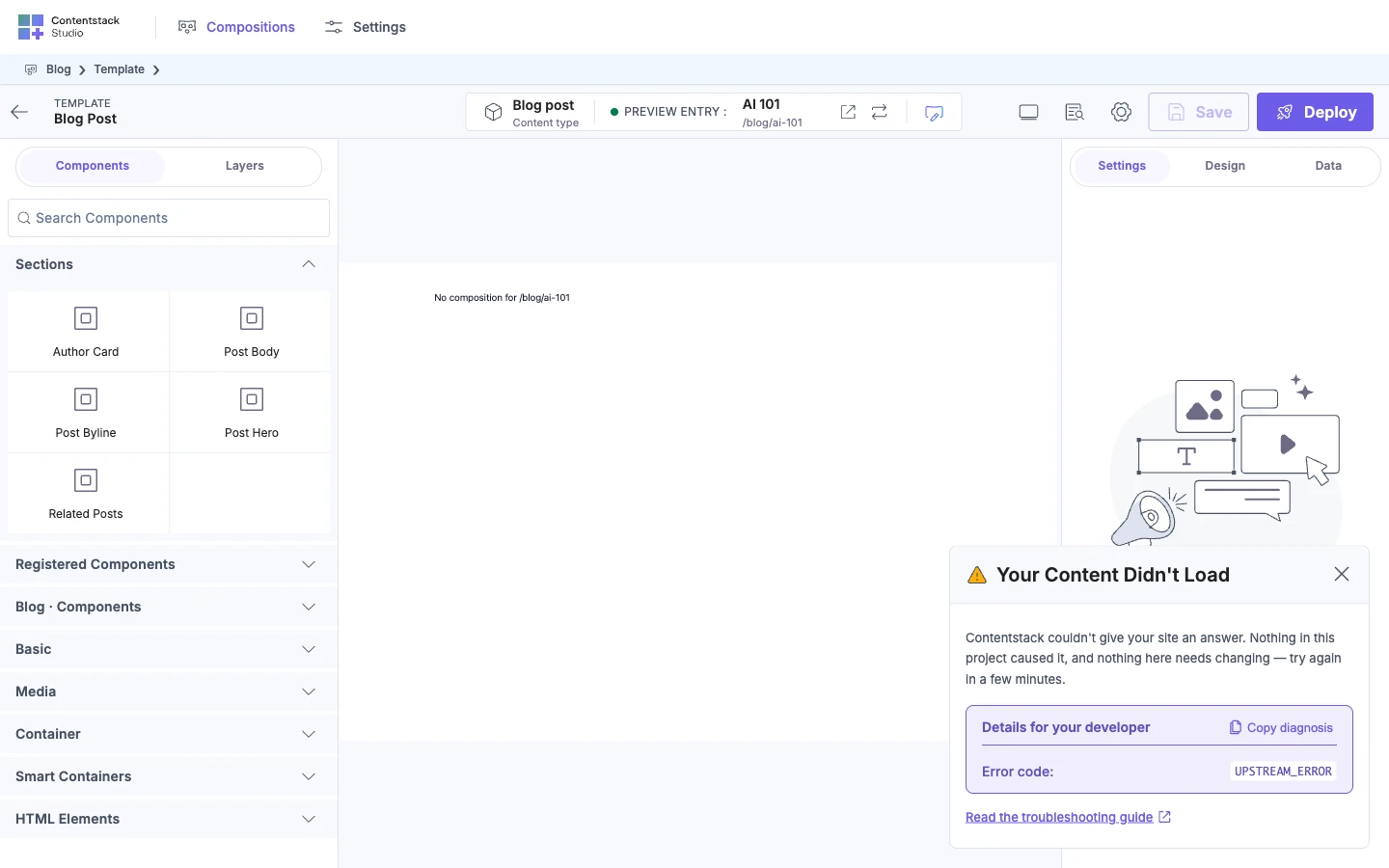
Your Content Didn't Load. Your site asked Contentstack for content and didn't get a usable answer. Often nothing in your project caused it, so try again first. The details give the error code, and the error index has the fix for each one. A Contentstack host your app can't reach shows this card too. A wrong API key shows Studio Can't Read Your Content instead. See Your content didn't load.
This Page Has No Content to Show. The template matched, but no entry of its content type has this URL, or the entry UID the route passes isn't one of them. Check the entry's fields, or the entry UID on that route. On your live site, also check the entry is published to that environment. See CONNECTED_ENTRY_NOT_FOUND.
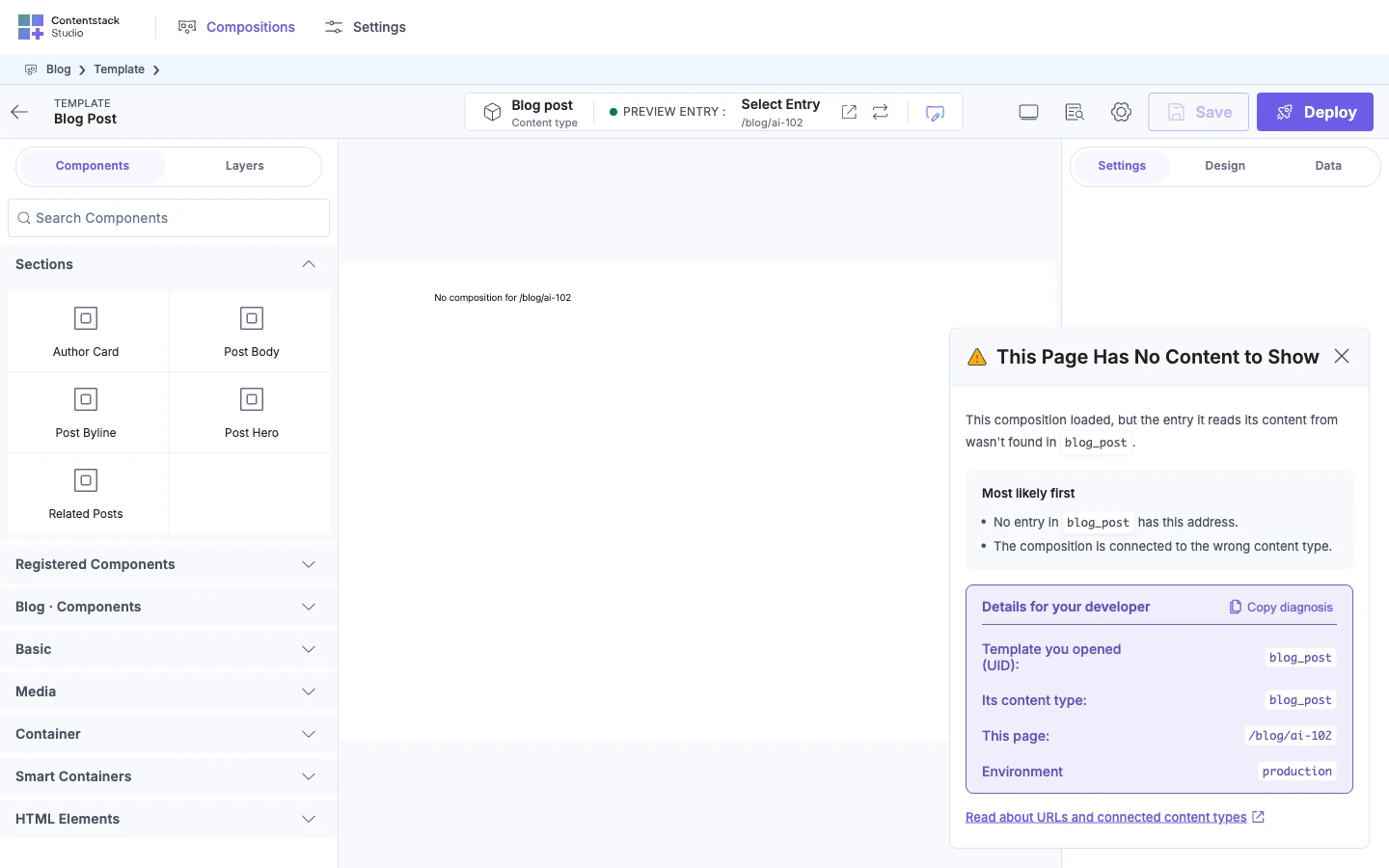
For a card about the template's URL, such as "Two Templates Share This URL", see Edit or reset a template's URL.