Save, preview, deploy
Save keeps your changes in Studio. Deploy puts them on your site. Until you deploy, visitors keep seeing the last version you deployed.
The example is the blog's Blog post template, which uses the Post hero section and renders "AI 101" at /blog/ai-101. The blog deploys to a production environment.
Prerequisites
- A template or section open on the canvas.
- For Deploy, a preview environment with a URL for your language. Studio uses it to load your site. See Project settings.
What this is and what you get
| Save | Deploy | |
|---|---|---|
| What it does | Stores your changes on the template or section | Publishes the template or section to the environments you pick |
| Who sees the change | Anyone who opens it in Studio | Visitors to your site in those environments |
Studio has no version history of its own. Each save creates a new version of the composition entry in Contentstack.
Save your changes
Studio doesn't save on its own. Click Save in the canvas top bar. It's greyed out until you change something.
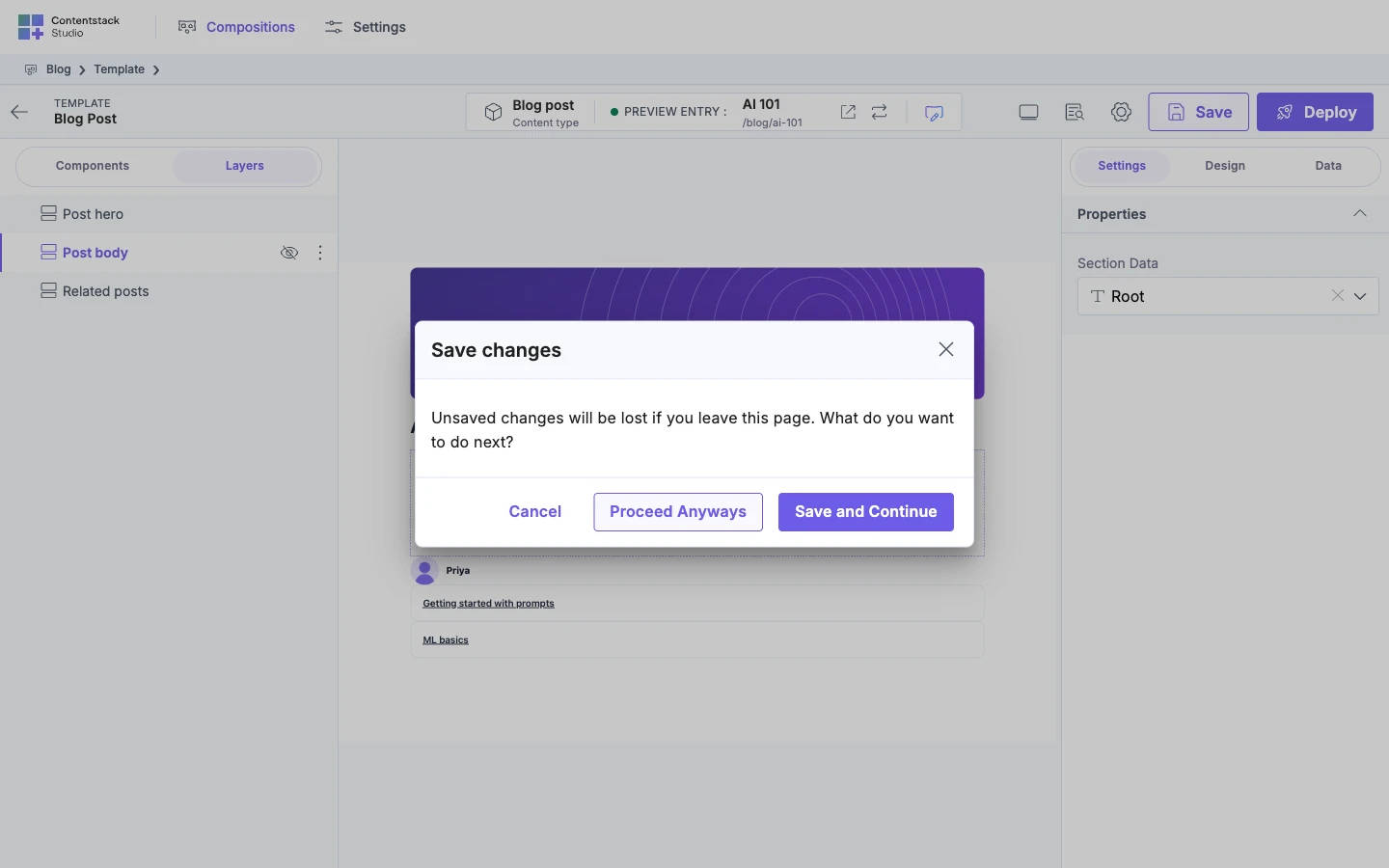
Studio shows "Template Saved Successfully" or "Section Saved Successfully". If you try to leave with unsaved changes, the Save changes dialog asks what to do: Cancel, Proceed Anyways or Save and Continue.
When you save a section, the Expose Props dialog opens first. Click Save in it to finish. See Build sections.
Check it before you deploy
- The canvas shows your changes as you make them, before you save.
- Open in new tab, the icon next to the URL in the top bar, opens the template's address on your site.
- It shows what visitors see now: the last deployed version, not your saved changes.
- It's only on templates.
- In the playground, it's greyed out.
Deploy it
-
Click Deploy. If you have unsaved changes, Studio saves them first.
The Deploy Template dialog opens, or Deploy Section for a section.
-
Under Select Target Environments, tick each environment to deploy to, such as
production. Select All ticks them all. Each row shows one of the environment's URLs.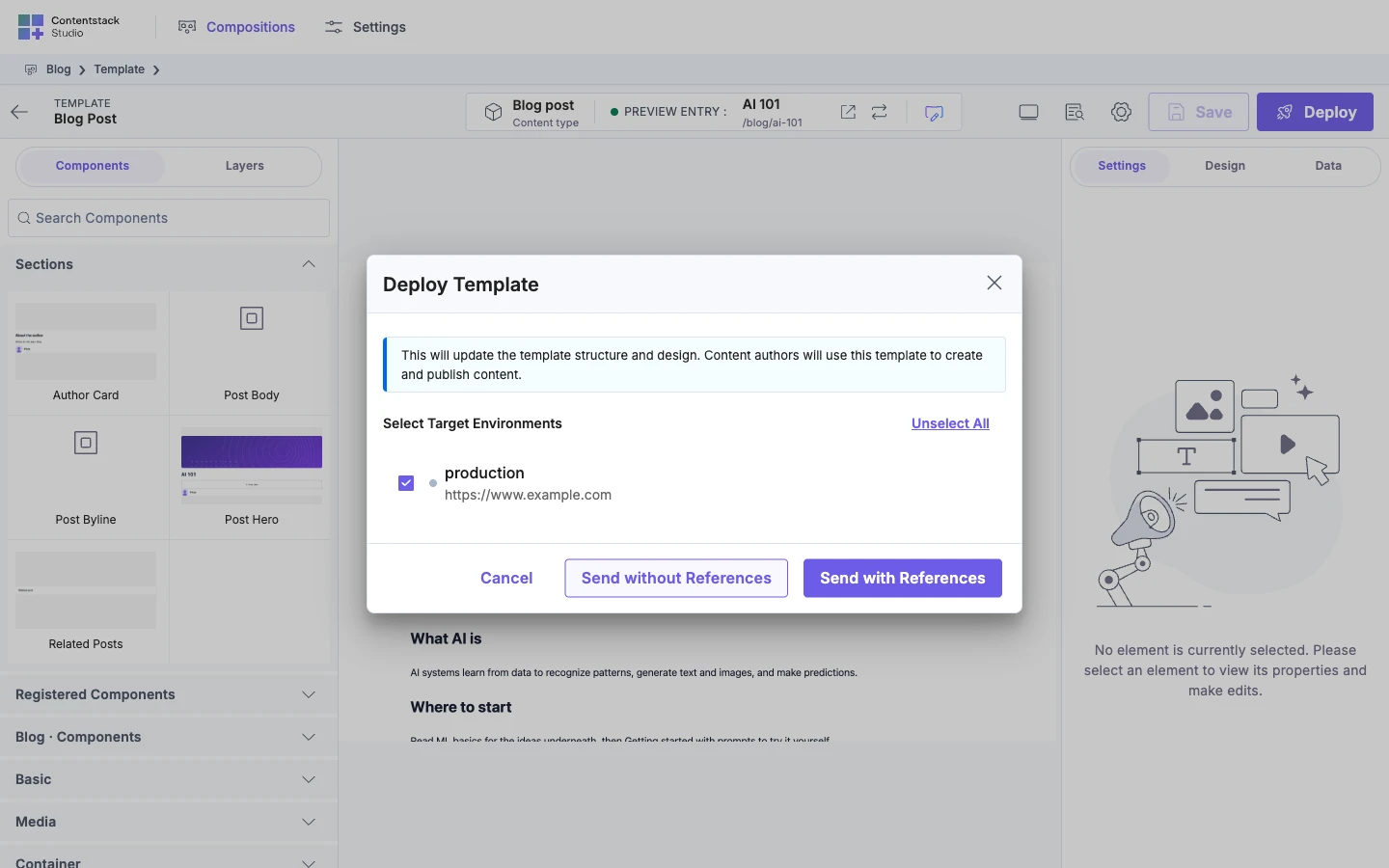
-
Click Send with References or Send without References. Both stay greyed out until you tick an environment.
Studio shows "Template Published Successfully" or "Section Published Successfully".
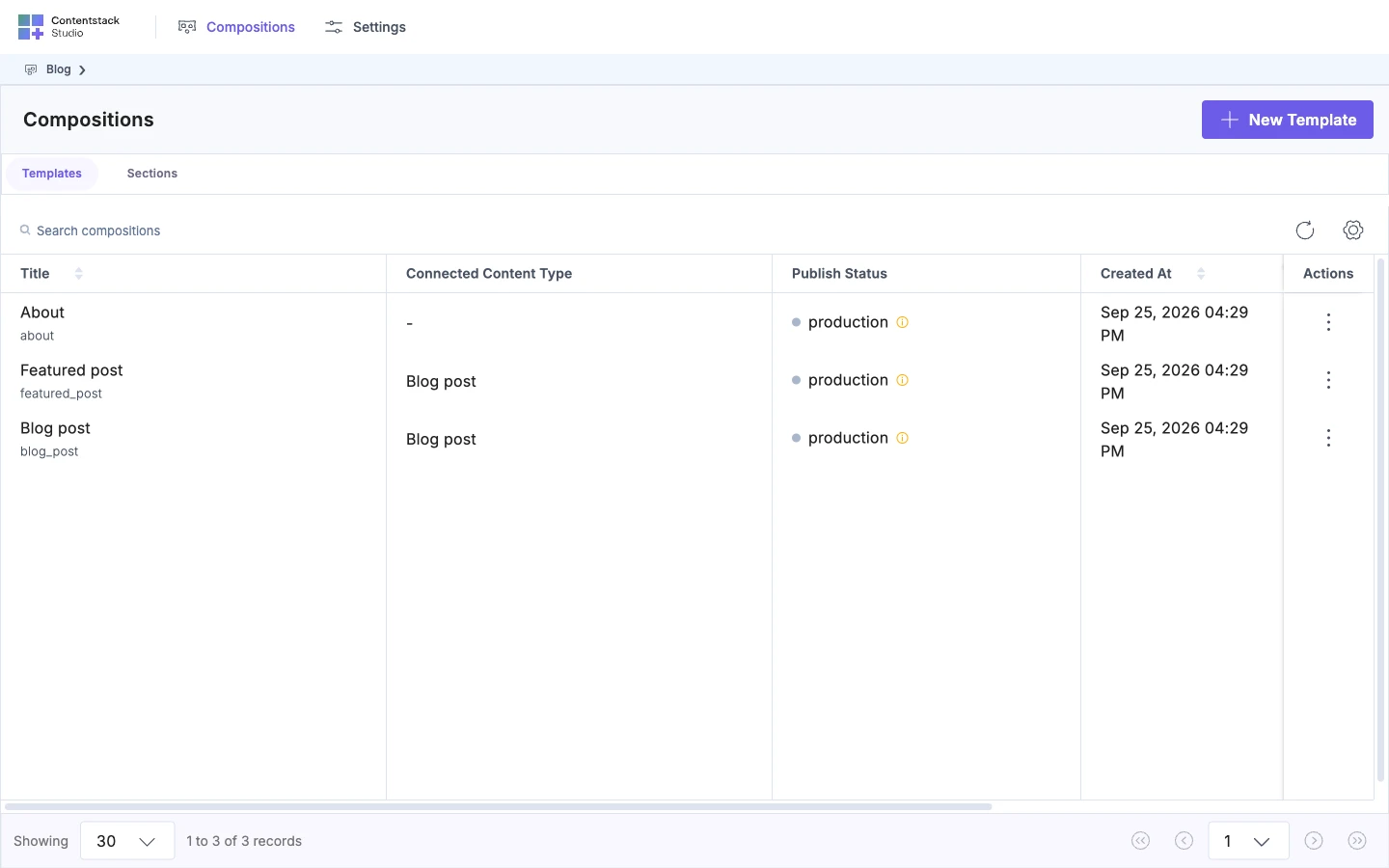
You can check where a template is deployed in the Publish Status column of the Compositions list. Deploy asks Contentstack to apply your stack's approval rules. For approvals and moving between environments, see Promote across environments.
Send with references or without?
- Send with References deploys the template and every section it uses, including default sections in their slots. Use it when you've added or changed a section, such as Post hero.
- Send without References deploys only the template or section you're on.
Neither one publishes your content. The AI 101 entry has to be published in Contentstack on its own.
Deploying a section updates every template that uses it in that environment, because templates point at sections rather than copying them.
If it doesn't work
-
Deploy is greyed out, and its tooltip mentions the playground. Studio has no base URL for the preview environment and language. The tooltip says "Deployment is disabled in the playground." even outside the playground. Pick a preview environment and language, and check the environment has a URL for that language in Contentstack.

-
Save is greyed out. There's nothing new to save.
-
"Failed to deploy the template", or an error from Contentstack. The publish was refused, such as by your role or an approval rule. Read the message, and see Promote across environments.
-
The new layout is live, but content is old or missing. The entry isn't published to that environment. Publish it in Contentstack.
-
A section you added is missing on your site. You deployed with Send without References, and the section was never deployed. Deploy again with Send with References, or deploy the section.
-
Open in new tab shows the old layout. It always shows what's deployed. Deploy first.
-
Your site still shows the old layout after a Deploy. Your app or a CDN is caching the page. See Caching and invalidation.