Data sources reference
Look up where a prop's value can come from, where each source is set up, and why a Data Picker tab is missing.
The Data Picker is the panel where you pick a source for a prop. Studio's tooltips call it the data binder.
The examples use the Blog project. They use the Blog post template with AI 101 as the preview entry, and the freeform About template. On About, you've pinned Priya, saved a query named Latest posts, and entered { "newsletter": { "subscribers": 12400 } } as the Component Data. The text prop of a Header on About is bound to newsletter.subscribers.
The data sources at a glance
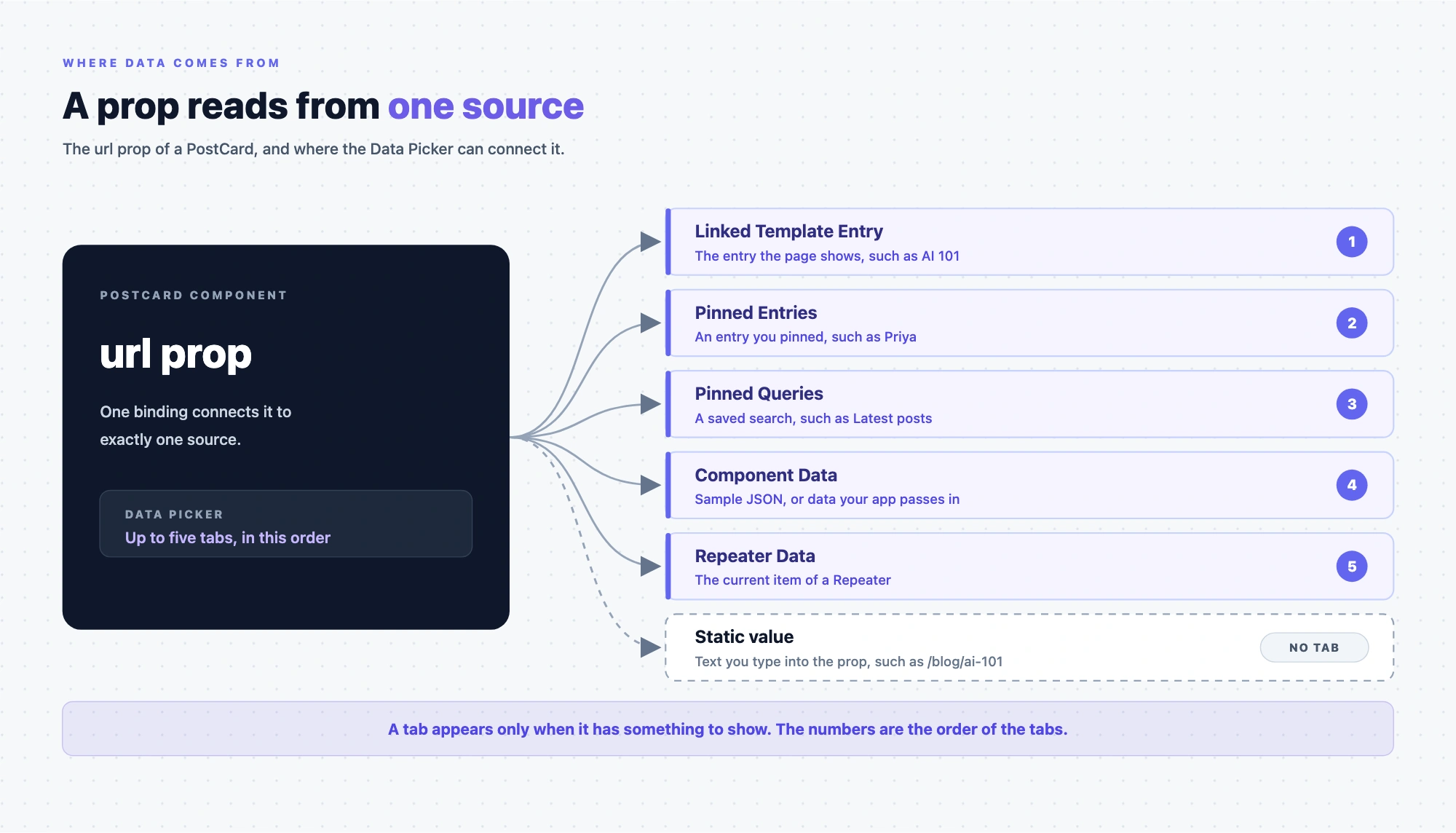
The Data Picker can show up to five tabs, in this order. Each tab in the Data Picker is an icon, and its name shows when you hover it. Only tabs that have something to show appear. If only one source has anything to show, the Data Picker shows no tab strip.
| Data Picker tab | Set up in | Appears when |
|---|---|---|
| Linked Template Entry | The template's connected content type | The template is connected to a content type, or the section has a linked schema. |
| Pinned Entries | Data tab, Pinned Entries | You've pinned at least one entry. |
| Pinned Queries | Data tab, Pinned Queries | You've saved at least one query, and your app uses a Studio SDK version that supports Pinned Queries. |
| Component Data | Data tab, Component Data, and your app | Sample JSON, the data prop, slot data or a state variable gives the selected component at least one value. |
| Repeater Data | Placing a Repeater | The selected component sits inside a Repeater. |
Sections and connected templates have a Data tab only when Enable Freeform Feature is on. A freeform template always has a Data tab. A static value, such as /blog/ai-101, has no Data Picker tab. You type it into a prop in the Settings tab.
The diagram shows every place a PostCard's url prop can read from.
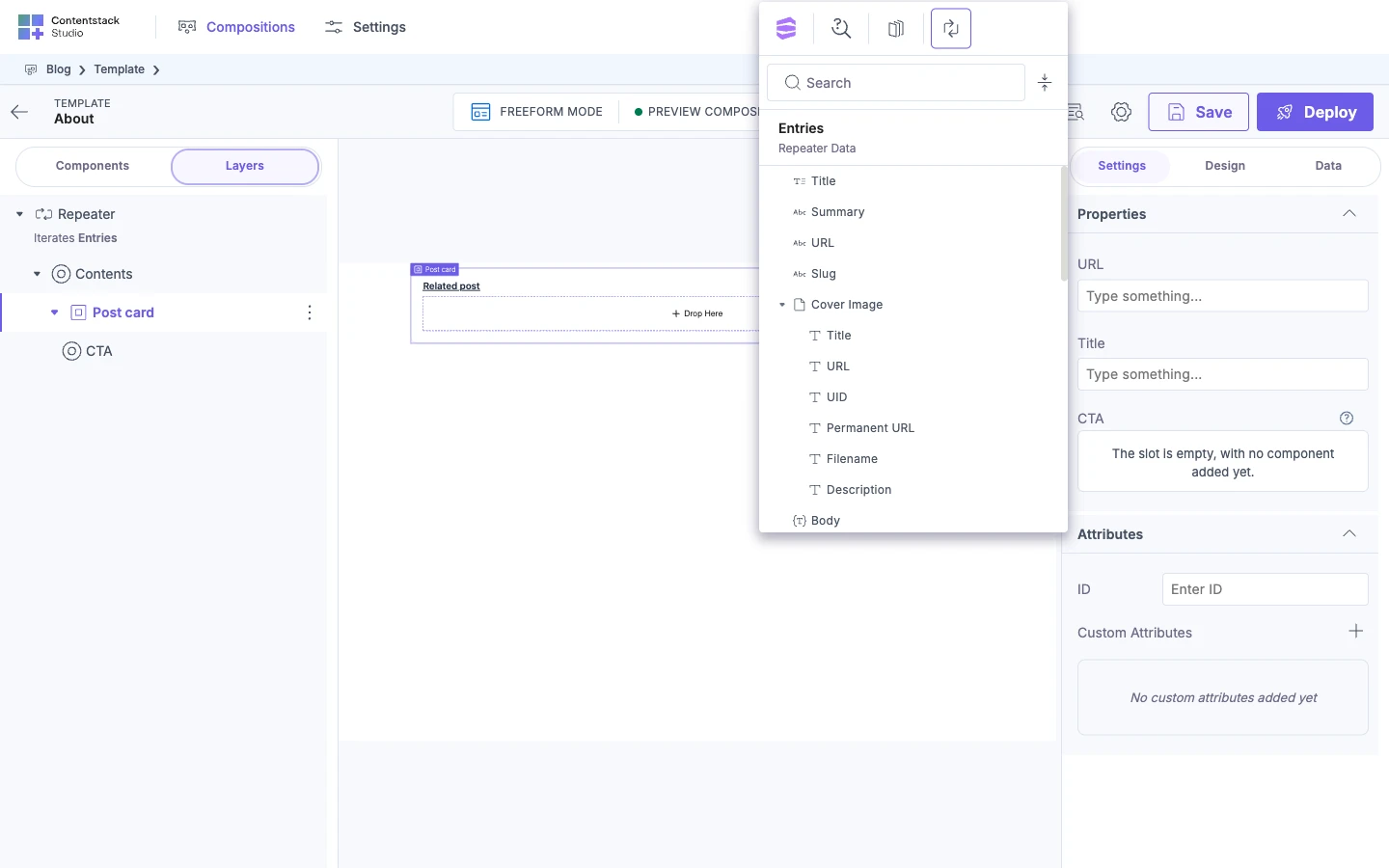
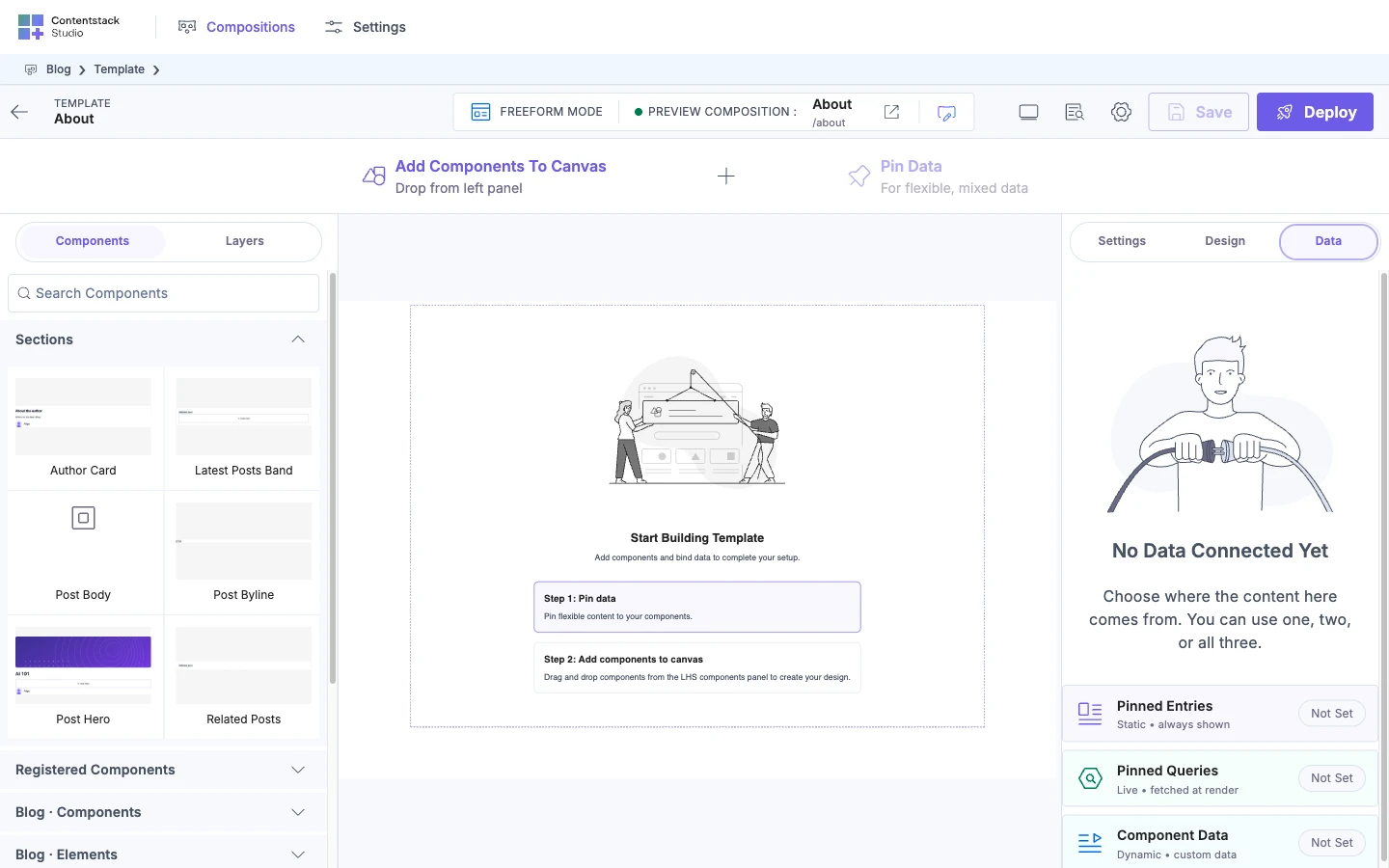
Where the Data tab and its cards are in Studio
The right panel has a Settings tab, a Design tab and a Data tab. You type static values and open the Data Picker in the Settings tab. You set up Pinned Entries, Pinned Queries and Component Data in the Data tab. You set styles in the Design tab, which Style on the canvas covers.
In a project with Enable Freeform Feature off, a section or a connected template shows only Settings. A freeform template keeps all three tabs. See Project settings.
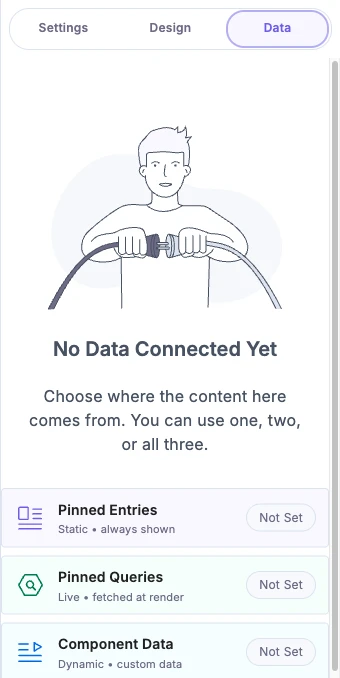
With nothing connected, the Data tab shows the header "No Data Connected Yet" and three cards. In an app on an older Studio SDK that doesn't support Pinned Queries, it shows two.
| Card | Subtitle on the card |
|---|---|
| Pinned Entries | Static • always shown |
| Pinned Queries | Live • fetched at render |
| Component Data | Dynamic • custom data |
The header says "Choose where the content here comes from. You can use one, two, or all three." A card becomes an accordion once it has content. The Component Data card becomes one as soon as you click it.
Linked Template Entry
This is the entry the template is connected to. A connected template names a content type. In Studio, the preview entry fills the tab. On the live site, the visitor's entry fills the same fields. On the Blog post template, the connected content type is Blog post, and the preview entry is AI 101.
A freeform template never has this tab, because it has no connected entry. For the connected content type, see Connected or freeform template.
Pinned Entries and Pinned Queries
Pinned entries are entries you pin on the Data tab, for content that doesn't change per request. To pin one, see Add extra data to a template. On About, you pin Priya. An Avatar then binds its Photo to Priya's photo.url from the Pinned Entries tab.
A pinned query is a saved search that runs when the template renders on your site. Its entries refresh every time the page opens. A Repeater can loop over a query's entries. To save a query, see Add a query.
The info icon on the Pinned Entries accordion says "Pick entries from Contentstack to use here. These entries then appear in the data binder under Pinned Entries, ready to connect to any element."
The info icon on the Pinned Queries accordion ends with "The resulting entries then appear in the data binder under Pinned Queries, and refresh every time the page opens."
When you delete a query, Studio asks you to confirm and warns that the action can't be undone.
Component Data
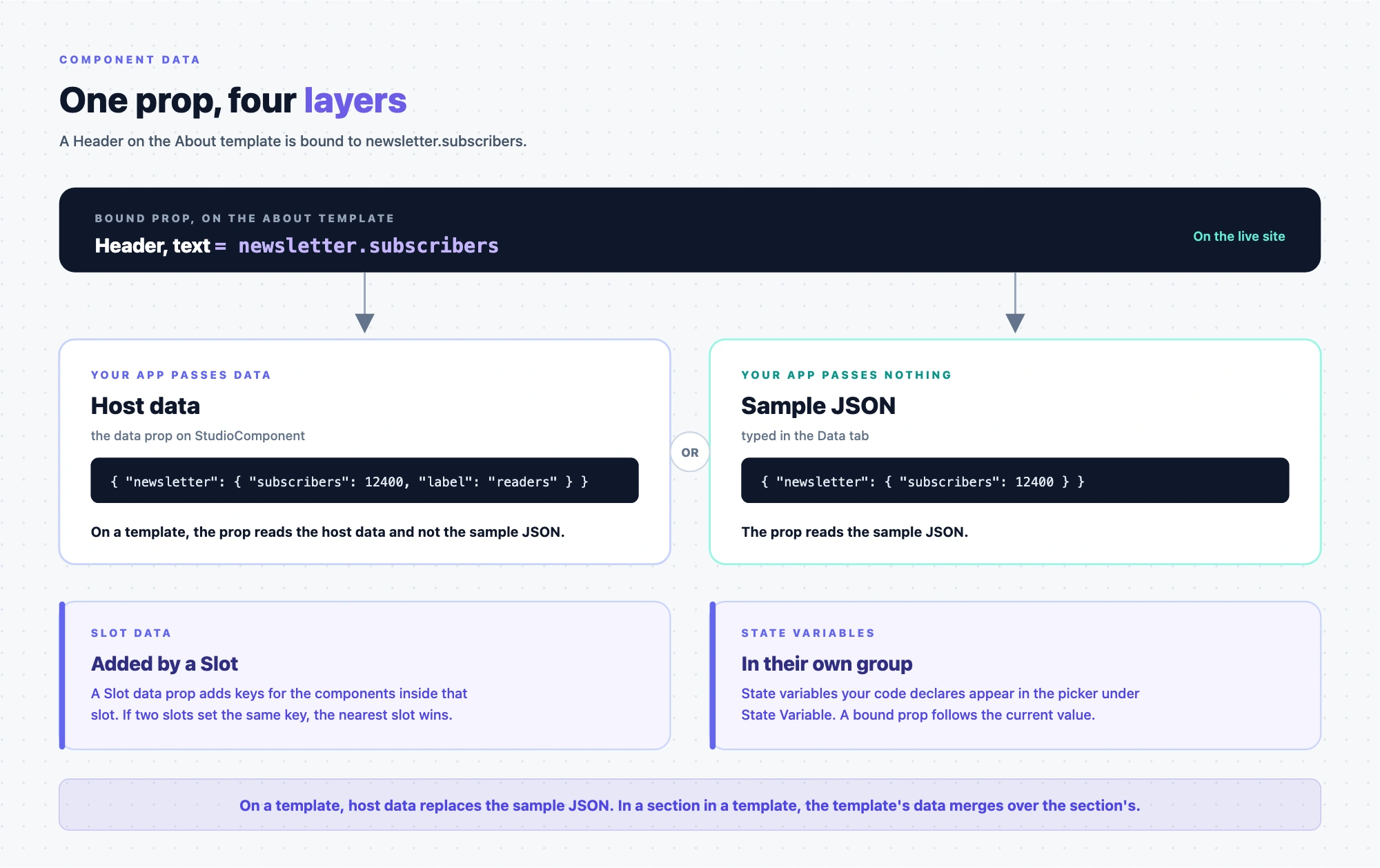
Component Data is data that doesn't come from Contentstack. You set it up in the Data tab, in the Component Data card, and in your app. The Component Data tab in the Data Picker lists values from four layers. These are this page's names for the layers. The Data Picker shows the first three under a Component Props group, and state variables under State Variable.
| Layer | Where it comes from | Who sets it |
|---|---|---|
| Sample JSON | Data tab, Component Data | You, in Studio. |
| Host data | The data prop on <StudioComponent /> | Your app. |
| Slot data | The data prop on a <Slot> | The component's developer. |
| State variables | Values your code declares with the Studio state API | Your app. |
On About, the sample JSON is { "newsletter": { "subscribers": 12400 } }. Your app can pass { "newsletter": { "subscribers": 12400, "label": "readers" } } as data.
The info icon on the Component Data accordion reads "Add sample data to design and preview with. Your app can pass its own data in this same shape, which takes over; when it doesn't, this data is used instead."
Which Component Data layer wins
On the live site, which layer wins depends on where the prop sits.
| Where the prop sits | Which layer wins |
|---|---|
| On a template | Host data wins when your app passes data. Otherwise, the sample JSON wins. The two don't merge. An empty data={{}} replaces the sample JSON too, so the prop shows its default. |
| In a section placed in a template | The template's data, which is host data when your app passes data and otherwise the template's sample JSON. Studio merges it over the section's own sample JSON by top-level key. On a shared key, the template's value wins. |
| In a section you render on its own | Host data replaces the section's sample JSON. A key your data leaves out shows the prop's default. Pass every key you need. |
| Inside a slot | Slot data wins over host data and sample JSON for the same key. If an outer slot and an inner slot set the same key, the nearest slot wins. |
| A prop bound to a state variable with a value | The state variable wins over host data, sample JSON and slot data for that key. A state variable with no value (undefined) doesn't override them. |
For how to declare state variables, see Component state.
Slot data has no content type behind it, so a Repeater that loops over a slot key has no schema. The component's developer can declare dataFrom on the slot prop to give it one. See How Slot data reaches the components inside it.
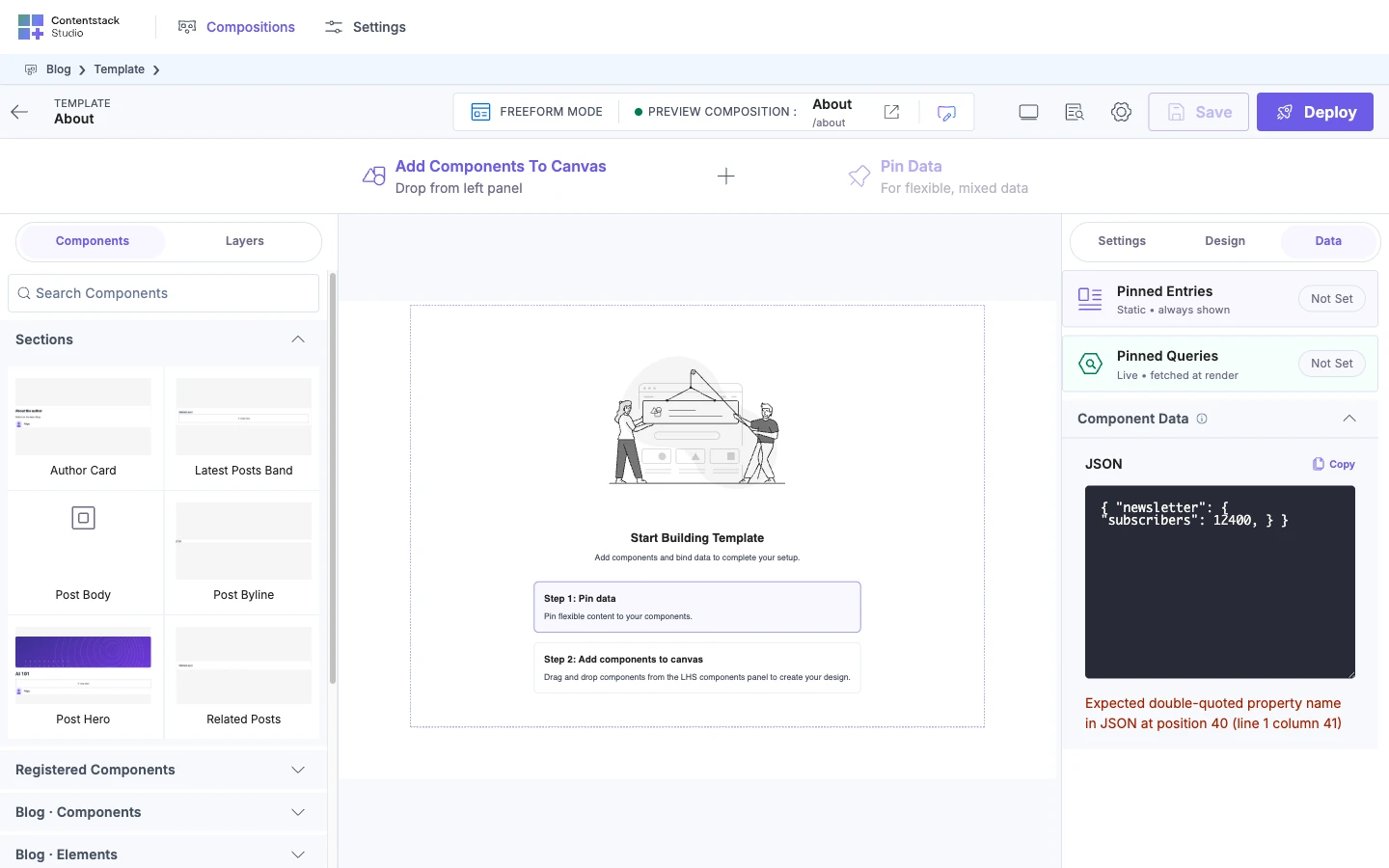
Component Data JSON editor
The Component Data accordion has a JSON editor and a Copy button. After you copy, the button reads "Copied!" for two seconds.
- The JSON must parse. If it doesn't, Studio shows the parse error and doesn't apply it.
- Studio applies valid JSON half a second after you stop typing.
- The top level must be an object. Studio ignores an array or a single value.
Repeater Data
This is the current item of the Repeater around the component. On the Repeater itself, bind its items to a list from Linked Template Entry, Pinned Entries, Pinned Queries or Component Data.
In the Related posts section, each PostCard binds to the item of the Repeater over related_posts. To build a Repeater, see Render a list.
Which sources appear in sections, connected templates and freeform templates
| Source | Section | Connected template | Freeform template |
|---|---|---|---|
| Data tab | Only with Enable Freeform Feature on | Only with Enable Freeform Feature on | Always |
| Linked Template Entry | When it has a linked schema | Always | Never |
| Pinned Entries | When you've pinned an entry | When you've pinned an entry | When you've pinned an entry |
| Pinned Queries | When you've saved a query and your SDK supports Pinned Queries | When you've saved a query and your SDK supports Pinned Queries | When you've saved a query and your SDK supports Pinned Queries |
| Component Data | When a layer has a value | When a layer has a value | When a layer has a value |
| Repeater Data | When the component is inside a Repeater | When the component is inside a Repeater | When the component is inside a Repeater |
You pin entries and save queries on the Data tab. A static value is available everywhere, with no tab.
Which Data Picker tab opens first
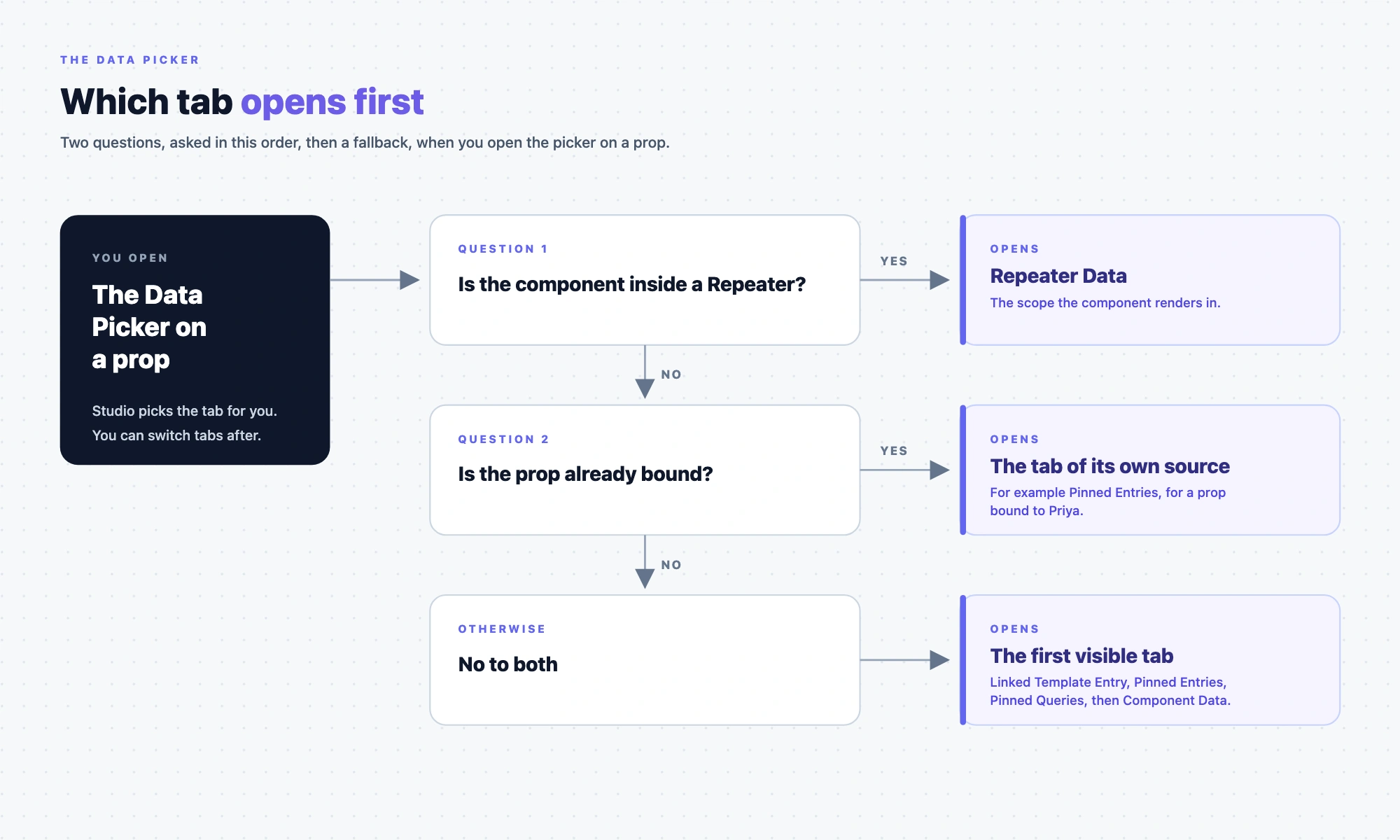
Inside a Repeater, the Data Picker opens on Repeater Data. Outside a Repeater, a bound prop opens on the tab of its own source. A prop that isn't bound opens on the first visible tab, in the order shown in The data sources at a glance.
If a data source is missing or empty
| What you see | Why | What to do |
|---|---|---|
| No Data tab in the right panel | Enable Freeform Feature is off, and the template isn't a freeform template. | Turn on Enable Freeform Feature, or use a freeform template. See Project settings. |
| No Pinned Entries tab | You haven't pinned an entry. | On the Data tab, open the Pinned Entries card and pin one. |
| No Pinned Queries card | Your app uses a Studio SDK version that doesn't support Pinned Queries. | Upgrade the Studio SDK in your app. |
| No Pinned Queries card, though your SDK is recent | The canvas hasn't reported your app's SDK version. | Check that your canvas URL loads in Studio. |
| No Pinned Queries tab, but the card is there | You haven't saved a query. | Save one on the Data tab. |
| No Linked Template Entry tab | The template is freeform, or the section has no linked schema. | Create a connected template, or link a schema to the section. |
| No Repeater Data tab | The selected component isn't inside a Repeater. | Move it inside the Repeater, or pick another source. |
| No Component Data tab, or the tab lacks your keys | No layer has a value for the selected component. Or the top level of your saved JSON isn't an object, so Studio ignores it. | Type sample JSON on the Data tab, or pass data from your app. Wrap the JSON in an object, such as { "newsletter": { "subscribers": 12400 } }. |
| Your JSON isn't applied | It doesn't parse. | Fix the error the editor shows under it. |
| A Repeater bound to a pinned query is empty on your site | The query matched nothing, or its request failed. In development, or with debug: true, the console warns QUERY_RETURNED_NO_ROWS or QUERY_REQUEST_FAILED. | See Warnings about content that didn't load. |
| A bound prop shows its default | The binding has no value. | Check that the field has content. Until it does, Studio shows the static value, then the registered defaultValue, then a placeholder. |
More on setting up data sources
To set a source up, see Add extra data to a template and Add a query. For the idea behind the sources, see Where data comes from.