Repeater recipes for common results
Use this page when you know the result you want from a Repeater and want the steps that get it. Each recipe also lists the wrong steps that break it, what you see when you take them, and the fix.
The example on this page is the Blog post template's sections, previewing AI 101: Related posts, Post extras and Post chapters.
Prerequisites
- You have the Blog project open, and a section linked to Blog post open on the canvas.
- You set the section's preview entry to AI 101 once, before the first recipe. A section opens on the most recently modified entry, which can be ML basics. Click the Replace icon in the top bar and select AI 101. Then open the Blog post dropdown in the top bar and select the Blog post schema again. See Preview with a different entry.
- You know how to add a Repeater and bind its Items. See Render a list.
- You know what a Condition Block does. See Show or hide content with a condition.
- ML basics has no related posts, so you can use it to check the empty case.
What this is and what you get
A Repeater repeats what's inside it once for each item in a list field. Each recipe below gives numbered steps, then a table of the wrong steps. Steps link to the page that explains the mechanics where there is one.
Find the result you want in this table.
| You want | Recipe |
|---|---|
| A card for each related post | Show a card for each related post |
| The Related posts heading and cards gone when a post has no related posts | Hide the Related posts section when a post has none |
| A different design for each block type in a modular blocks field | Give each block type its own design |
| A different card for each content type in a reference field | Show a different card for each type of featured content |
| A list inside each item of a list | Show a list inside each item of a list |
| A Repeater row that reads No source configured or Invalid source | Fix a Repeater row that reads No source configured or Invalid source |
| Every item on the canvas, not one | Switch a Repeater between Design and Preview |
For the full steps behind each recipe, see Render a list, Show or hide content with a condition and Render a list of mixed things.
Show a card for each related post
Result. For AI 101, the Related posts section shows one PostCard for each related post: Getting started with prompts and ML basics.
-
Select the Repeater in the Related posts section. Clear Items with the X, then bind Items to Related Posts, as in Add a Repeater and bind its items. In the Add Condition dialog, keep Blog post checked and click Add.
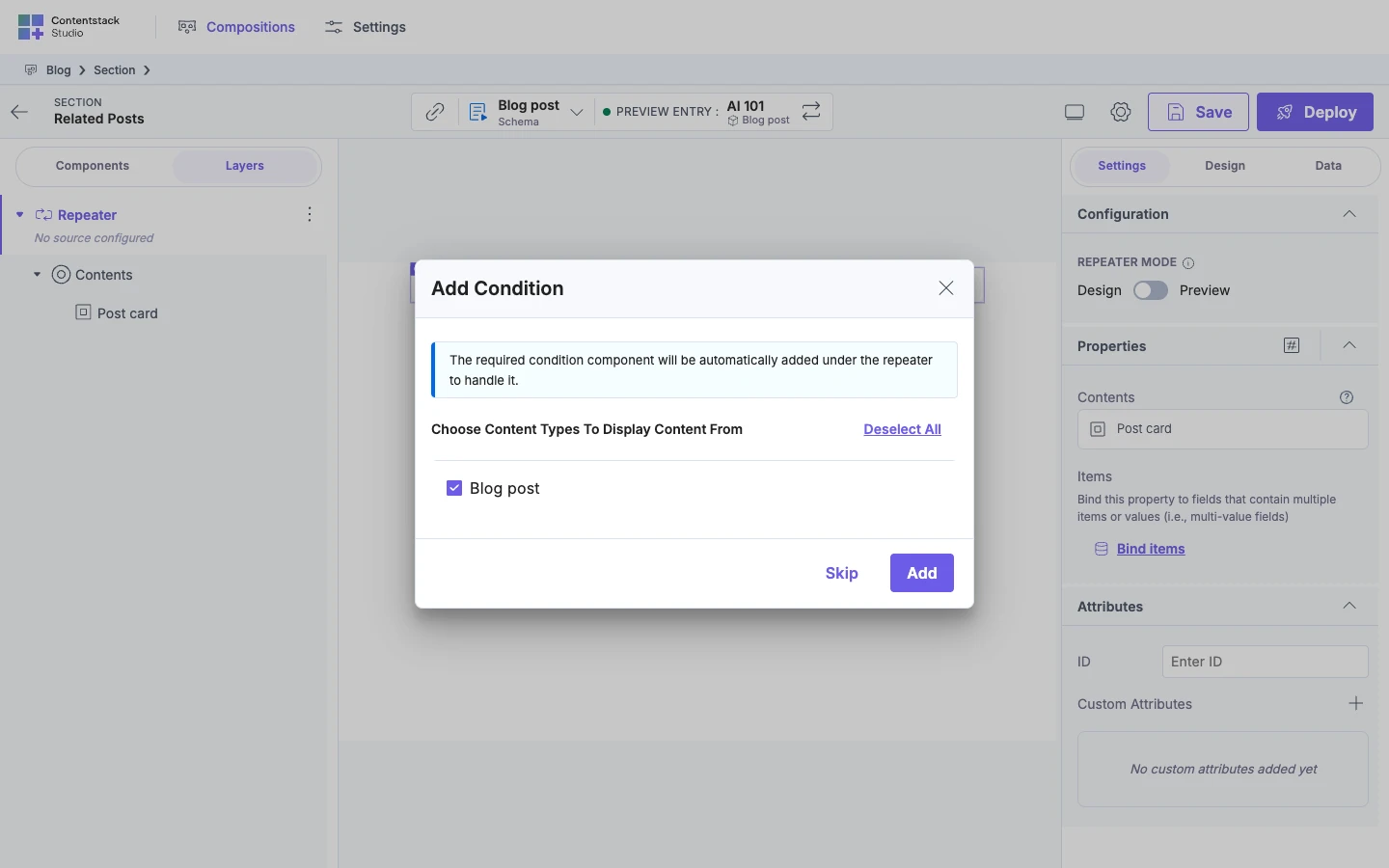
Studio adds a Condition Block with a Box inside the Repeater.
-
Drag a PostCard into the Box. In Layers, the PostCard is in the Box.
-
Select the PostCard and click the bind icon beside Title. The Data Picker opens on Repeater Data, headed Blog post. Select Title. Do the same for URL.
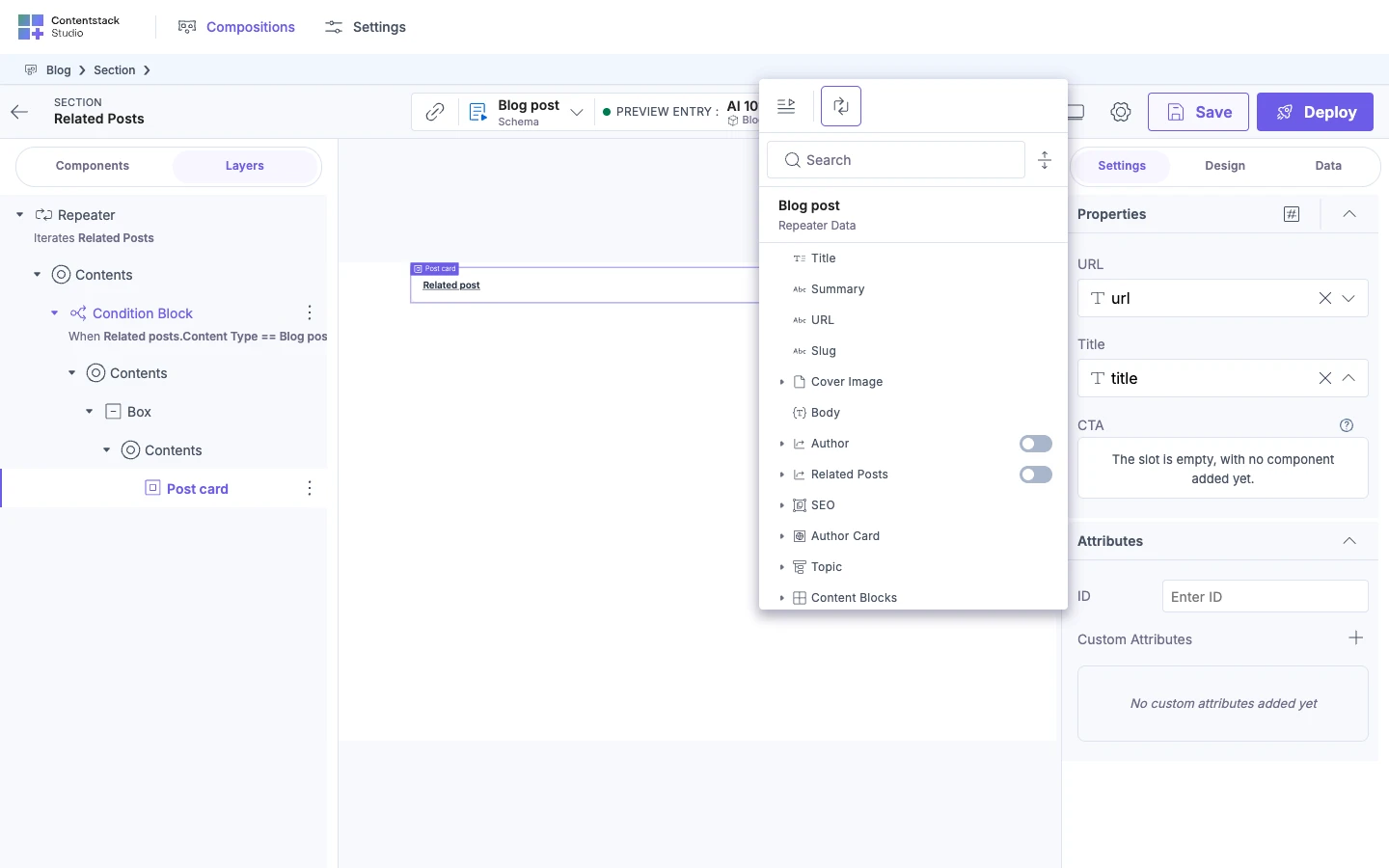
-
Select the Repeater in Layers and switch Repeater Mode to Preview, as in Switch a Repeater between Design and Preview.
The canvas shows two cards, Getting started with prompts and ML basics.
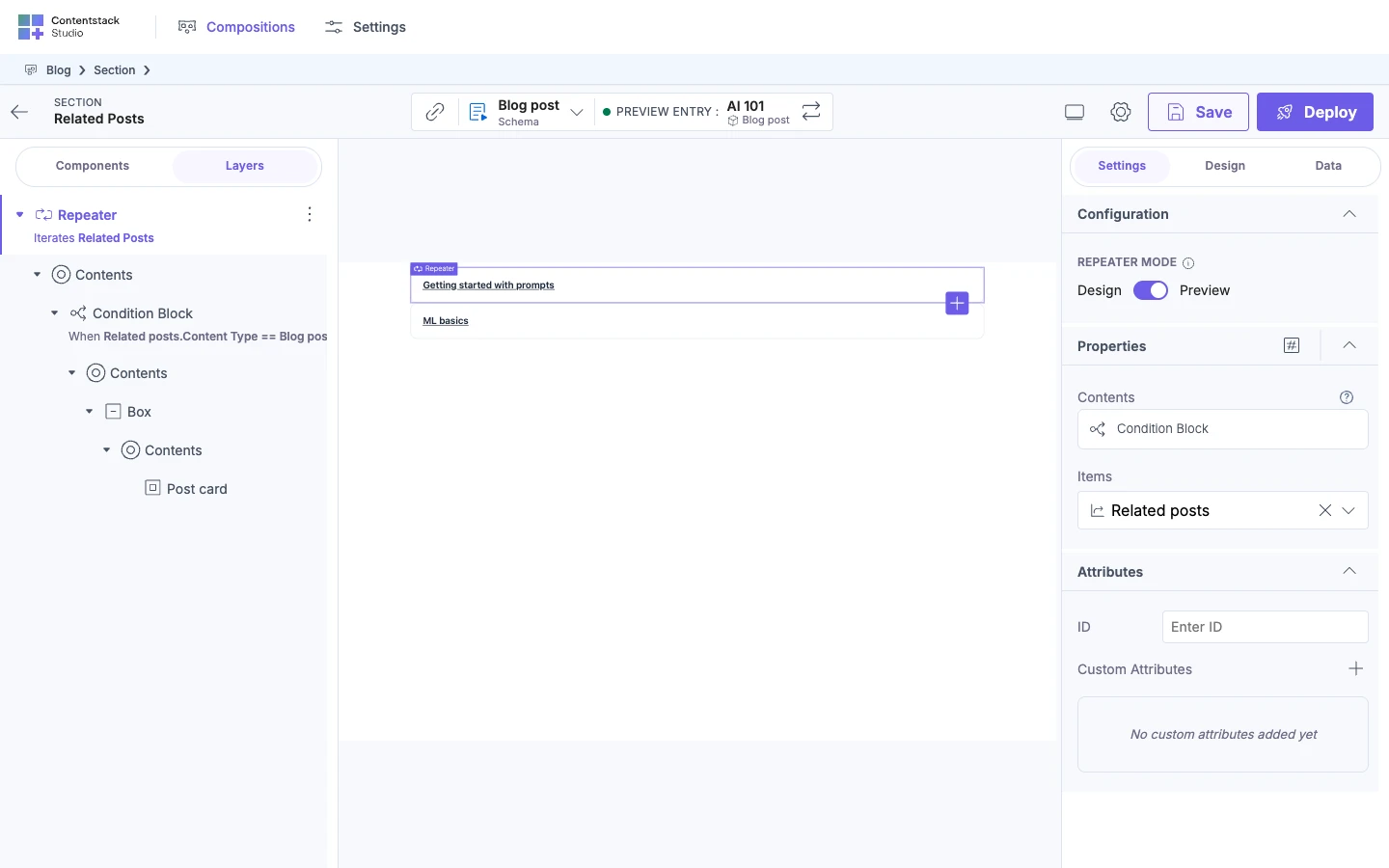
| Wrong step | What you see | Fix |
|---|---|---|
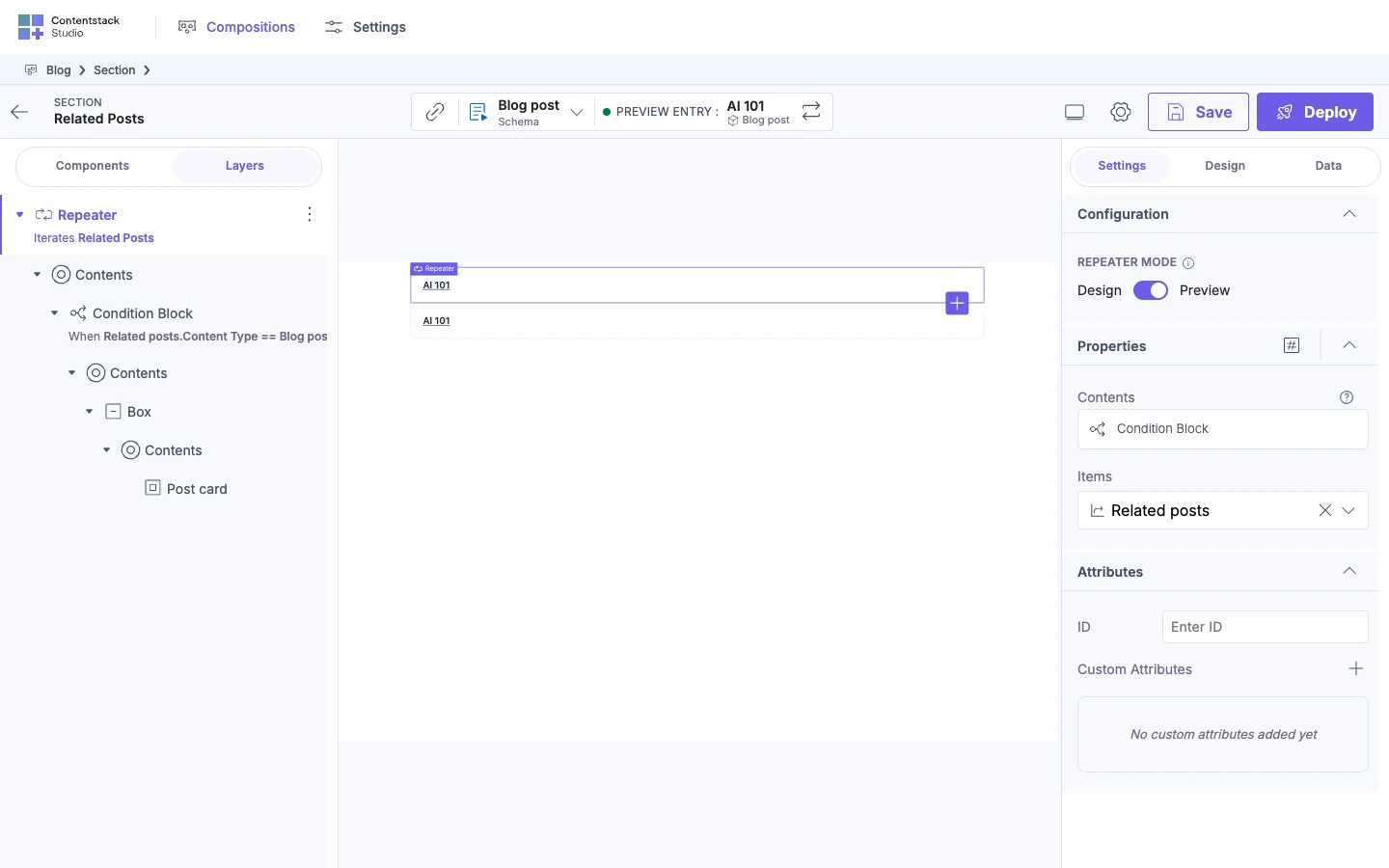
| Bind a card's Title from the Linked Template Entry tab. | Both cards read AI 101, the preview entry's title. | Bind the prop from the Repeater Data tab, which lists one item's fields. |
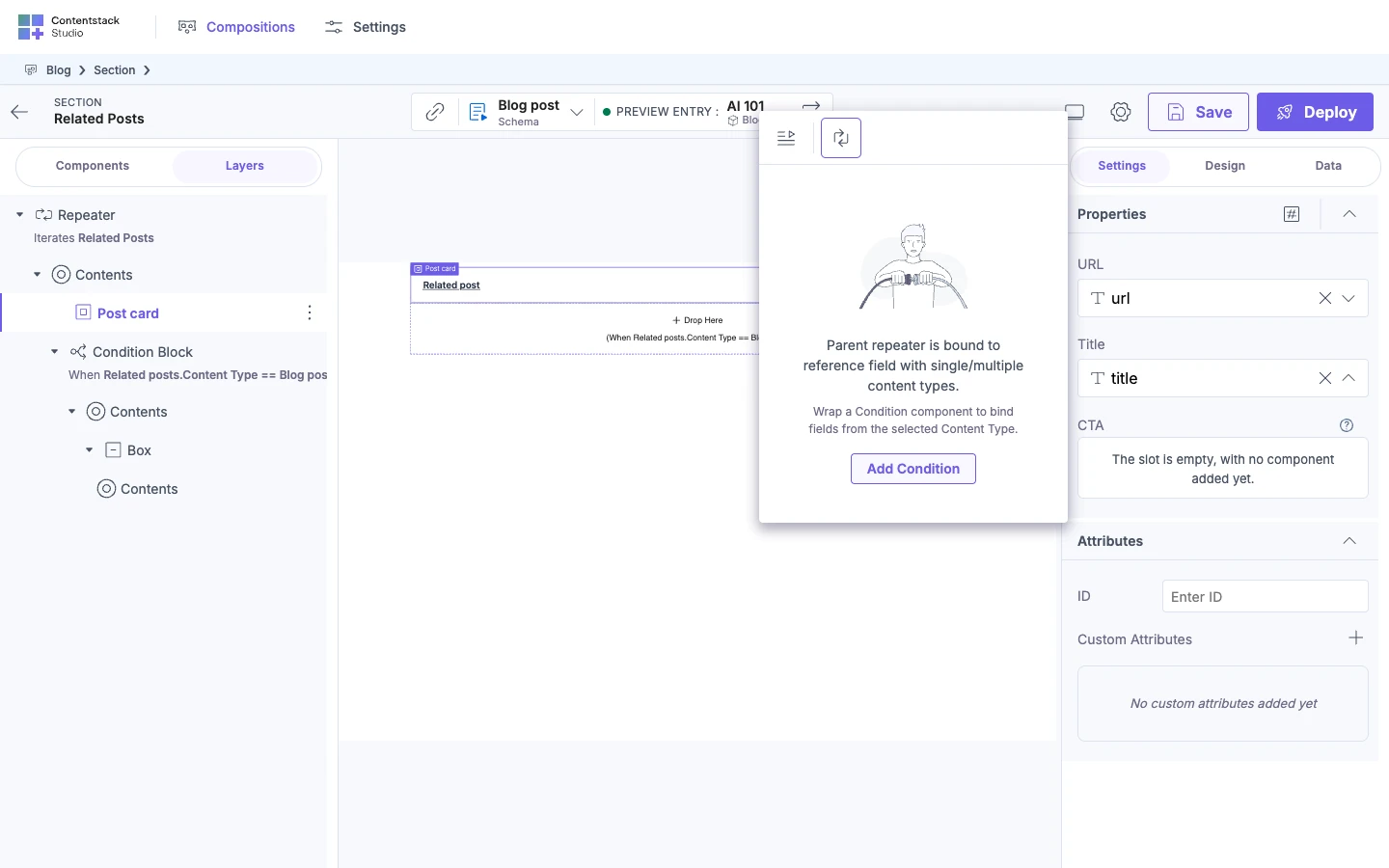
| Drop the PostCard onto the Repeater, beside the Condition Block, instead of into the Box. | The Data Picker shows a card, not fields. It reads "Parent repeater is bound to reference field with single/multiple content types." | Drag the PostCard into the Box. |
| Duplicate the PostCard to get a second card. | Preview shows four cards for two related posts, because each copy shows once for each item. | Delete the copy. The Repeater already repeats one PostCard for each item. |
For the Add Condition card, see Render a list of mixed things.
Wrong step 1: Preview on AI 101 with the Repeater selected.
Wrong step 2: the Data Picker for a PostCard outside the Box.
Hide the Related posts section when a post has none
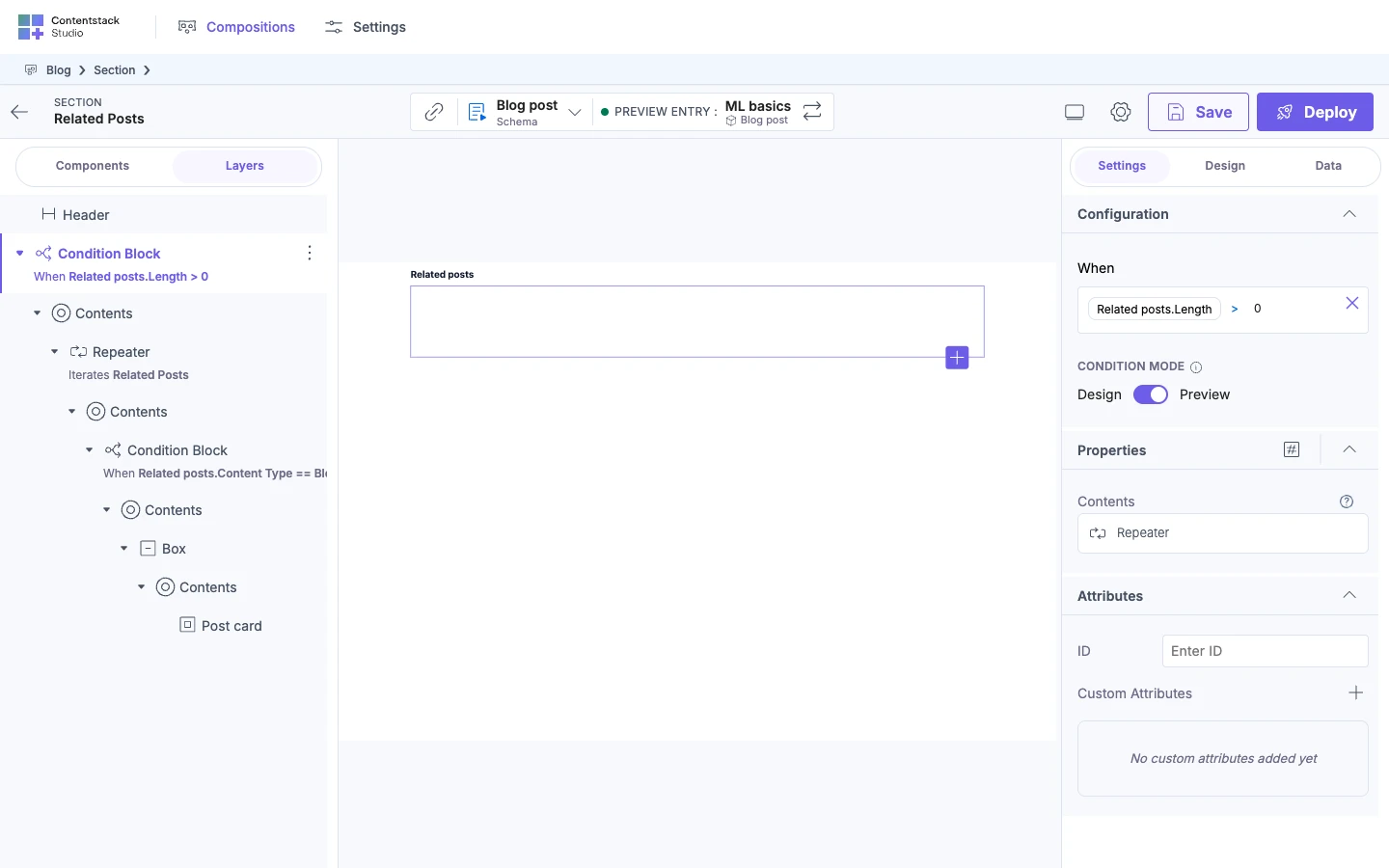
Result. For AI 101, the Related posts section shows its heading and two cards. For ML basics, which has no related posts, the section is empty.
This Condition Block is inside the section. It's a different arrangement from Show or hide content with a condition, where the Condition Block wraps the whole section on the Blog post template.
-
In the Related posts section, add a Header above the Repeater. Type "Related posts" in its Text field.
-
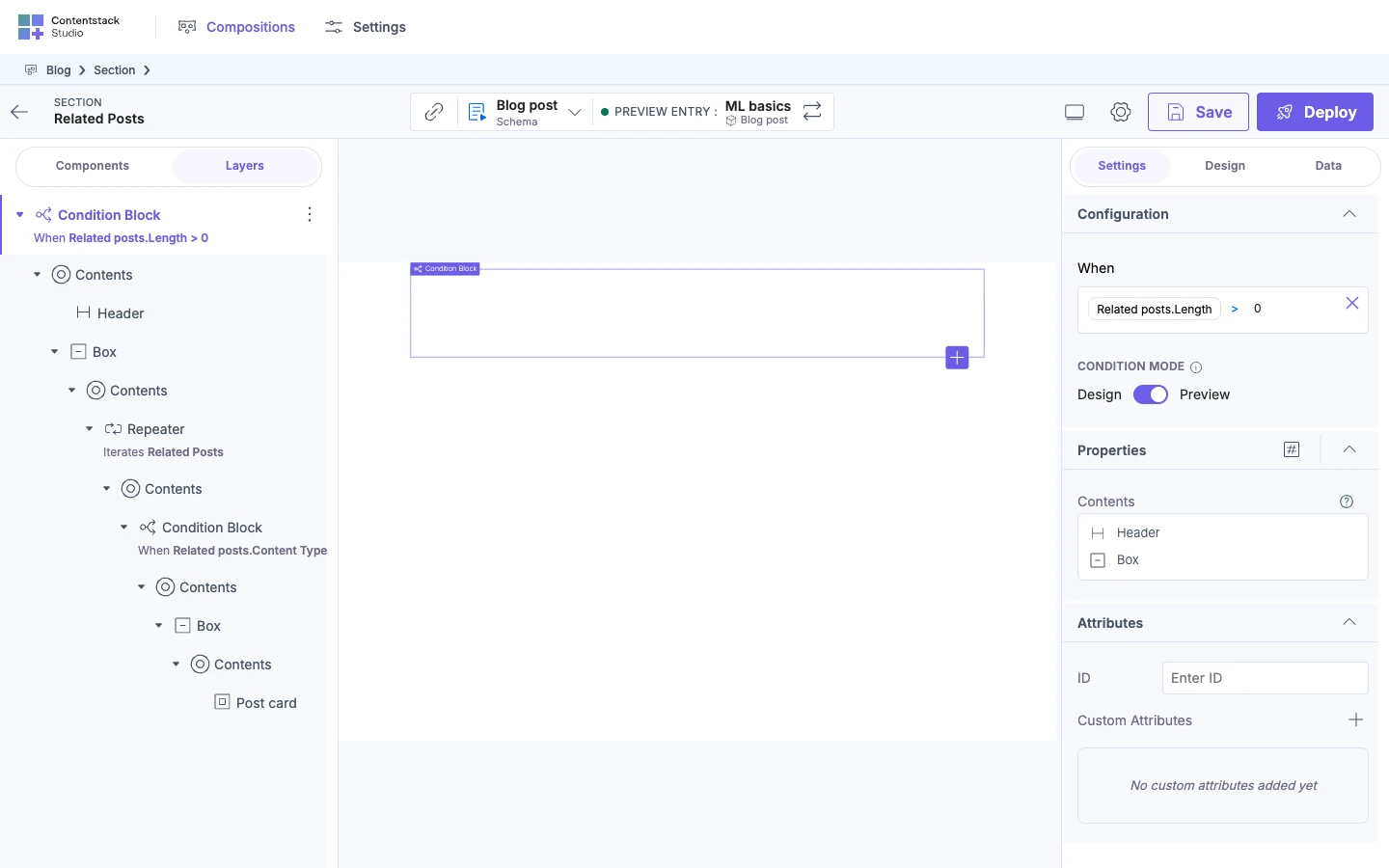
Add a Condition Block and move the Header and the Repeater into it, as in Add a Condition Block. If the Condition Block already has content, Studio puts the Repeater in a Box. In Layers, the Condition Block's Contents has the Header and a Box that contains the Repeater.
-
Set the condition to Related posts, Length, Greater Than, 0, as in Set the condition. The Condition Block's row in Layers reads
When Related posts.Length > 0. -
Switch Condition Mode to Preview, as in Check the condition in Preview. With AI 101 as the preview entry, the canvas shows the heading and two cards.
-
Now that the condition is set, switch the preview entry to ML basics with the Replace icon. The canvas is empty. The heading and the cards are both hidden.
| Wrong step | What you see | Fix |
|---|---|---|
| Put the Condition Block around only the Repeater, and leave the Header outside it. | ML basics shows the "Related posts" heading alone, with no cards. | Move the Header into the Condition Block with the Repeater. |
| Switch the preview entry with the Replace icon before you pick the condition field. | The condition picker grays out Related Posts, even on AI 101. | Open the Blog post dropdown in the top bar and select the Blog post schema again. Then pick the field. |
Wrong step 1: the Condition Block around only the Repeater, previewing ML basics.
Give each block type its own design
Result. For AI 101, the Post extras section shows each content block with the design of its type. You see a quote, an image caption, then a quote.
-
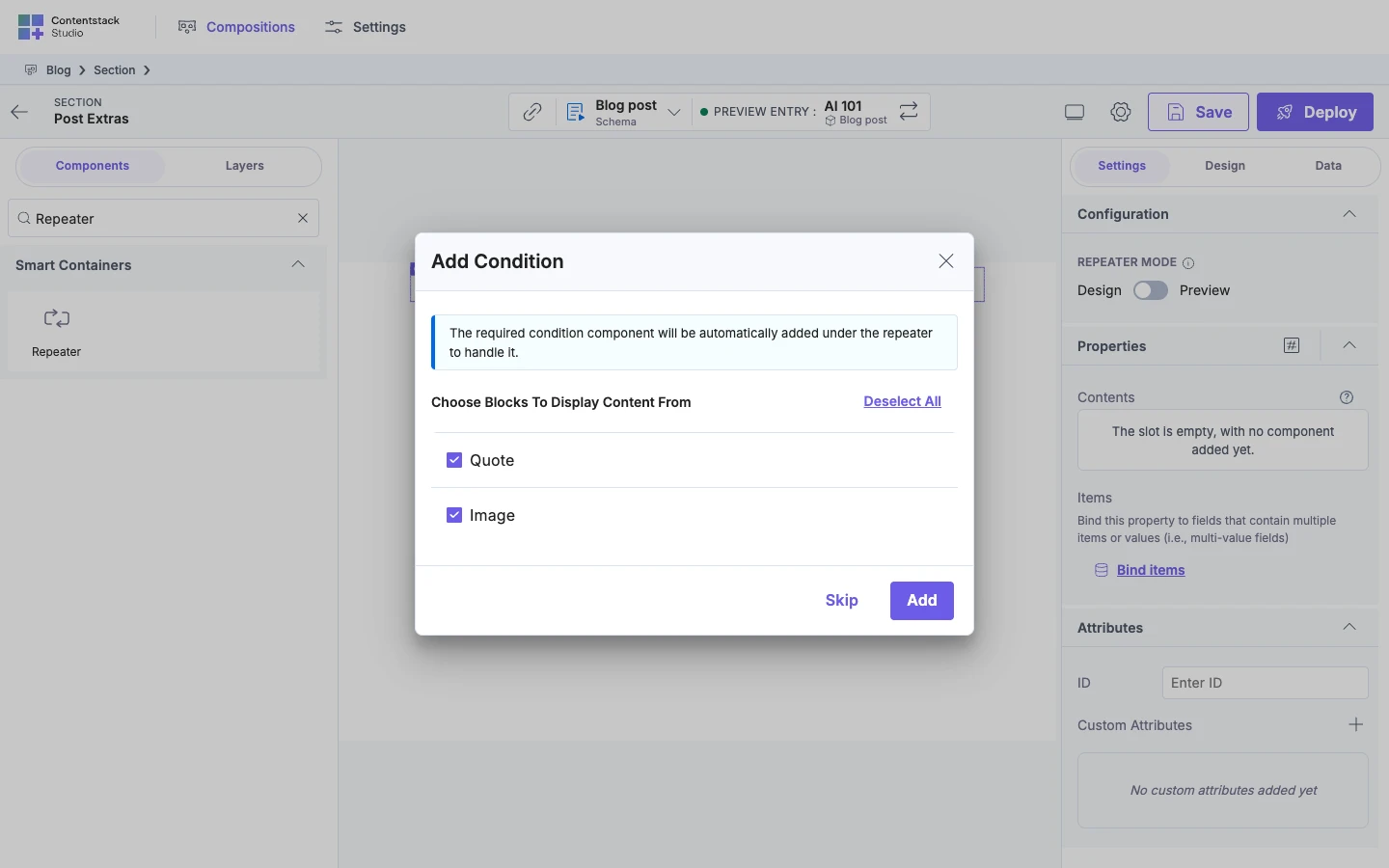
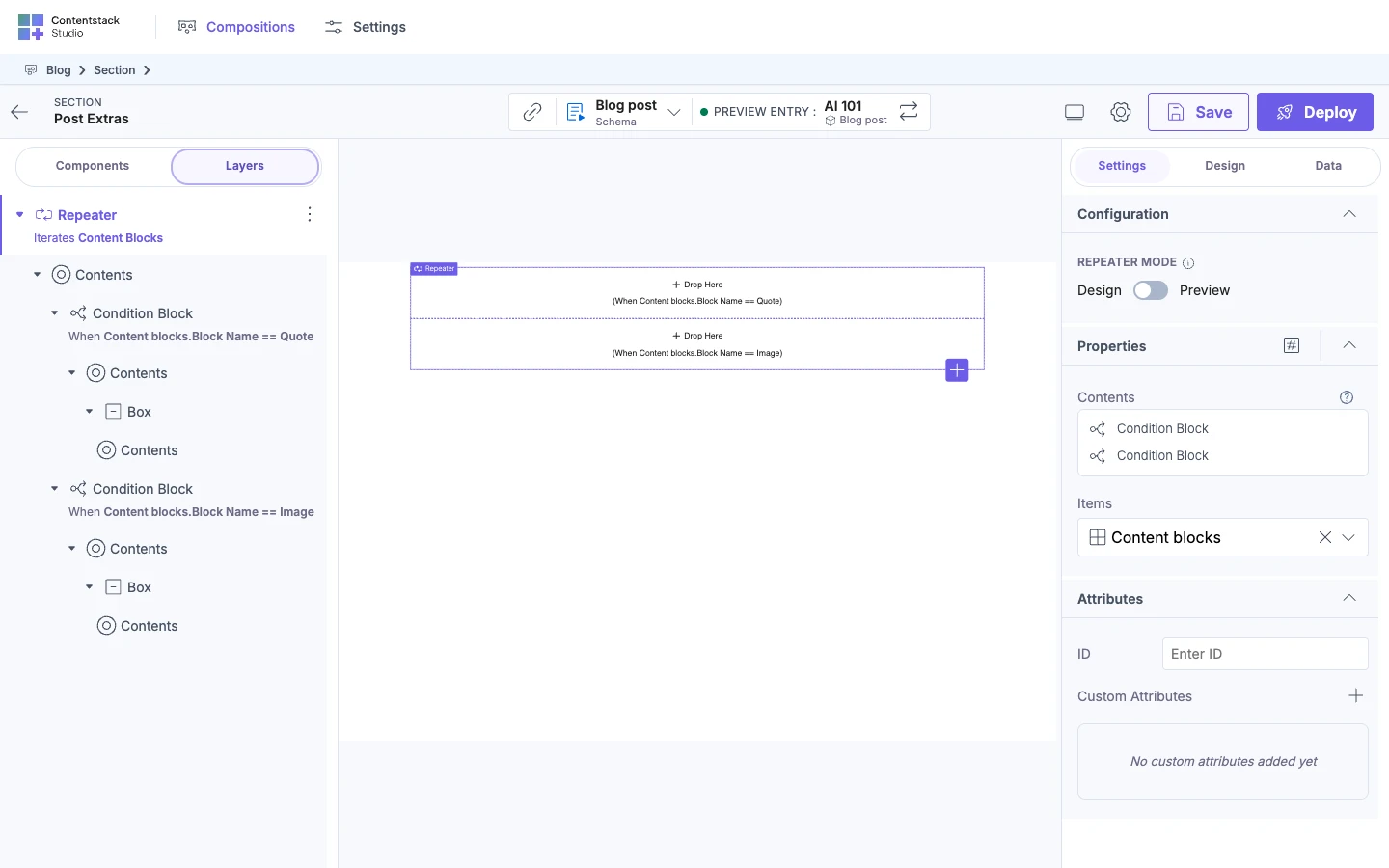
Add a Repeater to the Post extras section and bind Items to Content Blocks. In the Add Condition dialog, keep quote and image checked and click Add. See Add a Condition Block for each block type or content type.
Studio adds one Condition Block for quote and one for image, with a Box in each.
-
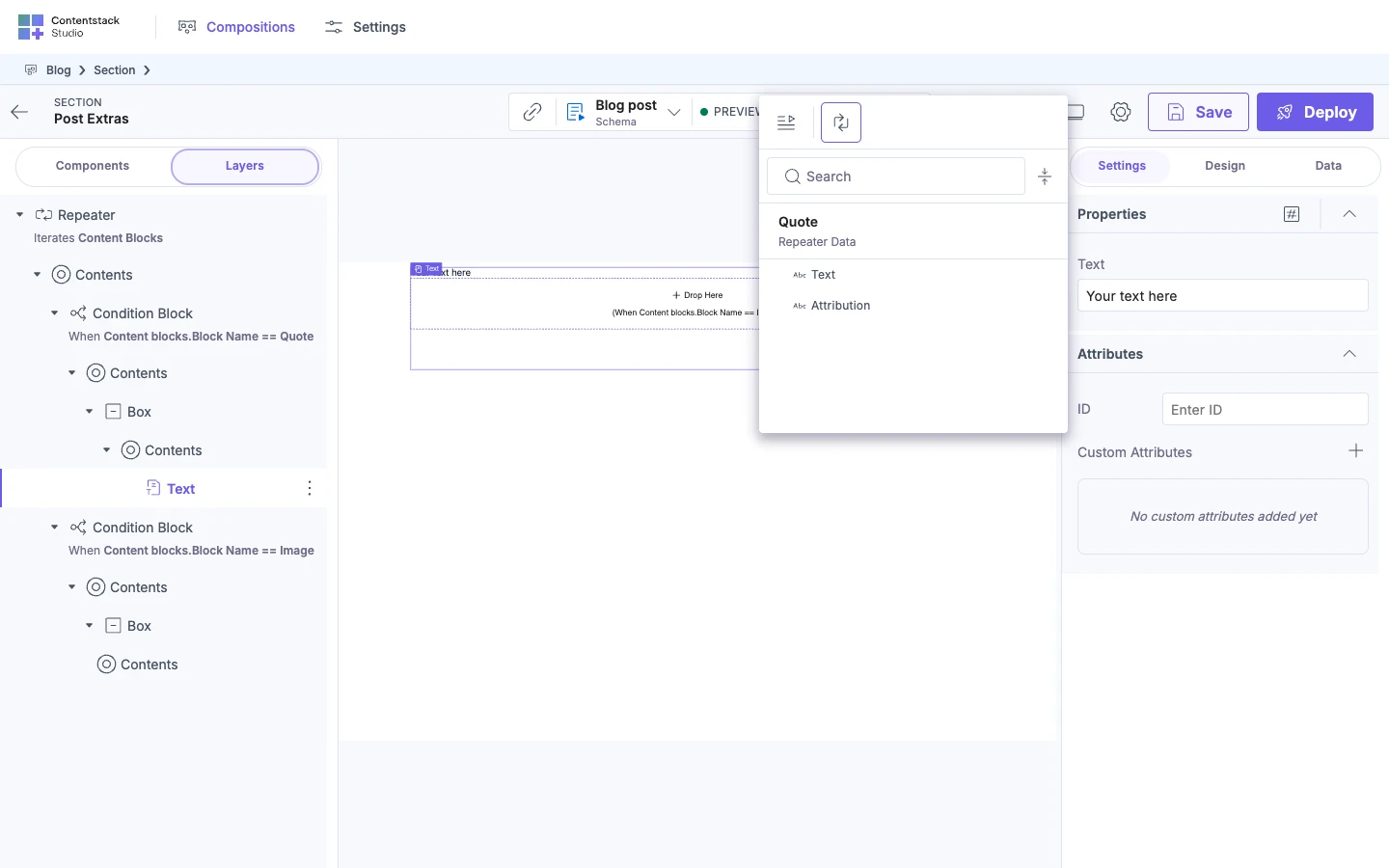
Drop a Text into the quote block's Box. Open its picker. Repeater Data lists Text and Attribution. Bind the Text component's Text prop to Text.
-
Drop a Text into the image block's Box. Its picker lists Image and Caption under Repeater Data. Bind the Text to Caption.
-
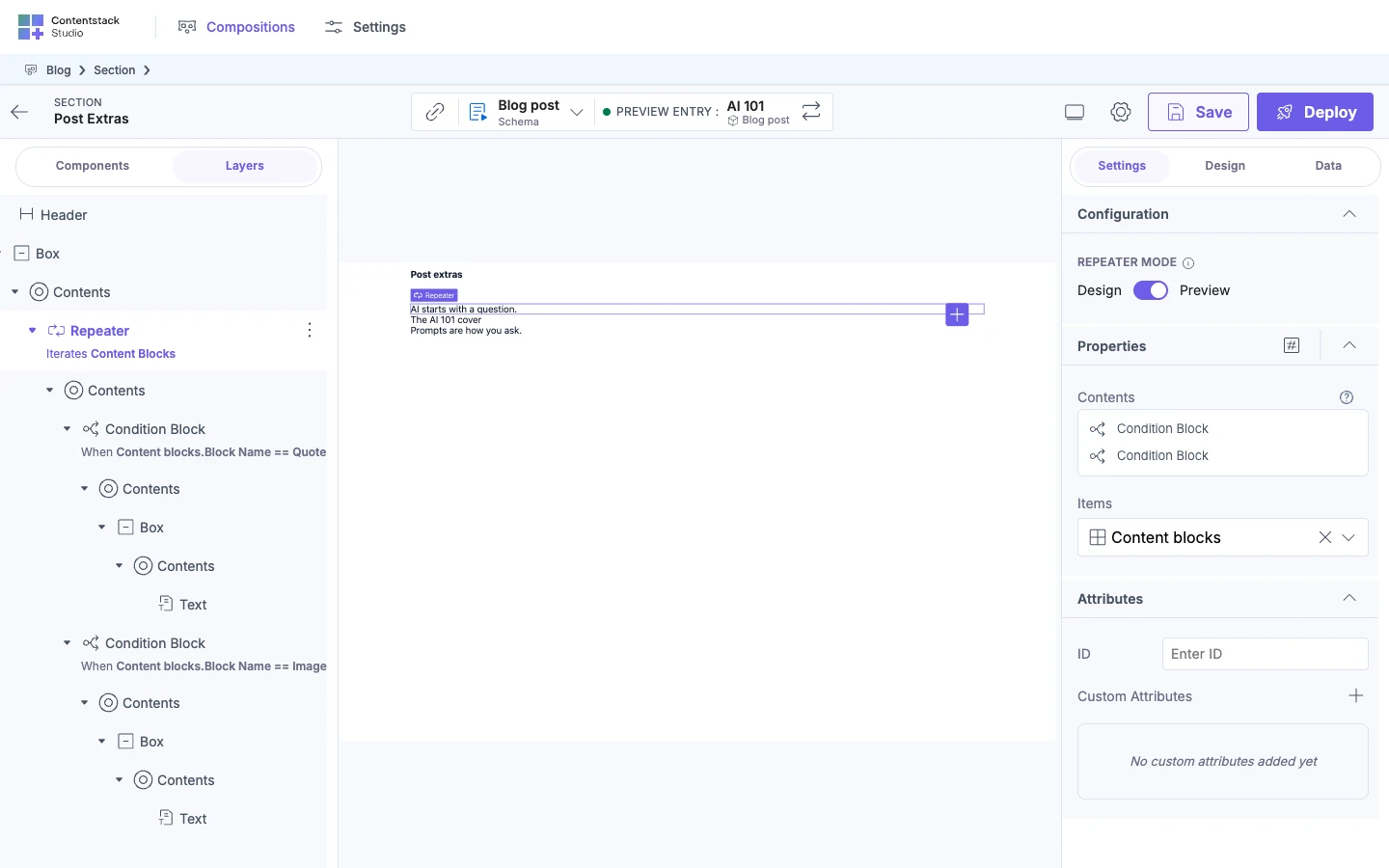
Select the Repeater in Layers and switch Repeater Mode to Preview.
The canvas reads "AI starts with a question.", then the caption "The AI 101 cover", then "Prompts are how you ask."
| Wrong step | What you see | Fix |
|---|---|---|
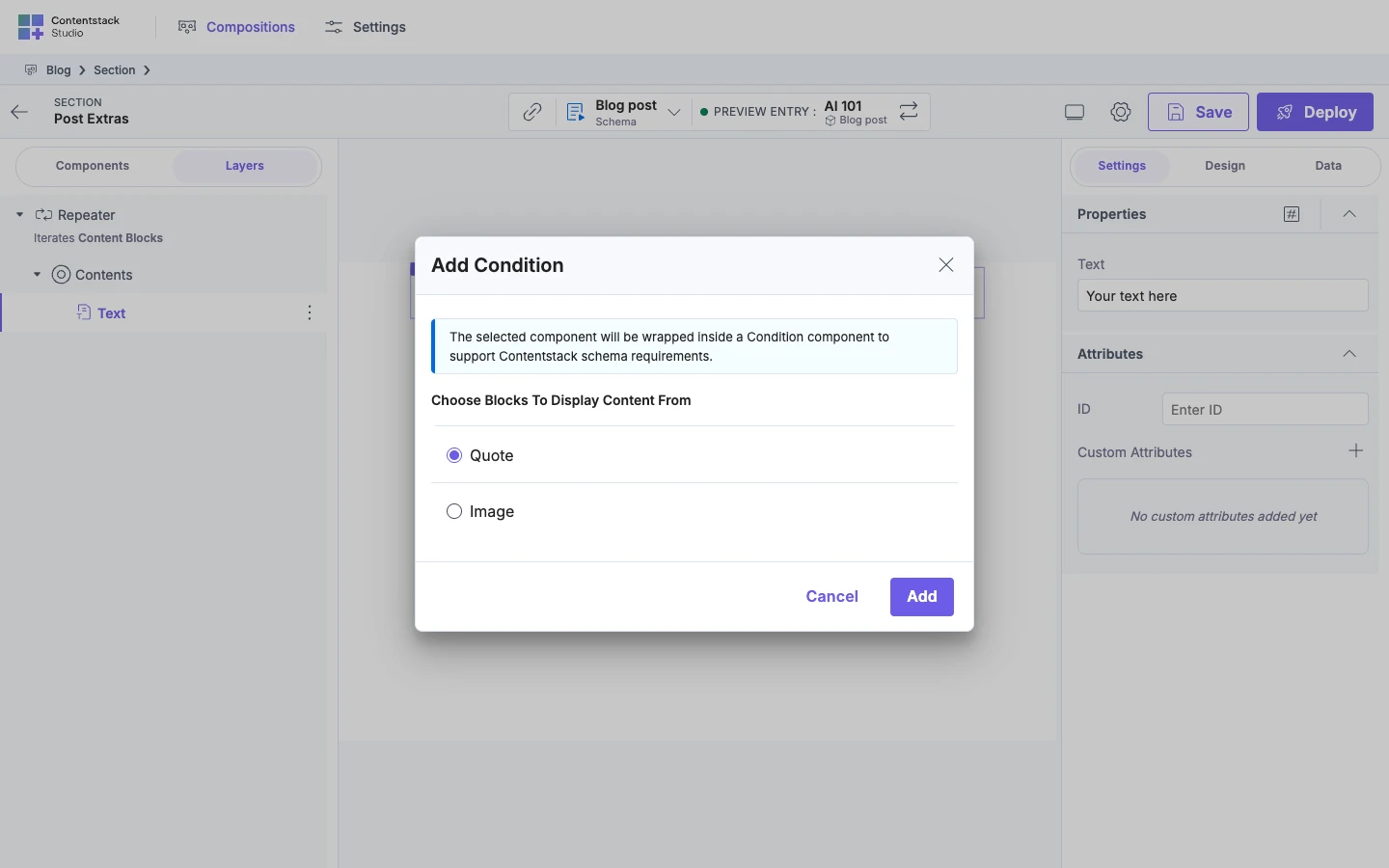
| Put a component in the Repeater but outside every Condition Block. | The Data Picker shows a card, not fields. It reads "Parent repeater is bound to modular block field with multiple blocks." | Click Add Condition on the card, select the block type and click Add. Studio wraps the component in a Condition Block. |
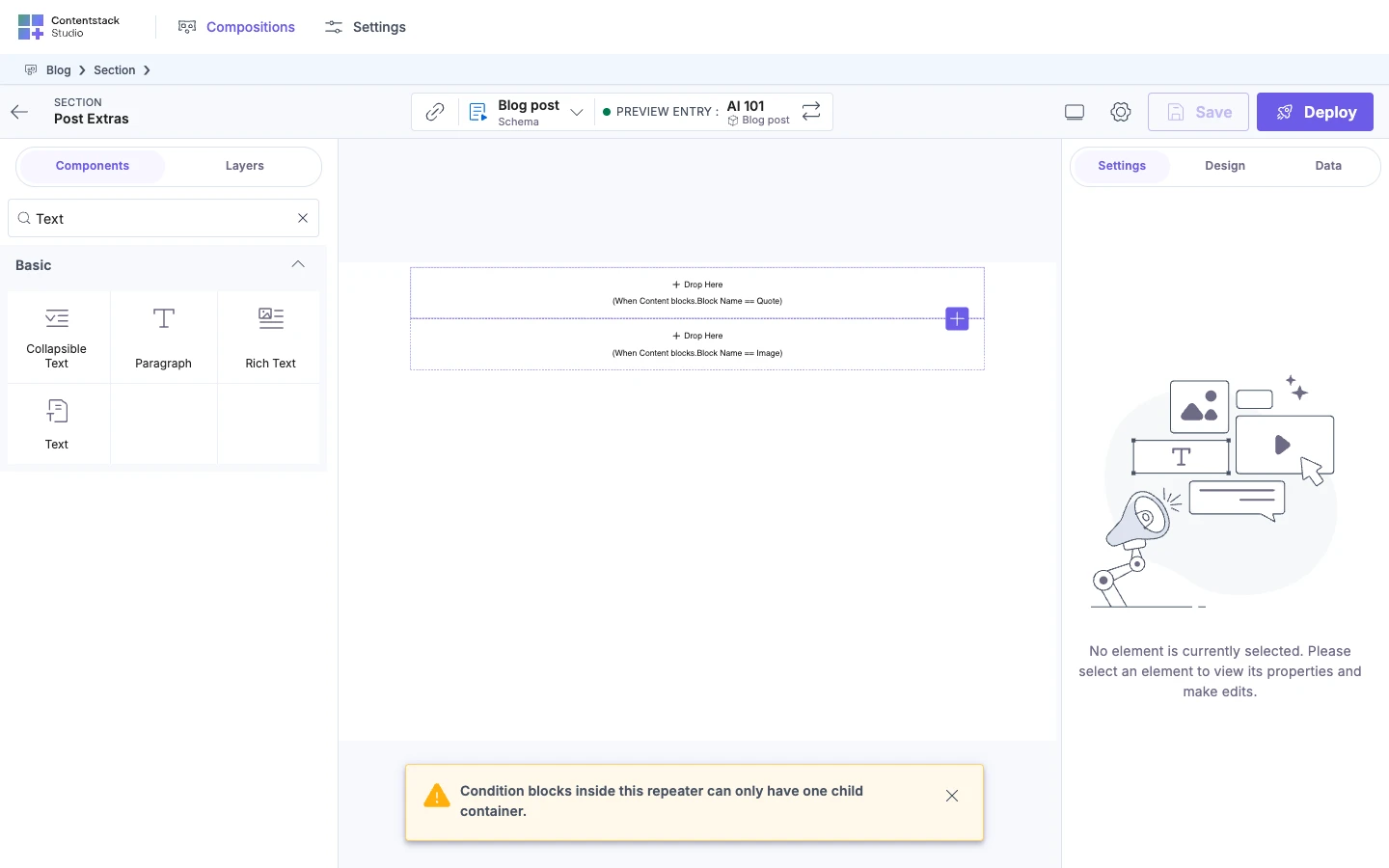
| Drop a second component onto a Condition Block that already has a child. | Studio shows "Condition blocks inside this repeater can only have one child container." | Drop the component into the Box inside the Condition Block. |
Wrong step 1: the Data Picker card for a modular blocks Repeater.
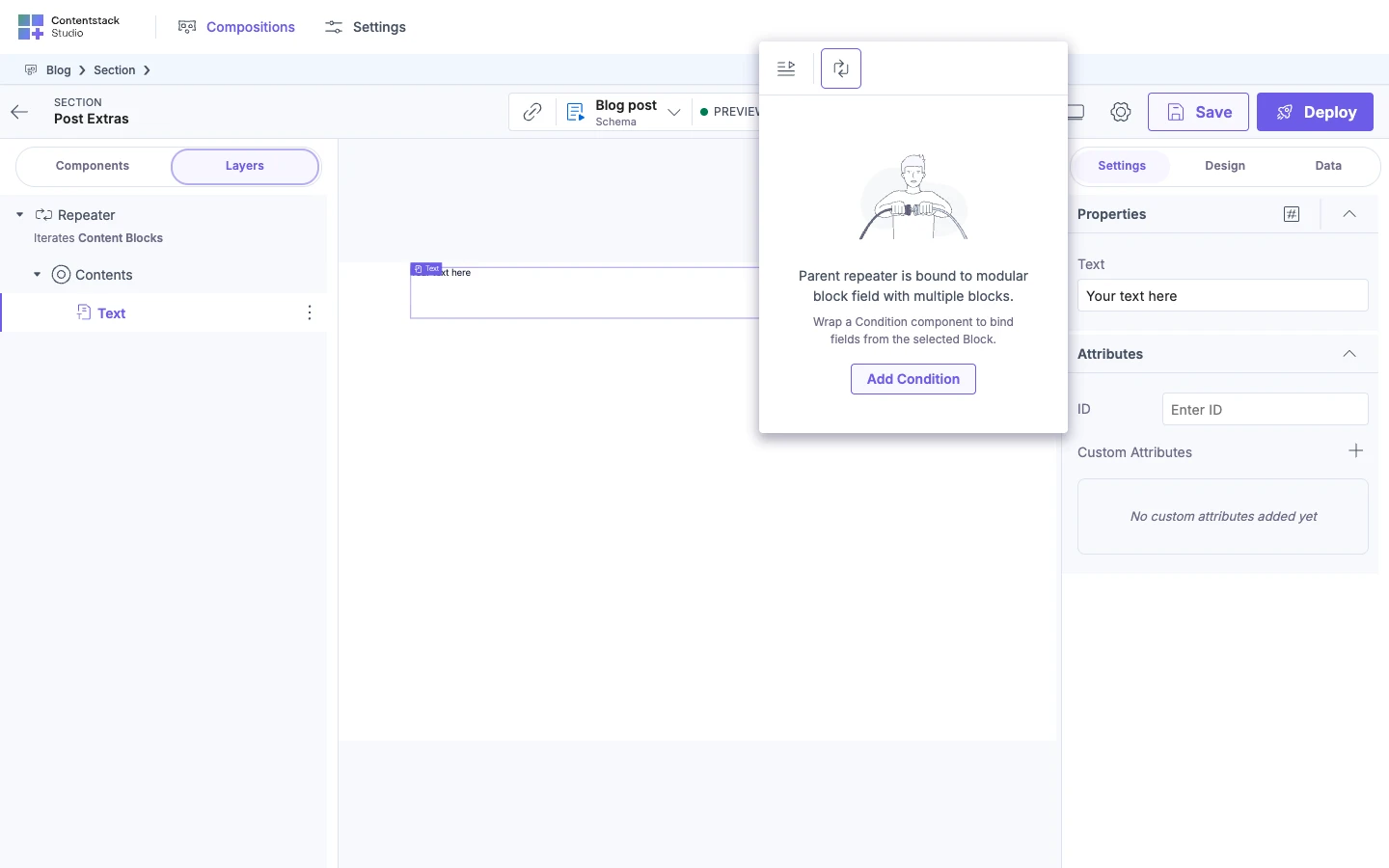
Fix for wrong step 1: the dialog that opens when you click Add Condition on the card.
Wrong step 2: the warning Studio shows.
Show a different card for each type of featured content
Result. For AI 101, Preview shows Getting started with prompts in a PostCard, then Priya in a Header.
-
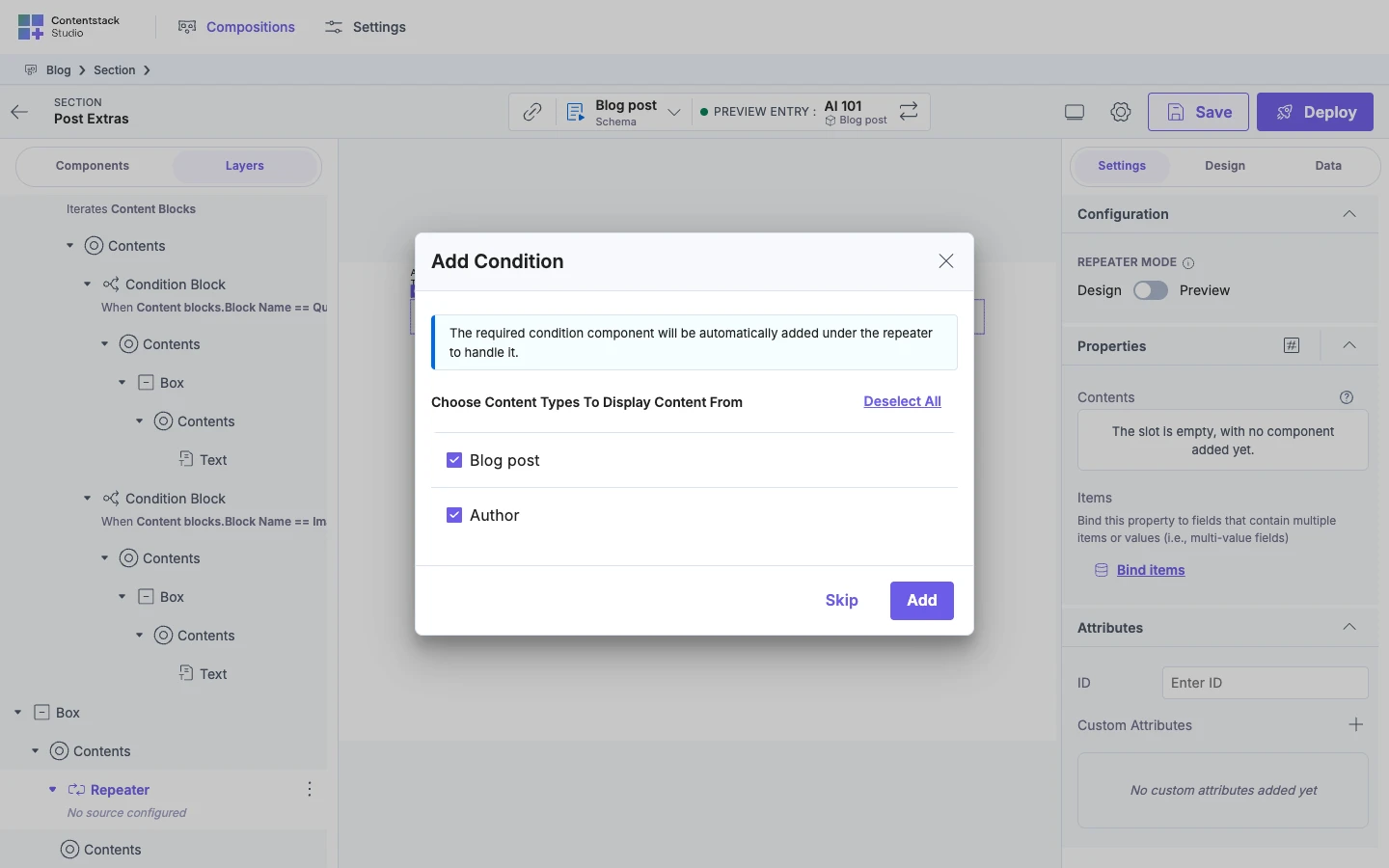
Add a Repeater to the Post extras section and bind Items to Featured Content. In the Add Condition dialog, keep Blog post and Author checked and click Add.
-
Drop a PostCard into the Blog post Box. Bind its Title and URL from Repeater Data.
-
Drop a Header into the Author Box. Bind its Text to the Author's Title.
-
Select the Repeater in Layers and switch Repeater Mode to Preview.
The canvas shows Getting started with prompts, then Priya. A PostCard dropped from the Components tab also shows an empty CTA box that reads Drop Here.
| Wrong step | What you see | Fix |
|---|---|---|
| Uncheck Author in the Add Condition dialog. | Preview shows only the PostCard and no Priya, and Layers shows one Condition Block. | Add the missing type, as the steps under this table show. |
To add the missing type:
-
Clear Items with the X beside it. The Repeater's row in Layers now reads "No source configured".
-
Click Bind items and select Featured Content.
The Add Condition dialog lists only Author, checked.
-
Click Add. Studio adds a second Condition Block with an empty Box.
-
Drop a Header into the new Box and bind it as in step 3 of the main steps.
Show a list inside each item of a list
Result. For AI 101, the Post chapters section shows Basics, then Models, then Prompts, each on its own line. Studio doesn't indent the links. You add that with styling.
-
Add a Repeater to the Post chapters section and bind Items to Chapters.
-
Put a Text in that Repeater and bind it to Title from Repeater Data. In Design, the Text still reads Your text here. Preview shows each chapter's title.
-
Drop a second Repeater into the first, as in Nest one Repeater inside another. Studio puts it in a Box.
-
Select the inner Repeater in Layers and click Bind items. The picker opens on Repeater Data, headed Chapters. Select Links.
In Layers, the inner Repeater reads "Iterates Links".
-
Put a Text in the inner Repeater and open its picker. It opens on Repeater Data, headed Links, and lists Label and URL. Bind the Text to Label.
-
Switch Repeater Mode to Preview on either Repeater. One switch controls both Repeaters.
Preview shows Basics, then Models, then Prompts. In Design, each Repeater shows one Text that reads Your text here, as in step 2.
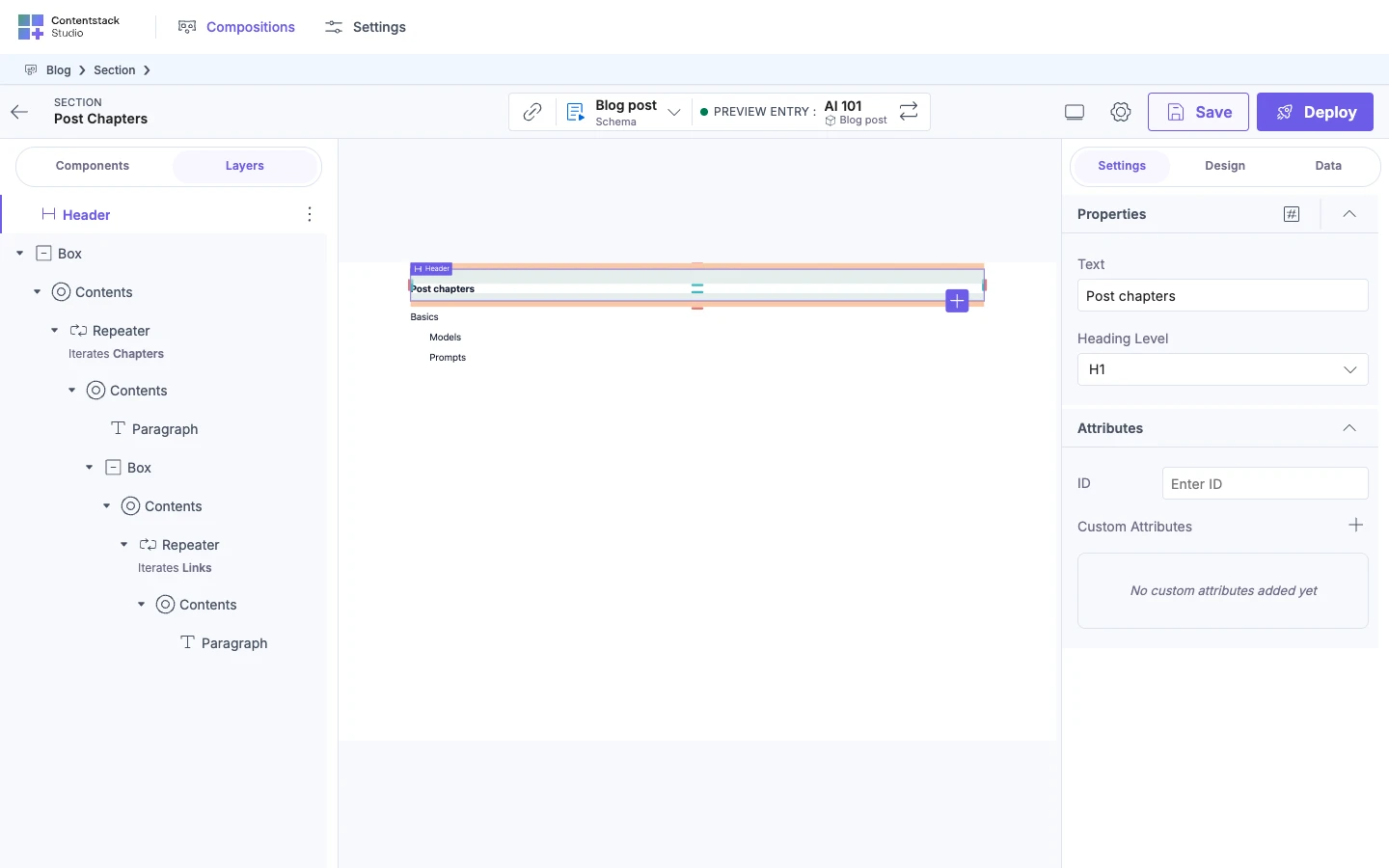
The screenshot also has a Header and an indent for the links. Neither is part of the recipe.
| Wrong step | What you see | Fix |
|---|---|---|
| In the inner Repeater's Items picker, select Title, Label or URL. | The picker stays open, Items stays unbound, and Studio shows no message. | Select Links, the list field. |
| Bind the inner Text to the chapter's Title. | The inner Text's picker lists only Label and URL under Repeater Data, and a search for Title finds no chapter title. | Put the Text for the chapter's Title in the outer Repeater, above the inner one. |
Wrong step 1: the inner Repeater's Items picker.
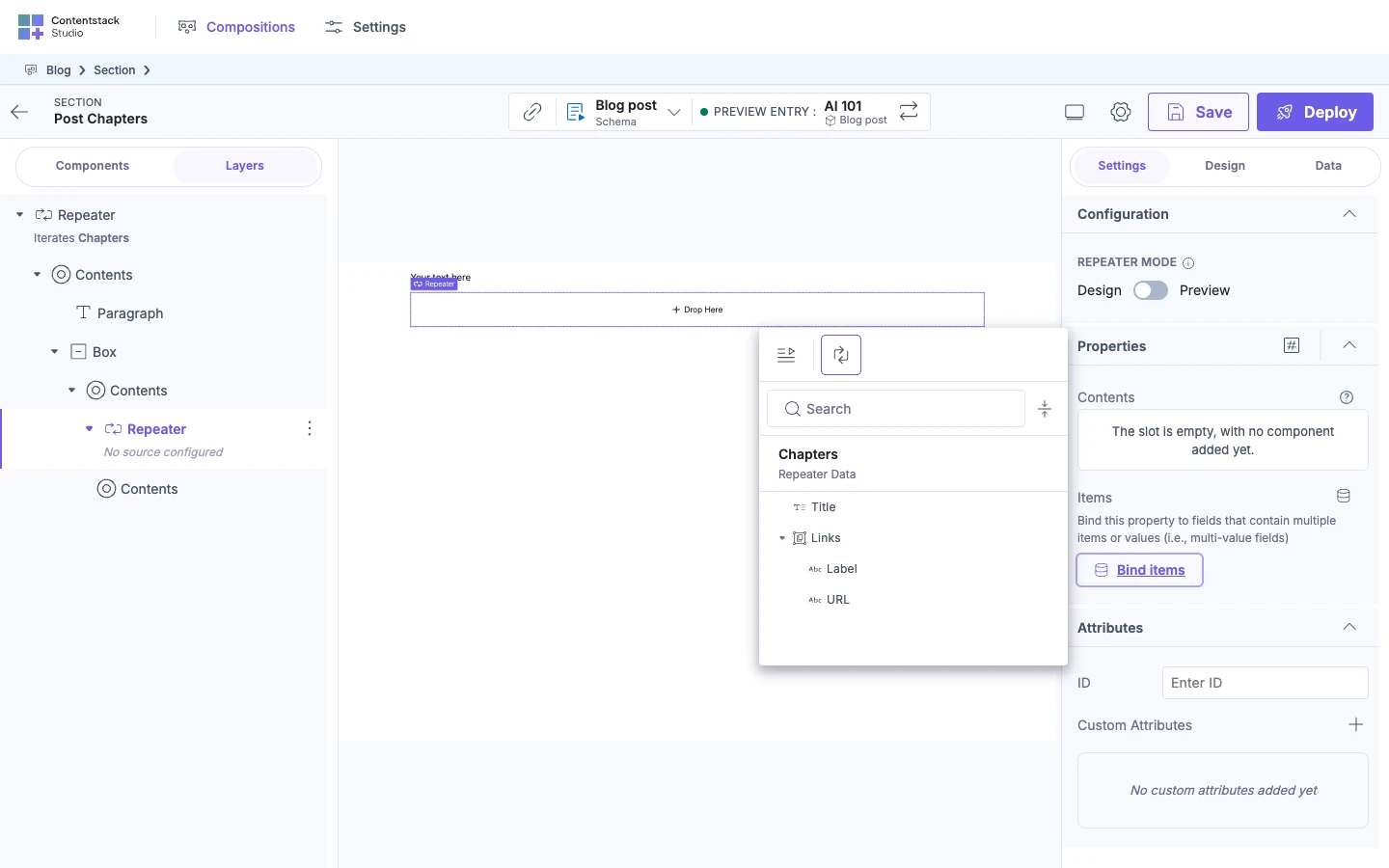
In the inner Repeater's Items picker, the text fields look like the other rows. Your pointer shows a not-allowed cursor over them, and hovering shows no tooltip.
Fix a Repeater row that reads No source configured or Invalid source
Result. In Layers, the Repeater's row reads "Iterates" and the field's name, such as Iterates Related Posts.
| Layers reads | What it means | Fix |
|---|---|---|
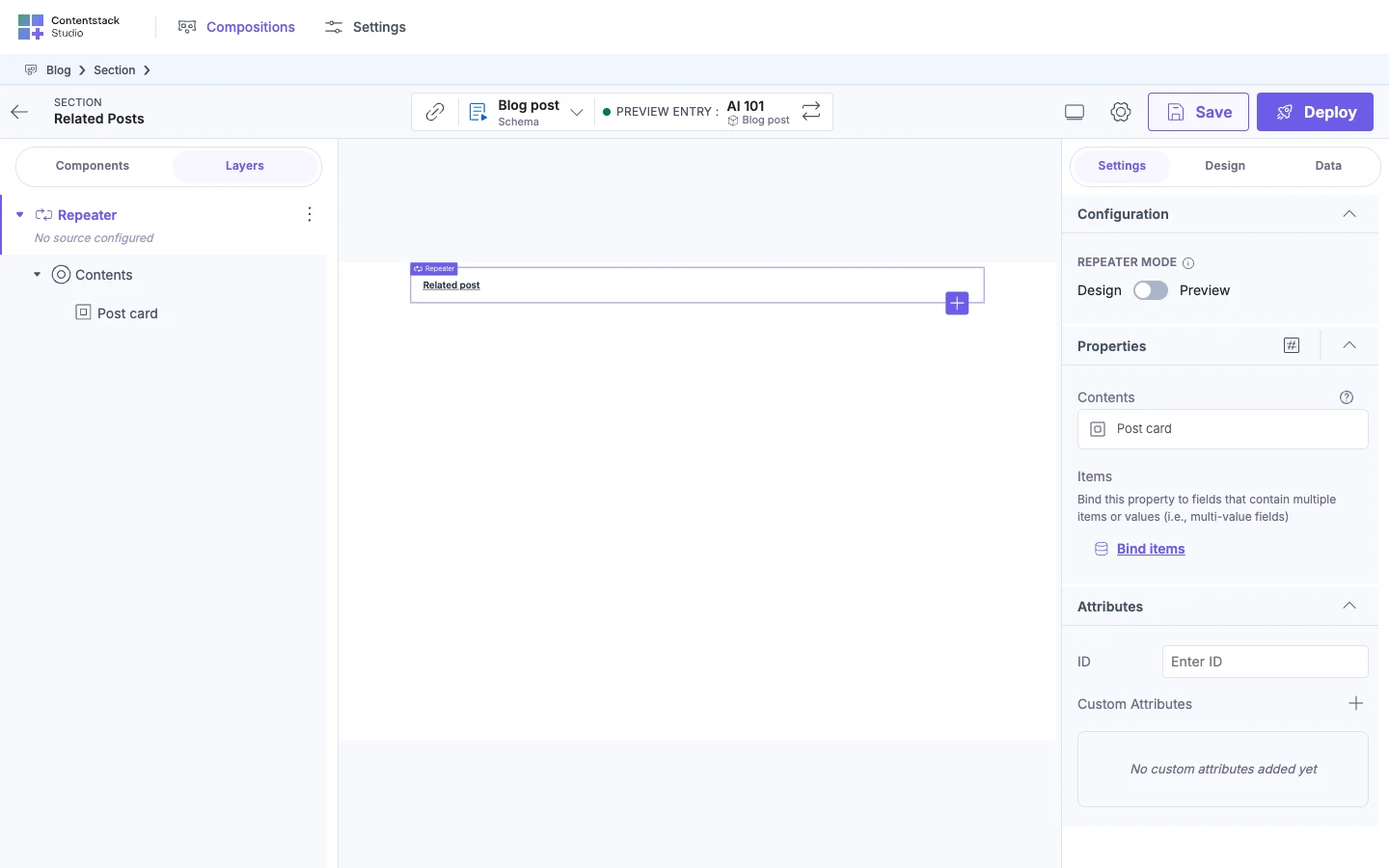
| "No source configured" | Items has no binding. It also reads this after you clear Items with the X. | Click Bind items and select a list field. |
| "Invalid source" and the field's UID, such as "Invalid source body" | Items is bound to a field that isn't a list, such as the rich text field Body. | Clear Items with the X and bind a list field. |
No source configured:
Invalid source:
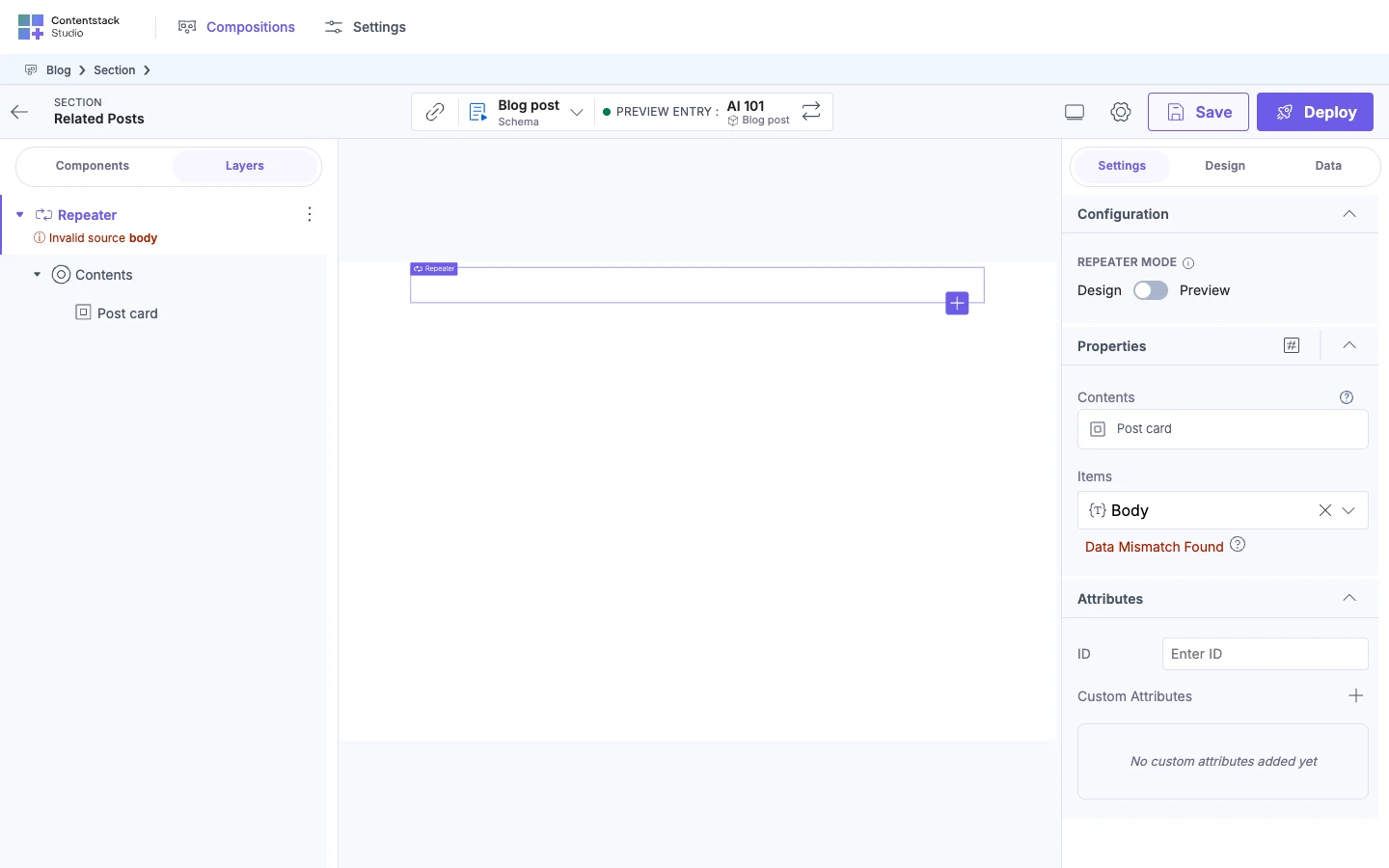
With "Invalid source", the Settings tab shows Data Mismatch Found under Items. For a rich text field such as Body, the info icon beside it reads:
Expected prop type array but received object in the component registry. Remove the binding and bind with correct data.
For other field types, the word after "received" changes with the field.
The canvas renders nothing in Design and in Preview.
A single reference field, such as Author, isn't an error. In Layers, the Repeater reads "Iterates Author", and Preview shows one item.
"Invalid binding" is a different message. It belongs to a Condition Block. See Show or hide content with a condition. For how Layers shows both messages, see Bind a component.
If it doesn't work
Each recipe lists its own wrong steps. For other failures, go to the page for what you were building:
- Lists: Render a list.
- Conditions: Show or hide content with a condition.
- Block types and content types: Render a list of mixed things.