Transformation rules aren't applied
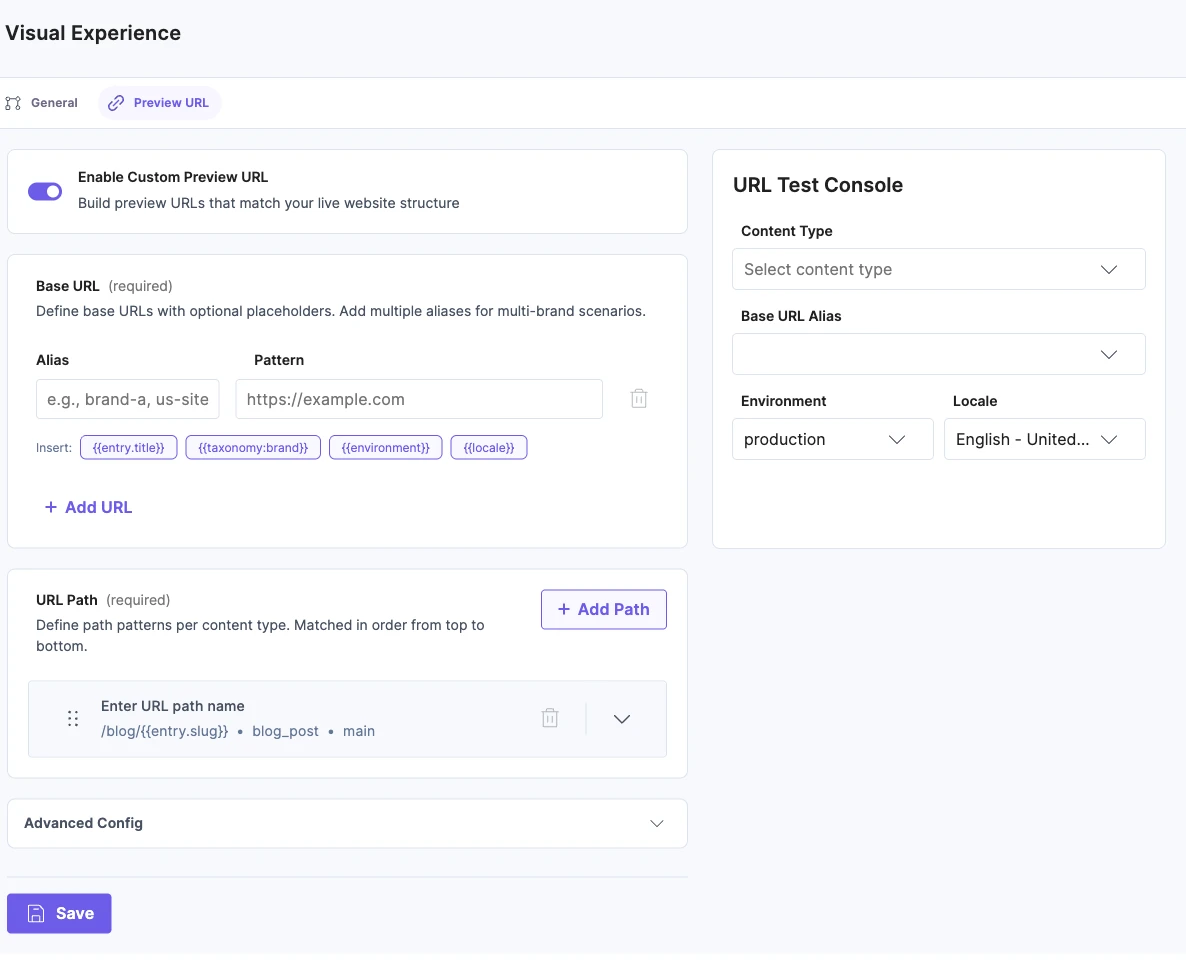
A Custom Preview URL can have transformation rules. A rule changes a field's value before it goes into the address, for example by lowercasing a title or replacing its spaces. You add rules in Settings, then Visual Experience, then Preview URL, under Advanced Config. Each rule applies to one field, such as entry.title, wherever that field appears in your paths.
Live Preview and Visual Editor apply these rules. Studio doesn't. When Studio copies your Custom Preview URL into a Template URL, it copies the plain path and ignores the rules.
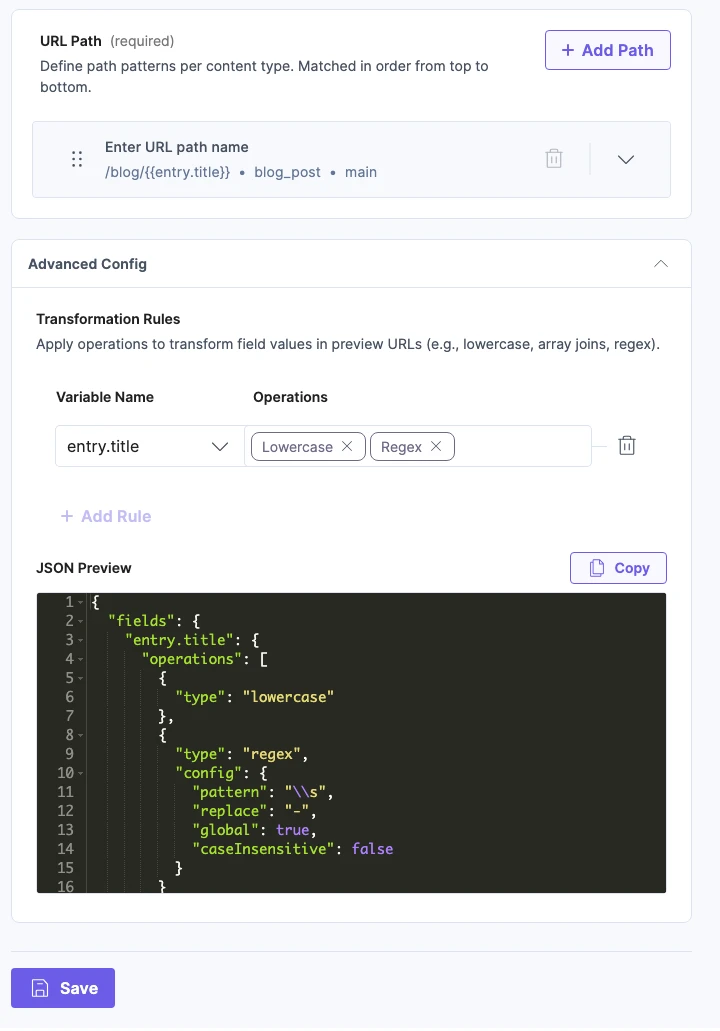
What goes wrong
Say your Blog post content type has the Custom Preview URL /blog/{{entry.title}}, with two transformation rules on entry.title:
- Lowercase.
- A Regex that replaces each space with
-.
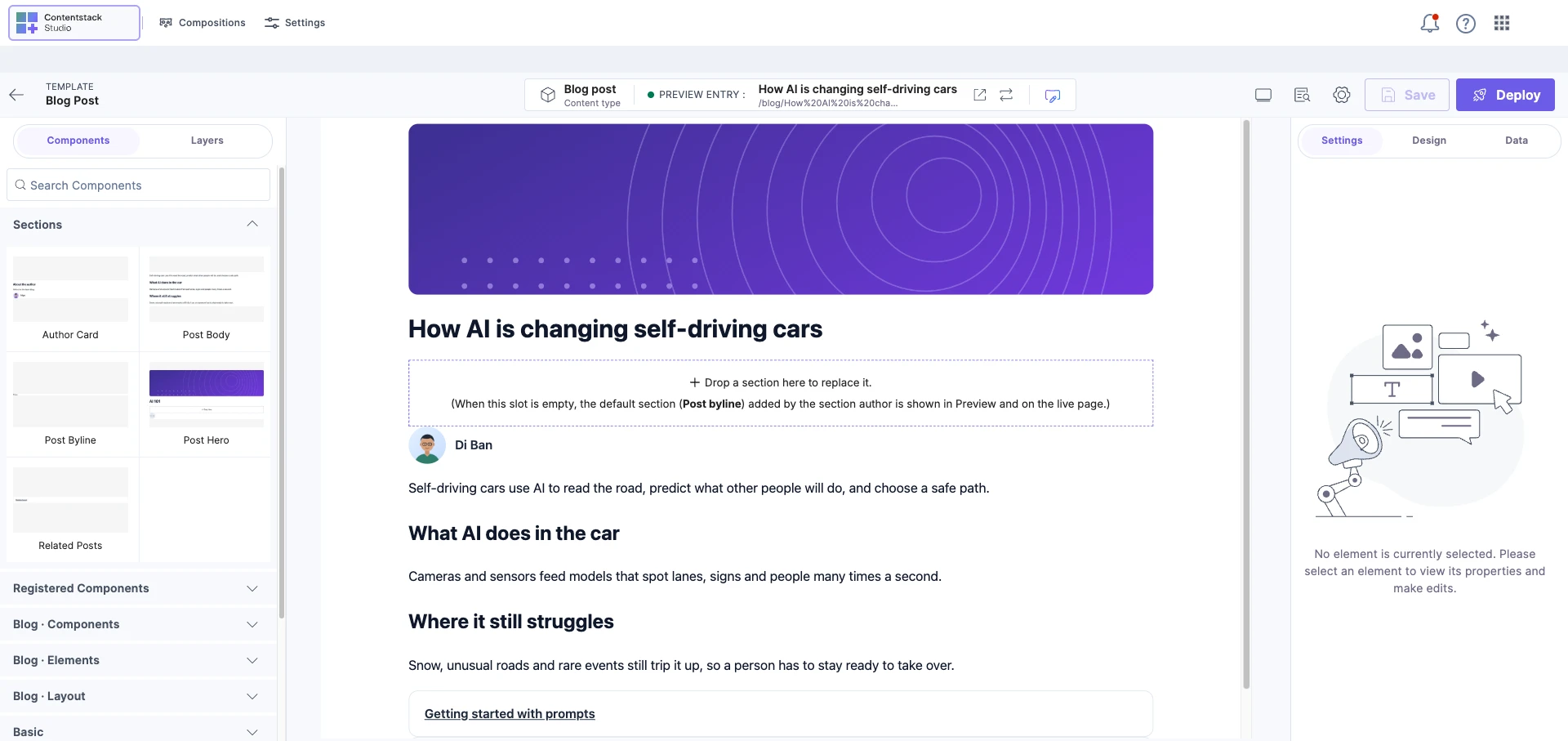
Your post "How AI is changing self-driving cars" now has two addresses:
| Who uses the address | Address |
|---|---|
| Studio's canvas, and Visual Editor when it opens a Studio template | /blog/How%20AI%20is%20changing%20self-driving%20cars |
| Live Preview, and your site's own links if they follow the same rules | /blog/how-ai-is-changing-self-driving-cars |
Inside Studio, everything looks right. The canvas opens the first address, Studio finds the post by its title, and the page renders.
The second address breaks. Studio reads how-ai-is-changing-self-driving-cars from it and looks for a post with exactly that title. No post has it, so the fetch fails with an error that starts like this:
[Contentstack Studio] CONNECTED_ENTRY_NOT_FOUND: No entry was found for the content type "blog_post" this composition is connected to.
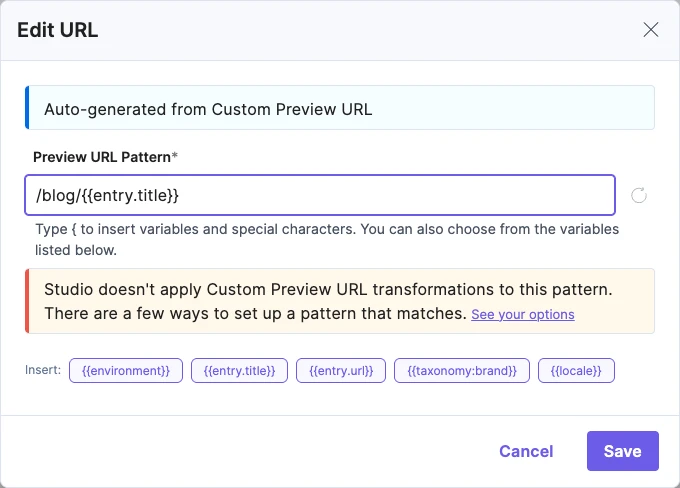
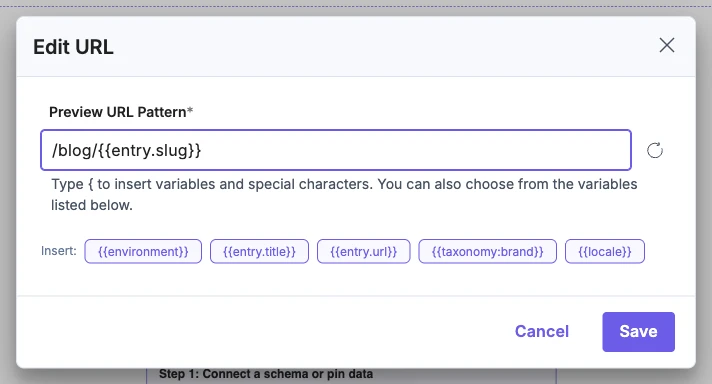
Studio shows one message about this, in the Edit URL dialog: "Studio doesn't apply Custom Preview URL transformations to this pattern. There are a few ways to set up a pattern that matches." It appears only while the Template URL still comes from the Custom Preview URL. It goes away once you type in the field, even if your new pattern has the same problem.
Why Studio can't apply them
Turning a title into an address is easy. Turning an address back into a title isn't, and that's the direction Studio needs.
Contentstack finds an entry by the value stored in a field. It has no query for "the post whose title, once lowercased with spaces replaced, matches this address". So Studio would have to work out the original title first.
That's where it breaks down. Every one of these titles gives the same address:
| Possible title | What's different |
|---|---|
How AI is changing self-driving cars | The real title |
How AI Is Changing Self-Driving Cars | Every word starts with a capital |
How Ai is changing self driving cars | AI written as a word, and no hyphen |
HOW AI IS CHANGING SELF-DRIVING CARS | All capitals |
how ai is changing self driving cars | All lowercase |
The rules threw away the capitals. They also hid whether each - was a space or a hyphen to begin with. The address has 30 letters, each upper or lower case, and 6 dashes, each a space or a hyphen. That's more than 68 billion possible titles to look for.
Some rules remove characters completely. A Regex that strips punctuation turns What's new in AI? into whats-new-in-ai. Nothing in the address shows that an apostrophe or a question mark was ever there.
The only other approach is to fetch every blog post, apply your rules to each title, and compare. Studio would have to do that on every page view. With 2,000 posts, showing one page would mean fetching 2,000 entries.
Ways to fix it
| Option | Use it when |
|---|---|
| Pass the template and the entry yourself | Your site already knows which entry an address belongs to. |
| Remove the transformation rules | You can serve addresses built from the stored value. |
| Store the address in its own field | You want readable addresses that Studio can match. |
Pass the template and the entry yourself
If your site already knows which entry an address belongs to, skip URL matching. For example, a site that builds a page for each post already has each post's UID.
Both fetch functions take the two UIDs: useCompositionData in the browser, and sdk.fetchCompositionData on the server. Pass the template's UID as compositionUid, and the entry's UID as templateEntryUid.
// In the browser
const { specOptions } = useCompositionData(
  { compositionUid: "blog_post" },
  { templateEntryUid: "bltadc233d8d49bc8bc" },
);

// On the server
const specOptions = await sdk.fetchCompositionData(
  { compositionUid: "blog_post", searchQuery },
  { templateEntryUid: "bltadc233d8d49bc8bc" },
);
You'll find the Template UID in the template's Edit Template dialog, and the entry UID in the entry editor.
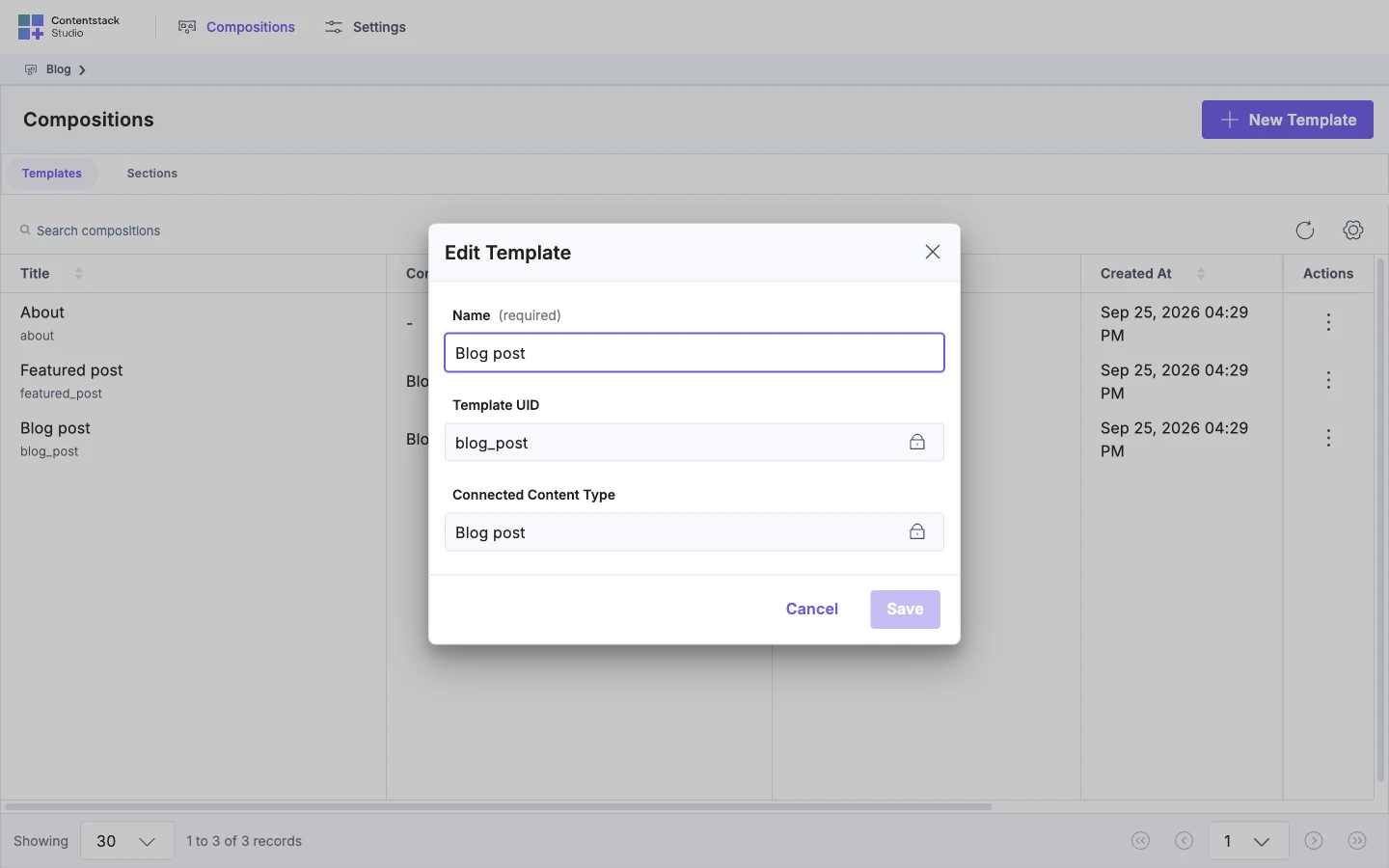
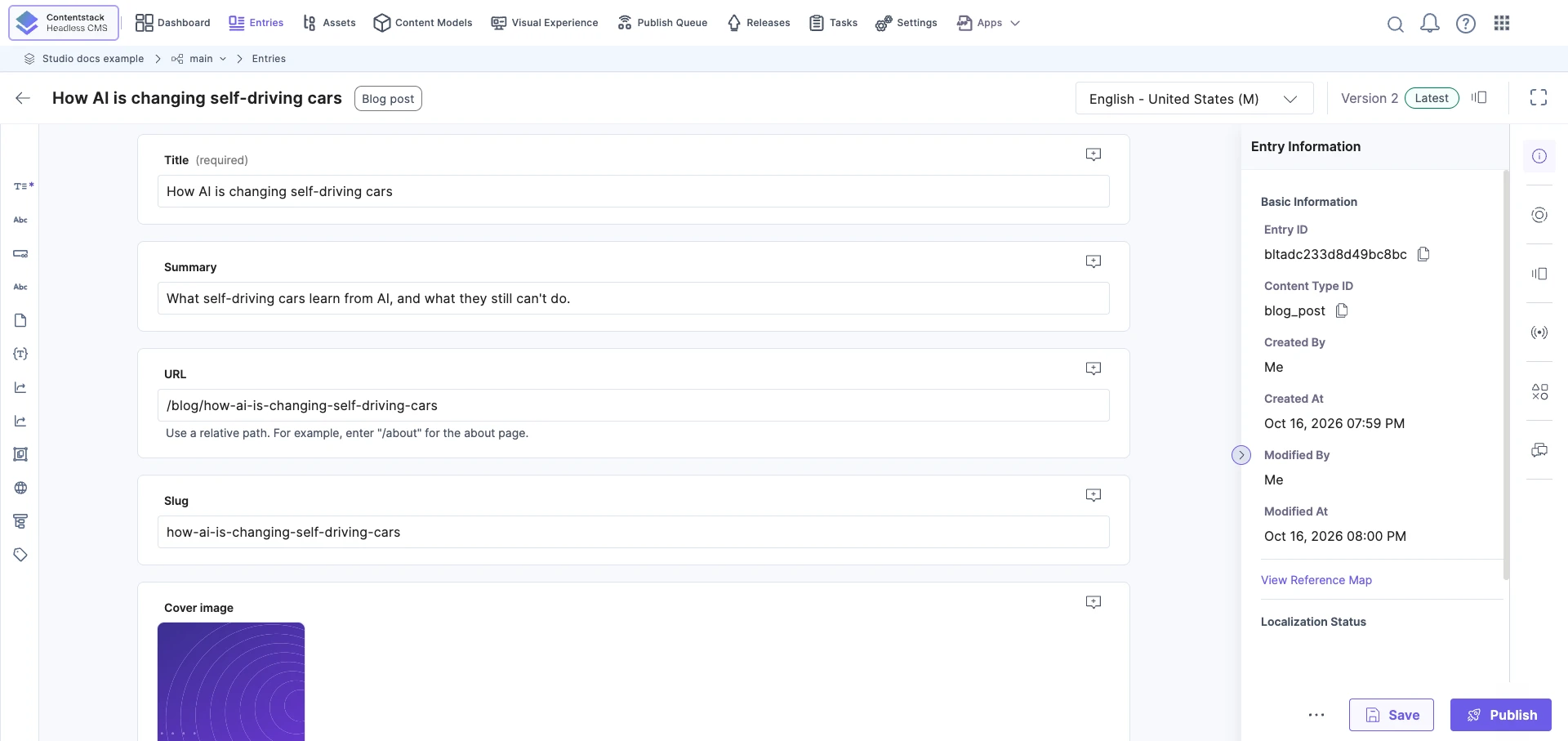
In Studio, the preview entry the author picks still wins over templateEntryUid. For every way to fetch a template, see Fetch a composition.
Remove the transformation rules
Delete the rules in Advanced Config, then save. Live Preview then builds the same address Studio uses, from the stored title: /blog/How%20AI%20is%20changing%20self-driving%20cars.
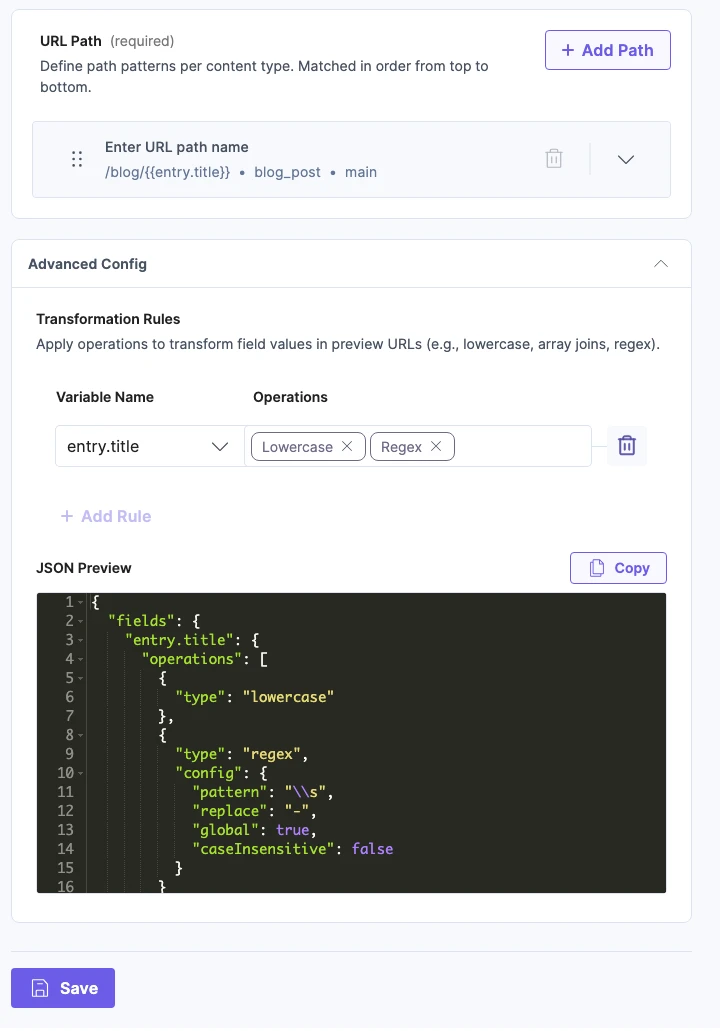
This is the quickest fix, but your addresses keep their capitals and encoded spaces. Change your site's own links to match. If visitors already use the old addresses, redirect them.
Store the address in its own field
Give the content type a field that holds the address-ready value, such as slug holding how-ai-is-changing-self-driving-cars. Fill it when the entry is saved, for example with an Automate flow or a webhook. Fill it for your existing entries too.
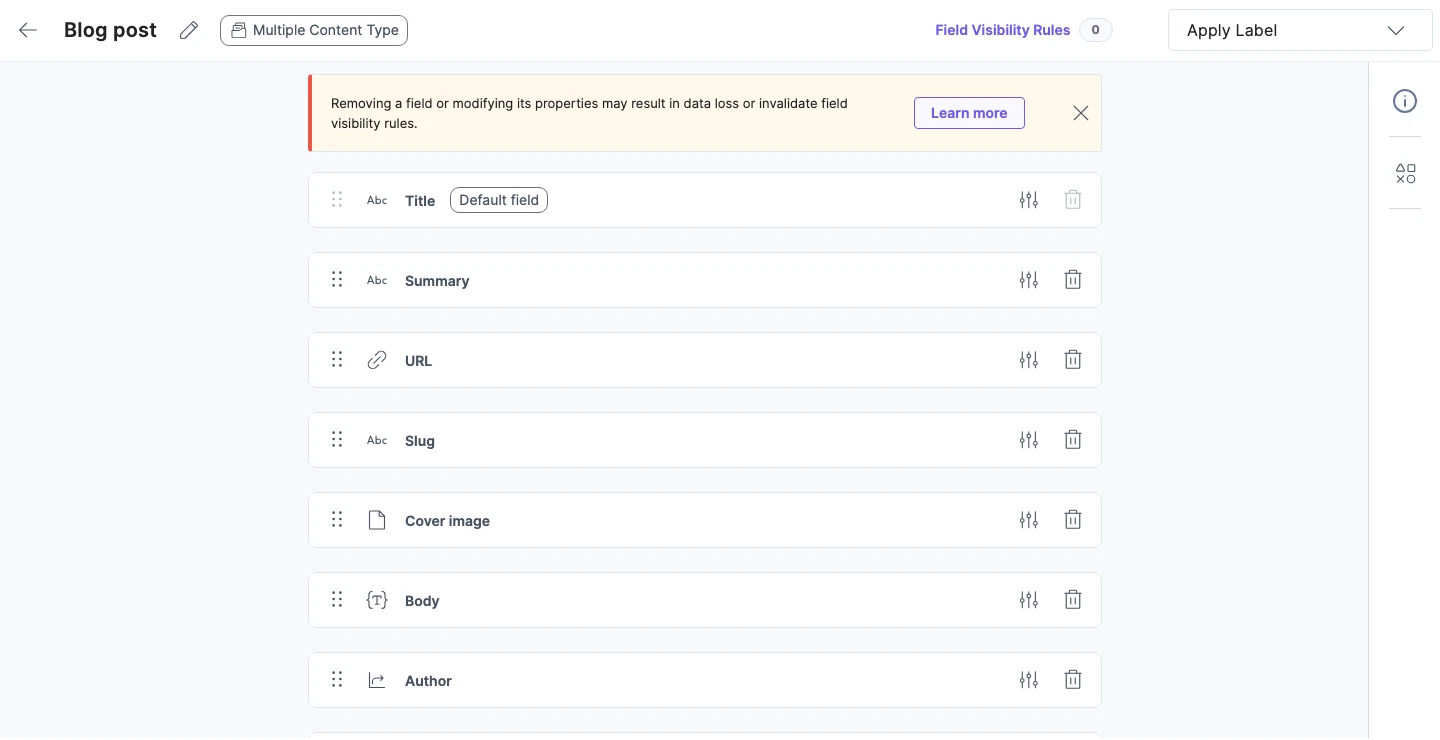
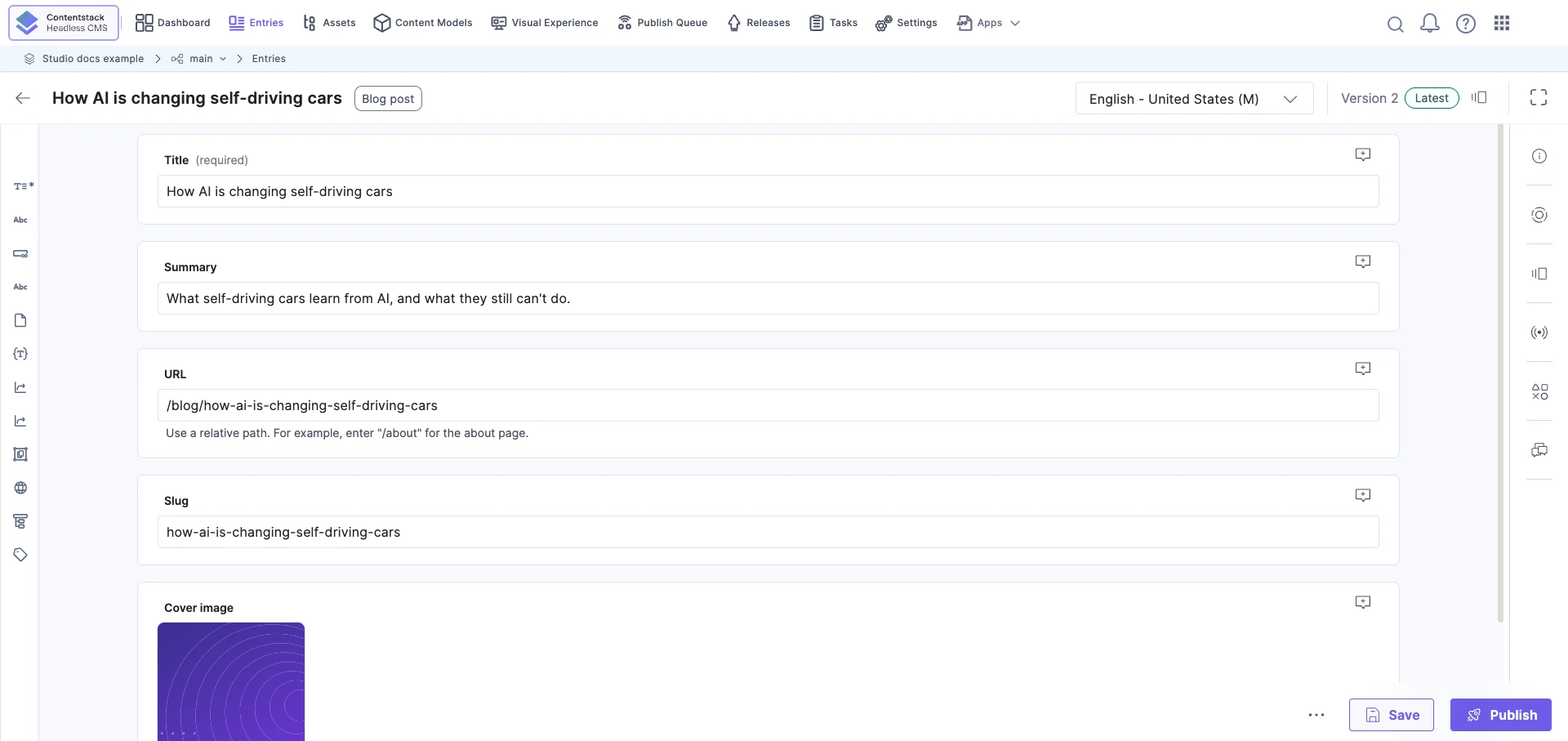
Then use the field in your pattern, with no rules. Either set the Custom Preview URL to /blog/{{entry.slug}}, or type that pattern in Studio's Edit URL. Studio now looks for a post whose slug is how-ai-is-changing-self-driving-cars, and finds it.
Changing the Custom Preview URL doesn't update templates you've already created. Re-sync each one, or edit its URL. See Later changes don't reach existing templates and Edit or reset a template's URL.
Where to go next
- See every way to fetch a template: Fetch a composition.
- Change a template's URL, or re-sync it: Edit or reset a template's URL.
- Learn how Studio builds and matches addresses: How template URLs work and URL variables.