Mount the section preview route
Add one route to your app that renders <StudioCanvas />, so authors can open and edit sections in Studio. You need it before anyone builds a section, because a section has no URL of its own.
The example on this page is the Blog project, with the Canvas URL /canvas, opening the Post hero section.
Prerequisites
- The Studio SDK is running. Your app calls
studioSdk.init, as set up in Install the Studio SDK. - The project has a Base URL. Its environment and language give one, as set in Configure your project. For the example,
localand English givehttp://localhost:3106.
What the section preview route is and what you get
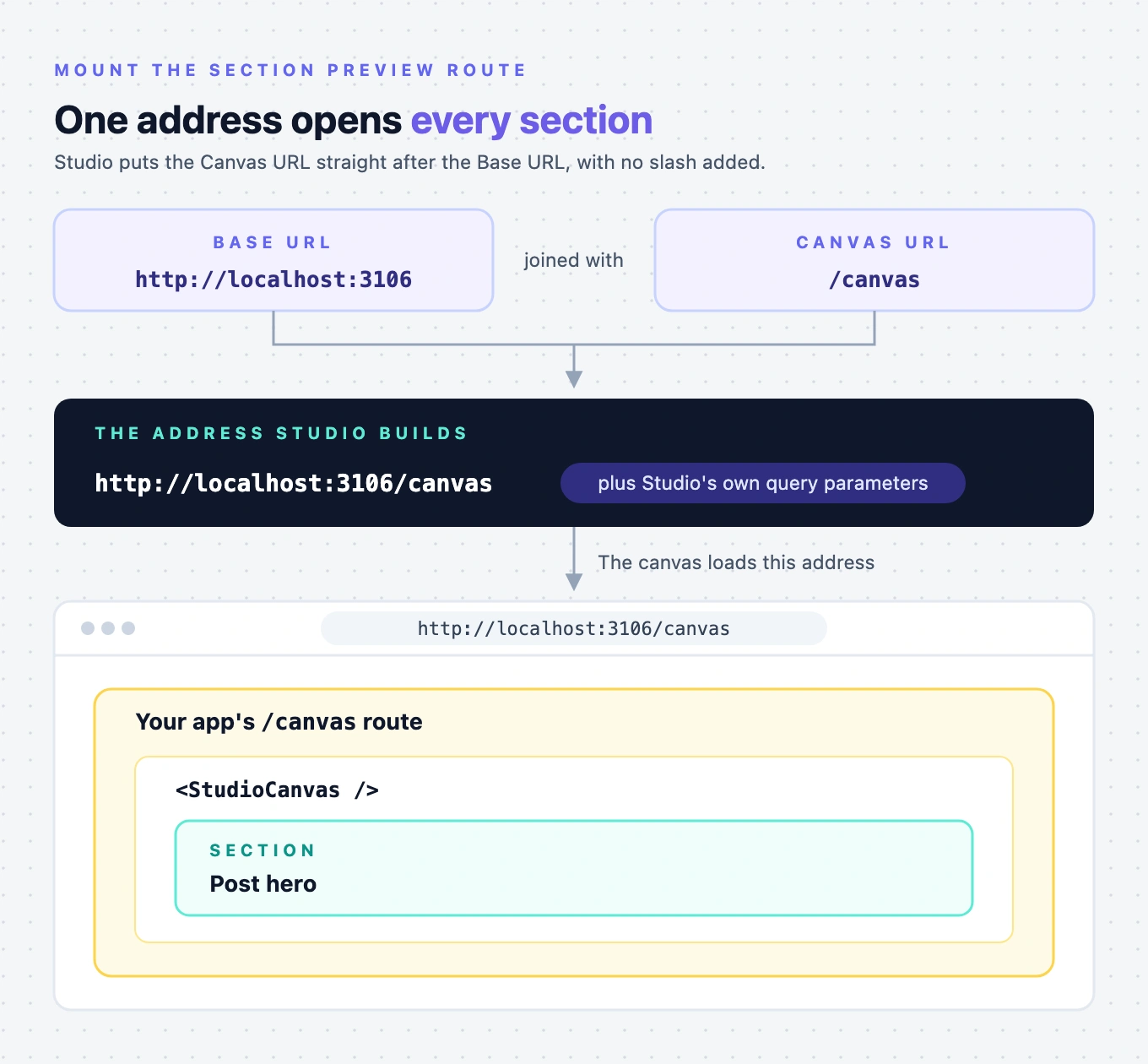
Studio opens every section at one address, the project's Canvas URL, because sections have no URL of their own. Your app answers that address with a route that renders <StudioCanvas />. The component reads which section to show from the address Studio loads, and fetches the section itself.
One route serves every section. When someone creates a new section, such as Post body, it opens on the same route with no code change.
The route is for editing only. Outside Studio, <StudioCanvas /> renders nothing, so visitors never see a section there.
Templates don't use this route. Studio opens a template at its own Template URL, and <StudioComponent /> renders it there. The two components aren't interchangeable. For template routes, see Wire template preview routes.
Pick a path for the route
The path is yours to choose. Studio's own example is /canvas, and the Blog project uses it.
Studio builds the canvas address by putting the Canvas URL straight after the Base URL, with no slash added. So start the path with /. For the example, Studio loads http://localhost:3106/canvas, plus query parameters of its own.
Three rules apply to the route:
- Keep the query string.
<StudioCanvas />reads the section from it. If a redirect drops it, the component can't tell which section to show, and renders nothing. - Give it a path of its own, never a catch-all route. If a catch-all route claims the Canvas URL, the canvas renders a page or nothing instead of the section.
- Keep your site's header, footer and third-party scripts off it. Everything the route loads runs inside Studio's canvas. See Keep third-party scripts out of the canvas.
You don't type the Base URL in Studio. It's the selected environment's URL for the selected language, set on the environment in Contentstack. To edit sections against the app on your machine, that URL has to be your local address, such as http://localhost:3000.
If the environment has no URL for the project's language, Settings shows "No base URL found!". You fix that on the environment in Contentstack.
Render StudioCanvas on the route
Import StudioCanvas from @contentstack/studio-react and render it. It takes no props. In the Next.js App Router, create app/canvas/page.tsx:
"use client";

import { StudioCanvas } from "@contentstack/studio-react";

export default function CanvasPage() {
  return <StudioCanvas />;
}
A few things to keep in mind on this route:
- Don't fetch anything. Don't pass
<StudioCanvas />a spec, and don't calluseCompositionDataorfetchCompositionDatahere. The component fetches the section itself. - It's the same for client and server rendering. Whichever way your templates render, this route doesn't change.
- It doesn't cause a hydration mismatch.
<StudioCanvas />renders nothing on the server and on the first render in the browser, then renders the section. - The init has to reach this route. The module that calls
studioSdk.initmust load on this route, in the browser. In the example,app/layout.tsxrendersStudioInitfromapp/studio-init.tsx, andapp/canvas/page.tsxsits under that layout. If you give the route a layout of its own, check that layout still rendersStudioInit. - Register your components first. The section uses the same component registry as the rest of your app, so register your components before the route renders. Built-in components such as Repeater and Section Slot register themselves when you import
StudioCanvas.
Set the Canvas URL to the same path
-
In Studio, open the Blog project, then open Settings, then Configuration.
-
Type
/canvasin Canvas URL.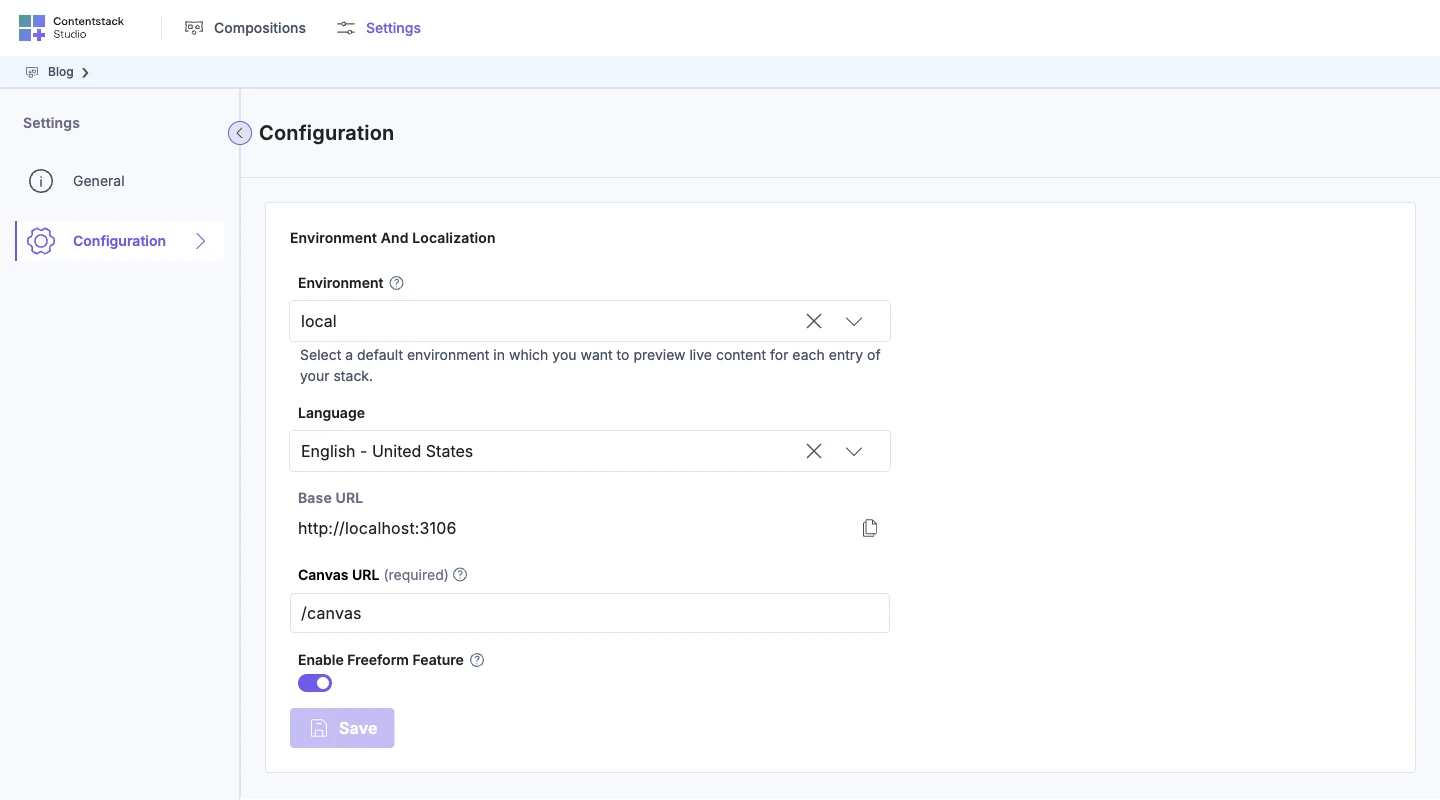
-
Click Save. It stays disabled until the tab has an environment, a language, a Base URL and a Canvas URL.
The Canvas URL is required. You can also change it in the canvas's Configuration dialog, and that change is saved to the project for everyone.
With no Canvas URL, opening a section shows "Canvas URL is not configured" in place of the canvas, with a Configure Canvas URL button. See Configure your project.
Check that a section opens on the canvas
- If you're editing against
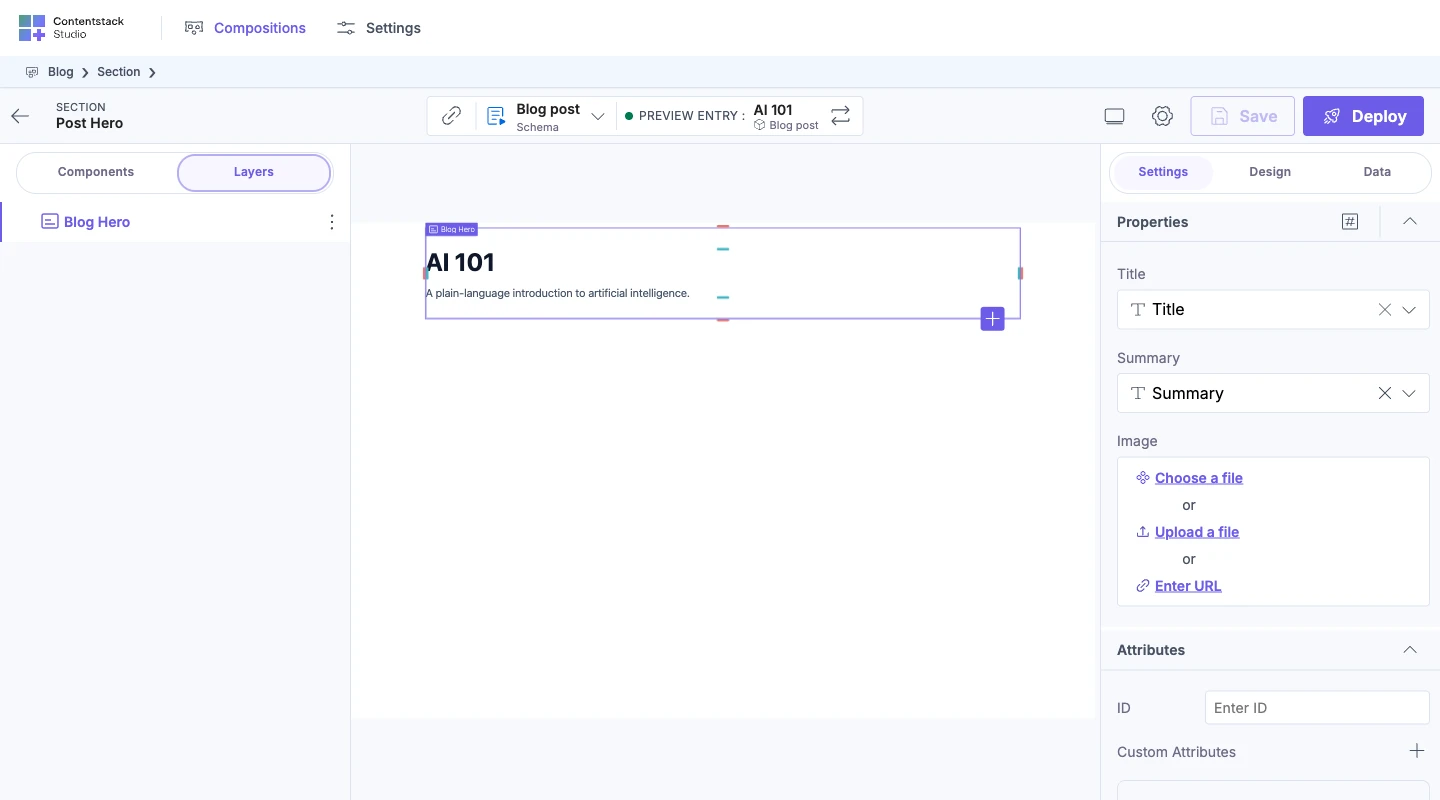
http://localhost:3000, start your app. - In Studio, open the Sections tab of the Blog project, and open Post hero.
The canvas loads http://localhost:3106/canvas, and your route shows Post hero.
Studio waits before it reports that a route has no canvas, so a card can appear some time after the canvas opens. If one does, find its title under If it doesn't work.
Opening the route straight in a browser tab, such as http://localhost:3000/canvas, shows an empty page. That's expected. In development, the browser console logs this:
[StudioCanvas] is editing-only and renders nothing outside Composable Studio. Mount it on a dedicated route (the Canvas route in Studio Settings), never a wildcard.
Next, add the routes that serve your templates. See Wire template preview routes.
If it doesn't work
Each card below appears on the canvas while a section is open. The headings quote the card titles as Studio shows them.
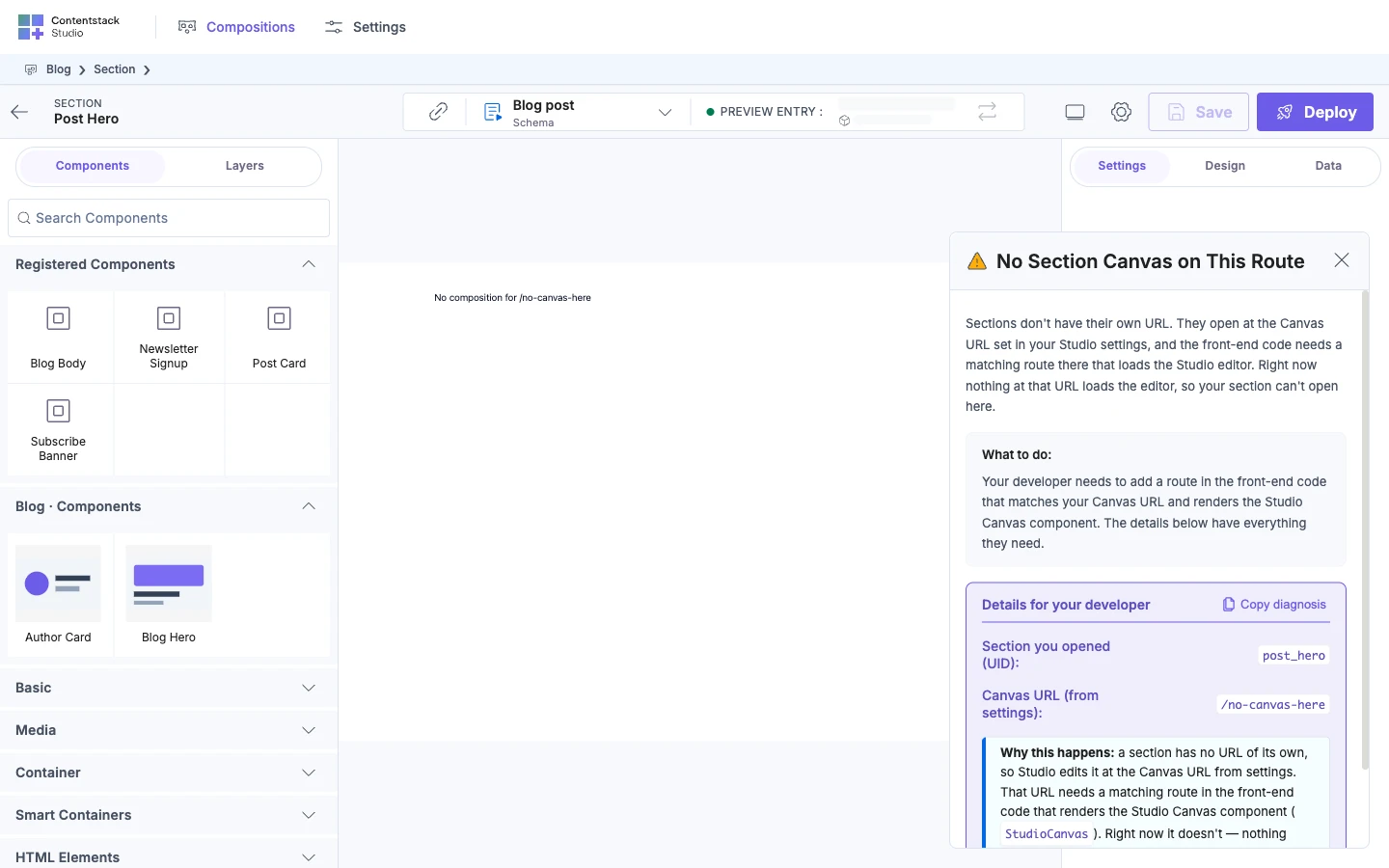
No Section Canvas on This Route
Nothing at the Canvas URL rendered <StudioCanvas />. Check these, in order:
- The route exists in your app.
- Its path matches the Canvas URL exactly.
- It renders
<StudioCanvas />. - No redirect on the route drops the query string.
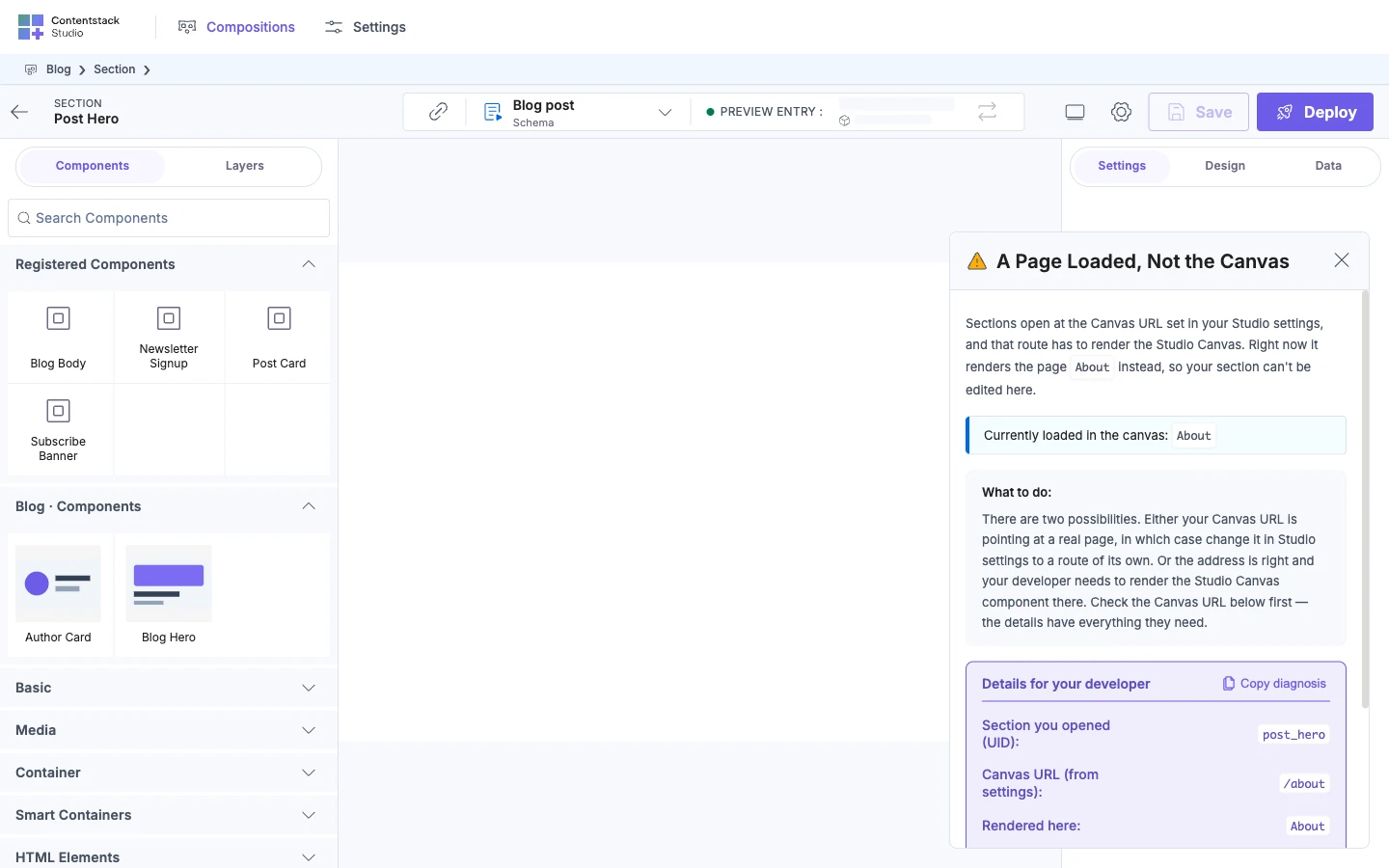
A Page Loaded, Not the Canvas
A template rendered at the Canvas URL instead of <StudioCanvas />. There are two causes:
- The Canvas URL points at a real page. Change the Canvas URL to a path of its own.
- A catch-all route claims the path. Give the canvas route precedence over the catch-all. See Wire template preview routes.
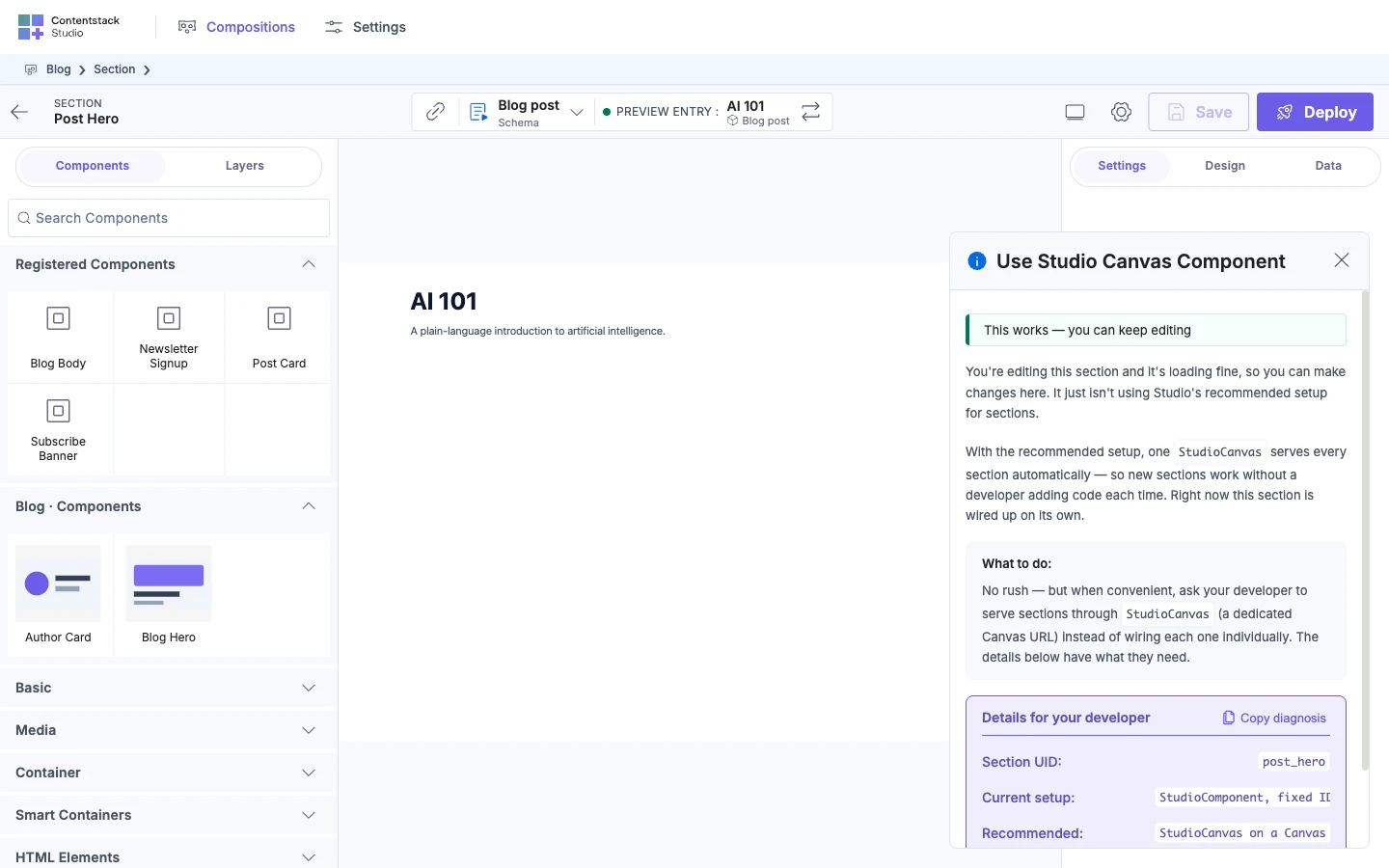
Use Studio Canvas Component
The section loaded, but through <StudioComponent /> with a fixed composition UID, not through <StudioCanvas />. Editing works, and the card's badge says "This works — you can keep editing". When it's convenient, move the section onto the Canvas URL route, so one <StudioCanvas /> serves every section.
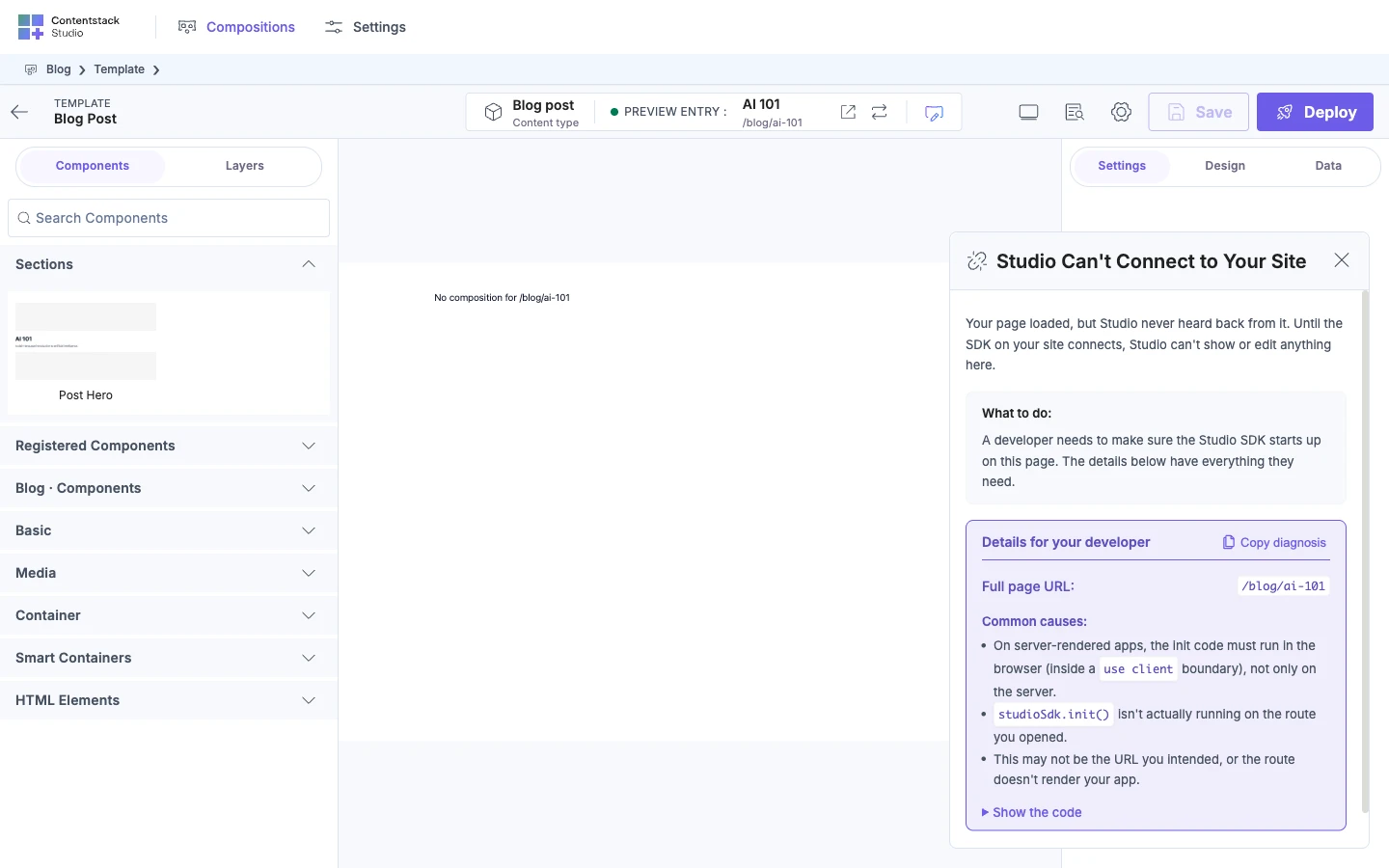
Studio Can't Connect to Your Site
The Studio SDK never started on the route. studioSdk.init has to run in the browser on the Canvas URL route. See Install the Studio SDK.
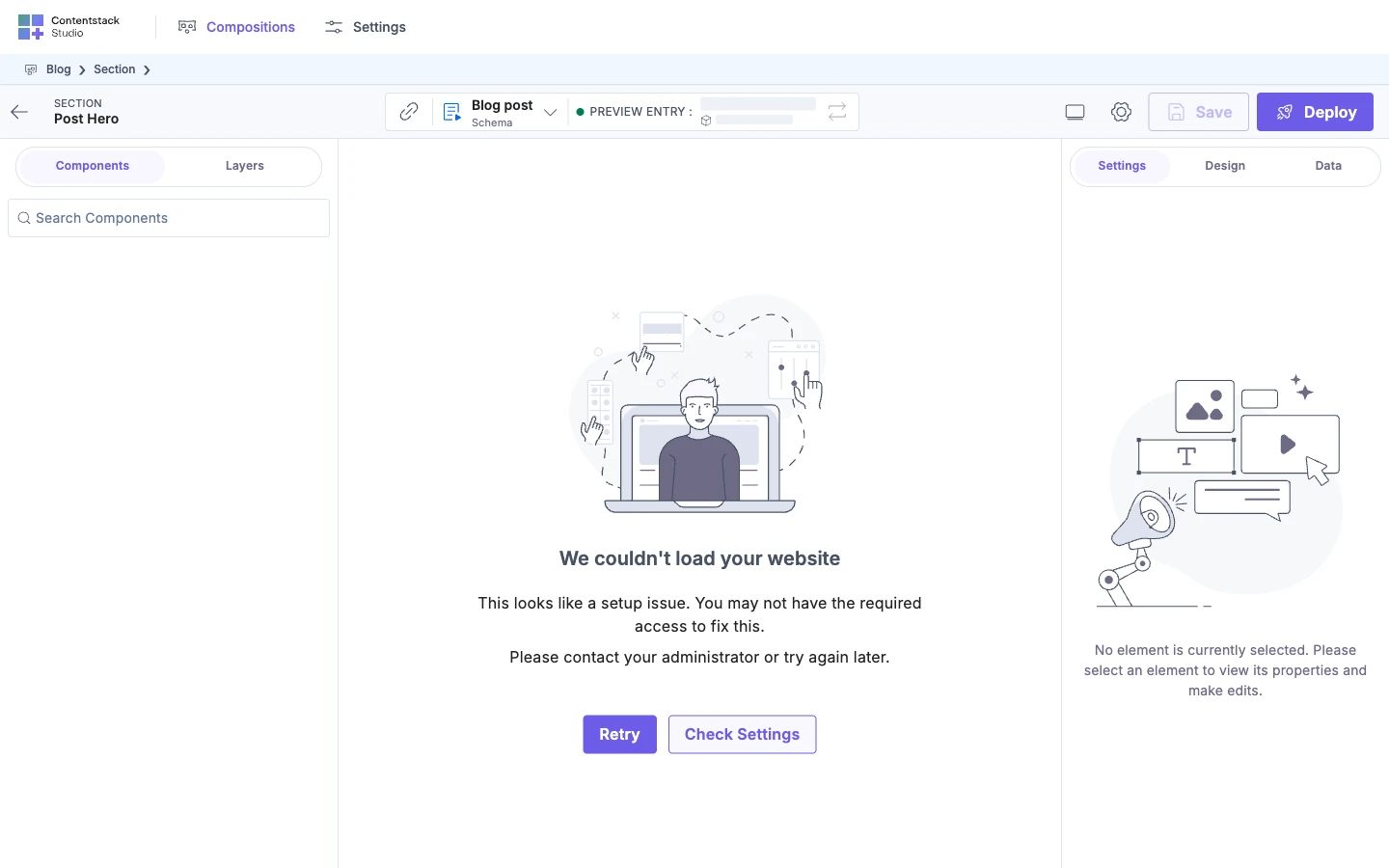
We couldn't load your website
The canvas page didn't finish loading within 30 seconds, or it failed to load. The empty state has Retry and Check Settings buttons.