Share state between components
Share state when one component changes a value and other parts of a composition need to react to it, such as a signup form that hides a banner once the reader subscribes. You declare the value once, your components read and write it, and authors can bind a prop to it on the canvas.
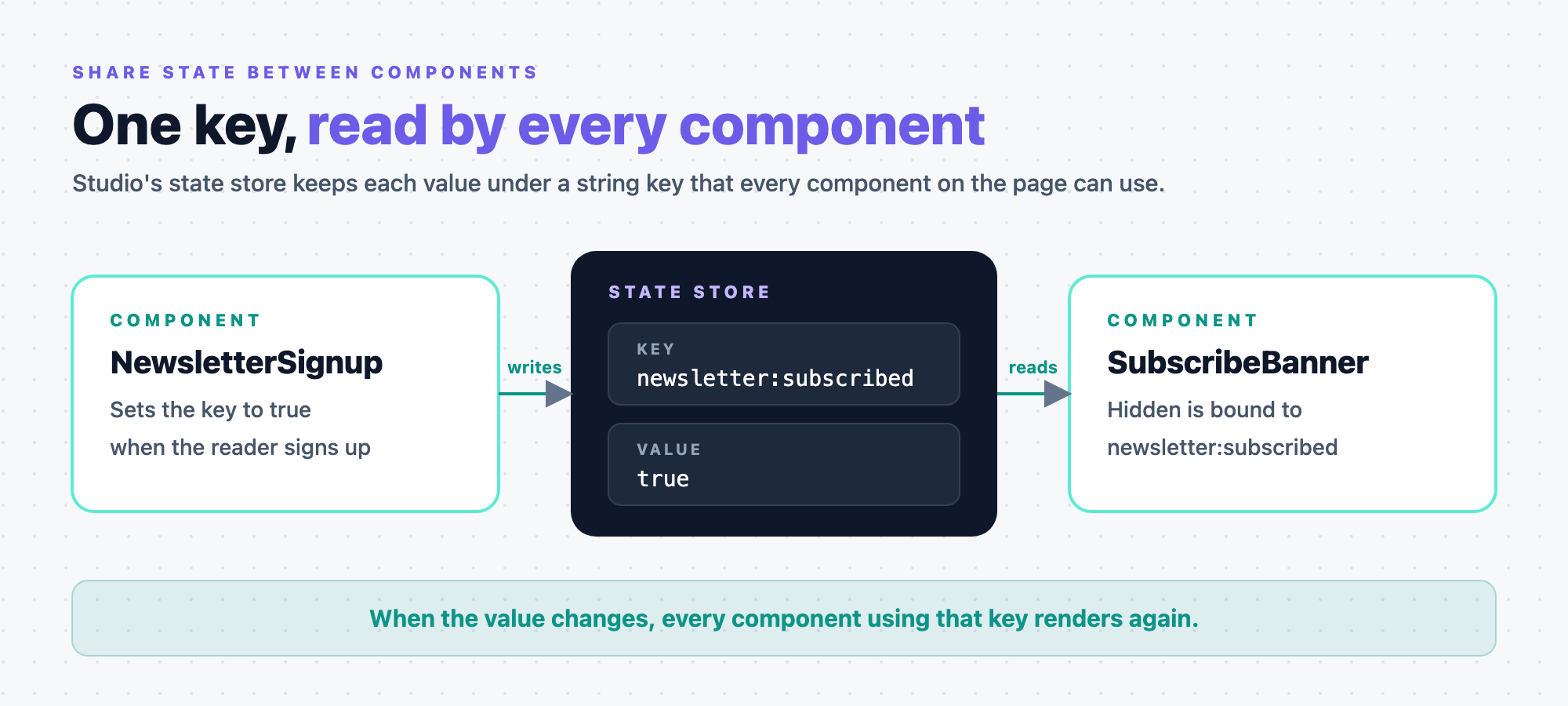
The example on this page is the blog. On the AI 101 post at /blog/ai-101, a NewsletterSignup component sets newsletter:subscribed to true when the reader signs up. A SubscribeBanner component asks readers to subscribe, and it has to disappear once they have.
Prerequisites
@contentstack/studio-reactinstalled, foruseStudioStateand the other state functions.- The Studio SDK initialized in your app. See Install the Studio SDK.
- The components that use the state registered with Studio. See Register a component.
What this is and what you get
Studio's state store is one set of values, each under a string key, that every component on the page reads and writes. When a value changes, every component using that key renders again, and no other component does. Values you declare also show in the canvas's Data Picker, so authors can bind a prop to them without any code in the component.
When not to use it
Shared state is for values that change while the reader is on the page. For anything else, Studio has a better fit.
| You want | Use |
|---|---|
| Data your app already has, such as prices from your own API, available to bind | Bring your own data |
| A value an author sets differently each time they place a section | Exposed section props, in Build sections |
| Different content for different audiences | Fetch a Personalize variant |
| A starting value for a prop | defaultValue in the prop's schema. See Component schema: props, types and defaults |
Declare state variables
Declare each value you share. Only declared values show to authors in the Data Picker. Keys you only use in code work without a declaration, but authors can't see them.
-
In
src/components/NewsletterSignup.tsx, declare the variable at module scope, next to the component.import { registerComponentStateVariable } from "@contentstack/studio-react";registerComponentStateVariable("newsletter:subscribed", {type: "boolean",defaultValue: false,});typeisstring,number,boolean,choice,arrayorobject. Forchoice, addoptionswith the allowed values. -
Check that your registration module imports
NewsletterSignup.tsx. The declaration runs when the file loads, so a file nothing imports never declares its variables.
Always give a variable a defaultValue. The Data Picker lists only variables that have a value, so a variable with no default stays hidden until something sets it.
You can also declare variables in studioSdk.init, under state.variables. When both declare the same key, registerComponentStateVariable wins, whichever runs first.
Where state lives
Choose where the values are kept with state.storage in studioSdk.init. For the blog, a reader who subscribed stays subscribed on their next visit, so the example uses "local".
export const sdk = studioSdk.init({
  stackSdk: stack,
  state: { storage: "local" },
});
| Setting | Where values are kept | How long they last |
|---|---|---|
No state | Memory | Until the page reloads |
storage: "session", or state with no storage | Session storage | Until the tab closes |
storage: "local" | Local storage | Across visits |
storage: "custom" | Your own store, through getState and setState | As long as your store keeps them |
Session and local storage keep every value in one JSON object under the key cs-studio:state. To use a different key, set storageKey. If the browser blocks storage or it's full, values stay in memory and nothing errors.
Use a store you already have
To keep values in Redux, Zustand or another store, set storage: "custom" and pass getState and setState. If you pass both and leave out storage, Studio uses them as if you'd set "custom". Pass subscribe too if anything outside Studio changes those values, so bound components render again when it does. It takes a key and a listener, and returns a function that unsubscribes.
import { createStore } from "zustand/vanilla";

const store = createStore<Record<string, unknown>>(() => ({}));

export const sdk = studioSdk.init({
  stackSdk: stack,
  state: {
    storage: "custom",
    getState: (key) => store.getState()[key],
    setState: (key, value) => store.setState({ [key]: value }),
    subscribe: (key, listener) =>
      store.subscribe((next, prev) => {
        if (next[key] !== prev[key]) listener();
      }),
  },
});
Read and write
-
Read and write the value inside a component with
useStudioState. It returns the value and a setter, likeuseState.import { useStudioState } from "@contentstack/studio-react";import type { StudioAttributes } from "@contentstack/studio-react";export function NewsletterSignup({ studioAttributes }: StudioAttributes) {const [subscribed, setSubscribed] = useStudioState<boolean>("newsletter:subscribed");if (subscribed) return <p {...studioAttributes}>You're subscribed.</p>;return (<form{...studioAttributes}onSubmit={(event) => {event.preventDefault();setSubscribed(true);}}><input type="email" name="email" required /><button type="submit">Subscribe</button></form>);}Register
NewsletterSignupwithwrap: false, so it receivesstudioAttributesand spreads them on its root. The setter also takes a function of the previous value, such assetSubscribed((prev) => !prev). -
Outside React, such as in an analytics handler, use
studioState.import { studioState } from "@contentstack/studio-react";const subscribed = studioState.get<boolean>("newsletter:subscribed");studioState.set("newsletter:subscribed", true);const stop = studioState.subscribe("newsletter:subscribed", () => {// runs after every change to this key});stop(); // unsubscribes -
Open
/blog/ai-101in your app and subscribe. The form changes to "You're subscribed.", and so does every otherNewsletterSignupon the page. Reload the page, and it still says so, because the value is in local storage.
Setting a value that's already stored does nothing. studioState.reset() clears only values held in memory. It keeps your declarations, and it leaves values in session storage, local storage or your own store alone, so clear those yourself if you need to.
For the full signatures, see SDK API.
Let authors bind a state variable
An author can bind a prop to a declared variable, so the prop follows the value with no state code in the component. For the blog, SubscribeBanner has a boolean prop, Hidden, and renders nothing when it's true. Binding Hidden to newsletter:subscribed hides the banner once the reader subscribes.
import { registerComponents } from "@contentstack/studio-react";
import type { StudioAttributes } from "@contentstack/studio-react";

type SubscribeBannerProps = StudioAttributes & { heading: string; hidden: boolean };

export function SubscribeBanner({ heading, hidden, studioAttributes }: SubscribeBannerProps) {
  if (hidden) return null;
  return <aside {...studioAttributes}>{heading}</aside>;
}

registerComponents([
  {
    type: "subscribe-banner",
    displayName: "Subscribe banner",
    component: SubscribeBanner,
    wrap: false,
    props: {
      heading: { type: "string", displayName: "Heading", defaultValue: "Get the AI newsletter" },
      hidden: { type: "boolean", displayName: "Hidden", defaultValue: false },
    },
  },
]);
-
Open the Blog post template on the canvas, with AI 101 as the preview entry, and select Subscribe banner.
-
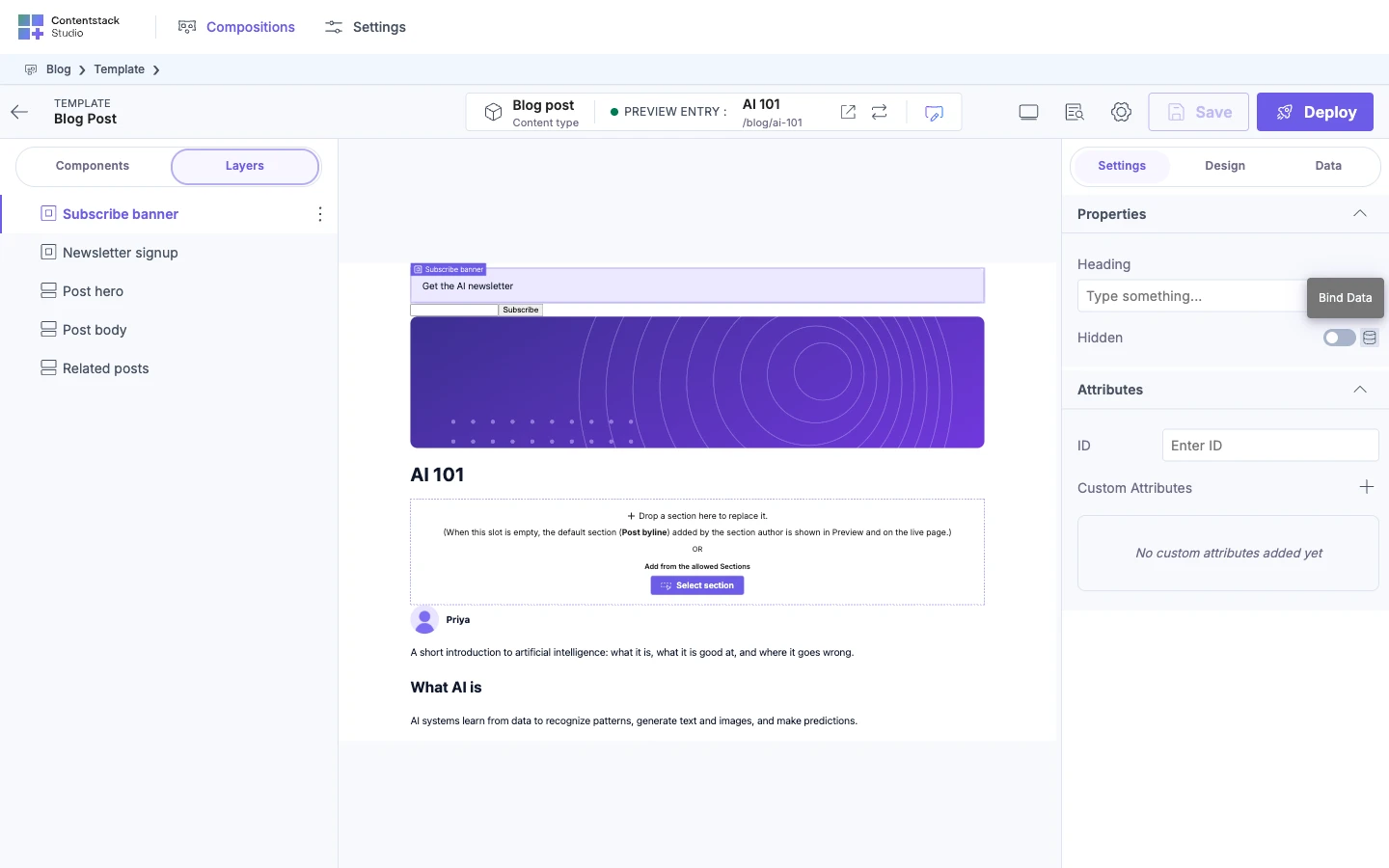
In the Settings tab, under Properties, click Bind Data next to Hidden. The Data Picker opens.
-
Click the Component Data icon, then open State Variable, subtitled Custom State Values. It lists one row per declared variable, showing the key title-cased:
newsletter:subscribedappears as Newsletter:Subscribed. A key you build from a prop gets its own row the same way, so each distinct key an author can bind to is visible here.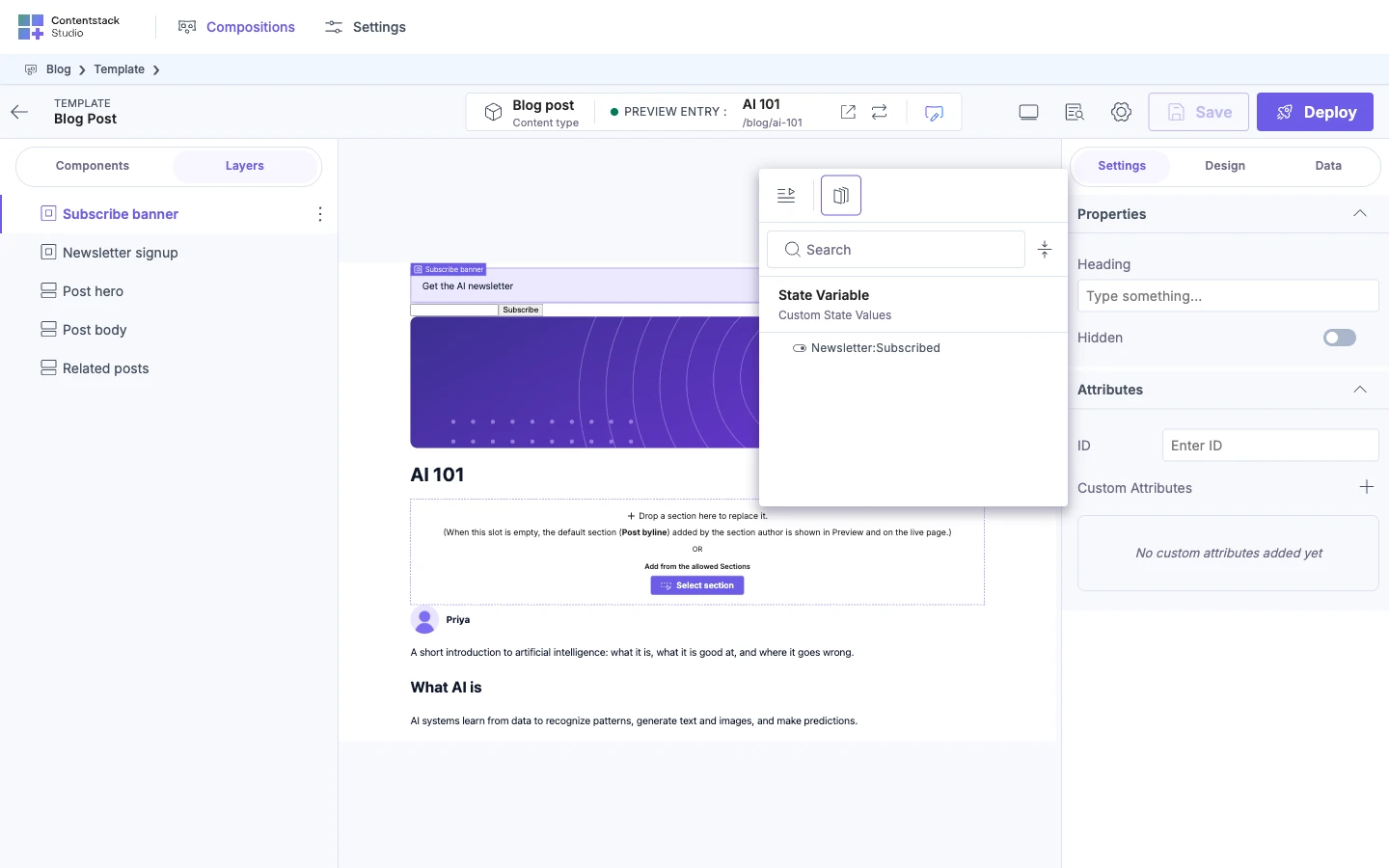
-
Select
newsletter:subscribed. Hidden now shows the binding, and the banner shows, because the value isfalse.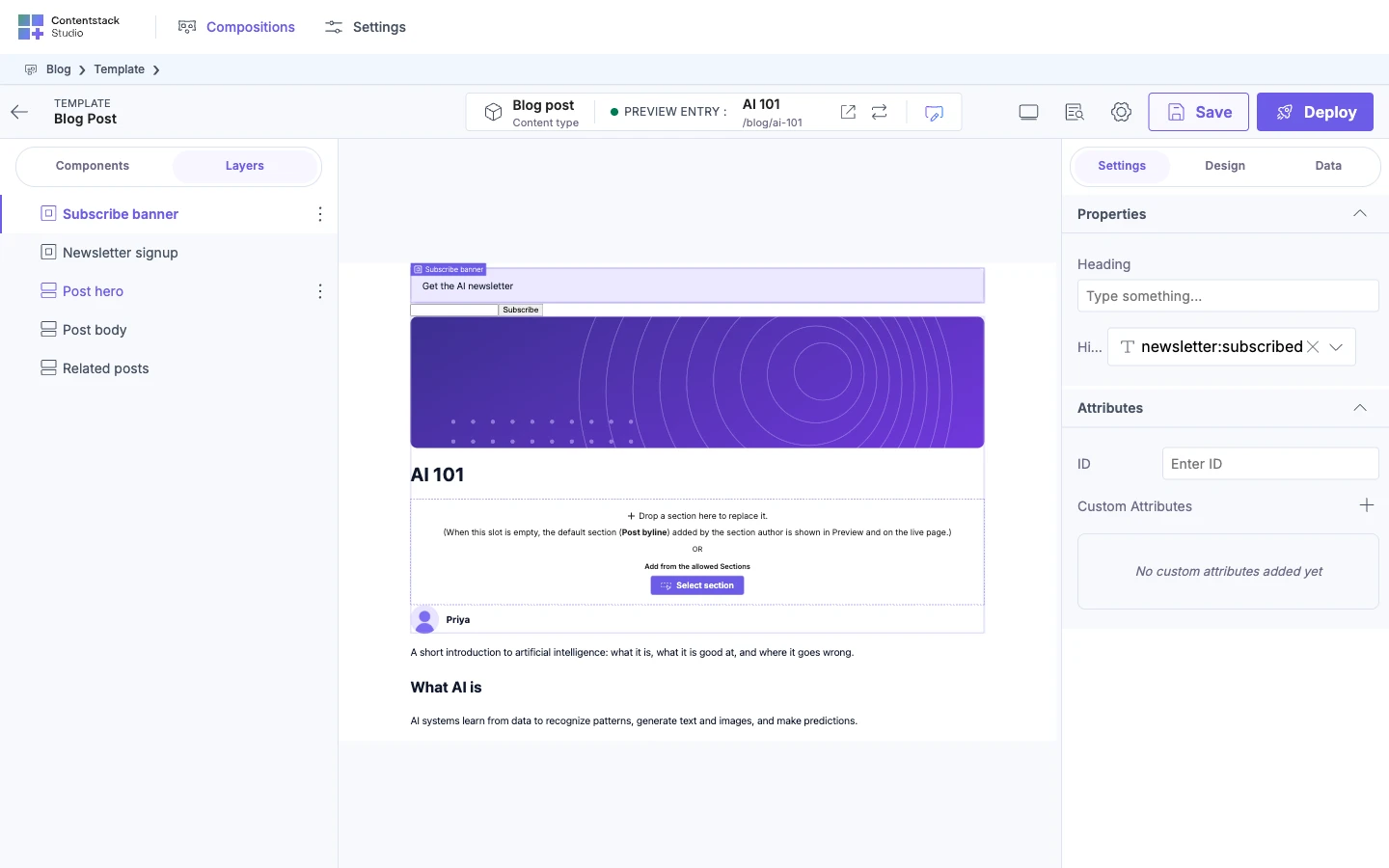
-
Deploy the template, as in Save, preview, deploy. Open
/blog/ai-101on your site and subscribe. The banner disappears.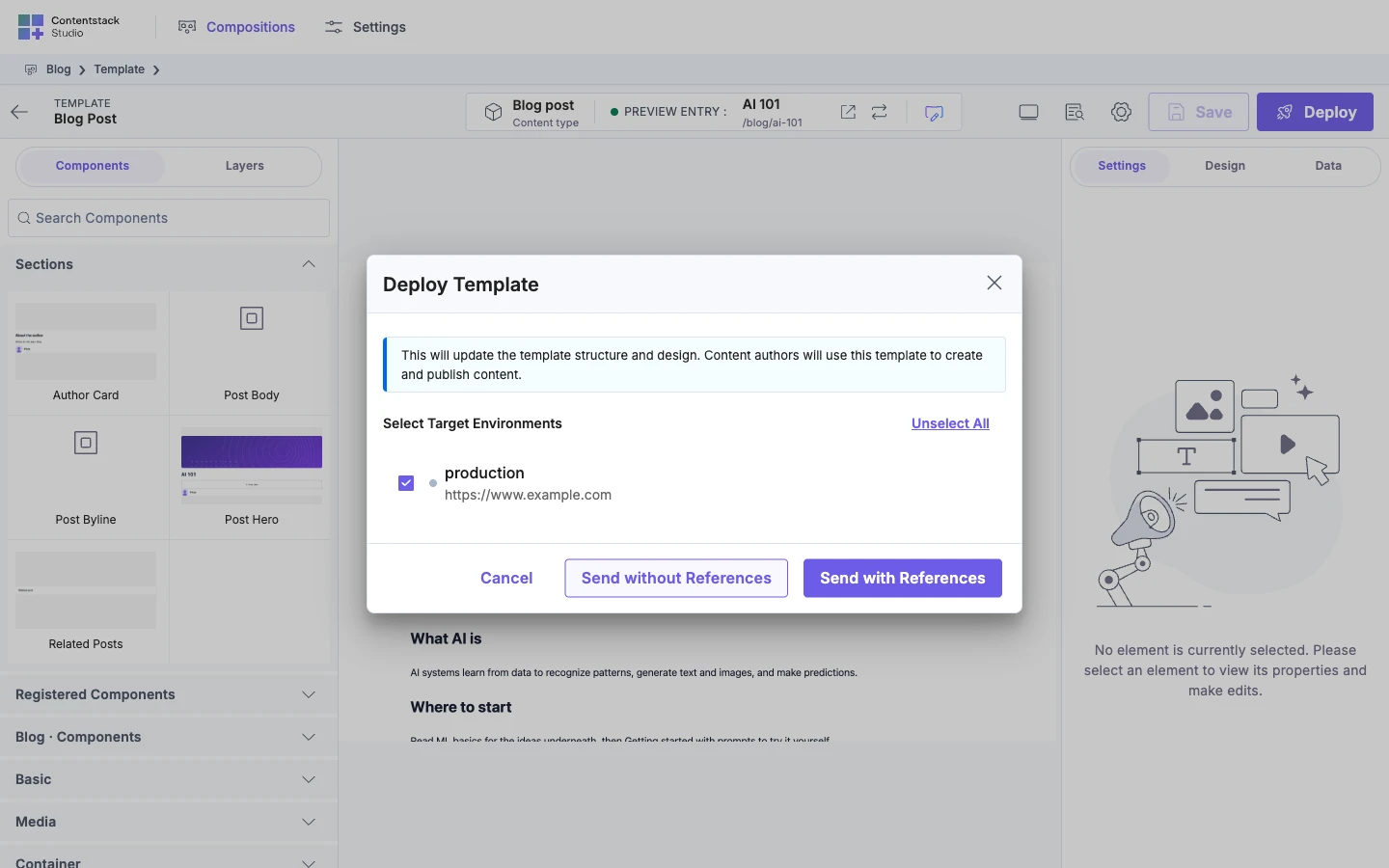
For a variable that holds an object or an array, open it in State Variable and bind one field inside it.
Shared or separate?
Sharing and separating are the same mechanism: components that use one key share one value, and components that use different keys don't. What changes is where the key comes from.
| You want | Where the key comes from | How |
|---|---|---|
| Every copy on the page to agree, such as one subscribed state for the reader | The component's code | Use the same key string in each component, below |
| Each copy to work on its own, such as two FAQ accordions | A prop the author sets per copy | Give each copy of a component its own value |
| Each item of a list to work on its own, such as one card per related post | A prop bound to a field of the item | Keep a value separate for each item in a Repeater |
Share one value
Two components share a value when they use exactly the same key. There's one store per page, so the components can be anywhere: in different sections, in a template, or in your own code outside Studio.
Two mistakes break sharing, and neither shows a warning:
- A typo in the key.
newsletter:subscribedandnewsletter:subscibedare two separate values. Each component works on its own, and they never agree. - The same key for two features. A bare key such as
openused by both a menu and a dialog makes them open and close together.
Keep keys in one file and import them, and prefix each key with its feature.
// src/state/keys.ts
export const NEWSLETTER_SUBSCRIBED = "newsletter:subscribed";
Give each copy of a component its own value
There's one store per page, and a key is just a string in it. A key written into the component's code is therefore the same key in every copy of that component. That's what makes newsletter:subscribed work: both NewsletterSignup forms on the post agree, because they share one key.
It's also what breaks an FAQ accordion. Drop two on the same page, both with faq:open in their code, and opening one opens the other.
Studio has no automatic per-copy key. The node's identity exists on the canvas but not on your site, so a component can't ask which copy it is at runtime. Instead, take the distinguishing part of the key from a prop, and let whoever places the component decide it.
-
Add a string prop for the key part, and give it a
defaultValueso a freshly dropped component still works.registerComponents([{type: "faq-accordion",displayName: "FAQ accordion",component: FaqAccordion,wrap: false,props: {stateKey: { type: "string", displayName: "State key", defaultValue: "faq" },question: { type: "string", displayName: "Question", defaultValue: "" },},},]); -
Build the key from it, with the feature in front and the instance behind.
export function FaqAccordion({ stateKey, question, studioAttributes }: FaqAccordionProps) {const [open, setOpen] = useStudioState<boolean>(`faq:${stateKey}:open`);return (<section {...studioAttributes}><button onClick={() => setOpen((prev) => !prev)}>{question}</button>{open ? <p>…</p> : null}</section>);}The feature prefix keeps
faqapart from a menu that also tracksopen. The instance part keeps two FAQs apart. Either order works, as long as every copy of the component uses the same shape. -
On the canvas, give each copy its own State key:
shippingon one,returnson the other. They now read and writefaq:shipping:openandfaq:returns:open, and open independently.
Two copies that should move together need no extra work. Leave the same State key on both, and they share a value, as the newsletter forms do.
Declare a prop-built key
registerComponentStateVariable at module scope needs the key spelled out, and a prop-built key isn't known until the component renders. Declare it once the key exists instead.
import { useEffect } from "react";
import { registerComponentStateVariable } from "@contentstack/studio-react";

useEffect(() => {
  registerComponentStateVariable(`faq:${stateKey}:open`, {
    type: "boolean",
    defaultValue: false,
  });
}, [stateKey]);
Declaring the same key again does nothing, so this is safe on every mount and in every copy. The first declaration wins, and Studio warns in development only if a later one gives the same key a different type.
Two things follow from declaring late, and neither is a bug:
- Until the effect runs, the key is code-only. Your components read and write it, and the Data Picker doesn't list it, so an author can't bind a prop to it yet.
- On the server, and on the browser's first render,
useStudioStatereturns the declared default. An undeclared key has none, so it readsundefinedthere. Give the prop adefaultValueand handleundefined, as step 1 does.
If authors need to bind to these keys, declare the handful you support at module scope as well, with the same strings, and treat the prop as a choice between them.
Keep a value separate for each item in a Repeater
A Repeater renders one copy of the same node per item, so every item runs the same code with the same props. A State key typed in by hand is one value for the whole list: open one card and they all open.
Bind the State key prop to a field of the item instead. Inside a Repeater, a binding resolves against the item being repeated, so each item gets its own key with no change to the component.
- Select the component inside the Repeater.
- In the Settings tab, click Bind Data next to State key, and bind it from the Repeater Data tab, as in Render a list (Repeater).
- Pick a field whose value differs for every item, such as the post's
uidor its slug.
For Related posts on the AI 101 page, each card then reads faq:ai-101:open, faq:rag-basics:open, and so on.
Bind to a field that can repeat, such as a title, and two items with the same text collapse onto one key and move together. A uid can't repeat, so prefer it.
Nested Repeaters work the same way: bind the key prop in the inner Repeater, where the inner item's fields are in scope. If the inner field alone isn't unique across the outer list, bind the key to the inner uid, which is unique on its own.
Declaring inside a Repeater declares one variable per item, and the Data Picker lists each one. For a long list that's noise an author has to scroll past, so leave a per-item key undeclared unless someone needs to bind to it.
Declare state before hydration on server-rendered routes
On the server, useStudioState and bound props render each variable's declared default. The browser's first render, during hydration, uses the same defaults so that it matches the server HTML. A value in session or local storage applies straight after. So a returning subscriber sees the banner in the server HTML, and it disappears once the page hydrates. A custom getState isn't used for this first render either.
For that to work, the browser needs the declarations before it hydrates. If your client calls studioSdk.init from a module that loads later, declare the variables in a small module that your app root imports statically.
// src/state/declare-state.ts, imported at the top of your app root
import { registerGlobalStateVariables } from "@contentstack/studio-react";
import { NEWSLETTER_SUBSCRIBED } from "./keys";

registerGlobalStateVariables({
  [NEWSLETTER_SUBSCRIBED]: { type: "boolean", defaultValue: false },
});
registerGlobalStateVariables declares at the same level as state.variables in init.
Writes on the server do nothing. In development, the first one logs this warning:
[Contentstack Studio] setState is a no-op during server rendering — state writes are client-only
Set state in the browser, in an event handler or an effect.
If it doesn't work
A variable isn't under State Variable in the Data Picker
Either the variable isn't declared, or it's declared with no defaultValue and nothing has set it yet. Declare it with registerComponentStateVariable or in state.variables, and give it a defaultValue. If no component data or state has a value at all, the Component Data icon doesn't show either.
Two components don't share a value
The keys differ, often by a typo. Import the key from one shared file, as in Share one value.
Two copies of the same component change together
Both are using the same key, because the key is written into the component's code or both copies have the same State key. Give each copy its own, as in Give each copy of a component its own value.
Every item in a Repeater changes together
The key prop holds a typed-in value, which is the same for every item. Bind it to a field of the item, as in Keep a value separate for each item in a Repeater.
Bound components don't update when your Redux or Zustand store changes
With storage: "custom", Studio sees changes it makes itself. For changes made elsewhere in your app, pass subscribe, as in Use a store you already have.
init throws "The Config passed is invalid" about state
studioSdk.init throws a TypeError that starts with The Config passed is invalid. and includes this line:
state: invalid storage option — "custom" requires getState AND setState; "local"/"session" need neither
You passed getState without setState, or the other way round, or storage: "custom" without both. Pass both functions with "custom". With "local" or "session", leave them out: Studio ignores them, and warns in development.
React reports a hydration mismatch on a component that uses state
The browser hydrated before the state variables were declared, so its first render didn't match the server's. Declare them in a module your app root imports statically, as in Declare state before hydration on server-rendered routes.