How components get content
A component on a Studio layout gets its content through a binding. A binding links one of the component's props to one value, such as the title of the entry being shown, and keeping content out of the layout this way is what lets one layout serve every entry. To bind a prop yourself, see Bind a component.
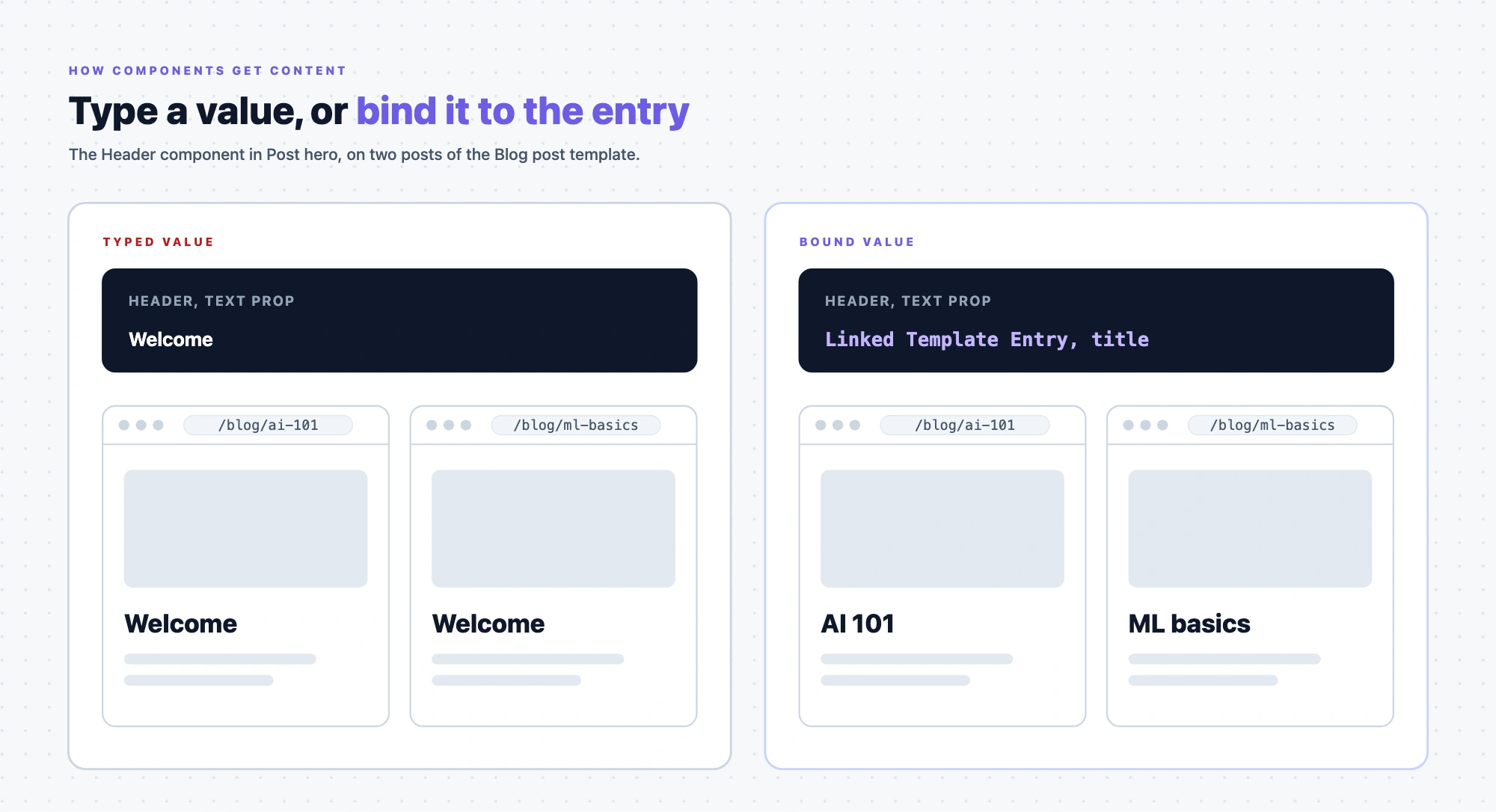
The example is the Blog post template of the team blog. Its Post hero section holds Studio's Header component, which should show the post's title. For the post "AI 101" at /blog/ai-101, it shows "AI 101".
What a binding is
The Header component declares a prop for its text. It doesn't know where that text comes from. In Studio, someone binds that prop to the title field of the entry the template is showing. The binding is saved in the layout. The title isn't.
When a visitor opens /blog/ai-101, the Studio SDK fetches the AI 101 entry, follows the binding, and passes "AI 101" to the Header component. Open another post and the same binding passes that post's title.
A prop that isn't bound takes a value typed into its settings instead. That value is fixed, the same for every entry, and it's saved in the layout.
Where a value can come from
Studio calls each place a value can come from a data source. When you bind a prop, you pick from these, by the names Studio shows. Pinned Entries, Pinned Queries and Component Data are added from the Data tab. Each shows up as a source once something of that kind has been added. The tab appears on freeform templates and on every composition once Enable Freeform Feature is on.
- Linked Template Entry. The entry the connected template is showing, such as AI 101. This is the source you'll use most, and it's only there on a connected template.
- Pinned Entries. A specific entry you attach to the layout, such as the Author entry Priya for a sidebar. The entry is fixed, and its latest content is fetched each time the page renders.
- Pinned Queries. A saved query on a content type that runs each time the page renders, such as a query for Blog post entries, so a newly published post appears without anyone editing the layout.
- Component Data. Data your app passes in when it renders the layout, such as view counts from your analytics service, which aren't in Contentstack. You can type sample data in Studio to design with, and your app's data replaces it on the site.
- Repeater Data. Inside a Repeater, the item currently being repeated, such as one post in the related posts field.
A section gets its data from the template it's placed in. When you drop Post hero onto the Blog post template, Studio binds the section to the matching part of the entry if the section is linked to that content type. It can also bind a section to a matching reference field. Otherwise you pick what it binds to. The matching rules are in Linked schema matching rules.
How each source works is in Where data comes from.
Why content stays out of the layout
- One layout, every entry. The Blog post template renders every post, because it holds bindings, not any one post's content.
- Content changes don't touch layout. An author fixes a typo in the AI 101 entry and publishes it as usual. The layout doesn't change and nobody deploys it again.
- Layout changes don't touch content. Someone moves Related posts above Post body and deploys the template. No entry changes.
Data your component fetches itself
A component that fetches its own data, with its own code, keeps doing so in Studio. That data is outside Studio's bindings, so Studio can't see it, nobody can rebind it in Studio, and Visual Editor can't make it editable. If authors should be able to change where a value comes from, pass it through a prop and bind it instead.
Where to go next
To bind your first component, go to Where data comes from.