Edit or reset a template's URL
Change a template's URL when the one Studio gave you doesn't fit your site, or reset it when you want Studio's URL back. You do both from the Edit URL dialog on the canvas.
The example on this page is a Blog post content type whose entries live under /blog. Its entry AI 101 has the slug ai-101 and the URL /blog/ai-101. The names come from the team blog.
Prerequisites
- A template open on the canvas. If you don't have one yet, see Create a template. Sections don't have URLs, so this doesn't apply to them.
- A pattern in mind. If you're not sure what to write, read How template URLs work first.
What this is and what you get
The Template URL is the pattern that decides which addresses show this template. When you're done, the canvas uses the new URL right away. Your live site uses it after you deploy.
Editing your Template URL
You edit the URL from the canvas. The templates list doesn't show URLs.
-
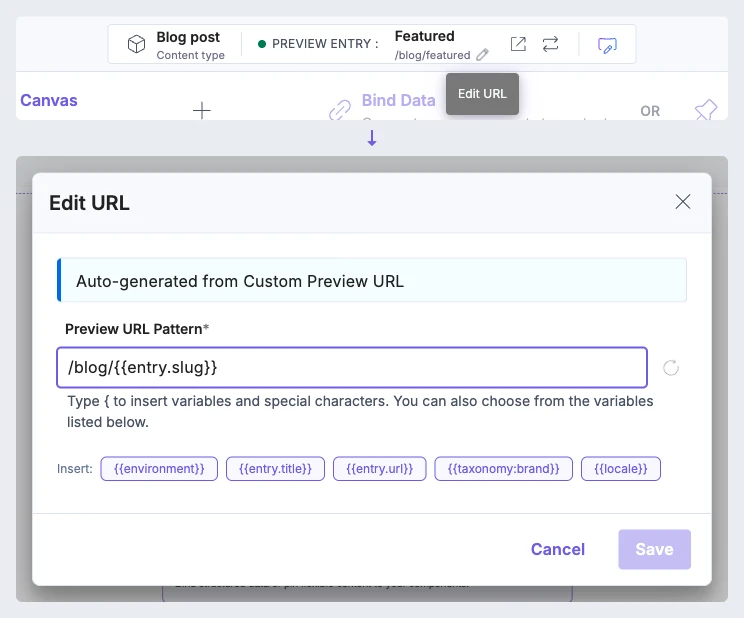
Click Edit URL, the pencil next to the URL in the top bar. The Edit URL dialog opens. You can also open it from the Edit Template URL button on a diagnostic card.
-
In Preview URL Pattern, type the pattern, such as
/blog/{{entry.slug}}. To add a variable at the cursor, click one of the Insert options.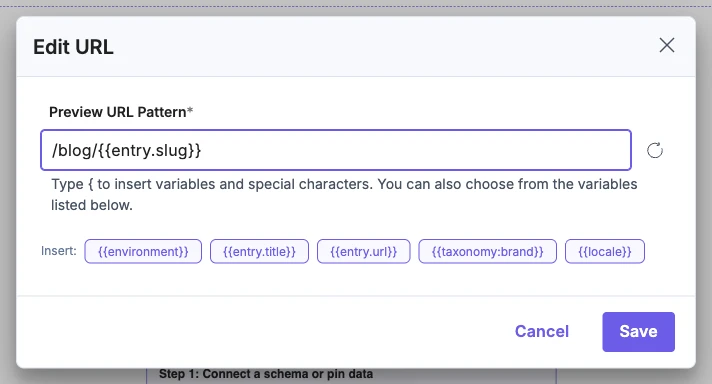
-
Click Save, or press Enter. The URL next to the pencil updates, and the canvas loads the new address.

After you save, the canvas previews the most recently updated entry that has a value for every variable in the pattern. So the entry on the canvas can change.
Save stays off until you change the pattern. It's also off while Studio saves, while an error message shows, and, for a connected template, until the content type has loaded.
Once you've typed your own pattern, Studio never changes it for you.
The Insert options depend on the template.
| Template | Insert options |
|---|---|
| Connected | {{environment}}, {{entry.title}}, {{entry.url}}, {{taxonomy:brand}}, {{locale}} |
| Freeform | {{composition_uid}} |
{{taxonomy:brand}} is a sample. Change brand to your taxonomy's UID, such as topic for AI 101.
For everything else you can type, see URL variables.
Go back to the original URL
To throw away your own URL and rebuild it the way Studio first did, use Sync Pattern. For a connected template, Studio checks the same three places in the same order: the Custom Preview URL, then the content type's URL pattern, then the default. A freeform template goes back to the default.
-
Open Edit URL.
-
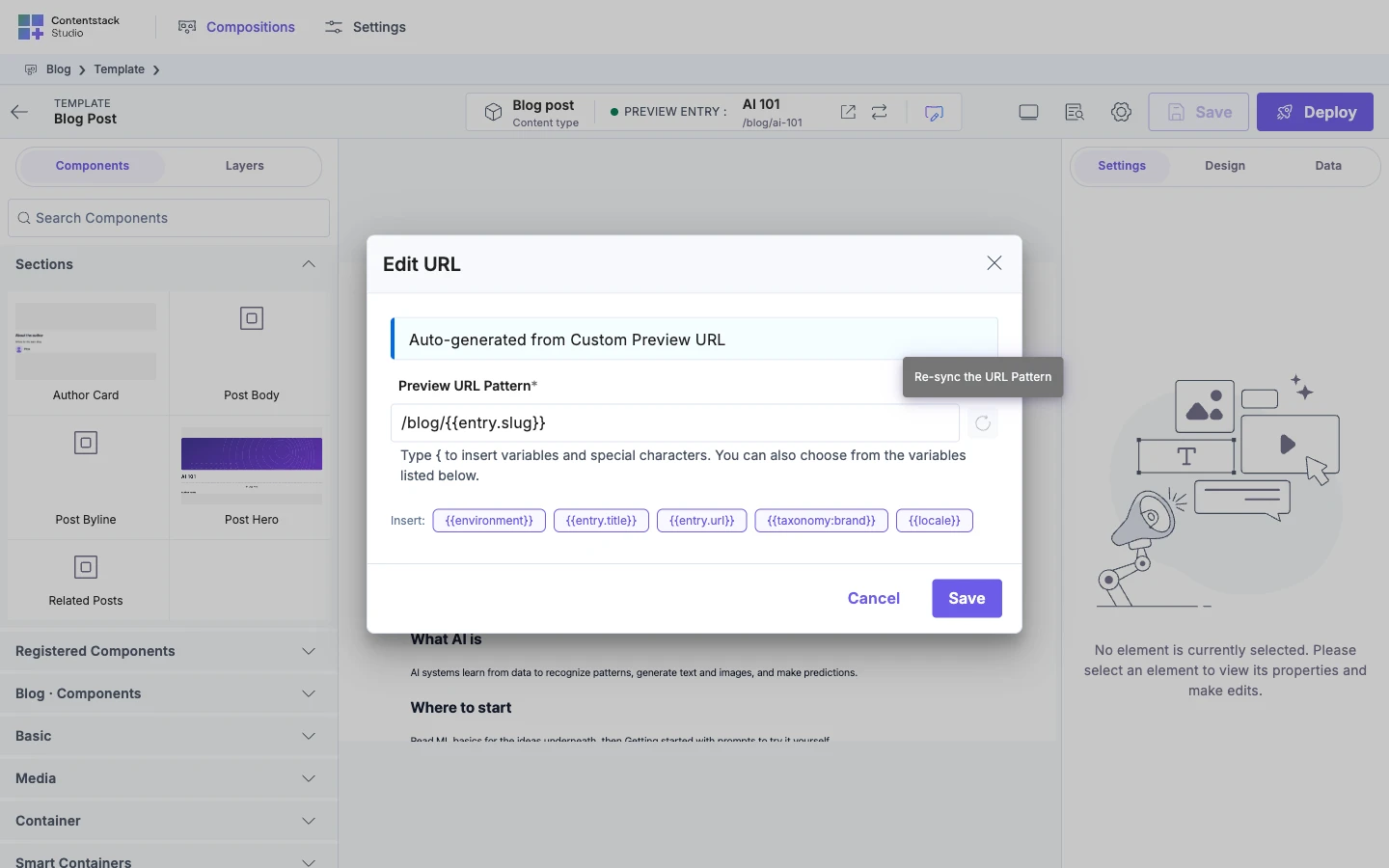
Click Sync Pattern, the refresh icon ("Re-sync the URL Pattern"). The field shows the rebuilt URL. Nothing is saved yet.
-
Check the URL, then click Save. The URL next to the pencil updates.
Sync Pattern is also how a template picks up a Custom Preview URL or content type pattern that changed after you created the template.
Sync Pattern is always available on a URL you typed yourself. On an auto-generated URL, it's greyed out when the URL is already up to date, while Studio is working out the new one, and when Studio can't build one.
Put the new URL on your live site
Saving changes the template's draft. Your live site answers to the new URL only after you deploy the template. See Save, preview, deploy.
If it doesn't work
Studio won't save the pattern
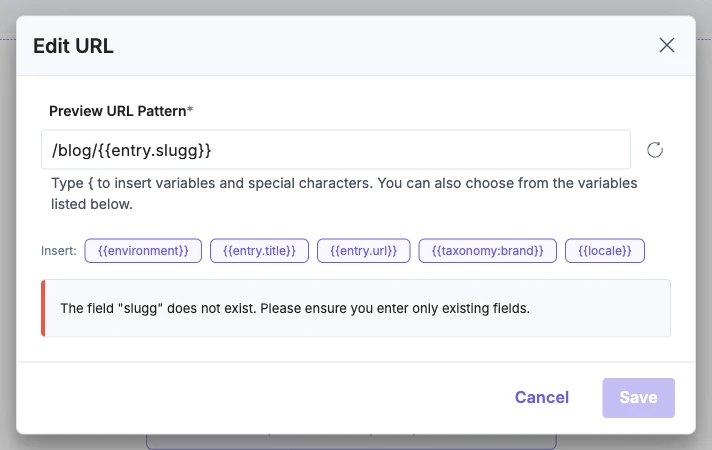
Studio checks the pattern when you save. Typing again clears the message. These are common ones.
| Message | What's wrong |
|---|---|
| The field "…" does not exist. Please ensure you enter only existing fields. | The content type has no field with that name. |
| The variable "…" is not recognized. Check the syntax and spelling. | In a connected template, a misspelt prefix, such as {{entr.title}}. |
| The variable "…" is invalid. Please check for typos. | A variable Studio doesn't know, such as {{slugg}}. In a freeform template, this also covers a misspelt prefix. |
| You cannot use "…" in a freeform composition because no connected content type exists to query. | An entry, taxonomy or content_type_uid variable in a freeform template. The message names only entry or taxonomy. |
| The variable "…" is not allowed. Date variables and other pseudo variables are not supported. | A date variable, such as {{entry_created_date:year}}. |
For every message, see URL variables.
Studio says it doesn't apply transformations
The Edit URL dialog shows "Studio doesn't apply Custom Preview URL transformations to this pattern. There are a few ways to set up a pattern that matches."
Your Custom Preview URL has transformation rules on a field this pattern uses, and Studio ignores them. The canvas still works, but your live site's addresses won't match. See Transformation rules aren't applied.
The notice shows only while the URL still comes from the Custom Preview URL. Typing in the field hides it, but doesn't fix the mismatch.
Common Template URL pitfalls
When a template doesn't load at an address, Studio shows a card that explains why. Find the card's title below.
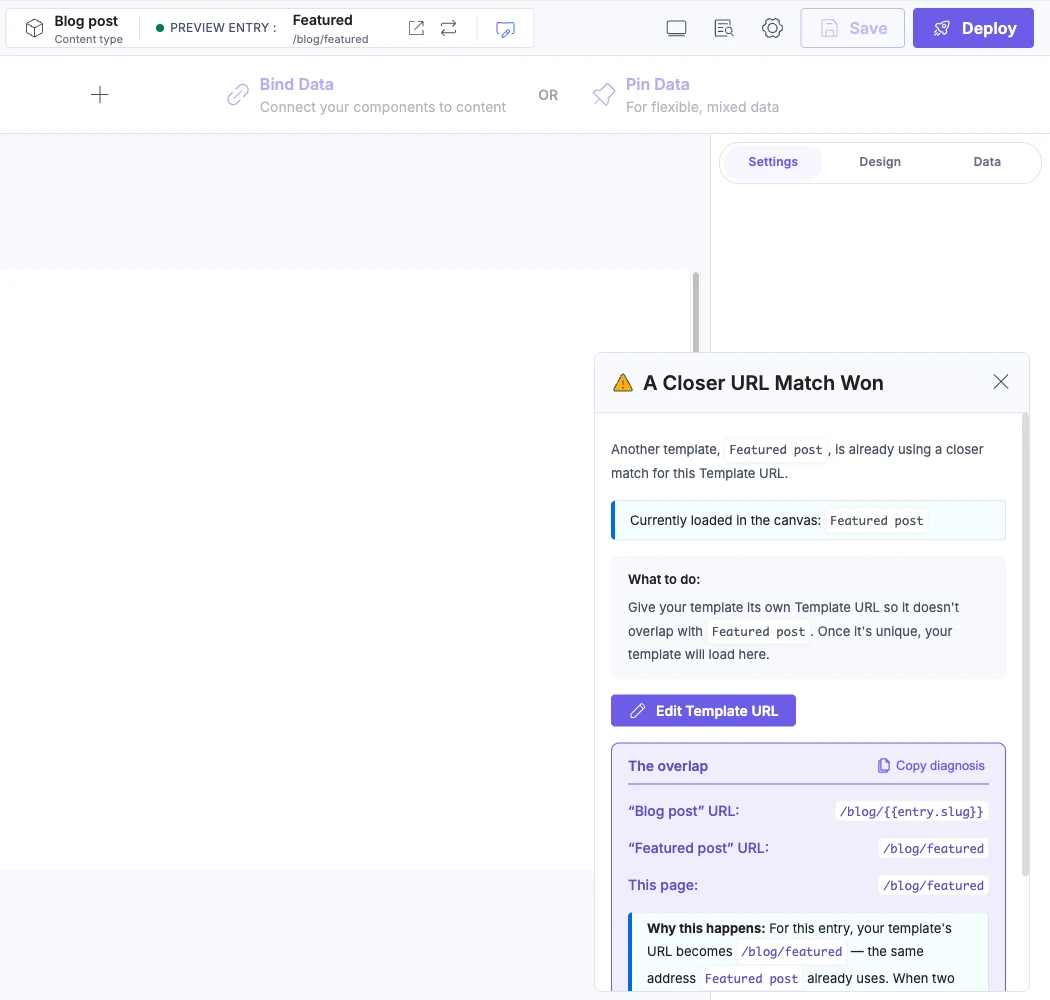
A Closer URL Match Won. Another template has more fixed text in its pattern for this address. Give your template its own URL.
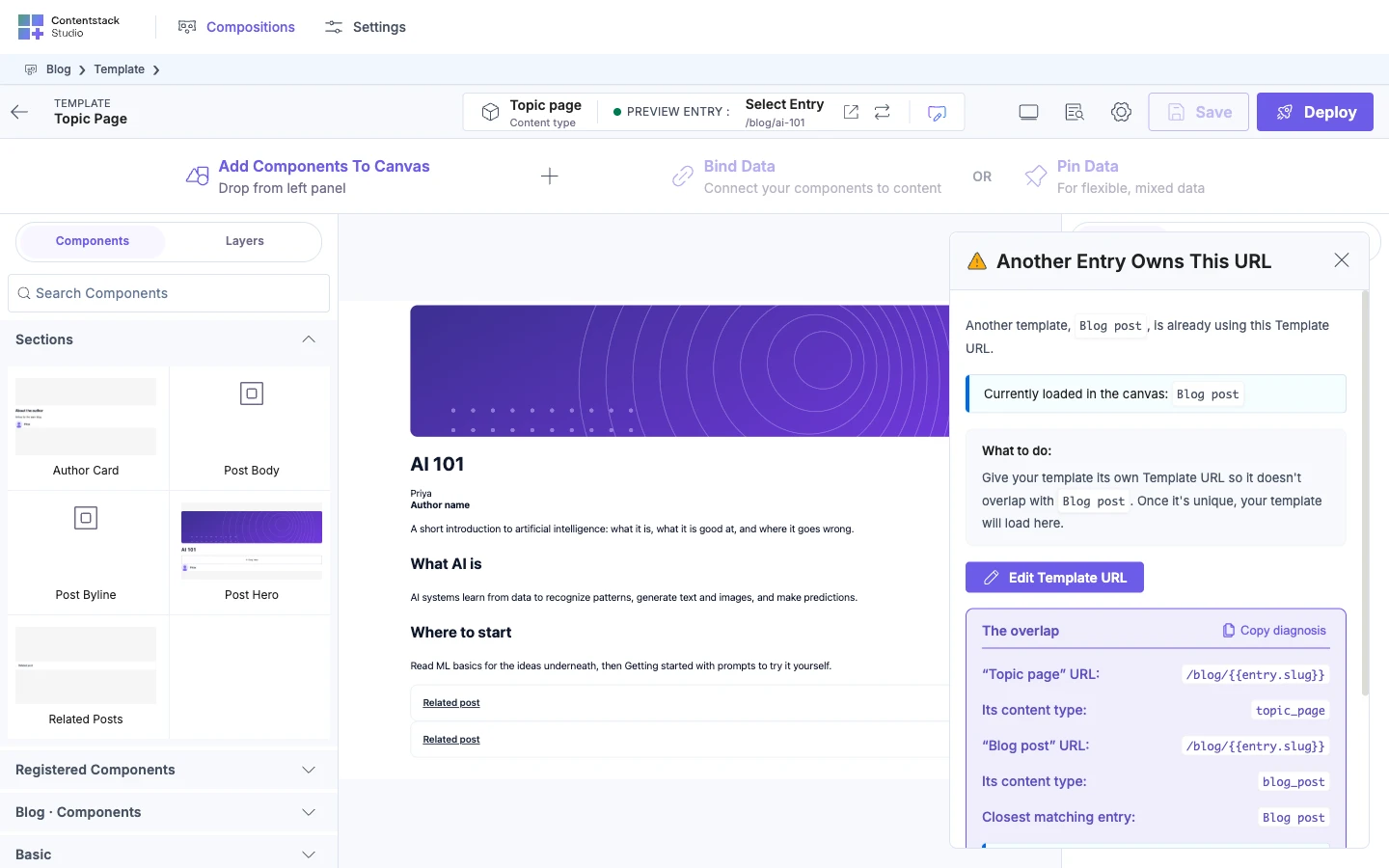
Another Entry Owns This URL. Two templates match this address equally, and only the other one has an entry for it. Give your template its own URL.
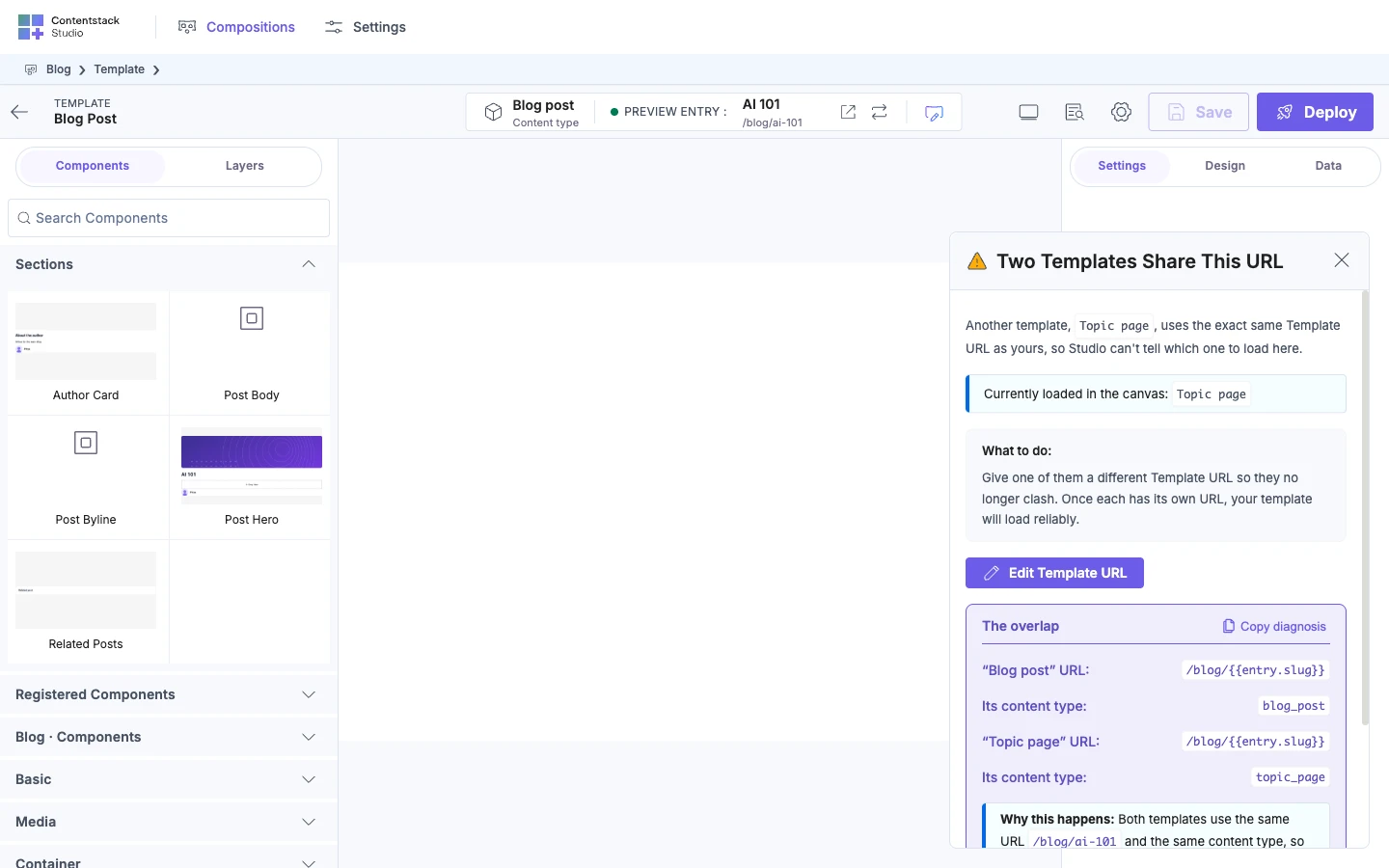
Two Templates Share This URL. Two templates match this address equally, and both have an entry for it, so Studio can't choose between them. Give one of them its own URL.
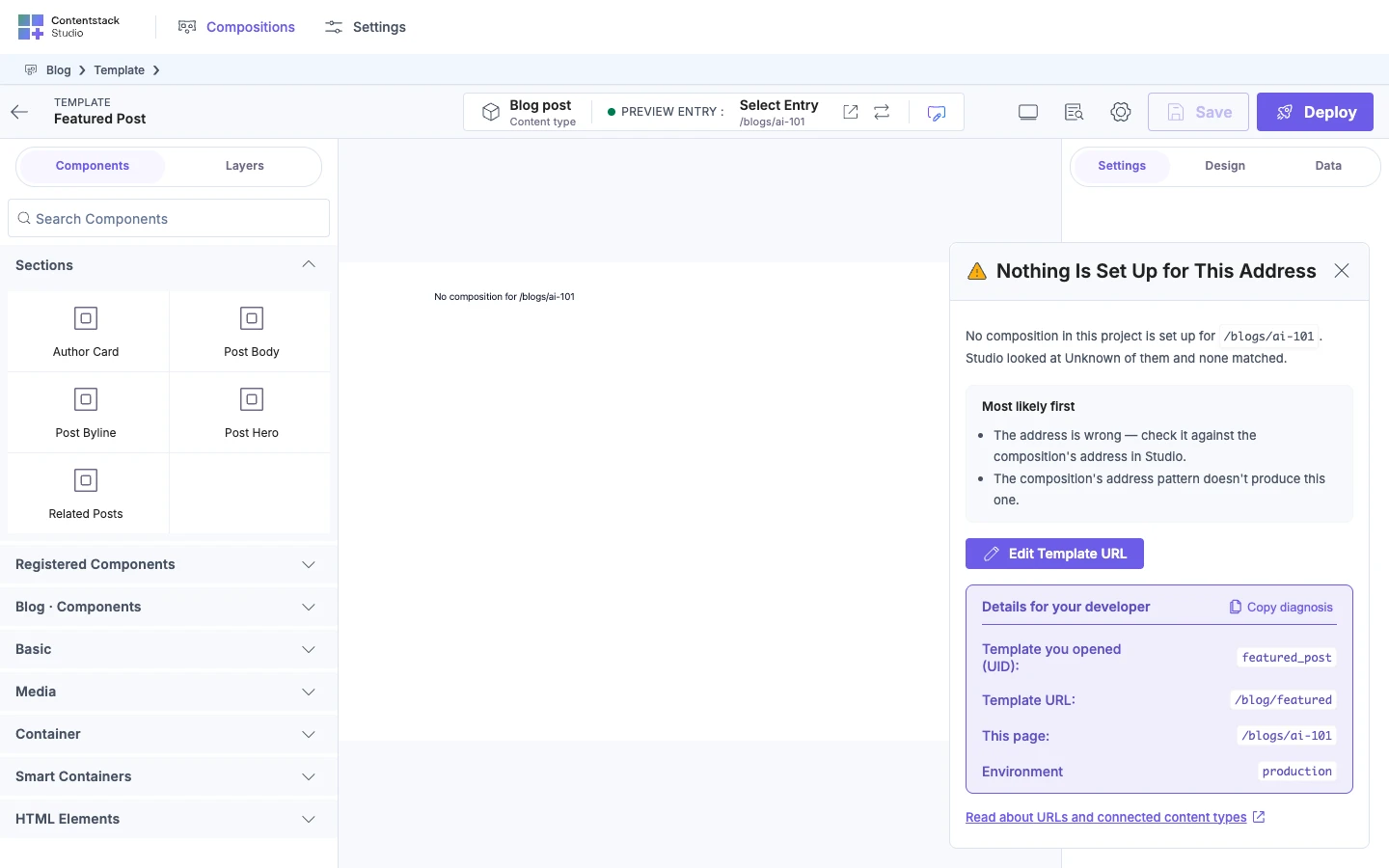
Nothing Is Set Up for This Address. No template's pattern produces this address. Check the address against the template's URL. The same title also shows when the address asks for a language the stack doesn't have.
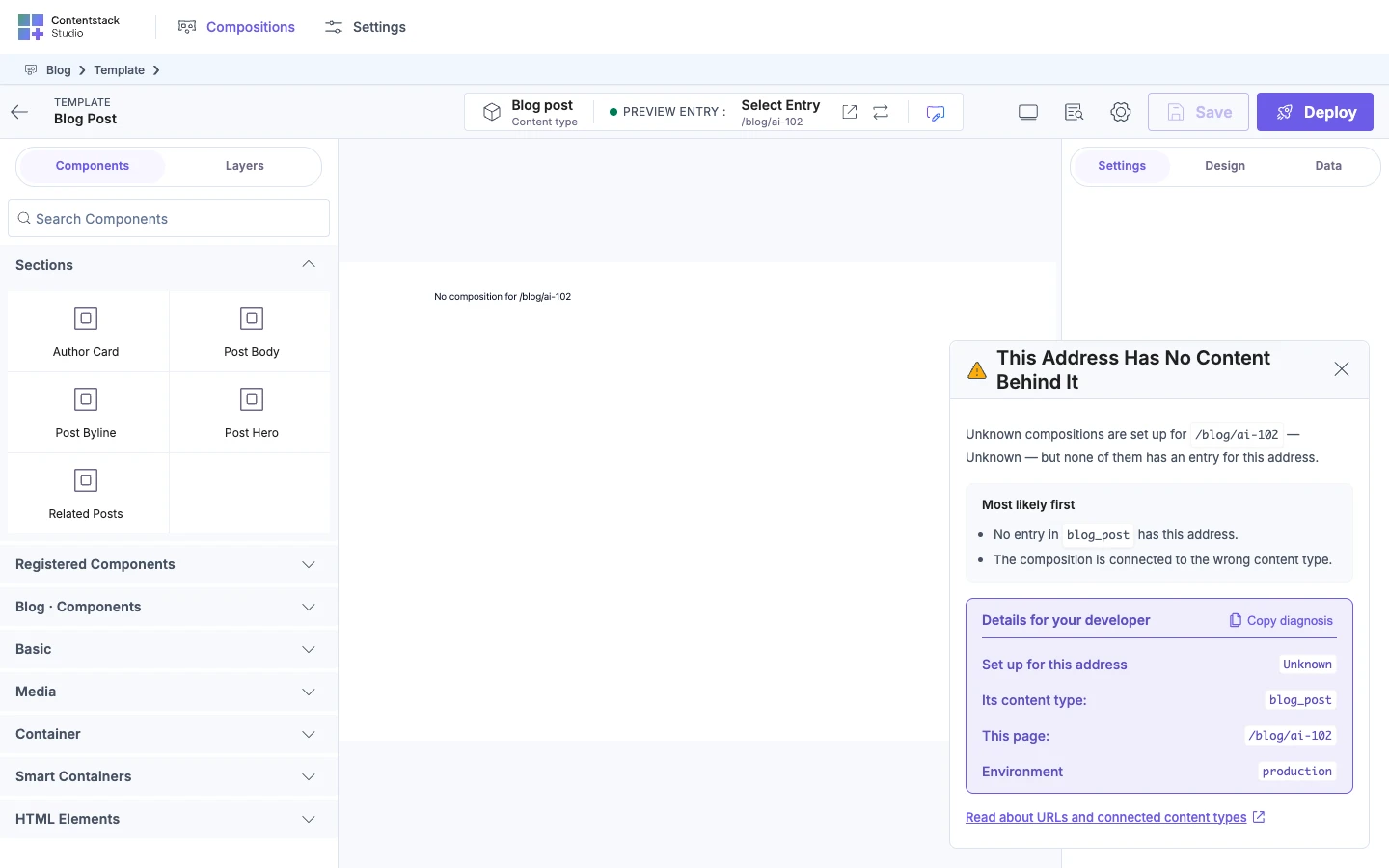
This Address Has No Content Behind It. Two or more templates match this address equally, and none of them has an entry for it. Check the entry's fields, and check that each template is connected to the right content type. On your live site, also check that the entry is published to that environment. When only one template matches, the card is "This Page Has No Content to Show" instead. See Create a template.
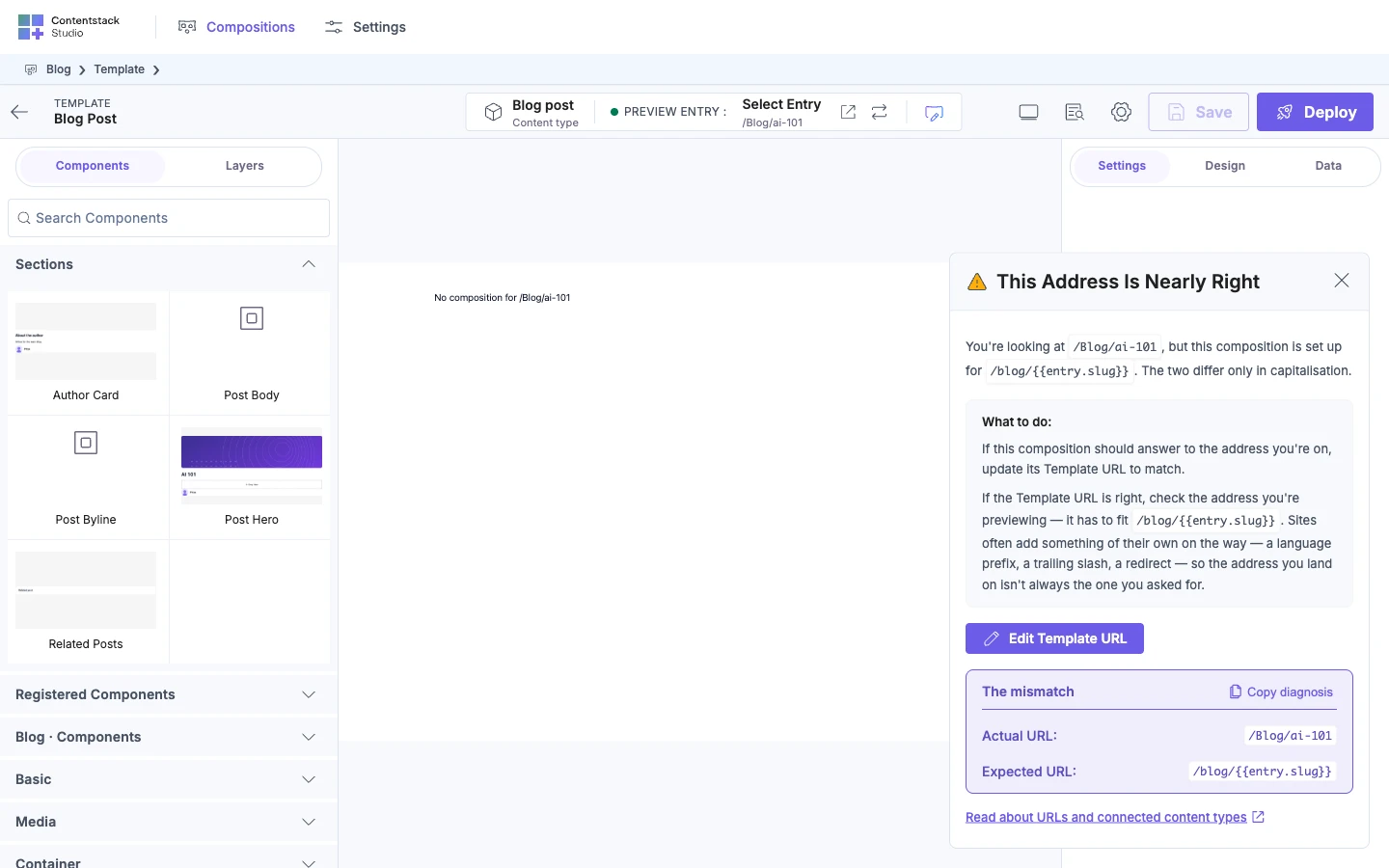
This Address Is Nearly Right. The address differs from the template's URL only by a leading segment, capitalisation, or the way it's written. A site can add a language prefix, a trailing slash or a redirect on the way. Update the Template URL to match, or open the address Studio suggests when it offers one.
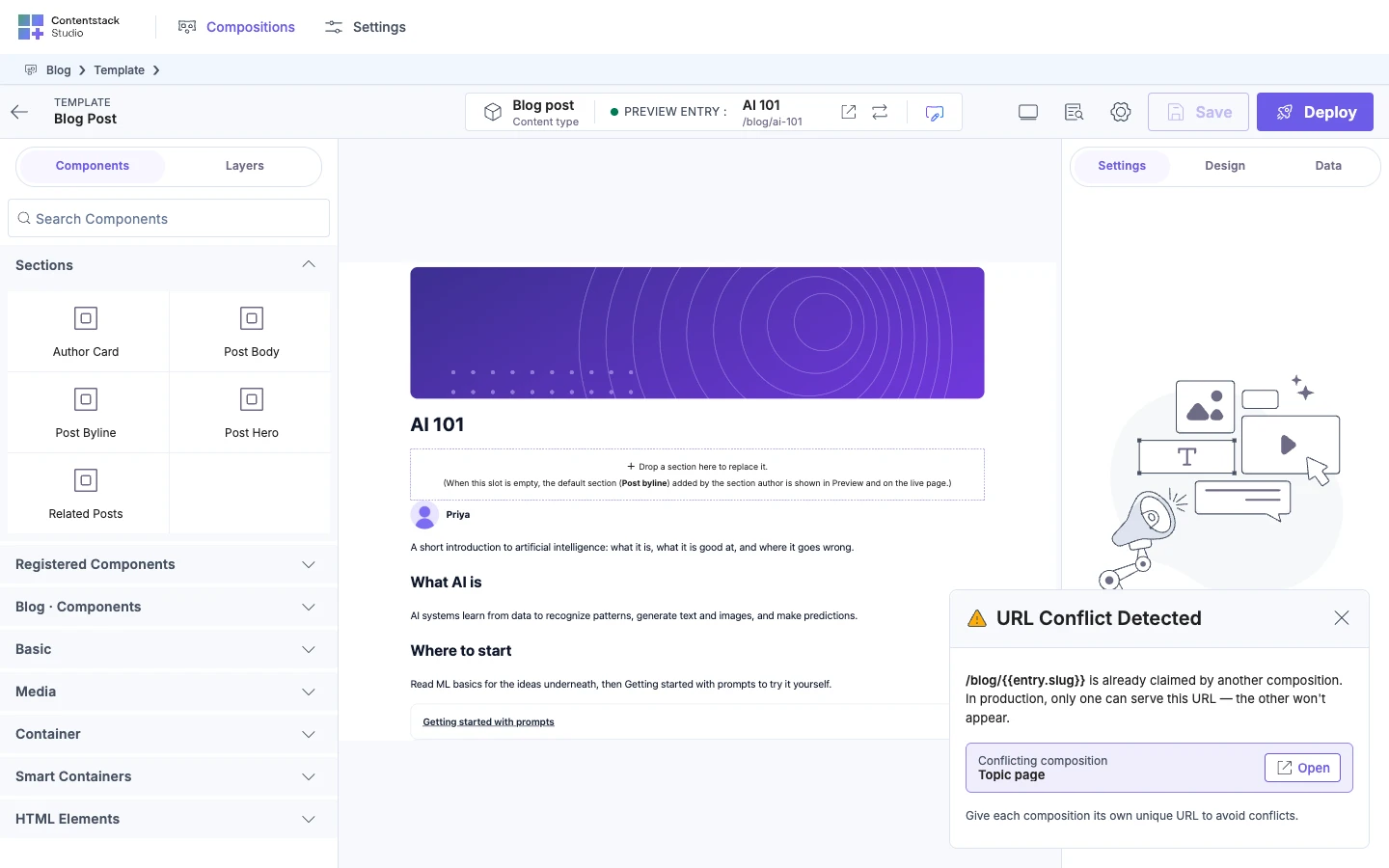
URL Conflict Detected. Your template loads, but another template matches the same address equally and has an entry for it too. In production, only one of them can serve that address, and the other never shows. The notice names the other template, and Open opens it. Give each template its own URL. Closing the notice hides it until you reload the canvas.
It works in the canvas but not on your live site
The canvas previews entries that aren't published yet. Your live site only sees what's published to its environment. Check four things.
- The template and the entry are published to the environment your site uses.
- You deployed after your last URL change.
- The published entry's field holds exactly the text in the address. The canvas can preview an entry whose draft differs from what's published.
- The address matches exactly, including capital letters and any trailing slash.
- Your Custom Preview URL has no transformation rules on a field your pattern uses. Studio ignores those rules, so your site's address and the canvas address differ. See Transformation rules aren't applied.
Where to go next
- Understand why an address shows the template it does: How template URLs work.
- Look up every variable and rule: URL variables.
- Deploy the change: Save, preview, deploy.