Where data comes from
Use this page to find out what fills each Data Picker source and where it exists. Then you can tell why a source is missing. To bind a property now, go to Bind a component.
A component shows a value you typed, or a value that comes from a source. Each source has its own contents and appears only in some places.
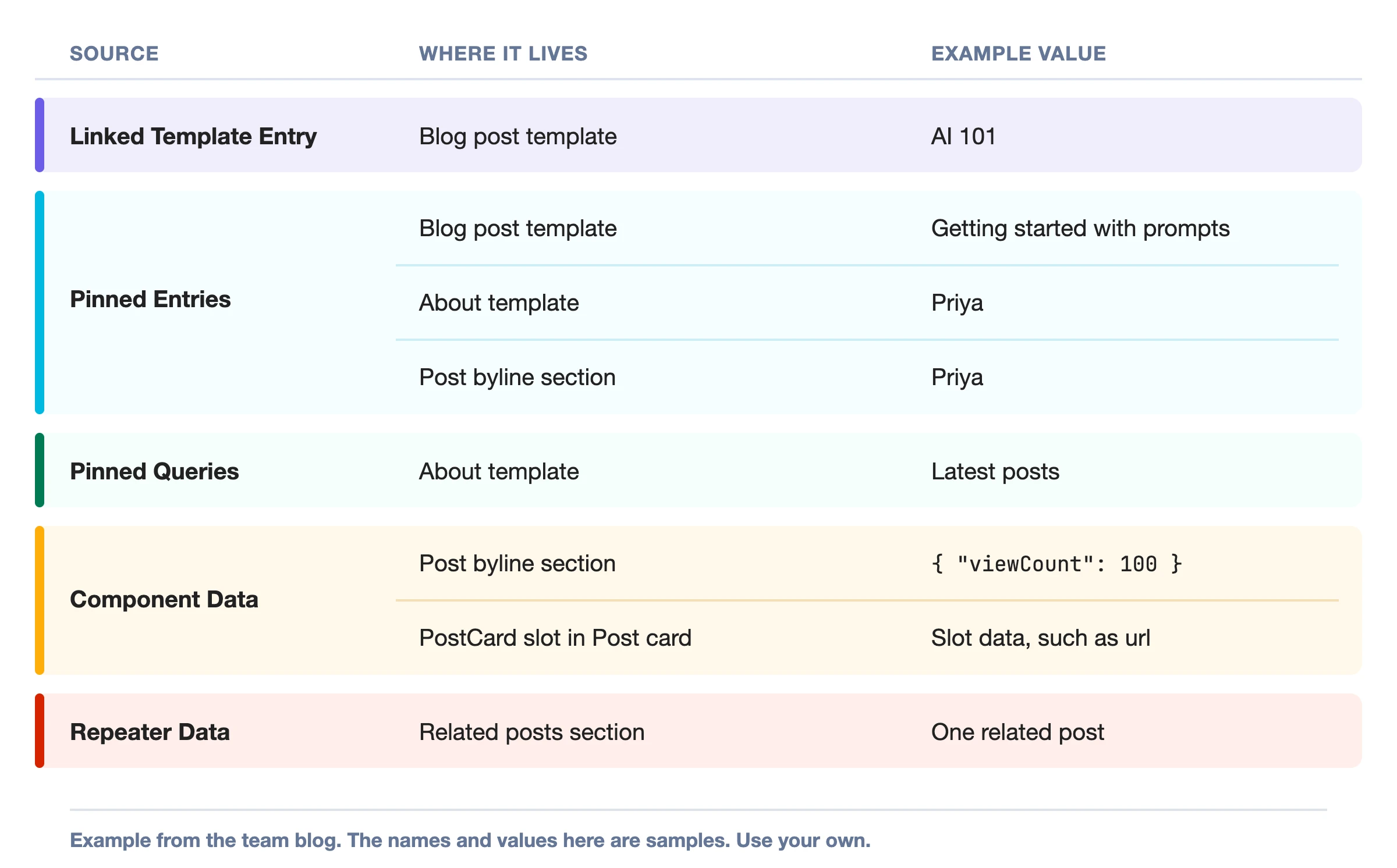
The example is the Blog post template, previewing AI 101. AI 101 and the other names on these pages come from a sample team blog, so use your own content types, fields and entries.
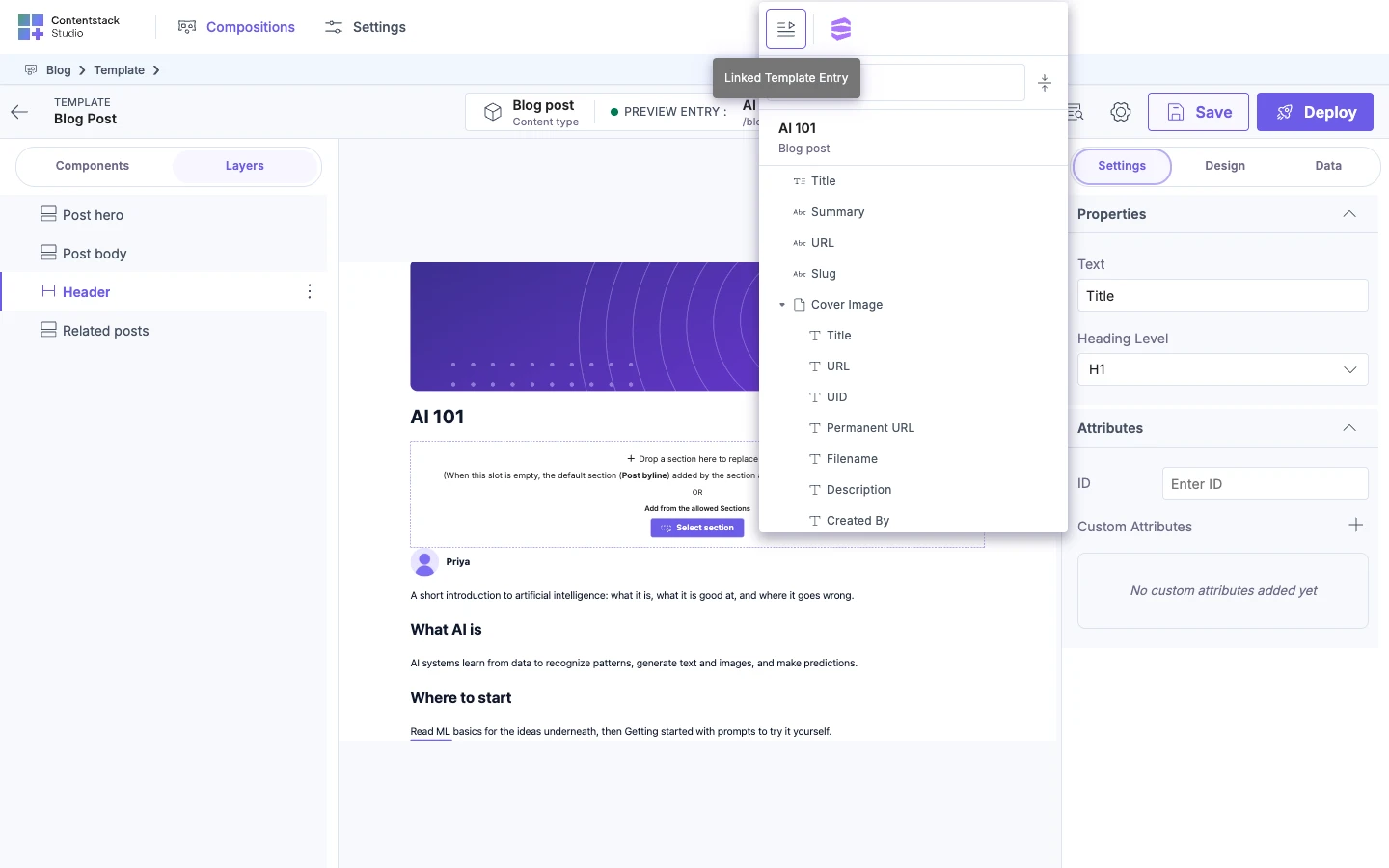
The Data Picker can list five sources: Linked Template Entry, Pinned Entries, Pinned Queries, Component Data and Repeater Data. It shows a source only when that source has data. The picker shows each source as an icon, so hover an icon to see its name. It shows no row of icons when only one source is available.
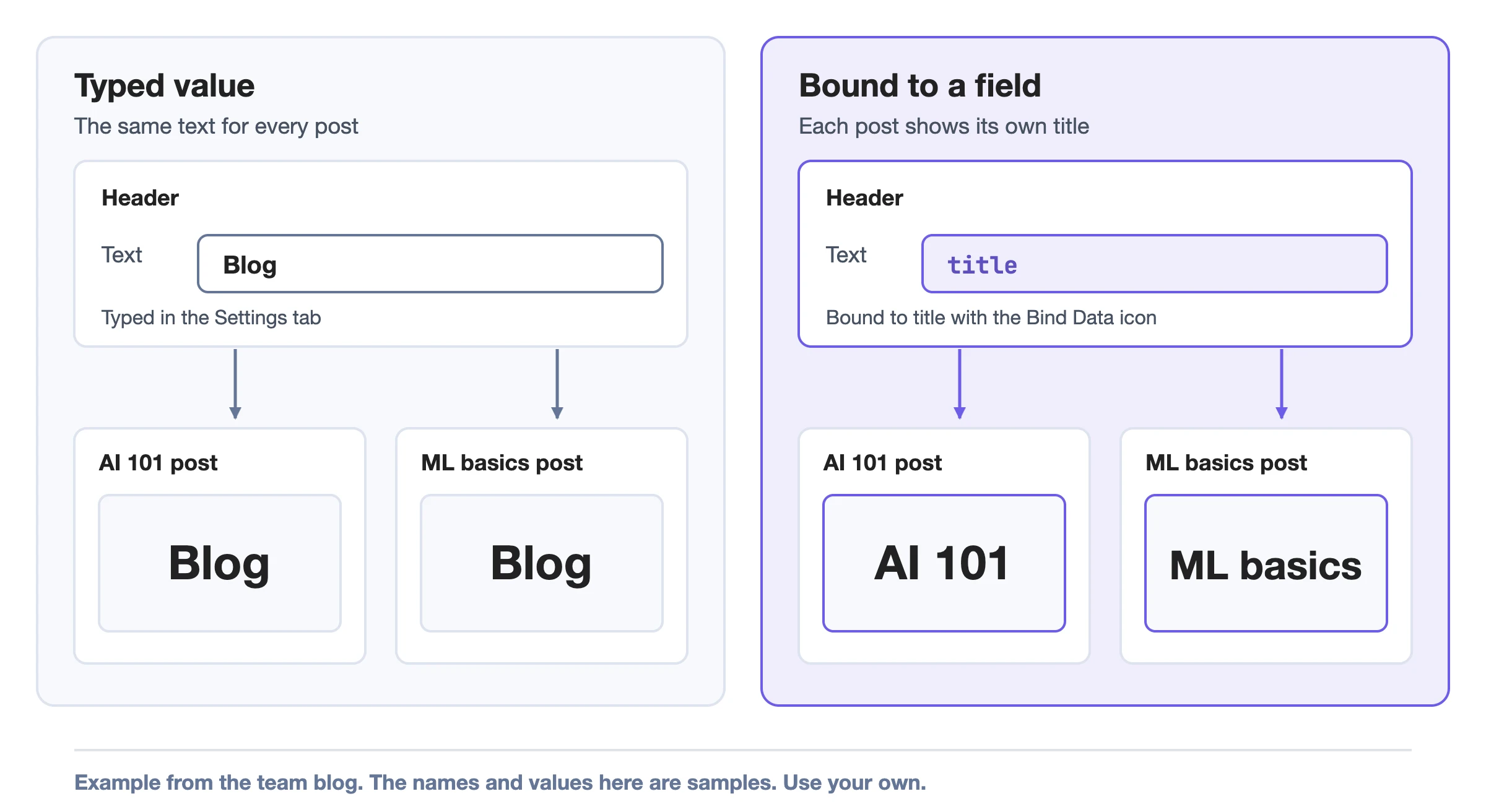
A binding connects a property to a source
A binding connects one property of a component to one value from a source, such as the title of the entry being shown. A property with no binding uses the value you typed in the Settings tab. That value is the same for every entry. The picker doesn't list a typed value, because a typed value isn't a source.
Where each source exists
| Source | Connected template | Section | Freeform template |
|---|---|---|---|
| Linked Template Entry | Yes | Yes, if the section is linked to a content type or field | No |
| Pinned Entries | After you pin an entry | After you pin an entry | After you pin an entry |
| Pinned Queries | After you add a query | After you add a query | After you add a query |
| Component Data | When it has content | When it has content | When it has content |
| Repeater Data | Inside a Repeater | Inside a Repeater | Inside a Repeater |
You pin entries and add queries in the Data tab. The Data tab shows on a freeform template, and on any template or section once Enable Freeform Feature is on. See Enable Freeform Feature.
The picker opens on the source a property is already bound to. When you select a placed section, the Settings tab starts with Section Data, which decides what the whole section reads. See Linked schema matching rules.
What fills Linked Template Entry
Linked Template Entry is the entry a connected template is showing. A connected template names one content type, and every entry of that type renders through the template at its own URL. On the canvas, Linked Template Entry is the preview entry. On the Blog post template, that's AI 101 until you switch it. See Preview with a different entry.
You build the Blog post layout once, and every post renders through it. When you change the layout and deploy the template, every post shows the change. You don't edit any post.
A one-off page with no content type behind it is a freeform template, so it has no Linked Template Entry. See Connected or freeform template.
What fills Pinned Entries
Pinned Entries lists the entries you pin to a template or section. You pin them with Link Entry in the Data tab. The About template pins Priya, an Author entry.
A pinned entry's current content loads each time the page renders. An entry pinned on a section is saved with that section. The Post byline section pins Priya, and its Header is bound to handle.
To pin an entry, see Add extra data to a template.
What fills Pinned Queries
A Pinned Query pulls the entries of one content type, and you can narrow them. The Latest posts query on the About template pulls the three newest Blog posts.
A Pinned Query refreshes every time the page opens. Studio saves Pinned Queries on the template or section.
To add a query, see Add a query.
What fills Component Data
Component Data is data that isn't in Contentstack, such as view counts from your analytics service. You can type sample data in the Data tab to design with. In the example, Post byline has the sample data { "viewCount": 100 }, and its ViewCount component binds count to viewCount.
Your app can pass its own data to replace the sample data. See Bring your own data.
Component Data also appears when a Slot passes its own data to what you drop into it. When Slots are nested, the nearest Slot takes priority. Declared state variables appear in the same source, in a State Variable group.
To pass data through a Slot, see Pass data into a component slot.
What fills Repeater Data
Repeater Data lists the fields of one item from the list the Repeater loops over. In the Related posts section, a Repeater of PostCard loops over related_posts, so Repeater Data is one related post.
Repeater Data appears only when the selected element is inside a Repeater. Inside a Repeater, the picker opens on Repeater Data first, and the other sources stay available.
To bind inside a Repeater, see Render a list. To bind a property to any of these sources, see Bind a component.
The other pages in this folder:
- Show or hide content with a condition adds a Condition Block that shows its content only when a condition on a field is true.
- Render a list of mixed things renders a modular blocks field with a Repeater and Condition Blocks.
- Repeater recipes for common results gives worked examples organized by the result you want, with the wrong step that breaks each.
- Render a composition with your own data renders a Section or Template from your own code.
- Fetch content in a language and Fetch a Personalize variant change which version of the content a binding reads.