Bind a component
Bind a property of a component to a field, so the property shows that field's value instead of a value you typed. Use this when a component on a template or section should show content from an entry.
The example is the Post hero section, open on the canvas and previewing AI 101. Its Header is already bound to title. The steps show how that binding is made, on the Header's Text property.
Prerequisites
- A section open on the canvas. Select an element on it, such as the Header in Post hero.
- A registered component. Your app registers the component you want to bind, and Studio reads the registration from the canvas.
- A source that has data. That's the Linked Template Entry of a connected template, which is the entry you preview. It's also a pinned entry, a query or Component Data. See Where data comes from.
What this is and what you get
Binding connects one property of a component to a field, so the property shows that field's value for the entry you preview. Header's Text property bound to title shows the title of AI 101.
You bind in the Settings tab, under Properties. Each property has a Bind Data icon beside its name. A slot property has no Bind Data icon.
The Data tab, beside Settings and Design, is where you manage Pinned Entries, Pinned Queries and Component Data. You don't bind from it.
When you select a placed section, the Properties list starts with Section Data, which decides what the whole section reads. See Linked schema matching rules.
Language and Personalize variant change the content a binding reads, not the binding. See Fetch content in a language and Fetch a Personalize variant.
To bind a design value instead, see Style on the canvas.
Bind a property to a field
-
Select the element on the canvas, or select it in Layers.
The Settings tab lists the element's properties.
-
Select the Bind Data icon beside the property name, such as Text on the Header.
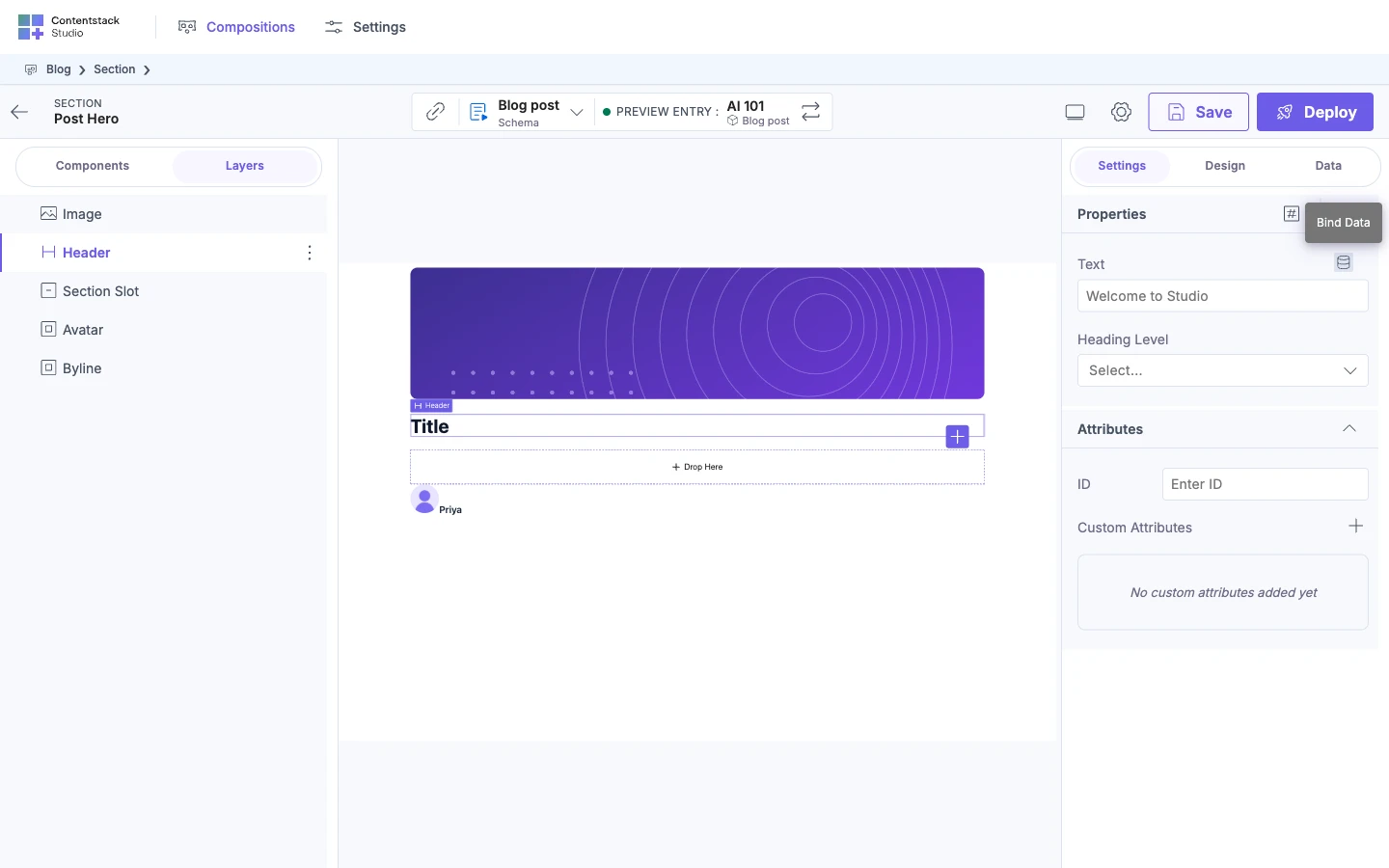
The Data Picker opens to the left of the panel.
-
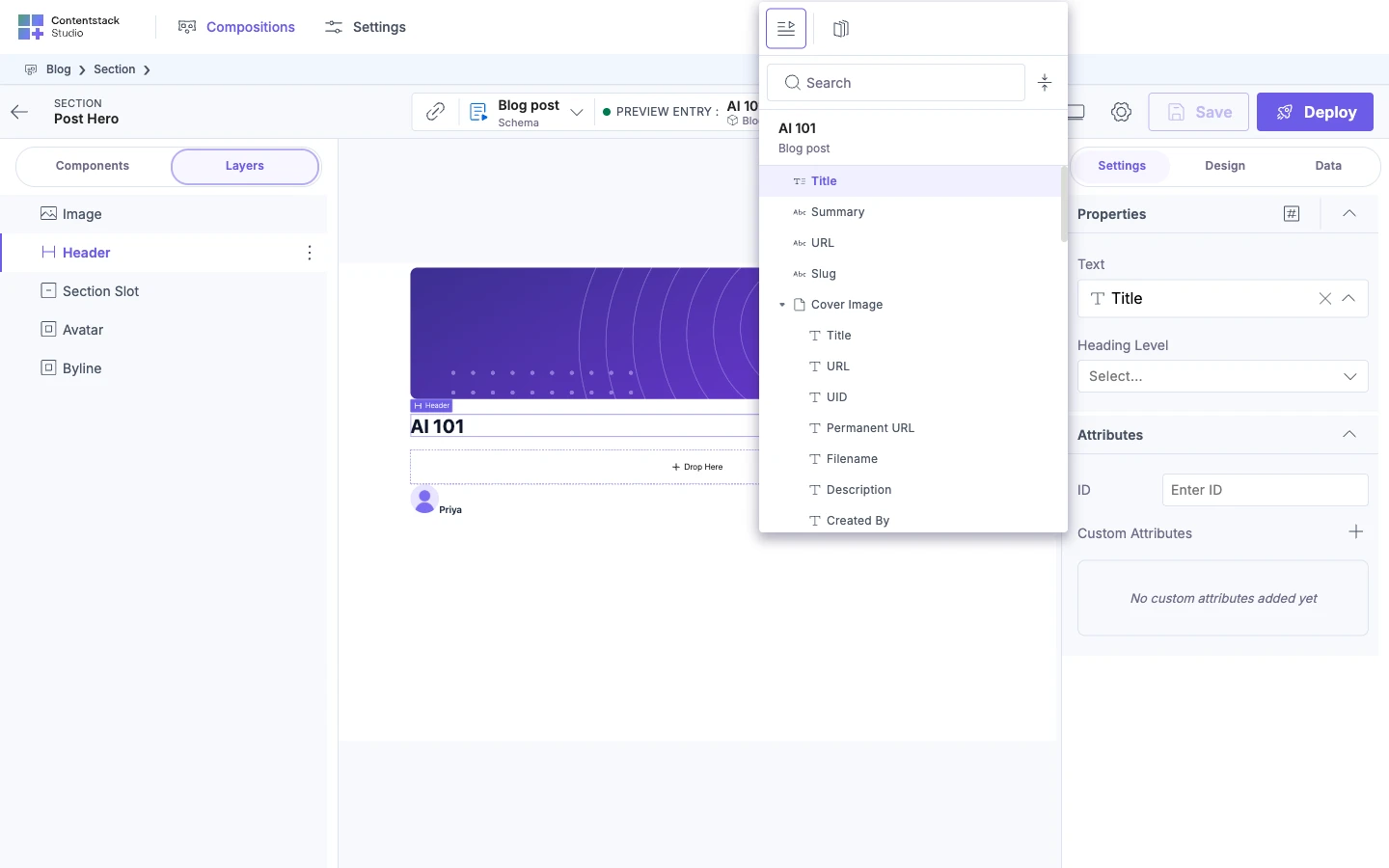
If the picker shows a row of icons, hover an icon to read the source's name, then select the source you want. In the example, the row has two icons, because the app registers a state variable as a second source. The first icon lists the fields of the preview entry, AI 101.
The picker opens on the source the property is already bound to, and otherwise on the first source that has data.
-
To find a field by name, use Search.
The list hides fields whose name doesn't contain your text.
-
Select a field to bind it, such as Title.
The picker closes and the Text row shows the field.
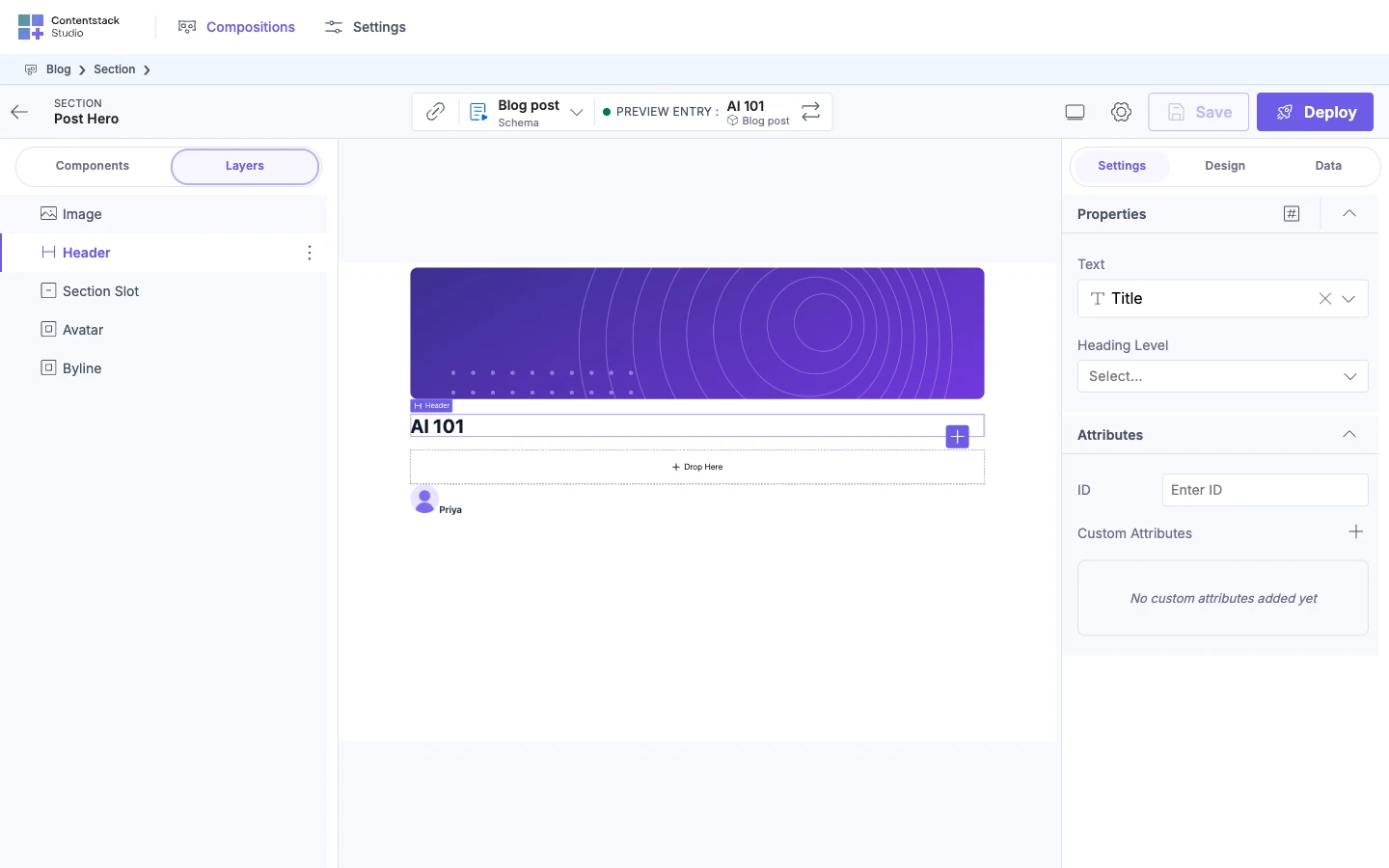
To bind a different field, select the property's field, then select another. To go back to a typed value, select the X in the field.
Fields you can select in the picker
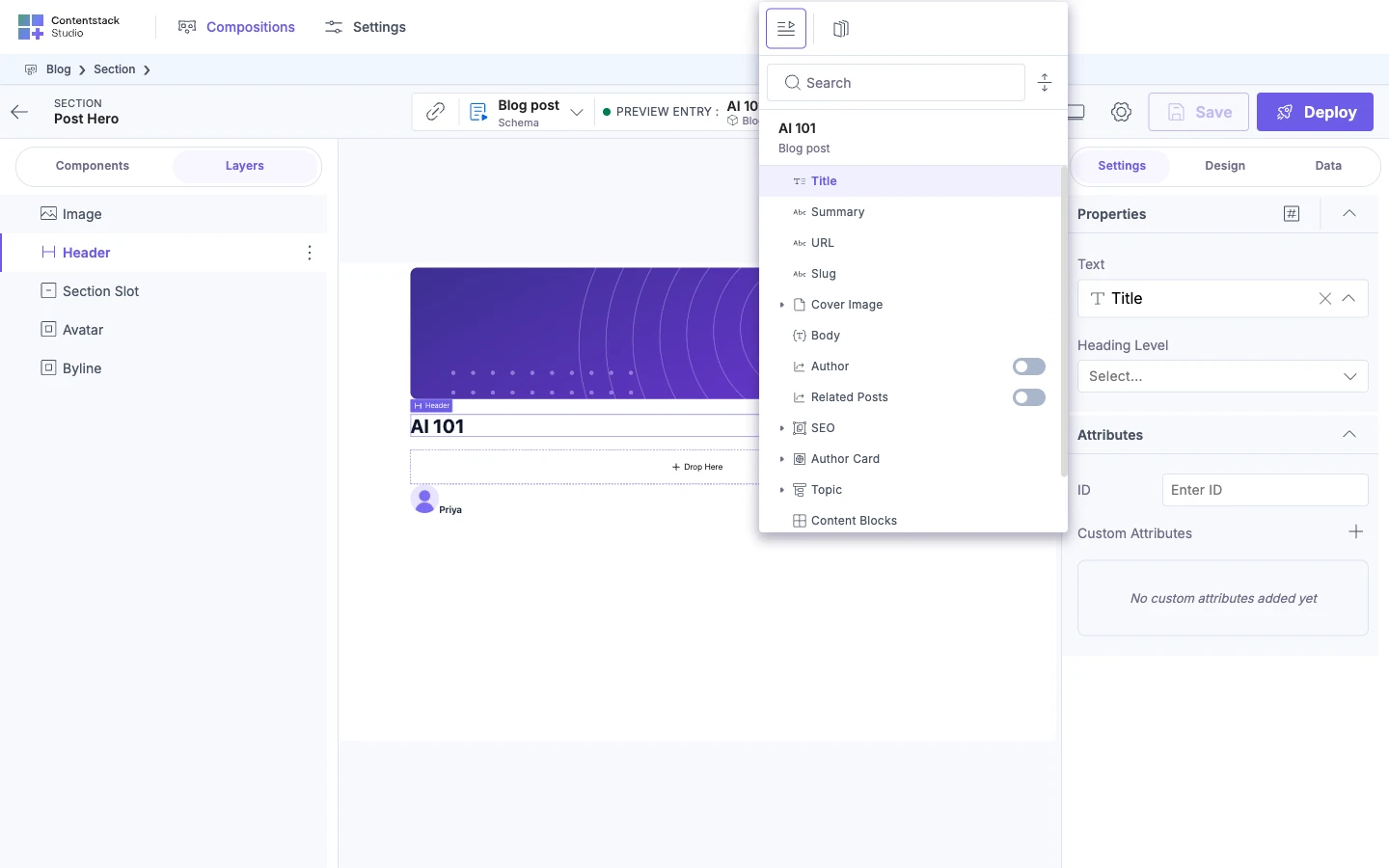
The picker lists a field that doesn't fit the property's type, but you can't select it. A multiple-value field can't bind to a single-value property.
Header's Text property has the type plaintext. For any property, the type decides which fields fit.
| Property type | Fields you can select |
|---|---|
string, href, imageurl or choice | Text fields only. A string property doesn't take number or boolean fields. |
plaintext | Text, number and boolean fields. Not rich text, Markdown or multiple-value fields. |
number | Number fields |
boolean | Boolean fields |
datestring | Date fields |
json_rte | A JSON Rich Text Editor field that isn't multiple-value |
array | Reference, modular blocks and other multiple-value fields |
object | A field that has fields inside it and isn't multiple-value, such as a group, global field or file |
any | Any field |
To choose a type for a property in your own component, see Component schema: props, types and defaults.
Bind a field inside a reference
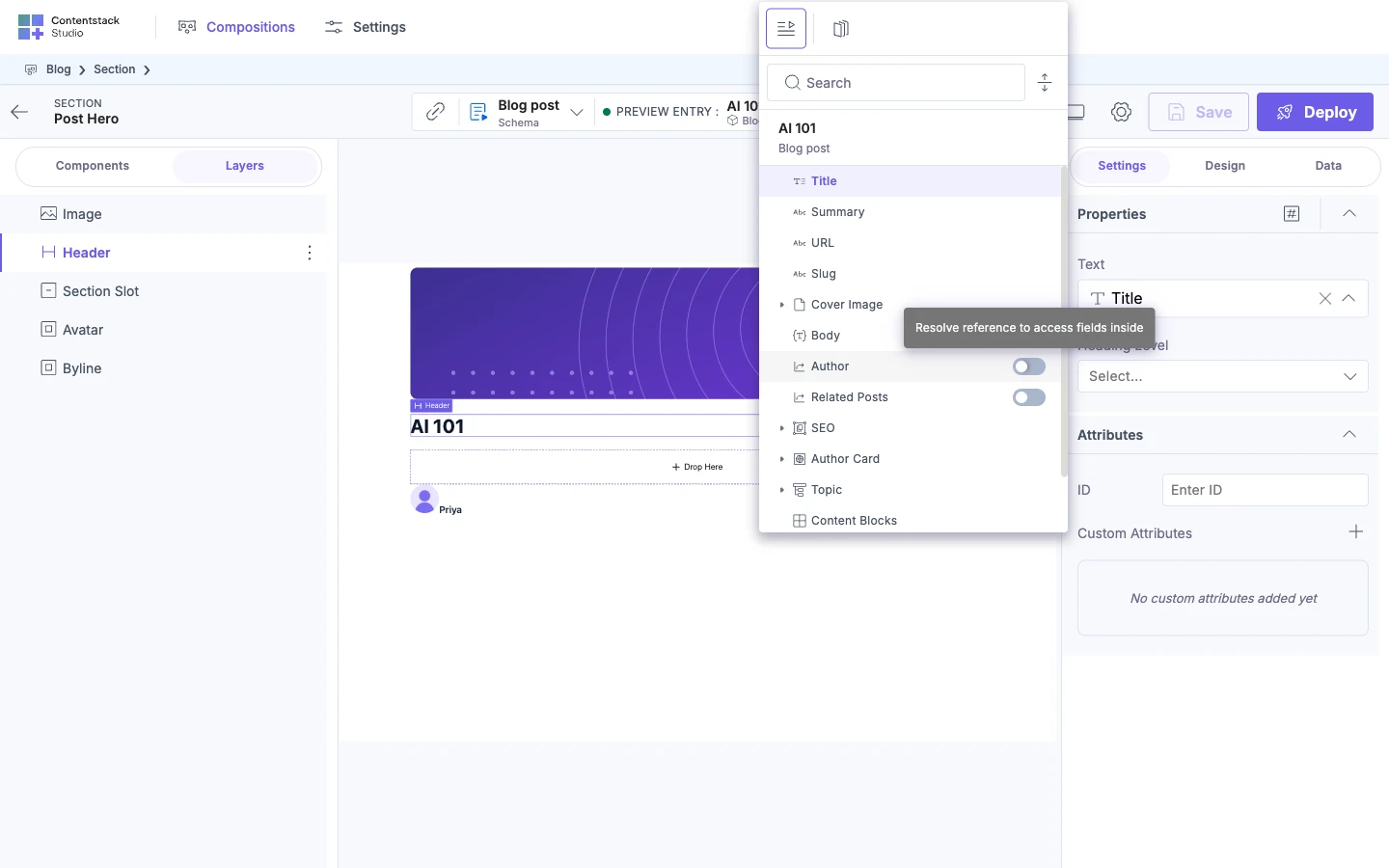
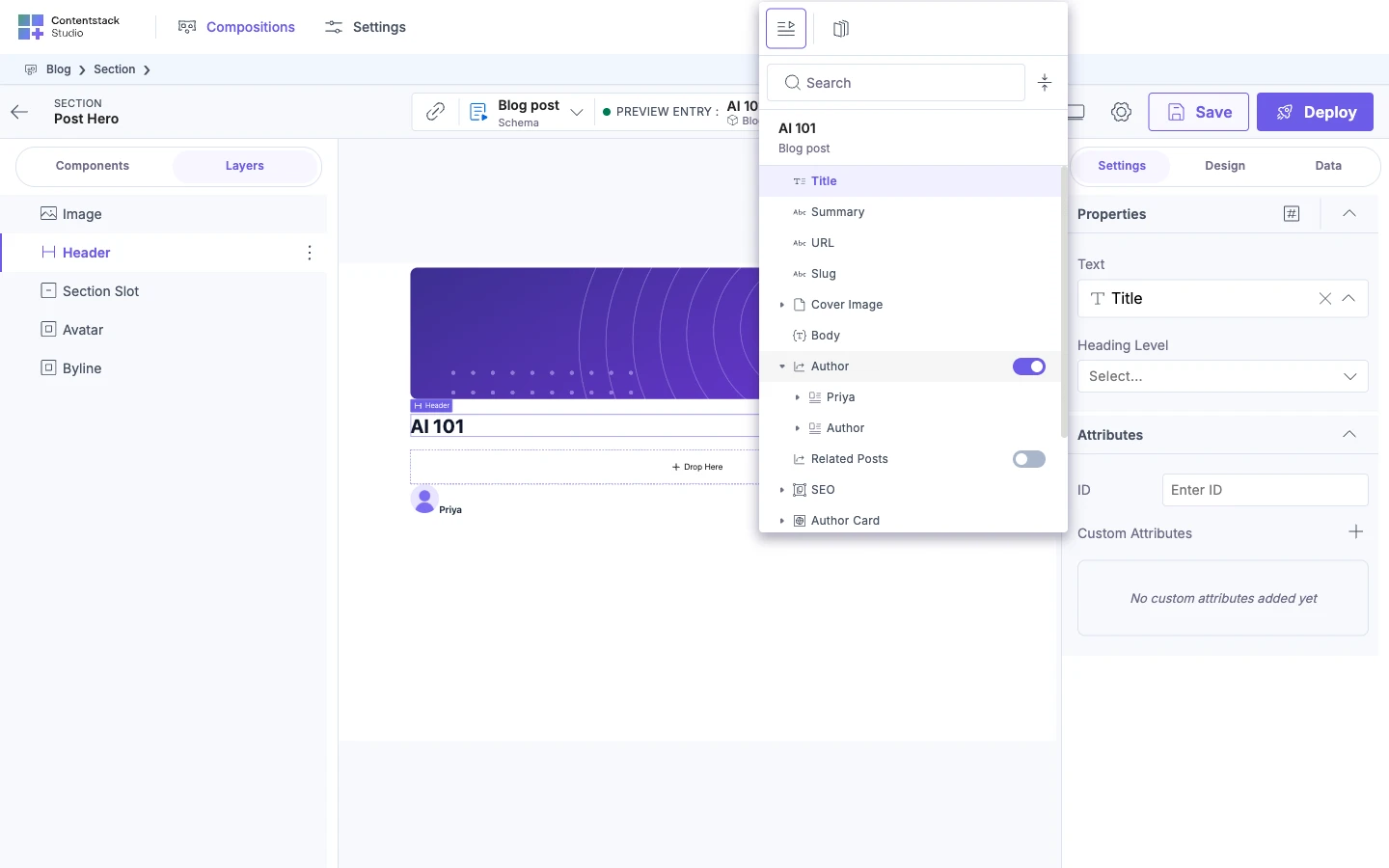
A reference field shows no fields until you turn on its toggle. In the example, author is a reference to Author. Post hero's Byline takes its Name from Priya's title, because the Author content type has no name field.
-
Open the picker on the property as in the steps above, such as
Byline's Name.The picker lists the Blog post fields. On Linked Template Entry, find the reference field, such as
author. -
Hover the toggle to read "Resolve reference to access fields inside". Then turn the toggle on.
When the toggle is on, its tooltip reads "Unlink reference". The reference now shows the entry inside it, Priya.
-
Expand Priya.
The list shows Priya's fields.
-
Select the field inside the reference, such as Title.
The picker closes and the property's row shows the field.
If Studio can't load the reference, it shows "Failed to resolve reference - please try again" and turns the toggle back off.
For what Studio binds on its own in a section, see What auto-binding doesn't do.
If it doesn't work
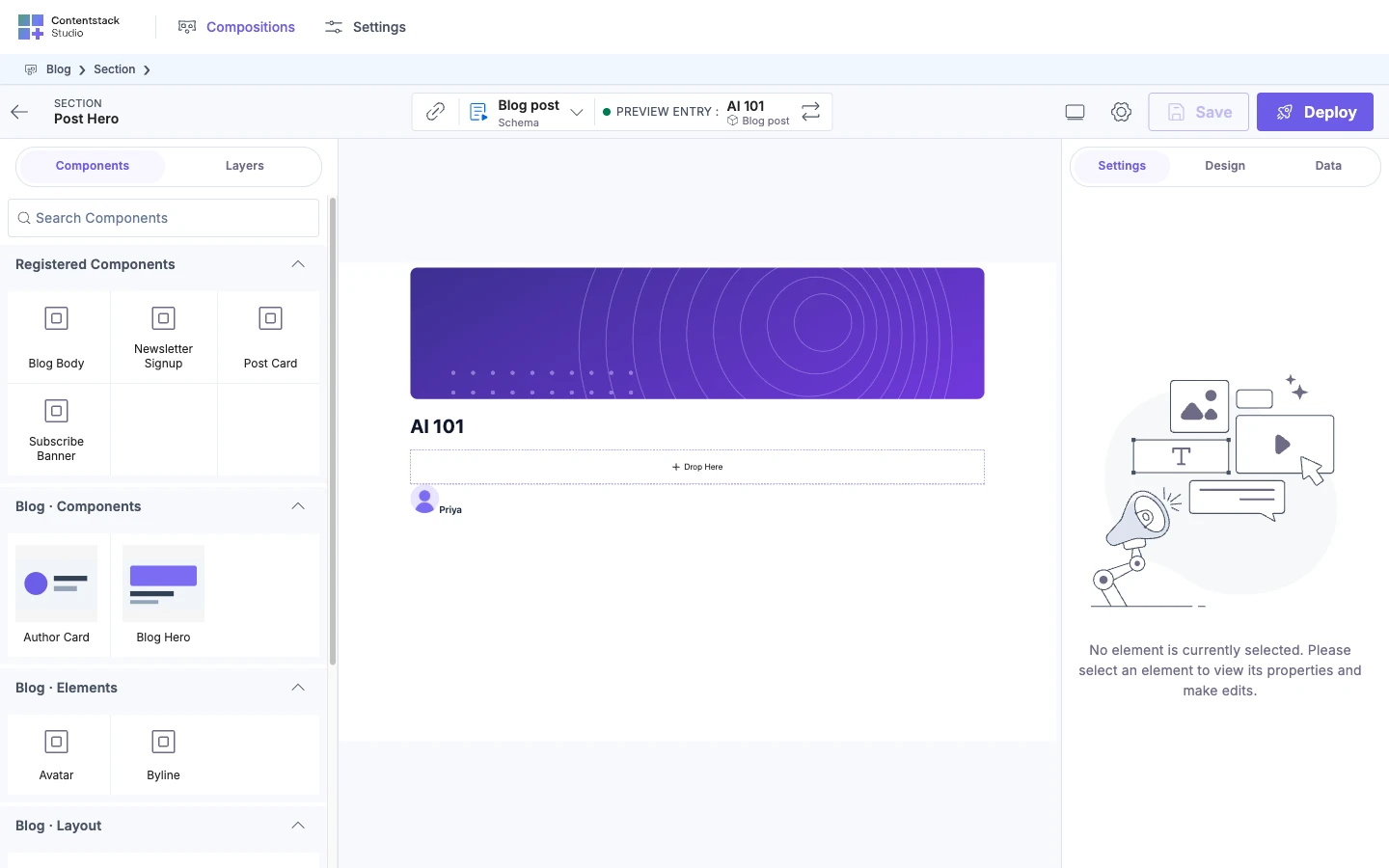
The panel says no element is selected
The Settings tab shows "No element is currently selected. Please select an element to view its properties and make edits." Select an element on the canvas or in Layers.
The picker is empty, or a source is missing
If the picker is empty, it says "No data available for selected data source, please select one to continue". Connect a source first.
A source is missing because nothing of that kind exists yet. Pinned Entries and Pinned Queries need a pin or a query, which you add in the Data tab. The picker also shows no row of icons when only one source is available. See Add extra data to a template, Add a query and the table in Where data comes from.
The picker says direct binding isn't supported
When you expand a multiple-value field with no data on the preview entry, the picker can show this message.
Direct binding isn’t supported because this field has no data—use a repeater to bind it to the schema.
Add a Repeater. See Render a list.
When you expand a multiple-value field under Repeater Data, the picker shows this message instead.
Direct binding isn’t supported for multiple-value fields—use a repeater to bind it to the schema.
When you hover a block type that has no content in a modular blocks field, the picker shows this message.
{block} has no data and can’t be bound directly. Use a Repeater to iterate over {field} and bind it to the schema.
See Render a list of mixed things.
The picker says this is a custom field
When there's no entry, the picker shows this message on a custom field.
This is a custom field, so its contents are only known from an entry. Select a preview entry to bind the fields inside it.
Select a preview entry that has a value for that field. An entry with no value for it keeps the message. See Preview with a different entry.
The component shows a type warning
Data Mismatch Found under a property means the value's type doesn't match the property's type. See Data Mismatch Found under a prop.
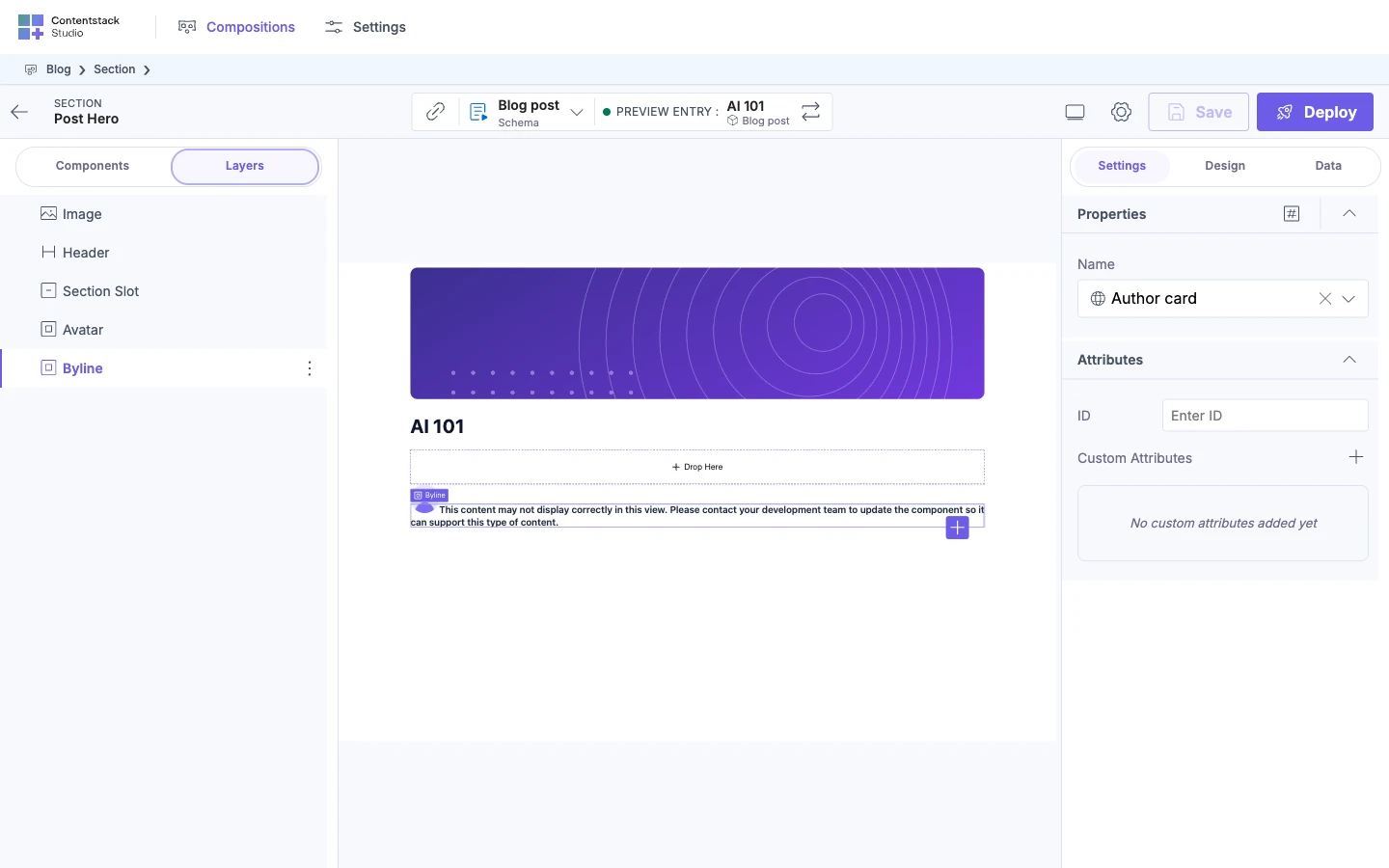
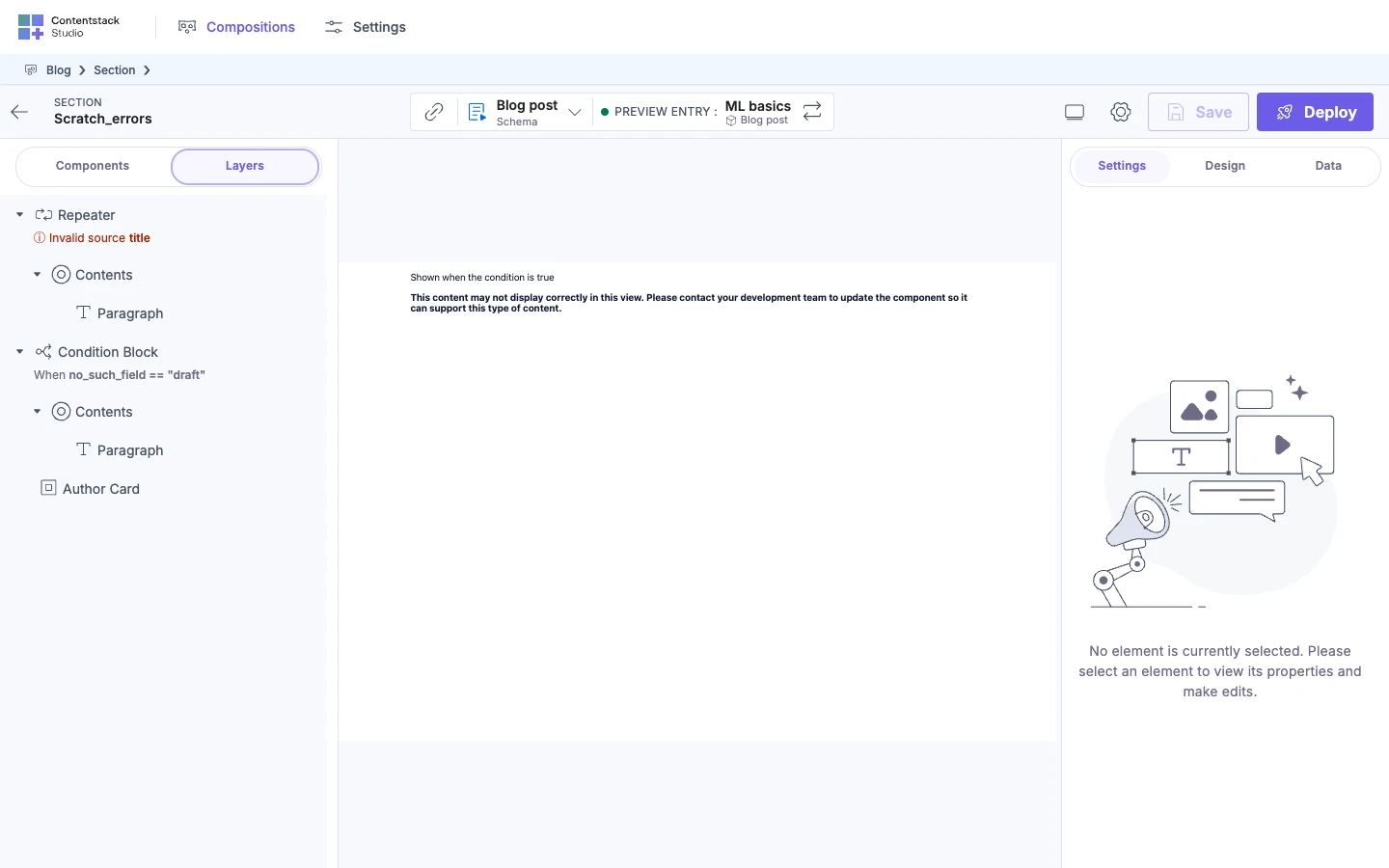
A string property bound to a group with several keys shows this text on the canvas and on your site, in place of the value. The same happens with a multiple-value field. A group with one key shows its value instead.
This content may not display correctly in this view. Please contact your development team to update the component so it can support this type of content.
See Component schema: props, types and defaults.
A bound property is blank on your site
The console warns BINDING_PATH_MISSING when a binding reads a field that's missing or empty on the entry. It warns REFERENCES_UNRESOLVED when a reference comes back without its entry. You see these warnings in development, and in production only when you pass debug: true to studioSdk.init. See Warnings about content that didn't load.
A Repeater in Layers shows "No source configured" or "Invalid source"
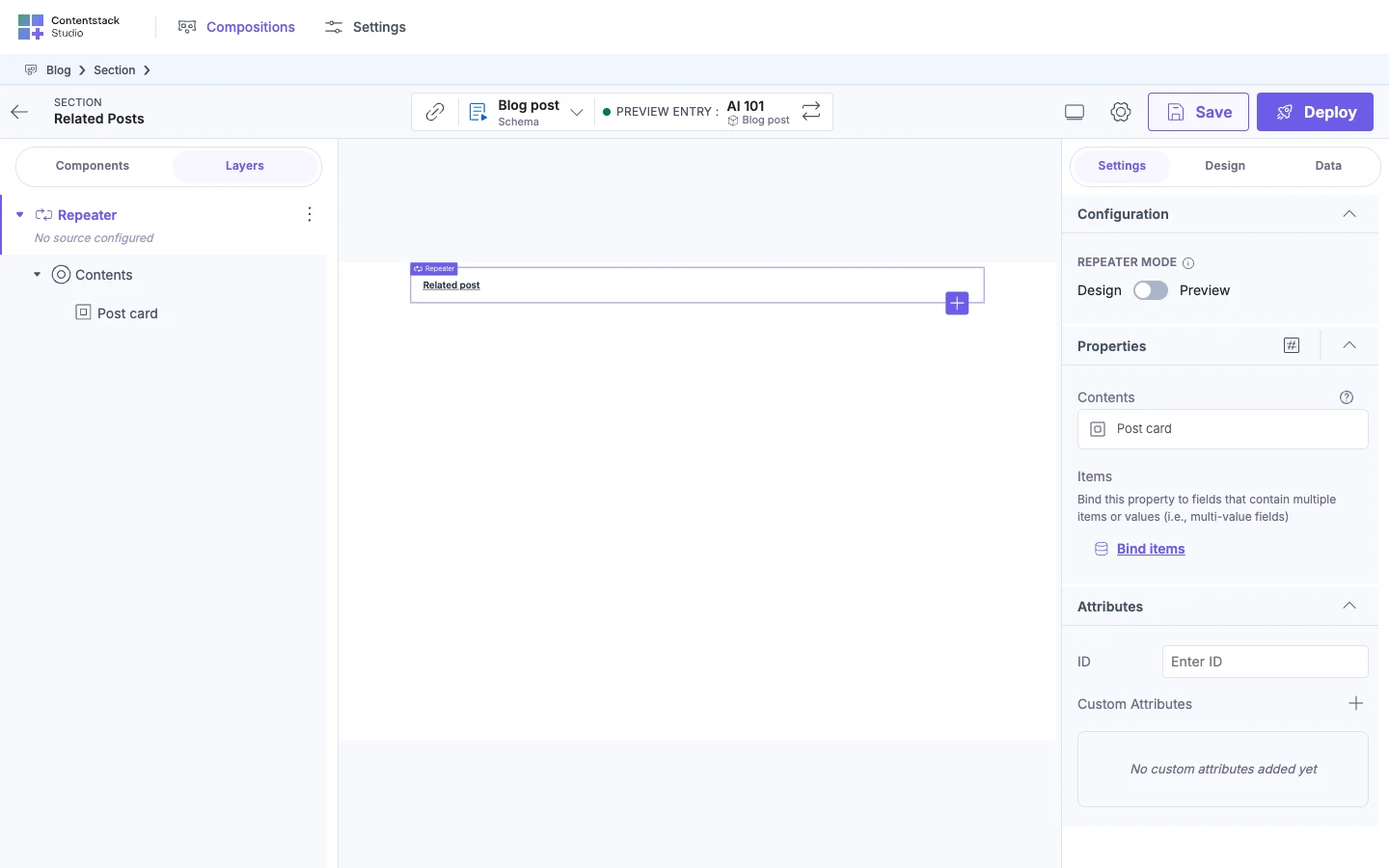
In Layers, a Repeater with no list bound shows "No source configured". Bind its Items.
A Repeater whose source doesn't give a list shows "Invalid source" followed by a name. Rebind it to a multiple-value field.
To bind a Repeater to a list, see Render a list. To save and deploy a bound component, see Save, preview, deploy.