Studio for business teams
Studio lets a marketing or content team change page layouts and build new pages without waiting for a code release. Read this if you lead a team that asks developers for page changes today, and you want to know what Studio would let you do on your own and what it wouldn't.
The example is the blog from What is Studio: posts such as "AI 101" at /blog/ai-101, built from the Blog post template, and a marketing team that wants a spring campaign page.
What changes for your team
Today, a change to how a page is laid out is a developer's job. The marketing team asks for it, a developer changes the code, and the change waits for the next release. Content is different. You can already edit and publish it in Contentstack.
With Studio, layout works more like content. Your developers turn your site's parts into building blocks once. After that, your team arranges those blocks in Studio and deploys the result. The change doesn't go through a code release.
What your team can do alone
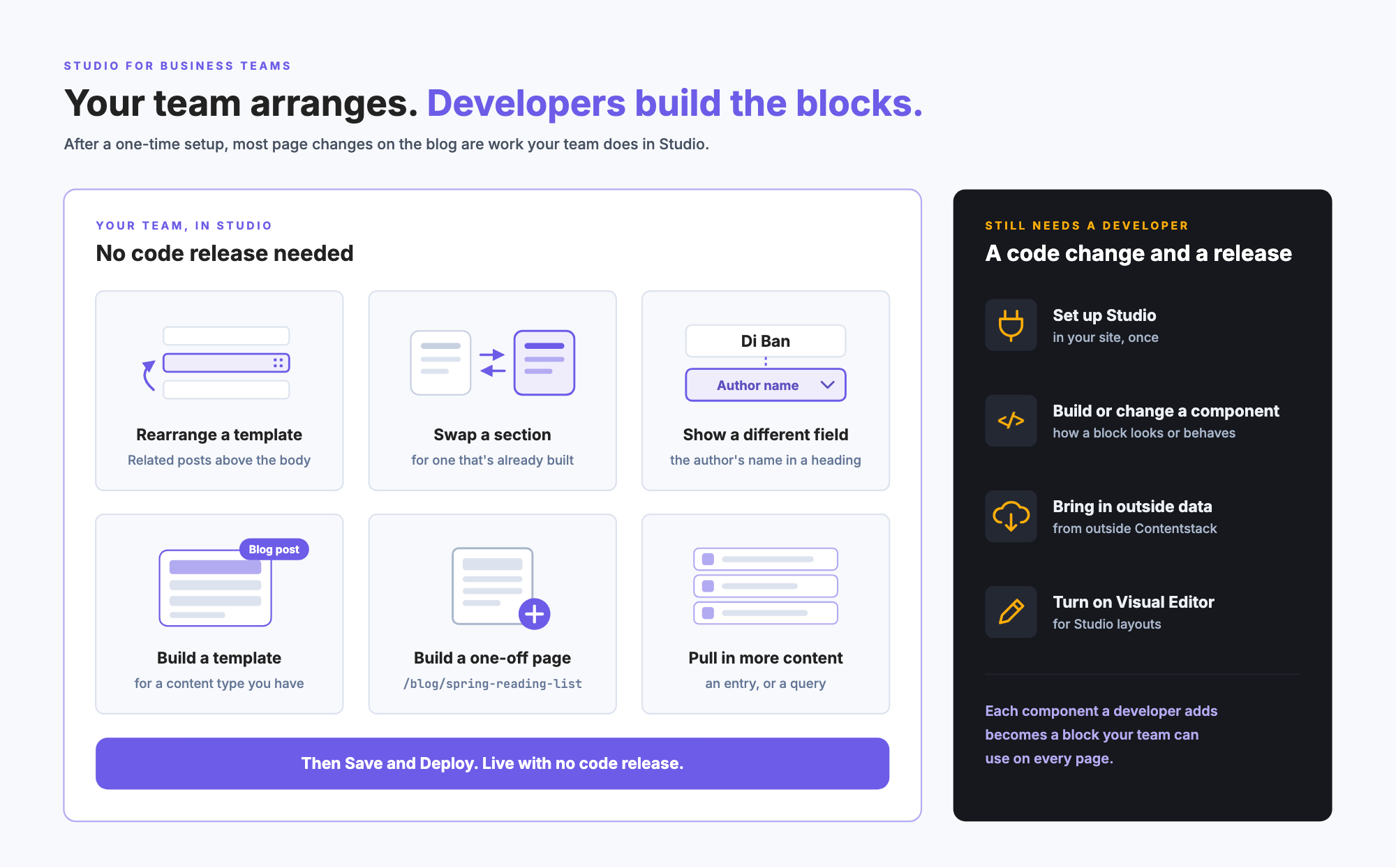
Once your developers have set Studio up and registered your components, your team can do these without a developer:
- Rearrange a page. Move the Related posts section above the post body on the Blog post template, then deploy it. Every post changes.
- Swap a section. Replace one section on a template with another section that's already built.
- Show a different field. Make a heading show the author's name instead of the post's title.
- Build a layout for content you already have. Build a new template for an existing content type, and every entry of that type gets it.
- Build a one-off page. Build a Spring reading list page at
/blog/spring-reading-listthat isn't tied to any content type. The project needs freeform turned on for this. - Pull in more content. Add a specific entry, or a list that updates itself, such as a query for Blog post entries. This uses the Data tab, which appears once freeform is turned on for the project.
- Publish new posts as today. When your team publishes a new Blog post entry, the Blog post template renders it at its own URL, with no one building a page for it.
A developer still sets up your site so that those URLs reach Studio. That's part of the one-time setup.
What still needs a developer
- Setting Studio up. Installing Studio in your site and connecting it to your stack. See Set up Studio.
- New components. Studio only arranges components that exist. A new kind of component, or a change to how an existing one looks or behaves, is a code change and a release.
- Data from outside Contentstack. Showing something like view counts from another system needs your site to pass that data to Studio.
- Editing text on the page in Visual Editor. If your team also uses Visual Editor, a developer turns that on for Studio layouts. See Studio, Live Preview and Visual Editor.
A new content type, such as an Events type, is content modeling in Contentstack. Whoever models your content today can create it, and your team can then build a template for it in Studio.
Keeping pages on brand
Every layout in Studio is built from two things: the components your developers registered, and the basic components Studio ships. Your team can't bring in a block from anywhere else, so pages use the same building blocks as the rest of your site. The exceptions are Studio's HTML Element and Embed components, which can hold any markup or embedded content, so agree with your team on when to use them.
Styling is the one place where pages can drift. Studio's styling controls use your design system's colors, sizes and screen widths, but by default they also accept any value someone types in. If you want every page to use only your design system's values, ask your developers to limit the controls to those values. See How styling works.
Who can change what
Studio doesn't have roles of its own. It saves and deploys as the person signed in, so what someone can change in Studio follows their permissions in your Contentstack stack.
Studio also has no scheduling. If your stack uses workflows, know that one deploy option, Send with References, skips workflow stage checks. Check with whoever manages your stack before your team relies on workflows for Studio layouts.
What setup takes
Adopting Studio is a one-time piece of developer work, followed by ongoing work from your team. The developer work is:
- Install Studio in your site and connect it to your stack.
- Set up the routes that let Studio render your pages and preview your sections.
- Register the components your pages are built from.
- Build the first sections, so your team has blocks to arrange.
How long this takes depends on how many components your site has and how your site is built. Your developers can estimate it once they've read Set up Studio.
After that, each new component your developers register becomes something your team can use on every page.
Where to go next
- To see how the pieces fit together, read Components, sections and templates.
- To see Studio for yourself before any setup, try Try Studio without an app.
- To look up a word, see the Glossary.