Select and arrange elements
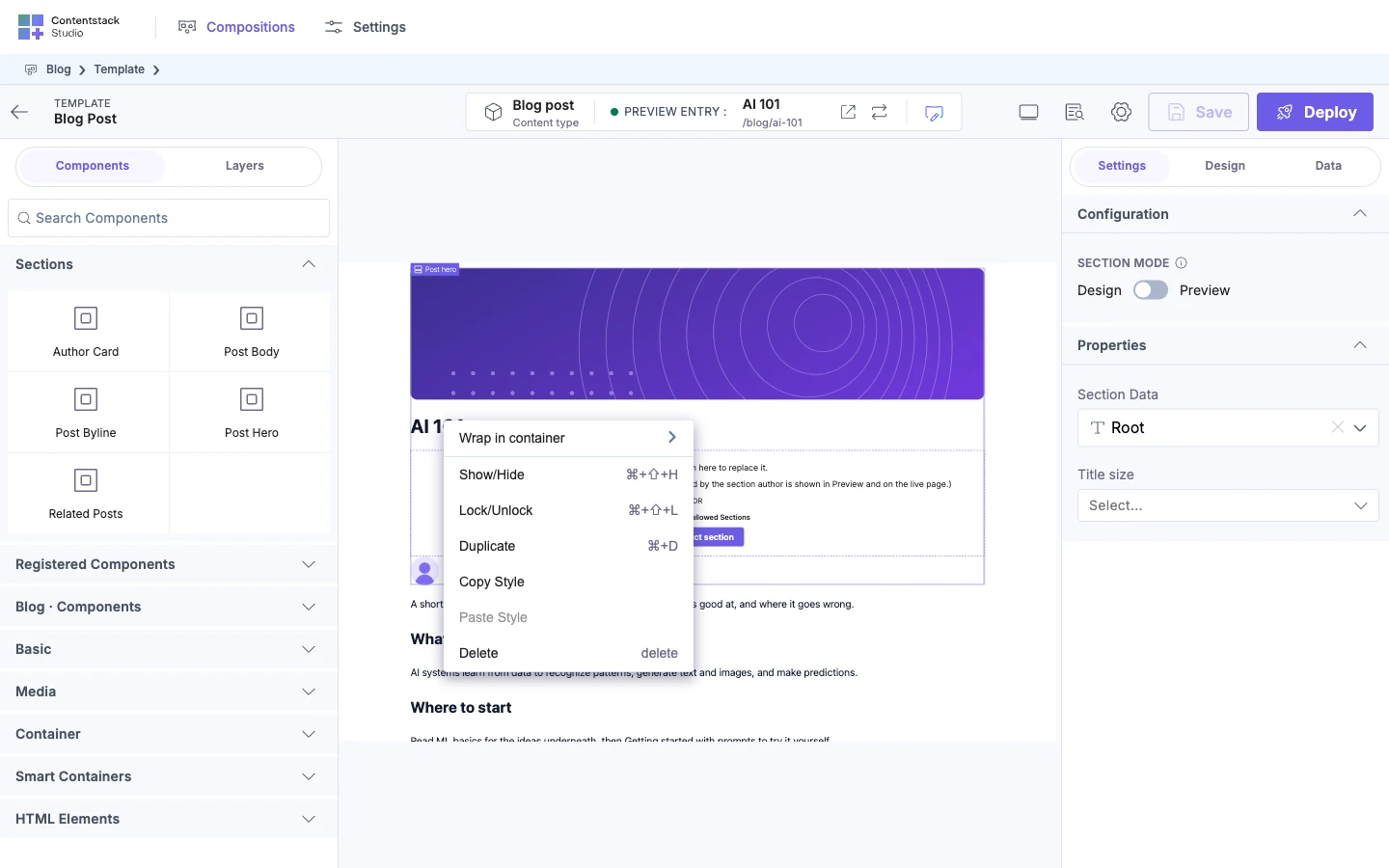
Select an element to change it, then use its menu to move, wrap, rename, hide, lock, duplicate or delete it. Every element on a template or section has these actions, from a placed section down to a single piece of text.
The example is the blog's Blog post template. In Layers, it holds the Post hero section, then Post hero's slot, with the Post byline section in it.
Where are the actions?
- On the canvas, right-click an element.
- In Layers, click the three-dot button on the element's row. It shows when you hover the row or select it. Right-clicking doesn't work in Layers.
Both open the same menu:
| Action | Shortcut |
|---|---|
| Wrap in container: Box, Column, Row or Link Container | |
| Rename, only from Layers | |
| Show/Hide | Cmd+Shift+H, or Ctrl+Shift+H on Windows |
| Lock/Unlock | Cmd+Shift+L, or Ctrl+Shift+L |
| Duplicate | Cmd+D, or Ctrl+D |
| Copy Style | |
| Paste Style | |
| Delete | Delete or Backspace |
To undo, press Cmd+Z, or Ctrl+Z on Windows. To redo, press Ctrl+Y or Ctrl+Shift+Z. Redo uses the Ctrl key on a Mac too.
Select an element
- On the canvas, click it. Studio selects the element under the pointer and outlines elements as you hover.
- In Layers, click its row. The canvas scrolls to the element.
Use Layers when you can't click the element on the canvas. It may be locked, hidden, deeply nested, or take up no space. When the canvas can't scroll to it either, Studio tells you why, such as "Hidden by a parent" or "Takes up no space".
Move an element
-
On the canvas, drag it to its new place.
-
In Layers, drag its row. You can drop it inside another container this way.
-
With the keyboard, select the element and press
[or]to move it back or forward one place. Press Cmd+[or Cmd+], or Ctrl on Windows, to move it to the start or end of its container.
You can't move a container into one of its own children.
Wrap an element in a container
Right-click the element, point to Wrap in container, and pick Box, Column, Row or Link Container. The element moves inside the new container.
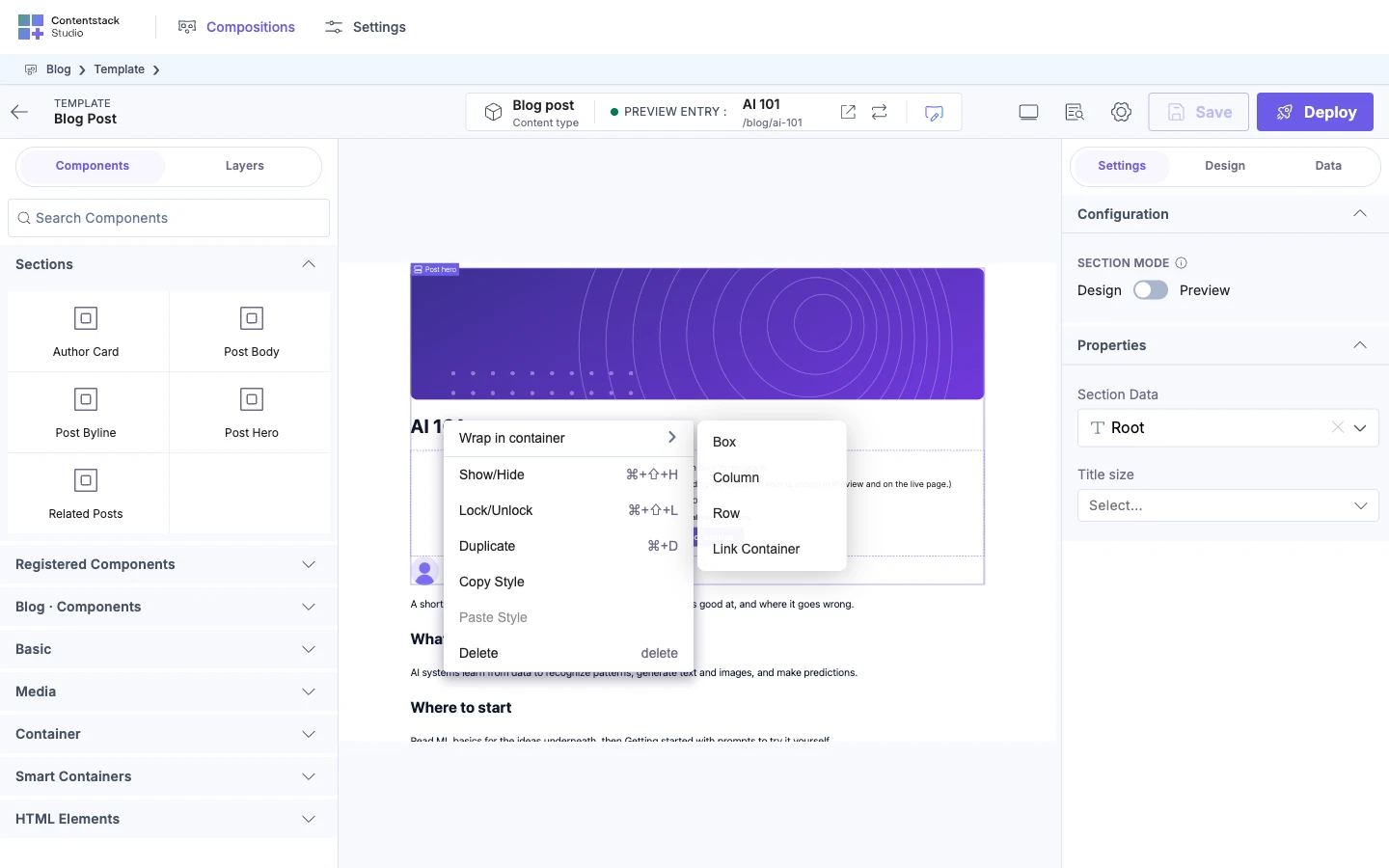
Wrap in container isn't offered for a locked element or anything inside one, for Section Slots, or for Condition Blocks.
Rename an element
In Layers, double-click the element's row, or click the three-dot button and choose Rename. Type the name and press Enter. Press Escape to cancel.
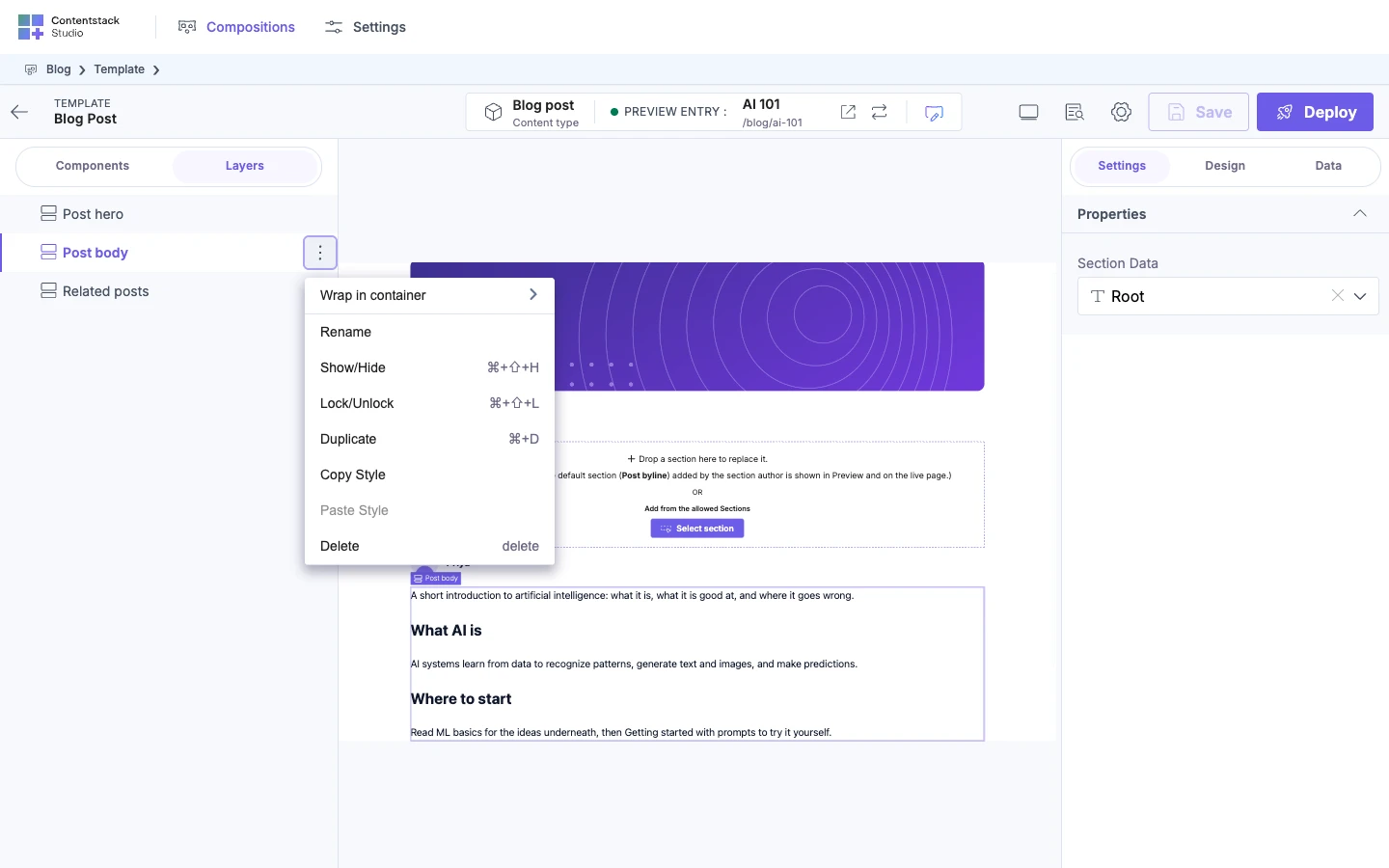
The new name is saved with the template or section, and only this element gets it. Studio uses it wherever it names the element, such as in Layers and in its messages. An element's default name is its component's name, such as Header.
Rows for a component's slots can't be renamed. Their names come from the component's code.
Show or hide an element
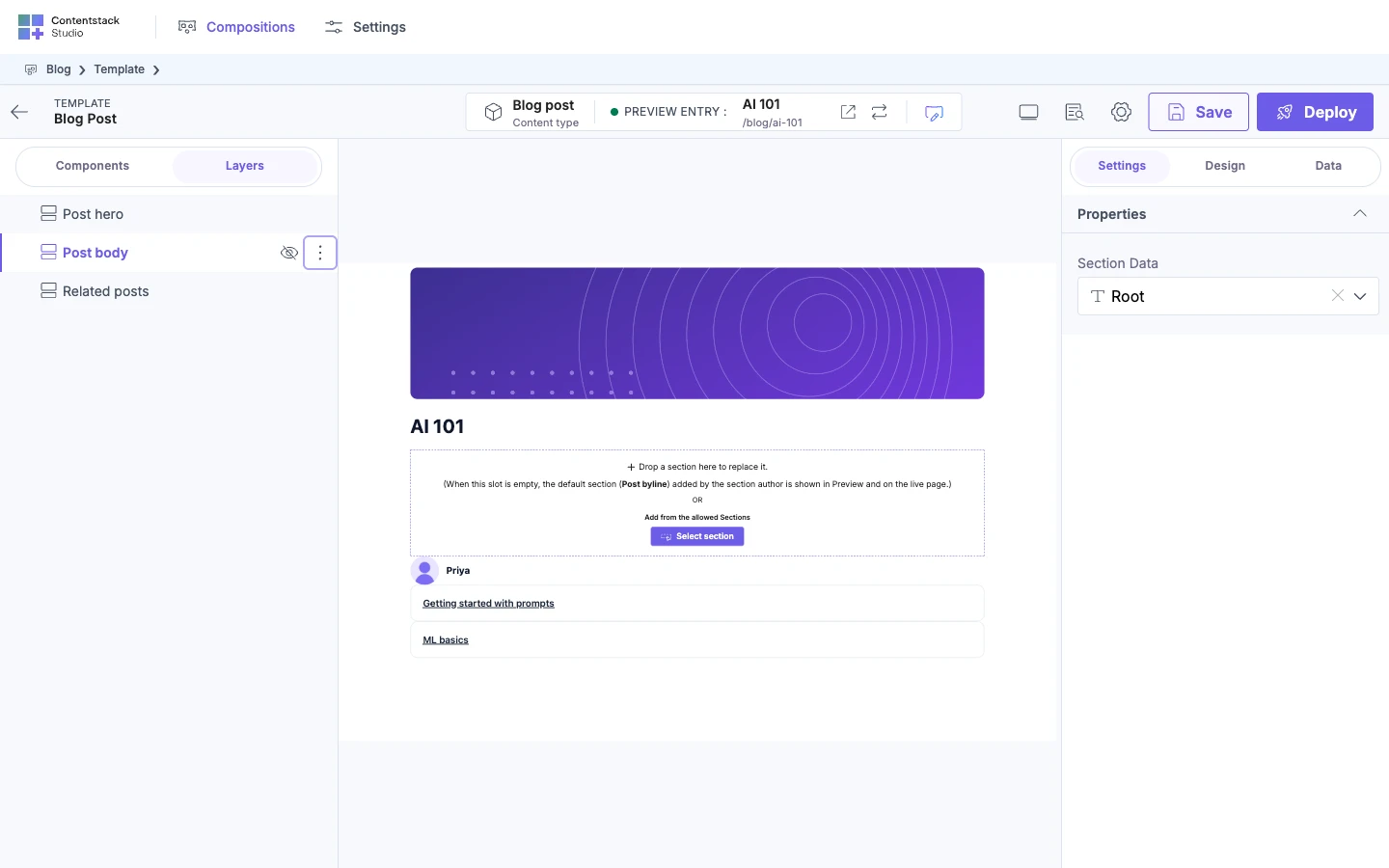
Choose Show/Hide. A hidden element disappears from the canvas, and from your live site once you deploy. Its row in Layers shows a crossed-out eye. Click the eye to show the element again.
Lock or unlock an element
Choose Lock/Unlock. A locked element, and everything inside it, can't be selected, hovered or dragged on the canvas, and nothing can be dropped into it. Its row in Layers shows a lock. Click the lock to unlock it.
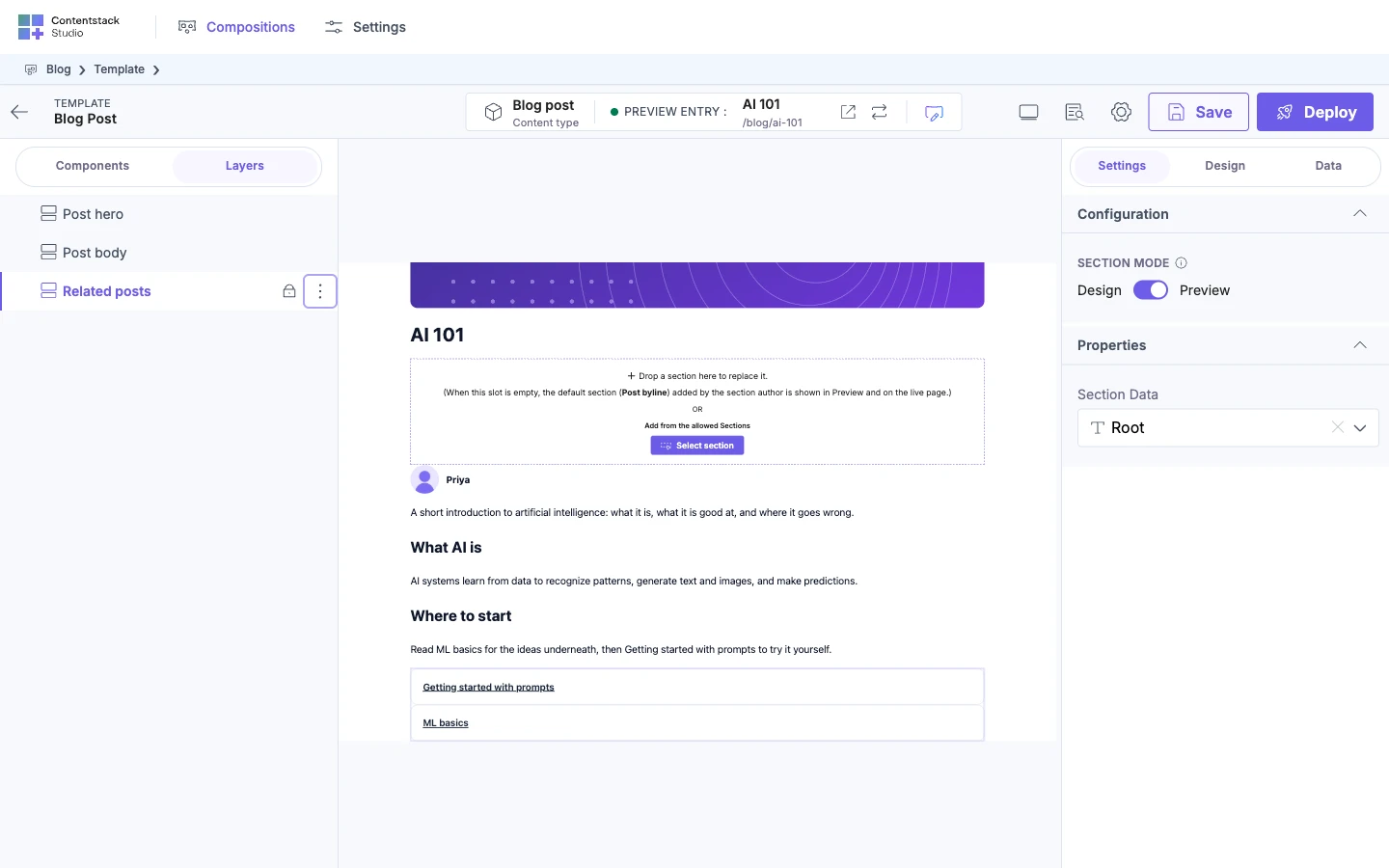
You can still select a locked element in Layers, and Delete still removes it. Locking has no effect on your live site.
Duplicate or delete an element
- Duplicate copies the element and everything inside it, puts the copy just before the original, and selects the copy.
- Delete removes the element and everything inside it. Press Cmd+Z, or Ctrl+Z, to bring it back.
Copy and paste style
- Select the element whose style you want, and choose Copy Style.
- Select another element, and choose Paste Style.
Copy Style copies the style group that's active in the Design tab. Paste Style replaces all of the other element's styles with that group, so any styles it had in other groups are removed. It's greyed out until you copy a style.
If it doesn't work
-
Clicking an element on the canvas selects nothing. It, or something around it, is locked. Select it in Layers and unlock it.
-
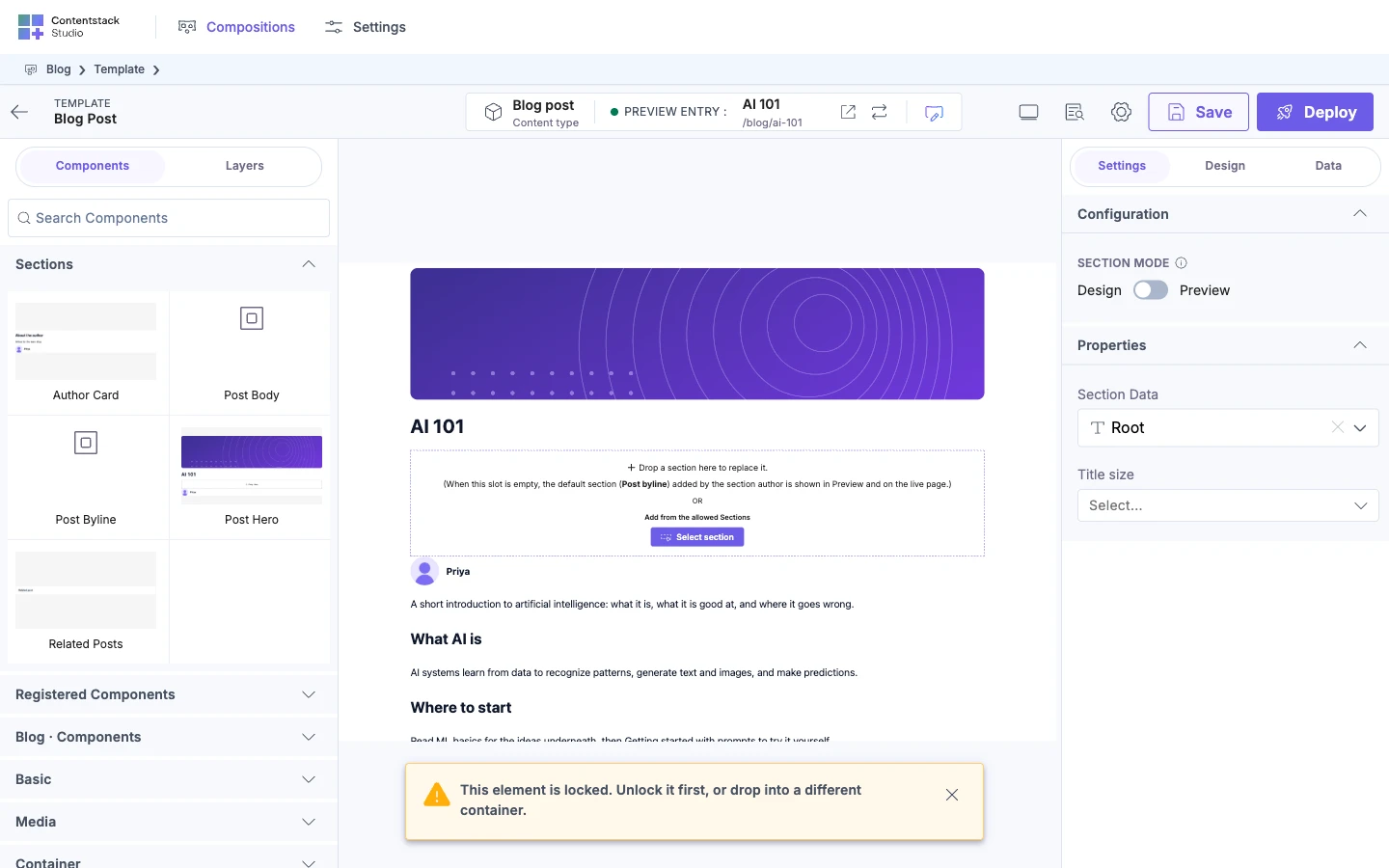
"This element is locked. Unlock it first, or drop into a different container." You dropped onto a locked element. Unlock it, or drop somewhere else.
-
"A parent can't be moved inside its own child. Drop it next to this element or into a higher-level container." You dragged a container into one of its children. Drop it next to them instead.
-
Right-clicking a row in Layers does nothing. Use the three-dot button on the row.
-
Wrap in container is missing. The element, or something around it, is locked, or it's a Section Slot or Condition Block.
-
Paste Style is greyed out. Copy a style first.
-
You can't select something inside a placed section. Elements inside a section can only be changed in the section itself. Hover it and click Edit Sections. See Build a template from sections.