Fetch content in a language
Pass one option on your fetch to get a template's content in the language you choose. You need it when your stack has more than one language and your site decides which one a visitor sees.
The example on this page is the Blog project's Blog post template at /blog/{{entry.slug}}, fetched for AI 101 in English (en-us) and in French (fr-fr).
Prerequisites
-
You've added every language you fetch to your stack. In Contentstack, open your stack's Languages page. The example uses English (
en-us) and French (fr-fr).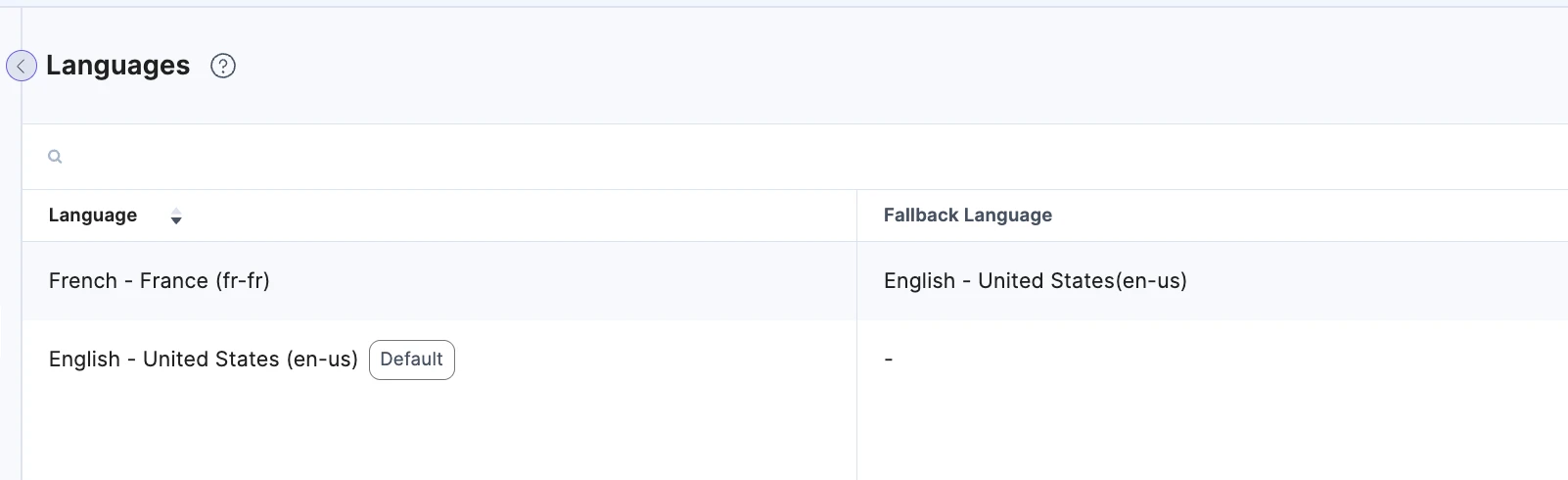
-
Every language except the master language, marked Default, has a fallback language. In the example, French falls back to English.
-
Your site works out which language a visitor wants, for example from a path segment, a subdomain, a cookie or a header. Studio doesn't read it from the request.
What this is and what you get
You pass one language code on the fetch. The connected entry, Pinned Entries and Pinned Queries come back in that language. In the example, the French copy of AI 101 comes back with the title IA 101.
The language doesn't change the layout. When you save in Studio, Studio always writes the template or section in your stack's master language. There's no copy of a layout per language, so nobody translates a template or a section.
An entry with no copy in the language you asked for comes back in its fallback language. The fallback has to be published, and the chain ends at the master language. In the example, Getting started with prompts has no French copy, so it comes back in English.
A site where you've translated some entries and not others still renders.
In the canvas, the language Studio sends to your site takes priority over the language you pass. Picking another copy of the entry in the top bar doesn't change it.
The Language in your Studio project settings doesn't set the language of your content. It picks which of your environment's site URLs the canvas loads. See Your content model in Studio.
Fetch content in a language
-
Work out the language in your routing layer, then use it on every fetch.
-
Pass the language as
localein the second argument ofsdk.fetchCompositionData.sdk.fetchCompositionData({ url: "/blog/ai-101", searchQuery: "" },{ locale: "fr-fr" });The fetch returns the French copy of AI 101, with the title
IA 101. The layout doesn't change. -
With the
useCompositionDatahook, passlocalein the second argument.const { specOptions, isLoading, error } = useCompositionData({ url: "/blog/ai-101" },{ locale: "fr-fr" });When
isLoadingisfalseanderrorisnull,specOptionshas the French copy of AI 101, with the titleIA 101. -
On the server, forward the request's query string as
searchQuery. This example reads it in a Next.js route handler.sdk.fetchCompositionData({ url: "/blog/ai-101", searchQuery: request.nextUrl.searchParams.toString() },{ locale: "fr-fr" });
These rules decide which language the fetch uses:
- In the canvas, the language Studio sends in the
cs-localequery parameter takes priority over every language below. - To set a default once, add
localetostudioSdk.init. - A
localeon the fetch takes priority over thelocaleininit. - With no language from any source, Contentstack returns the master language.
- If your Template URL has the variable
{{locale}}, the language in the Template URL takes priority over yourlocaleoption. See URL variables.
If you cache pages, put the language in the cache key. See Caching and invalidation.
If it doesn't work
-
The content comes back in the master language. The SDK ignores a
localein the first argument and shows no error. Put it in the second. The SDK also ignores a misspelled key in the options or instudioSdk.init, with no error. -
The fetch fails with
LOCALE_NOT_CONFIGUREDorURL_LOCALE_NOT_FOUND. The stack has no language with that code. Compare yours with the languages in Contentstack, exactly as written there, becausefr-FRandfr-frare different codes.LOCALE_NOT_CONFIGUREDmeans the code came from your setup, such as yourlocaleoption orinit, so fix the code there.URL_LOCALE_NOT_FOUNDmeans it came from{{locale}}in the Template URL, so the visitor asked for a page that doesn't exist.isCompositionNotFound(error)is true forURL_LOCALE_NOT_FOUNDonly, so you can return a 404 for it. See LOCALE_NOT_CONFIGURED and URL_LOCALE_NOT_FOUND. -
Some entries come back in another language. They have no copy in the language you asked for, so Contentstack returns the fallback. Publish a copy in that language to change it.
-
A warning icon appears next to the entry name in the top bar of a connected template. Its tooltip reads:
The host site rendered the same entry but with a different locale ("en-us") than the one selected in the navbar ("fr-fr"). This can happen if the host site has hardcoded the locale value.
The second language in the tooltip,
fr-fr, is the entry copy you picked in the top bar. The first is what your site rendered.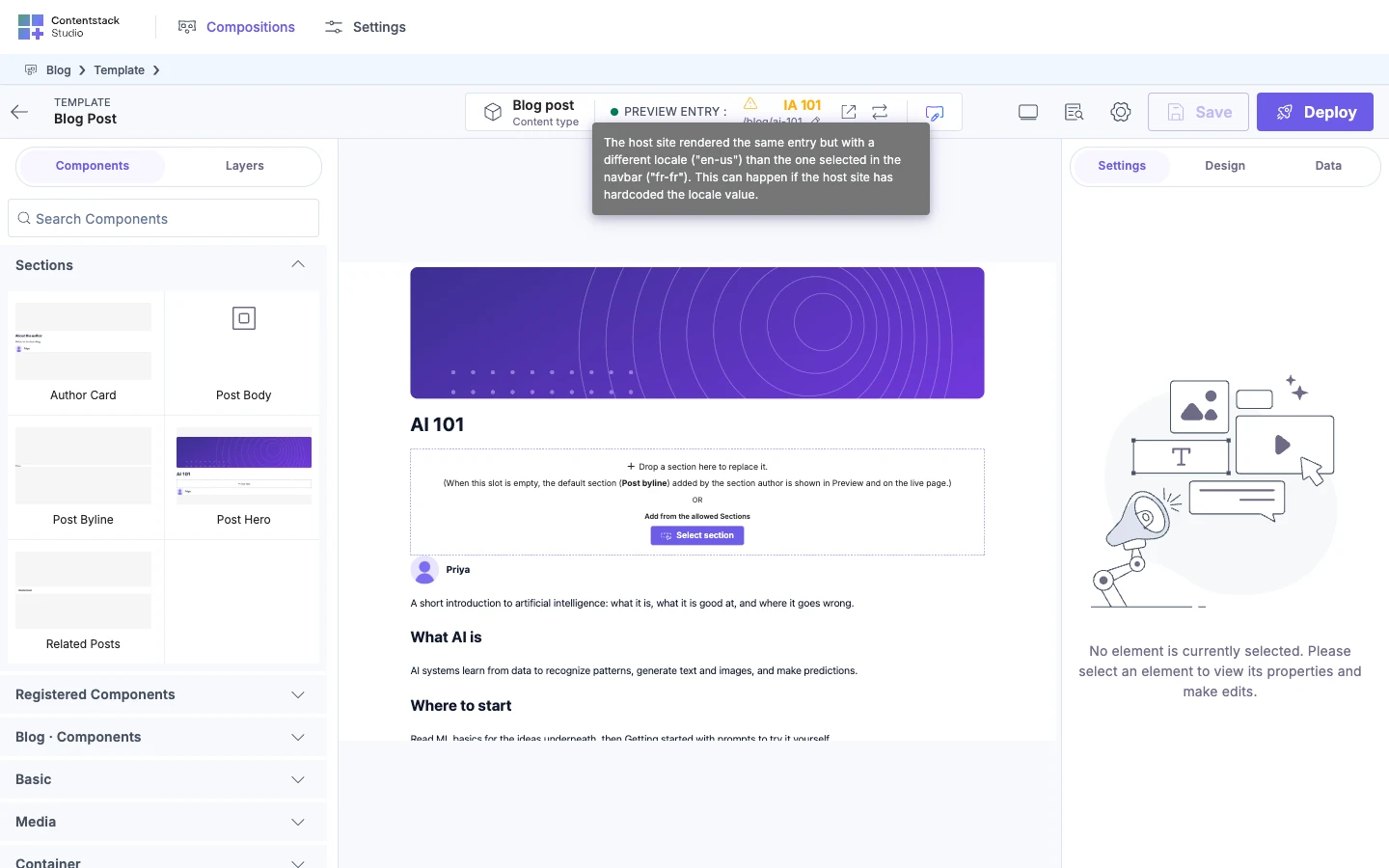
-
Every visitor sees one language. Your cache key has no language in it. Add the language to the key.
Next, see Fetch a Personalize variant to change which content a visitor sees within one language. To check a template against another entry, see Preview with a different entry.