Add a query
Add a query when a template or section needs a list of entries that changes as your content changes, such as the latest posts. A query is a saved search on one content type, and you create it in the Data tab.
The example on this page is the Blog post template in the Blog project. You create a query named Latest posts on the Blog post content type. It returns the 3 newest posts.
Prerequisites
- Open the Data tab on a template or a section. If the tab is missing, see Add extra data to a template.
- Use Studio SDK 1.2.1 or later in your app. The Pinned Queries card needs it.
- Have a content type to search, such as Blog post, in your stack.
What this is and what you get
A query is a saved search on one content type. Studio runs the query when the template renders, so the list follows the content. A pinned entry is fixed, and a query changes as entries change.
Once you save the query, the Data Picker lists it by its name under Pinned Queries. The Data Picker shows each query's results as Entries and a Count. A Repeater turns the entries into a list. See Render a list.
Create a query
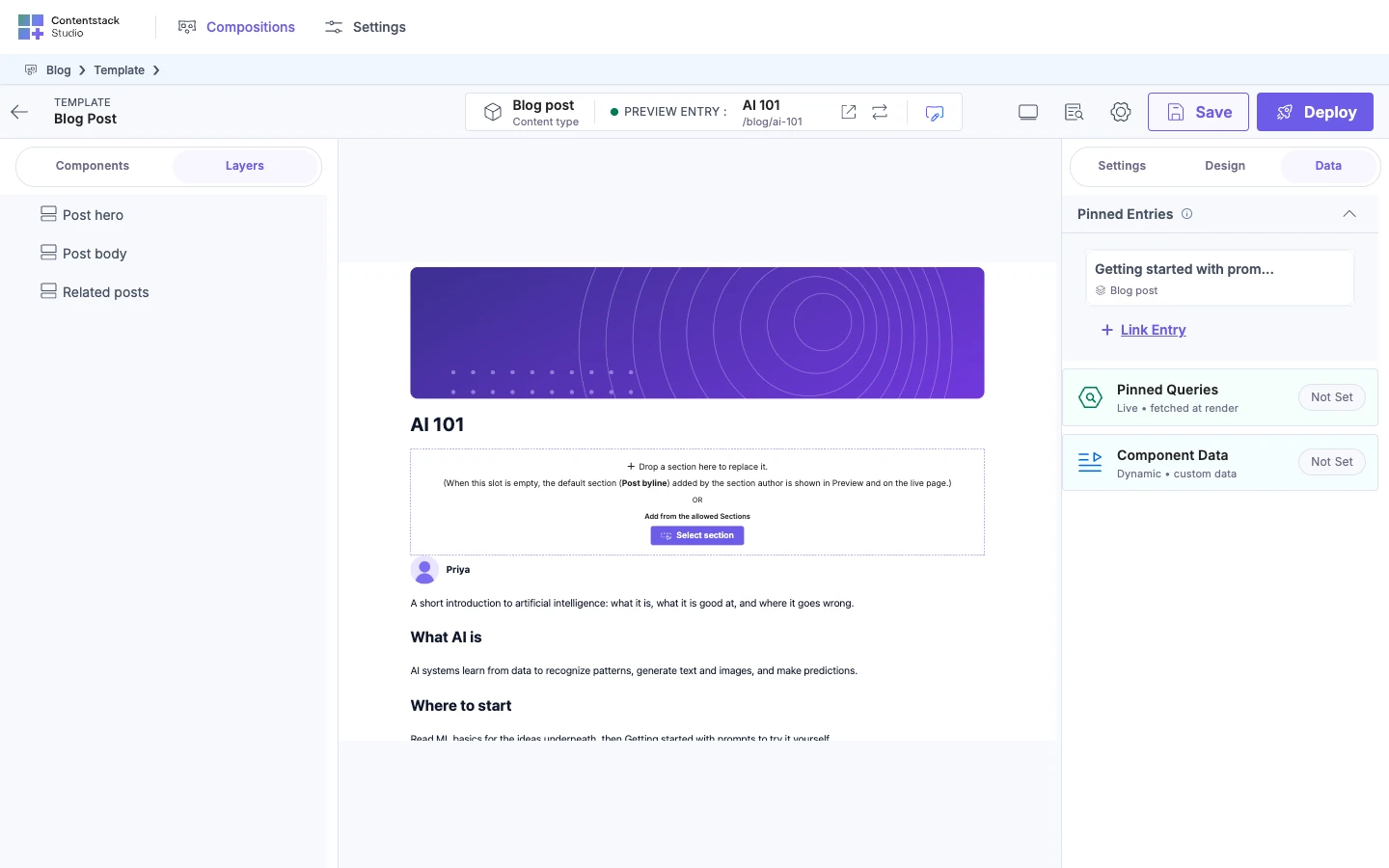
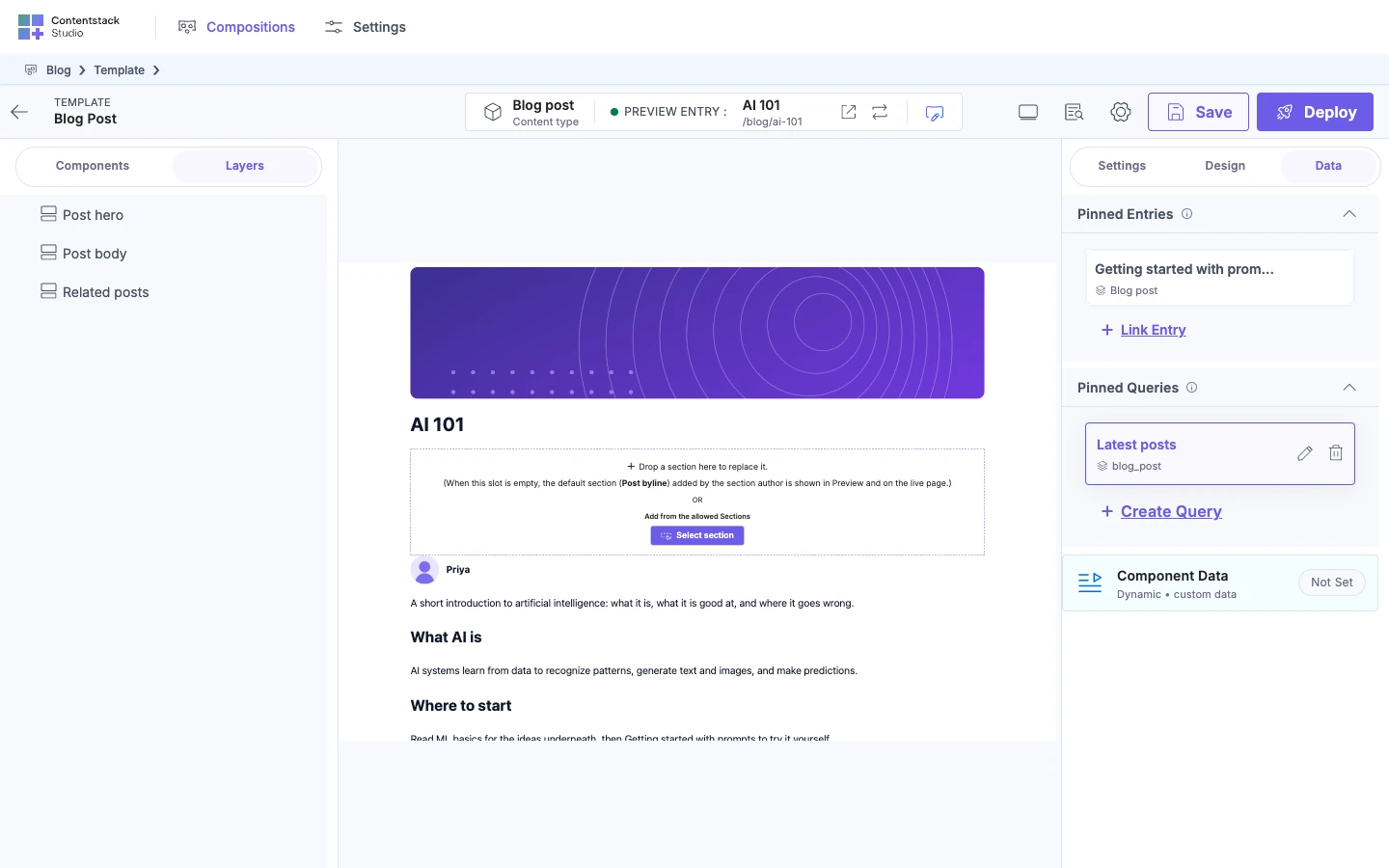
Before you add a query, the Data tab looks like this.
-
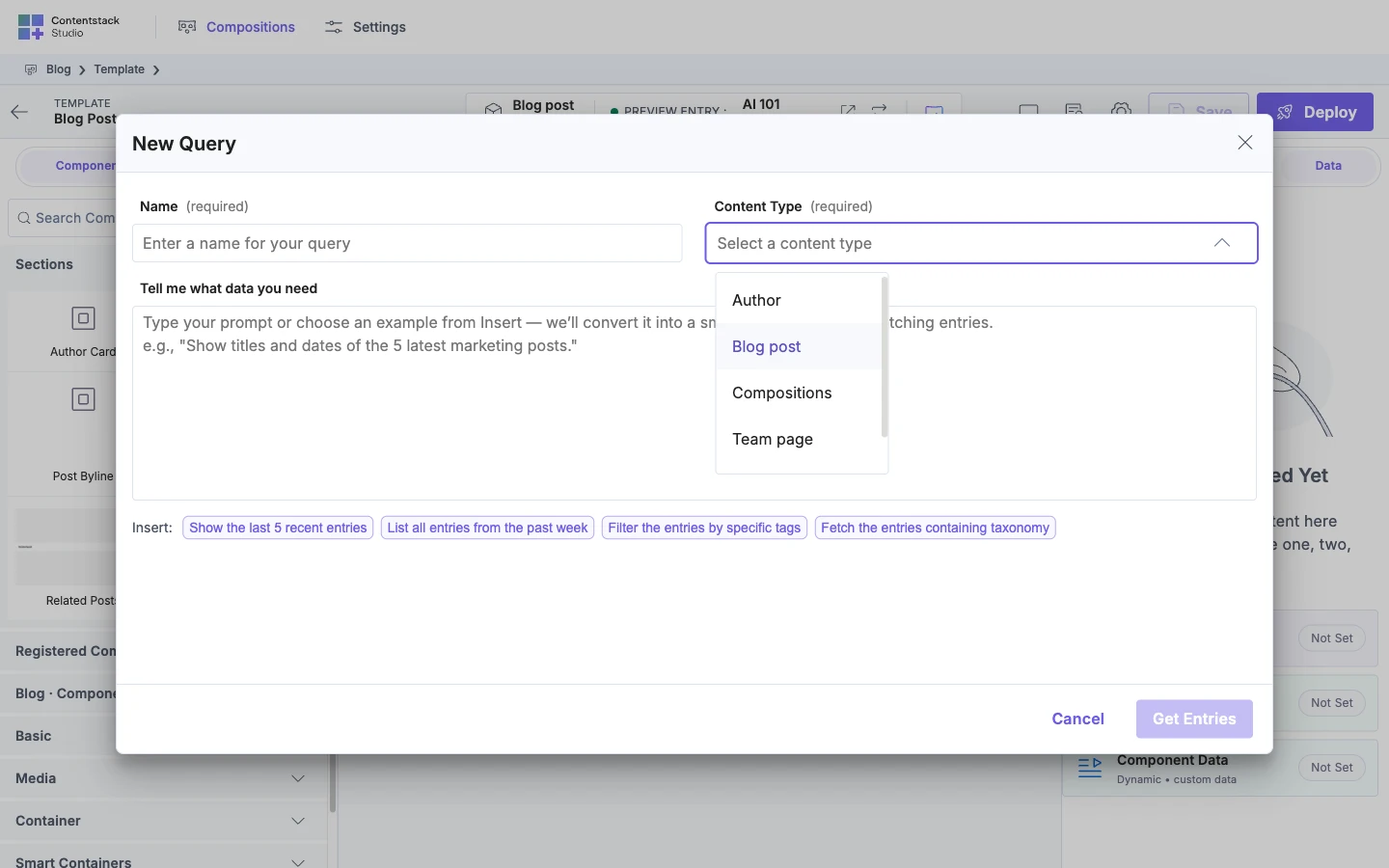
Click Data in the right panel. With no queries yet, click the Pinned Queries card. With queries already there, click Create Query, under Pinned Queries. A New Query dialog opens.
-
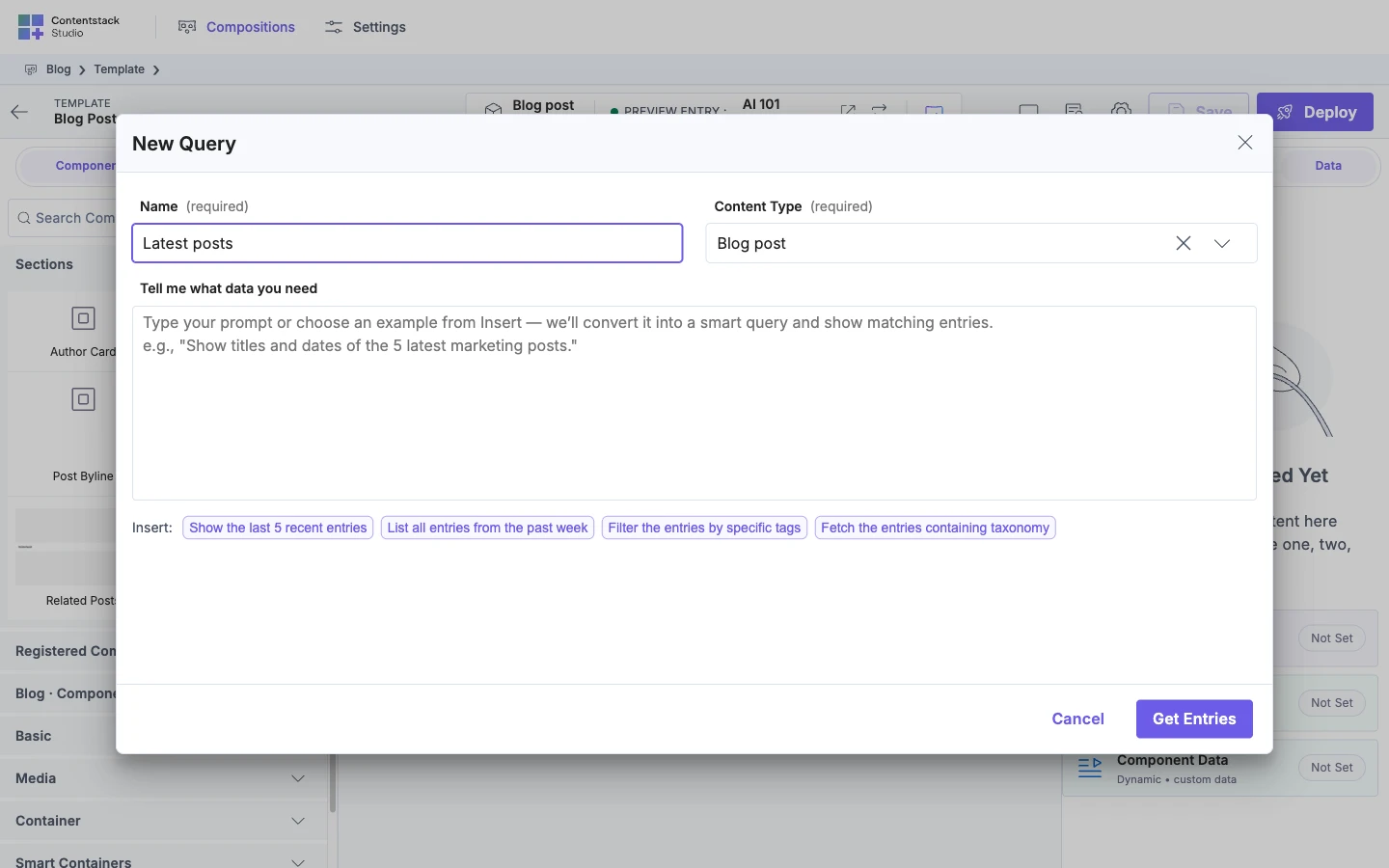
In Name, type Latest posts. The field is required, and its placeholder reads "Enter a name for your query". The Data Picker lists the query by this name.
-
In Content Type, choose Blog post. The field is required, and its placeholder reads "Select a content type". The list is searchable and loads more as you scroll. One query reads one content type.
-
Click Get Entries. The button stays disabled until Name and Content Type are filled. While it runs, the dialog says "Fetching entries..." and the button says "Getting Entries...".
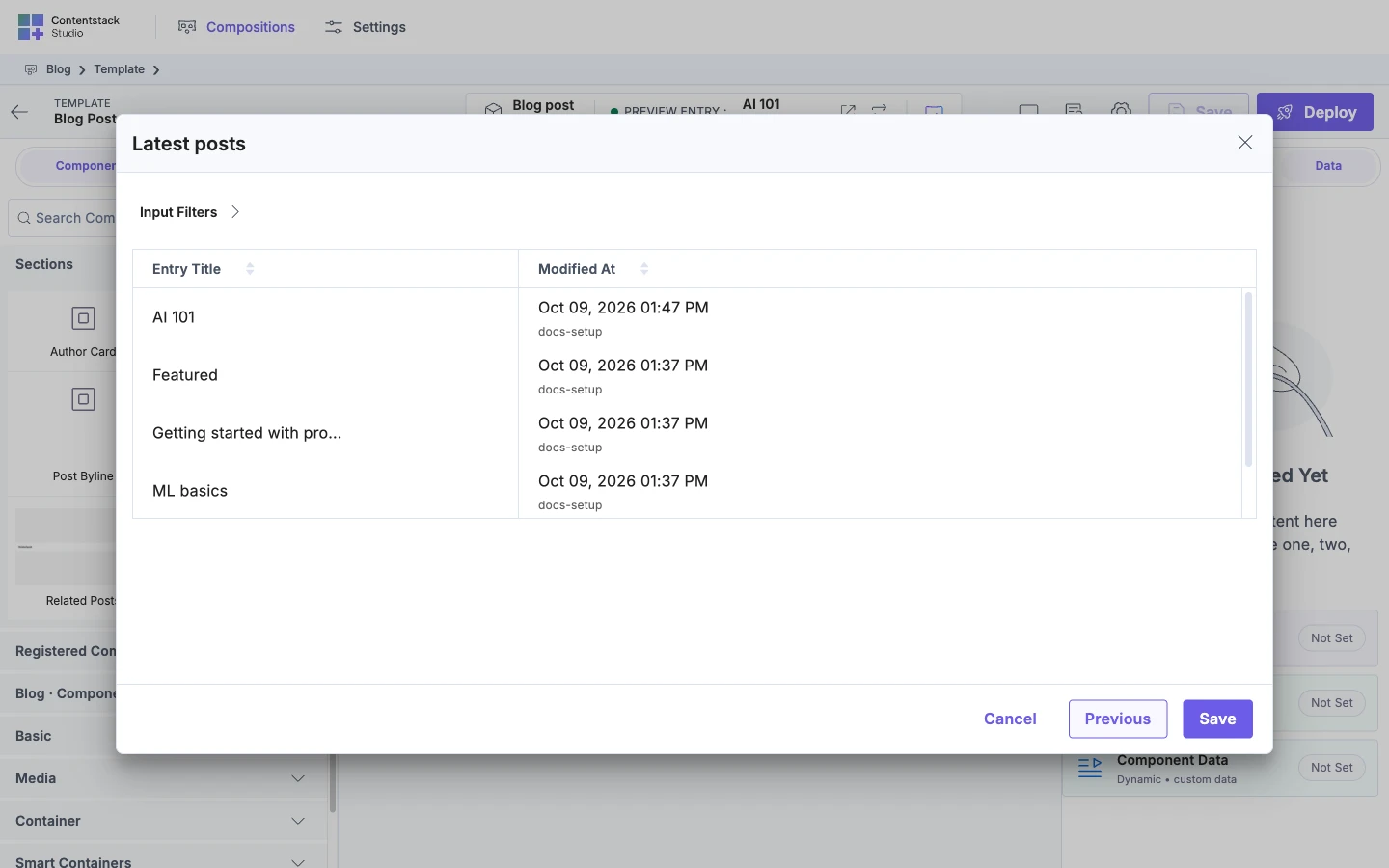
Step 2 of the dialog opens. It shows the query's name, Latest posts, as the dialog title. Under it is a table with Entry Title and Modified At columns. The starting filters return the newest entries first, 10 at most. The table lists unpublished entries too.
-
For Latest posts, follow Filter and sort the entries to change the limit to 3, then come back here. The table reloads and lists 3 entries at most.
-
Click Save. Save stays disabled while the name or content type is empty, an error shows, or you've edited the filters and not clicked Re-fetch. Previous goes back to step 1, and Cancel closes the dialog without saving.
The query appears under Pinned Queries with its name and its content type's UID, Latest posts and blog_post. Save the template to keep the query.
Filter and sort the entries
To change the filters, click Input Filters on step 2. It's collapsed until you do. Input Filters is YAML with two top-level keys, params and query.
-
Click Input Filters. The starting filters show, with
desc: created_at,limit: 10andskip: 0underparams. -
Edit the YAML. For Latest posts, change
limit: 10tolimit: 3. The Re-fetch button appears in the box. -
Click Re-fetch. The table reloads with the new filters.
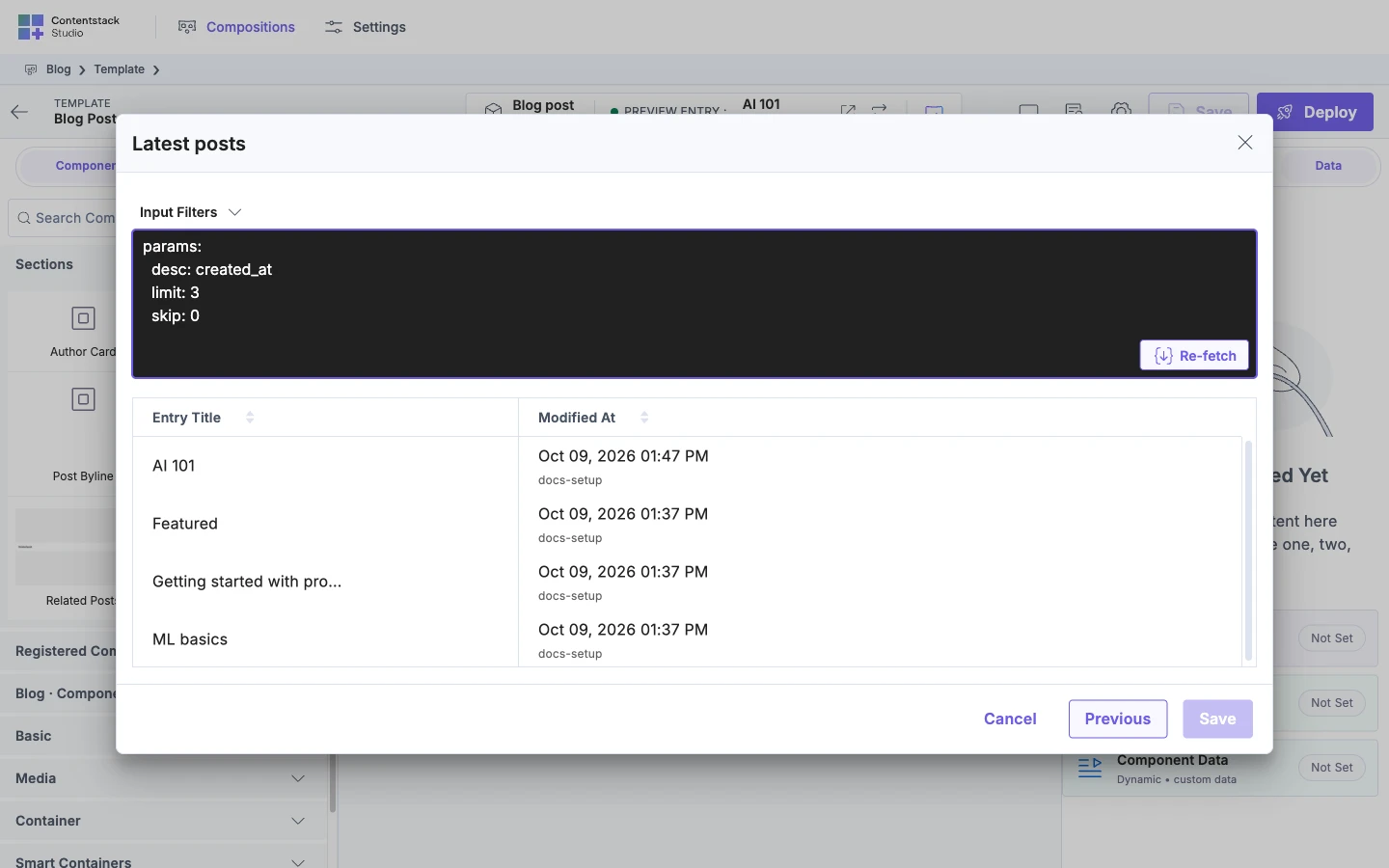
Latest posts looks like this.
params:
  limit: 3
  desc: created_at
In params, you can set limit, skip and one sort key, asc or desc, with a field UID as its value.
| Key | What it does |
|---|---|
limit | How many entries to return. |
asc or desc | Sorts by one field UID. |
To skip entries, filter on field values, or filter on the page URL or a date, see Query filters.
Edit or delete a query
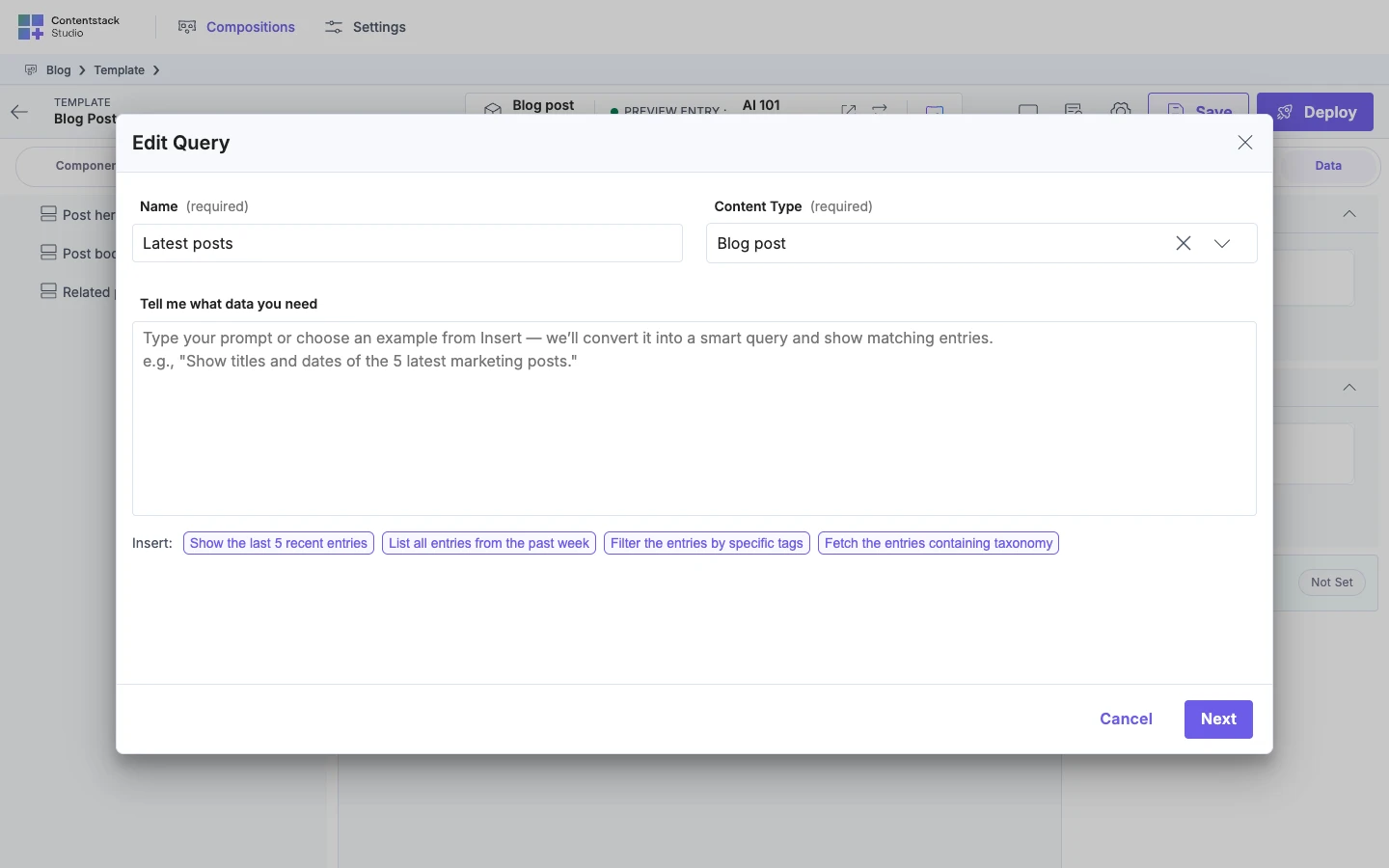
Each query row has an edit icon and a delete icon, with the tooltips "Edit Query" and "Delete Query".
To edit a query, click the edit icon. The dialog opens titled Edit Query, at step 1 with the saved name and content type. To change only the filters, click Next, edit Input Filters, click Re-fetch, then click Save. Studio runs the query again, so the canvas shows the new results, and says "Query updated successfully". Renaming a query doesn't change the id your bindings use.
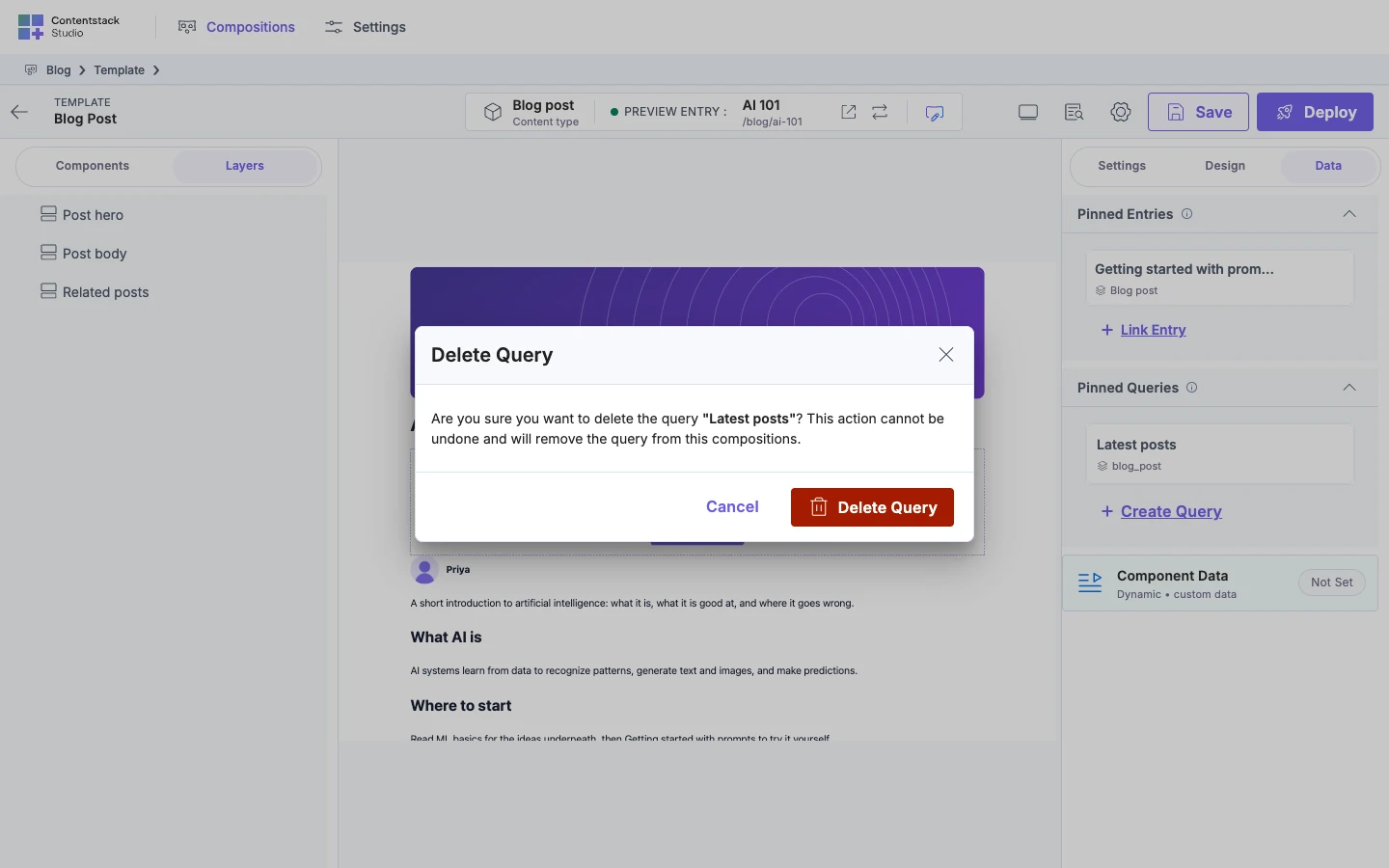
To delete a query, click the delete icon. A Delete Query dialog opens with Cancel and Delete Query. It says "Are you sure you want to delete the query "Latest posts"? This action cannot be undone and will remove the query from this compositions." Studio then says "Query deleted successfully".
Save the template so the query stays deleted.
What a query can't do
- A query can't read more than one content type.
- A query can't be a taxonomy query. The dialog has no control for it.
- A query can't page through results. It returns the first
limitentries afterskip. - A query can't sort by more than one field.
- A query can't set
include,onlyorexcept. - A query can't use props, user, environment or URL path values.
{{url.path.name}}doesn't work, because Studio never supplies the URL path. - A query can't take a value in
limitorskipfrom the URL on your site.
If it doesn't work
The Pinned Queries card is missing. Your app's Studio SDK is older than 1.2.1. If there's no Data tab, see Add extra data to a template.
Get Entries or Save is disabled. If Get Entries is disabled, fill Name and Content Type. If Save is disabled after an edit, click Re-fetch.
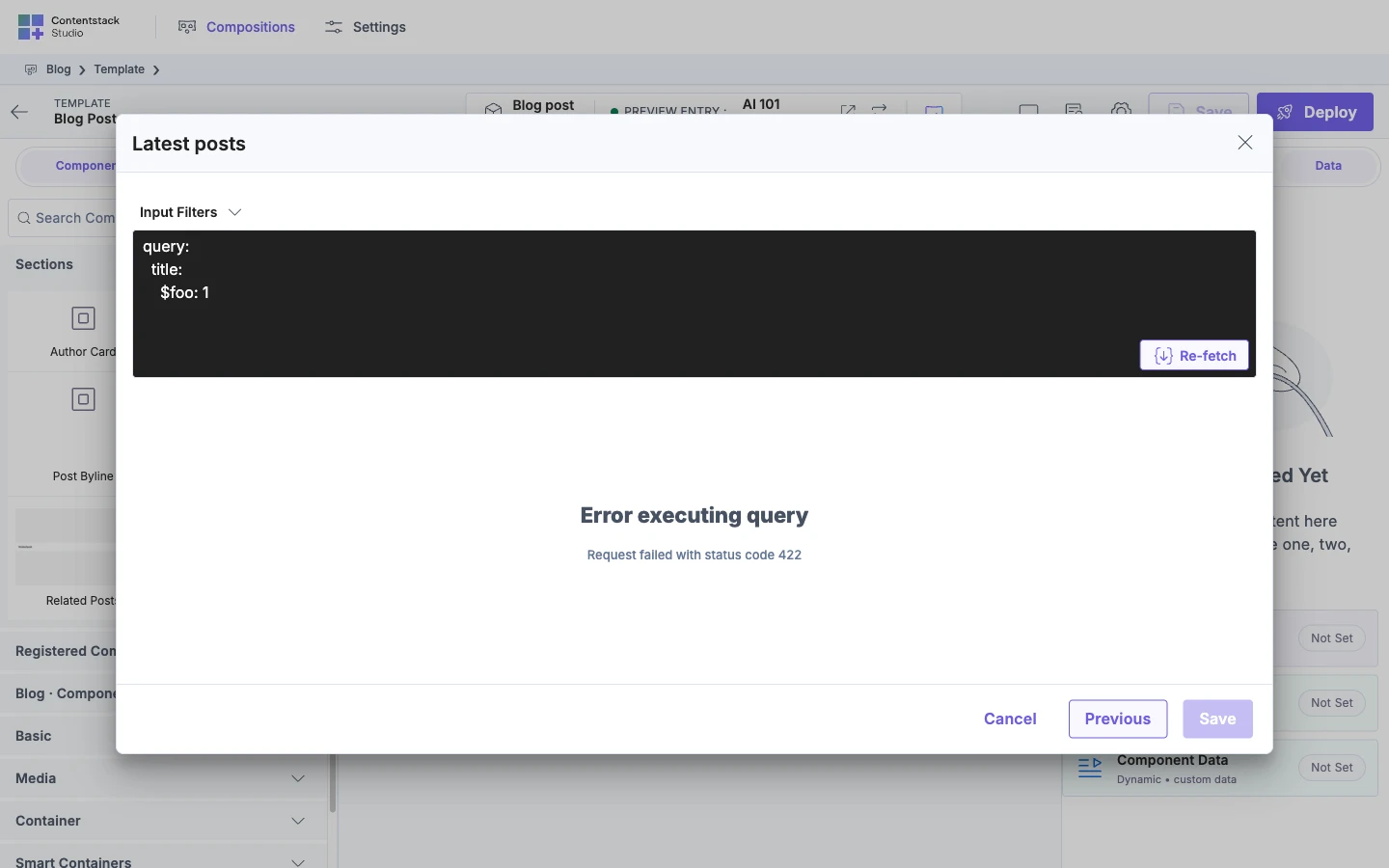
An "Error executing query" panel shows. The panel shows the failed request's status, such as "Request failed with status code 422", and Save stays disabled. Fix the filters and click Re-fetch.
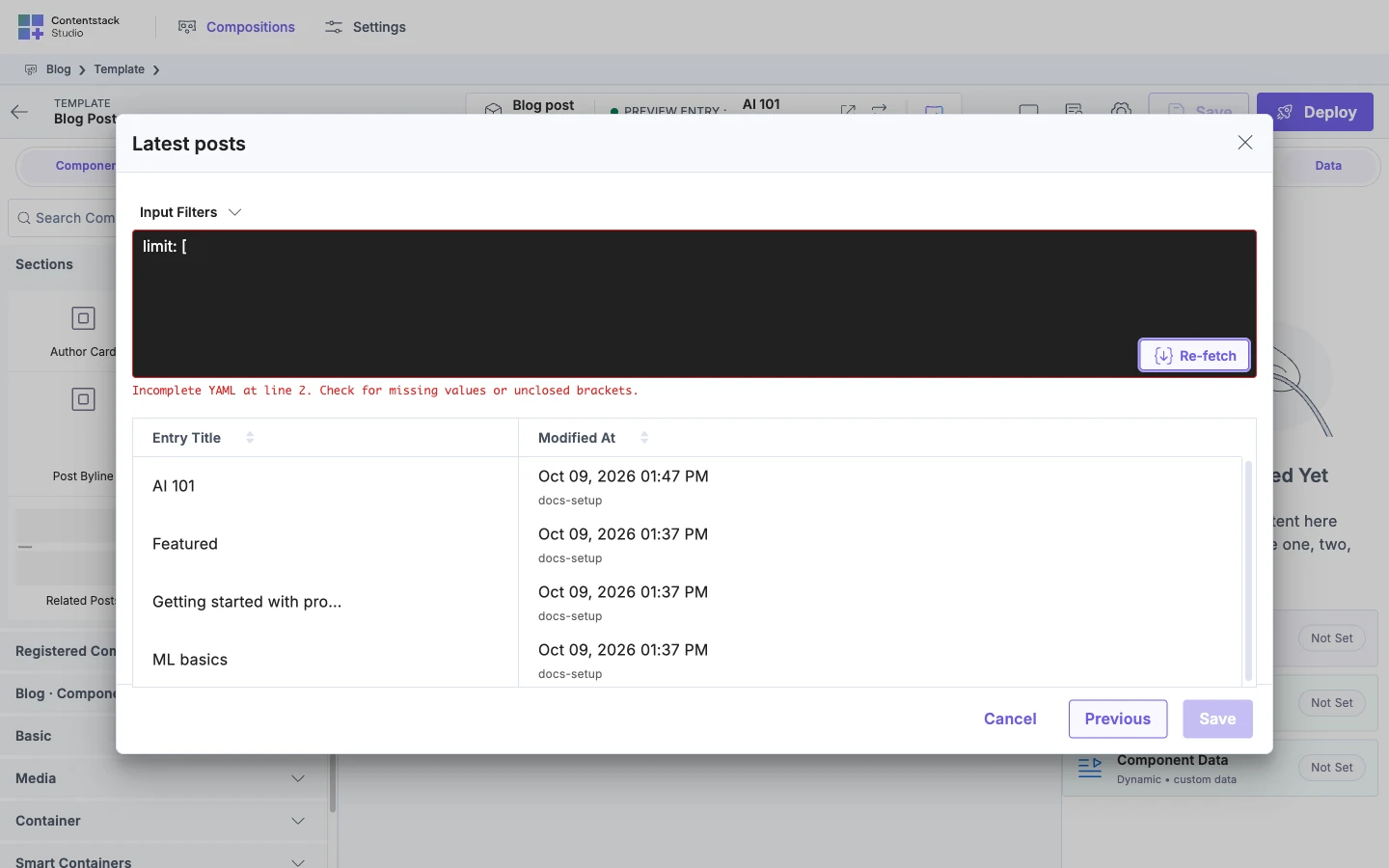
A message appears under Input Filters after you click Re-fetch. The YAML is invalid. Fix it, then click Re-fetch again.
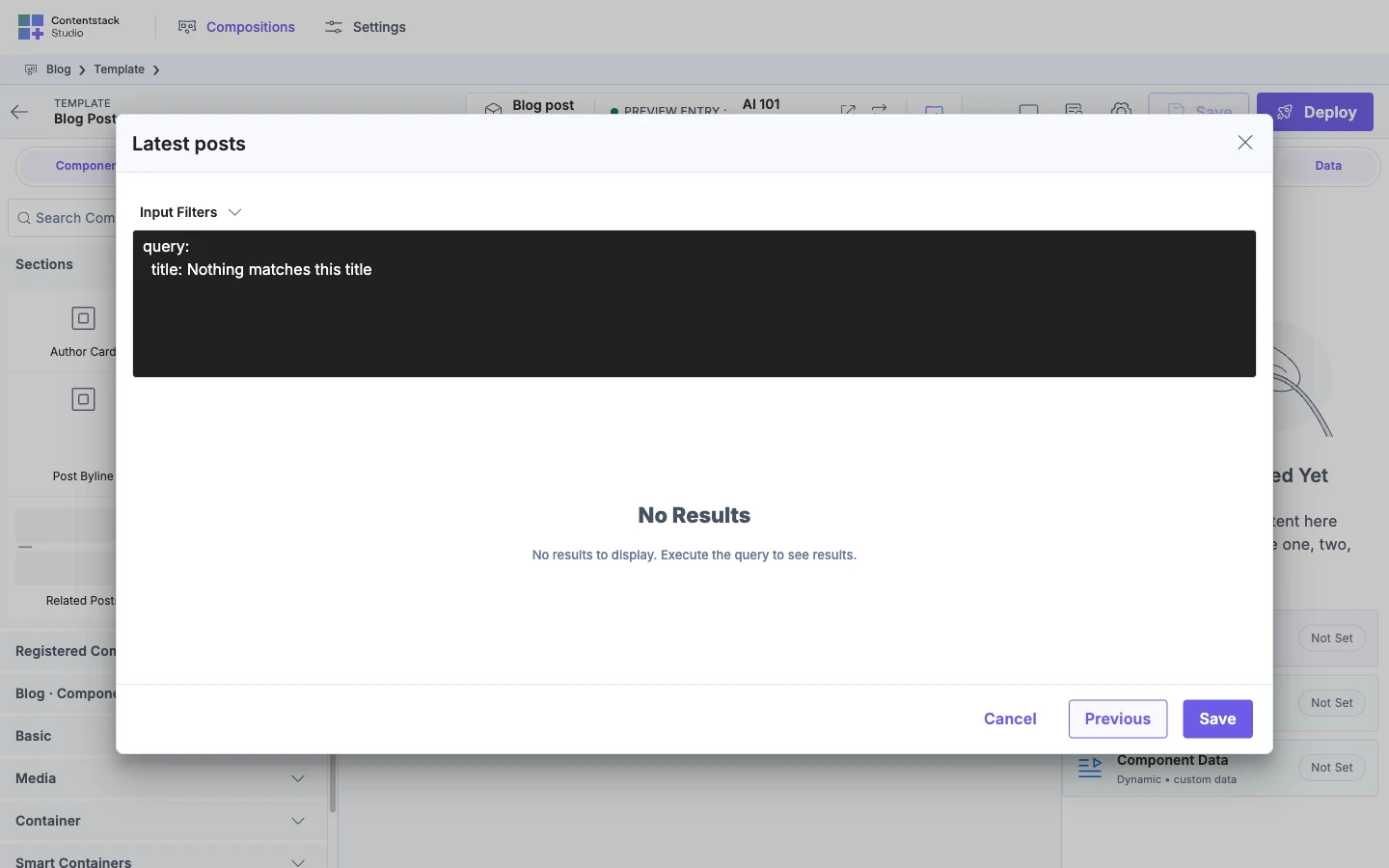
A "No Results" panel shows. It reads "No results to display. Execute the query to see results." The filters match nothing.
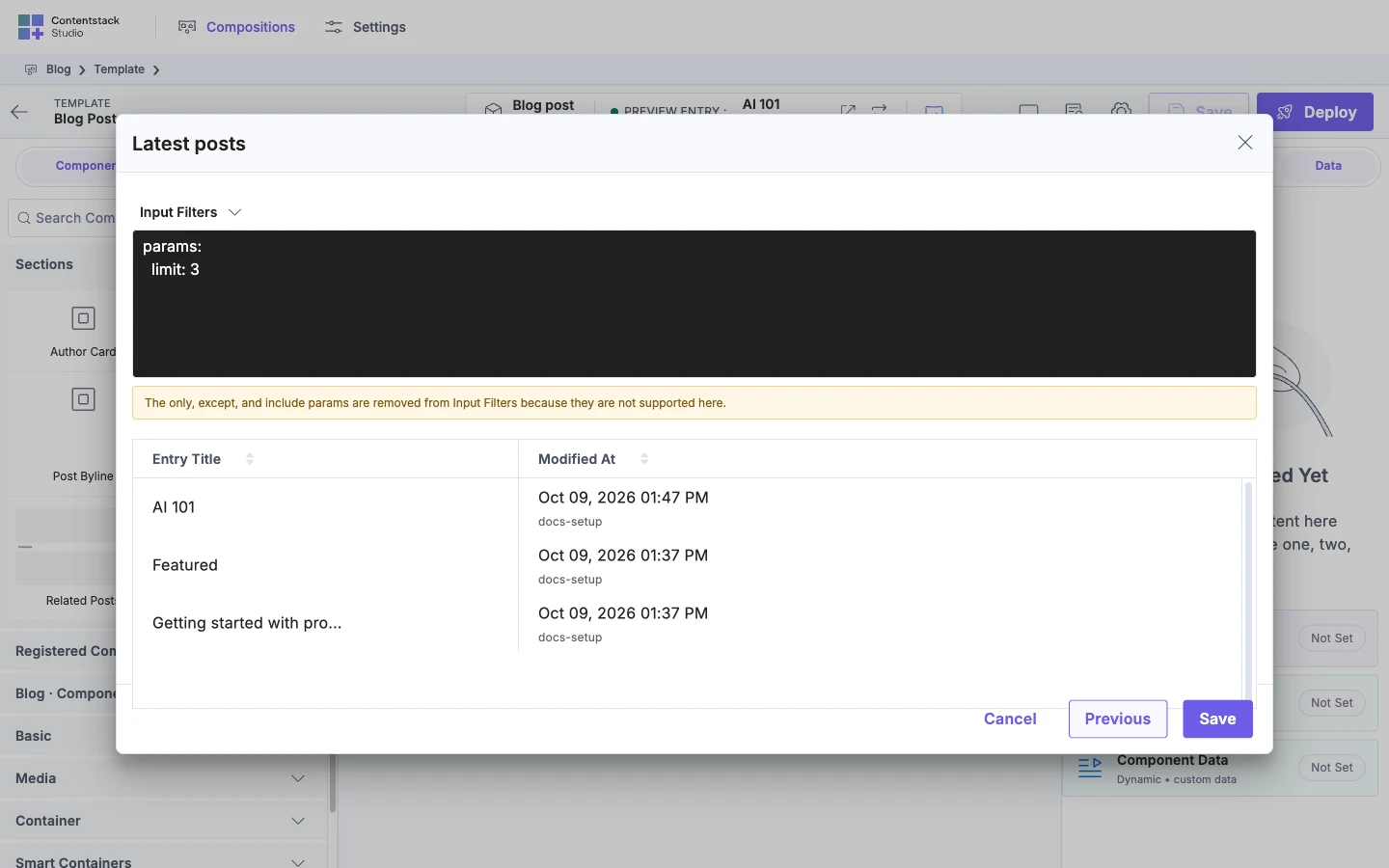
A filter you typed vanished. You typed include, only or except under params. Studio removes them and shows a notice under the filter box. See Keys you can't set.
The list on your site is empty or different from the table. The table counts unpublished entries. The site doesn't count them. If a filter that reads the URL matches nothing on a server-rendered site, pass searchQuery. See Query filters. A failed query request on your site gives an empty list too. The console tells the two apart. It warns QUERY_REQUEST_FAILED when the request failed, and QUERY_RETURNED_NO_ROWS when the query matched nothing. These warnings show in development, and in production only when you pass debug: true to studioSdk.init.
The next step is to show the entries on the page. See Render a list.