Install the Studio SDK
Install the Studio SDK to connect your app to Studio. It's the last of the three SDKs. It needs the Delivery SDK stack and your Studio project, because the init names the project's Compositions content type.
The example on this page is the Blog project, whose Compositions content type is compositions. The app is a Next.js App Router app that creates its stack in lib/contentstack.ts.
Prerequisites
- React 18 and up.
- One copy of React in your app.
- The Delivery SDK stack in
lib/contentstack.ts, because Studio reads everything through it. See Install the Delivery SDK. - Your Studio project, because the init has to name its Compositions content type. See Create a project.
- If you want drafts on the canvas, the
live_previewblock on your stack first. See Install Live Preview.
What the Studio SDK does
The Studio SDK, @contentstack/studio-react, gives you studioSdk, <StudioCanvas />, <StudioComponent /> and the functions that register your components. Importing the package registers Studio's built-in components, so you don't import anything else for them.
studioSdk.init connects the SDK to your stack. Inside Studio, it also tells Studio that your page is running and which content type it reads.
Faster ways to do this
- Skill. Ask your agent to install Studio, and it uses
install-studio. It installs all three packages and writes the init. It finds your project's content type UID from your Studio projects instead of assumingcompositions. It also turns oncslp.appendTags, so bound values are editable in Visual Editor. See What are skills?
No CLI command installs the Studio SDK.
Install the Studio SDK
npm install @contentstack/studio-react
With Yarn or pnpm, run yarn add or pnpm add with the same package name.
Copy the init code from your project's settings
Copy the init from Studio, so contentTypeUid comes from your project instead of a guess.
-
In Studio, open the Blog project and select Settings. Settings opens on the General tab.
-
Scroll to Integration Code. It shows the init code, with your project's Compositions content type UID filled in as
contentTypeUid.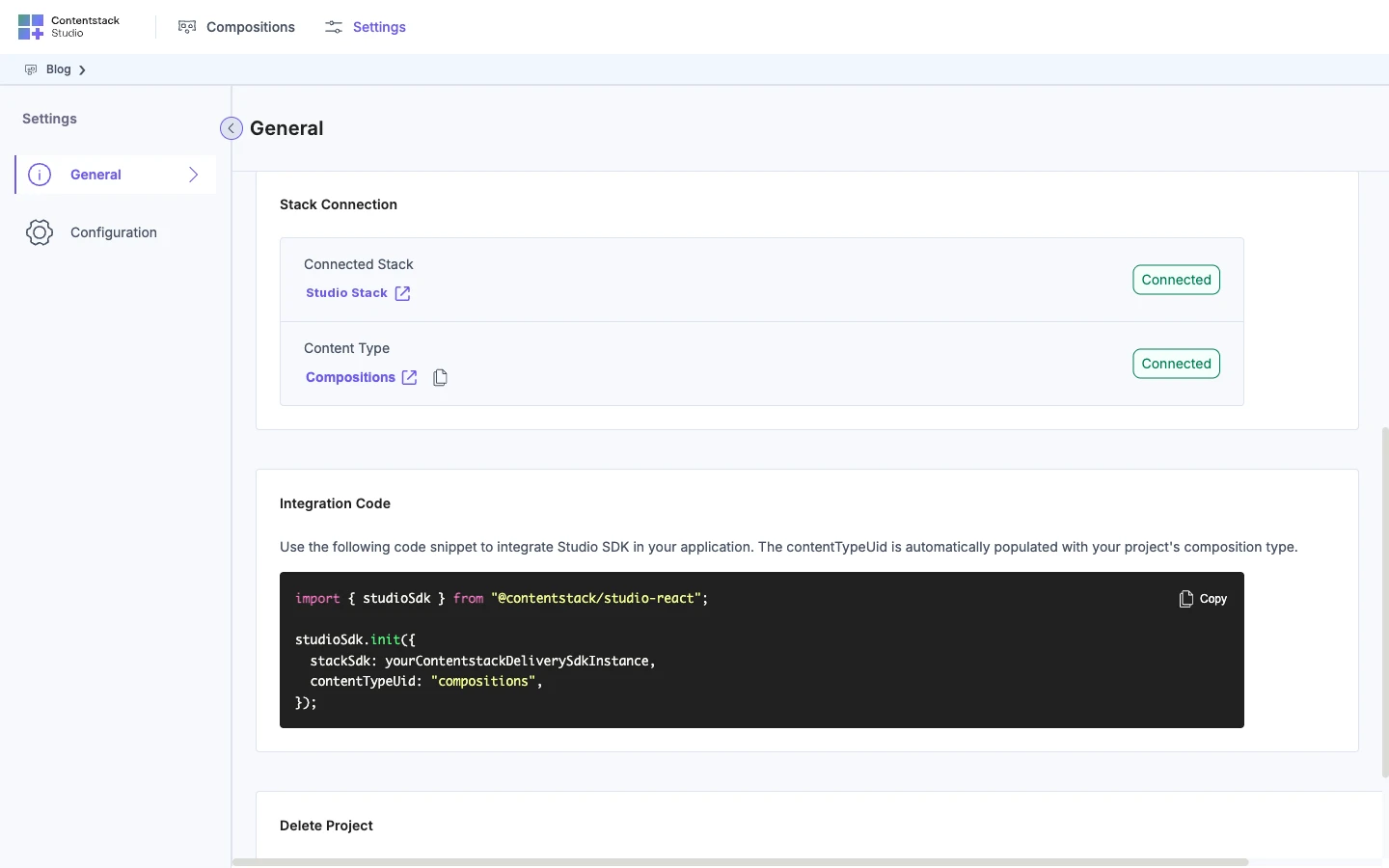
-
Click Copy. For the Blog project, the code is:
import { studioSdk } from "@contentstack/studio-react";studioSdk.init({stackSdk: yourContentstackDeliverySdkInstance,contentTypeUid: "compositions",});
yourContentstackDeliverySdkInstance is a placeholder. You replace it with your stack in the next step.
Initialize the Studio SDK
Call studioSdk.init once, in the module where you created the stack, and export what it returns. You'll call fetchCompositionData on it later. In lib/contentstack.ts, paste the code below the stack and replace the placeholder with stack:
import contentstack from "@contentstack/delivery-sdk";
import { studioSdk } from "@contentstack/studio-react";

export const stack = contentstack.stack({
  // The apiKey, deliveryToken, environment and live_preview block
  // from Install the Delivery SDK and Install Live Preview
});

// ContentstackLivePreview.init, in try and catch, goes here

export const sdk = studioSdk.init({
  stackSdk: stack,
  contentTypeUid: "compositions",
});
| Option | Type | Default | What it does |
|---|---|---|---|
stackSdk | Delivery SDK stack | None | The stack from @contentstack/delivery-sdk. Studio reads every composition and entry through it. |
contentTypeUid | string | "compositions" | The content type Studio stores compositions in. |
stackSdk has to be the stack itself. init doesn't check it. If you pass anything else, such as stack.config or an object of credentials, the first fetch throws STACK_SDK_MISSING.
The other options, locale, debug, cslp.appendTags, openInStudioButton and state, are in Initialize the SDK. cslp.appendTags is off by default. Turn it on if authors will edit your pages in Visual Editor. See Make bound values editable in Visual Editor. debug is off by default too. Studio's warnings show in development, and debug: true shows them in a production build as well.
If you call studioSdk.init a second time, it logs Studio SDK already initialized and returns the first SDK object.
Make sure the init runs in the browser
The Studio SDK tells Studio it's running only from the browser, inside Studio's iframe. An init that only runs on the server never reaches Studio. So import lib/contentstack.ts somewhere that runs in the browser, before any Studio component mounts.
In the Next.js App Router, app/layout.tsx is a Server Component. Import the init module from a small "use client" component, and render that component in the layout.
-
Create
app/studio-init.tsx. It importslib/contentstack.tsfor its side effect and renders nothing:"use client";import "@/lib/contentstack";export function StudioInit() {return null;} -
Render
StudioInitinapp/layout.tsx:import { StudioInit } from "./studio-init";export default function RootLayout({ children }: { children: React.ReactNode }) {return (<html lang="en"><body><StudioInit />{children}</body></html>);}
For other frameworks, add import "@/lib/contentstack"; near the top of the app's entry:
- Vite and Create React App:
src/main.tsxorsrc/index.tsx - Remix:
app/root.tsx - Next.js Pages Router:
pages/_app.tsx
The init has to run before <StudioCanvas /> mounts, so don't call it inside useEffect.
Register your components and design tokens after studioSdk.init runs. Called first, registerDesignTokens throws registerDesignTokens called before studioSdk.init(). See Register a component.
Check the SDK started
-
In
app/studio-init.tsx, log the content type the SDK uses, once:import { sdk } from "@/lib/contentstack";console.log(sdk.getConfig().contentTypeUid); -
Start your app and open
http://localhost:3000. The browser console showscompositions, your project's UID. -
Remove the log.
Studio's own check that your page connected comes once the canvas route is mounted. Next: Mount the section preview route.
If it doesn't work
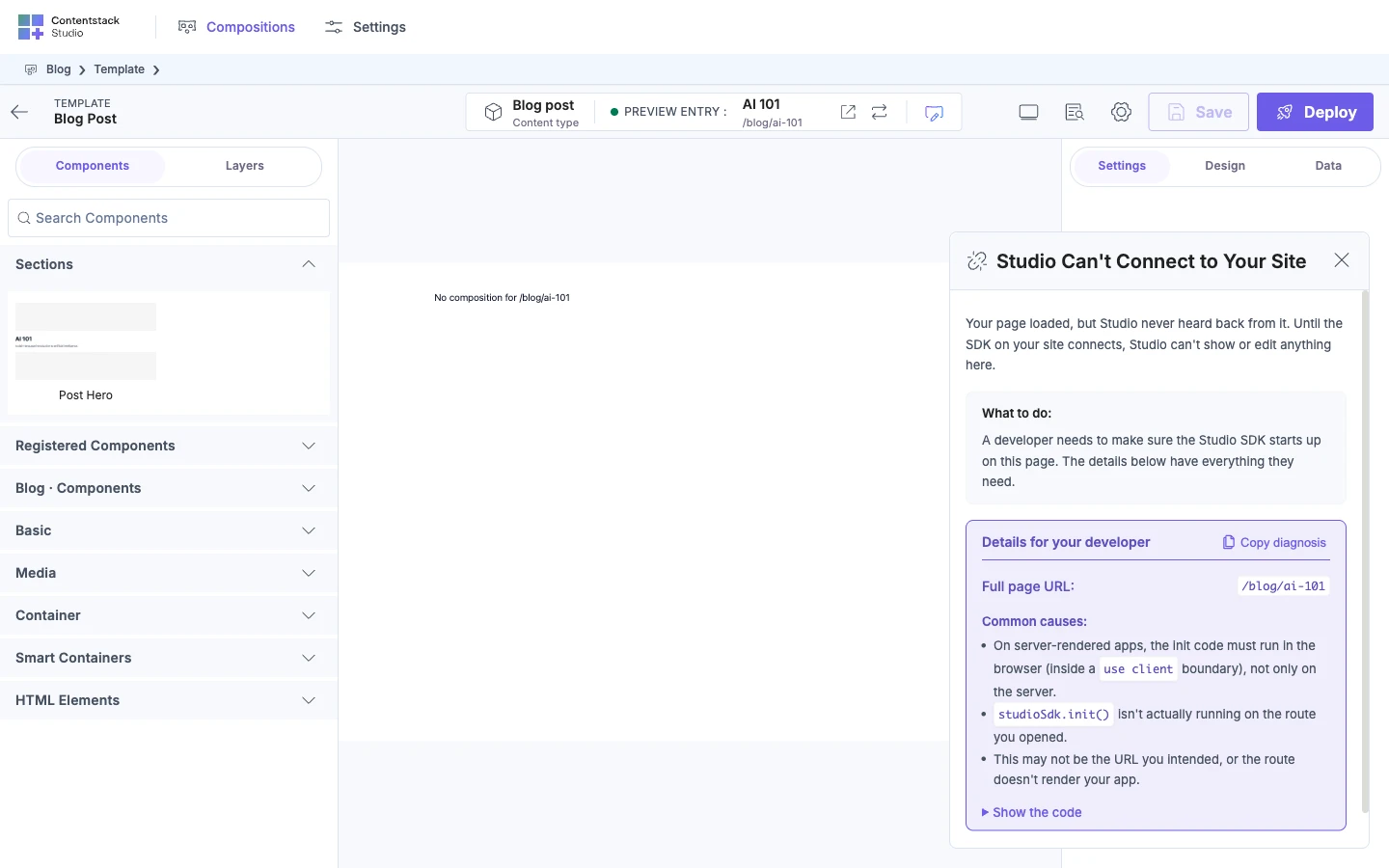
Studio Can't Connect to Your Site
If your page doesn't report to Studio within 30 seconds, Studio shows this card over the canvas. Its common causes are:
- The init runs only on the server. See Make sure the init runs in the browser.
- The init doesn't run on the route you opened. Import
lib/contentstack.tsfrom a component that renders on every route, such asStudioInitin the root layout. - The URL isn't the one you meant. Check the Base URL and Canvas URL in Configure your project.
The card has a Details for your developer box with the init code, filled in with your project's content type UID.
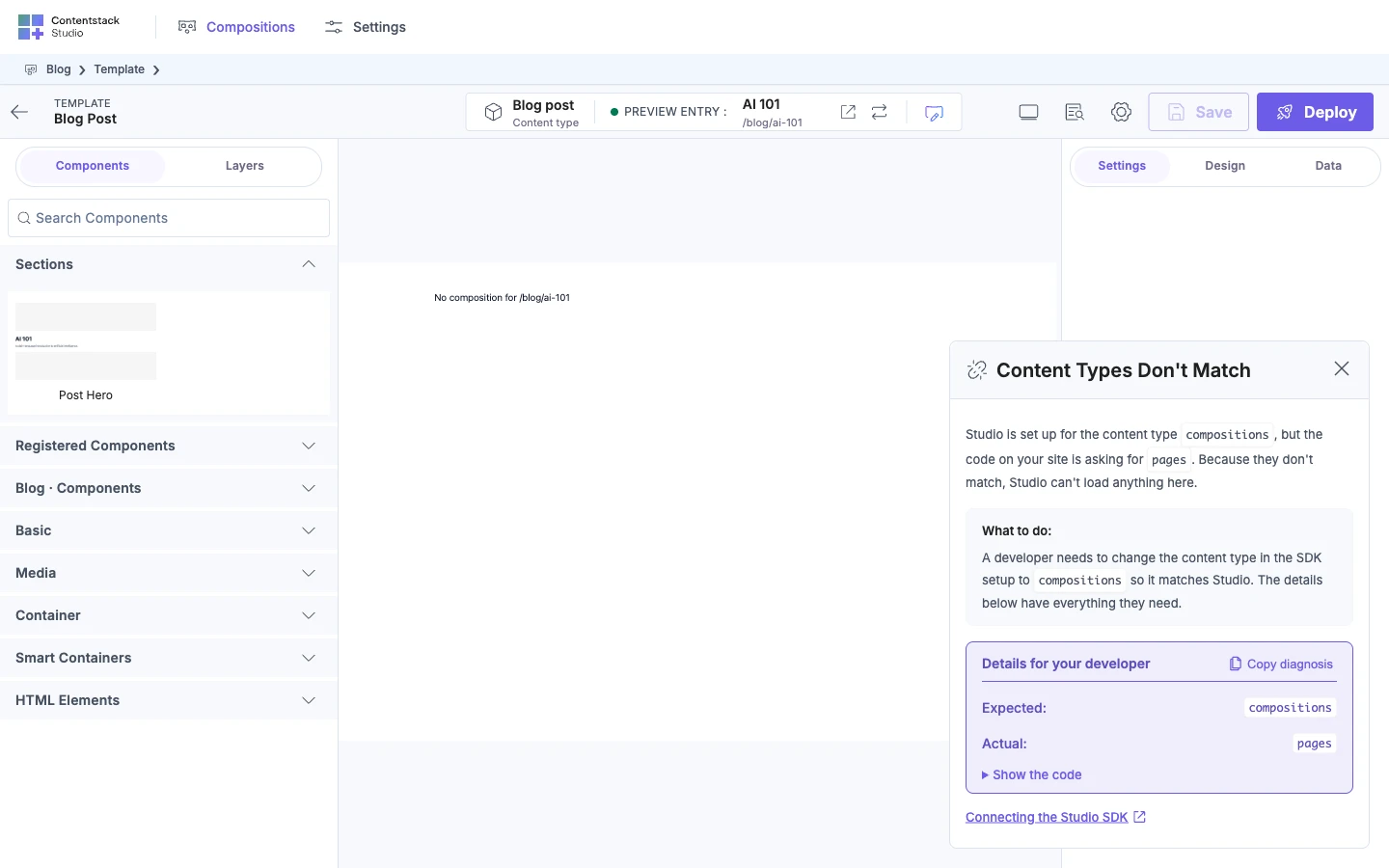
Content Types Don't Match
Your site asked for a different content type from the one the project uses. The card shows Expected, the project's UID, and Actual, the one your SDK sent.
Set contentTypeUid to the Expected value, compositions for the Blog project. If it comes from an environment variable, restart the dev server.
STACK_SDK_MISSING at the first fetch
init doesn't check stackSdk, so a missing or wrong stack doesn't fail there. The first fetch throws an error whose message starts like this:
[Contentstack Studio] STACK_SDK_MISSING: Composable Studio has no Contentstack stack to query.
You left stackSdk out, or passed something that isn't the stack, such as stack.config or an object of credentials. Pass the stack that contentstack.stack returns, as stackSdk: stack. The message's fix says "the Studio provider". It means studioSdk.init.
The first fetch also checks the stack's settings. A host your page can't use throws HOST_UNUSABLE, and a stack with no API key, delivery token or environment throws API_KEY_MISSING, DELIVERY_TOKEN_MISSING or ENVIRONMENT_MISSING. For each code, see Your site's setup is incomplete in the Error message index.
useCompositionData reports INIT_NOT_COMPLETE
useCompositionData waits for the init for about 30 seconds, then sets error to an error with the code INIT_NOT_COMPLETE. Its message starts like this:
[Contentstack Studio] INIT_NOT_COMPLETE: A composition was requested before Studio finished starting up. Gave up after 30 seconds.
The init never ran in the browser. The message calls the init initStudio(). It means studioSdk.init. See Make sure the init runs in the browser.
Invalid hook call
Your app has two copies of React. Make sure it has one. If your app uses Vite, serve the canvas from a production build. See Render on the server.