Wire template preview routes
Add the route that serves your templates, so each one renders at its Template URL for visitors and on the Studio canvas. You need it before any template can open in Studio or go live on your site.
The example on this page is the Blog post template, blog_post_template, at /blog/{{entry.slug}}, previewing AI 101 at /blog/ai-101.
Prerequisites
- The Studio SDK is running on every route that renders a template. See Install the Studio SDK.
- The section preview route is in place. Mount it first, because a catch-all route would otherwise claim the Canvas URL. See Mount the section preview route.
- You've chosen client or server rendering. See CSR or SSR.
What template routes are and what you get
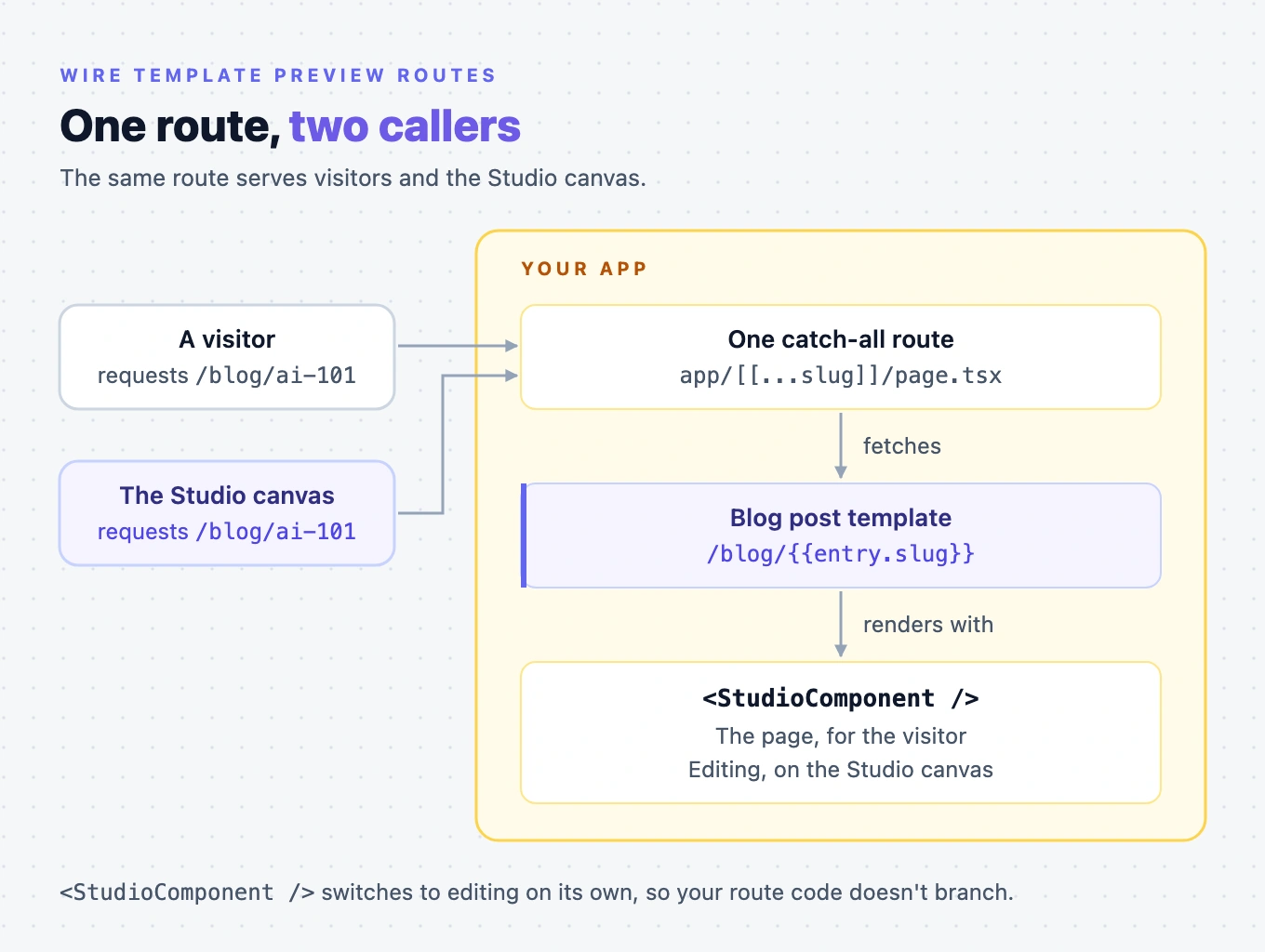
Studio stores your templates, but it doesn't serve pages. Your app needs a route at each template's URL that fetches the template and renders it.
When you open a template in Studio, the canvas loads the Base URL plus the template's URL for the preview entry. For the Blog post template previewing AI 101, that's http://localhost:3106/blog/ai-101.
The same route serves visitors and the Studio canvas. <StudioComponent /> switches to editing on its own when Studio opens the route, so your route code doesn't branch.
Faster ways to do this
- Skill. Ask your agent to wire your template routes, and it uses
setup-template-preview-routes. It asks whether you want one catch-all route or a route per template, then wires it, including your header, footer and 404 page. See What are skills?
Serve every template from one catch-all route
A catch-all route passes the request path to Studio as url. Studio compares it with every template's URL and picks the most specific match. See Which template wins when several match.
With a catch-all, a new template works at its URL with no code change.
In the Next.js App Router, the example uses the catch-all segment app/[[...slug]]/page.tsx. For how catch-all segments match, and how they fit with an app/page.tsx you already have, see the Next.js docs on dynamic routes.
Put a prefix in front of entry.url
When a content type's URL field has a URL pattern, Studio builds the Template URL from the field's Prefix and {{entry.url}}. Contentstack writes each entry's full address into the field, such as /blog/ai-101 for AI 101, and Studio compares that with the whole address. Set a prefix for the content type's part of your site, such as /blog/, so the Template URL is /blog/{{entry.url}}. Without a prefix, the Template URL is {{entry.url}}, which matches every address on your site. With a second template like it, the most recently updated one wins. With the prefix, /blog/ai-101 can only go to the Blog post template. You set the prefix in the URL field's URL Properties. See Always put a prefix in front of entry.url.
Keep your own routes ahead of the catch-all
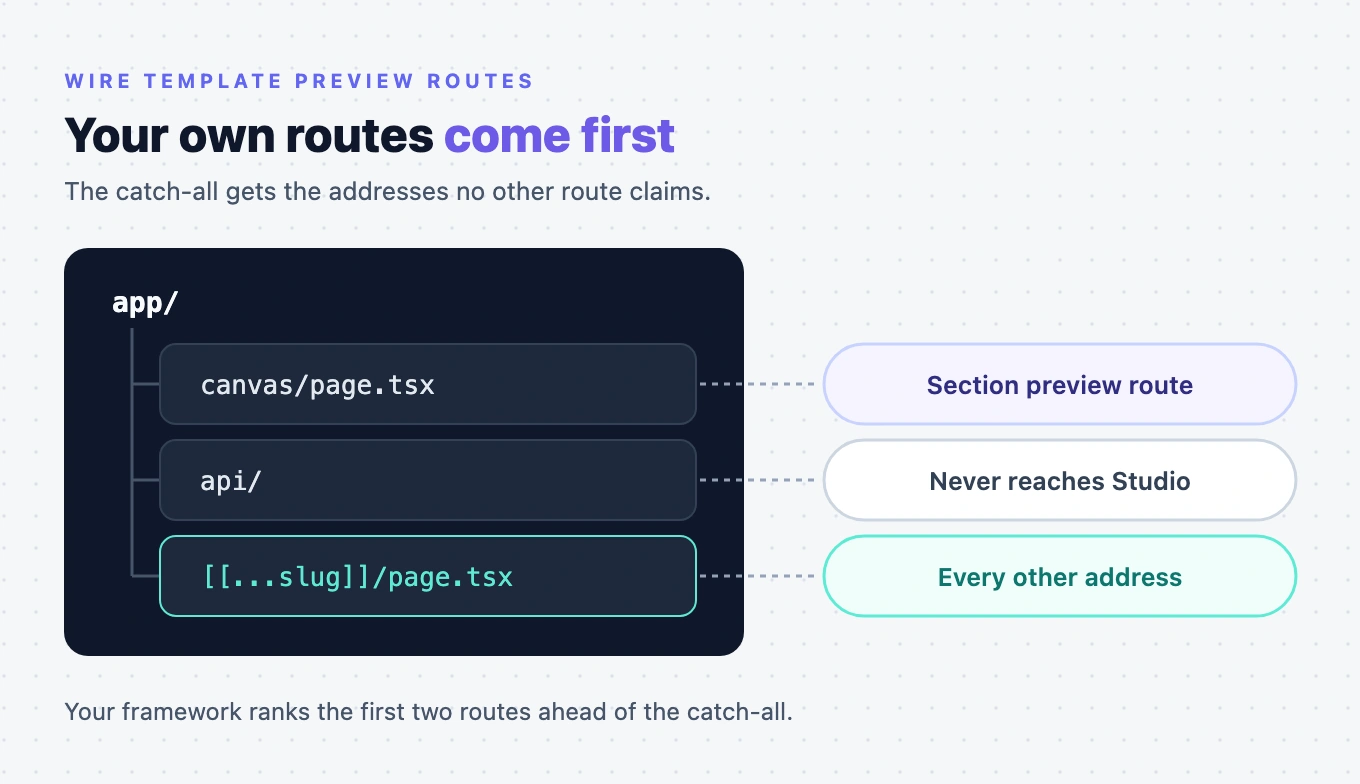
The catch-all gets the addresses no other route claims. Three kinds of path need a route of their own that your framework ranks ahead of it:
- The Canvas URL. If the catch-all claims it, every section shows a page or nothing on the canvas. In the example, that's
app/canvas/page.tsx. - Paths that must never reach Studio, such as
/api. - Pages your code renders without Studio.
The catch-all also takes over your old 404 route, so the 404 has to come from the catch-all. See Send a 404 when no template matches.
When to use a route per template instead
You can give each URL pattern its own route instead, such as app/blog/[slug]/page.tsx for Blog post. A dedicated route can pass compositionUid, which is faster than matching by URL.
It costs you two things:
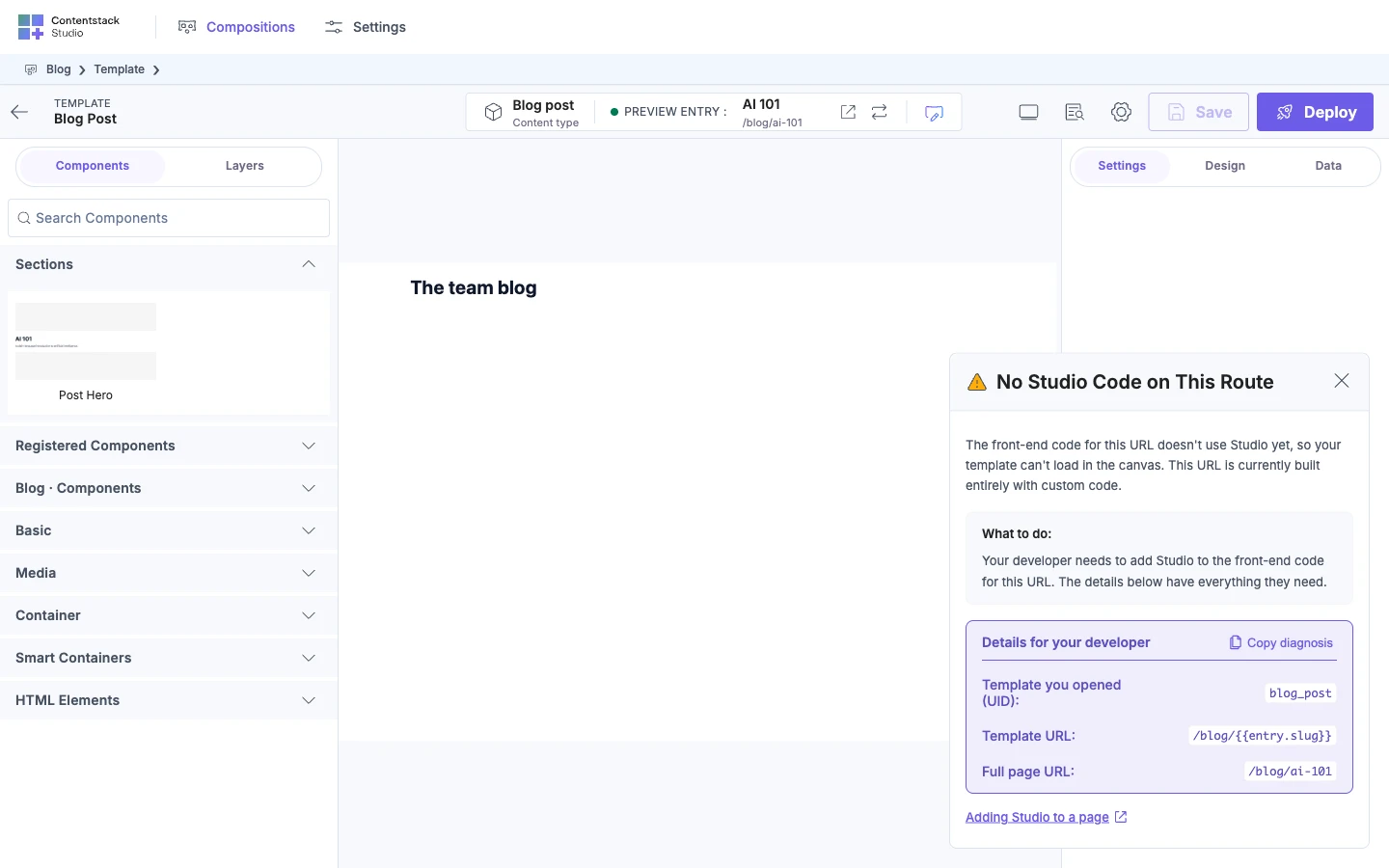
- A template at a URL with no route can't open in Studio. The canvas shows "No Studio Code on This Route".
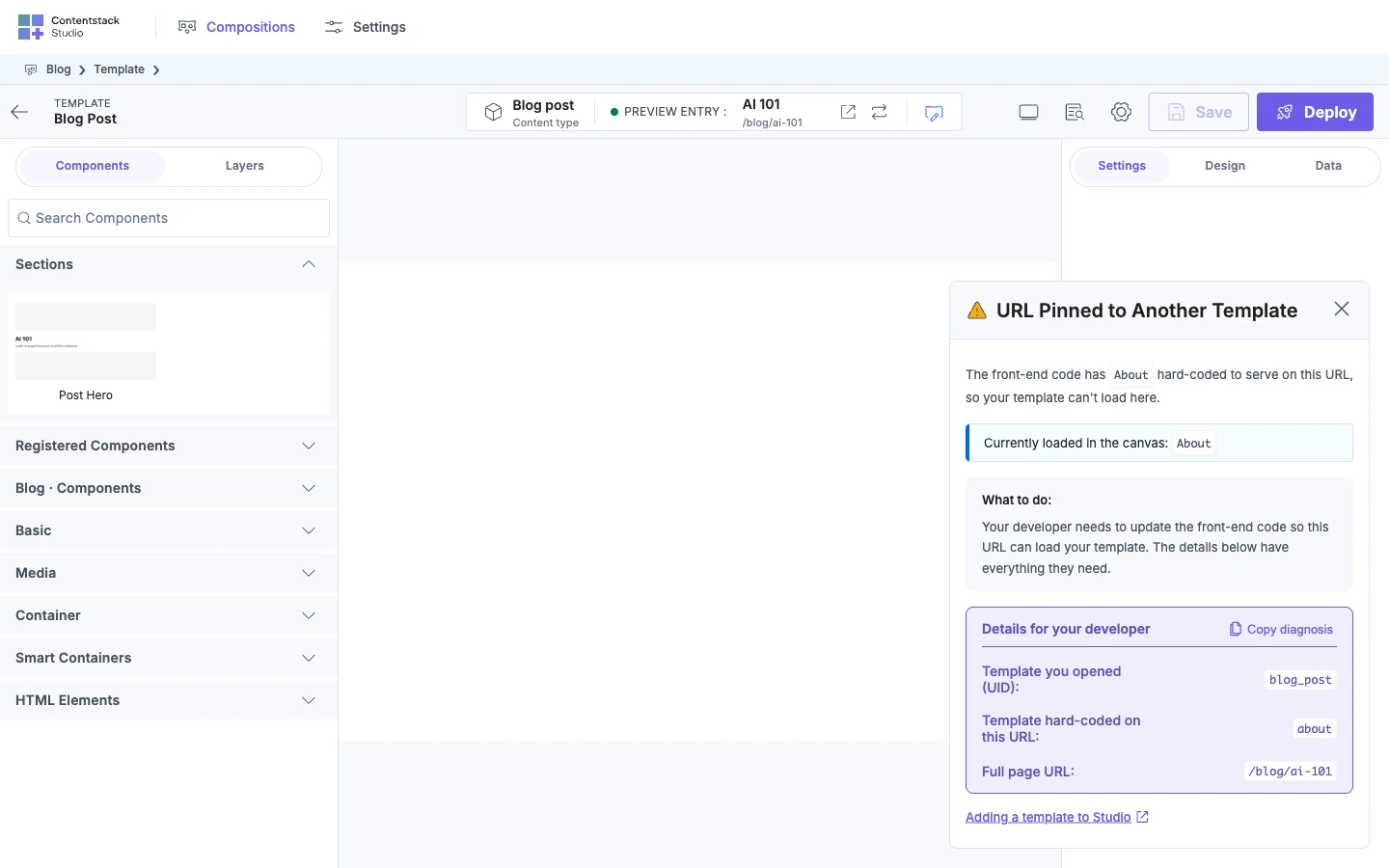
- A route that always fetches one template UID can't show any other template at that URL. Studio shows "URL Pinned to Another Template".
Render StudioComponent in the route
Import StudioComponent from @contentstack/studio-react, and pass it what the fetch returns:
import { StudioComponent } from "@contentstack/studio-react";

<StudioComponent specOptions={specOptions} />
<StudioComponent /> takes two props:
| Prop | Required | What it takes |
|---|---|---|
specOptions | Yes | What useCompositionData returns as specOptions, or what fetchCompositionData resolves to. |
data | No | Values that aren't in Contentstack. See Bring your own data. |
- Pass
specOptionsthrough as it is. Don't read or change itsfetchOptions. - Render it only once you have
specOptions. It readsspecOptionsas soon as it renders. - Don't use
<StudioCanvas />here. It renders nothing for visitors.
Fetch the template on the client or the server
The catch-all passes the request path as the query:
{ url: "/blog/ai-101" }
Where you fetch depends on how the route renders:
- On the client, fetch with the
useCompositionDatahook. See Render on the client. - On the server, fetch with
sdk.fetchCompositionData. See Render on the server.
Both take the same query: a url, a compositionUid, a templateContentTypeUid, or a pair of them.
Fetch by url on a catch-all route. It's the recommended way, because the route doesn't need to know which template an address uses, and a new template works with no code change. Some routes do know, and then a UID fits better:
- A route that always shows one template, such as
app/blog/[slug]/page.tsxfor Blog post, can pass the template's UID with the address. See When to use a route per template instead. - A route that already knows the entry, or whose addresses come from transformation rules, passes the template and the entry. See Fetch by template and entry instead of by URL.
- A template with no entry behind it, such as the freeform About template at
/about, needs only its Template UID,about. - A section on a page your code owns is fetched by its Section UID. See StudioComposition and Slot props.
Fetch by template and entry instead of by URL
When your routing already knows the template and the entry, you can skip URL matching and ask for them directly.
You need this when your addresses don't hold a value stored in an entry. The common case is a Custom Preview URL with transformation rules. Say the Blog post content type's Custom Preview URL is /blog/{{entry.title}}. Its rules lowercase the title and replace spaces with -, so AI 101 is served at /blog/ai-101. Studio doesn't apply those rules, so a fetch by url looks for a post whose title is ai-101 and finds none. Your route built that address, so it already knows the entry. See Transformation rules aren't applied.
Pass the entry as templateEntryUid in the second argument, the options, not in the query:
const { specOptions, isLoading, error } = useCompositionData(
  { compositionUid: "blog_post_template" },
  { templateEntryUid: "blt5c1d9e0a7f3b2e41" },
);
This renders the Blog post template with AI 101. sdk.fetchCompositionData takes the same two arguments.
| You pass | What Studio does |
|---|---|
{ compositionUid: "blog_post_template" } | Fetches the Blog post template. |
{ templateContentTypeUid: "blog_post" } | Fetches the template connected to Blog post. |
{ url: "/blog/ai-101", templateContentTypeUid: "blog_post" } | The content type picks the template. The URL only picks the entry. |
Without templateEntryUid, Studio uses the entry for the url if you passed one. Otherwise it uses the content type's first entry.
templateContentTypeUid returns one template, the first connected to that content type, and you don't pick which. The Blog post content type has two connected templates, Blog post and Featured post, so fetch either of them by compositionUid.
Inside Studio, the preview entry an author picks wins over your templateEntryUid.
The query field is compositionUid. Studio doesn't accept composableUid, and reports the missing-identifier error for it.
Send a 404 when no template matches
When no template matches an address, the fetch fails. It doesn't give you an empty result:
fetchCompositionDatarejects.useCompositionDatareturns anerror, withspecOptionsset tonull.
The catch-all matched the address, so your framework won't send a 404 by itself. The route has to.
Pass the error to isCompositionNotFound, from @contentstack/studio-react. It reads the error's code, and it's true only when Studio finished looking and nothing matched. Send a 404 when it's true, and a 500 when it's false.
code, for example | Meaning | isCompositionNotFound | Respond with |
|---|---|---|---|
NO_COMPOSITION_FOR_URL | No template matches the URL. | true | A 404 |
CONNECTED_ENTRY_NOT_FOUND | The template matched, but its content type has no entry for the URL. | true | A 404 |
TRANSPORT_FAILED | Your site sent a request to Contentstack and nothing came back. | false | A 500 |
STACK_NOT_FOUND_ON_HOST | The API key doesn't lead to a stack. | false | A 500 |
A false means Studio couldn't get an answer, so the page may still exist. A 500 keeps caches and search engines from dropping it. Two outcomes of the URL search are false too. SEARCH_INCOMPLETE means the search stopped at its limit before it could rule a match out. URL_OWNERSHIP_PROBE_FAILED means several templates match the URL and every check on which one owns it failed. For every code that counts as not found, see Nothing matches what your site asked for.
import { isCompositionNotFound } from "@contentstack/studio-react";

if (isCompositionNotFound(error)) {
  // Send your 404.
} else {
  // Send a 500.
}
On the client, render your 404 content when isCompositionNotFound(error) is true. On the server, answer with a 404 status. See Render on the server.
The error's message names its code, says what didn't match, and lists what to check, most likely first. For an address no template matches, it starts like this:
[Contentstack Studio] NO_COMPOSITION_FOR_URL: No composition matches "/nothing/here". Considered 1 compositions.
For /blog/not-a-post, the Blog post template's URL pattern matches, but no Blog post entry has that URL. The message starts like this:
[Contentstack Studio] CONNECTED_ENTRY_NOT_FOUND: No entry was found for the content type "blog_post" this composition is connected to.
Don't decide the 404 on hasSpec or hasTemplate. Both are deprecated, and hasTemplate is false for every freeform template, such as About. To tell a connected template from a freeform one, read connectedContentTypeUid on the result of fetchCompositionData. It's the connected content type's UID, such as blog_post, or null for a freeform template.
Check that a template opens at its URL
-
In Studio, open the Blog post template. The canvas loads
http://localhost:3106/blog/ai-101and shows AI 101.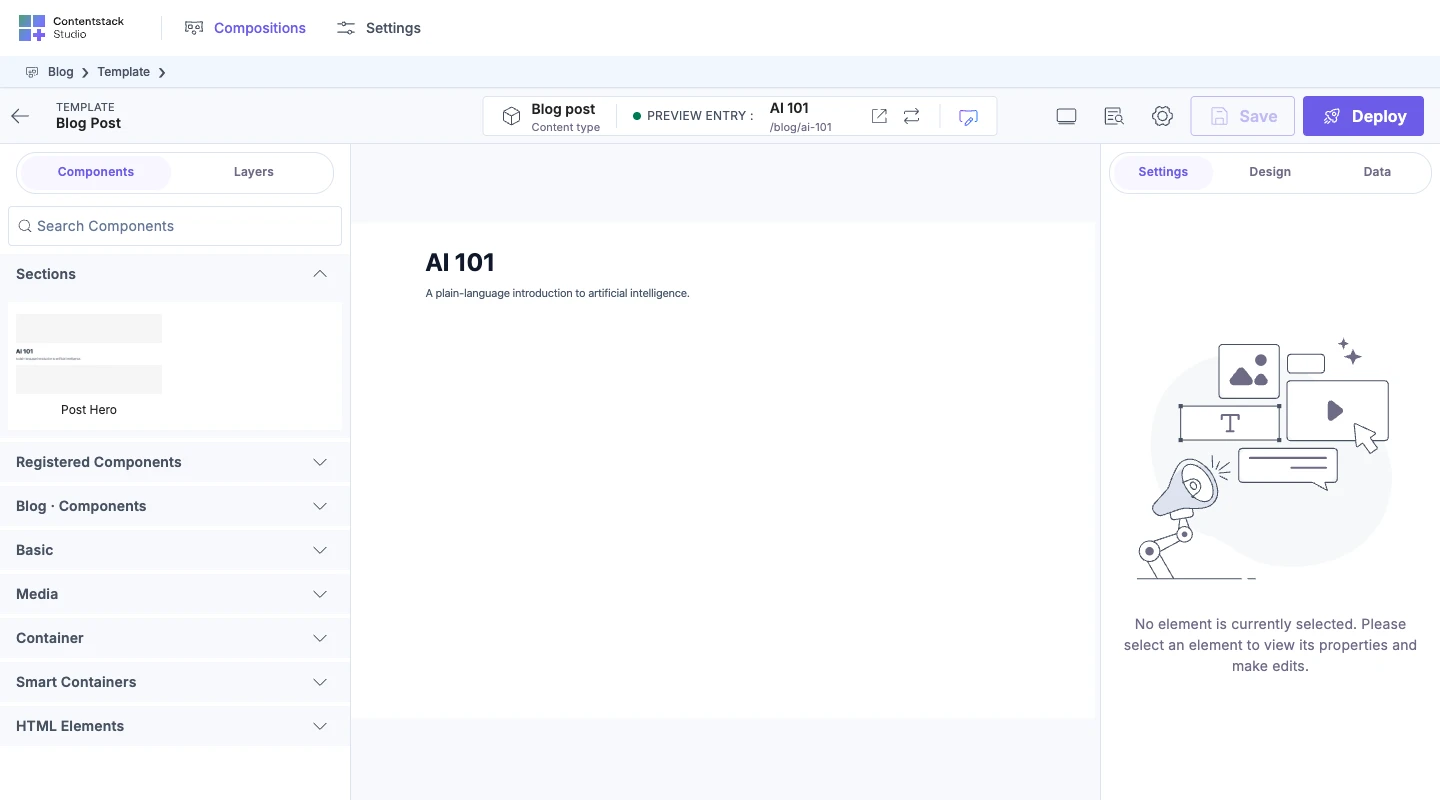
-
Click Deploy, then open
http://localhost:3106/blog/ai-101in your browser. The route renders the Blog post template with AI 101. Until you deploy the template, the route can't find it, because outside Studio your site reads only deployed templates. See Save, preview, deploy. -
Open
http://localhost:3106/blog/not-a-post. The route shows your 404 content.
Next, write the fetch for your render path: Render on the client or Render on the server.
If it doesn't work
The first four headings below quote the card titles as Studio shows them on the canvas. The last two are errors in your console or build.
No Studio Code on This Route
Nothing at the template's URL asked Studio for a template. Add the catch-all route, or a route for that URL that renders <StudioComponent />.
URL Pinned to Another Template
The route at that URL always fetches a different template by its UID. Fetch by url on that route instead.
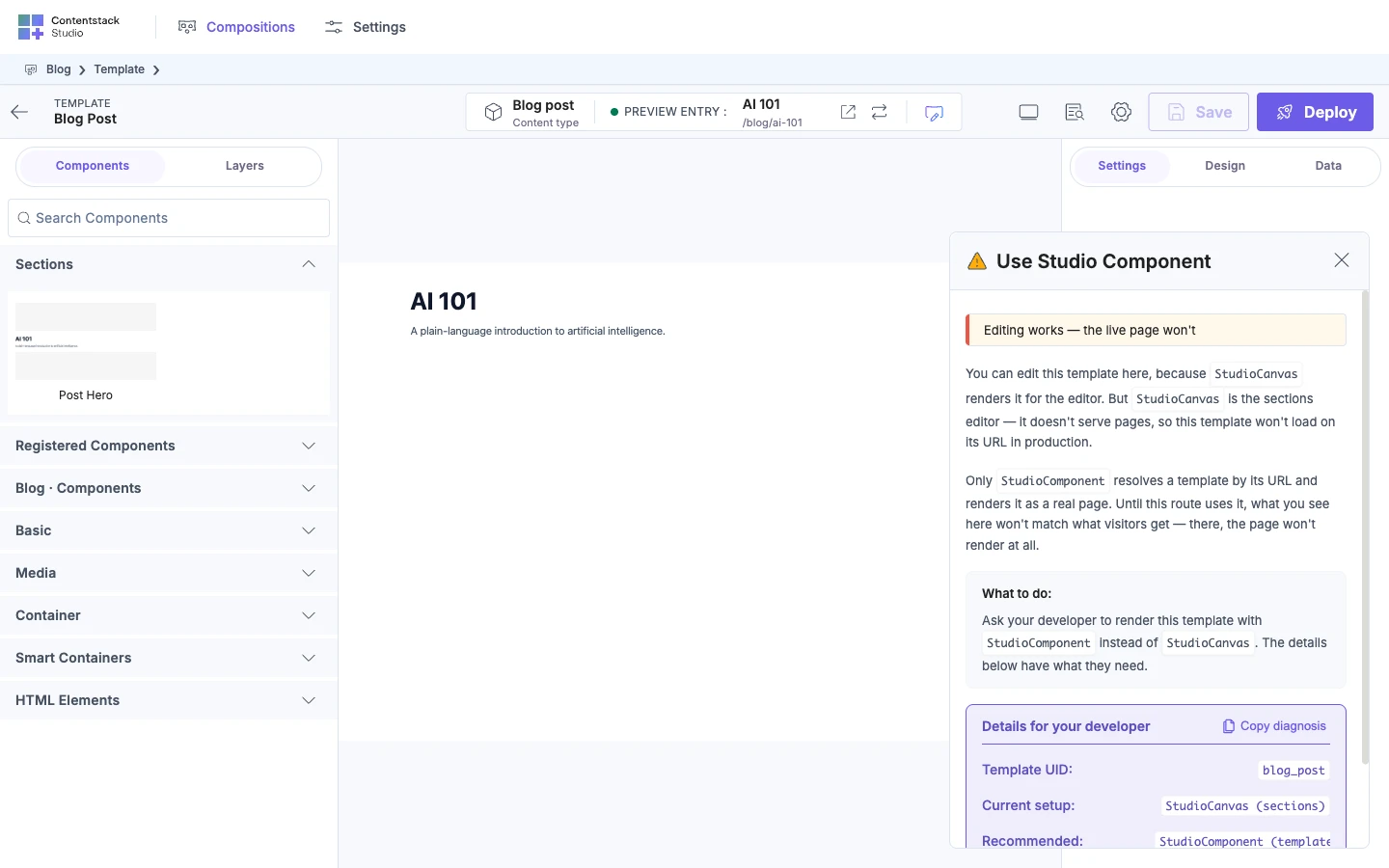
Use Studio Component
The template rendered through <StudioCanvas />. The card's badge says "Editing works — the live page won't", because <StudioCanvas /> renders nothing for visitors. Render templates with <StudioComponent />.
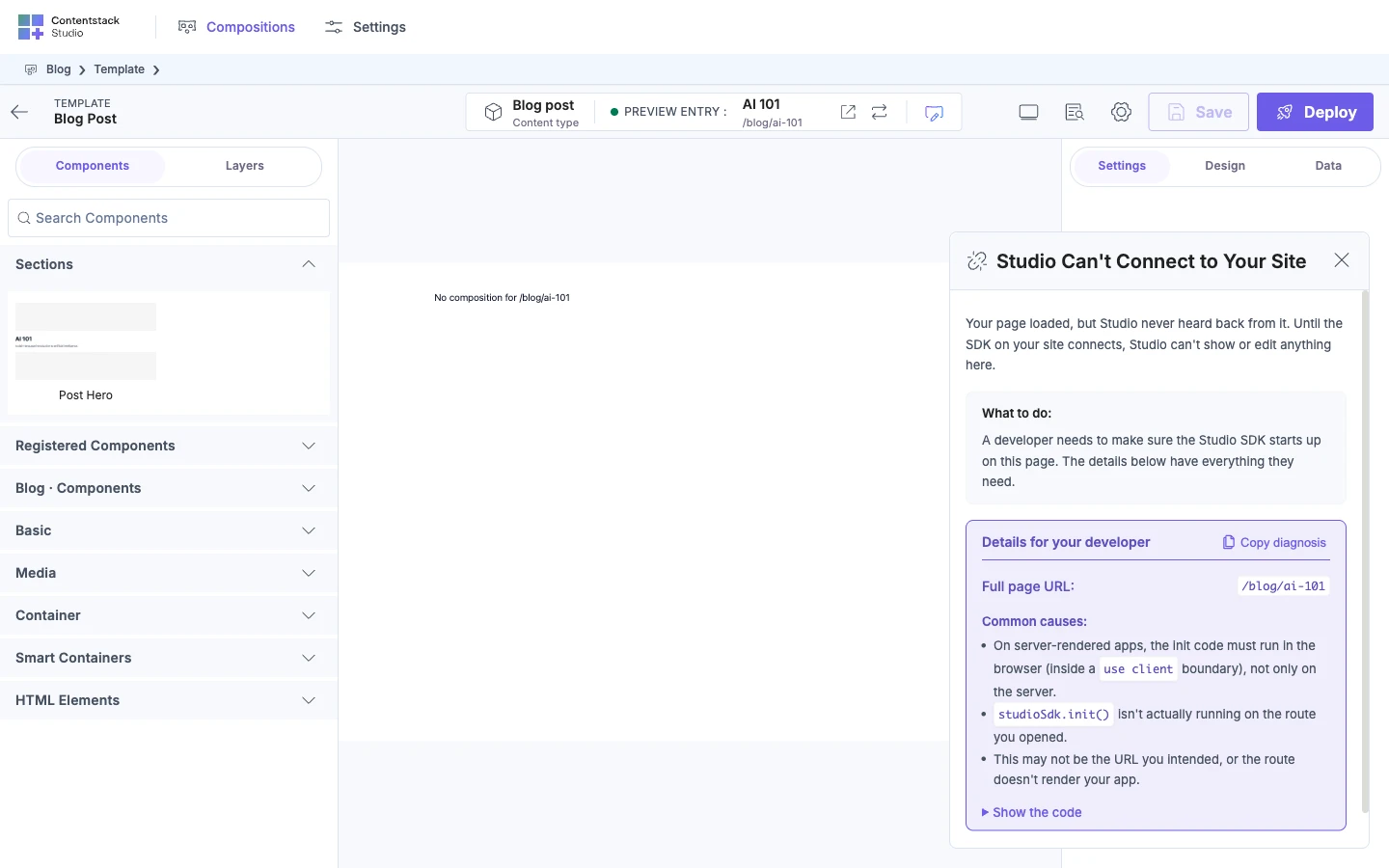
Studio Can't Connect to Your Site
The route's modules don't import the module that calls studioSdk.init. See Install the Studio SDK.
StudioComponent crashes with no specOptions
<StudioComponent /> reads specOptions as soon as it renders, so it throws when specOptions is undefined or null. There are three causes:
- It renders before the fetch finishes. Render it only once the fetch has returned
specOptions. - The result is passed under another prop name, such as
spec. The prop isspecOptions. - The server code destructures the result.
const { specOptions } = await sdk.fetchCompositionData(...)givesundefined, becausefetchCompositionDatareturns the spec options object itself. Writeconst specOptions = await sdk.fetchCompositionData(...).
TypeScript reports a missing specOptions prop when you build.
The query has no composition identifier
The query has no url, compositionUid or templateContentTypeUid, or the one it has is empty or undefined. The message depends on where you fetch.
On the server, fetchCompositionData throws this:
No valid composition identifier provided. Please provide compositionUid, url, or templateContentTypeUid
On the client, useCompositionData doesn't throw. It returns this in error:
Either compositionUid, url, or templateContentTypeUid is required
A common cause is a router value that isn't ready yet, so the query gets an empty url. Another is a misspelled field, such as composableUid for compositionUid.