Try Studio without an app
Build a template in Studio before your app is ready, on Studio's own Playground canvas. Use it to try Studio, or to start authoring while developers set up the app.
The Playground canvas is for templates. Sections need a Canvas URL, which you can't save on the Configuration tab until the project has a Base URL. You can't turn on Freeform there either, for the same reason.
The example on this page is the Blog project before its Configuration tab is saved, with the Blog post template previewing AI 101.
Prerequisites
- Studio in your organization, a stack, and a role that can create content types. See Prerequisites.
- A content type with at least one entry, such as Blog post with AI 101. A connected template needs an entry to preview.
- No app. You don't need the Studio SDK or a Canvas URL route.
What this is and what you get
When a project has no Base URL, Studio loads its own Playground canvas instead of your site.
A project has no Base URL until you save its Configuration tab with an environment that has a URL for the language. You don't choose the Playground canvas. You get it by not saving the Configuration tab.
Studio fetches your entries for the Playground canvas itself, so a template still shows real content from your stack.
What works on the Playground canvas
| What | On the Playground canvas |
|---|---|
| Your own components | Not on the Components tab. Your app registers them, and your app isn't loaded. |
| Connected templates | Yes. Studio fetches the preview entry for you. |
| Freeform templates | No. Freeform is off until you save the Configuration tab, which needs a Base URL. |
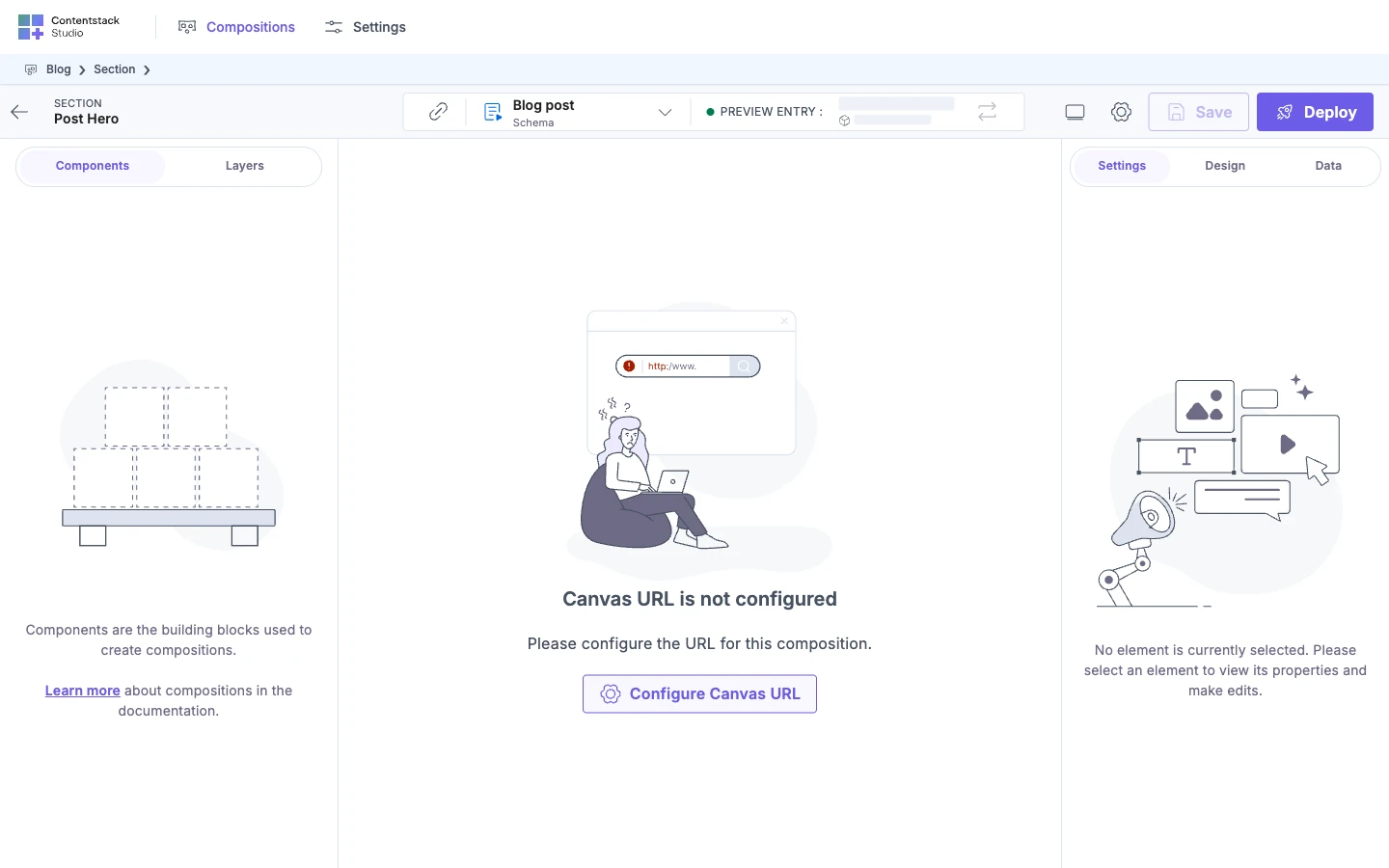
| Sections | They open at the Canvas URL. With no Canvas URL, a section shows "Canvas URL is not configured". |
| Save | Works. |
| Deploy | Disabled. Its tooltip reads "Deployment is disabled in the playground." |
| Open in new tab | Disabled. Its tooltip reads "Opening in a new tab is not available in the playground." |
Visitors can't see anything you build here until your app serves your templates.

Build the Blog post template on the Playground canvas
-
Create the project Blog, as in Create a project. Don't open its Configuration tab yet.
-
Create a template connected to Blog post, as in Create a template.
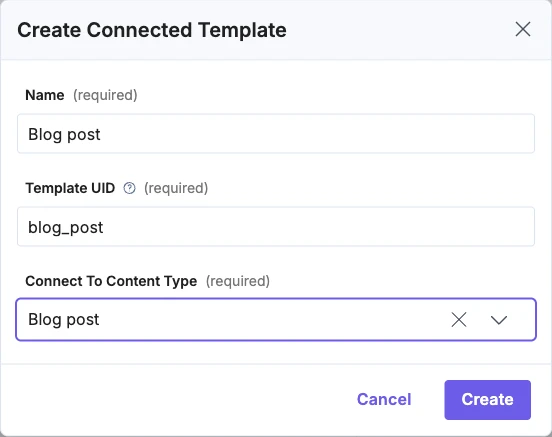
The template opens on the Playground canvas.
-
Add components to the template from the Components tab. Your own components aren't there, because your app registers them.
-
Click Save. It's enabled once you've changed something.
The docs don't yet confirm which built-in components the Components tab lists on the Playground canvas. If you need a particular one, check the tab before you plan around it.
Move from the Playground canvas to your own site
Your app needs the Studio SDK and a canvas route before your site can stand in for the Playground canvas. See Install the Studio SDK and Mount the section preview route.
Then set the Configuration tab, as in Configure your project. Once the project has a Base URL, the canvas loads your site and Deploy turns on.
What you built stays:
- Your templates and sections stay. Saving the Configuration tab changes only the project's settings.
- The built-in components you placed stay. Studio doesn't swap them for your own components.
If it doesn't work
-
A section shows "Canvas URL is not configured". The project has no Canvas URL. Configure Canvas URL opens the Configuration tab, which can't save without a Base URL. Build templates until your app is ready.
-
The canvas shows "Uh oh! The Playground URL is not present". That's a Studio problem, not yours. Report it to Contentstack Support.
-
The canvas shows "Create an entry to start building". The content type has no entries. Create one, such as AI 101, in Contentstack, and reload.
-
Deploy is disabled. That's expected on the Playground canvas. It turns on once the project has a Base URL.