Build a template from sections
Build a template by dropping sections onto it, then set what each section lets you change. Developers build a section once, and anyone with access to the project can place it on templates.
The example is the blog's Blog post template. You drop the Post hero section onto it, set its Title size, and fill its slot with the Post byline section.
Prerequisites
- A template open on the canvas, such as Blog post. See Create a template.
- At least one section in the project, such as Post hero. See Build sections.
What this is and what you get
When you drop a section onto a template, the template points at the section rather than copying it. On the template, you can change three things about a placed section:
- Section Data, the content it shows. Studio sets it for you when the section matches the template's content type.
- Its exposed props, the values the section author let templates set, such as Title size.
- Its section slots, the places the section author left for templates to fill.
You can't select or change the components inside a placed section from the template. To change those, edit the section itself.
Faster ways to do this
- Skill. Ask your agent to build the template, and it uses
build-connected-template. See What are skills?
Drop a section onto the template
-
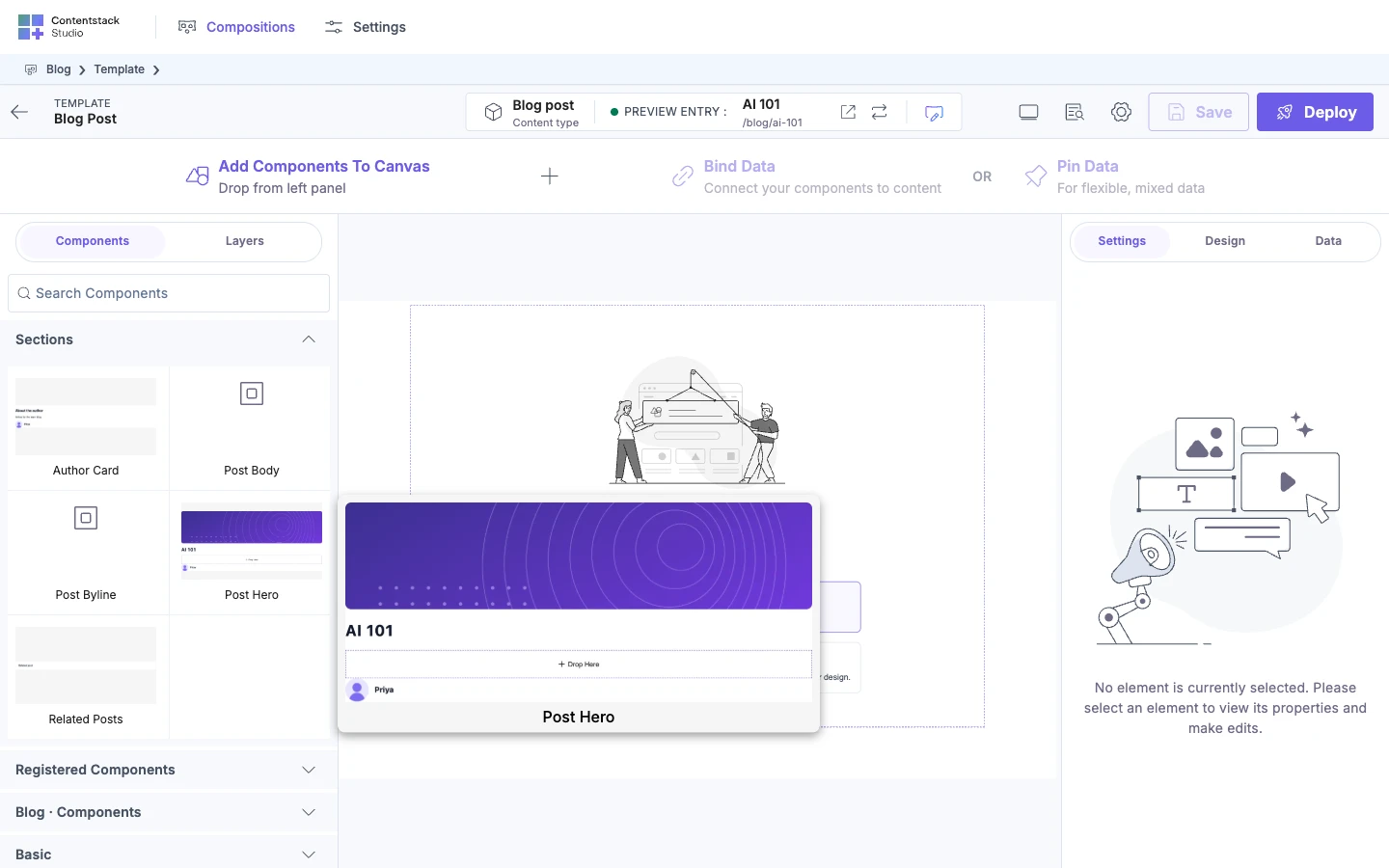
In the Components tab, find the section under Sections, at the top. Type in Search Components to filter the list. Hover a section to see a larger preview, if it has one.
-
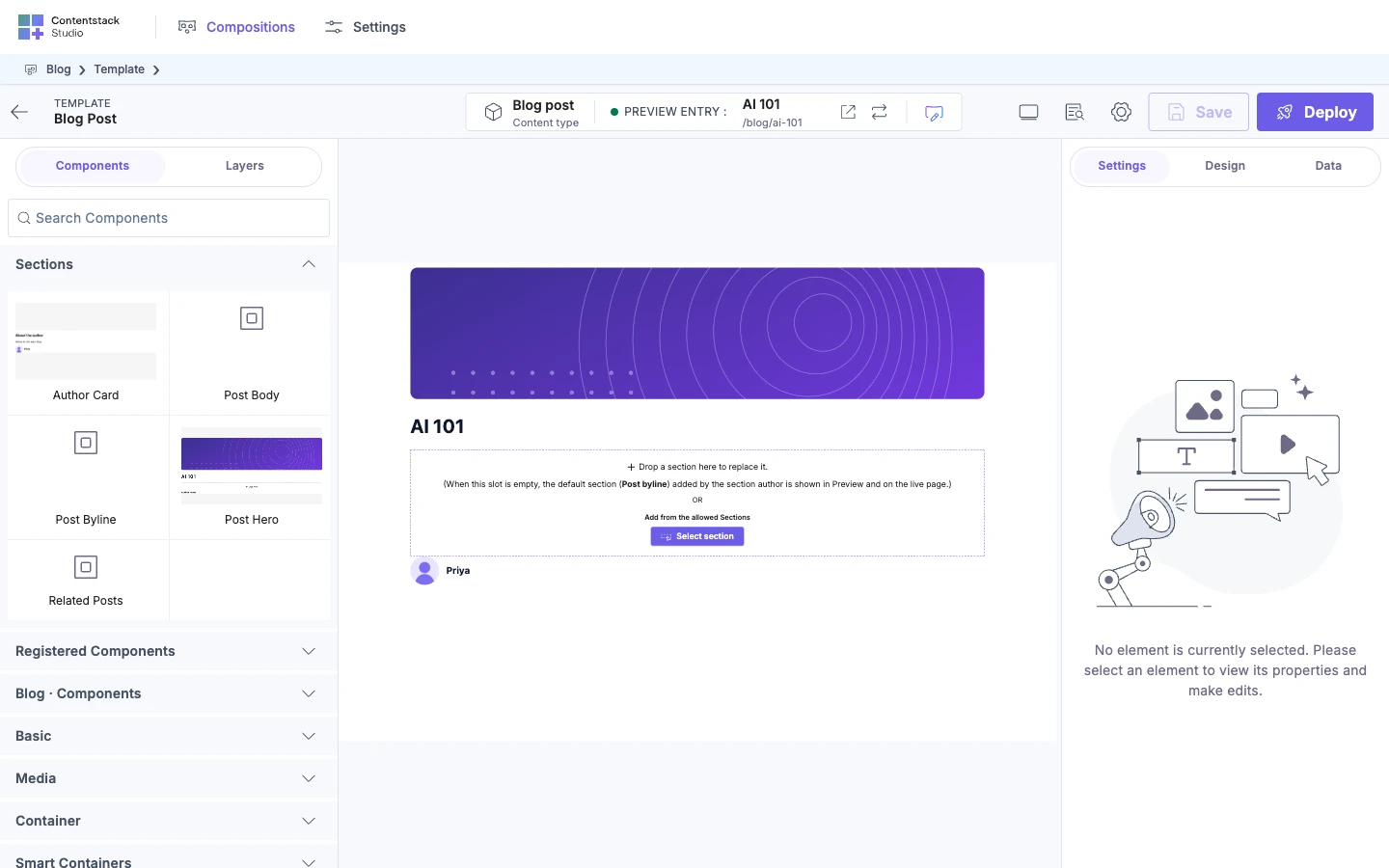
Drag the section onto the canvas. For Blog post, drag Post hero to the top.
The section appears on the canvas, and in Layers under its name. If it matches the template's content type, it already shows the entry's content, such as AI 101's title and cover image.
Change an exposed prop
-
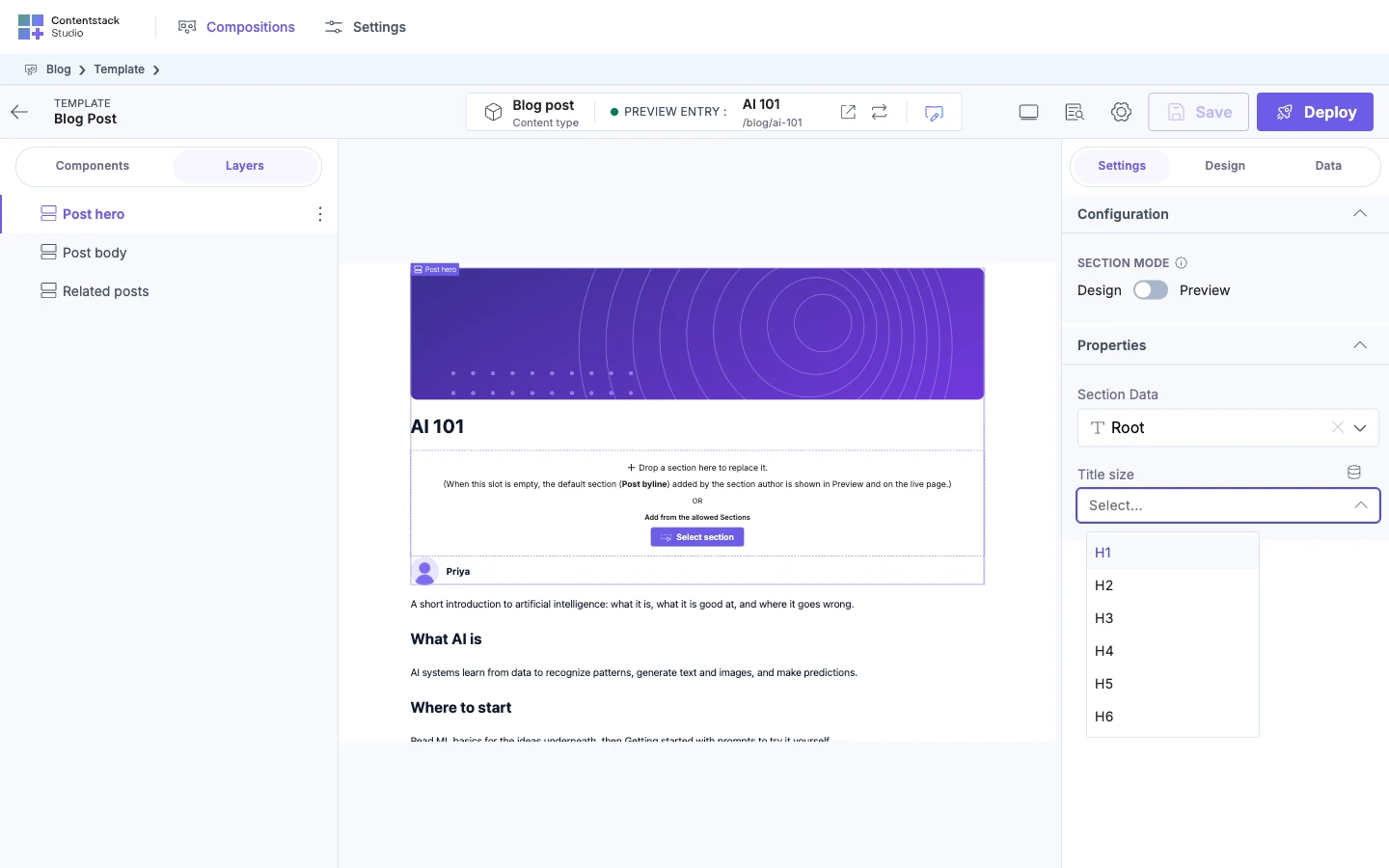
Select the placed section.
-
In the Settings tab, find the prop under Properties, listed by the name the section author gave it. For Post hero, that's Title size.
-
Type or pick a value, or bind it to a field. See Bind a component.
The value belongs to this placed copy of the section only. Other templates that use Post hero, and other copies on this template, keep their own value.
Fill a section slot
A placed section shows its empty slots while it's in Design mode. If it's in Preview mode, select it and switch Section Mode to Design under Configuration in the Settings tab.
-
Find the empty slot. It says "Drop a section here." If the section author set a default section, it says "Drop a section here to replace it." and names the default.
-
Fill it in either of these ways:
-
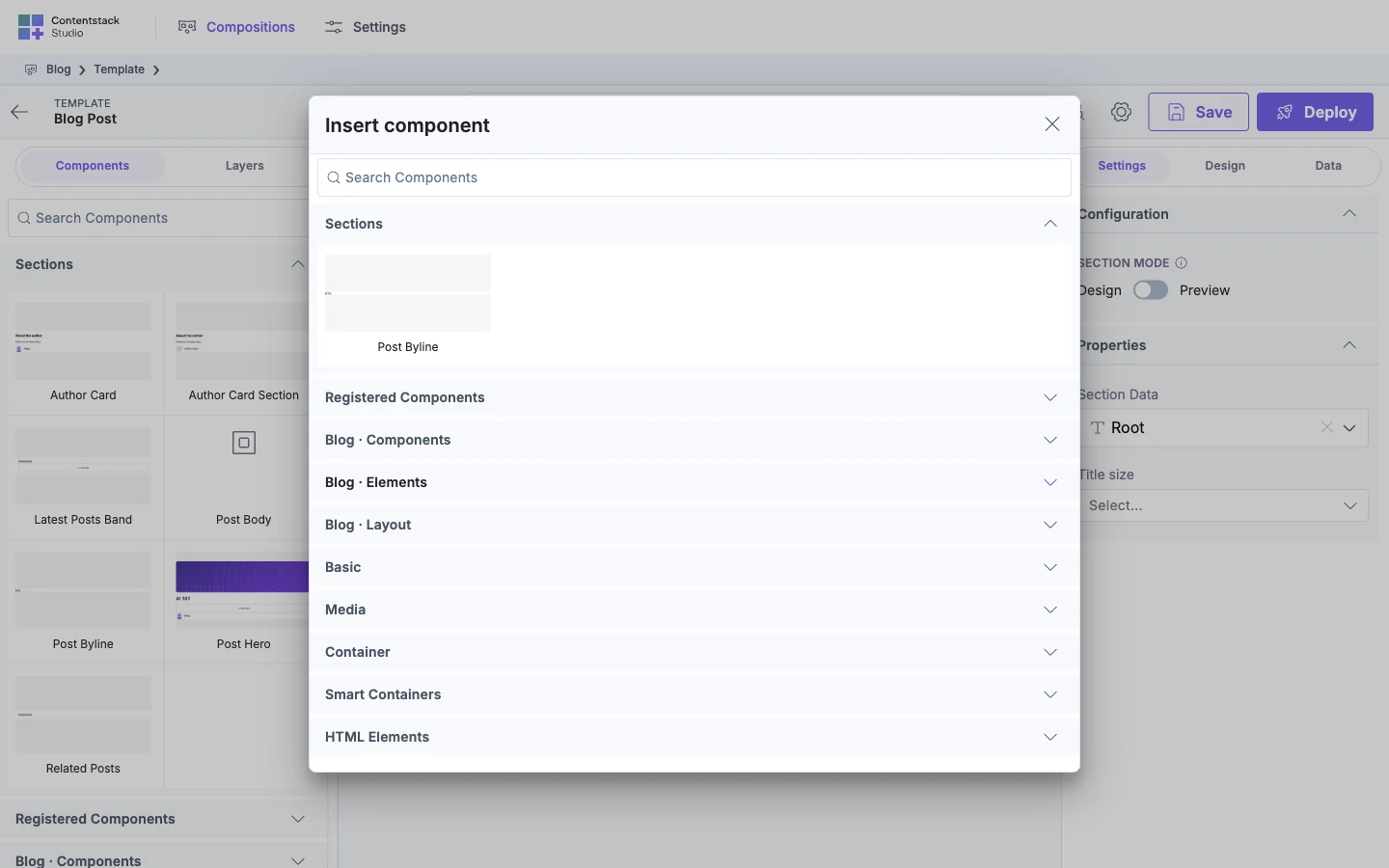
Drag a section or a component into it, such as the Post byline section.
-
Hover the slot and click the + on it, then pick one in Insert component. The picker only shows the sections the slot allows.
-
-
To see or change what's in a slot, select its row in Layers. The Settings tab lists what's in it. To add another, click the + on the selected slot.
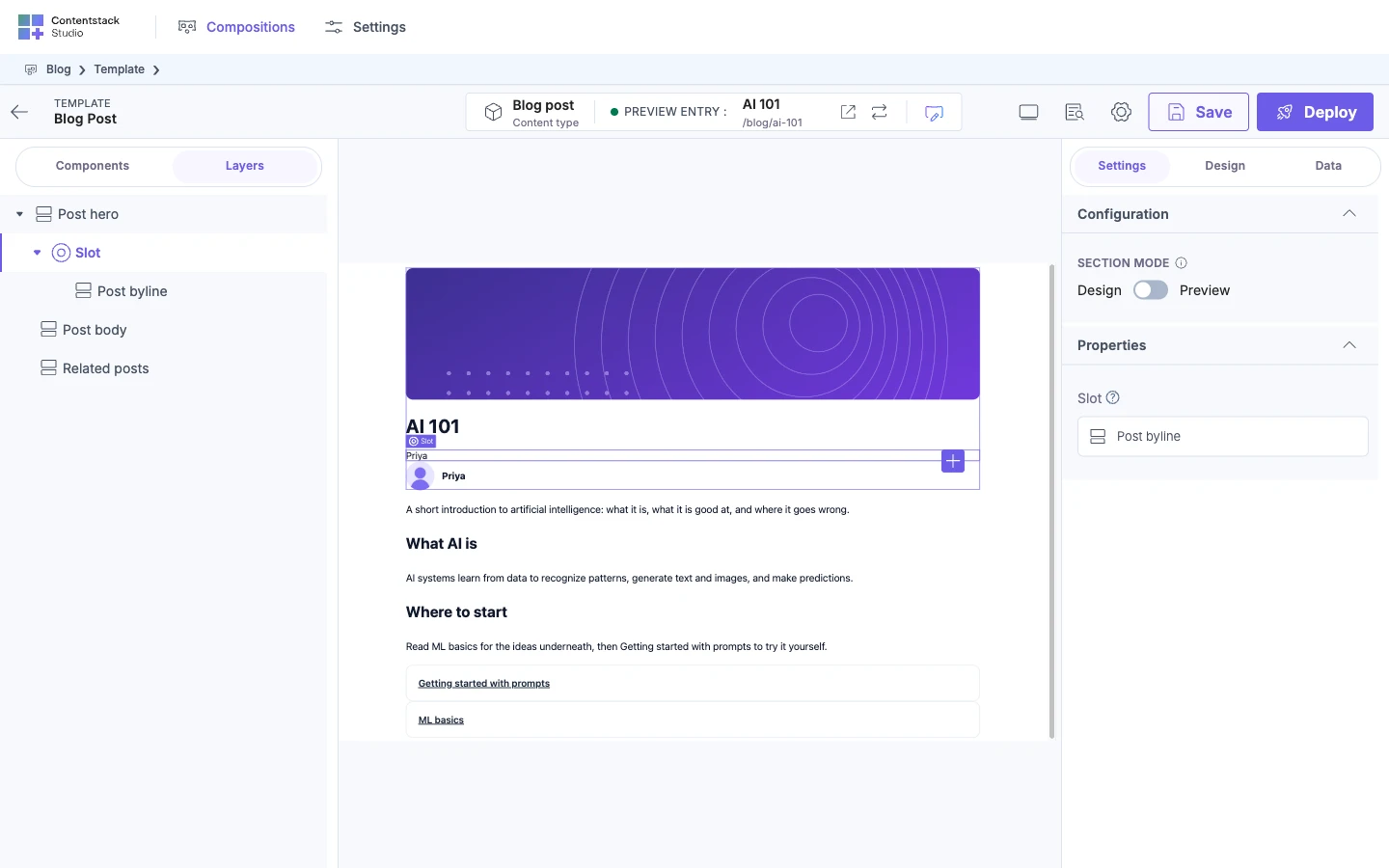
A slot can hold more than one item. What you drop in belongs to this placed copy of the section only.
Change what's inside the section
Hover the placed section and click Edit Sections in its top-right corner. The section opens in a new browser tab. Save and deploy it there. Every template that uses it picks up the change.
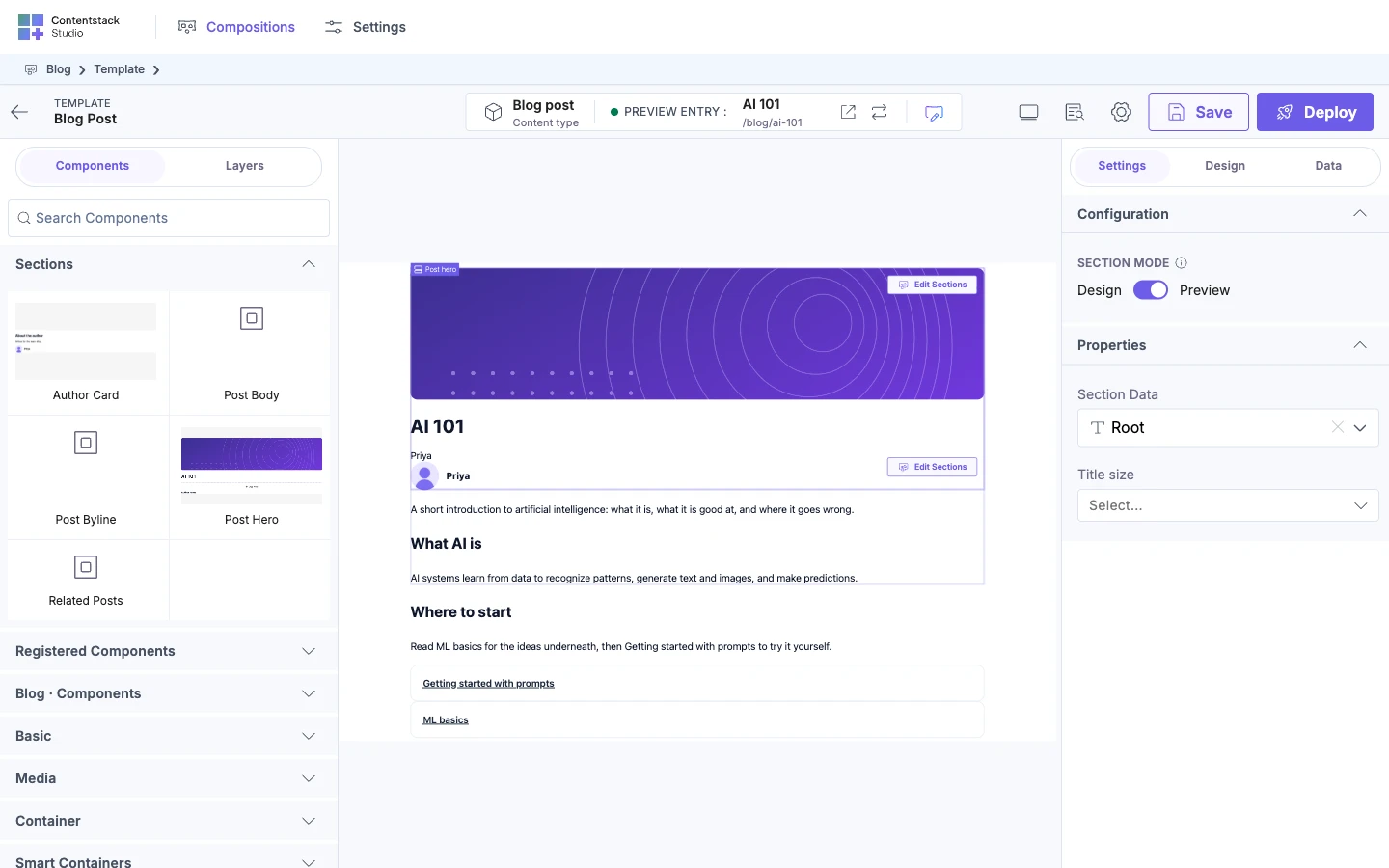
What happens when someone changes the section?
The template points at the section, so a change to Post hero reaches every template that uses it:
- When the section is saved, templates that use it show the change on the canvas.
- When the section is deployed to an environment, every template that uses it there shows the change on your site. You don't deploy the templates again.
To see which templates use a section, check its Referenced In column on the Sections tab.
When you deploy a template, Send with References also deploys the sections it uses. See Save, preview, deploy.
If it doesn't work
-
"This section isn't allowed in this slot. Choose one of the slot's allowed sections, or drop a different component." The slot only takes certain sections. Click the + on the slot to see them, or ask the section author to allow yours.
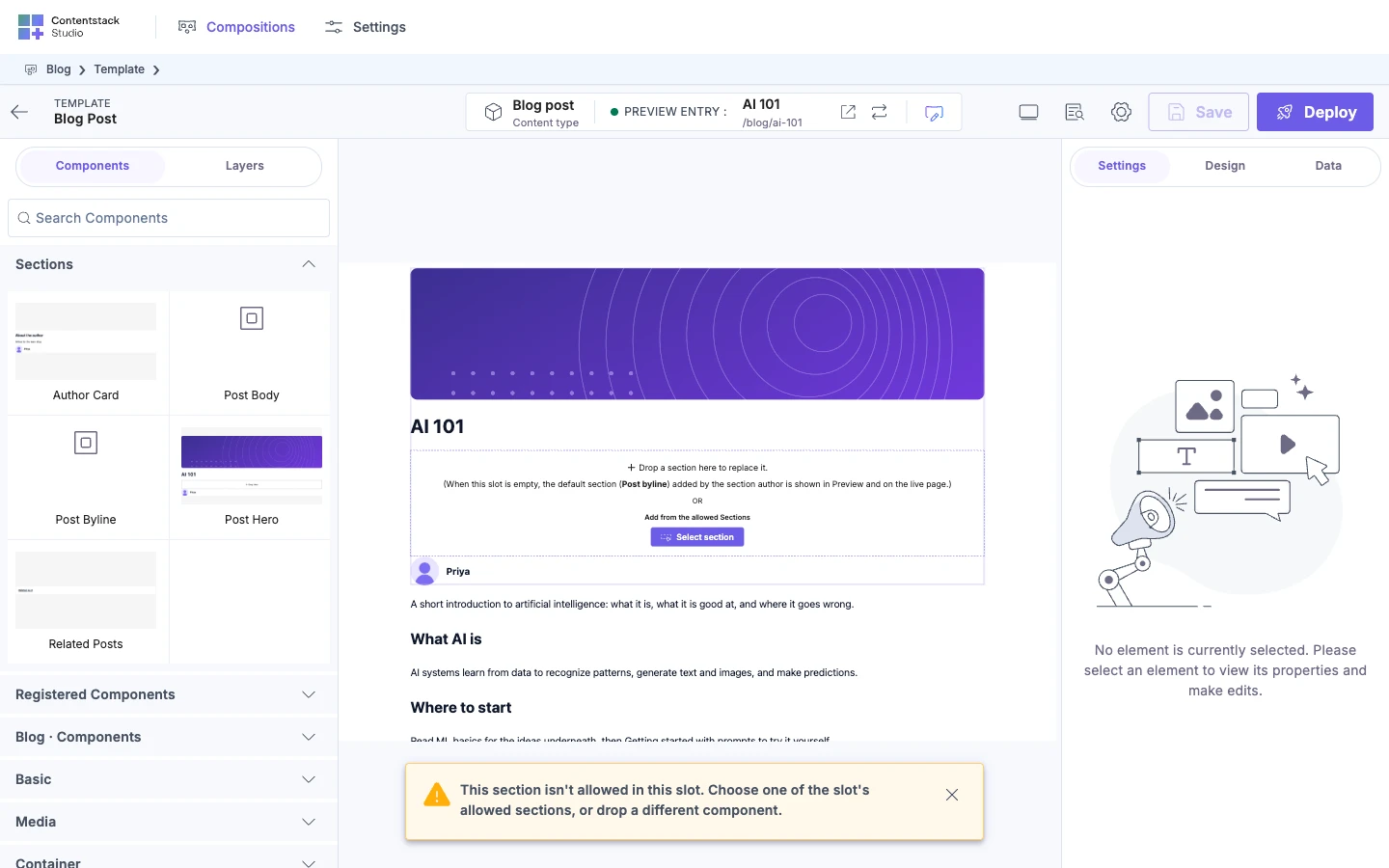
-
An empty slot has nowhere to drop. The section is in Preview mode. Switch Section Mode to Design, or fill the slot from its row in Layers.
-
"This element is locked. Unlock it first, or drop into a different container." You dropped onto a locked element. Unlock it in Layers, or drop somewhere else.
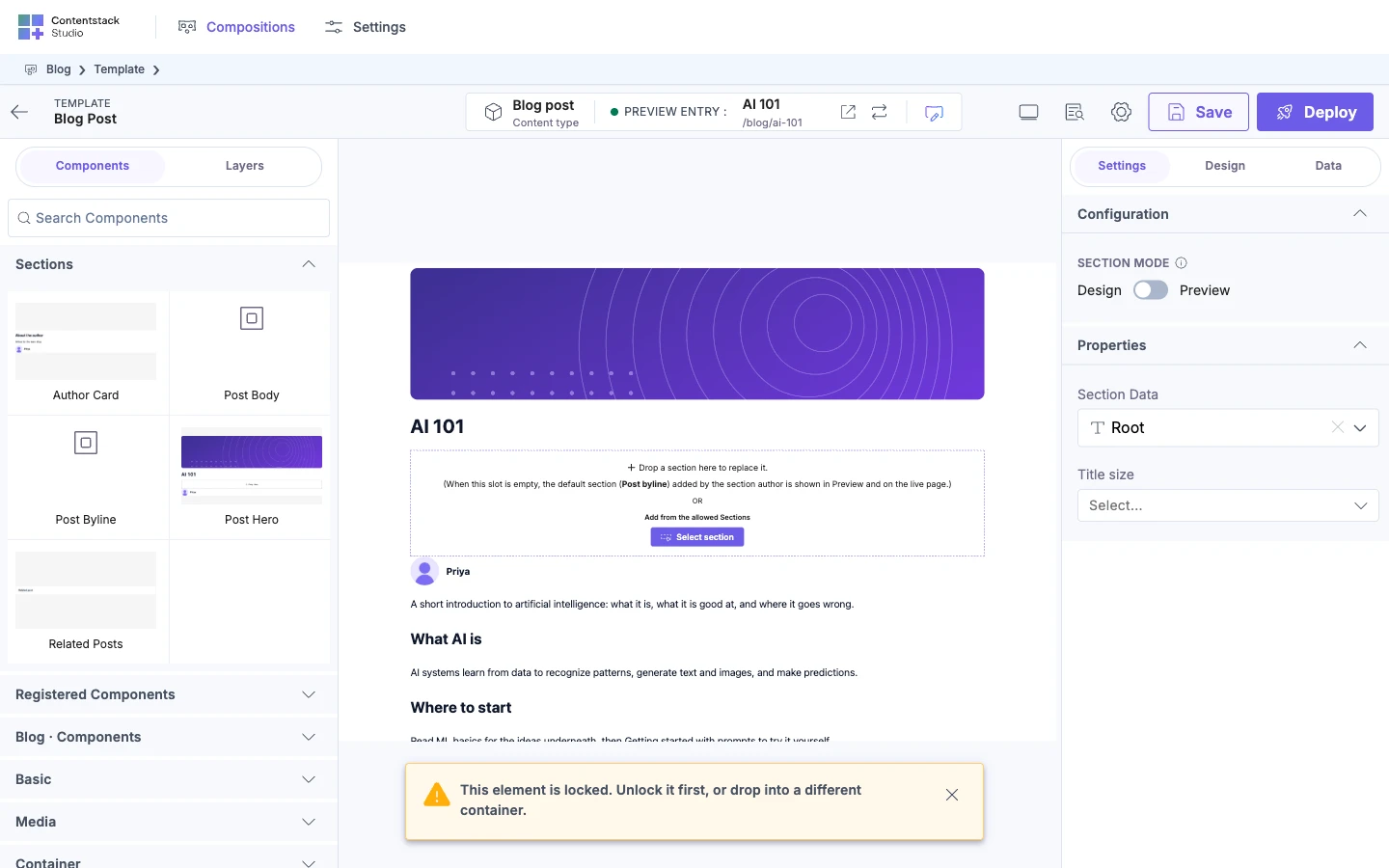
-
The section isn't in the Sections list. Clear Search Components. If the list is missing entirely, the project has no sections yet.
-
You can't click a component inside the section. Components inside a placed section can't be selected on a template. Use Edit Sections.
-
A prop you expected isn't under Properties. The section author didn't expose it, or hasn't saved the section since. Ask them to expose it in Expose Props and save.
-
A new section is missing on your site. You deployed the template with Send without References, and the section was never deployed. Deploy again with Send with References, or deploy the section.