Render a list of mixed things
Some lists have items that don't all have the same fields, such as the blocks in a modular blocks field. For each type of item, add a Condition Block inside the Repeater.
The example on this page is the Blog post template, previewing AI 101. You build a Post extras section, post_extras, linked to Blog post. The steps build its Repeater over Content blocks, which has a quote block and an image block. Featured content points at Blog post and Author, so it uses the same steps with content types. When you finish, add Post extras to the Blog post template, as in Drop a section onto the template.
Prerequisites
- You have a content type with a modular blocks field or a reference field. Content blocks and Featured content are the examples.
- You have a Repeater on the canvas. See Render a list.
- You have a preview entry with at least one item of each type you want to check. AI 101 has quote and image blocks. Its Featured content has a post and an author.
- You know what a Condition Block does. See Show or hide content with a condition for how it works and how you edit its condition.
What this is and what you get
The items of a modular blocks field, or of a reference field that points at several content types, don't all have the same fields. For each one, you add a Condition Block inside the Repeater. A Condition Block shows what's inside it only for items of its own block type or content type.
Modular blocks and references use the same Repeater and Condition Block setup. Studio matches a modular blocks item by its block type and a reference item by its content type. The dialog's list heading, the prompt wording and the options (block types or content types) are the only differences.
Studio asks for a Condition Block for a reference field even when it points at one content type. Related posts, a reference to Blog post alone, is the same setup with one Condition Block.
Add a Condition Block for each block type or content type
-
Select the Repeater in Layers. If Items isn't bound yet, bind it to the field, as in Render a list. For the example, select Content Blocks.
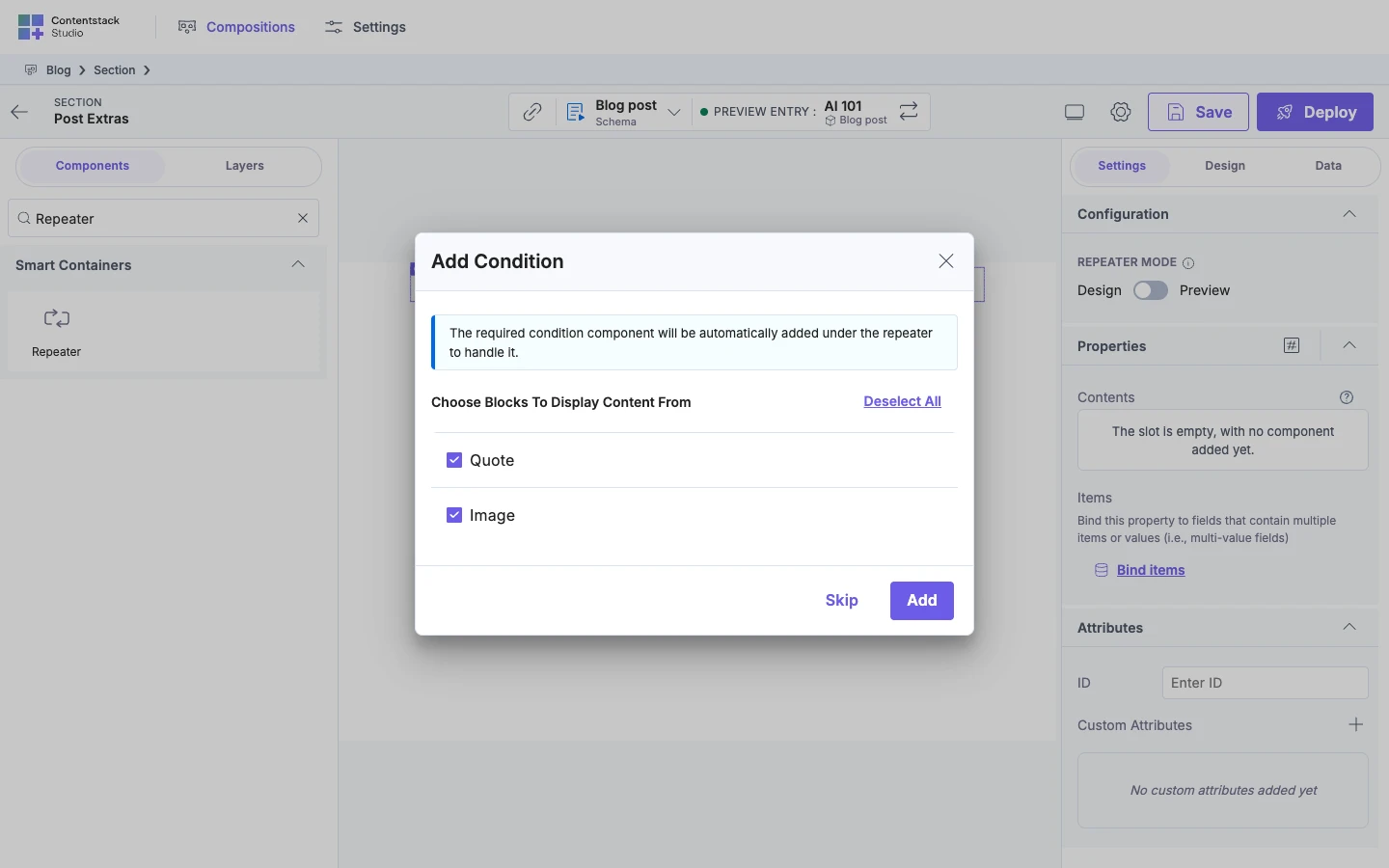
The Add Condition dialog opens when a type has no Condition Block. It says:
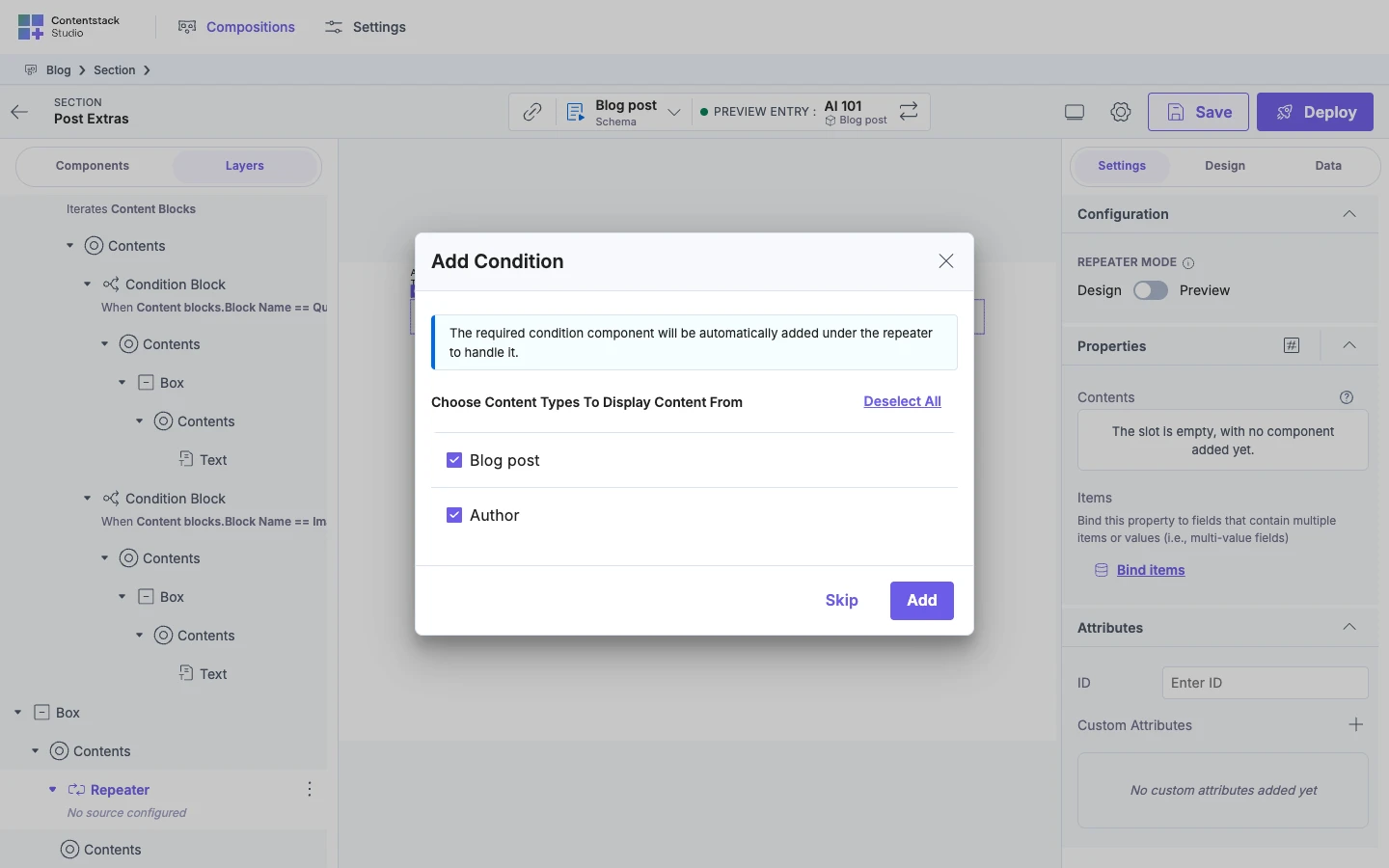
The required condition component will be automatically added under the repeater to handle it.
-
Select the block types or content types. For modular blocks, the list is headed "Choose Blocks To Display Content From". For a reference, it is headed "Choose Content Types To Display Content From".
Every block type or content type starts checked. The link at the top of the list switches between Select All and Deselect All, which change them all at once. Add stays disabled until one is checked. For Content blocks, keep quote and image checked.
-
Click Add.
Studio adds one Condition Block for each checked type, side by side inside the Repeater. Each new Condition Block has a Box inside it. In Layers, you see the Repeater, then each Condition Block, then its Box.
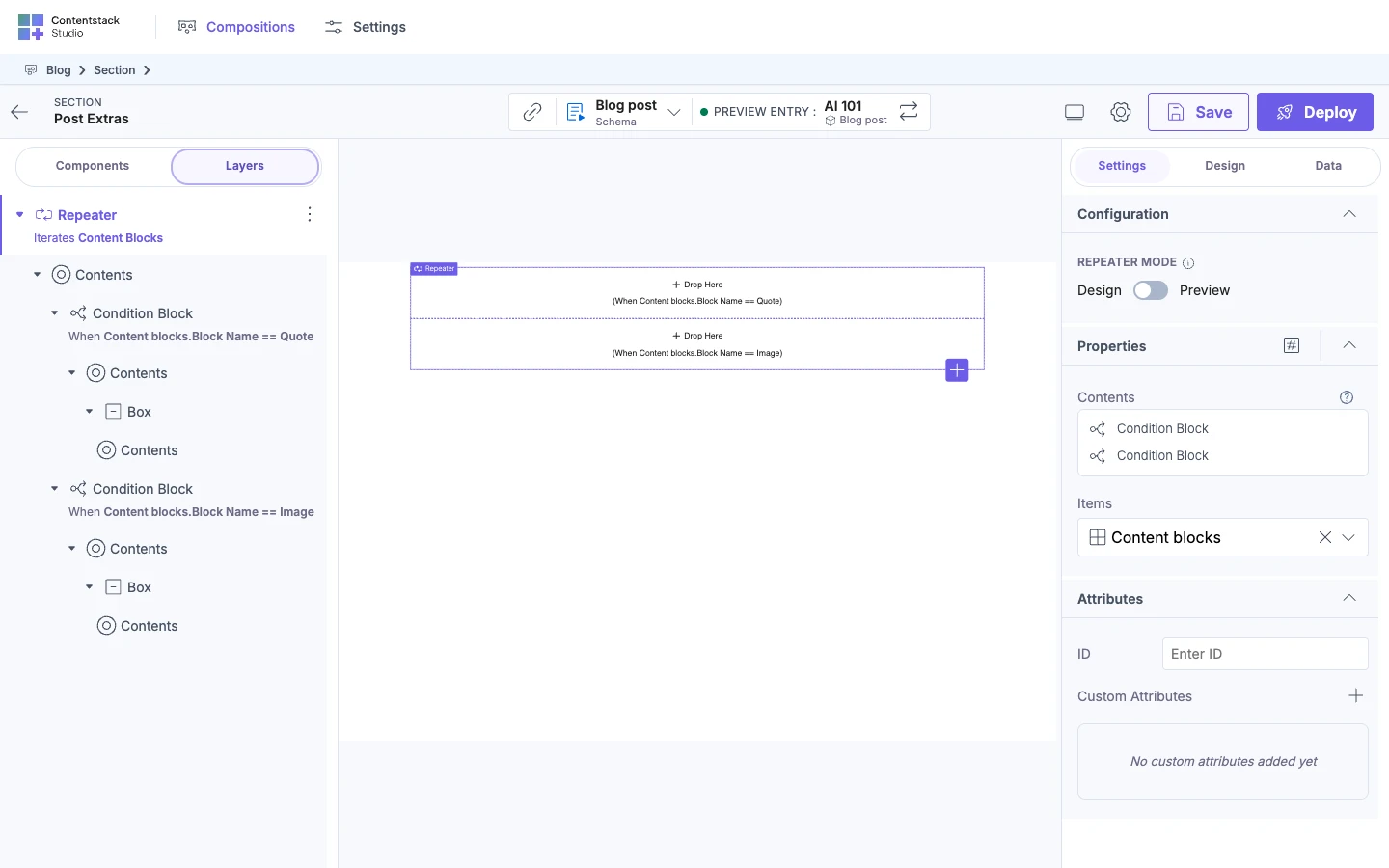
If you click Skip instead, Studio keeps the Items binding and adds no Condition Block. The empty Repeater then says:
It is recommended to drop a condition block inside the repeater to handle Modular Blocks & References.
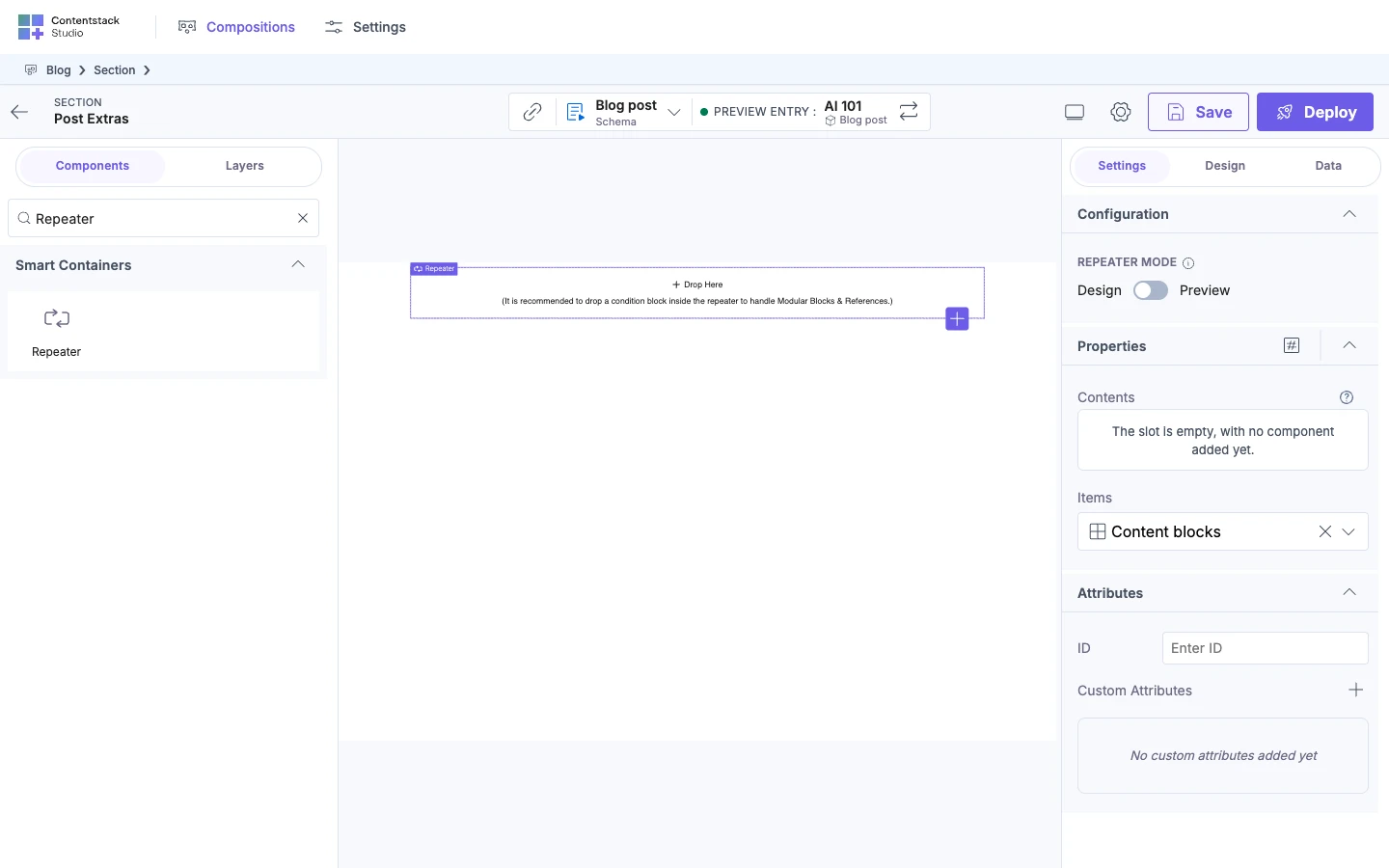
To add a type later, clear Items with the X, then bind Items again. The dialog lists only the types that have no Condition Block yet. If every type already has a Condition Block, binding Items opens no dialog.
Bind components inside a Condition Block
-
Put your components in the Condition Block's Box. If you drop a component that isn't a container into an empty Condition Block, Studio adds a Box around it.
In Layers, your component is under the Box.
A Condition Block inside a modular blocks or reference Repeater can contain one child container.
-
Bind the component's props from the Repeater Data tab, as in Render a list.
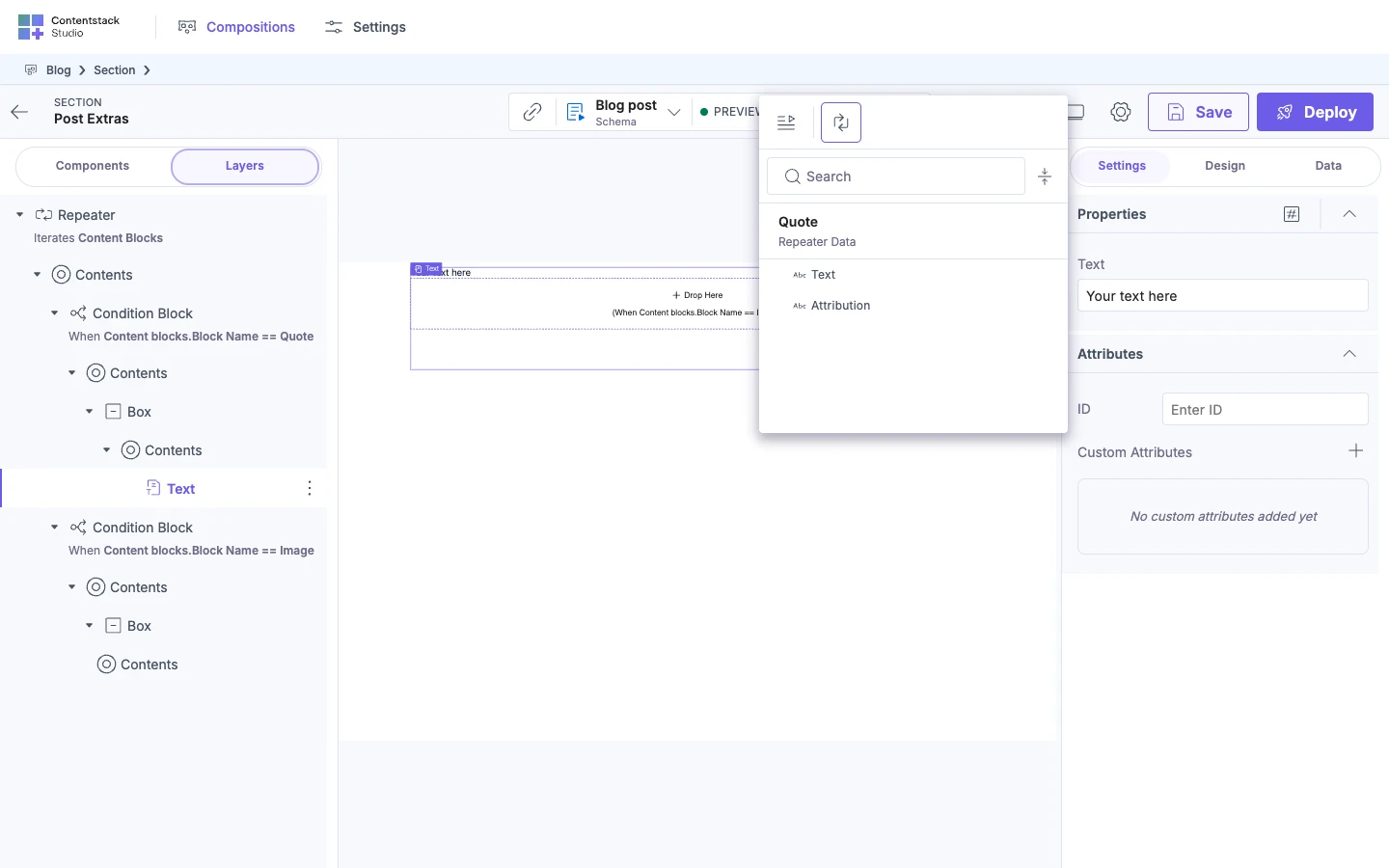
If the Data Picker shows a card instead of fields, the component is outside a Condition Block. See If it doesn't work.
To check the result, select the Repeater in Layers and switch Repeater Mode to Preview. The canvas shows each item with the design of its type, in the entry's order. For AI 101, that's a quote, the image block's caption, then a quote.
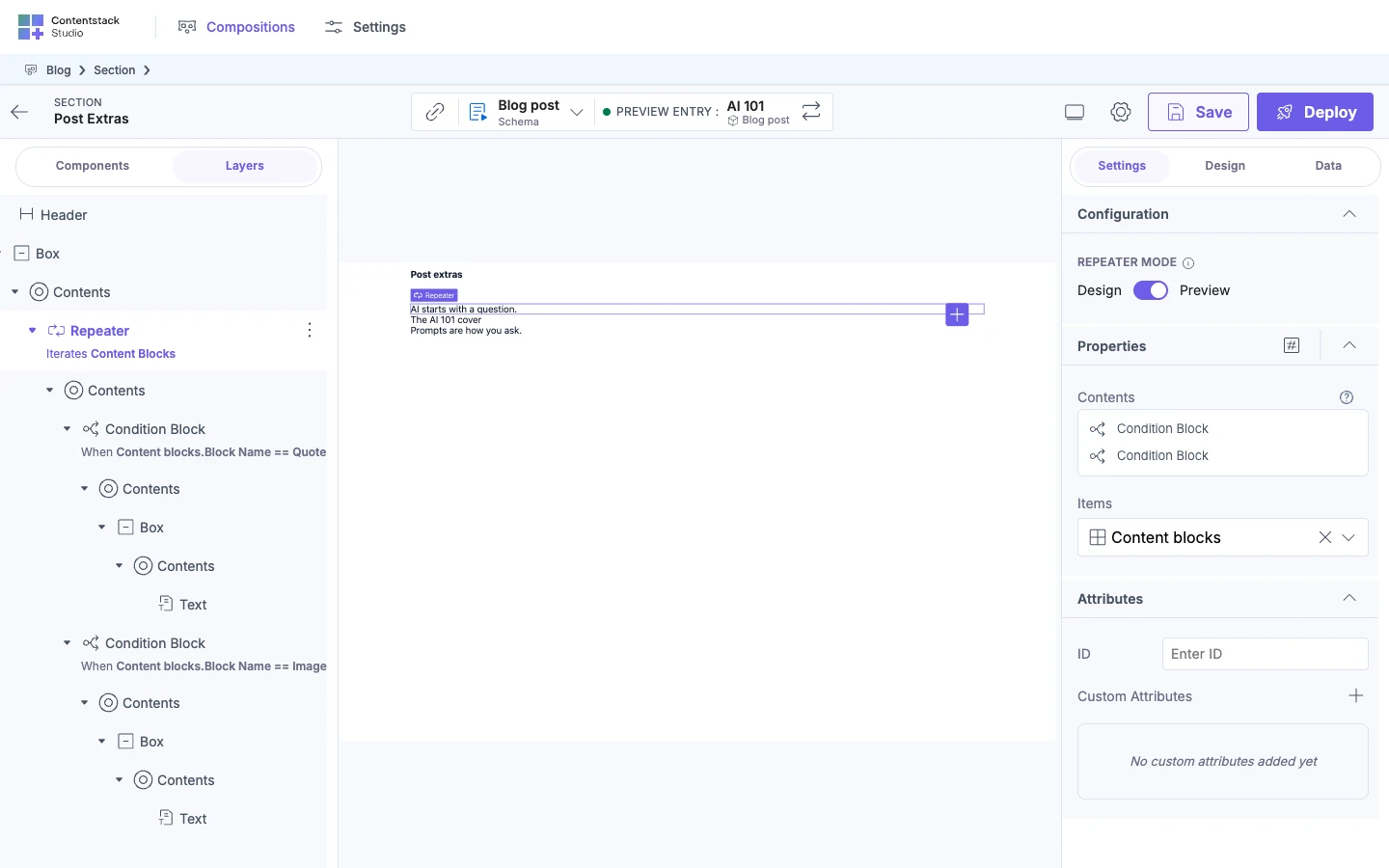
In Design, a Condition Block shows its contents whether or not an item matches. A Condition Block also has its own switch, Condition Mode, with Design and Preview.
If it doesn't work
-
The Data Picker shows a card instead of fields. The component is in the Repeater but outside a Condition Block. For modular blocks, the card says:
Parent repeater is bound to modular block field with multiple blocks.
For a reference field, it says:
Parent repeater is bound to reference field with single/multiple content types.
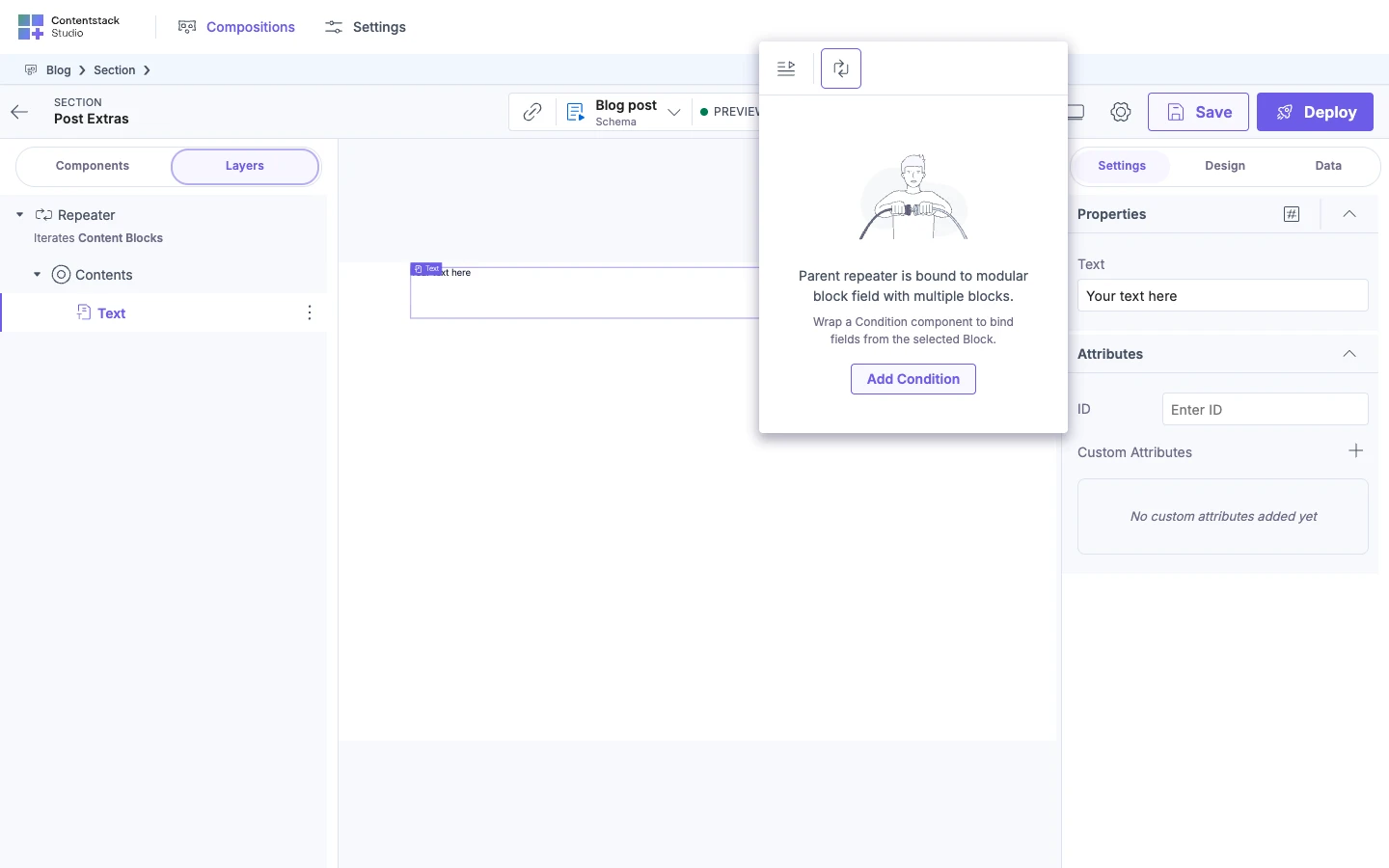
Under that text, the card says:
Wrap a Condition component to bind fields from the selected Block.
For references, the last words read "selected Content Type." To wrap the component:
-
Click Add Condition on the card.
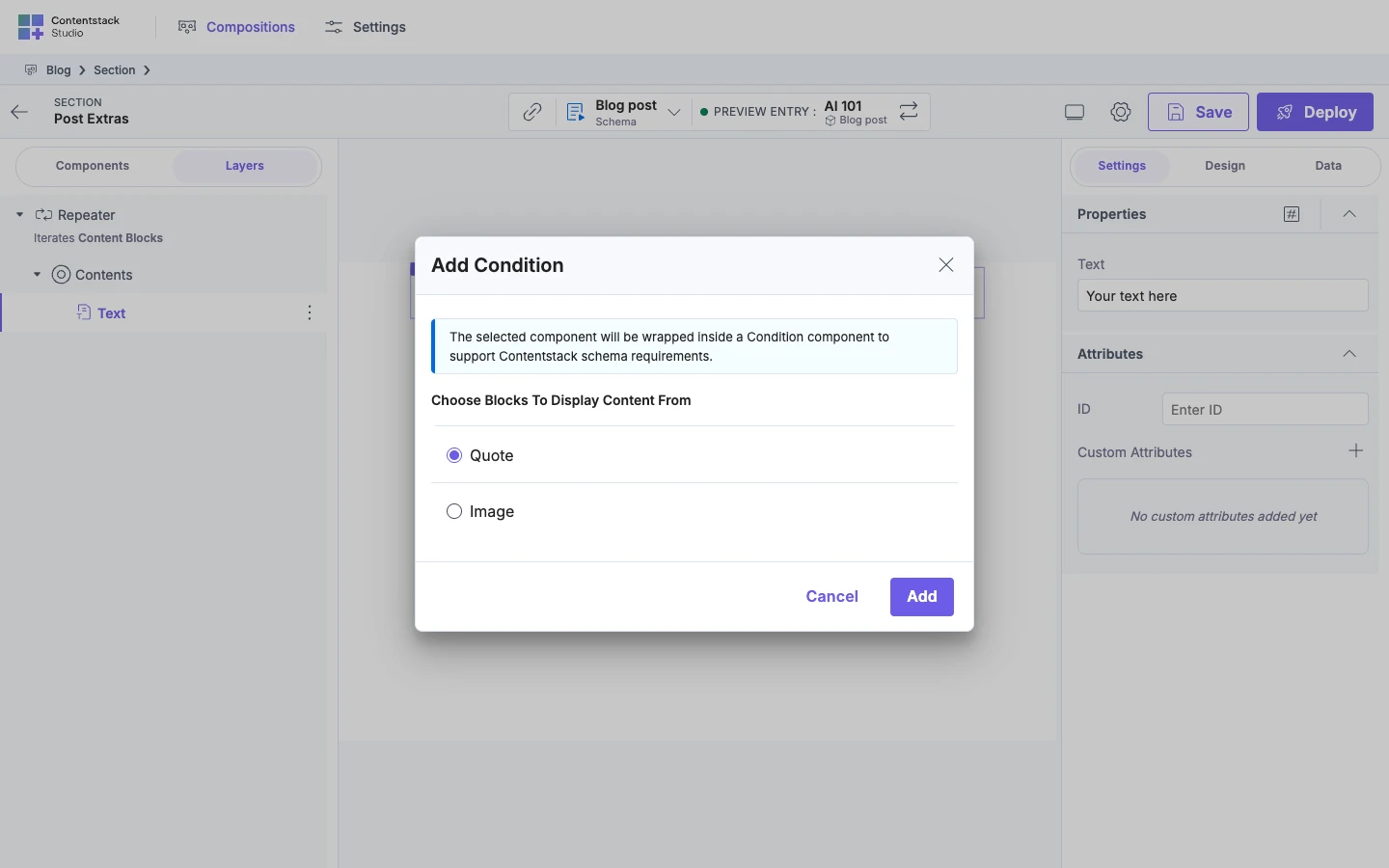
The Add Condition dialog opens again, with one radio button per type, and the buttons Cancel and Add. It says:
The selected component will be wrapped inside a Condition component to support Contentstack schema requirements.
-
Select the type and click Add.
Studio wraps the Repeater's child that contains your component in a Condition Block, then reopens the Data Picker on Repeater Data.
-
-
A block type or content type renders nothing. No Condition Block matches it. Clear Items with the X and bind Items again to add one.
-
The canvas shows every item with one design, or only the first. Repeater Mode is on Design. See Render a list.
-
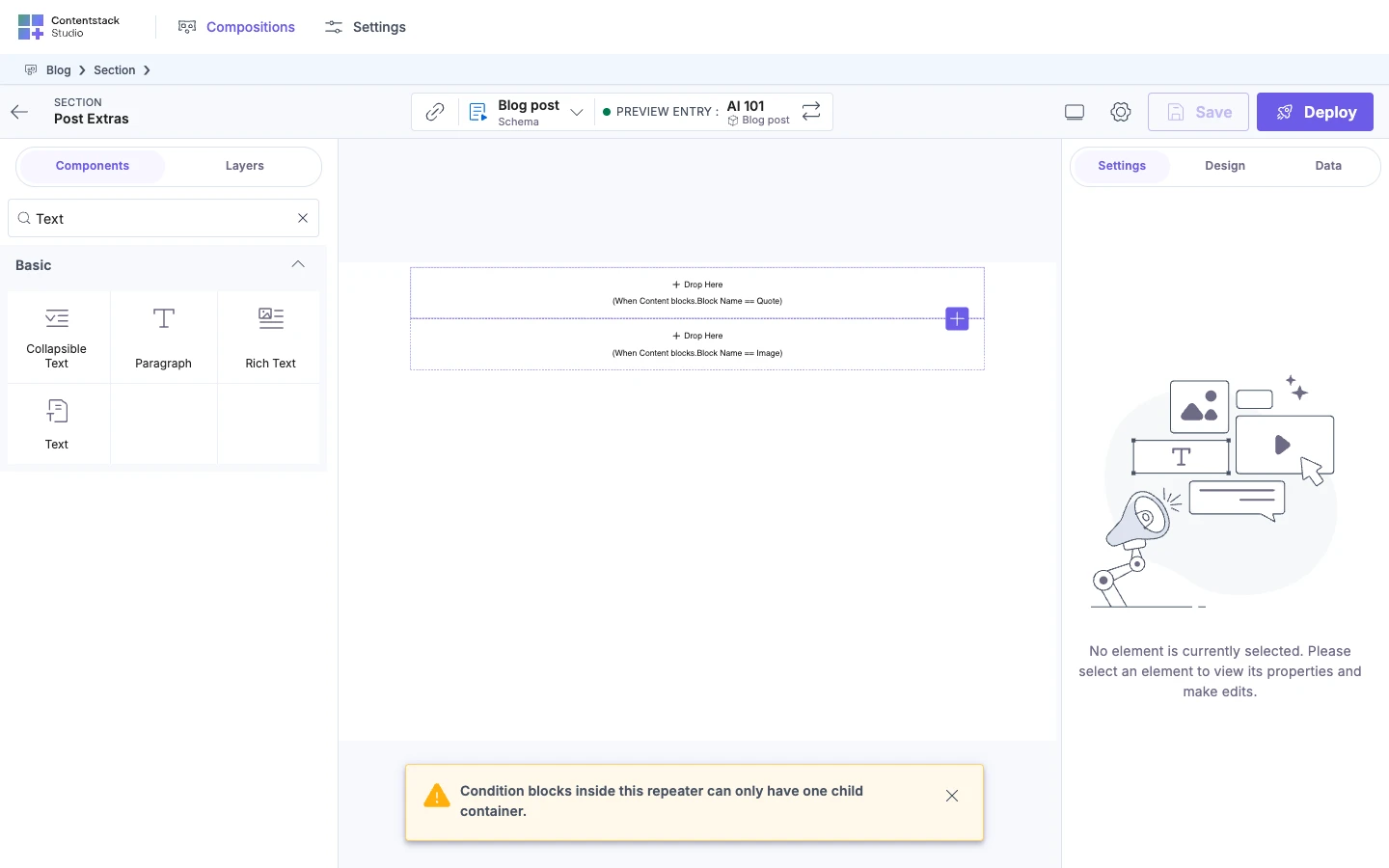
Dropping onto a Condition Block that already has a child shows "Condition blocks inside this repeater can only have one child container." The warning appears only in a Repeater over modular blocks or references. To fix it, drop into the Box inside the Condition Block.
-
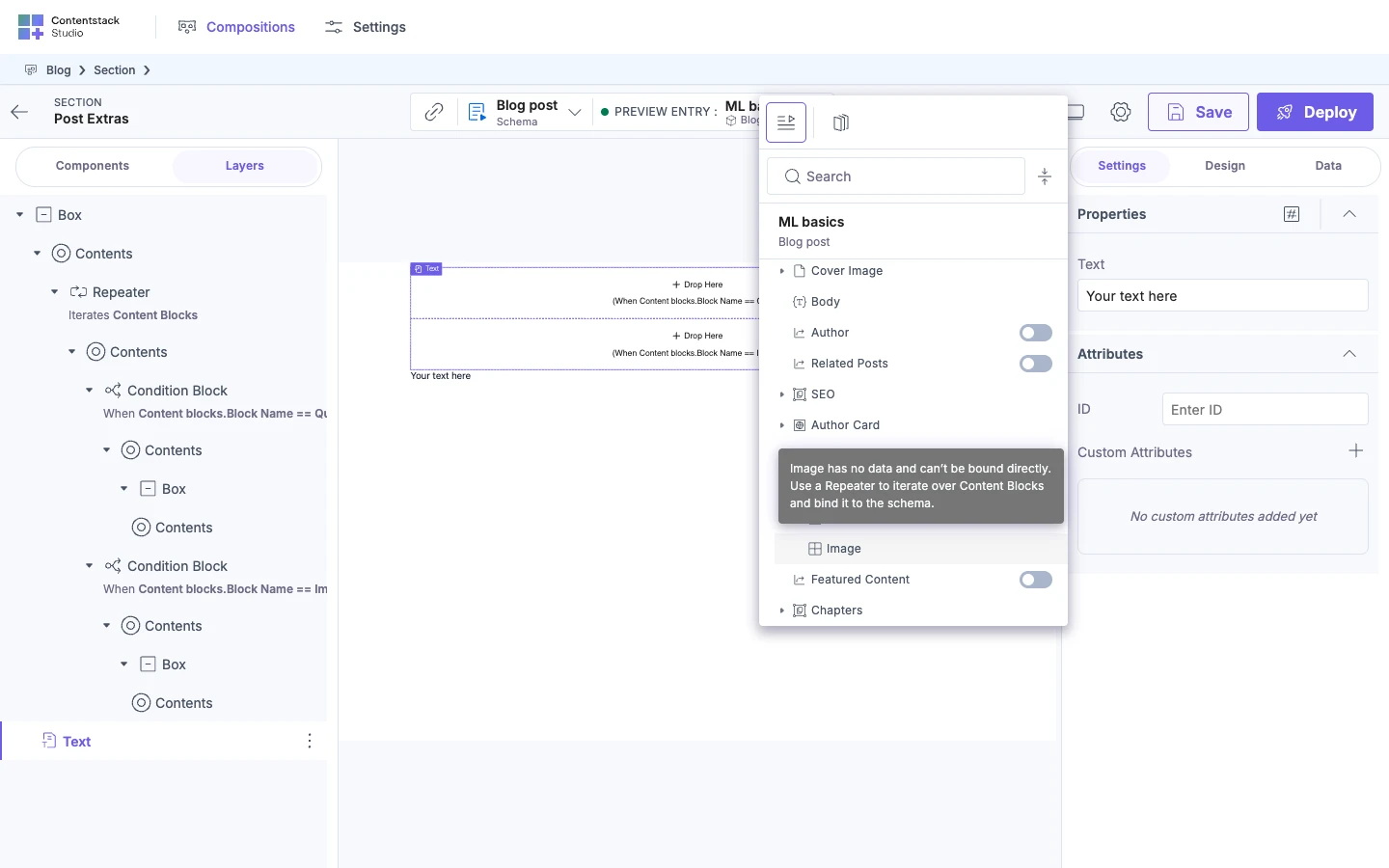
A block row shows "Image has no data and can’t be bound directly. Use a Repeater to iterate over Content Blocks and bind it to the schema." The preview entry has some content blocks, but none of that block type, so you can't bind the missing type's row directly. Block and field names are title-cased. Select a preview entry that has a block of that type, or add a Repeater over the field, as in Render a list.
-
A Condition Block's settings show "Invalid binding". Studio can't find the field the condition tests. See Show or hide content with a condition.
To show or hide content by one field's value, without a Repeater, go to Show or hide content with a condition.
For worked examples organized by the result you want, see Repeater recipes for common results.