Studio, Live Preview and Visual Editor
Studio, Live Preview and Visual Editor are three Contentstack tools that can run in the same app, and they're easy to mix up. Use it to see which job each one does, how they work together, and which ones you need. Read it if you already use Live Preview or Visual Editor, or if an author asks why they can't type straight onto the Studio canvas.
The example is the team blog: the Blog post template and the post "AI 101" at /blog/ai-101.
Three tools, three jobs
| Tool | Its job | For the AI 101 post |
|---|---|---|
| Live Preview | Shows unpublished changes on your running site as they're made | An author edits the AI 101 entry, and the preview shows the new title before it's published |
| Visual Editor | Lets authors edit content values by clicking them on the page | An author clicks the title on /blog/ai-101 and retypes it in place |
| Studio | Lets you build and change the layout | An author moves Related posts above Post body on the Blog post template |
Live Preview and Visual Editor change content. Studio changes layout.
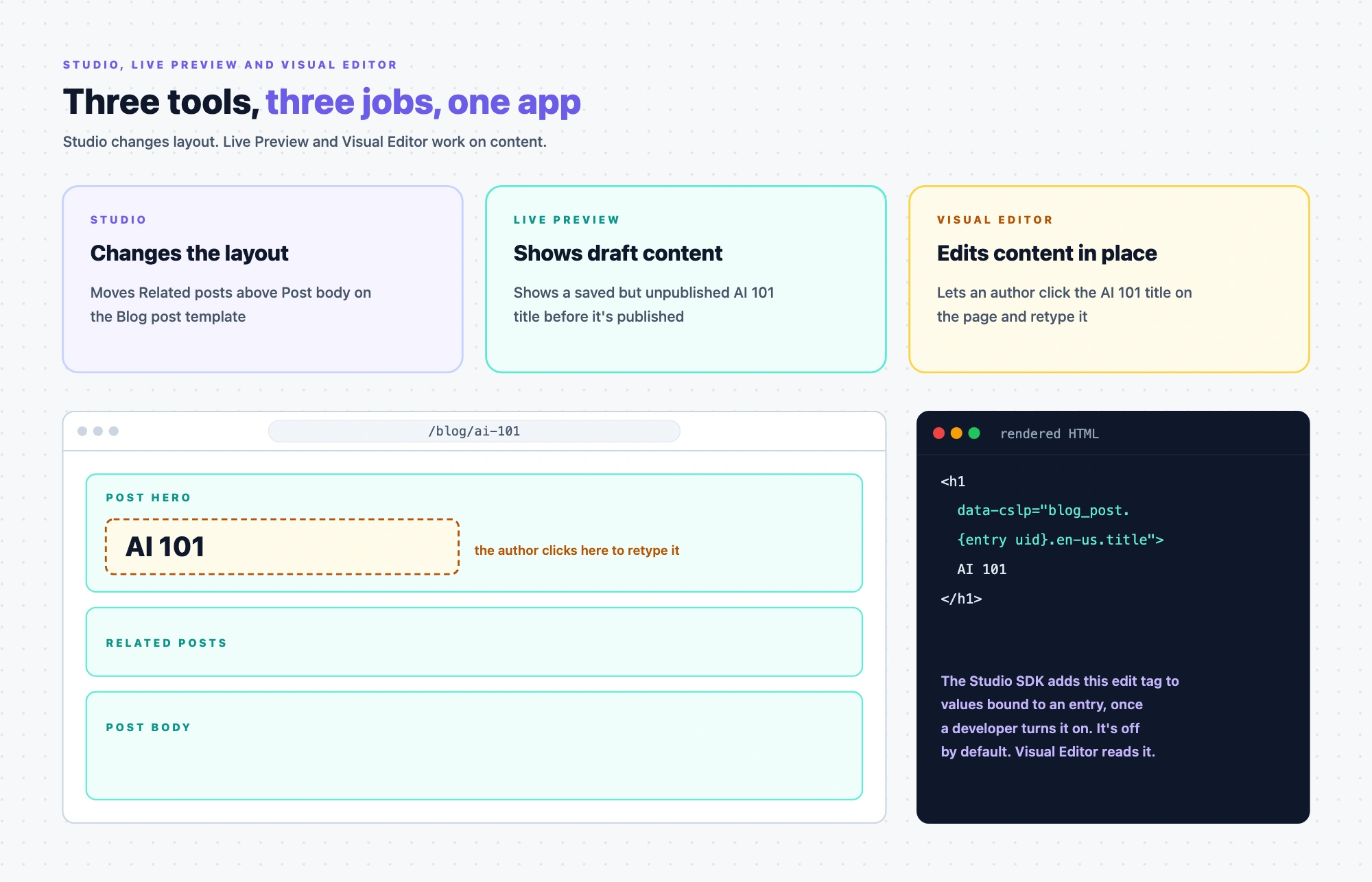
Studio doesn't edit content inline
On the Studio canvas you edit layout directly: you drag components in, move them around and adjust their spacing. Content values are different. To change what a component shows, you select it and use the panel on the right, either typing a value or changing what it's bound to. Nobody types onto the page.
When you hover over something on the canvas, Studio outlines the component. When you select it, Studio also shows its name. It doesn't highlight individual content fields. Highlighting the field under the pointer is something Visual Editor does.
How they work together
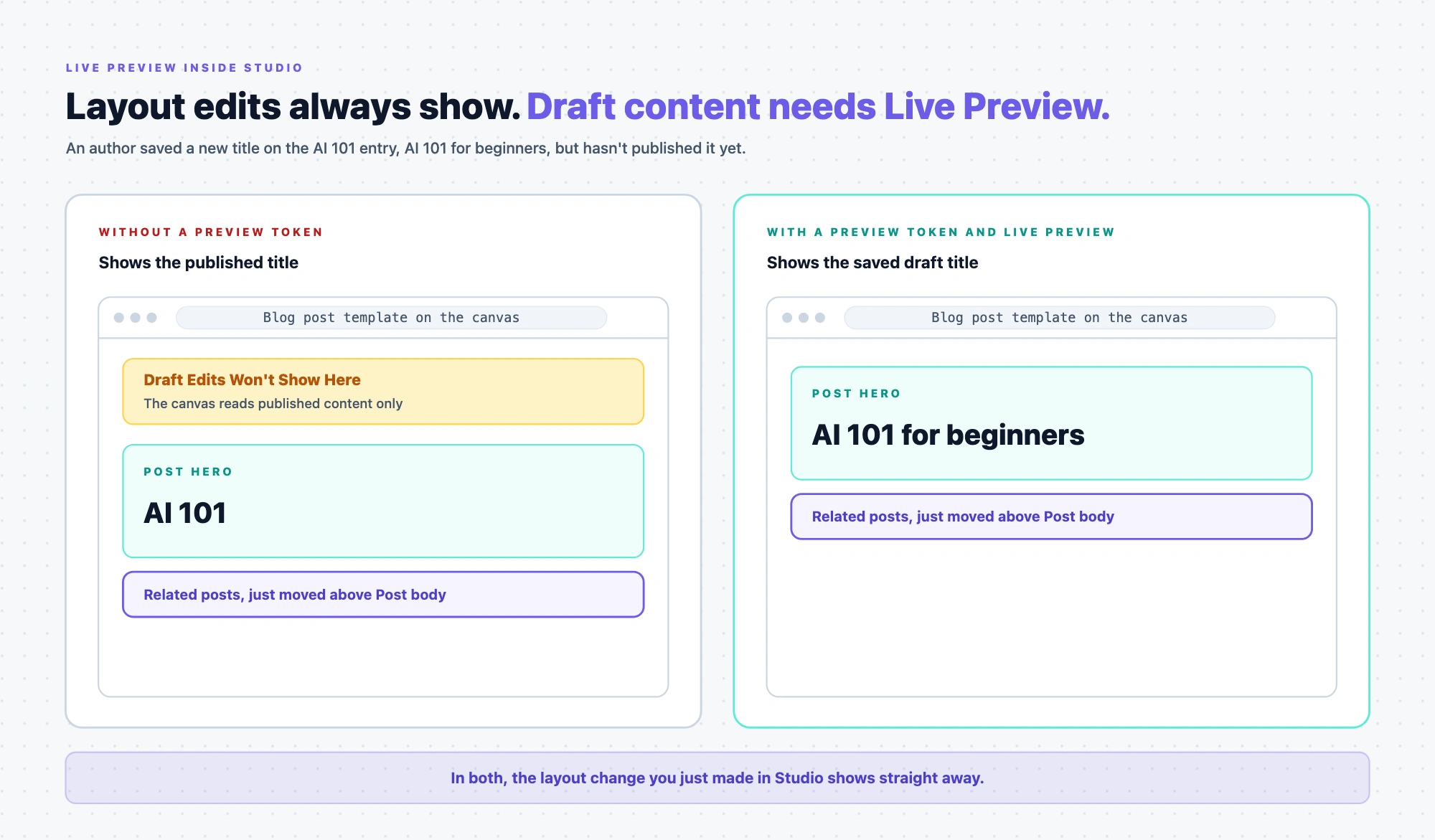
Live Preview inside Studio. Studio sends your layout edits straight to the canvas as you make them. Live Preview is what lets the canvas show draft content, meaning entries and layouts that are saved but not yet published, and it keeps your unsaved layout if the canvas reloads. For that, your site's Contentstack SDK needs a preview token, the preview host for your region and Live Preview turned on. Without them the canvas works only for a template you have already deployed, and it shows only published content. A template you have not deployed does not load. See Install Live Preview.
Visual Editor on a Studio layout. Visual Editor finds editable values through edit tags, the data-cslp attributes on the page. Studio can add edit tags to every value it binds to content, so a Studio layout becomes editable in Visual Editor. This is off by default:
- A developer turns it on with one setting when the Studio SDK starts.
- Studio's own components then carry the edit tags. Your registered components have to pass the edit tags they're given through to their HTML.
- Only values bound to an entry get edit tags. A value typed into a component's settings isn't in any entry, so Visual Editor can't edit it.
On the AI 101 post, Studio's Header shows the entry's title, so Visual Editor can edit it. You type the Button's label into its settings, so Visual Editor can't edit it. Byline, your registered component, shows the author's name. Visual Editor can edit it once Byline passes its edit tag through.
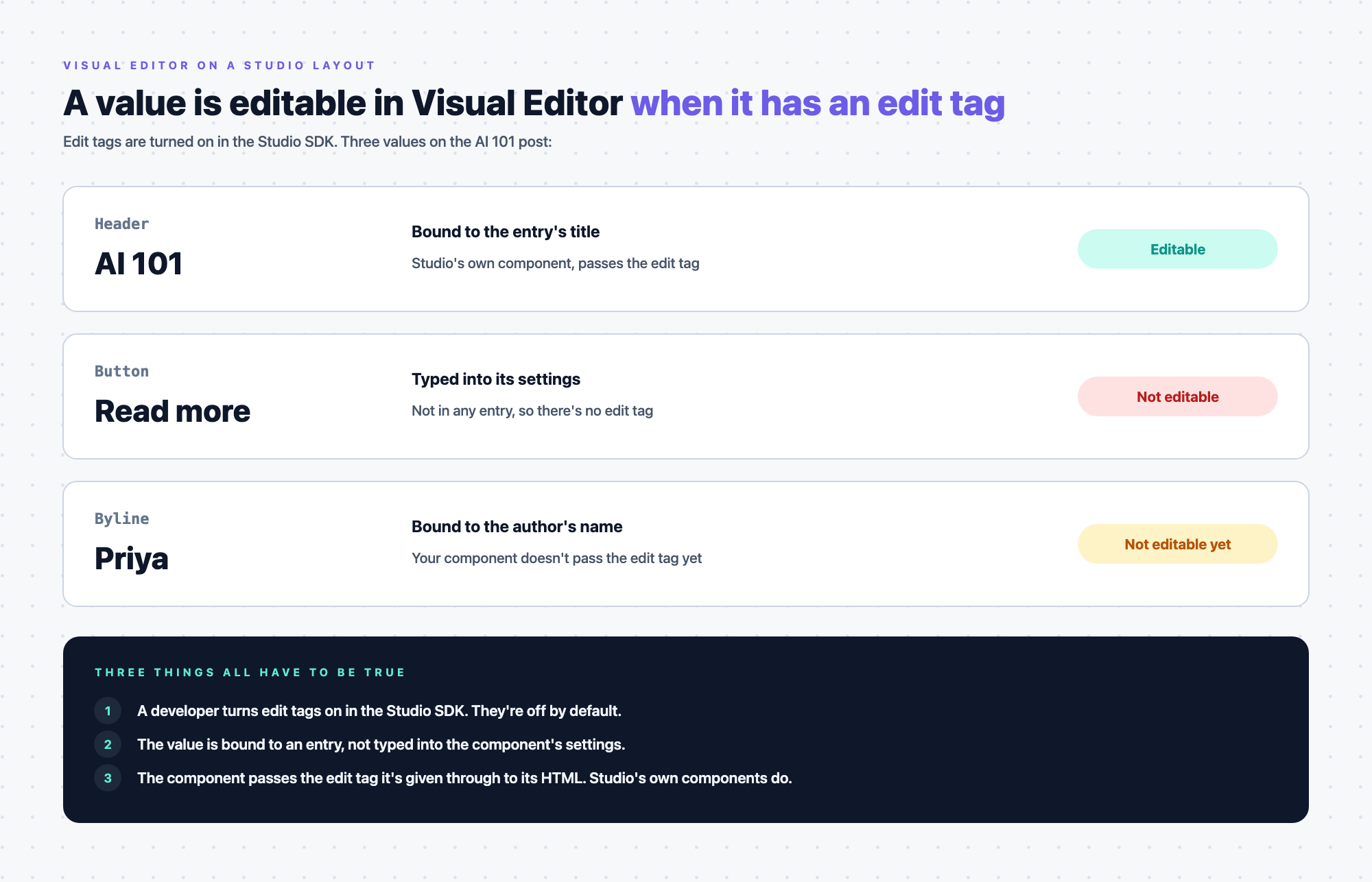
The steps are in Make bound values editable in Visual Editor.
From Studio to Visual Editor. A template's toolbar has an Open in Visual Editor button, which opens a connected template in Visual Editor with the entry you're previewing, and a freeform template on its own. Sections don't have it. See Open a template in Visual Editor.
Which ones you need
- If you already use Visual Editor. Add Studio for layout. Adding Studio doesn't change the pages you already edit in Visual Editor, and once edit tags are on, the layouts you build in Studio are editable in Visual Editor too. See Make bound values editable in Visual Editor.
- If you're starting fresh. Set up Studio with Live Preview turned on in your site's SDK, so the canvas shows draft content. See Set up Studio. Add Visual Editor later if authors want to edit content on the page.
- If you only need layout. Studio works on its own for a template you have already deployed. Without Live Preview, the canvas shows published content only, and a template you have not deployed does not load.
To look up any term from these pages, see the Glossary.