Go live
Going live takes two steps with two names. You deploy the layout and you publish the content, and a page needs both. Read this before you put a layout in front of visitors.
If you have nothing live yet, start with Your first Studio page, which takes a stack and a React app all the way to a page on your own site. This page is the rule behind what that one does.
The example is the team blog: the Blog post template, the post AI 101 at /blog/ai-101, and a production environment.
What going live needs, in order
Four things, and they happen in this order. Nothing later works until the one before it is true.
| 1 | Build the page | A saved template, such as Blog post. See Save, preview, deploy. |
| 2 | Have an environment | One with a URL for your language, such as production, and your app reading it. See Install Studio. Without the URL, Studio shows the Playground canvas and turns Deploy off. |
| 3 | Deploy the layout | Puts the template, and the sections it uses, on that environment. |
| 4 | Publish the content | Puts the entries the template renders on the same environment. Deploy never does this for you. |
Steps 3 and 4 are the pair people trip over, so the rest of this page is mostly about telling them apart.
Deploy is to a layout what Publish is to content
Studio saves every template and section as an entry of your project's compositions content type. So the layout moves between environments the same way your content does. Only the name of the action differs:
| In the CMS | In Studio |
|---|---|
| An entry holds the content | A composition holds the layout |
| Publish puts the entry on an environment | Deploy puts the composition on an environment |
| An unpublished entry isn't on your site | An undeployed composition isn't on your site |
| Publishing again replaces what's there | Deploying again replaces what's there |
So a page needs a Deploy and a Publish, on the same environment. Deploy moves the layout. Publish moves the content. Neither does the other's job.
Studio's own toast after a Deploy reads "Template Published Successfully", because Contentstack publishes the composition entry underneath. In Studio, the action you take is still called Deploy.
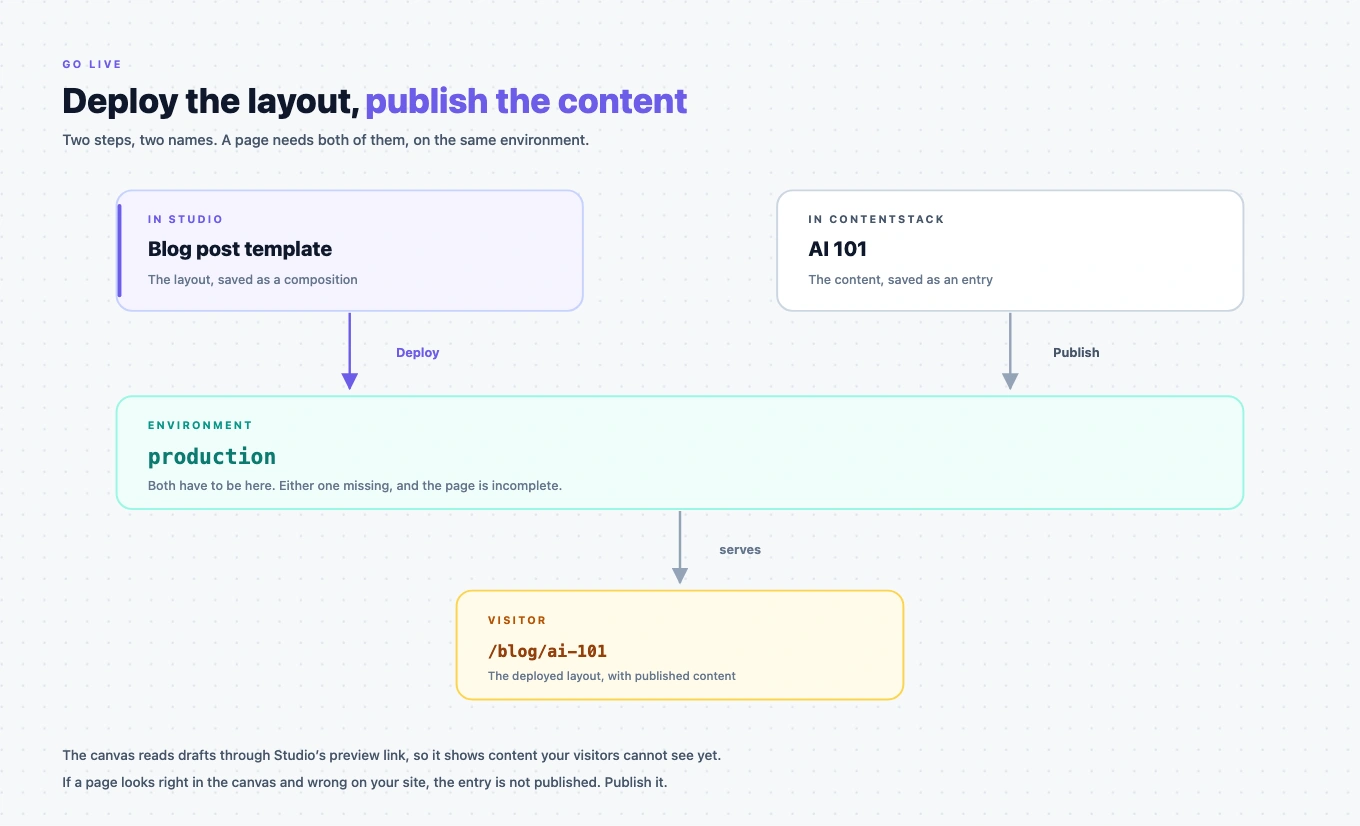
Put the Blog post template live
1. Build the page
Open the Blog post template, arrange it, and Save. Until it's saved there's nothing to deploy. See Save, preview, deploy.
2. Check the environment
production needs a URL for your language, and your app has to be reading that environment. If Deploy is greyed out, this is why: Studio is in the Playground, and the tooltip says so.
3. Deploy the layout
-
Click Deploy. If you have unsaved changes, Studio saves them first.
-
Under Select Target Environments, tick
production. -
Click Send with References, so the sections the template uses go with it.
Studio shows "Template Published Successfully", and the Publish Status column of the Compositions list shows
production.
For the Deploy dialog itself, and when to send without references, see Save, preview, deploy. To deploy to staging first, see Promote across environments.
4. Publish the content
In Contentstack, publish AI 101 to production. Deploy never publishes your content, so without this the layout is live with nothing to render.
5. Open the live URL
Go to https://www.example.com/blog/ai-101. That's the deployed layout, filled with published content, which is what a visitor gets.
The canvas is not your site
The canvas loads your site through Studio's preview link, which reads drafts. That's what makes it useful while you work: you see content before anyone else can.
It also means the canvas is not evidence that a page is live. A page can look finished on the canvas and be missing on your site, because the canvas was reading an entry your visitors can't.
If content shows in the canvas but not on your deployed site, the content isn't published. Publish the entry in Contentstack, to the same environment you deployed to.
To check what visitors actually get, use Open in new tab next to the URL in the canvas top bar. It opens your site, not the canvas, so it shows the last deployed layout with published content only.
If it doesn't work
Every failure here is one of the four stages not finished. The stage tells you where to look.
| What you see | Stage | What to do |
|---|---|---|
| Deploy is greyed out | 2, the environment | It has no URL for your language, so Studio is in the Playground. Add the URL in Contentstack. |
| The old layout on your site | 3, the Deploy | You saved without deploying. Deploy to that environment. |
| A section is missing | 3, the Deploy | You used Send without References. Deploy again with Send with References. |
| Content on the canvas, nothing on your site | 4, the Publish | The entry isn't published to that environment. Publish it in Contentstack. |
| The right layout, with old content | 4, the Publish | The entry's latest version isn't published. Publish it again. |
| The page itself is missing | 4, the Publish | No entry matches that URL there. Publish the entry, and check the template's URL pattern. |
Where to go next
- Your first Studio page does all of this once, end to end, on your own stack and app.
- Promote across environments deploys to
stagingfirst, thenproduction. - How a layout is delivered is where a layout is stored, and what to do if you cache your own pages.