What is Studio
Studio is a canvas where you build with your own React components. You assemble them into a Studio component — a compound component made from yours — and bind it to a content type, so it draws its content from entries and renders real pages. Arranging those into page layouts, and changing them later, is a Save and a Deploy rather than a code release. Read this first if you're deciding whether Studio fits your site, or if you've been handed a Studio project and want the whole picture before you touch it.
The example on this page is a team blog. Its posts are entries of a Blog post content type, and they live under /blog, such as the post "AI 101" at /blog/ai-101.
The problem Studio solves
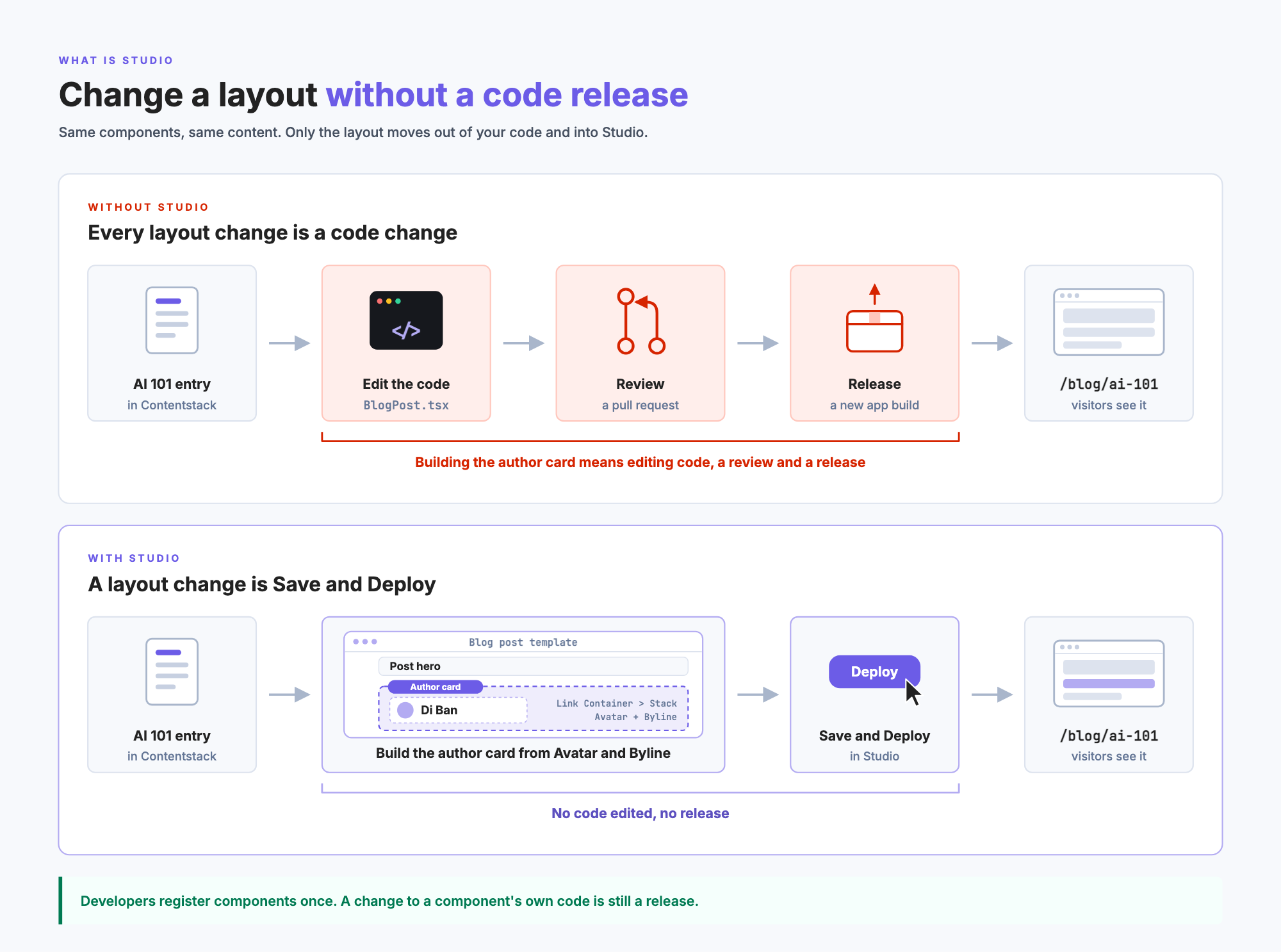
Without Studio, every page layout lives in code. Moving the author card above the post body means a code change, a review and a release. The content was already editable in Contentstack. The arrangement wasn't.
With Studio, your components and your content stay exactly where they are. The layout moves out of your code and into Studio, where it's saved as data in your stack. Two steps in Studio: building the layout and deploying it, replacing the code change and the release.
The smallest pieces stay in code, such as one image, one line of text or the container they sit in. Studio already ships most of those. Every arrangement of them moves to Studio: the author card, the related posts, the whole page.
| Change | Without Studio | With Studio |
|---|---|---|
| Move the author card above the post body | Code change, review, release | Drag it in Studio, then Deploy |
| Show a different field in the post hero | Code change, review, release | Bind the component to another field, then Deploy |
| Replace the related posts section with a new one | Code change, review, release | Swap the section in Studio, then Deploy |
| Rearrange the author card itself | Code change, review, release | Rearrange it in Studio, then Deploy, because you built it there |
| Change how one of your components looks | Code change, review, release | Still a code change, because the component is your code |
| Add a template for a brand-new content type | Code change, review, release | Build it in Studio, then Deploy. No codebase change if your app serves every URL through Studio's catch-all route |
What Studio does
Studio is where you build with your registered React components: compose them into Studio components, bind them to your content, and arrange them into layouts, which it saves in your stack.
Register the small pieces. Studio ships 19 components of its own, and developers register their own only where those don't fit. Most are one of two kinds, explained in Components, sections and templates:
- Atomic. It has no slot and renders its own content, such as text, an image or a link. Studio ships Image, Header, Paragraph and Link. The blog adds
Avatar, a round author photo, andByline, an author's name. - Layout. It holds other components through a slot. Studio ships Box, Columns, Rows and Link Container. The blog adds
Stack, a row or column with a gap.
Compose the bigger things in Studio. The blog's author card is a Link Container bound to the author's link. It holds a Stack set to a row, with an Avatar bound to the author's photo and a Byline bound to their name. None of those four was written to be an author card. Related posts works the same way over a list. Studio saves both in your stack, so rearranging them later doesn't touch your code.
The blog also has an older AuthorCard component that takes a name, a photo and a link. It works, but moving the photo below the name is a code change, because the component's code fixes the order. Built from Avatar, Byline and Stack, the same card is arranged in Studio, where anyone can change it and deploy. Register a component like AuthorCard only when its pieces always appear together, in the same order, and nobody rearranges them.
Add a content type without a release. For a new content type, someone builds a template in Studio, connects it to that type, gives it a URL pattern and deploys it. If your app serves every URL through Studio's catch-all route, the new pages go live without a codebase change.
Who does what
Teams commonly split the work like this.
| Work | Done by |
|---|---|
| Set up Studio in the app, and register components | Developers |
| Build sections, the reusable blocks made from components | Developers, or authors who are comfortable with content models |
| Build templates from sections, and deploy them | Authors |
| Write the content itself | Authors, in Contentstack as today |
Studio doesn't enforce this split. What someone can change depends on their permissions in your stack, because Studio saves and deploys as the signed-in person. The next page, Components, sections and templates, explains what each piece is.
Where Studio runs
You open Studio from the Contentstack app, where it's listed as Studio. Each Studio project is connected to one stack.
The middle of the Studio editor is the canvas. It shows your own running site in a frame, loaded from the Base URL, which is the URL your stack's environment has for the language you picked for the project. So the components you see there are your real components. If there's no Base URL yet, Studio shows its built-in Playground canvas instead, which lets you try things out but can't deploy.
Your site still serves every page. When a visitor opens /blog/ai-101, your app asks Studio's SDK for the layout, the SDK fetches it from your stack, and your app renders it with your components. Studio is never in the path between your visitors and your site.
What Studio isn't
- Not a CMS. Your content types and entries stay in Contentstack. Studio stores its layouts there too, as entries.
- Not a host. Your app serves every page. If your site caches pages or builds them ahead of time, a deployed layout appears when your caching or build lets it.
- Not an inline content editor. You edit layout directly on the canvas, but content values are edited in the panel on the right, never by typing on the page. Visual Editor supports inline content editing.
- Not a code generator. Studio doesn't write, rewrite or export your components.
What you need
- A Contentstack stack holding your content, with an environment and a delivery token. See Prerequisites.
- A React app running React 18 or 19, which renders the pages. See Set up Studio.
- A Studio project connected to that stack. See Create a project.
To look around before you have an app, see Try Studio without an app.