Template or section?
Everything you build in Studio is a template or a section. This topic covers both: creating them, building them, and getting them onto your site. Start here to decide which one you need.
The example is the blog from Components, sections and templates. The Blog post template shows every post, such as "AI 101" at /blog/ai-101. The Post hero section sits at the top of it.
Which one do you need?
Build a template when visitors open the layout at its own address. Build a section when the same block belongs on more than one template.
| Template | Section | |
|---|---|---|
| Has a URL | Yes. The Blog post template renders at /blog/{{entry.slug}}. | No. It only appears inside templates. |
| Opens on the canvas at | Your site's address for the template, such as /blog/ai-101 | The project's Canvas URL |
| Tied to | One content type for a connected template, or none for a freeform template | Optionally, a schema, which is the shape of the content it shows, such as the Blog post content type |
| Reused by | Visitors, at each address it serves | Templates. The Referenced In column lists the templates that use it. |
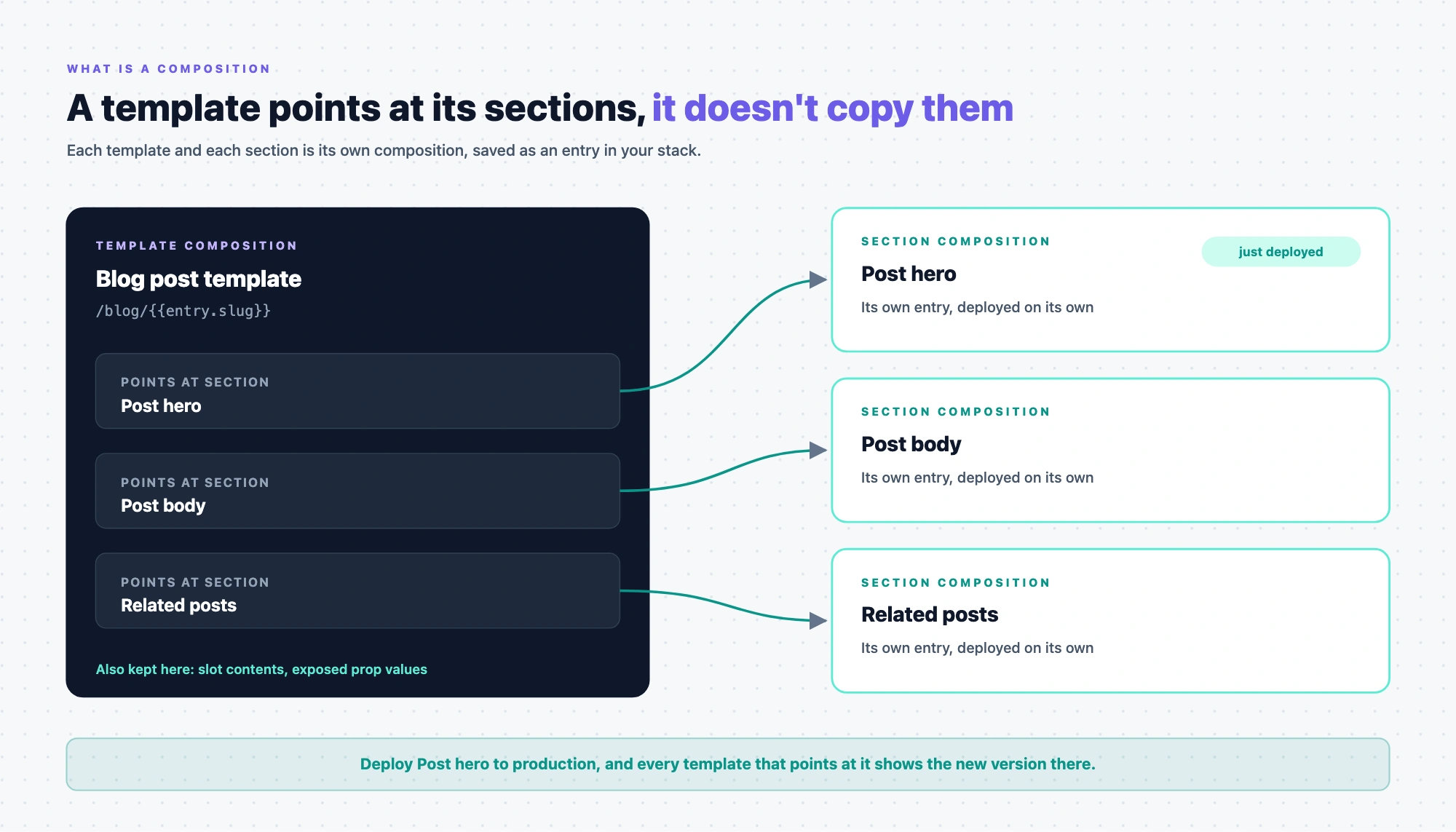
You can't turn one into the other later. To change your mind, you build the other kind and move your layout across by hand.
Two signs you picked the wrong kind:
- You want an address for a section. Sections have no URL and no Edit URL control. Build a template instead.
- You're building the same block again on another template. Make that block a section, then place it on both templates.
Where do templates and sections live?
Open Compositions in the project's navigation. It has two tabs, Templates and Sections. The button at the top right follows the tab: New Template or New Section.
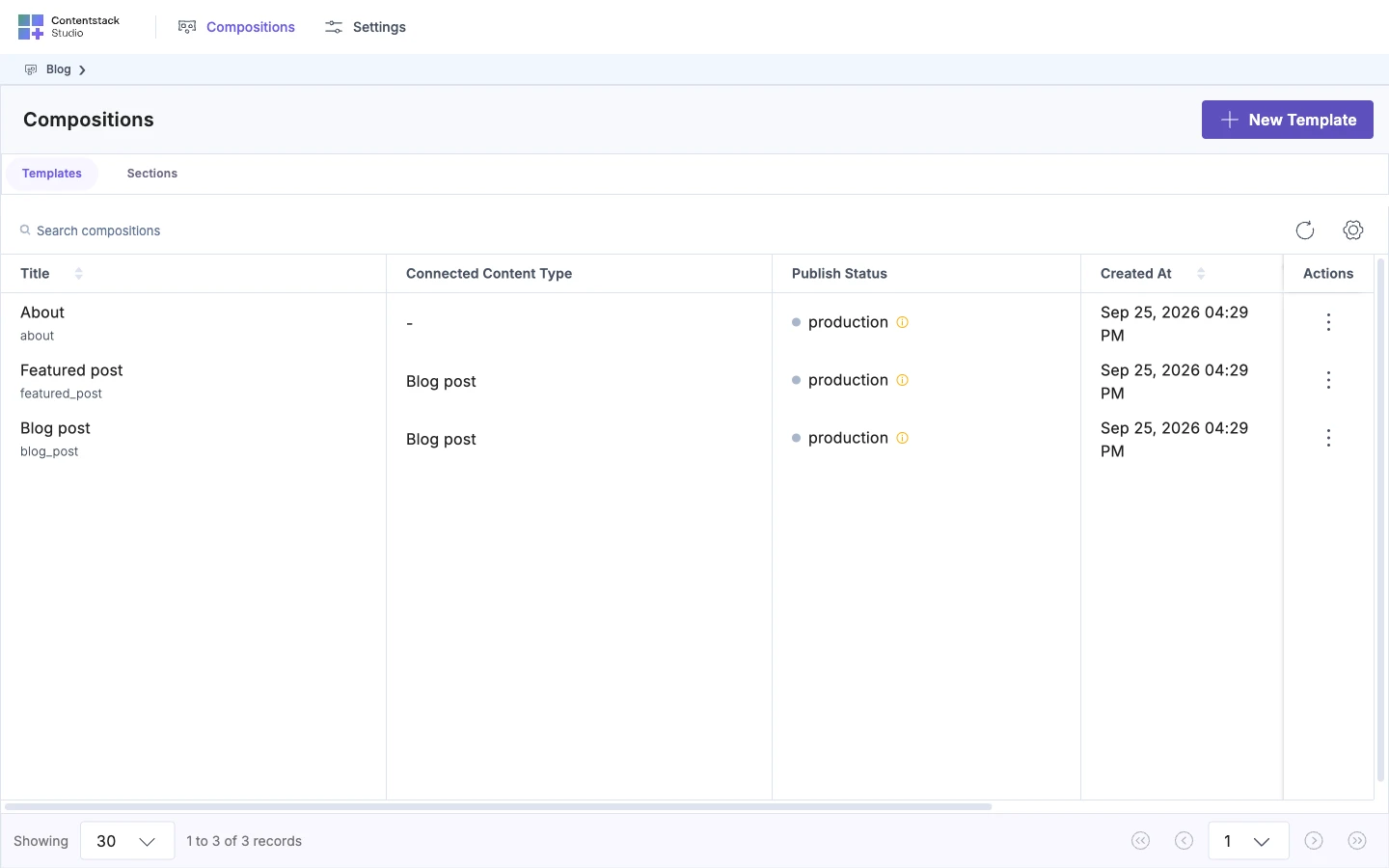
Each tab lists its compositions in a table.
| Column | Templates tab | Sections tab |
|---|---|---|
| Title | The name, with the Template UID under it | The name, with the Section UID under it |
| Connected Content Type | The content type, or "-" for a freeform template | Not shown |
| Referenced In | Not shown | The templates that use the section |
| Publish Status | The environments it's deployed to, or Not Published | Same |
| Created At, Created By, Modified At | When and by whom | Same |
Click a row to open it on the canvas. Each row's action menu has Edit, to rename it, and Delete. Use Search compositions to find one by name.
From create to deploy
Build sections before the templates that use them:
- Build sections, such as Post hero.
- Create a template, such as Blog post. Not sure which kind? Read Connected or freeform template?
- Build a template from sections by dropping Post hero onto Blog post.
- Save, preview, deploy to get the Blog post template onto your site.
To change a template's address, read How template URLs work.