Keep third-party scripts out of the canvas
Studio's canvas loads your real site, so your cookie banner, chat widget and analytics run there too. You can skip them on the canvas with the Studio SDK, and keep running the scripts your layout needs.
The example on this page is the Blog post template previewing AI 101 at /blog/ai-101. The blog loads a cookie banner, a chat widget, analytics and a tag manager, all started from app/third-party-scripts.tsx or app/layout.tsx.
Prerequisites
- The Studio SDK is installed. Your app imports
@contentstack/studio-react. See Install the Studio SDK. - Studio loads your site in its canvas. That needs a Base URL and a Canvas URL. See Configure your project.
What this is and what you get
Studio's canvas loads your site in a frame, so every script your site loads runs there too. For the blog, that looks like this:
| Script | What it does on the canvas |
|---|---|
| Cookie banner | Covers your layout until someone dismisses it. |
| Chat widget | Sits on top of your layout. |
| Analytics and ad pixels | Count the people editing in Studio as visitors. |
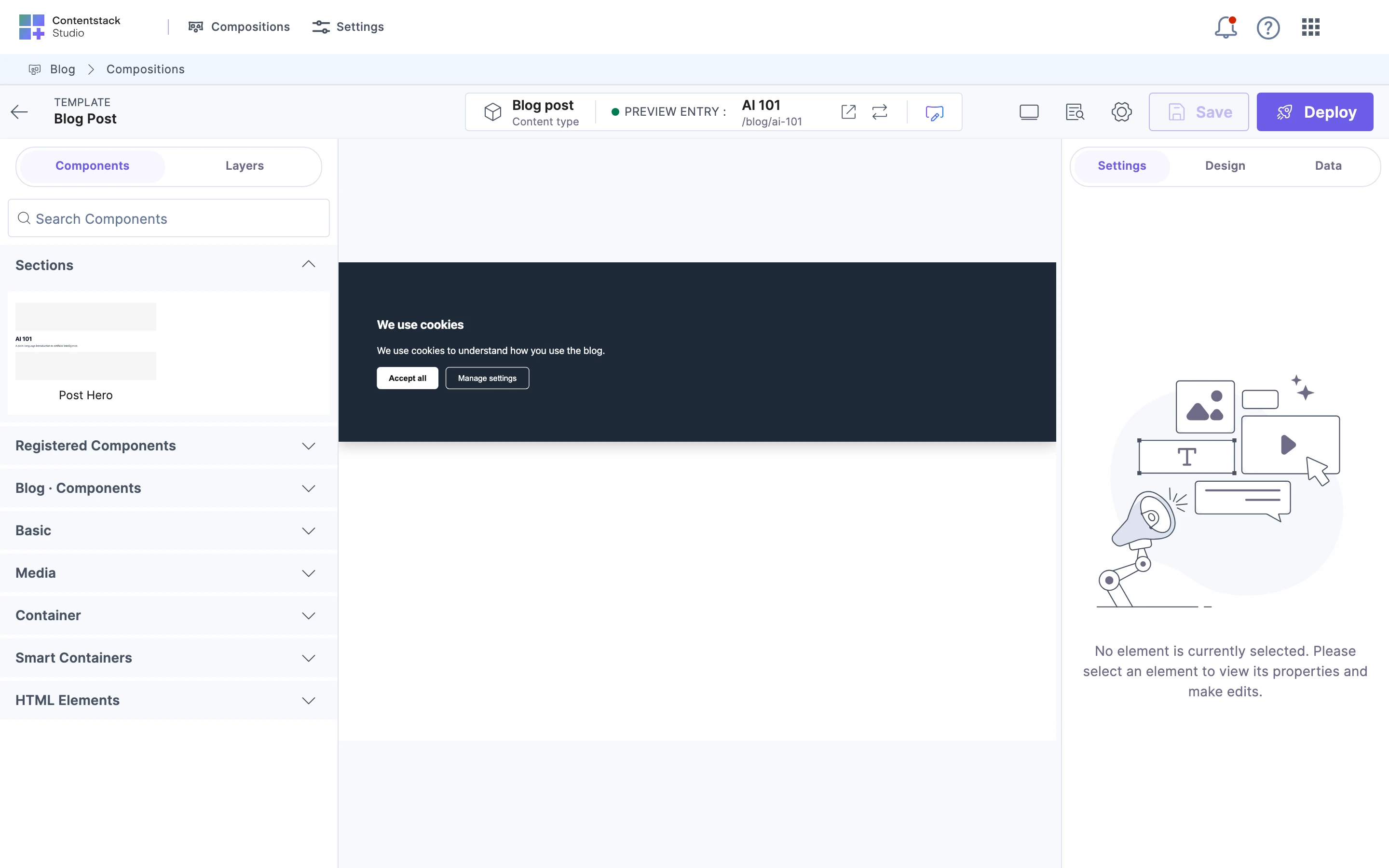
When you're done, these scripts skip their setup on the canvas and run as usual for visitors.
Faster ways to do this
- Skill. Ask your agent to gate your third-party scripts, and it uses
gate-third-party-scripts. It finds the scripts your app loads, wraps each one in the right check, and tells you how to verify. For a tag manager, it adds the check to your page but leaves the tag manager's own trigger for you to set. See Install the skills.
No CLI command does this.
Skip a script's setup on the canvas
Import isStudioCanvas from @contentstack/studio-react, and run a script's setup only when it returns false.
-
In
app/third-party-scripts.tsx, wrap the cookie banner's setup in the check:"use client";import { useEffect } from "react";import { isStudioCanvas } from "@contentstack/studio-react";import { initCookieBanner } from "@/lib/cookie-banner";export function ThirdPartyScripts() {useEffect(() => {if (!isStudioCanvas()) {initCookieBanner();}}, []);return null;} -
In Studio, open the Blog post template.
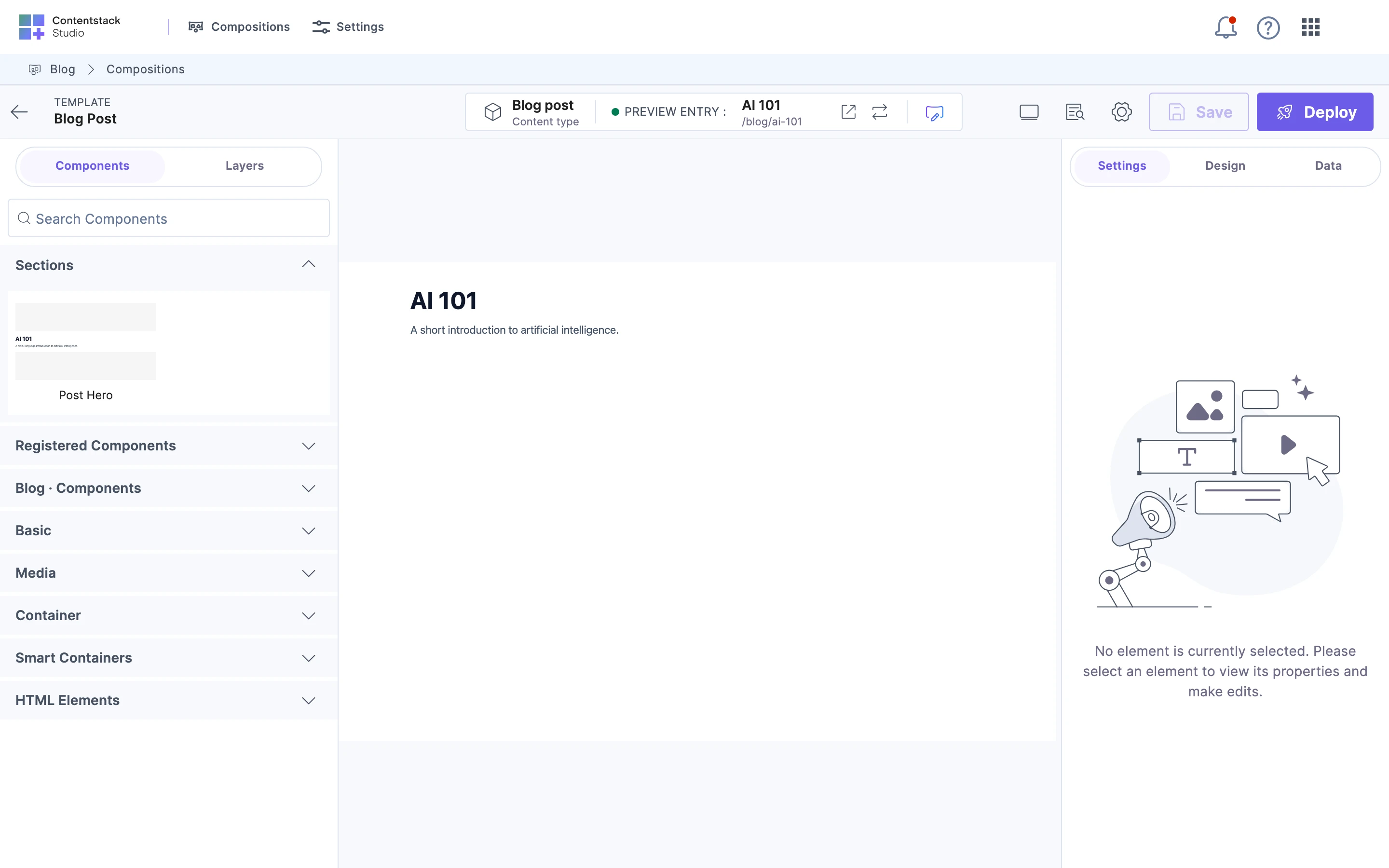
The canvas shows AI 101 with no cookie banner. Opening http://localhost:3000/blog/ai-101 in a browser tab still shows the banner.
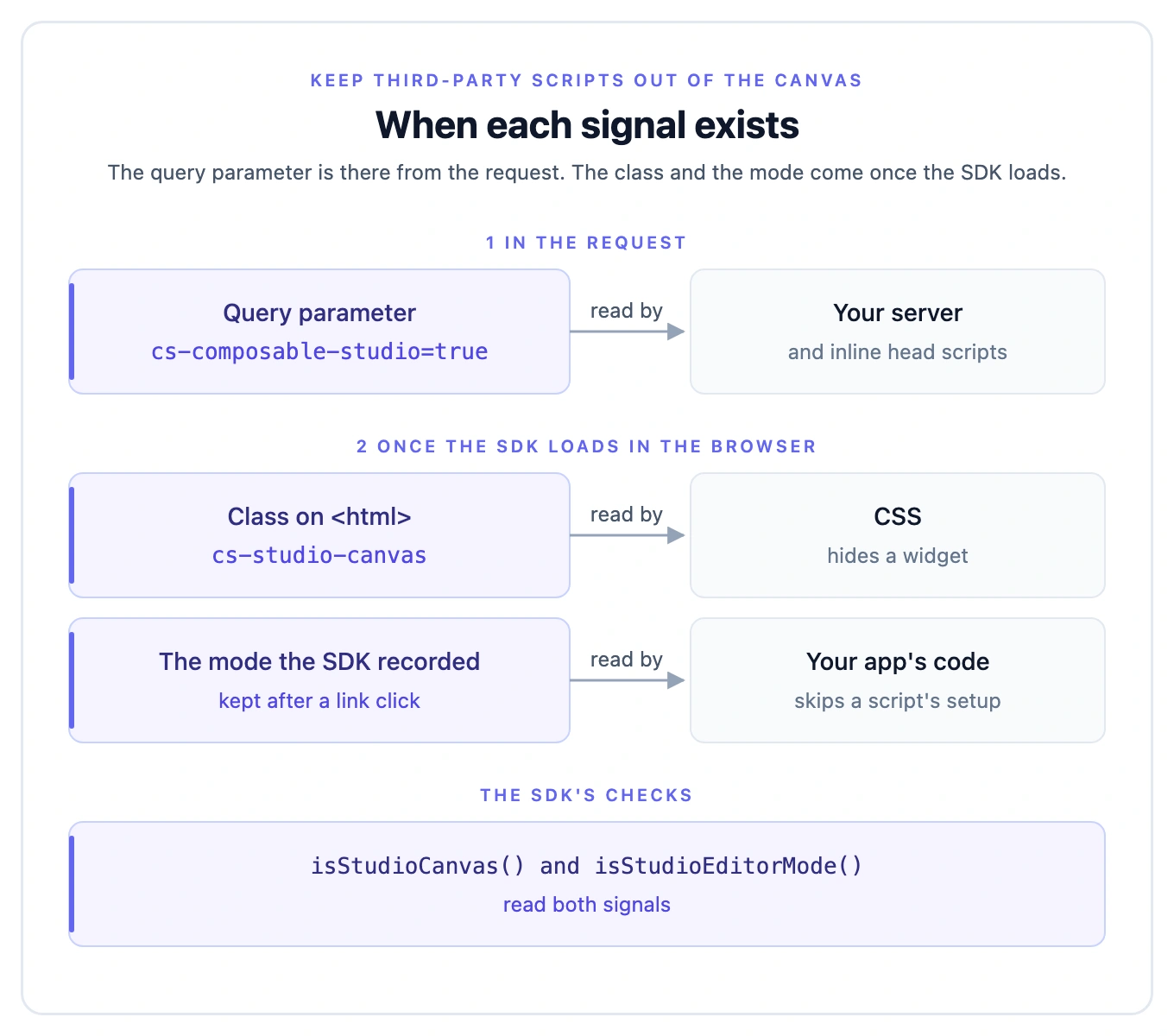
Studio adds cs-composable-studio=true to every URL it loads in the canvas, for sections and templates. isStudioCanvas() returns true when your page loads with that query parameter, or with builder=true.
A link click inside the canvas can drop the query parameter. That doesn't change the answer. The SDK records the mode when it first loads in the browser, so isStudioCanvas() stays true.
Importing anything from @contentstack/studio-react runs that first check. So call isStudioCanvas() after the import, not in a script that loads before it. For scripts in <head>, see Gate a tag manager or inline head script.
Skip the setup call rather than hiding the widget, because a hidden widget's script still runs.
Don't check window.self !== window.top to find the canvas. It isn't one of the SDK's signals, so use isStudioCanvas() instead.
Keep analytics off in Live Preview too
isStudioEditorMode() returns true on the canvas. It also returns true when your page loads with a live_preview or hash query parameter. Those parameters come from Contentstack Live Preview, not from a Studio pane.
Use isStudioEditorMode() for analytics and pixels, so someone previewing a draft isn't counted as a visitor. In app/third-party-scripts.tsx, add the analytics call:
"use client";

import { useEffect } from "react";
import { isStudioCanvas, isStudioEditorMode } from "@contentstack/studio-react";
import { initCookieBanner } from "@/lib/cookie-banner";
import { trackPageView } from "@/lib/analytics";

export function ThirdPartyScripts() {
  useEffect(() => {
    if (!isStudioCanvas()) {
      initCookieBanner();
    }
    if (!isStudioEditorMode()) {
      trackPageView();
    }
  }, []);

  return null;
}
To tell the three cases apart, call detectStudioMode(). It returns "canvas", "preview" or "visitor". "preview" means Contentstack Live Preview.
To see your page as a visitor sees it, click Open in new tab on the template. Every script runs there.
Gate a tag manager or inline head script
A tag manager snippet in <head> runs before the SDK loads. So check the query parameters inline, in your own script, the same way isStudioCanvas() does.
-
In the
<head>ofapp/layout.tsx, pushcs_studio_canvasinto the data layer, above the tag manager snippet:<head><scriptdangerouslySetInnerHTML={{__html: `var params = new URLSearchParams(location.search);window.dataLayer = window.dataLayer || [];window.dataLayer.push({cs_studio_canvas: params.has("cs-composable-studio") || params.get("builder") === "true",});`,}}/>{/* Your tag manager snippet goes here */}</head> -
In your tag manager, fire each tag only when
cs_studio_canvasisfalse.
Where you set that condition is up to your tag manager, not Studio. For Google Tag Manager, see the Google Tag Manager Help Center.
The SDK exports the first parameter name as STUDIO_CANVAS_QUERY_PARAM, whose value is "cs-composable-studio". The SDK has no export for builder.
Hide a widget you can't gate, with CSS
On the canvas, the SDK adds the class cs-studio-canvas to <html>. CSS can use it to hide a widget that injects itself. In your global stylesheet, hide the blog's chat widget:
html.cs-studio-canvas #chat-widget {
  display: none !important;
}
The chat widget no longer shows on the canvas. It still shows for visitors.
The class is added only on the canvas, not in Live Preview. The SDK adds it in the browser when it loads, so it isn't in your server's HTML. The SDK exports the class name as STUDIO_MODE_HTML_CLASS.
Hiding a widget doesn't stop its script. When you can reach the setup call, skip it instead, as in Skip a script's setup on the canvas.
Gate script tags your server renders
On the server, isStudioCanvas() with no arguments always returns false, and never throws. To get a real answer, pass it the request's query string, as a string or as URLSearchParams:
import { isStudioCanvas } from "@contentstack/studio-react";

const onCanvas = isStudioCanvas(new URL(request.url).searchParams);
Here request is the incoming request. How you reach it, and its query string, depends on your framework. When you pass a query string, the helpers ignore the mode recorded in the browser.
To check, fetch the page with and without the parameter. The tags you gated are missing from the first response, and present in the second:
curl -s "http://localhost:3000/blog/ai-101?cs-composable-studio=true"
curl -s "http://localhost:3000/blog/ai-101"
For more on server rendering, see Render on the server.
Which check to use for each script
| Script | Check |
|---|---|
| Setup in your app's code, such as a cookie banner | isStudioCanvas() |
| Analytics and pixels | isStudioEditorMode() |
| Tag managers and inline head scripts | The inline query parameter check |
| Widgets that inject themselves | The html.cs-studio-canvas class |
| Script tags your server renders | isStudioCanvas() with the request's query string |
Every export is listed in Detect Studio.
Scripts that should still run on the canvas
Gate only what gets in the way. Keep these running on the canvas:
- Your fonts, design-system CSS and theme tokens, so the canvas looks like your site.
- Any SDK your components need to render, such as a maps or video player library.
If it doesn't work
A widget still shows on the canvas
Its script runs before the SDK loads. Use the inline check from Gate a tag manager or inline head script, or hide it with the CSS class from Hide a widget you can't gate, with CSS.
The check turns false after a link click on the canvas
You're passing location.search to isStudioCanvas(). In the browser, call it with no arguments, so it uses the mode the SDK recorded.
Your server still renders the tags on the canvas
You called the helper with no arguments on the server. Pass the request's query string, as in Gate script tags your server renders.
Check which mode the page is in
Open the browser's console in the canvas frame and read window.__CS_STUDIO_MODE__. It reads "canvas", "preview" or "visitor".