Preview with a different entry
The canvas shows your template against one real entry, so you see real content while you build. Switch to another entry to check how the layout copes with different content, such as a longer title or a missing image.
The example is the blog's Blog post template. It opens showing "AI 101" at /blog/ai-101, and you switch it to "Getting started with prompts" at /blog/getting-started-with-prompts.
Prerequisites
- A connected template open on the canvas, such as Blog post, or a section with a schema. Freeform templates have no preview entry, because they aren't tied to a content type.
- At least two entries of the content type.
What this is and what you get
The preview entry only changes what you see while you build. It isn't saved with the template and doesn't change anything for visitors. It goes back to Studio's own pick when you reload, or when the template's URL changes.
Switch the preview entry
-
In the canvas top bar, find PREVIEW ENTRY :, followed by the entry's title, such as AI 101. On a narrow window, an entry icon replaces the label.

-
Click the entry's title, or the Replace icon next to it. On a narrow window, the icon is in the More actions menu as Replace entry.
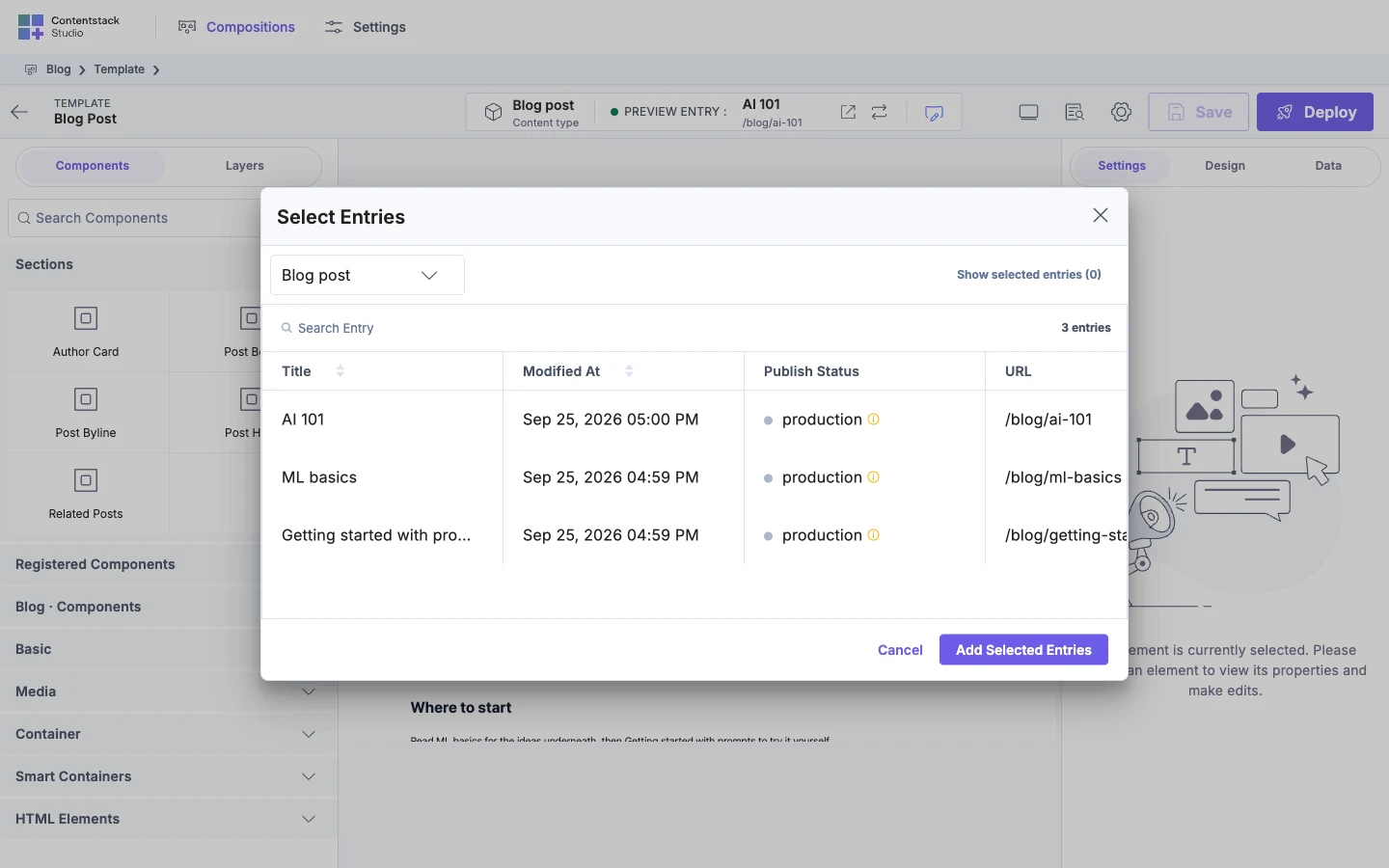
A list of the content type's entries opens.
-
Pick the entry, such as Getting started with prompts.
The canvas shows the new entry's content, and the URL under its title changes to
/blog/getting-started-with-prompts. The layout stays the same.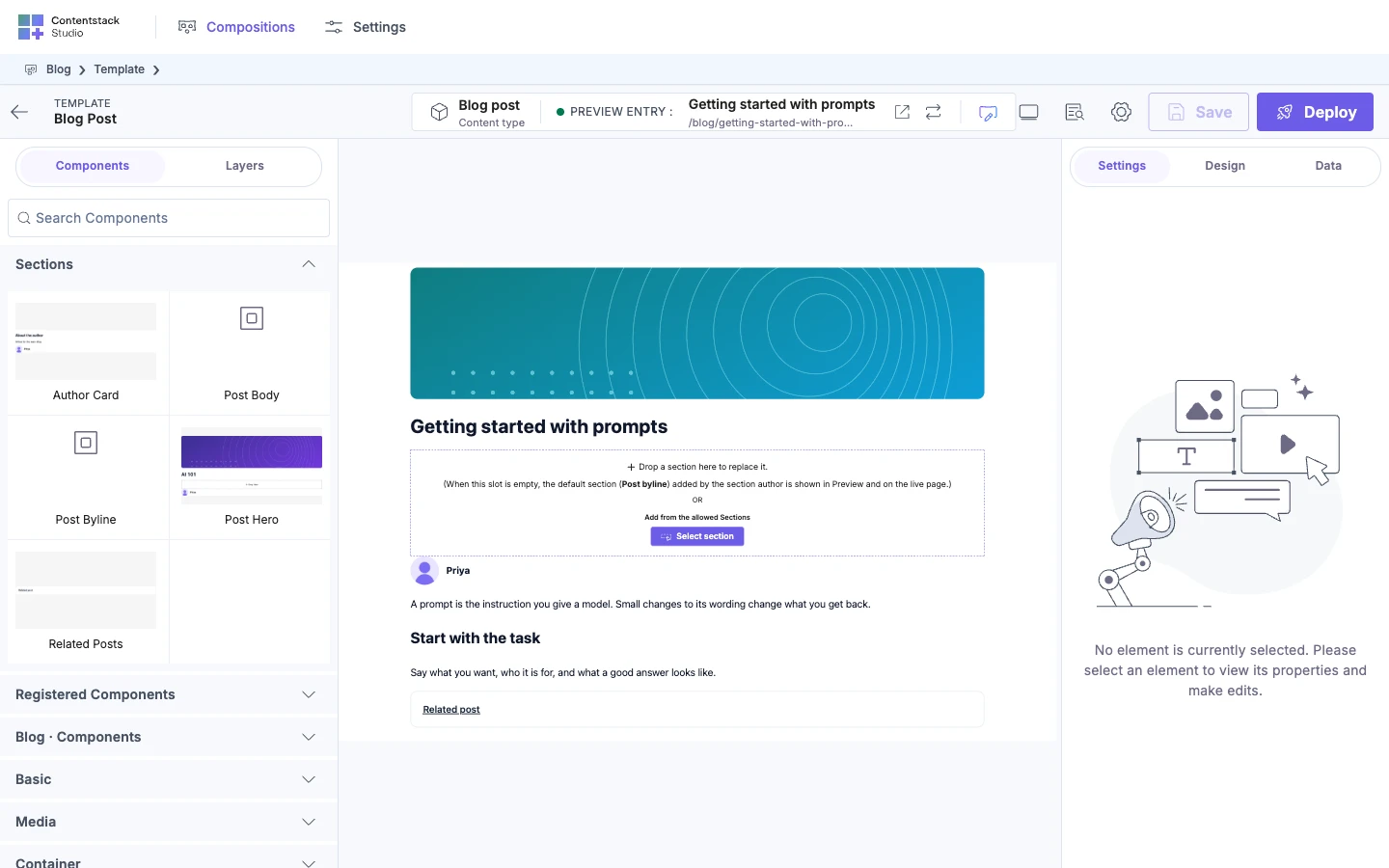
Which entry does Studio pick?
When you open a template, Studio picks the most recently updated entry that has a value for every field the template's URL uses. For Blog post, whose URL is /blog/{{entry.slug}}, that's the newest entry with a slug.
If Studio was opened for a particular address, such as from Visual Editor, it shows the entry at that address instead.
What changes when you switch?
Everything bound to the entry changes: text, images, the items a Repeater lists, and which content a Condition Block shows. The layout itself doesn't change.
If an element seems to vanish for one entry, a Condition Block may be hiding it. Select it in Layers and check its condition. See Show or hide content with a condition.
In a section
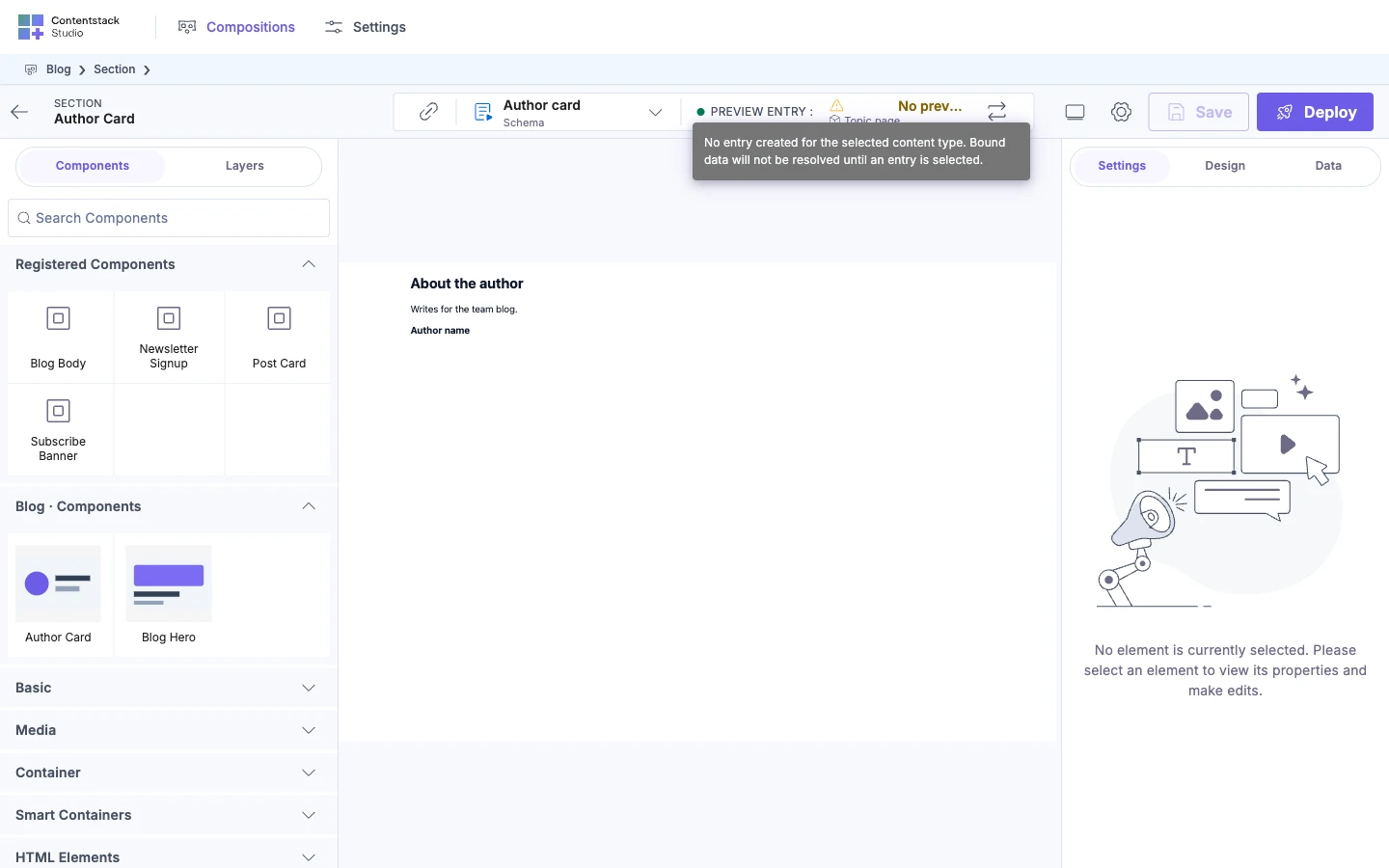
A section with a schema has a preview entry too. The top bar shows PREVIEW ENTRY : with the entry's title, or No preview entry, and a Replace icon. The list only offers entries of the schema's content type. Each schema on a section remembers its own pick until you reload.
If it doesn't work
-
The canvas says "No entry matches this URL pattern" after you pick an entry. The entry is missing a field the template's URL uses, such as
slug. Fill in the field, or pick another entry. If the URL comes from the content type's URL field, the message is "No entry has a URL field populated yet" instead.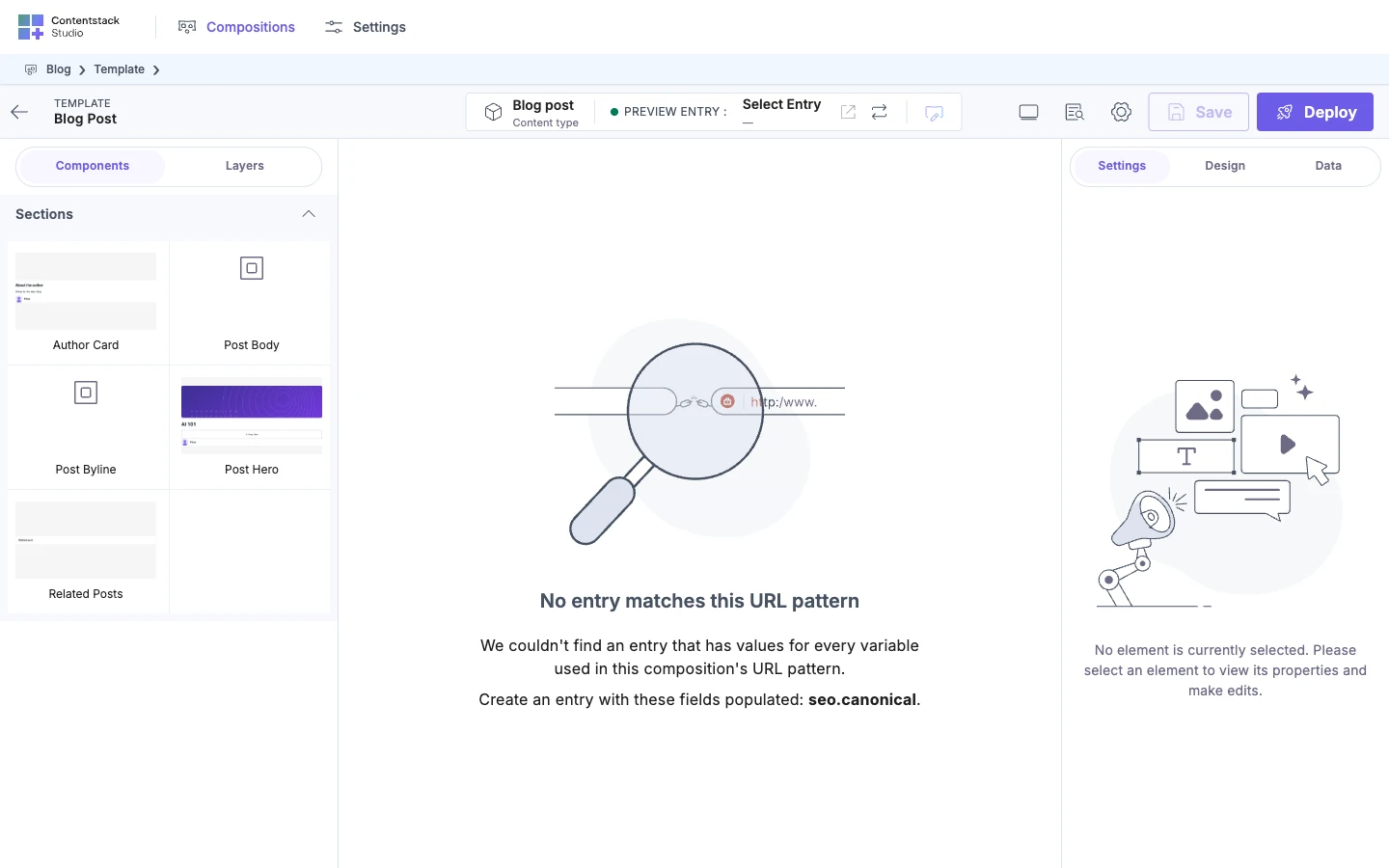
-
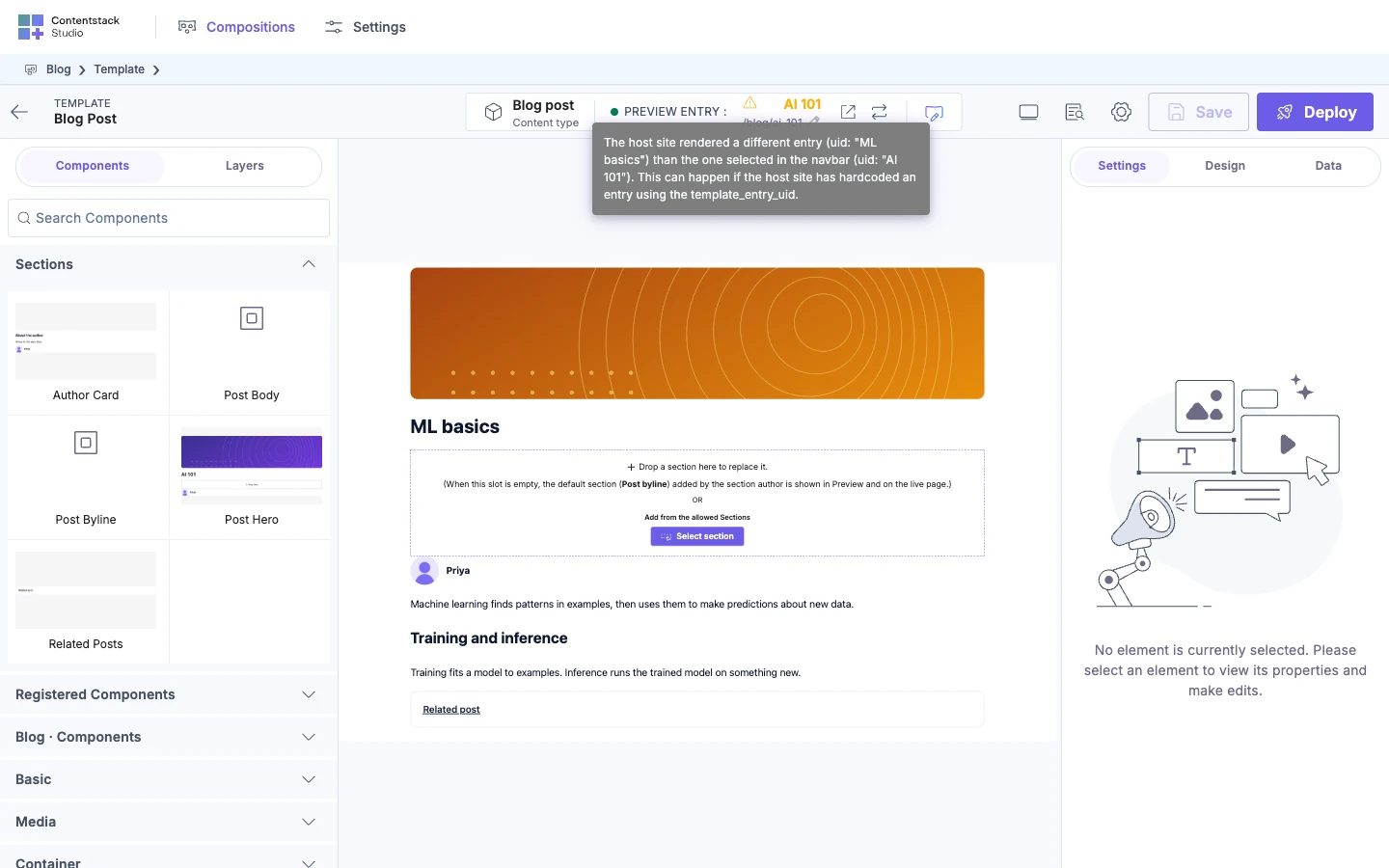
A warning icon appears next to the entry's name. Your site rendered a different entry or language than the one you picked, usually because the site passes a fixed entry or language. The icon's tooltip explains the difference.
-
Bound fields are blank. The entry has no value in those fields. Pick an entry that does, or fill them in.
-
Content shows for one entry and not another. A Condition Block shows it only for entries that meet its condition. See Show or hide content with a condition.
-
In a section, a warning icon next to No preview entry. Its tooltip says "No entry created for the selected content type." The section has no preview entry. Pick one with Replace, or create an entry of the schema's content type.
-
The top bar says Select Entry. Studio couldn't find an entry to show. Create an entry with every URL field filled in, then reload.