CLI commands
Look up any csdx studio:* command, its flags and what it changes. The commands come from the @contentstack/studio plugin for the Contentstack CLI (csdx). To install the plugin, log in and link a project, see Set up the CLI.
The example on this page is a team blog. Its Blog post content type has the UID blog_post, and its entries live under /blog, such as AI 101 at /blog/ai-101. Its hero is a BlogHero component in src/components/BlogHero.tsx.
All commands
| Command | What it does |
|---|---|
studio:project:set | Sets the active Studio project. |
studio:project:get | Shows the active project and its details. |
studio:component:register | Writes registration code for components you already have. |
studio:component:add | Generates a code component from a Figma design. |
studio:component:sync | Makes a code component available in the Figma plugin for mapping. |
studio:design-token:add | Brings design tokens in from Figma, or generates them from your project. |
studio:design-token:config | Changes the settings in your generated design tokens file. |
studio:responsive-options:sync | Sends the breakpoints in your registerBreakpoints call to the Studio project. |
studio:section:create | Turns one component into a Section bound to a content type. |
studio:composition:build | Plans a Template or a Section as a build sheet, then builds it. |
Run csdx studio on its own to list the commands.
Rules every command follows
| Rule | Detail |
|---|---|
| You're logged in | Log in with csdx login --oauth before you run any command. |
| Commands use the active project | If no project is active, every command except studio:project:set and studio:project:get asks you to pick one first. |
| Help and version | Every command takes --help (-h) and --version (-v). |
| The CLI asks for missing values | When a table below says a flag is prompted for and you leave it out, the CLI asks for the value. |
| An unknown flag stops the run | The CLI prints the error and exits without doing anything. |
| An expired session refreshes itself | Any command can print Token expired, refreshing the token before its output. That line is normal. |
Project
studio:project:set
Sets the Studio project that every other command reads from and writes to. With no flag, it lists the projects your account can access, and you pick one.
csdx studio:project:set
csdx studio:project:set --project-id=<project-id>
| Flag | Short | What it does |
|---|---|---|
--project-id | -i | The ID of the project to make active. Leave it out to pick from a list. |
The CLI checks the ID against your organization's projects before it stores it. The active project is kept in your CLI configuration, not in your repo.
studio:project:get
Shows the active project and its details. It takes no flags.
csdx studio:project:get
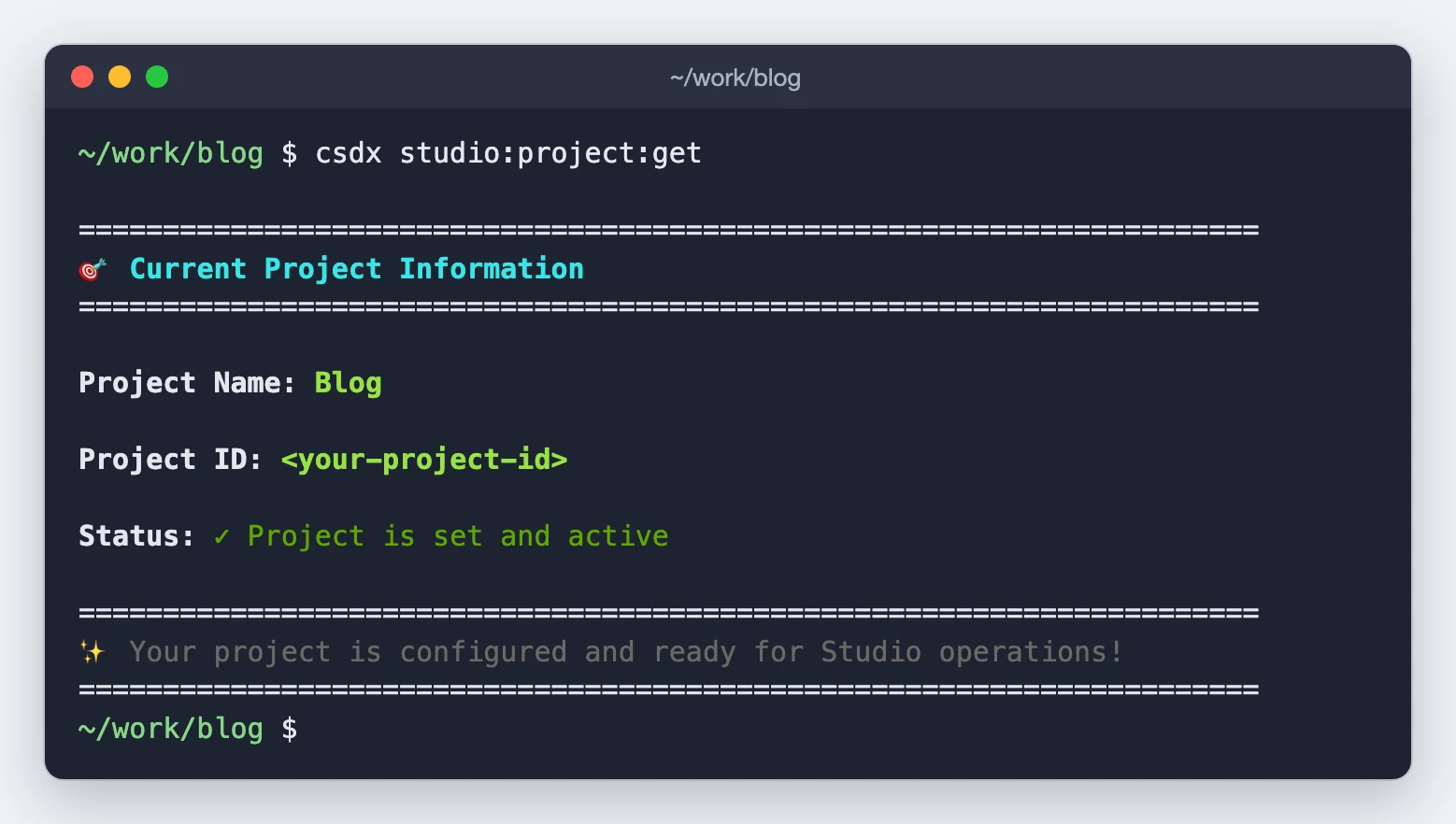
If no project is active, it prints No project is currently set and the commands that set one.
Components
studio:component:register
Reads a component file, or every .tsx, .ts and .js file in a directory, and writes the registration code for those components into your project. If you already have a register-components.ts, it reads that too. It overwrites any file already at the same path.
csdx studio:component:register --component-path=src/components/BlogHero.tsx
csdx studio:component:register --component-dir=src/components
| Flag | Short | What it does |
|---|---|---|
--component-path | -p | The component file to register. |
--component-dir | -d | A directory of components to register. |
Pass one of the two. If you pass neither, the CLI asks for a file or directory path. If you pass a bare name such as BlogHero.tsx, the CLI also looks for it under src/components, app/components, components, src and app.
studio:component:add
Generates a code component from a Figma design and writes it into your project. It matches the styling method your project uses: Tailwind, CSS Modules, styled-components or plain CSS. First, the CLI shows some hints and asks for an optional prompt to guide what it generates. When it's done, it asks whether to create a Section with the new component. If you say yes, it runs studio:composition:build for that component, with the scope set to one Section.
csdx studio:component:add --component-id=<component-id>
| Flag | Short | What it does |
|---|---|---|
--component-id | -i | The component ID from the Studio Figma plugin. Prompted for. |
studio:component:sync
Sends a code component to the Studio project, so the Figma plugin can offer it when you map Figma layers to code components. The CLI reads the file and syncs every component it finds in it.
csdx studio:component:sync --component-path=src/components/BlogHero.tsx
| Flag | Short | What it does |
|---|---|---|
--component-path | -p | Required. The component file to sync. |
Leave out --component-path and the command stops with a missing-flag error.
Design tokens
studio:design-token:add
With a design token ID, the command fetches the tokens from Figma. Without one, it reads your project and generates the tokens from it. It writes the tokens and a register-design-tokens.ts file into a studio folder in your project. Import that file in your app's entry file, so the tokens register when the app starts. To refresh the tokens, run the command again.
csdx studio:design-token:add --design-token-id=<design-token-id>
csdx studio:design-token:add
| Flag | Short | What it does |
|---|---|---|
--design-token-id | -i | The ID of the design tokens to fetch from Figma. Leave it out to generate tokens from your project. |
When register-design-tokens.ts doesn't exist yet, the CLI asks two questions: whether to use Studio's default design tokens, and which allowed values level to use. See Allowed values levels.
studio:design-token:config
Changes the two settings in an existing studio/register-design-tokens.ts under your src or app folder. It doesn't regenerate the tokens, and it sends nothing to the Studio project. It shows the current values and asks for new ones, and it takes no flags. If the file doesn't exist, the command stops and asks you to run studio:design-token:add first.
csdx studio:design-token:config
| Setting in the file | What it controls |
|---|---|
allowDefaultDesignTokens | Whether Studio's default design tokens are offered as well as yours. The question has no default: type y or n. |
allowedValuesLevel | Which values an author can pick. See Allowed values levels. |
Allowed values levels
| Level | What an author can link a style to |
|---|---|
dynamic | Values from entries. This is the default. |
tokens | Values from entries, and the design tokens from your project. |
arbitrary | Values from entries, the design tokens from your project, and any value typed in. |
Breakpoints
studio:responsive-options:sync
Reads the breakpoints array in your registerBreakpoints call and sends it to the Studio project. The canvas then uses the same breakpoints your code renders at. With no flag, the command searches your project for the call and stops at the first file that has one. The array must be written inline in the call. The sync replaces the project's breakpoints; it doesn't merge into them.
csdx studio:responsive-options:sync
csdx studio:responsive-options:sync --file-path=src/studio/breakpoints.ts
csdx studio:responsive-options:sync --file-dir=src/studio
| Flag | Short | What it does |
|---|---|---|
--file-path | -p | The file that contains the registerBreakpoints call. |
--file-dir | -d | A directory to search for the registerBreakpoints call. |
Sections and templates
studio:section:create
Turns one component into a Section bound to a content type, and writes it to your Studio project. It matches the component's props to the content type's fields and asks you to confirm where the Section binds. After it writes the Section, it can offer wrapper Sections for content behind a global field or a reference. It can also turn the components your component renders inside it into slots. The command always asks you questions as it runs. For the full flow, see Generate a section from a component.
csdx studio:section:create --component=src/components/BlogHero.tsx
csdx studio:section:create --component=src/components/BlogHero.tsx --content-type=blog_post --name "Blog Hero"
| Flag | Short | Default | What it does |
|---|---|---|---|
--component | -c | Prompted for | The component file to build the Section from. Any framework or language. |
--content-type | -t | Picked from a list | The UID of the content type the Section binds to. |
--name | Taken from the component name | The Section's display name. | |
--intro | Off | Prints what the command is for before it starts. |
Auto-binding follows a reference chain for up to 3 hops. It resolves a Section inside a Section for up to 2 passes. If a Section sits behind a deeper chain, bind it by hand on the canvas.
studio:composition:build
Plans a Template or a Section as a build sheet you review, then builds it. It asks for a design, the content type it binds to (or a new one), and whether it's a whole Template or one Section. The plan reuses the components already in your project.
After you approve the plan, it creates:
- The content type, if the plan proposed a new one.
- Code for any new components, and their registrations.
- The Section compositions.
- For a Template, the Template itself.
It then checks the result and prints canvas links. It doesn't publish anything. For the full flow, see Generate from a design.
csdx studio:composition:build
csdx studio:composition:build --content-type=blog_post --reference=designs/blog-post.png
csdx studio:composition:build --route=/blog/ai-101 --reference=https://example.com/blog/ai-101
csdx studio:composition:build -t blog_post --reference="a hero, the post body, an author card, a newsletter band"
csdx studio:composition:build -c src/components/BlogHero.tsx -t blog_post
csdx studio:composition:build --from-buildsheet docs/blog-post-build-sheet.md
| Flag | Short | Default | What it does |
|---|---|---|---|
--reference | Prompted for | The design. It can be a screenshot file, a live URL, a description in quotes, or a written brief in a .md or .txt file. Repeat the flag to pass more than one. You need at least one design, or --component. | |
--component | -c | Builds one Section around a component you already have, by path. If the file exports several, add #ExportName. The CLI matches its props to the content type's fields and doesn't match anything against a design, so it wins over --reference. | |
--content-type | -t | Picked from a list | The UID of the content type the composition binds to. |
--route | Names the content type by a route in your site, such as /blog/ai-101, instead of by UID. | ||
--scope | Guessed from the design | page builds several Sections and one Template. section builds one Section and no Template. | |
--out | docs/<slug>-build-sheet.md | Where to write the build sheet. If there's no docs folder, it goes in the project root. The CLI also writes a .json file with the same name next to it. | |
--from-buildsheet | Skips planning. It loads a build sheet the CLI wrote before and goes straight to the review. Pass the .md or its .json. |
Skills that do the same work
If you'd rather talk it through with an LLM than answer the CLI's prompts, these skills do similar work.
| Command | Skill |
|---|---|
studio:component:register | register-component |
studio:component:add, studio:component:sync | figma-generate-components |
studio:design-token:add | import-design-tokens |
studio:responsive-options:sync | register-breakpoints |
studio:section:create | build-section |
studio:composition:build | decompose-design |
Where to go next
- Install the plugin and link a project: Set up the CLI.
- Decide which command to start with: Choose your starting point.
- Register components, add tokens and sync breakpoints: Push your code into Studio.
- Every skill: Skills catalog.