SEO and metadata
Set a template's SEO values, such as the page title and description that search engines and social previews show, in the Template Details panel. Your site then writes them into each page's head.
The example is the blog's Blog post template, which renders posts such as "AI 101" at /blog/ai-101.
Prerequisites
- A template open on the canvas, connected or freeform. Sections don't have Template Details.
- A route that can write to the page head. For search engines and social previews, that means server rendering. See CSR or SSR.
What this is and what you get
Template Details stores a title, a description, an Open Graph image and any extra meta tags on the template. When your site renders the template, the Studio SDK hands these values to your code, which writes them into the head.
The values are the same for every entry the template renders. The editor doesn't let you fill them from each entry's fields, so AI 101 and every other post get the same title. To give each post its own title, read the entry's fields in your own head code.
Open Template Details
In the canvas top bar, click the Template Details icon.
The Template Details panel opens over the canvas. On a narrow window, the icon is in the More actions menu instead.
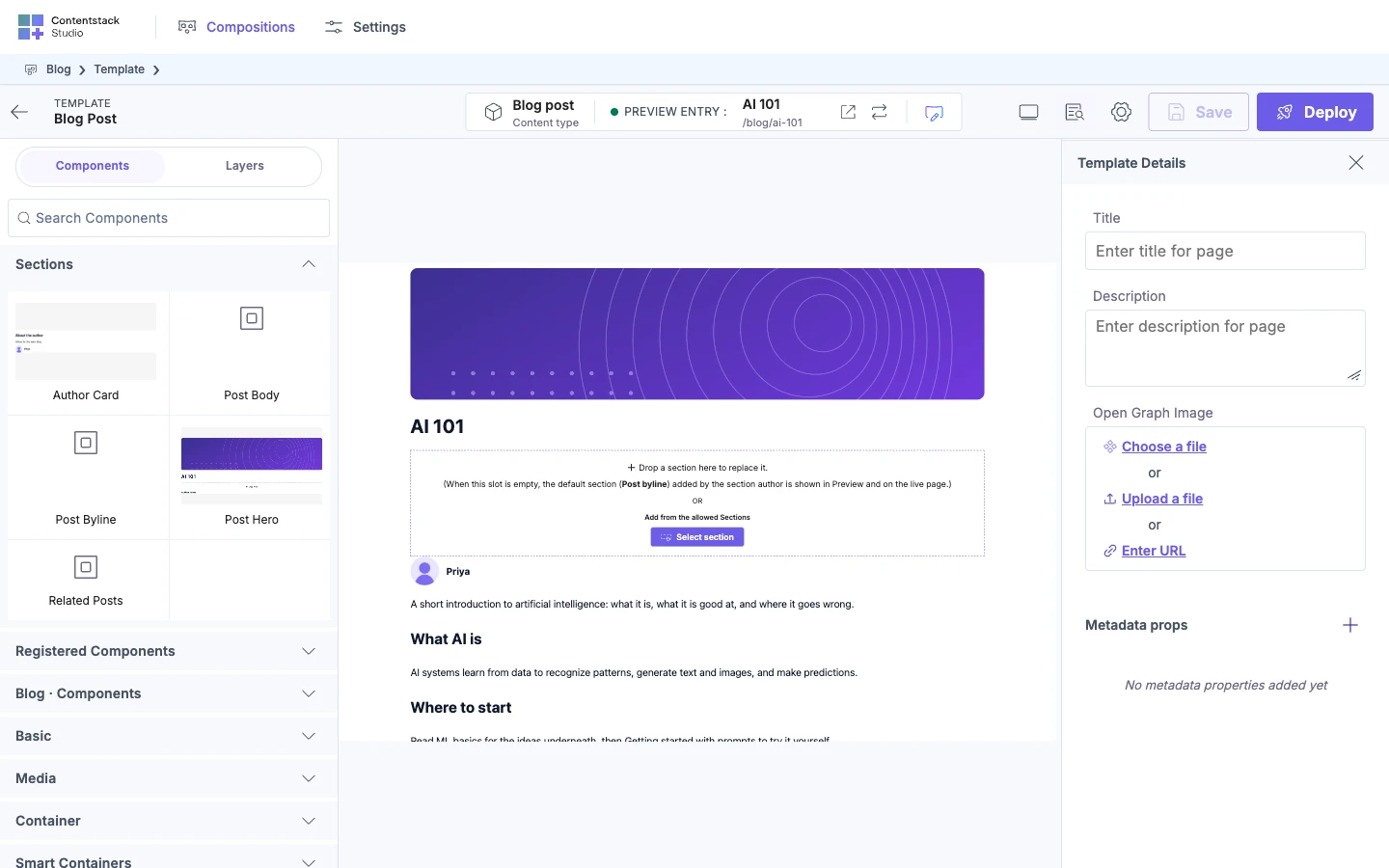
Set the title, description and Open Graph image
- Title. The page title. For a connected template, every entry shares it, so keep it general, such as
The team blog. If you leave it empty, the template's name is used. - Description. A short summary, such as
Posts from the team. - Open Graph Image. The image social networks show when someone shares the page. Choose an asset, upload a file, or enter an image URL.
Your changes enable Save. Save the template to keep them.
Add metadata props
Metadata props are extra meta tags, such as author or robots.
-
Under Metadata props, click the + button.
A new row appears.
-
Type the tag's name under Key, such as
robots, and press Enter. -
Type its content under Value, such as
index, follow, and press Enter.Press Escape instead to discard the new row.
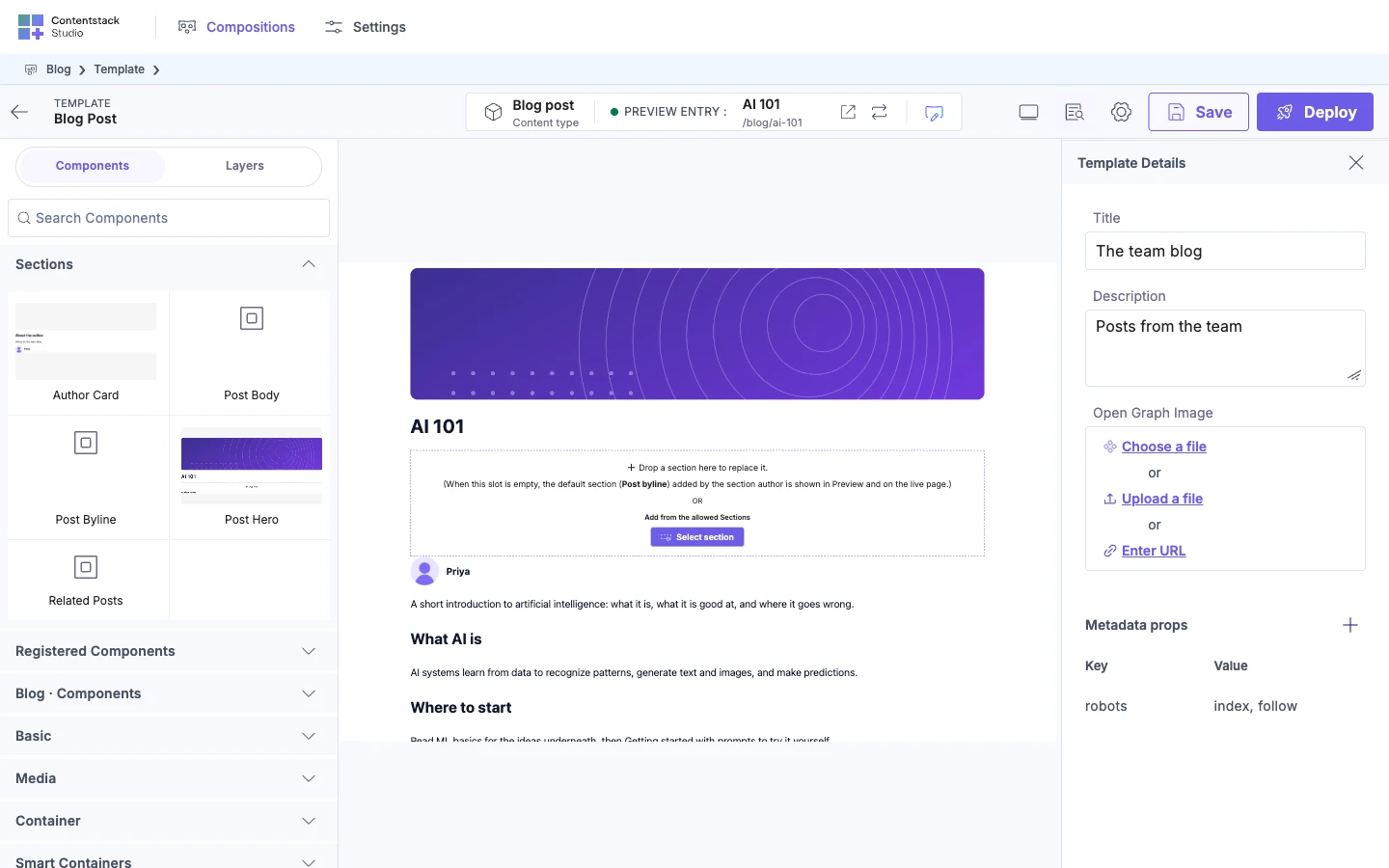
A row needs both a key and a value, or Studio drops it. To remove a row, click its delete icon.
Each row becomes a <meta name="…"> tag, so you can't use it for tags that need property=, such as og:type.
Put the values in your page's head
The SDK doesn't write to the head for you. Your route does, with two helpers from @contentstack/studio-react:
getCompositionMetadata(specOptions, { baseUrl })turns the template's values into a title, a description, Open Graph and Twitter tags, and one tag for each metadata prop. WithbaseUrl, it also adds a canonical URL andog:url.renderMetadataToHtml(metadata)writes those tags as HTML. It leaves out<title>, so add that yourself.
Both are in the SDK API reference. Write their output with your framework's own head API.
For a connected template, the canonical URL and og:url are built from the template's URL pattern, such as /blog/{{entry.slug}}, not from the post's address. Set those two tags from the entry's own URL instead.
Visitors see new values only after you deploy the template. See Save, preview, deploy.
If it doesn't work
-
Template Details is filled in, but the page head has no tags. Your route doesn't call
getCompositionMetadata. The SDK doesn't add them on its own. Add the call in your framework's head code. -
The tags show up in the browser but not in social previews. The route renders on the client. Social networks and many crawlers don't run JavaScript. Render the route on the server.
-
Your site still shows the old values. You saved the template but didn't deploy it.
-
"Image URL is invalid". The Open Graph image URL isn't a full URL, or Studio couldn't load an image from it. Check the address, or choose an asset instead.
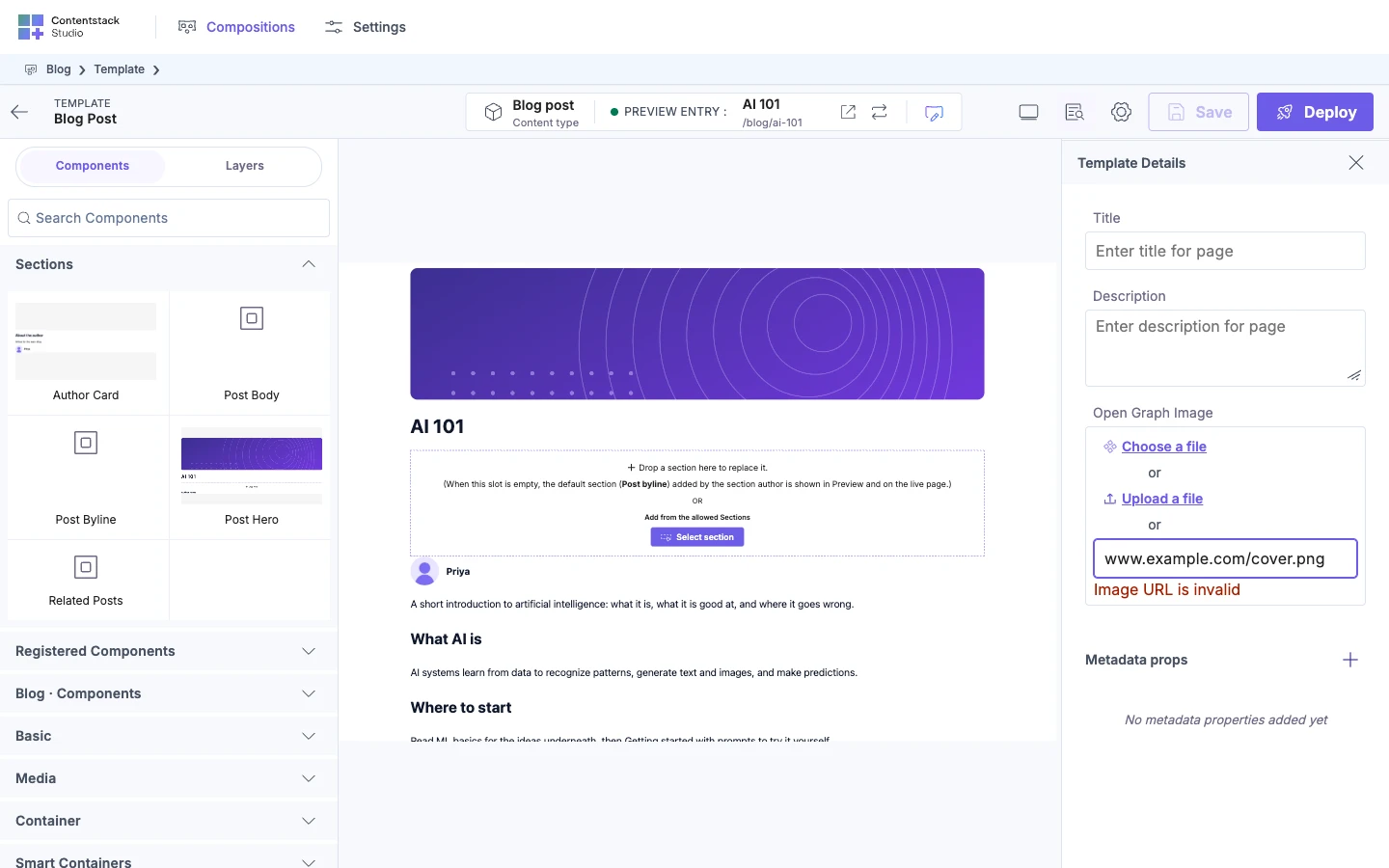
-
A metadata prop disappeared. It had an empty key or value. Add it again with both.
-
The canonical URL has
{{entry.slug}}in it. It's built from a connected template's URL pattern. Set the canonical tag from the entry's own URL.