How template URLs work
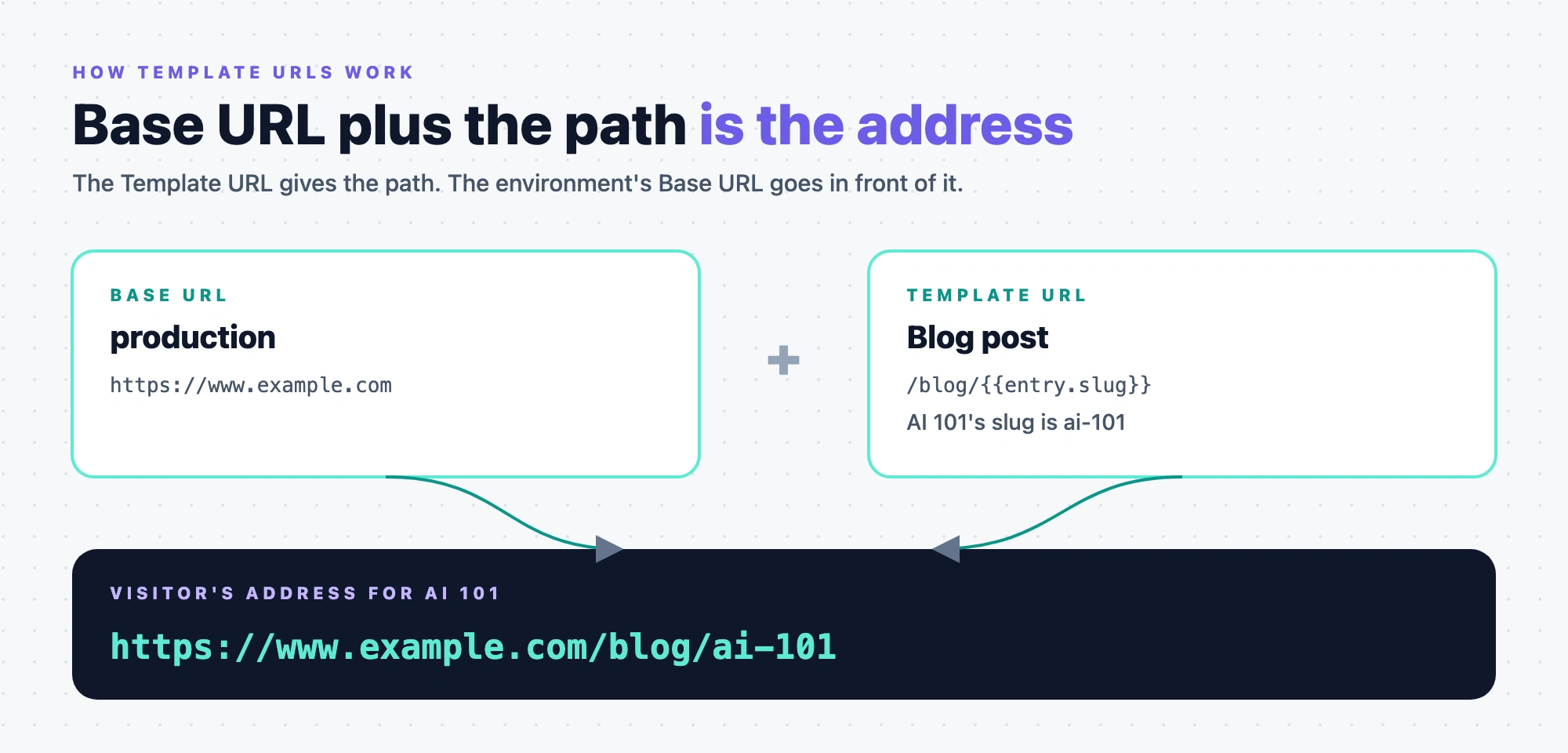
One template can show every blog post on your site, and each post needs its own address. The Template URL makes that work. It's a pattern, like /blog/{{entry.slug}}, and Studio fills in the variables from each entry to build that entry's address.
Knowing how this works helps you pick the right pattern when you set up a template. It also explains why an address shows the template it does.
The example on this page is a Blog post content type whose entries live under /blog. Its entry AI 101 has the slug ai-101 and the URL /blog/ai-101. The names come from the team blog.
Four URLs that are easy to mix up
Studio and Contentstack use four different URLs. The Template URL is the first one.
| URL | What it is | Where it's set |
|---|---|---|
| Template URL | The pattern that decides which addresses show this template | On the template, in Studio |
| Base URL | The domain in front of every address, such as https://www.example.com | In Contentstack, on each environment, one for each language |
| Custom Preview URL | A stack setting that tells Live Preview and Visual Editor where each entry lives. Studio can copy a Template URL from it. | In Contentstack, under Settings, then Visual Experience, then Preview URL |
| Canvas URL | The one address where Studio opens sections for editing | On the Configuration tab of your Studio project settings |
A visitor's address is the Base URL plus the path the Template URL produces. So https://www.example.com plus /blog/ai-101 gives https://www.example.com/blog/ai-101.
Where the Template URL comes from
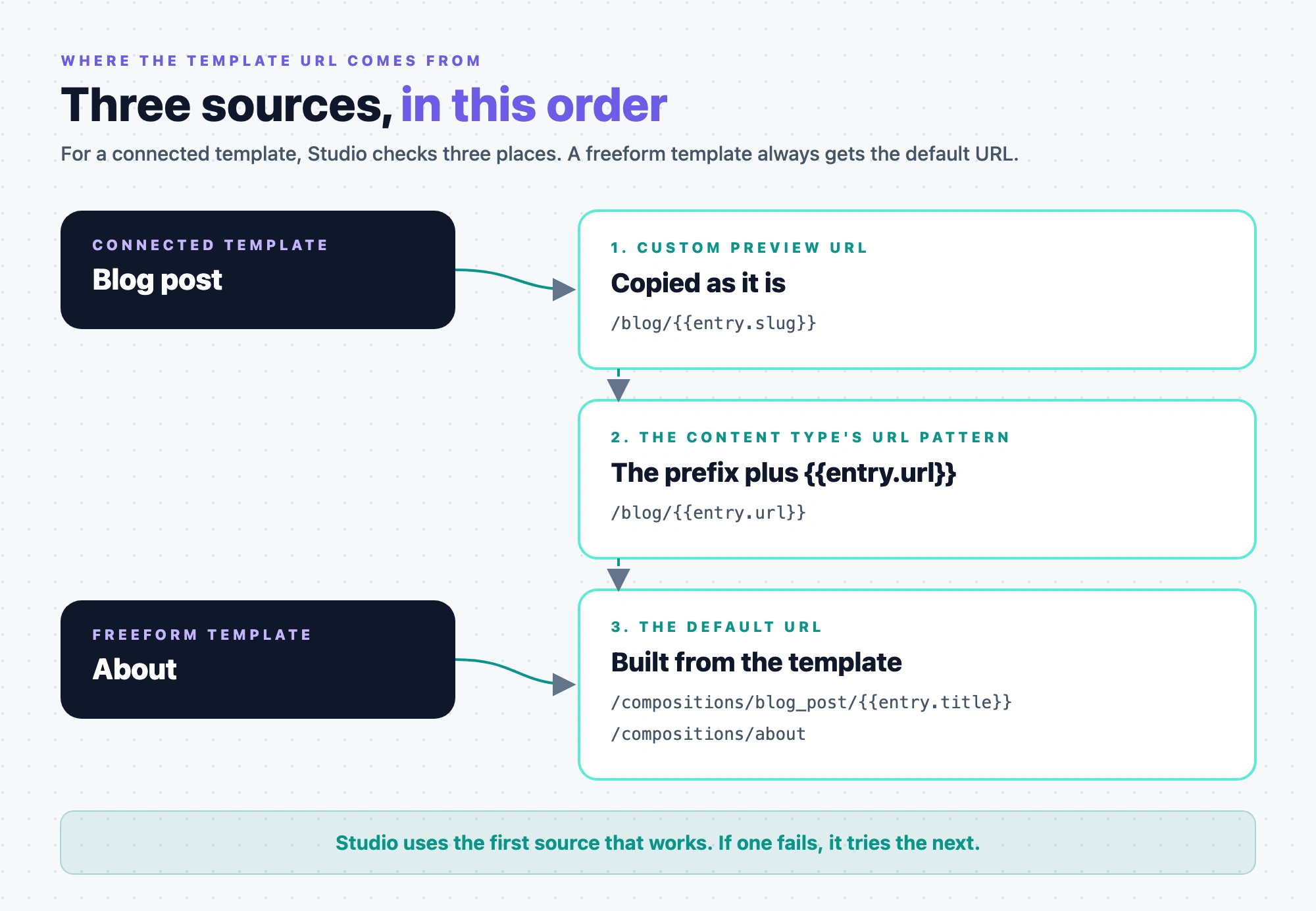
When you create a connected template, Studio gives it a URL. Studio checks three places, in this order, and uses the first one that works.
- The Custom Preview URL for the content type
- The content type's URL pattern
- The default URL
A freeform template has no content type, so it always gets the default URL.
The Custom Preview URL
The Custom Preview URL is a Contentstack setting, not a Studio one. It tells Live Preview and Visual Editor where each entry lives on your site, so they can open the right address when someone previews an entry. It's one form for the whole stack. Each row in it has a path, a branch, and either specific content types or all content types. Custom Preview URL is available on select Contentstack plans.
To find it, in Contentstack, open Settings, then Visual Experience, then Preview URL.
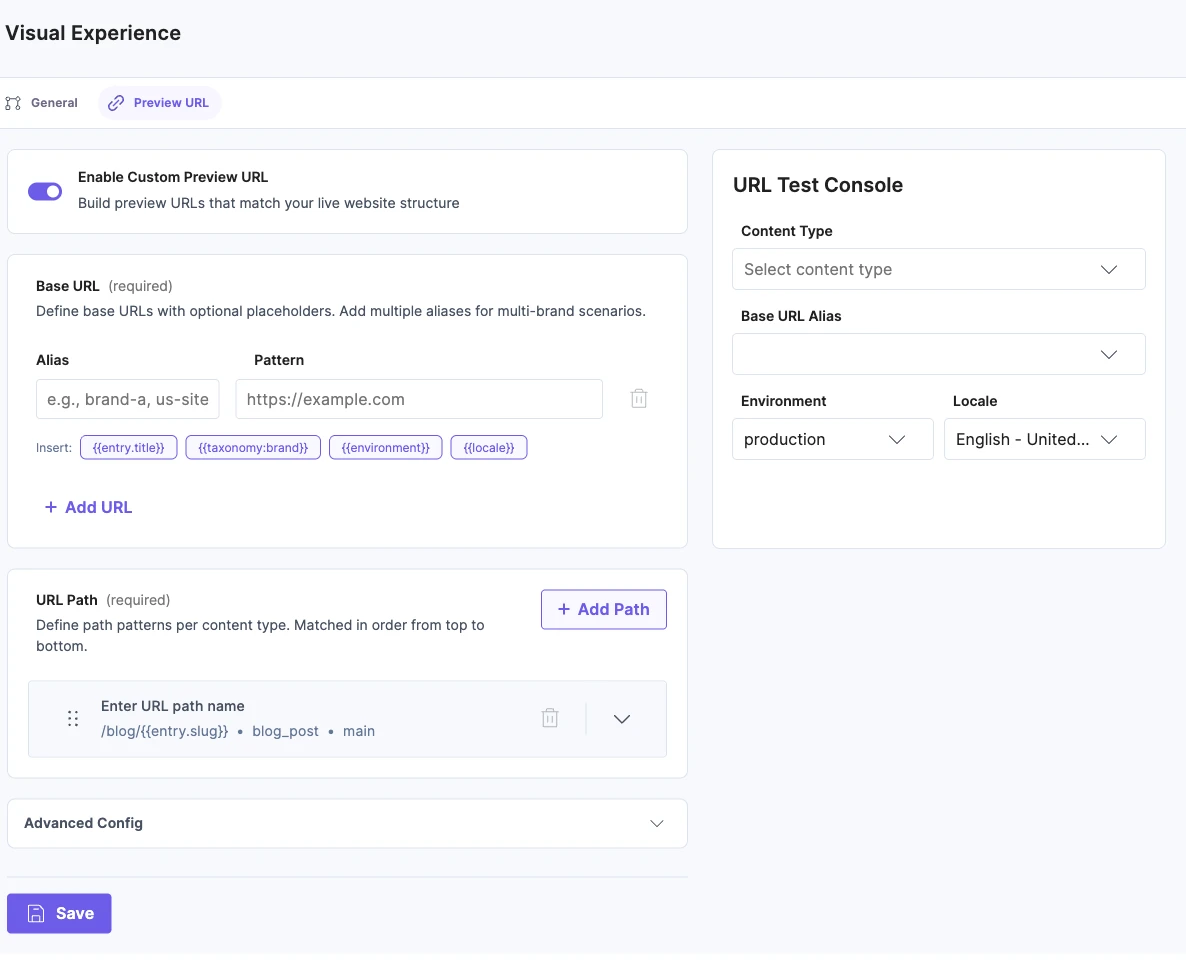
Studio uses the Custom Preview URL when all of these are true:
- the Custom Preview URL toggle is on;
- there's a row for this content type, or for all content types, on the
mainbranch. Studio looks for a row for this content type first; - every variable in the path is one Studio can copy. The list is in URL variables.
If all three hold, Studio copies the path as it is. If Blog post's path is /blog/{{entry.slug}}, the template gets /blog/{{entry.slug}}. If any of them fails, Studio skips this source without a message and tries the next one.
Studio doesn't apply the transformation rules from this setting. See Transformation rules aren't applied.
The content type's URL pattern
In Contentstack, a content type's URL field can have a URL pattern and a prefix. The pattern builds each entry's address from its fields, such as /:title. The prefix is fixed text in front of it, such as /blog/. Contentstack uses both to write the full address into each entry's URL field, so AI 101's URL field holds /blog/ai-101.
You set both in the content type builder, in the URL field's URL Properties, under Prefix and URL Pattern. URL patterns are part of Contentstack's URL Management V2, which Contentstack support turns on for your stack.
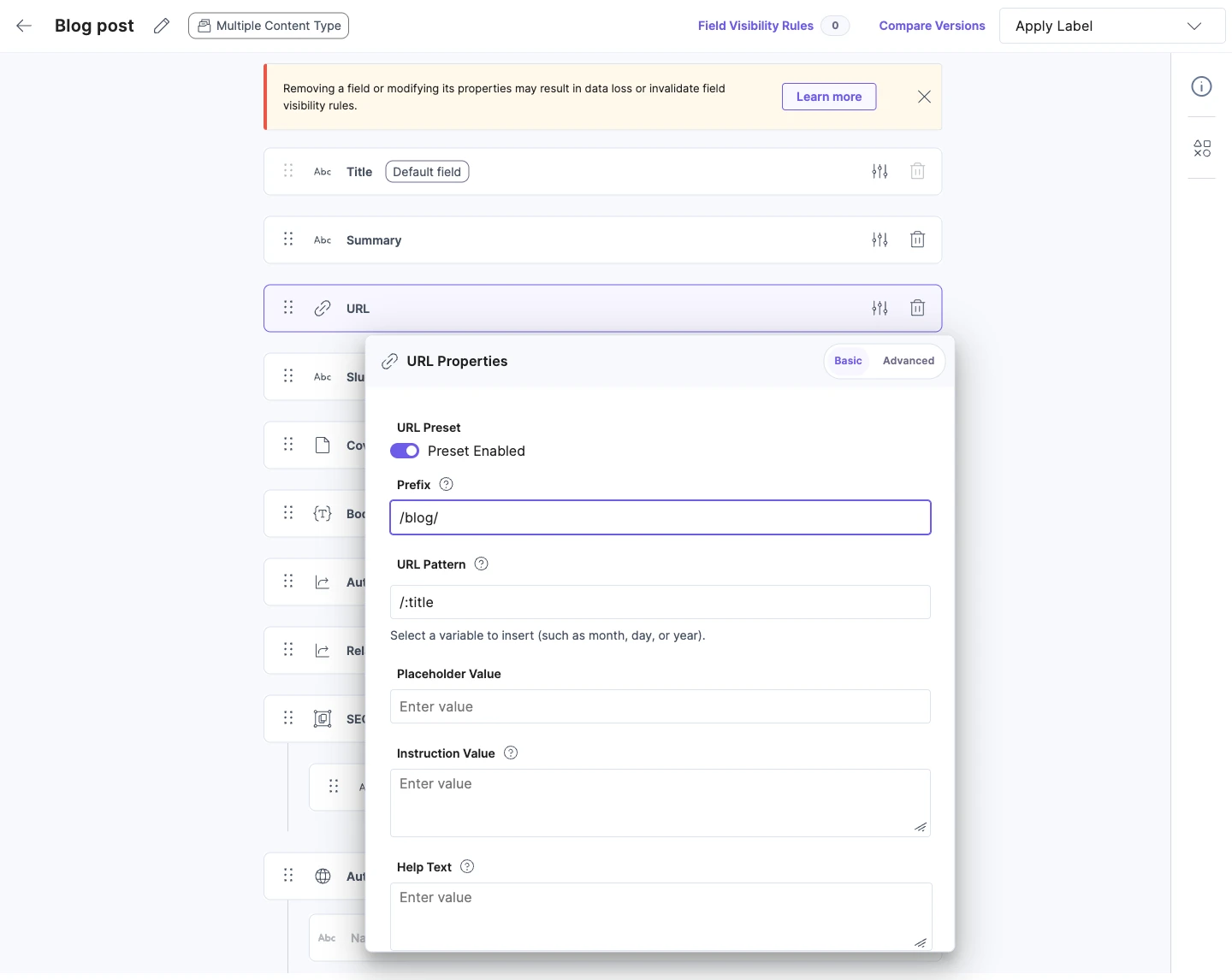
Only web page content types can have a URL field in Contentstack. So if your content type has a URL field with a URL pattern, Studio uses this source. To confirm, open Edit URL on a new template. The note says "Auto-generated from Content Type URL Pattern". See See which source Studio used.
Studio doesn't copy the pattern. It takes the prefix and adds {{entry.url}}. For Blog post, that gives /blog/{{entry.url}}. Slashes at either end of the prefix don't matter, so /blog, blog/ and /blog/ all give the same result. With no prefix, the Template URL is {{entry.url}}, so set one. See Always put a prefix in front of entry.url. The pattern itself is dropped, because Contentstack has already used it to write each entry's address.
For this source, each entry's URL field has to hold the full address, such as /blog/ai-101. {{entry.url}} works differently from other variables. See Why entry.url matches the whole address.
The default URL
When neither of the first two applies, and always for a freeform template, Studio builds a URL from the template itself.
| Template | Default URL |
|---|---|
| Connected | /<composition content type UID>/<Template UID>/{{entry.title}} |
| Freeform | /<composition content type UID>/<Template UID> |
The composition content type is the content type your project stores its templates in. It's the Content Type row under Stack Connection on the General tab of your project settings, where you can copy its UID. The Template UID is set when you create the template. Studio fills it in from the name unless you change it.
The default is always unique, but you wouldn't show it to visitors. AI 101 ends up at .../AI%20101, because Studio uses the title exactly as stored. Change it to a pattern you'd want on your site. See Edit or reset a template's URL.
See which source Studio used
Open Edit URL on the template. A note in the dialog says "Auto-generated from" followed by one of these:
- Custom Preview URL
- Content Type URL Pattern
- Default URL Pattern
The note goes away once you type your own pattern.
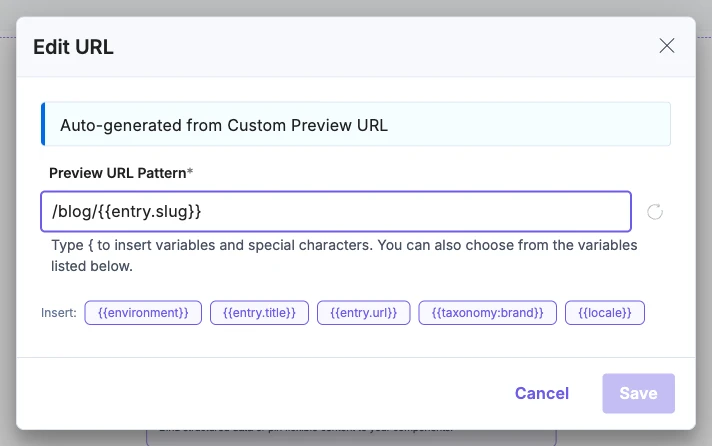
Later changes don't reach existing templates
Studio sets the Template URL once. If someone changes the Custom Preview URL or the content type's URL settings later, your templates keep their old URL until you reset them with Sync Pattern and save. See Edit or reset a template's URL.
How a pattern becomes an address
A pattern is fixed text plus variables in double braces. Studio leaves the fixed text alone and fills each variable from the entry. For AI 101, whose slug field holds ai-101, the pattern /blog/{{entry.slug}} becomes /blog/ai-101.
Studio uses the field's value exactly as stored. It doesn't lowercase it, slugify it or trim it. Characters that can't go in an address are encoded, so a space becomes %20. For a clean address, store the slug you want in a field and use that field.
Matching on your live site is exact. Capital letters count, so /Blog/ai-101 doesn't match /blog/{{entry.slug}}. A trailing slash counts too. /blog/ai-101/ matches the template, but Studio then looks for an entry whose slug is ai-101/, finds none, and shows nothing.
Avoid slugs made only of digits, or of the words true and false. When Studio reads a value like that from an address, it converts it to a number or a true/false value before it looks up the entry, so it won't match the text stored in the field.
The variables you'll use most
| Variable | Connected template | Freeform template | What it does |
|---|---|---|---|
{{entry.<field>}} | Yes | No | Matches that field's value. Works for fields inside a group or global field. |
{{entry.<reference>.<field>}} | Yes | No | Matches a field on a referenced entry, such as {{entry.author.handle}}. |
{{taxonomy:<uid>}} | Yes | No | Matches a term from that taxonomy. |
{{environment}}, {{branch}} | Yes | Yes | Match any text and change nothing. Your site reads the environment and branch it's connected to. |
A freeform template has no content type, so it can't use entry or taxonomy variables.
Studio rejects date variables when you save. A whole group field, reference field or modular block is accepted, but it writes nothing into the address, so the template never matches. Point at a text field inside it instead.
For every variable and rule, see URL variables.
Which template wins when several match
The template with more fixed text in its pattern wins. Variables count as nothing. Say you add a Featured post template with the URL /blog/featured. It beats /blog/{{entry.slug}} for that one address.
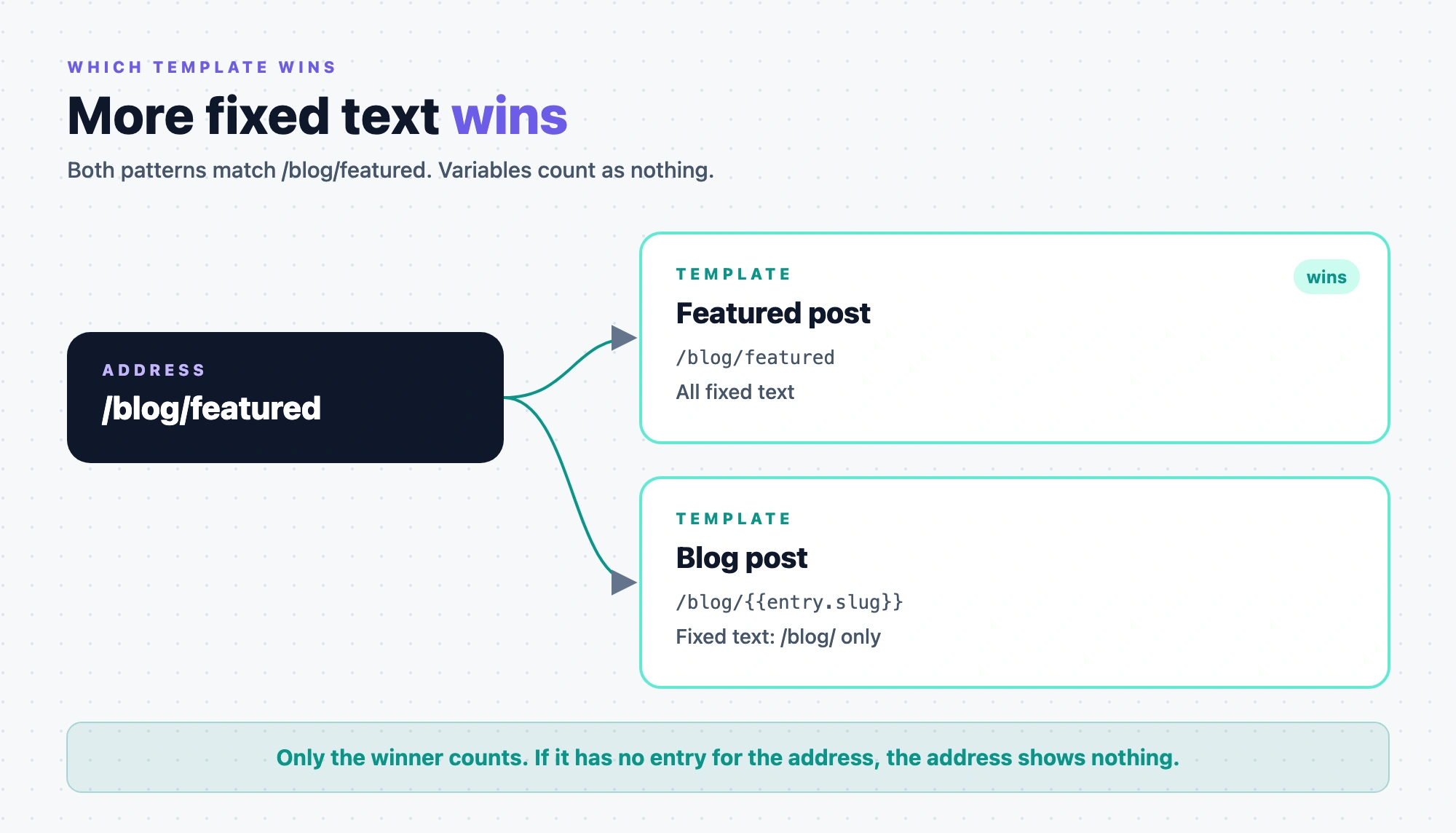
Only the winner counts. If the winner has no entry for the address, Studio doesn't try the next template, and the address shows nothing.
If two templates match equally, Studio checks which of them has an entry for that address. A freeform template always counts as having one. If more than one qualifies, the most recently updated template wins, so saving either template can change which one shows. Give each template its own URL.
If Studio can't settle which template owns an address, the fetch fails with a server error, not a not-found. That happens when every entry check on a tie fails (URL_OWNERSHIP_PROBE_FAILED), or when the search for a matching template stops at its limit before it finds one (SEARCH_INCOMPLETE). The error's errorClass is SERVER_ERROR, not NOT_FOUND, so don't answer it with a 404: the page may exist.
When two templates match an address equally and both qualify, Studio shows a URL Conflict Detected notice to anyone who opens the winning template. In production, only one of them can serve that address. A template that wins because its pattern is more specific, like Featured post, doesn't trigger the notice.
Why entry.url matches the whole address
Most variables fill the text between the fixed parts of a pattern. {{entry.url}} is different. Studio also compares the entry's URL field against the entire address.
How that plays out depends on where the Template URL came from.
- You typed the pattern, or it came from the Custom Preview URL or the default.
/blog/{{entry.url}}finds AI 101 whether its URL field holds/blog/ai-101orai-101. - It came from the content type's URL pattern. Studio compares the URL field against the whole address only. AI 101's URL field has to hold
/blog/ai-101.
This matters when several content types share one pattern. Say your site also has Product and Landing page content types, and all three use /{{entry.url}} as their Custom Preview URL. Each has hundreds of entries, and nothing in the address says which content type an entry belongs to. Now give the Blog post template the pattern /blog/{{entry.url}}. Studio still matches the entry's URL field against the whole address, so /blog doesn't filter entries. It limits this template to addresses under /blog, and ranks it above the others there.
Three things follow from this.
- The root of your site. Set the entry's URL field to
/and use the pattern{{entry.url}}with no leading slash./{{entry.url}}can't match/. - A bare
{{entry.url}}answers every address. It has no fixed text, so it ranks lowest, and any template with a more specific pattern beats it. - The fixed start is a boundary. If someone changes an entry's URL field to something outside
/blog, the Blog post template can't reach that entry anymore.
Always put a prefix in front of entry.url
When a Template URL uses {{entry.url}}, start it with fixed text for that part of your site, such as /blog/{{entry.url}}. Do this on every connected template, even if it's the only one you have today. The one exception is the template for the root of your site, described above.
Without a prefix, nothing in the address says which template it belongs to. A bare {{entry.url}} or /{{entry.url}} matches every address. Add a second template like that, and both match every address equally, so Studio has to check each one for an entry. If both have one, the most recently updated template wins, and saving a template can change which one shows. With a prefix, /blog/ai-101 can only go to Blog post.
How you add the prefix depends on where the Template URL comes from.
| Source | How to add the prefix |
|---|---|
| The content type's URL pattern | In the URL field's URL Properties, set Prefix, such as /blog/. Studio builds /blog/{{entry.url}}. |
| The Custom Preview URL | Give the content type its own row whose path starts with the prefix, such as /blog/{{entry.url}}, not /{{entry.url}}. |
| You type it | In Edit URL, type the prefix before the variable. See Edit or reset a template's URL. |
When the URL field holds a full address, the prefix has to be how that address starts. AI 101's URL field holds /blog/ai-101, so /blog/{{entry.url}} is right. With /topics/{{entry.url}}, the canvas preview opens /blog/ai-101 and ignores /topics. Setting Prefix on the content type keeps the two in step, because Contentstack writes it into every entry's URL field.
For how the prefix keeps a route that fetches by url on the right template, see Put a prefix in front of entry.url.
Sections don't have URLs
A section is a part you place inside templates. Visitors never open it on its own, so it has no URL.
Studio opens every section at the project's Canvas URL. It's one address for all sections, and it's only for editing. Your site needs a route there that renders the Studio canvas. See Configure your project and Mount the section preview route.
When a visitor opens an address, Studio matches it against templates and never against sections. A section appears on your live site wherever a deployed template uses it.
A section also has no SEO fields. Those belong to the template that holds it.
Where to go next
- Change a template's URL, or reset it: Edit or reset a template's URL.
- Look up every variable and rule: URL variables.