Bring your own data
Component Data is how data that isn't in Contentstack becomes bindable. Anything your app can get hold of counts, however it got it: an analytics view count, a price from a pricing service, a signed-in user, a cart total, a value you computed in the component above. You pass it in code, and from then on an author binds to it in the Data Picker exactly as they bind a field from an entry.
That is the point of it. A section or a template is not limited to the content in your stack. Studio binds whatever you hand it.
The example on this page is the Post byline section in the Blog project. You add a ViewCount component to it that shows a view count. ViewCount, viewCount, 100 and 1204 are example values, so replace them with your own component, key and numbers.
In Studio, the section has the sample data { "viewCount": 100 }. On /blog/ai-101, your app passes the live count, 1204.
To pass data another way, see Choose the right way to pass your data.
Prerequisites
- Open a template or section on the canvas, such as the Post byline section.
- Turn on Enable Freeform Feature for the project, so you can type sample data.
- Render templates with
StudioComponentfrom@contentstack/studio-react. - A component with registered props. A component with none has nothing to bind, and Settings says "No properties available for the selected component."
Choose the right way to pass your data
Studio has four ways to give components data from your own code. They differ by how far the data reaches and by who binds it, and the first two both land in the Data Picker under Component Data.
| Way | Scope | Who binds it | Use it when |
|---|---|---|---|
Component Data. data on StudioComponent. | The whole Template or Section | An author, under Component Data in the Data Picker | A value isn't in Contentstack and your app has it when it renders, such as a view count. |
Slot data. data on Slot. See Pass data into a component slot. | One slot, and whatever an author drops into it | An author, on a component inside the slot, under Component Data | A component holds something the components dropped inside it need, raw or worked out by that component, such as PostCard's url or a price it formatted. |
Context. context on StudioComposition. See Use sections in pages outside Studio and Render a composition with your own data. | The Section or Template you render with it | No one. The bindings already exist. You are filling what a template would have filled. | You render a section standalone, outside a template, so nothing passes its linked schema's data for it. |
| Shared state. See Share state between components. | Every component that uses the same key | An author, in the Data Picker, for each variable you declare | A value changes while the reader is on the page, such as a newsletter signup. |
Component Data and Slot data are the same thing, at different reach
Both arrive in the Data Picker under Component Data. What differs is how far they reach:
dataonStudioComponentreaches every component in the template or section. Use it for something the whole page knows, such as the signed-in user.dataonSlotreaches only what an author drops into that one slot. Use it when a component holds something its children need. The value can be one the component was handed, or one it worked out:<Slot data={{ amount: askingPrice }}>handsamountto whatever sits in that slot, and the author binds it like any other key.
Slot data merges over what it inherits, so the nearest slot wins when both define the same key. Nesting a slot inside a slot narrows the data as you go in, rather than replacing it.
Context is a different job
context is not another way to pass your own values. It fills the linked schema's data, the thing a template normally passes a section. You only reach for it when you render a section outside a template and nothing is doing that job for you. See Use sections in pages outside Studio.
What this is and what you get
Component Data has two sources. Sample data is data you type in Studio. Your app's data is data your app passes when it renders. Sample data lets authors build and bind a layout before your app passes anything.
| Detail | Sample data | Your app's data |
|---|---|---|
| Where it comes from | You type it in the Data tab. | Your app passes it in the data prop of StudioComponent. |
| Example | { "viewCount": 100 } | { viewCount: 1204 } |
| Saved by Studio | Yes, with the composition. | No. |
| On your site | Your site uses it when your app passes no data. | It takes priority over the sample data. |
Your component receives a bound value the same way, whichever source the prop is bound to.
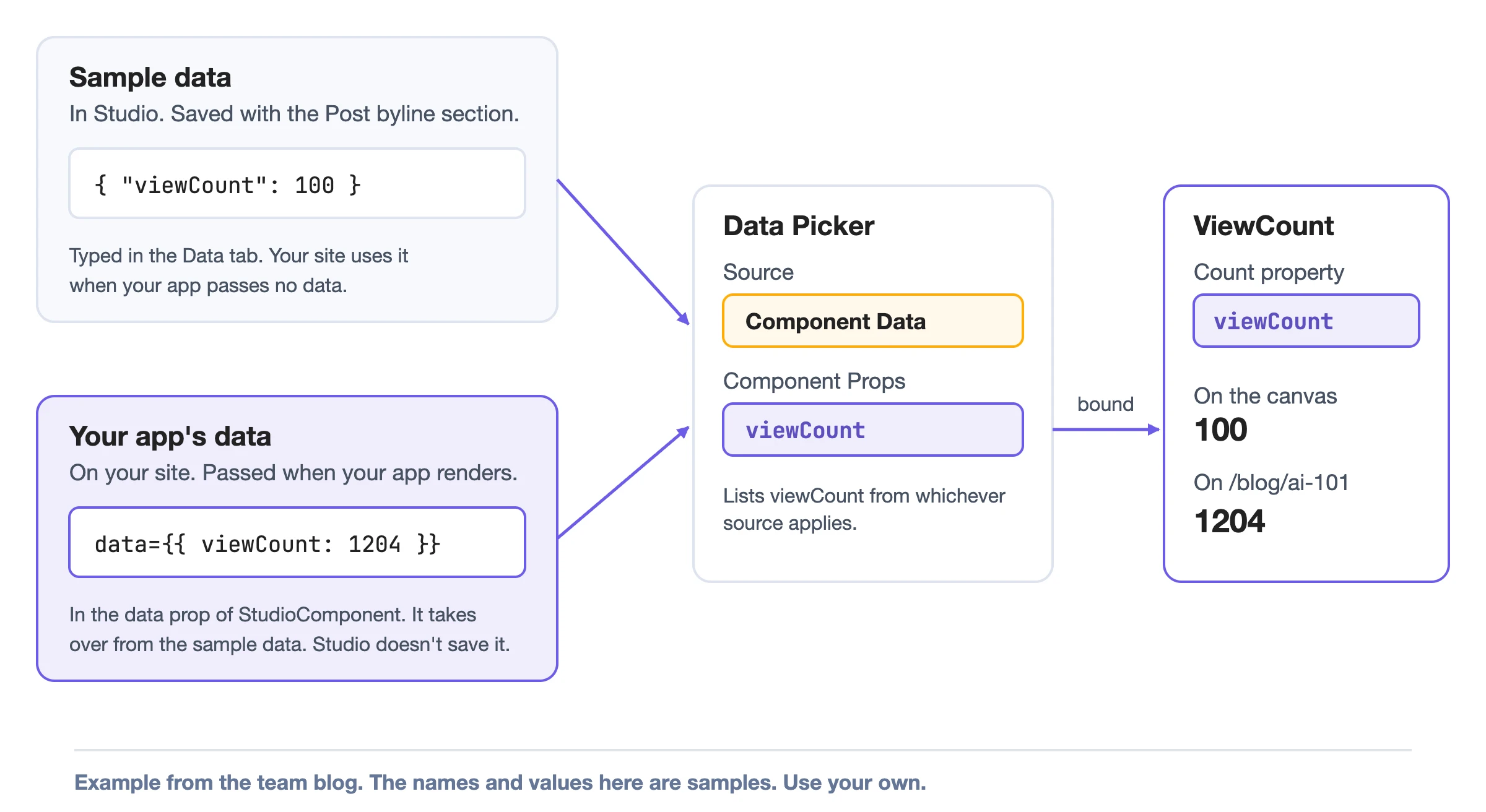
The example goes in five steps.
- In your app, a developer registers ViewCount with a
countproperty. - In Studio, an author types the sample data
{ "viewCount": 100 }. - In Studio, the author binds Count to
viewCount. - In your app, the developer passes
data={{ viewCount: 1204 }}. - In both places, you check the result. Studio shows 100, and your site shows 1204.
Register a component with a prop to bind
In your app. A developer does this before authors can bind anything.
Authors can bind only the props your app registers. In the example, ViewCount has one prop, count.
// src/components/ViewCount.tsx
import type { StudioAttributes } from "@contentstack/studio-react";

type Props = StudioAttributes & { count?: number };

export function ViewCount({ count, studioAttributes }: Props) {
  return <span {...studioAttributes}>{count}</span>;
}
// src/register.tsx
import { registerComponents } from "@contentstack/studio-react";
import { ViewCount } from "./components/ViewCount";

registerComponents([
  {
    type: "ViewCount",
    displayName: "ViewCount",
    component: ViewCount,
    wrap: false,
    props: { count: { type: "number", displayName: "Count" } },
  },
]);
countis anumberprop. Studio shows it as Count in the Settings tab.- When an author binds Count to a value, Studio passes that value to ViewCount as
count. ViewCount reads it like any React prop. - The registration sets
wrap: false, so ViewCount spreadsstudioAttributeson its root element.
ViewCount appears under Registered Components in the Components tab.
For every registration option, see Register a component.
Add sample data to a composition
In Studio. An author does this once, so there is something to bind against.
-
Open the Data tab in the right panel. Each source you haven't set shows a card with a "Not Set" badge. The Component Data card says "Dynamic • custom data".
-
Click the Component Data card.
The card turns into a Component Data section with a JSON box that contains
{}. -
Type a JSON object into the box. For the example, type
{ "viewCount": 100 }. -
Click Save to store the sample data with the composition. For a section, an Expose Props dialog opens first. Click Save in it to finish. See Build sections.
The JSON stays in the box after a reload.
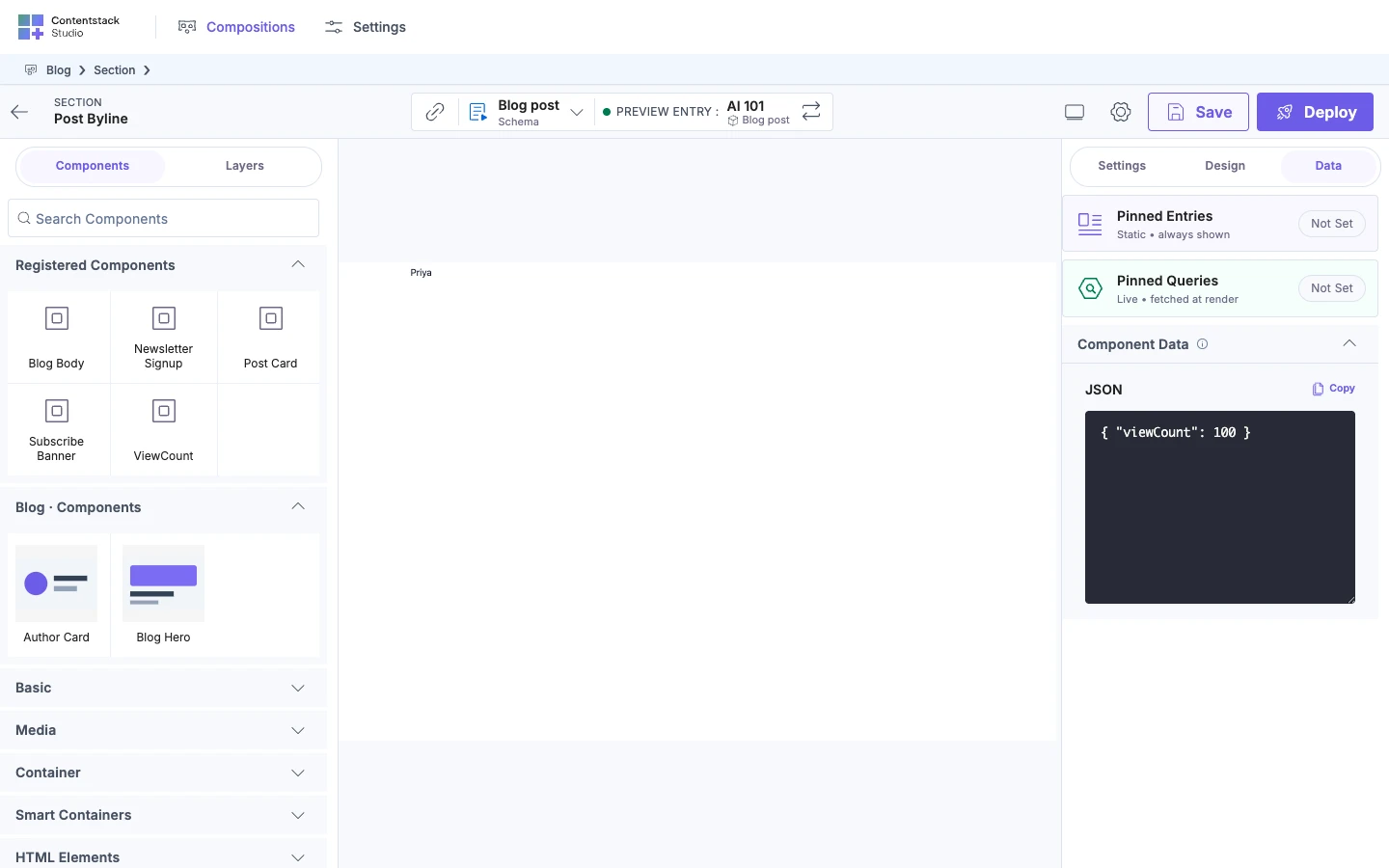
The sample data has to be a JSON object. Studio ignores a top-level array or a plain value. If the JSON is invalid, Studio shows the parser's error under the box and doesn't keep it. Click the info icon next to Component Data to read what the box is for.
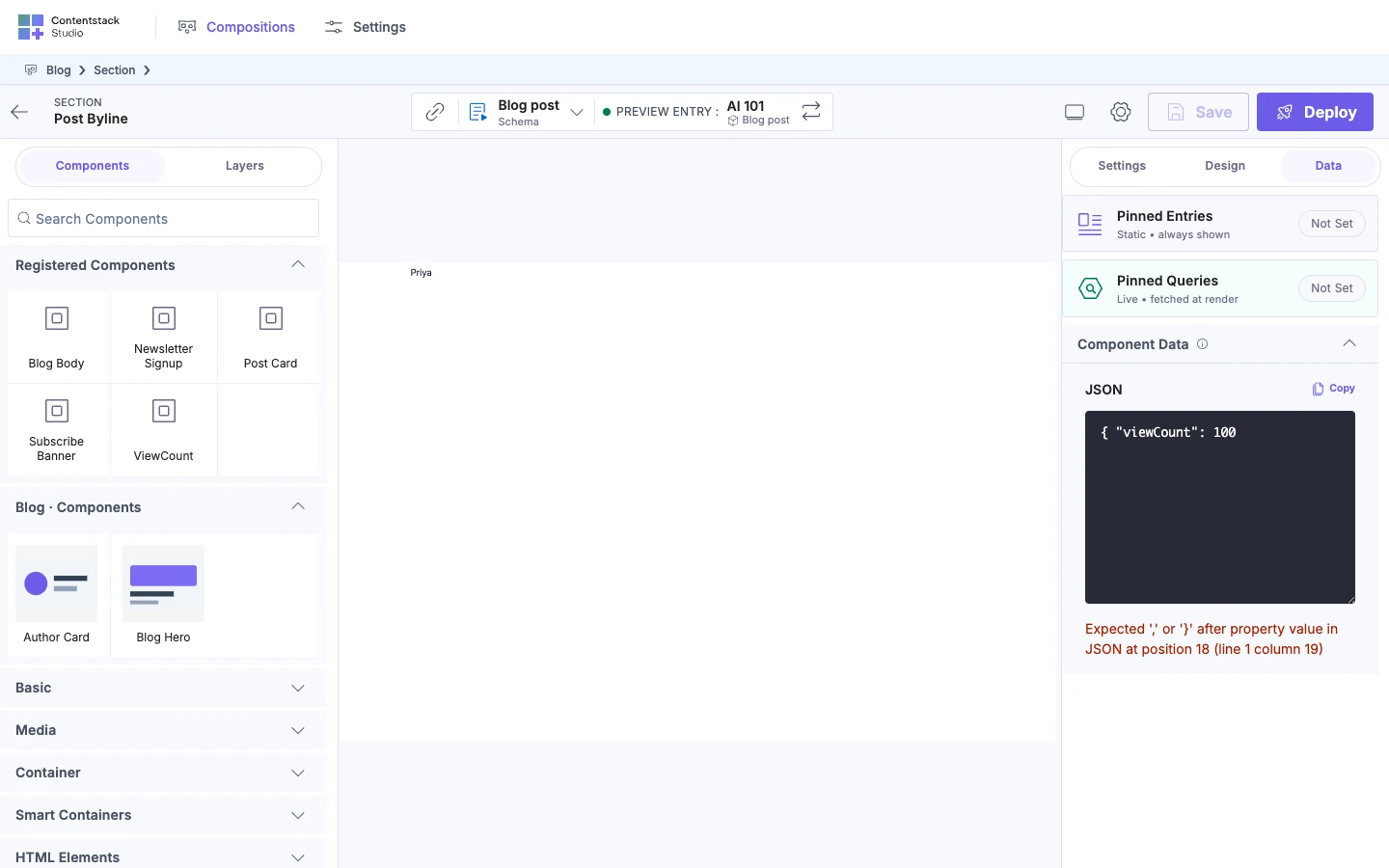
Studio saves the sample data with the composition, so your site uses it when you deploy. Your site can use anything you type, so keep secrets out of it.
While authors edit a section, they see only its sample data, because StudioCanvas takes no data prop.
Bind a prop to your data
In Studio. An author does this for each property that should show your data.
-
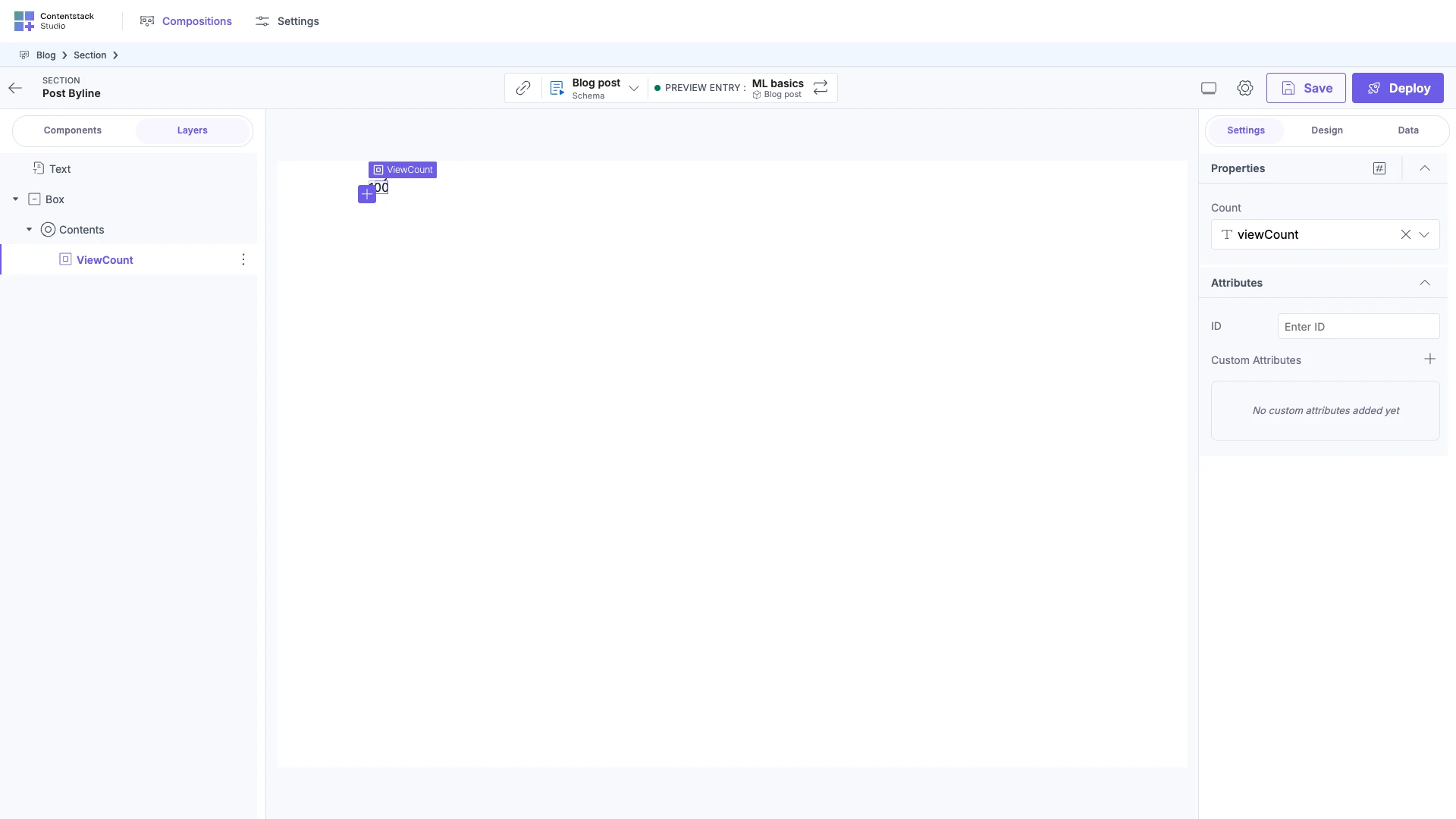
Select a component, then open the Data Picker on one of its props, as in Bind a component. For the example, drag ViewCount from the Components tab into Post byline, select it, and open the picker on its Count property.
-
Select the source named Component Data. Under Component Props, select ViewCount. The picker capitalizes the row for your
viewCountkey. Component Props lists the top-level keys of your data. Count is anumberproperty, so it accepts number values, such as 100.ViewCount on the canvas shows 100.
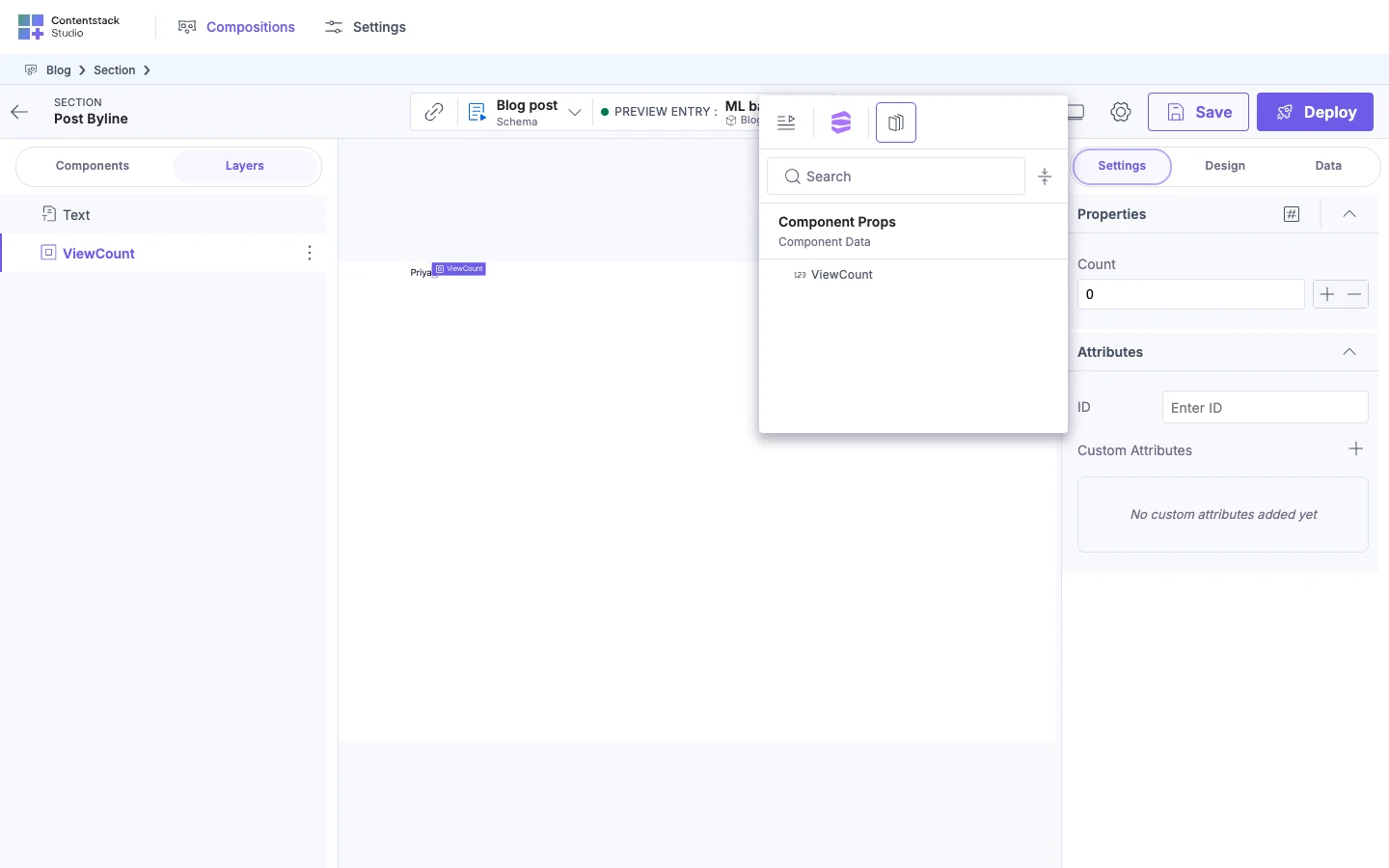
When more than one source has data, icons along the top of the picker switch sources. Each icon shows its name on hover.
Component Data appears only when something has a value: sample data, your app's data, slot data or a state variable. The picker lists state variables you declare in the same source, under State Variable.
Pass your app's data when you render
In your app. A developer does this on the route that renders the template. StudioComponent takes the same data prop on the client and on the server.
-
Get
specOptionsfor your route. On the client,useCompositionDatareturns it.const { specOptions, isLoading } = useCompositionData({ url: "/blog/ai-101" });if (isLoading || !specOptions) return null;On the server,
sdk.fetchCompositionDatareturnsspecOptions, and a client component rendersStudioComponentwithdata. See SDK API. -
Pass an object to the
dataprop ofStudioComponent, next tospecOptions. Each top-level key of the object becomes a key authors can bind.<StudioComponent specOptions={specOptions} data={{ viewCount: 1204 }} />Your app now passes
viewCounton/blog/ai-101. The next section checks the result.
For a template or section that your app renders on its own, your app's data replaces the sample data. Studio doesn't merge the two. An empty object counts as passed data, so it hides the sample data on your site. Pass undefined when you have nothing.
A section placed in a template works differently. Studio merges the data per top-level key. It uses the template's data first, and fills any key that data lacks from the section's sample data. An empty object hides nothing there.
The template's data is the data your app passes to StudioComponent, or the template's own sample data when your app passes none. While you edit in Studio, the canvas sends your data to Studio so the picker can list it.
Check both places
In Studio and in your app. Do this after both sides are done. The two values differ on purpose, because on your site your app's data takes priority over the sample data.
| Place | How to open it | ViewCount shows | Why |
|---|---|---|---|
| Studio | Open the Post byline section on the canvas. | 100 | A section's canvas sees only its sample data. |
| Your site | Deploy Post byline, then open /blog/ai-101. | 1204 | Post byline is in the Blog post template, and your app's data takes priority over the sample data. |
Deploying a section updates every template that uses it in that environment, such as Blog post. For the Deploy steps, see Save, preview, deploy.
If your site shows 100, your app isn't passing data on that route. See If it doesn't work.
How the Data Picker lists your data
Use this list to see why a key or a field doesn't appear in the picker.
This is how the Data Picker lists your data.
- Objects open as groups, and arrays list their items by position.
- Keys that start with
$don't appear. - Header's Text property accepts text, number or boolean values from your data. A
stringproperty in your own component accepts text only. - You can bind a Repeater's Items to an array in your data. The Data Picker then lists the fields of the array's first item.
- An empty array gives a Repeater no fields to select, so keep one item in the sample array.
- On a template, the picker lists your app's data when the preview route passes it, and the sample data when it doesn't.
If it doesn't work
- The right panel has no Data tab. Turn on Enable Freeform Feature in the project's Configuration settings.
- Component Data is missing from the picker. Nothing has a value yet. The sample data is empty or has only
$keys, and your app passes nothing. - The picker shows the sample data but not your app's. The route the canvas loads isn't passing data. A section's canvas never does.
- Your site shows 100 instead of 1204. Your app passes no data on that route, so your site uses the sample data. Pass
datatoStudioComponentthere. - Your site shows a prop's default value or nothing. Your app's data lacks that key, and a section placed in a template also lacks it in its sample data. If your app passes data to a template or section it renders on its own, the sample data isn't used. Add the key to your app's data.
- A
stringproperty shows a message on the canvas that asks you to contact your development team. The property is bound to a value that is now an object or an array. See Component schema: props, types and defaults. The message reads "This content may not display correctly in this view. Please contact your development team to update the component so it can support this type of content." - A Repeater lists no fields. It's looping an empty array. Add one item to the sample array.
Next, bind more props in Bind a component, or look up every StudioComponent prop in SDK API.