Open a template in Visual Editor
Open a template in Visual Editor when you want to edit the content it shows, not its layout. Studio builds the layout. Visual Editor edits the entry's values in place, on your real page.
The example is the blog's Blog post template, previewing "AI 101" at /blog/ai-101.
Prerequisites
- A template open on the canvas, connected or freeform. Sections don't have this button.
- Edit tags turned on in your app, so Visual Editor can find each bound value on the page. See Make bound values editable in Visual Editor.
What this is and what you get
The button hands the entry you're previewing to Visual Editor. You land on that entry's page, where you can click a value, such as the post's title, and edit it. Layout changes still happen in Studio.
For how Studio, Live Preview and Visual Editor fit together, read Studio, Live Preview and Visual Editor.
Open it
-
In the canvas top bar, click the Open in Visual Editor icon, at the right end of the bar's middle group.
-
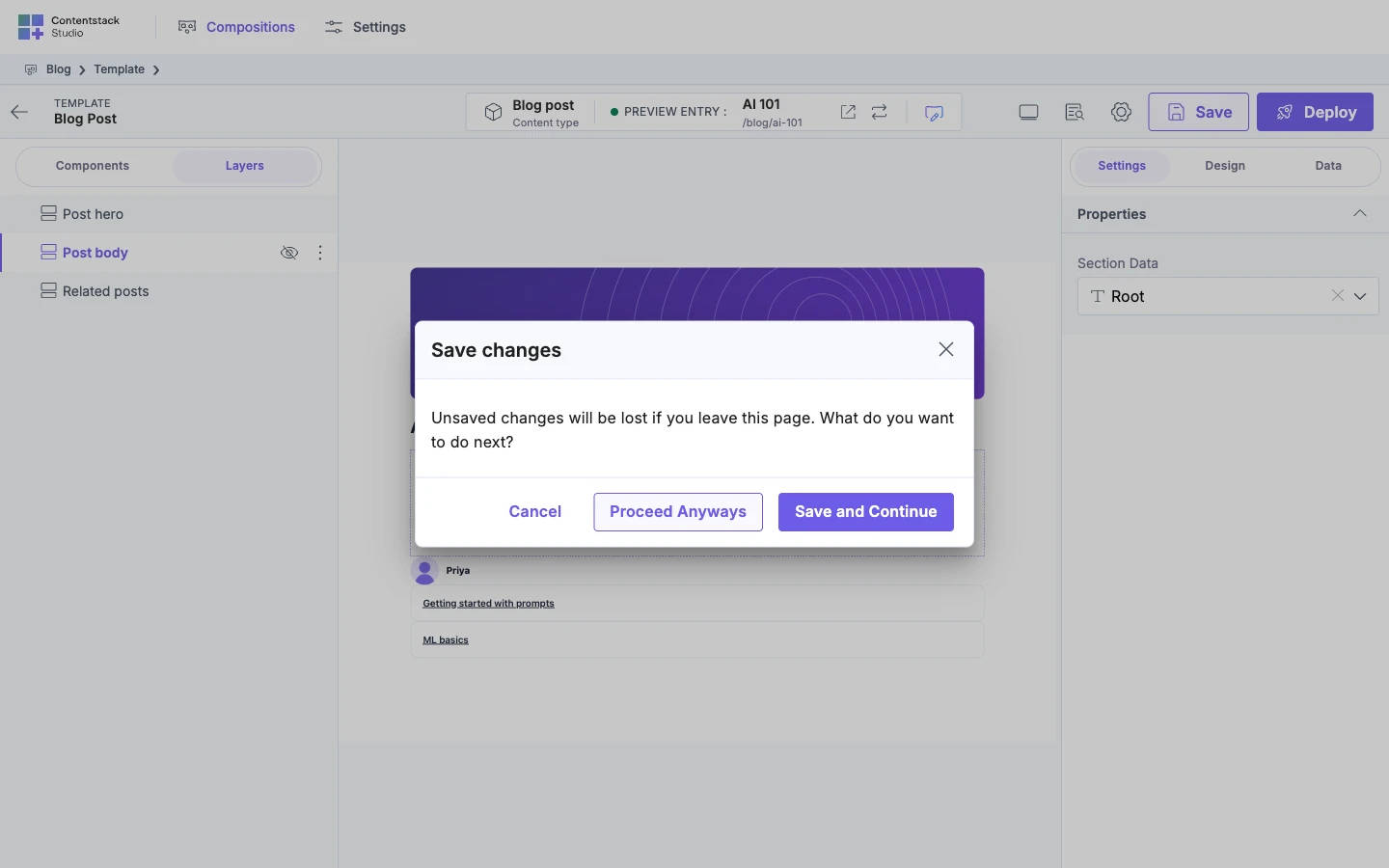
If you have unsaved changes, Studio asks what to do. Click Save and Continue to keep them, or Proceed Anyways to leave without saving.
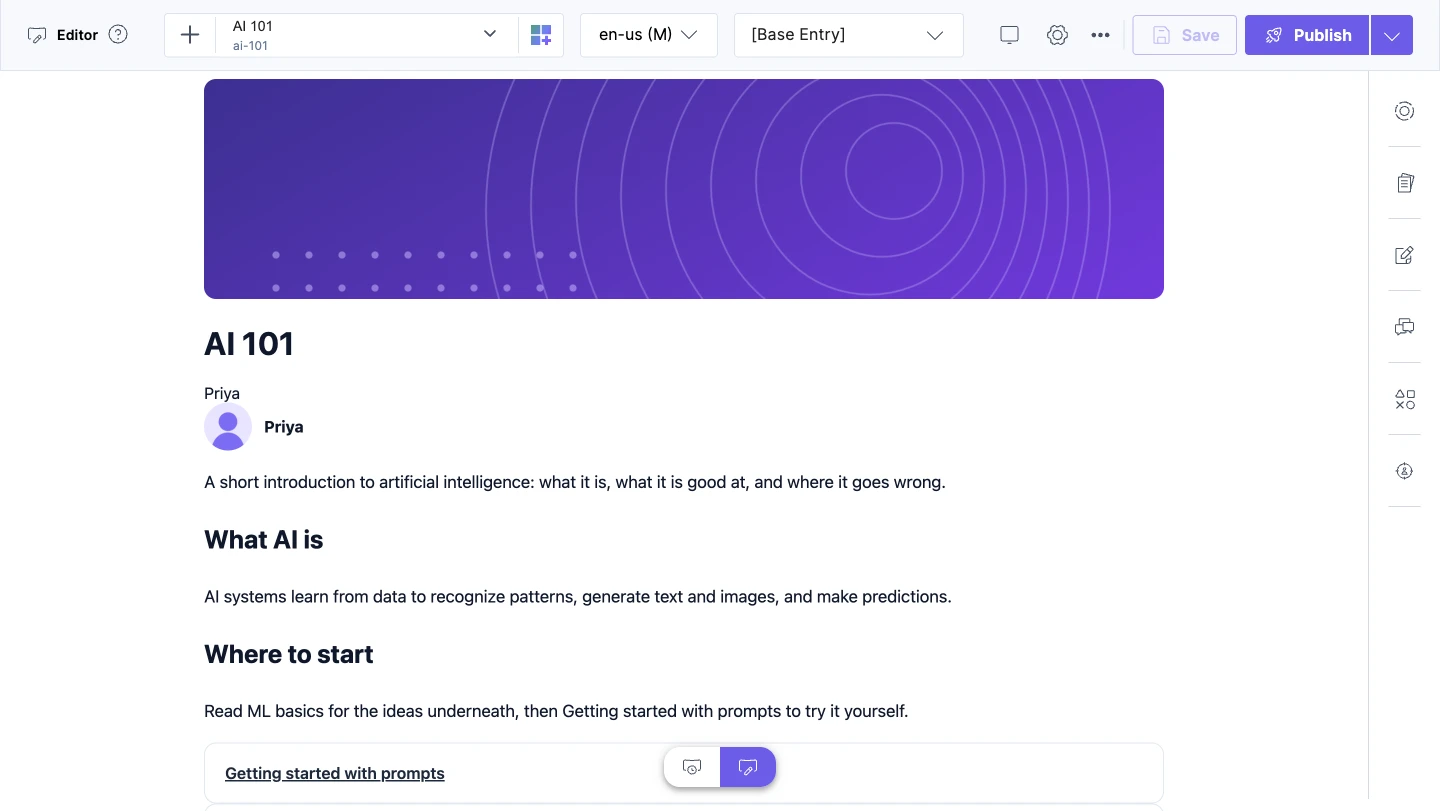
Visual Editor opens in the same tab, on the AI 101 entry.
What Visual Editor receives
| Studio passes | For a connected template | For a freeform template |
|---|---|---|
| The template | This template, so Visual Editor doesn't ask which one to open | Same |
| The entry | The entry you're previewing, such as AI 101 | The template's own entry |
| The language | That entry's language | Your project's master language |
| The site | Your site's base URL. Visual Editor finds the entry's page itself. | Same |
| The environment | The preview environment, when one is set. A choice in Configuration applies to your browser only and wins over project Settings. | Same |
| The variant | The Personalize variant the canvas is showing, when there is one | Same |
If no preview environment is set, Studio doesn't send one, and Visual Editor uses its own default.
If it doesn't work
- The icon is greyed out. The canvas hasn't loaded your page yet, or it shows an error, such as "No entry matches this URL pattern". Fix what the canvas shows, then try again.
- Visual Editor opens on a different environment than Studio showed. No preview environment was set, so Visual Editor used its default. Set one in Configuration or project Settings.
- Values show but you can't edit them. Edit tags are off in your app, or a component doesn't pass them through. See Make bound values editable in Visual Editor.