What is a composition
A composition is what Studio saves when you build a template or a section. You'll meet the word in the Compositions list, in the API and in these docs. Because a composition is data, not code, you can change a layout and deploy it without a code release.
The example is the team blog: the Blog post template, the Post hero section, and the post "AI 101" at /blog/ai-101.
A composition is the saved layout
A composition holds three things:
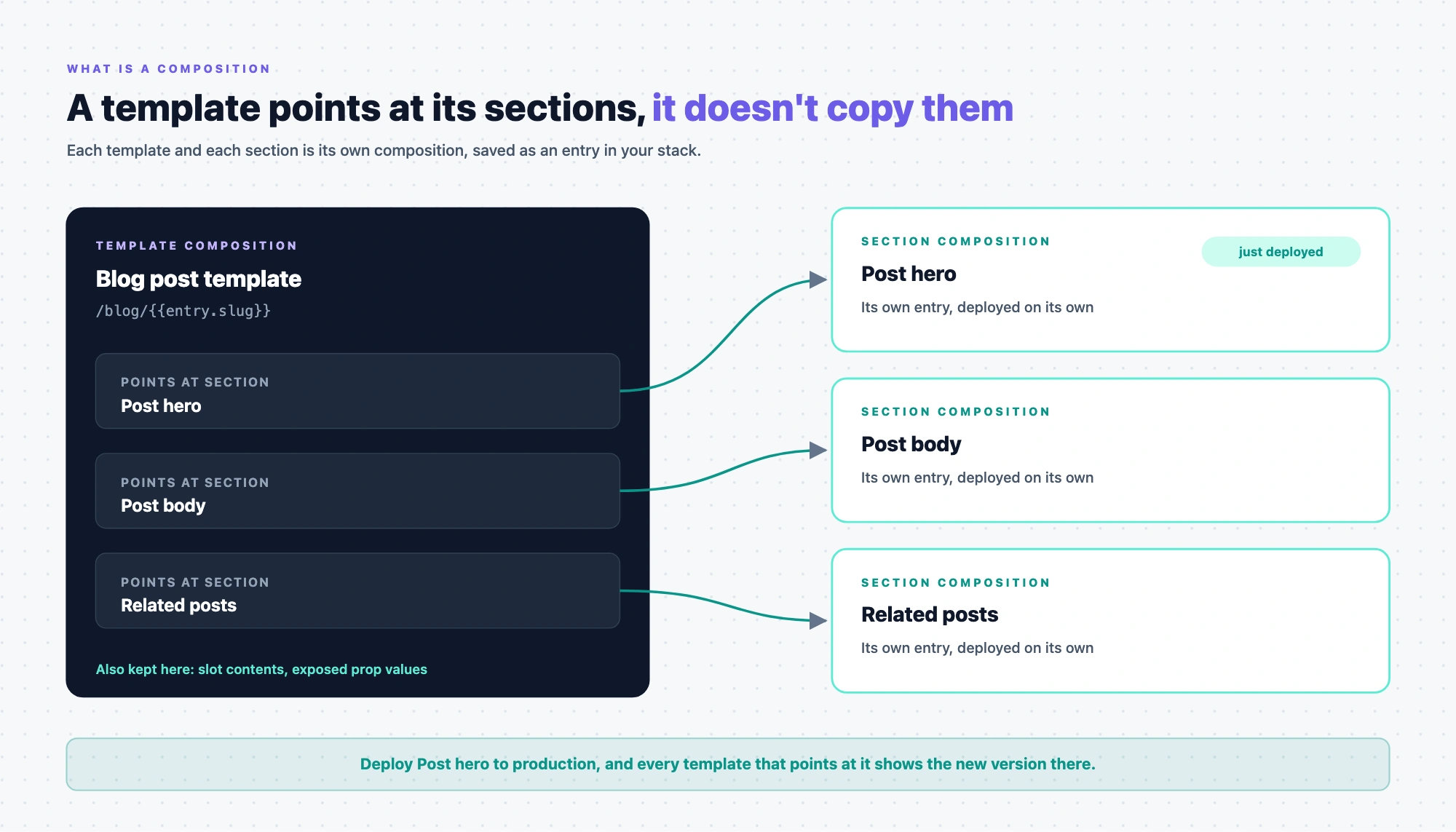
- The tree. Which components are placed where, and in what order. For the Blog post template, that's Post hero, then Post body, then Related posts.
- The bindings. For each component prop, where its value comes from, such as "the title of the entry being shown".
- Its details. Its name and, for a template, its URL pattern, plus the title, description, and image used in search results and link previews.
A composition holds no code and no rendered HTML. It describes a layout, which your app turns into a page with your components.
Why no code release is needed
Because a composition is data, changing a layout means changing data. Nobody edits a file or releases the app.
Studio saves each composition as an entry in your own stack. Every Studio project has its own content type for this, named Compositions unless you changed it when you created the project. That has three consequences:
- Your stack's permissions apply. Studio saves and deploys as the signed-in person, so what they can change depends on what your stack lets them change.
- Deploying is publishing. When you deploy a composition, Studio publishes its entry to the environments you pick, the same way it publishes an entry.
- It's always in the master language. A composition is one layout for every language. The content it binds to is fetched in whatever language your site requests.
Studio has no scheduling or workflow screens. If your stack uses workflows, deploying with Send with References skips workflow stage checks.
Two kinds of composition: template and section
When you create a composition, understanding whether it's a template or a section helps you feel more in control of where and how you can use it.
| Template | Section | |
|---|---|---|
| Where you find it | The Templates tab of the Compositions list | The Sections tab |
| Has its own URL | Yes | No |
| Where it renders | On your site's routes, through <StudioComponent /> | Inside the templates that use it. You build it on the route your project's Canvas URL points at, which renders <StudioCanvas /> |
| How it's used | Visitors open it | A template places it, and points at it rather than copying it |
Those two SDK components aren't interchangeable. A template renders through <StudioComponent />, and a section is built through <StudioCanvas />.
Two kinds of templates: connected and freeform
| Connected template | Freeform template | |
|---|---|---|
| Connected to a content type | Yes, exactly one | No |
| Renders | Entries of that content type | Only itself |
| URL | A pattern with the entry's values in it, such as /blog/{{entry.slug}} | A URL of its own, with no entry values in it |
| Available | Always | Once freeform is turned on for the project |
You can connect two templates to the same content type. Give each its own URL, because if they overlap, only one serves it. Which kind to build for a given page is covered in Connected or freeform template.
What a composition isn't
- Not the entry's content. The AI 101 entry's title and body stay in the AI 101 entry. The composition only says where each one goes. Text that someone types straight into a component in Studio, instead of binding it, is the exception, and it's saved in the composition.
- Not HTML. Your app renders the page from the composition, with your components.
- Not served by Studio. Your app fetches the composition through the Studio SDK and serves the page itself.
Save and Deploy
You create a composition, arrange it on the canvas, Save it, and Deploy it. Saving stores a new version in your stack without making it live. Deploying publishes it to the environments you choose, and your site shows it the next time it fetches the layout. See Save, preview, deploy.