Rename or delete a template or section
Rename a template or section when its name no longer fits, and delete one you no longer need. Both are in the Compositions list, in each row's action menu.
The example is the blog. You rename the Blog post template to Blog article, then delete the Post hero section, which the Blog post template uses.
Prerequisites
- The Compositions list open, on the Templates or Sections tab.
- A stack role that can edit and delete entries of your project's composition content type. Your Contentstack role decides what you can do.
Rename it
-
In the row's action menu, choose Edit.
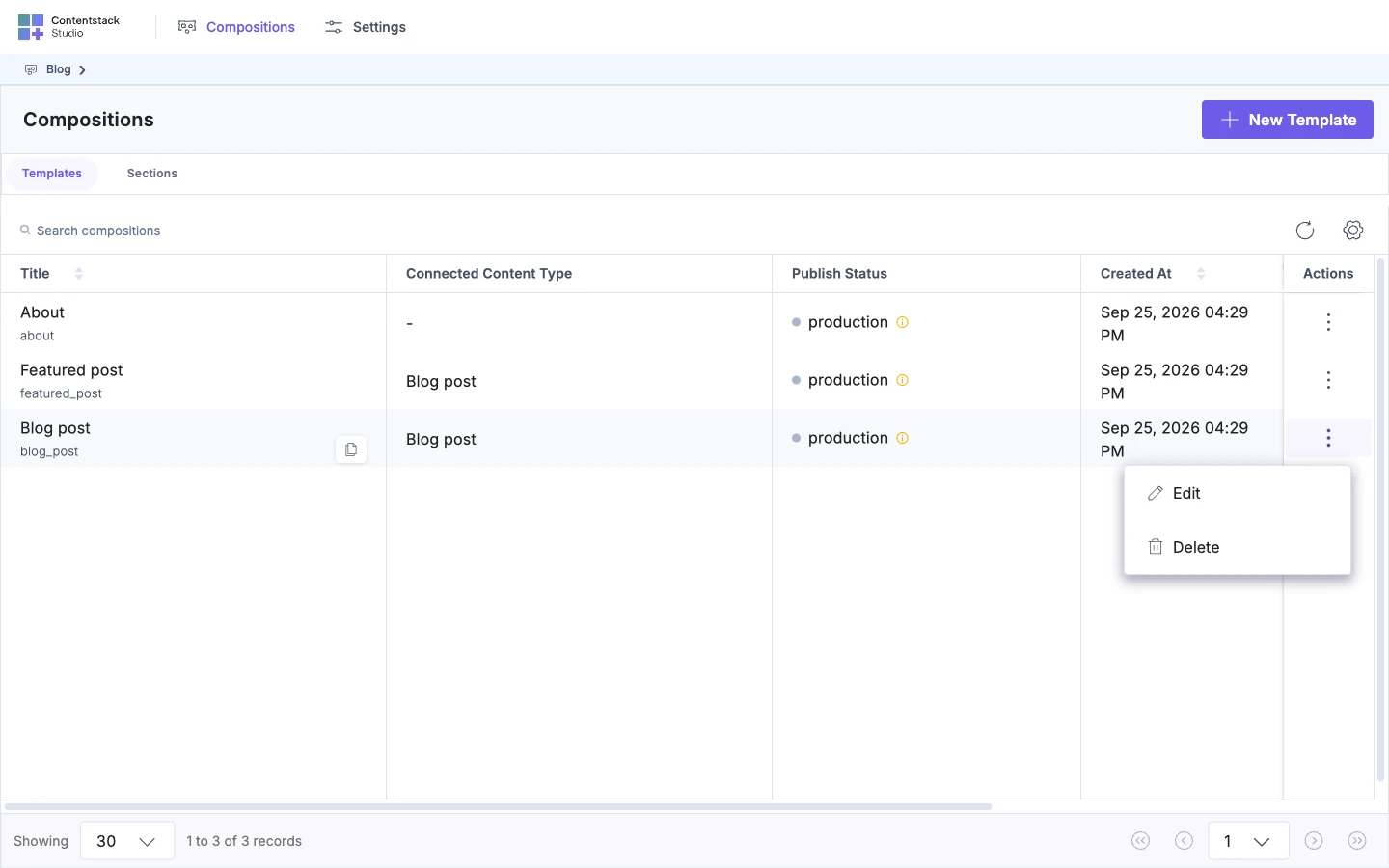
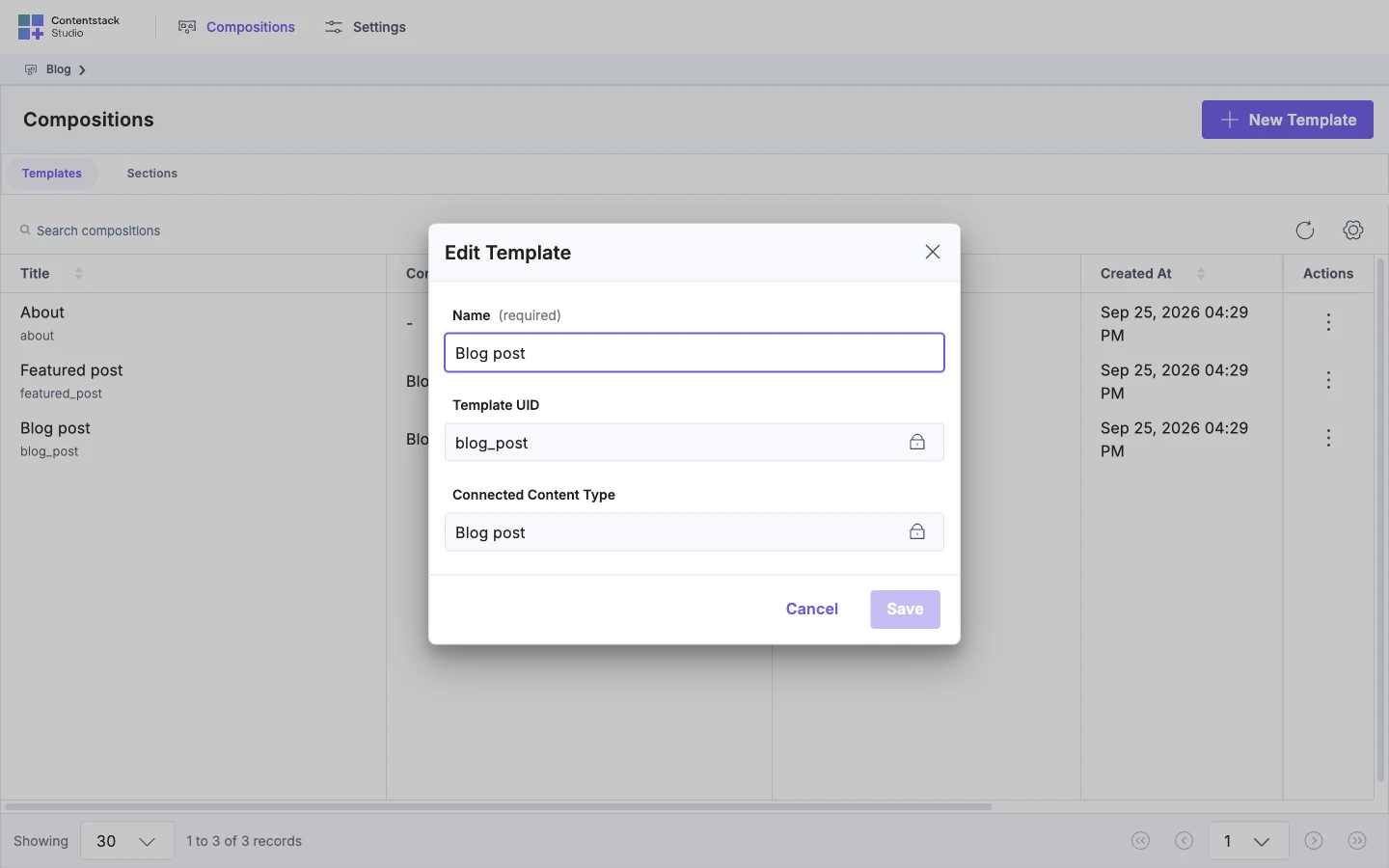
The Edit Template dialog opens, or Edit Section for a section.
-
Change the Name, such as to
Blog article.Template UID or Section UID can't be changed, and neither can a template's Connected Content Type. To change them, create a new one.
-
Click Save.
The list shows the new name. The template's URL and everything built on it stay the same.
Check where a section is used
Before you delete a section, open the Sections tab and look at its Referenced In column. It lists every template that uses the section. For Post hero, it lists Blog post.
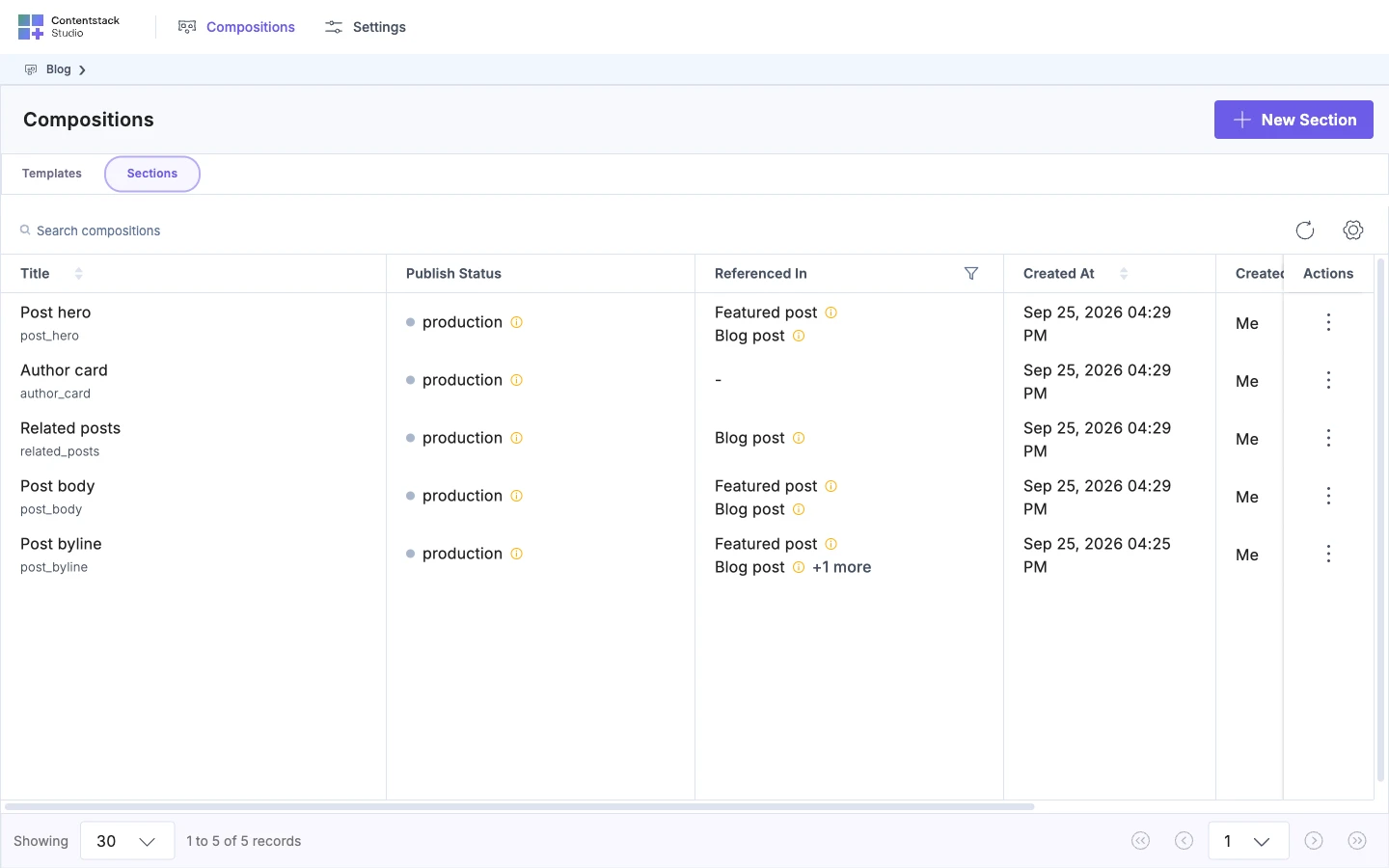
Studio doesn't warn you when you delete a section that templates use. Remove the section from those templates first, and deploy them.
Delete it
-
In the row's action menu, choose Delete.
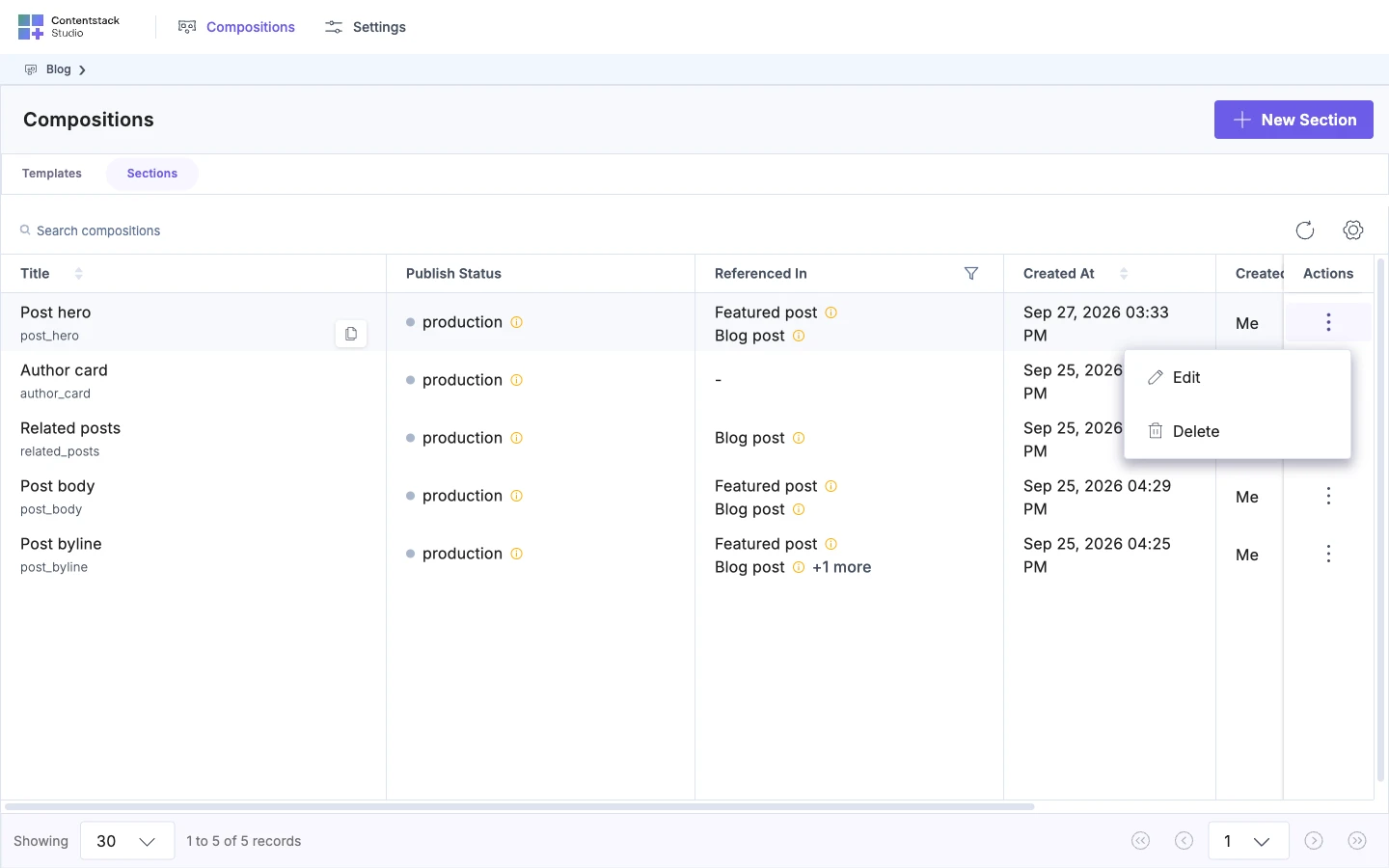
The Delete Composition dialog opens.
-
Type
DELETE, in capitals.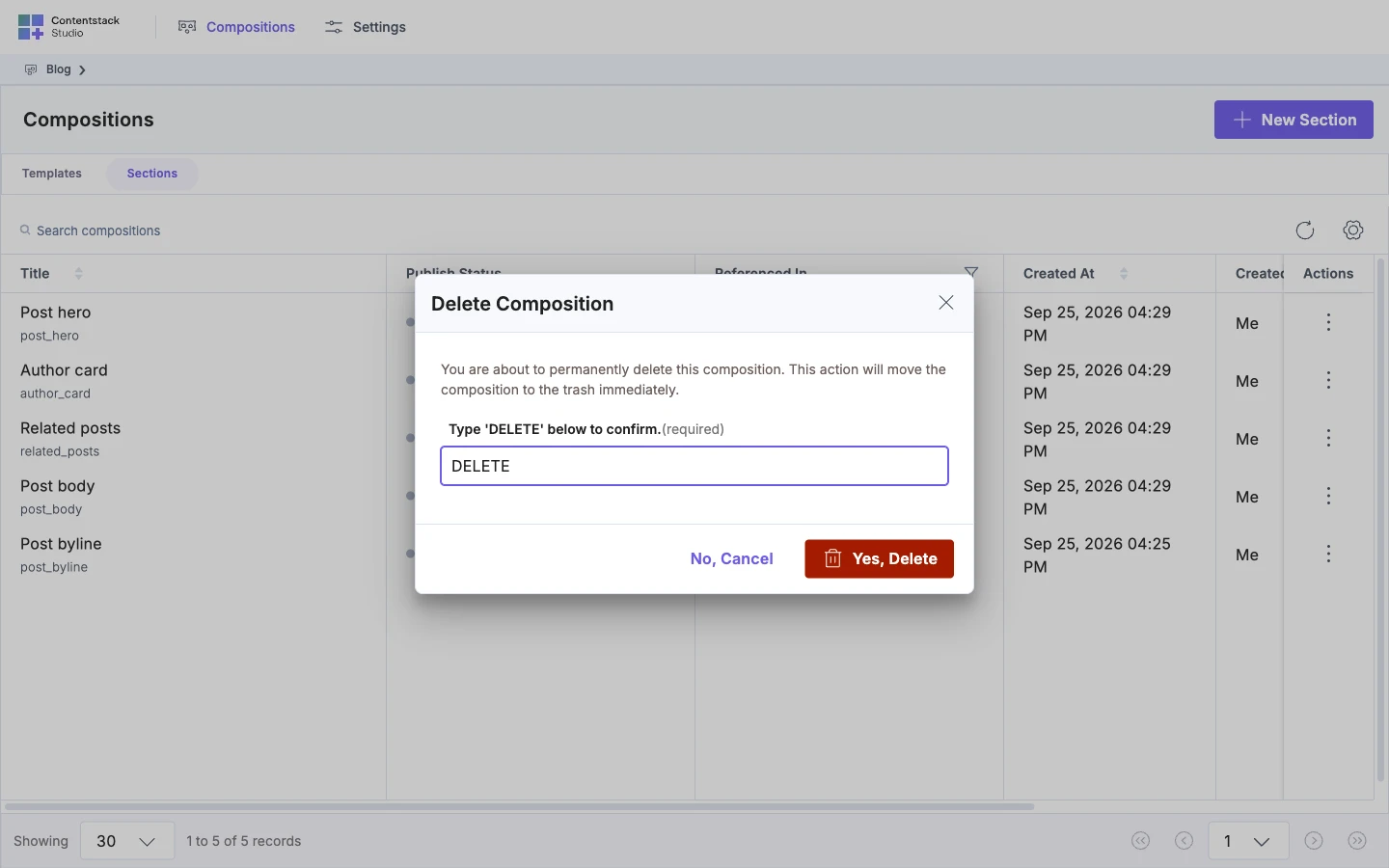
-
Click Yes, Delete.
Studio shows "Composition deleted successfully", and the row disappears from the list.
The template or section goes to your stack's Trash in Contentstack, and you can restore it from there. The dialog says the delete is permanent, but it isn't until the Trash is emptied.
What happens to templates that use a deleted section?
The template keeps its place for the section, and whatever was dropped into the section's slots, so nothing it held is lost. In the template's Layers, that place shows as a row called section-composition with a question-mark icon. Selecting it shows "No properties available for the selected component."
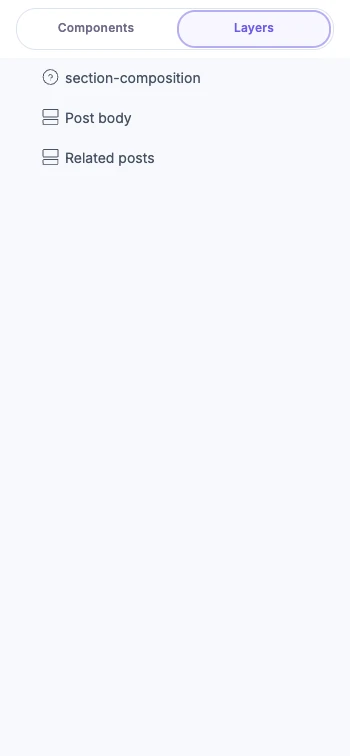
To fix the template, delete that row and deploy the template again, or restore the section from the Trash.
If it doesn't work
-
Yes, Delete stays greyed out. The box doesn't say exactly
DELETE. Retype it in capitals. -
"Composition deletion failed!" Your stack role can't delete it, or the request failed. Try again. If it keeps failing, ask a stack admin to check your role.
-
The row comes back after a refresh. The list takes a moment to catch up after a delete. Wait, then refresh again.
-
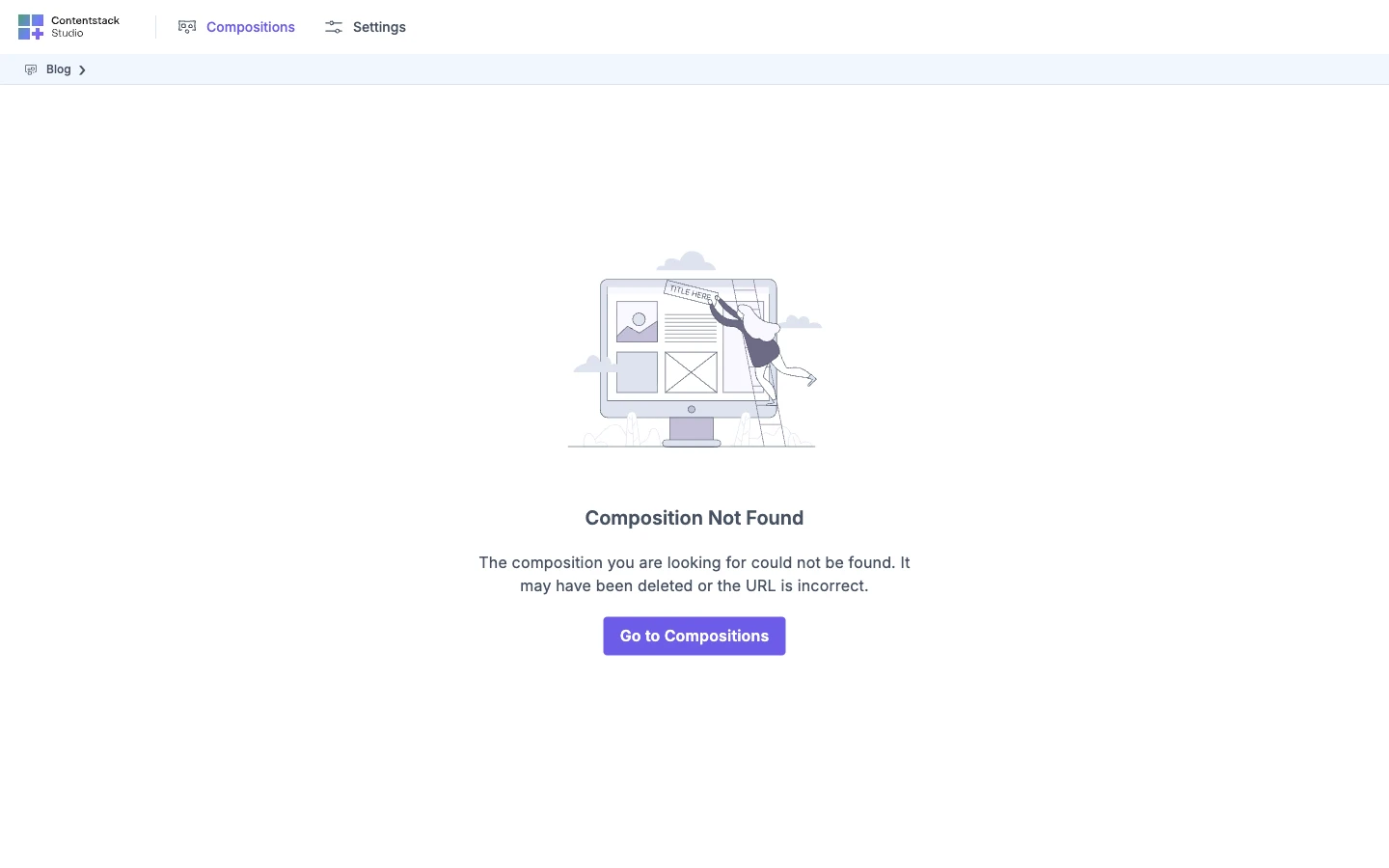
A saved link shows "Composition Not Found". That template or section was deleted. Click Go to Compositions, or restore it from your stack's Trash.
-
A template's Layers shows a
section-compositionrow with a question mark. A section it used was deleted. Delete the row and deploy the template, or restore the section.