Serve your canvas over HTTPS locally
Serve your local blog app at https://localhost:3000 with a certificate your browser trusts, so Studio can load it in the canvas over HTTPS. You need it only if the canvas won't load your app over http://localhost:3000, or if your app needs HTTPS to work at all.
The example on this page is the blog app, a Next.js app on your computer. The Blog project opens its Post hero section at /canvas.
Prerequisites
- The blog app runs locally. Production's English URL is
http://localhost:3000, so the canvas loads your app from there. - You can install software on your computer. The setup adds a certificate authority to your system's trust store. It can ask for your admin password once.
- You can change the environment's URLs in Contentstack. Studio only reads them. See Contentstack's documentation on environments.
What this is and what you get
Studio runs on an https:// address and loads your site inside its canvas. Try your app in the canvas over http://localhost:3000 first. If it loads, you don't need this page.
Set up HTTPS when one of these is true:
- The canvas doesn't load your app over
http://, though the app loads in a normal browser tab. - Your app needs HTTPS to work, such as for service workers,
Securecookies or WebAuthn.
When you're done, your browser trusts the certificate. It loads https://localhost:3000 with no warning, in a tab and in Studio's canvas.
This is for local development only. Your deployed site already has its own HTTPS certificate.
Faster ways to do this
- Skill. Ask your agent "I need HTTPS locally", and it uses
setup-local-https-canvas. It installs mkcert, creates the certificate and wires it into your dev server. It doesn't change the environment's URL in Contentstack, so you still do that step yourself. See What are skills?
Create a trusted certificate for localhost
You use mkcert, a tool that creates certificates your computer trusts.
-
Install mkcert.
On macOS, run the command below.
nssis only for Firefox.brew install mkcert nssOn Linux, install
libnss3-tools, then install mkcert. On Windows, runchoco install mkcertas an administrator. -
Add mkcert's certificate authority to your system's trust store. You run this once per computer.
mkcert -install -
In the blog app's root folder, create the certificate for
localhost:mkdir -p certsmkcert -cert-file certs/localhost.pem -key-file certs/localhost-key.pem localhost 127.0.0.1 ::1The
certsfolder now holdslocalhost.pemandlocalhost-key.pem. -
Add
certs/to.gitignorebefore you commit.localhost-key.pemis a private key.certs/
Serve the blog app over HTTPS
-
Start Next.js with both certificate files:
next dev --experimental-https --experimental-https-key ./certs/localhost-key.pem --experimental-https-cert ./certs/localhost.pem -
To make
npm run devserve HTTPS every time, put that command in thedevscript inpackage.json:{"scripts": {"dev": "next dev --experimental-https --experimental-https-key ./certs/localhost-key.pem --experimental-https-cert ./certs/localhost.pem"}} -
Open
https://localhost:3000in a browser tab.It loads with no certificate warning.
Other dev servers have their own HTTPS settings. The skill setup-local-https-canvas covers Vite.
Change the environment URL to https://localhost:3000
Studio loads your site from the environment's URL for the language, which Studio shows as the Base URL. It doesn't load it from the Canvas URL.
-
In Contentstack, change production's English URL from
http://localhost:3000tohttps://localhost:3000. See Contentstack's documentation on environments. -
Leave the Canvas URL as
/canvas. It's a path, and Studio adds it to the Base URL. -
In Studio, open the Blog project, then open Settings, then Configuration.
Base URL now shows
https://localhost:3000.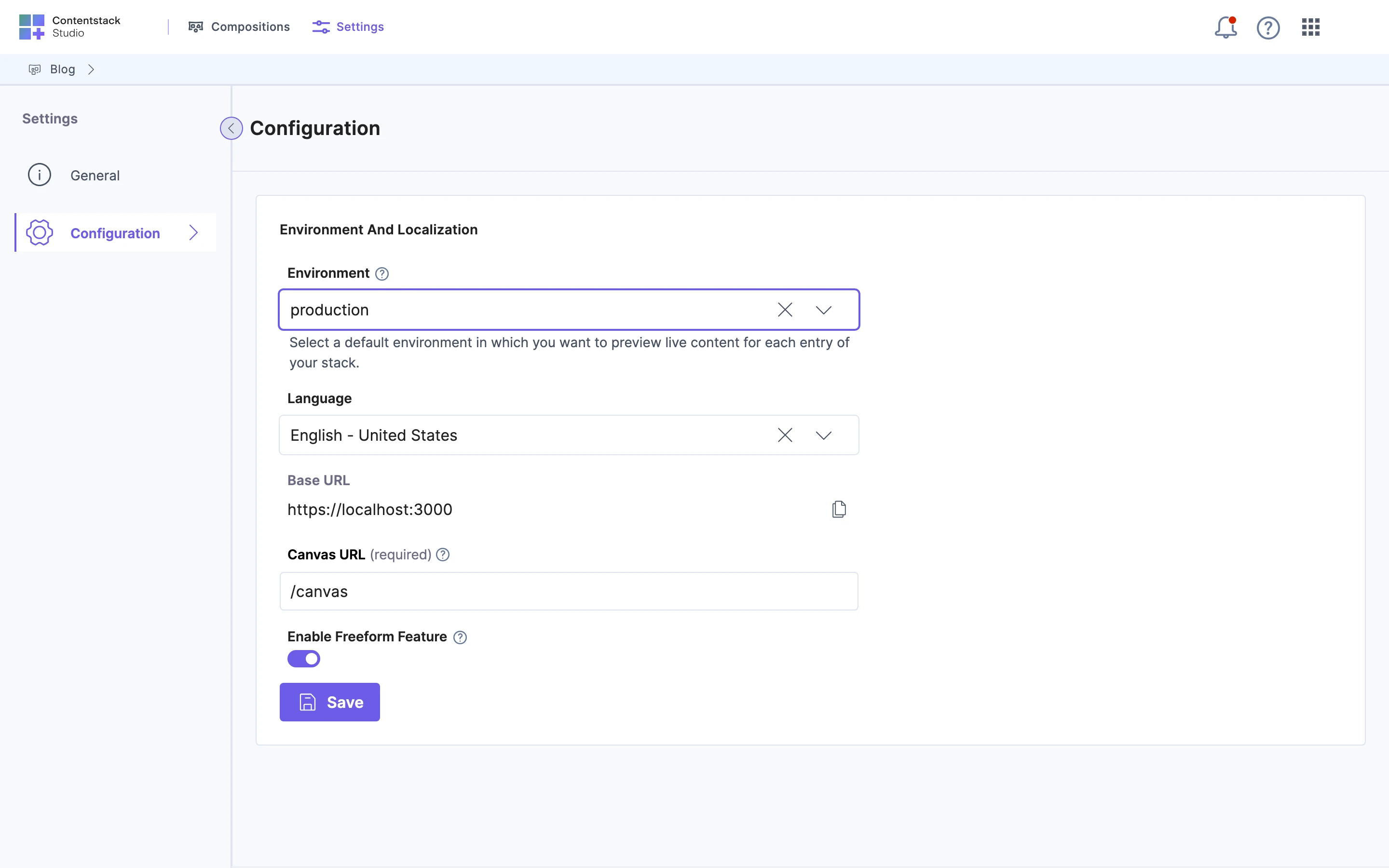
For how the Base URL and the Canvas URL join into one address, see Mount the section preview route.
Check that the canvas loads over HTTPS
- Start the blog app with
npm run dev. - In Studio, open the Sections tab of the Blog project, and open Post hero.
Studio opens the section at https://localhost:3000/canvas, the Base URL followed by the Canvas URL. With your section preview route in place, it shows Post hero.
If a card appears instead, find it under If it doesn't work.
If it doesn't work
-
The browser warns that the certificate isn't trusted. Run
mkcert -install, then quit and reopen the browser. Firefox needsnssinstalled first. -
The certificate stopped working after you reinstalled mkcert. Create the certificate again, with the command in Create a trusted certificate for localhost.
-
The canvas still doesn't load over HTTPS. Open Settings, then Configuration, and check that Base URL shows
https://, nothttp://. If it doesn't, change production's English URL in Contentstack. -
The canvas shows "We couldn't load your website". The canvas page didn't finish loading within 30 seconds, or it failed to load. Check Settings opens the project's Configuration tab, where you can check the Base URL. Check too that
https://localhost:3000loads in a browser tab with no warning.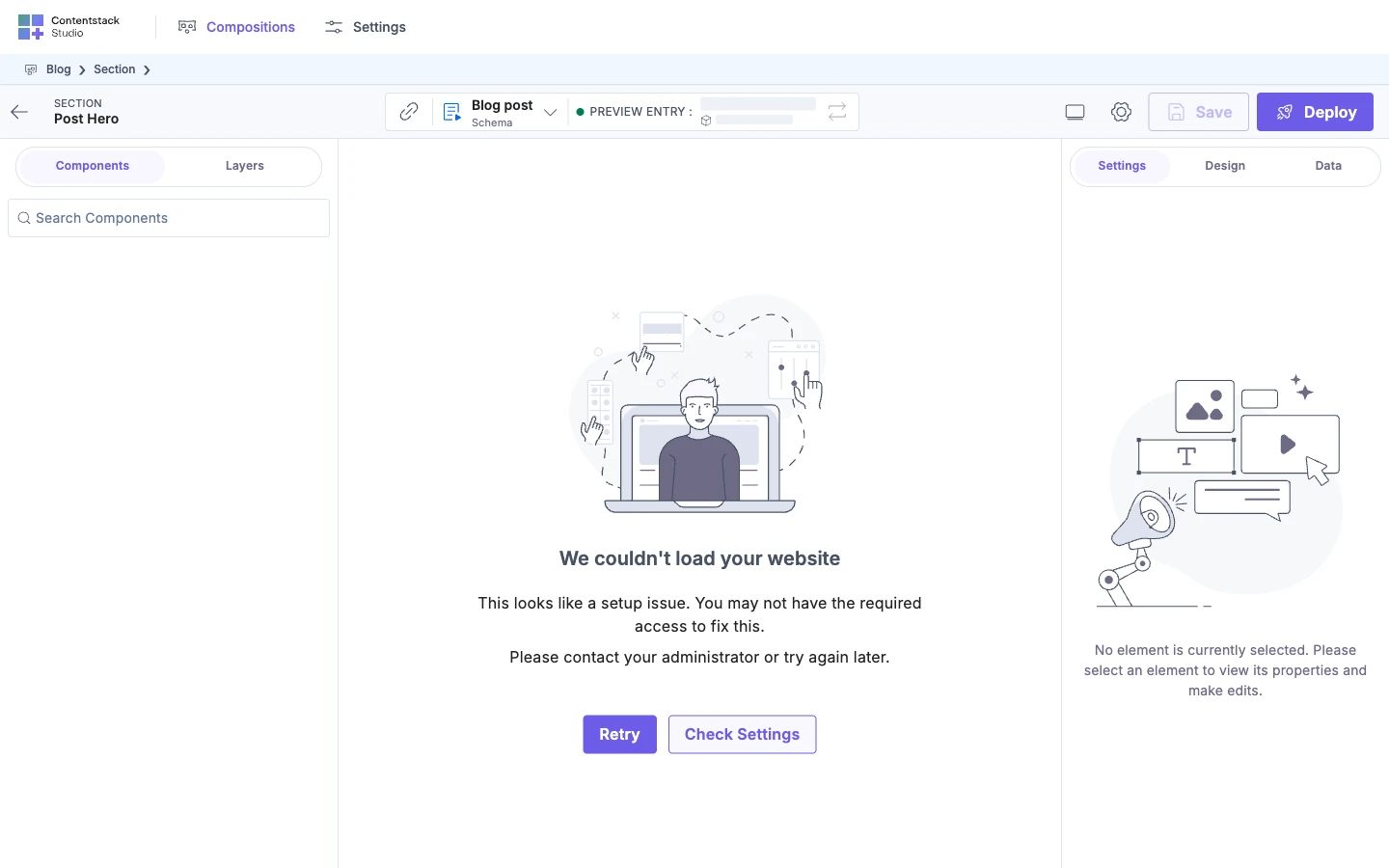
-
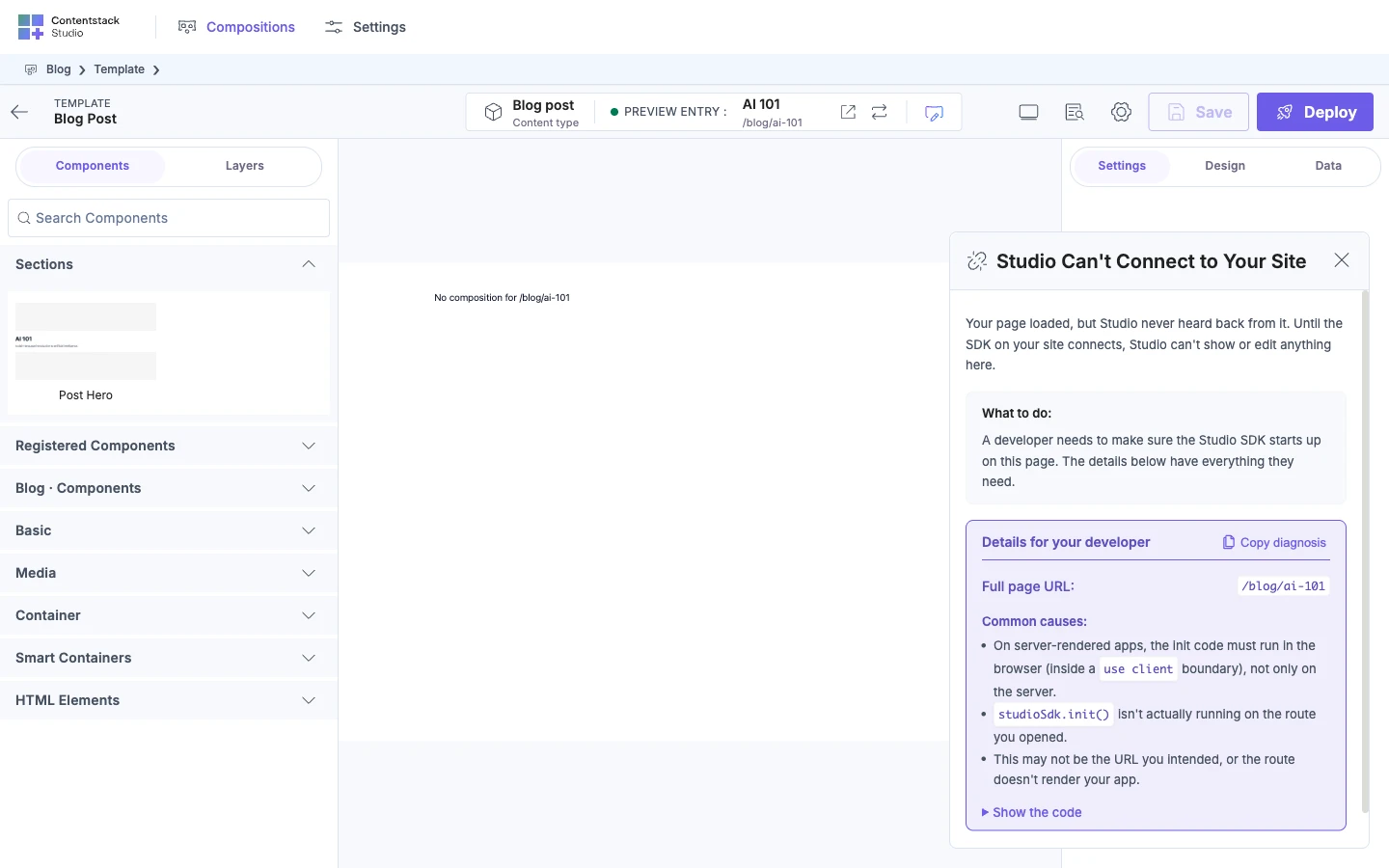
The canvas shows "Studio Can't Connect to Your Site". The page loaded, but Studio didn't hear from the Studio SDK within 30 seconds. That isn't about HTTPS. See Install the Studio SDK.
-
Chrome blocks the canvas from loading your local app. The canvas stays blank, and the browser console shows
ERR_BLOCKED_BY_LOCAL_NETWORK_ACCESS_CHECKS. This is Chrome's Local Network Access check. It stops a page on a public address, such as Studio, from loadinglocalhostor a private IP address. It applies tohttps://localhosttoo, so HTTPS doesn't get around it.To turn the check off on the computer you develop on, open
chrome://flags/#local-network-access-check, set it to Disabled, and relaunch Chrome. Or keep your main profile as it is, and start a separate Chrome profile with the check off. On macOS:open -na "Google Chrome" --args --user-data-dir="$HOME/chrome-studio-dev" --disable-features=LocalNetworkAccessChecksUse that profile only for Studio and your local app.
-
Anything else stops the canvas loading. That isn't about HTTPS. Go to Verify your setup end to end.