Copy and paste from Figma to Studio
Paste a Figma frame onto the Studio canvas as ordinary Studio components. Use it for a one-off layout, or to try a design before you decide which components to build.
The example on this page is the Reading list band frame from the Blog design file, pasted onto the About template.
Prerequisites
- The plugin installed, signed in and pointed at your project. See The Studio Figma plugin.
- A frame you've prepared. See Prepare your Figma file.
- A template open in Studio. The example uses About.
- Optional: your Figma components mapped to your code components. Mapped components arrive as your own. See Generate a React component from a Figma design.
Pasting needs no CLI.
What this is and what you get
Copy to Studio puts the frame on your clipboard as JSON. When you paste, Studio reads that JSON and builds components from it.
Studio can't read what Figma puts on the clipboard when you copy a frame yourself. Use Copy to Studio every time.
You get regular Studio components, below the element you selected. They belong to the one template you pasted into. To get a React component that every template can use, see Generate a React component from a Figma design.
Paste a design into the canvas
-
In Figma, select the Reading list band frame, run the plugin, and click Generate Design.
The plugin shows Your Export is Ready!
-
On the export screen, click Copy to Studio.
The button reads "Copied to Clipboard!" for a moment.

-
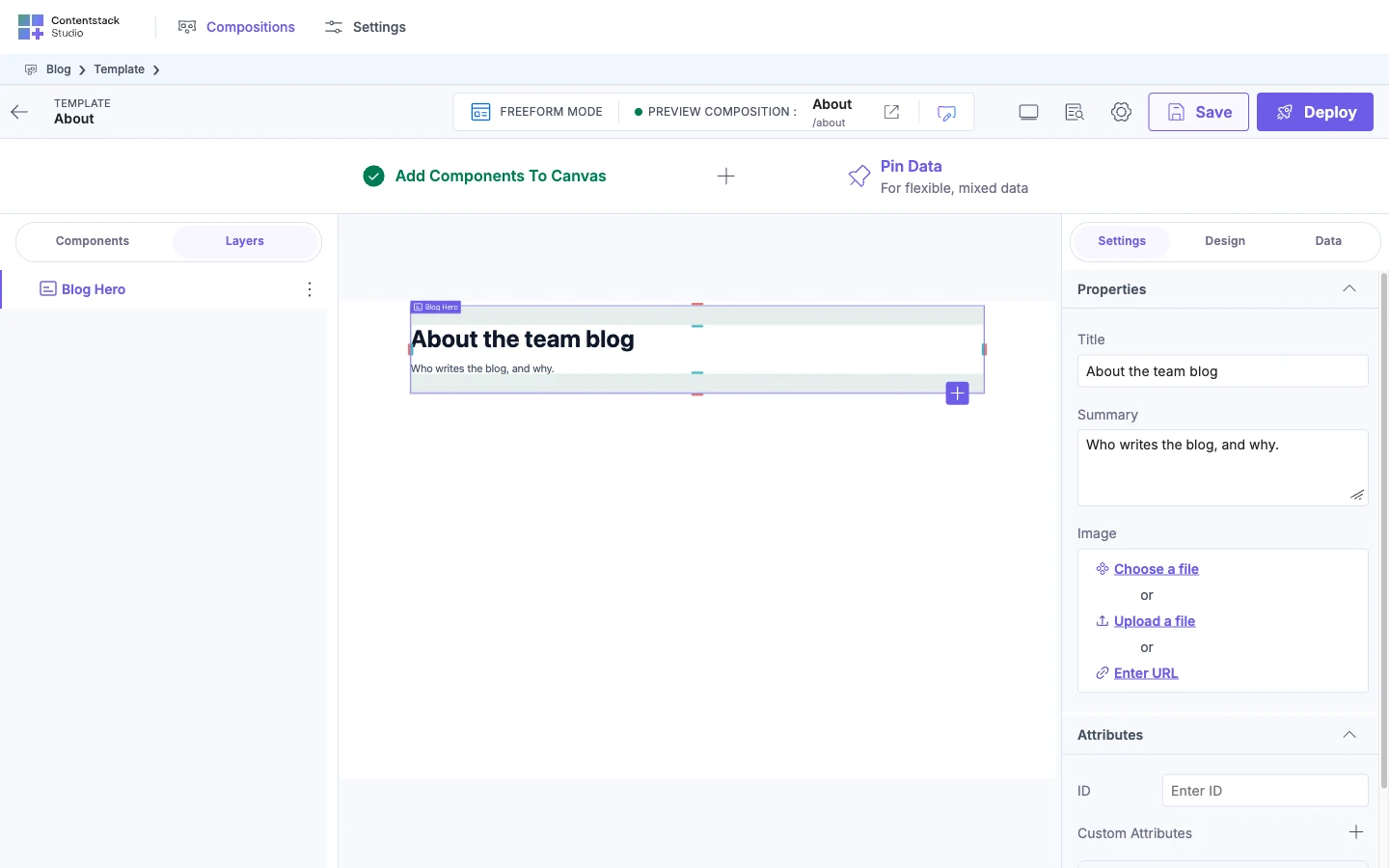
In Studio, open the About template. Click an element on the canvas.
The design goes below this element, so click the one you want it to follow. If you select a section slot, the design goes into that slot. See Section slots.
-
Press Cmd+V, or Ctrl+V on Windows.
Studio shows "Paste is in progress", then "Pasted content". The Reading list band appears on the canvas. In Layers, the band sits inside wrapper layers, under a layer named Page Root with Styles. Its elements are named after their tags: h2, p and button. With Subscribe banner mapped, a subscribe-banner layer appears too.
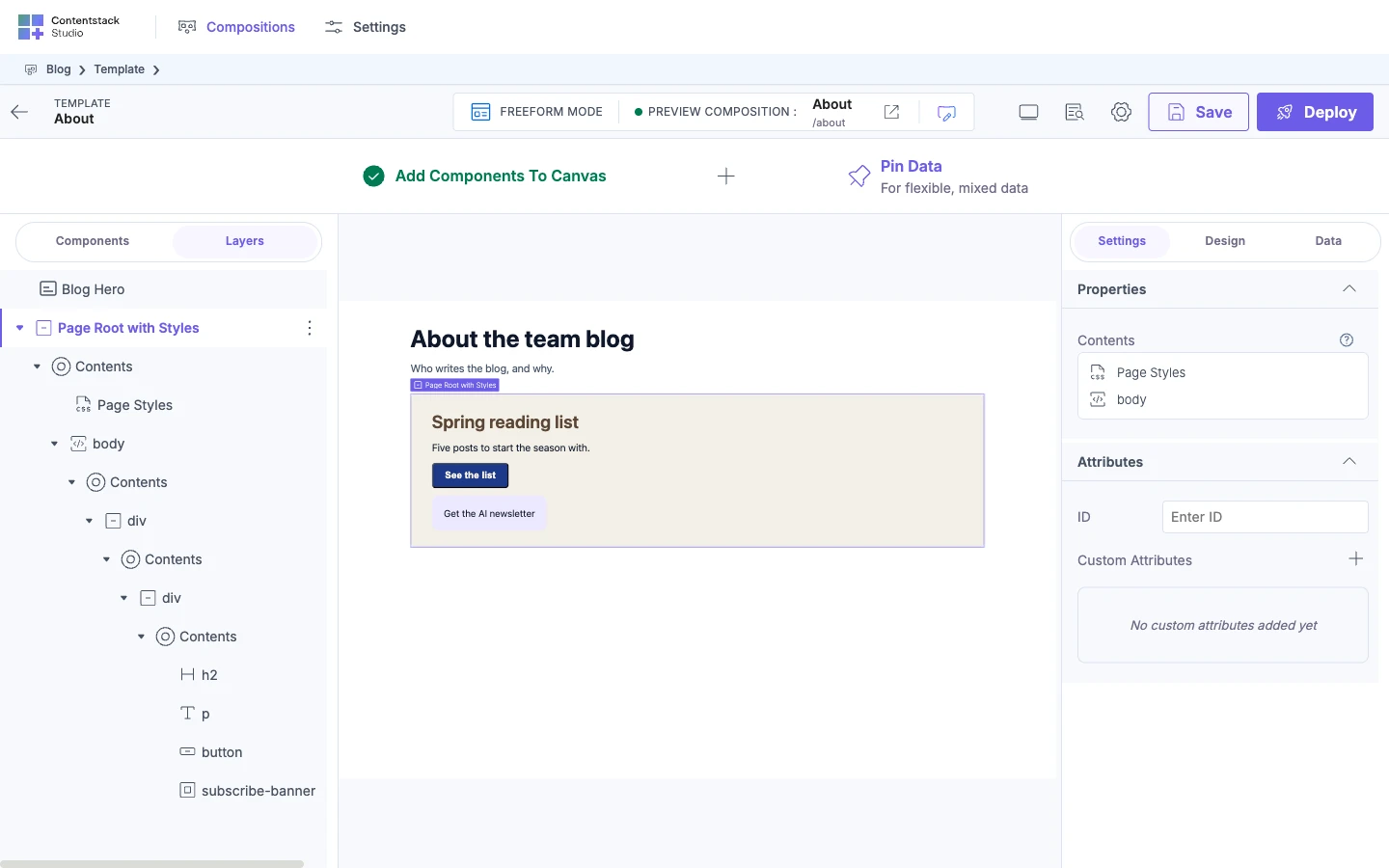
To paste a design you generated earlier, open History in the plugin and click Copy to Studio on its row. The plugin reuses the stored result and shows "No credits used". Then paste as in steps 3 and 4.
What the pasted design is made of
Studio pastes elements, not Figma layers. The plugin reads your frame as elements such as paragraphs, headings and links, and each one becomes a Studio component.
| Element in your design | Becomes in Studio |
|---|---|
| Paragraph | Paragraph |
| Heading, level 1 to 6 | Header |
| Link | Link, or Link Container when it has children |
| Button | Button |
| Image | Image |
| Video | Video |
| Embedded frame | Embed |
| Container with children | Box |
| Text on its own | Text |
| Any other element | HTML Element |
In the example, "Spring reading list" becomes a Header and "Five posts to start the season with." becomes a Paragraph.
Text and image values are saved as static values on each component.
Fix up the pasted design
After the paste, the band is part of the template. Select it, move it, and edit it as you would anything else. See Select and arrange elements.
- Use your own components. A Figma component you've mapped arrives as your registered component, so Subscribe banner arrives as SubscribeBanner. For anything you haven't mapped, you can swap the pasted parts for your components.
- Bind to data. The pasted text and images are static values. Bind them to fields so the template shows real content. See Bind a component.
Values that aren't design tokens
If your project limits design values to tokens or dynamic values, Studio checks the pasted values and warns about the ones that aren't tokens. A project that allows any value shows no warning. See Choose how strict the Design tab is.
The warning appears as a card titled Unregistered Design Token Values at the bottom right of the screen. For example, it reads "5 values in this design aren't a registered design token". It names up to three values and says "and N more" for the rest.
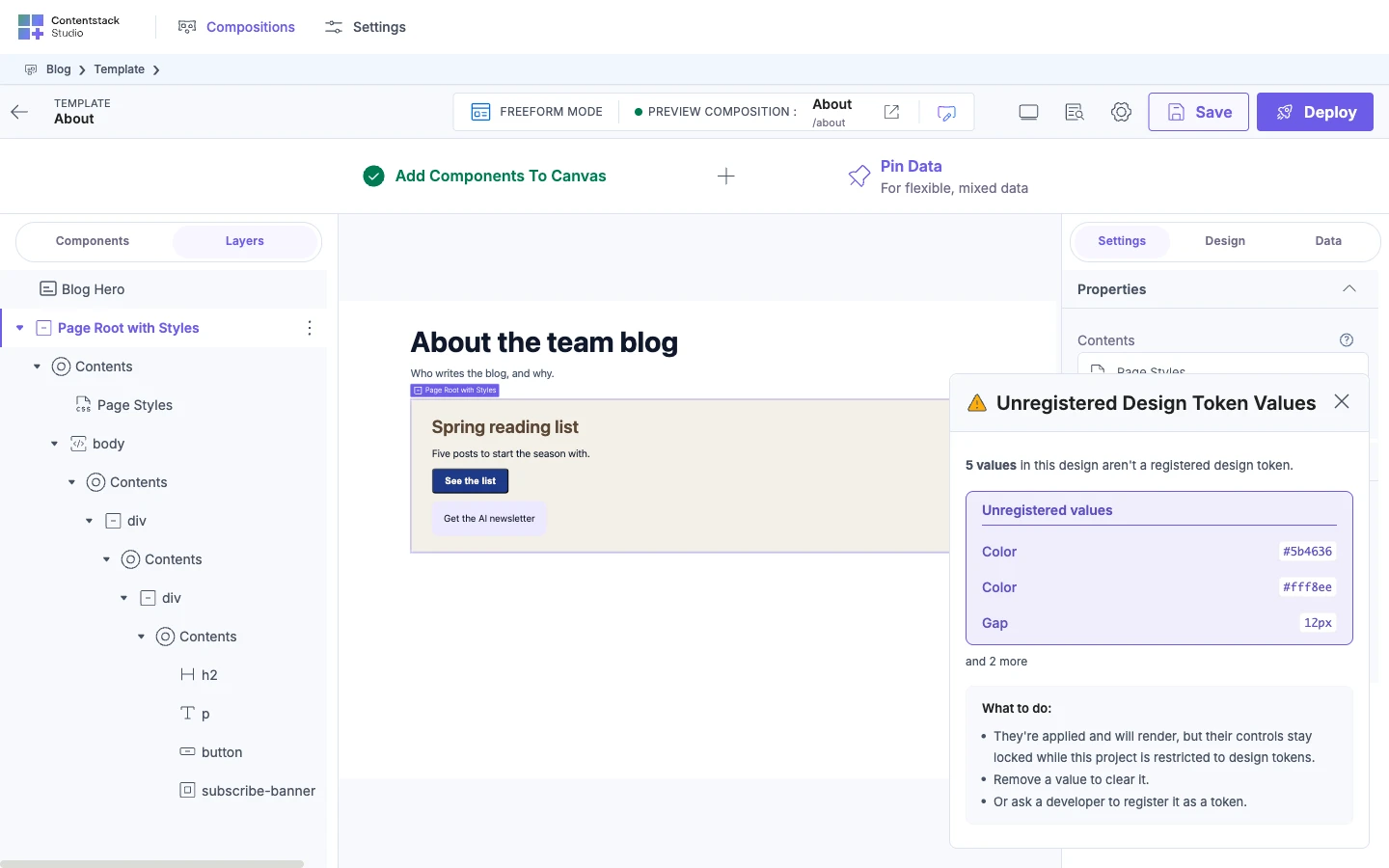
The values still render, but their controls stay locked in the Design tab while the project is restricted. The card's What to do list gives two ways out. To clear a value, remove it from the pasted component in Studio. To keep it, ask a developer to register it as a token in your code. See Register design tokens.
The check covers only the kinds of value you've registered tokens for. If you dismiss the banner, the next paste brings it back.
What doesn't come across
- Prototype interactions. The plugin doesn't read them.
- Frames with more than 300 elements. The plugin can't generate them, so you can't copy them.
If it doesn't work
| Symptom | Why it happens | Fix |
|---|---|---|
| Nothing happens when you paste | No element is selected, or the one you selected is locked or sits inside a locked element | Click an element on the canvas, and unlock it if it's locked. See Lock or unlock an element |
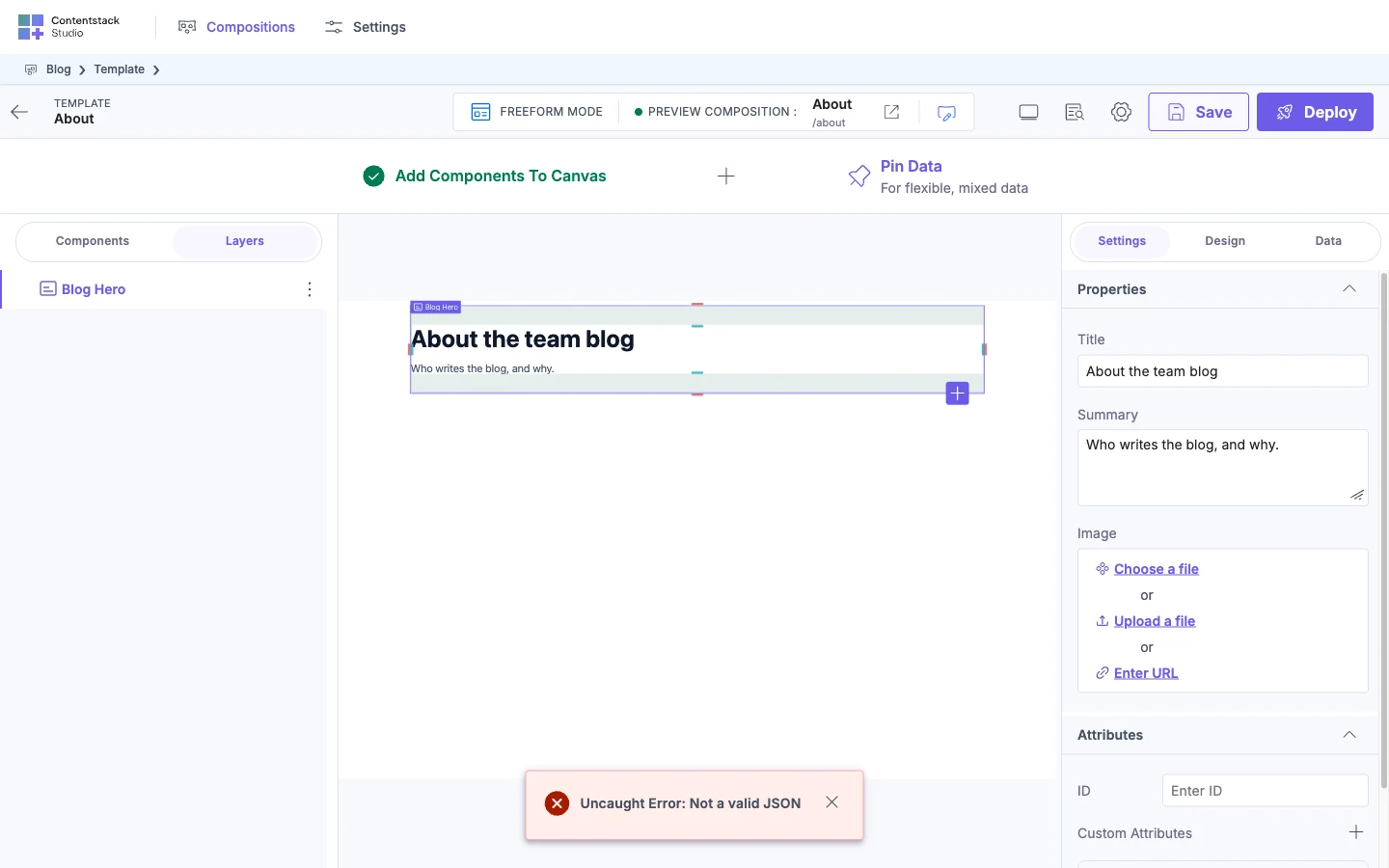
| An error notification reads "Uncaught Error: Not a valid JSON" | The clipboard holds something other than the output of Copy to Studio, such as a frame you copied in Figma yourself or text you copied afterward | Click Copy to Studio again in the plugin, then paste straight away |
| The plugin shows "Frame too large to generate" | The frame has more than 300 elements | Select individual sections instead, and copy each one |
| A component of yours arrives as a Box or other elements | The Figma component isn't mapped to it | Map it in the plugin, run Generate Design again, and copy again. See Generate a React component from a Figma design |
| A warning says values aren't a registered design token | Your project limits design values to tokens or dynamic values | See Values that aren't design tokens |
Where to go next
- Bind a component to show real content in the pasted design.
- Save, preview, deploy for the steps that follow any change to a template.
- Generate a React component from a Figma design when you want a component every template can use.
- The Studio Figma plugin for the other routes and what the plugin needs.