Primary and secondary templates
A secondary template lets you show a new template on your real address before it replaces the one visitors see. Read this page before you deploy a redesign that people need to review on your live site.
The example on this page is the Blog post template, primary at /blog/{{entry.slug}} on production, previewing AI 101 at /blog/ai-101. Blog post v2 is a redesign of it, on the same Blog post content type. The names come from the team blog.
What primary and secondary templates are
Primary and secondary templates work only between connected templates on the same content type, at exactly the same Template URL. A freeform template, a section, or a template on another content type can't be secondary.
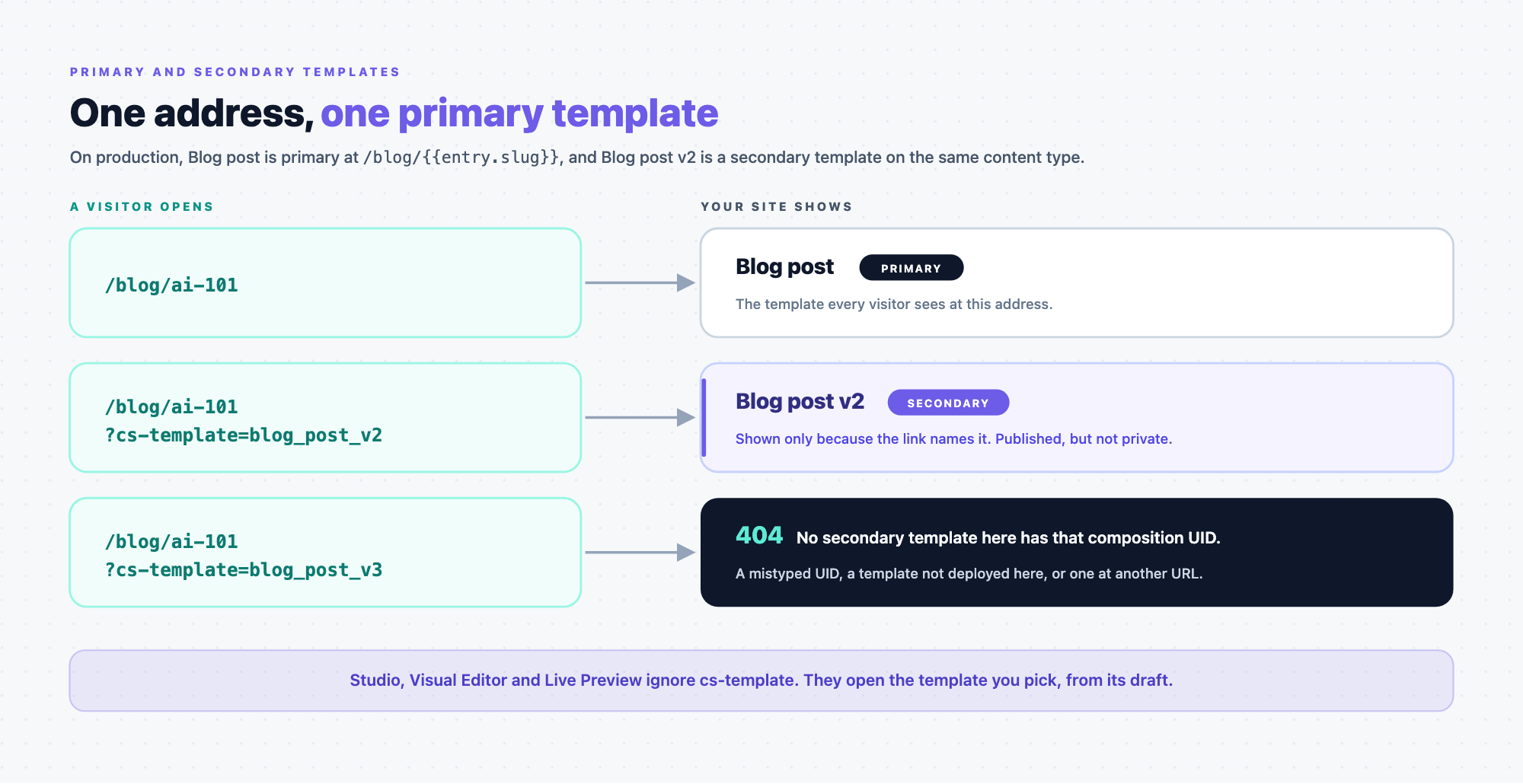
In each environment and language, one of those templates is the primary template at the URL. It's the one visitors see. Any other one that's deployed at that URL is a secondary template.
A secondary template is published, but your site shows it only when the address names it with cs-template and its composition UID, such as https://www.example.com/blog/ai-101?cs-template=blog_post_v2. Visitors who open /blog/ai-101 keep seeing Blog post. A cs-template link that names any other template, or has a typo, answers 404. Studio, Visual Editor and Live Preview ignore cs-template, and show the template you open from its draft.
Think of a secondary template as an unlisted video. It's published, and anyone with the link can watch it, but nobody finds it by browsing. It isn't private either. Anyone who has the link, or guesses the composition UID, can open it, so don't put anything in it that visitors mustn't see.
- Each environment and language has its own primary template. Blog post can be primary on
productionwhile Blog post v2 is primary onstaging. - Only what you deploy counts. A template becomes primary or secondary when you deploy it, in the dialog Another template is primary at this URL. Saving it changes nothing on your site.
- Your site has to support it. Every deployment of your site needs Studio SDK X or later. See Serve secondary templates from your site.
A secondary template is often mistaken for something it isn't:
- It isn't a draft preview. Its link shows what you deployed, not your unsaved changes. To see a draft, use Visual Editor or Live Preview.
- It isn't a staging site. It sits on your production address, next to the primary template. For a separate site, see Promote across environments.
- It isn't a Personalize variant. Everyone who opens the link sees the same template.
Keep the replaced template as a fallback
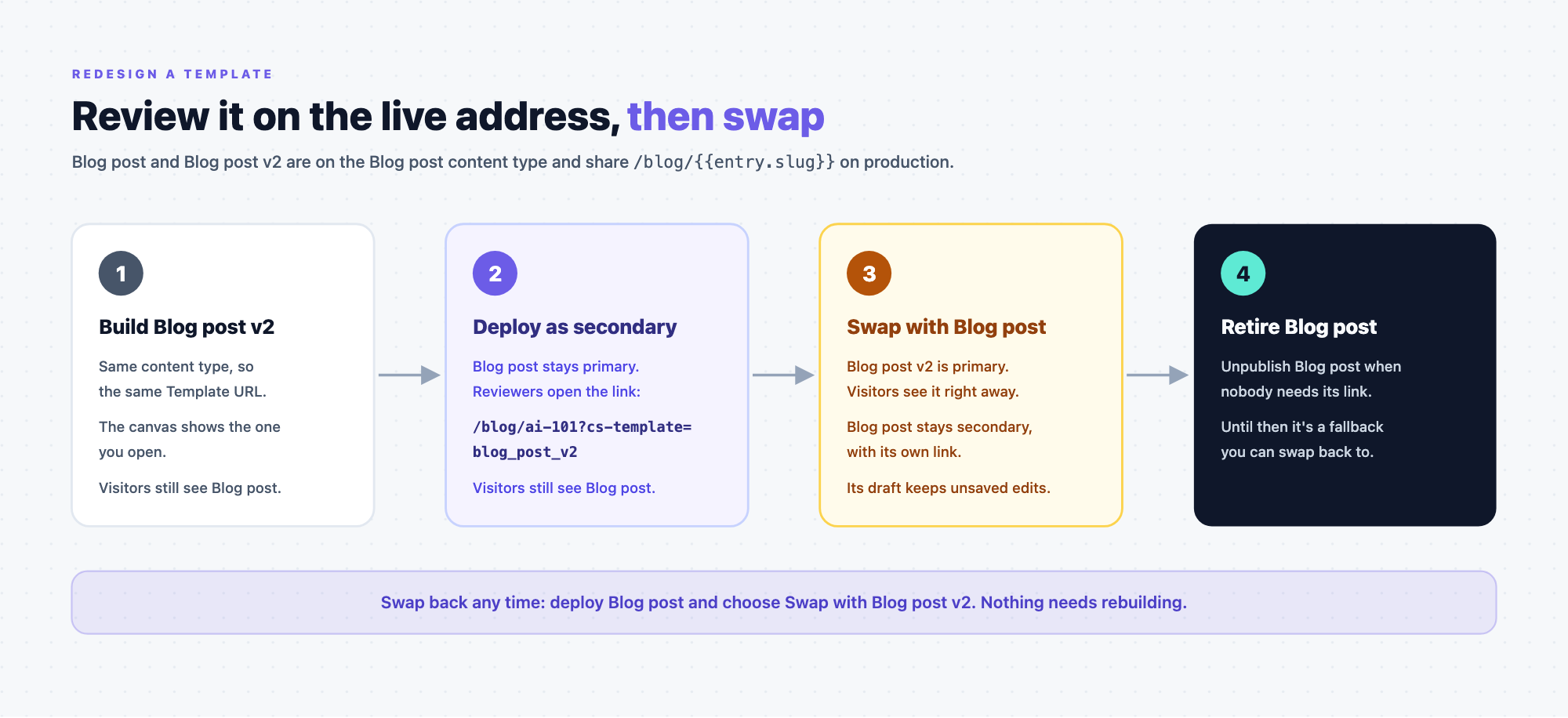
When you swap, Blog post doesn't go away. It stays published as a secondary template, with its own link, /blog/ai-101?cs-template=blog_post. If Blog post v2 has a problem, deploy Blog post and choose Swap with Blog post v2. Nothing needs rebuilding. Unpublish Blog post only when you no longer need the fallback.
Several secondary templates at one URL
You can deploy more than one template as secondary at the same URL, such as two candidate redesigns. Each opens from its own link, with its own composition UID. Only one template is primary in each environment and language, and the deploy dialog names only that one.
A template can be primary in one environment and secondary in another
Studio decides primary or secondary for each environment and language you deploy to. Say Blog post is primary on production only, and you deploy Blog post v2 to staging and production with Deploy as secondary. Blog post v2 becomes primary on staging and secondary on production. The dialog says so before you deploy, and its last step says "Deployed as secondary in production".
When no template is primary at the URL
If you unpublish or delete Blog post while Blog post v2 is secondary, no template is primary at the URL. /blog/ai-101 answers 404 for everyone, and so does every secondary link.
To fix it, deploy one of the secondary templates. With no primary template at its URL, it becomes primary, and Studio says "Blog post v2 is now primary". The same happens whenever you deploy a secondary template where nothing is primary.

Publishing from Contentstack skips the primary check
A publish in Contentstack, a bulk publish, a Release or a scheduled publish skips the deploy dialog. Any of them can leave two primary templates at a URL, and visitors then get the one deployed most recently. Deploy from Studio when templates share a URL. For timing a deploy, see Schedule a Deploy in Contentstack.
Review a redesign, step by step
These steps take Blog post v2 from a new template to the primary template, with a review on your live address in between. The deploy dialog's screens are on When another template is primary at the URL.
Check your site supports secondary templates
Every deployment of your site needs Studio SDK X or later. With an older one, Studio greys out the secondary choices, and visitors can see a secondary template without its link. A developer sets this up once. See Run Studio SDK X or later on every deployment.
Create the redesign as a second template
- Create Blog post v2 and connect it to the Blog post content type. See Create a connected template.
- Check its Template URL is exactly Blog post's,
/blog/{{entry.slug}}. It gets that URL from the content type's Custom Preview URL row or URL pattern. A default URL, or one you changed with Edit URL, doesn't match. To put it back, see Go back to the derived URL. - Build the new layout, and save it. Nothing reaches visitors until you deploy.
Deploy the redesign as a secondary template
-
Open Blog post v2 and click Deploy. Tick
production, then click Send with References.Studio opens Another template is primary at this URL, because Blog post is primary on
production. Deploy as secondary is selected. -
Click Continue, then Deploy as secondary.
The dialog says "Deployed as secondary" and shows Blog post v2's link,
/blog/ai-101?cs-template=blog_post_v2.
Visitors still see Blog post at /blog/ai-101.
Share the link to a secondary template
With Blog post v2 open, click Open in new tab. Blog post is primary at the URL, so the tab opens https://www.example.com/blog/ai-101?cs-template=blog_post_v2. View page on the dialog's last step opens the same link.
Copy the address from the tab and send it to your reviewers. They open it like any page on your site, with no Studio or Contentstack account.

The link shows what you deployed, not your unsaved changes. To show a change, deploy Blog post v2 again.
Anyone with the link sees Blog post v2. Search engines can find a link that's shared publicly. Your site needs to mark secondary templates noindex and keep them out of shared caches. See Keep secondary templates out of search and shared caches.
Change a secondary template and deploy it again
Edit Blog post v2 and deploy it again. The dialog opens again, because Blog post is still primary, and Deploy as secondary is selected again. Blog post v2 changes at its link, and visitors still see Blog post.
Swap a secondary template in, or swap back
When the review is done, deploy Blog post v2 and choose Swap with Blog post. Click Continue, then Swap and deploy.
- Blog post v2 becomes the primary template, and visitors see it at
/blog/ai-101right away. - Blog post stays published as a secondary template. The dialog's last step shows its link,
/blog/ai-101?cs-template=blog_post. - Studio republishes only what Blog post already had deployed, so nothing unreviewed goes live. Blog post's unsaved changes stay in its draft.
Studio warns you before the swap when Blog post was deployed after Blog post v2 was created, because visitors stop seeing those changes if Blog post v2 doesn't have them. See When another template is primary at the URL.
To swap back, deploy Blog post and choose Swap with Blog post v2. See Keep the replaced template as a fallback.
Retire the template you replaced
Once nobody needs Blog post's link, unpublish it. Studio has no separate unpublish action. Unpublish the Blog post entry of your Compositions content type from production in Contentstack. Or choose Unpublish Blog post and deploy instead of the swap. See What Studio can't do across environments.
Unpublish only the template you replaced, never the primary one. See When no template is primary at the URL.
When you don't need Blog post at all, delete it. See Delete it.
If it doesn't work
- Deploy as secondary and the swap are greyed out. The site in the canvas needs Studio SDK X or later. See Run Studio SDK X or later on every deployment.
- The link shows a 404. Check the composition UID, and that Blog post v2 is deployed to that environment and language. If nothing is primary at the URL, see When no template is primary at the URL.
- The link shows Blog post instead of Blog post v2. Your site isn't passing
cs-templateon. Ask a developer to check Serve secondary templates from your site. - Visitors see Blog post v2 without the link. Your site isn't ready for secondary templates. Ask a developer to check Serve secondary templates from your site.
- Blog post is still primary after the swap. Studio listed it under "Some steps didn't finish". Deploy Blog post v2 again and choose the swap. See Save, preview, deploy.
Where to go next
- Get your site ready for secondary templates: Serve secondary templates from your site.
- See each screen of the deploy dialog: When another template is primary at the URL.
- See what the canvas, Visual Editor and Deploy do while two templates share a URL: When two templates share a URL.