SDK setup errors
These errors come from how your site starts the Studio SDK and what it hands to it. If every template in Studio fails the same way, start here. The example is the Blog project, previewing AI 101 on the Blog post template, with Studio started in src/studio.ts.
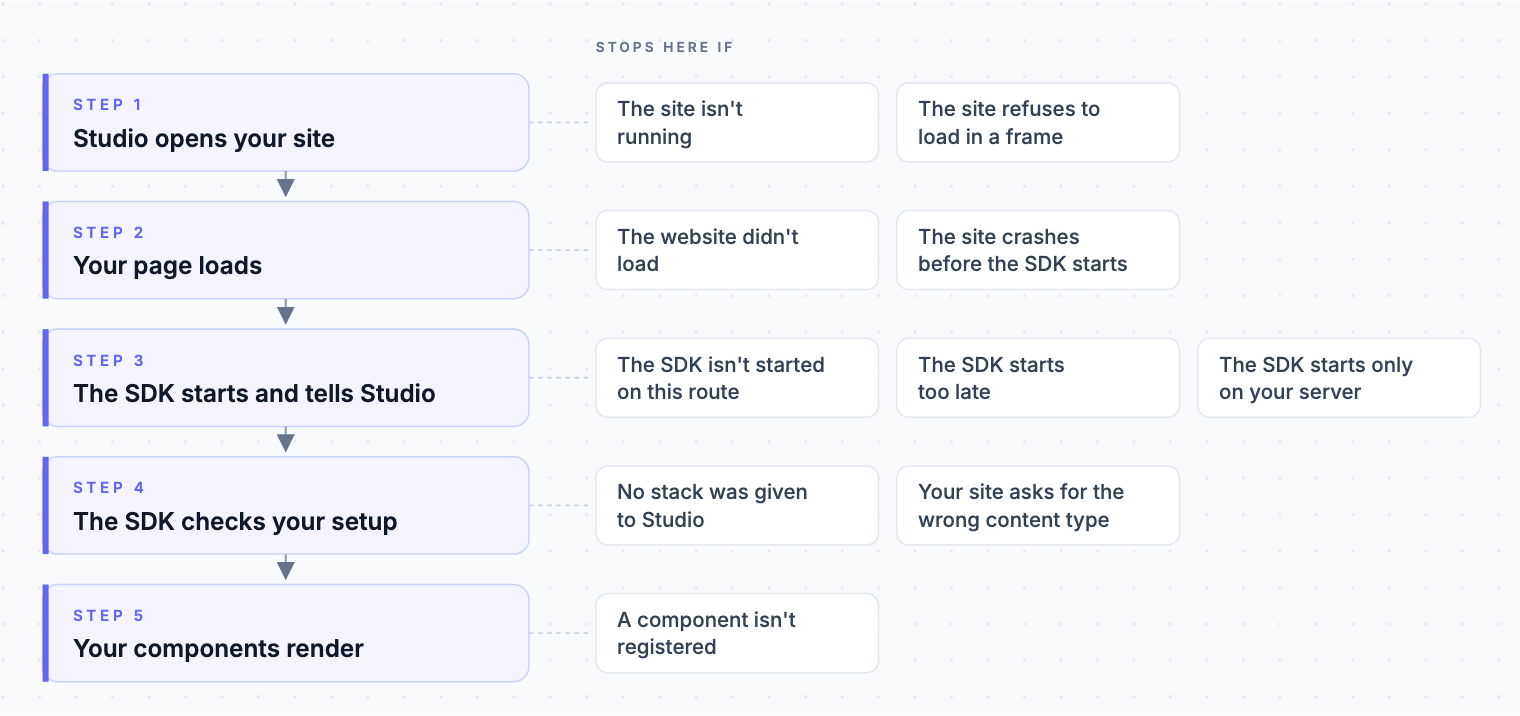
Studio connects to your site in five steps, and each error on this page stops one of them. Find the step where yours stops, then read its heading below.
After you fix any of these, reload the canvas. The card goes away when the fix worked.
Find your error
| You see | Code |
|---|---|
| Studio Can't Connect to Your Site | INIT_NOT_COMPLETE |
| We couldn't load your website | WEBSITE_DID_NOT_LOAD |
| A log line saying the SDK hadn't finished starting | INIT_NOT_COMPLETE |
| Your Site's Setup Is Incomplete | STACK_SDK_MISSING |
| Content Types Don't Match | CONTENT_TYPE_UID_INVALID |
| Component Loading Error | COMPONENT_NOT_REGISTERED |
If every template fails but none of these match, read Delivery settings errors or Live Preview errors.
Studio can't connect to your site
Code: INIT_NOT_COMPLETE
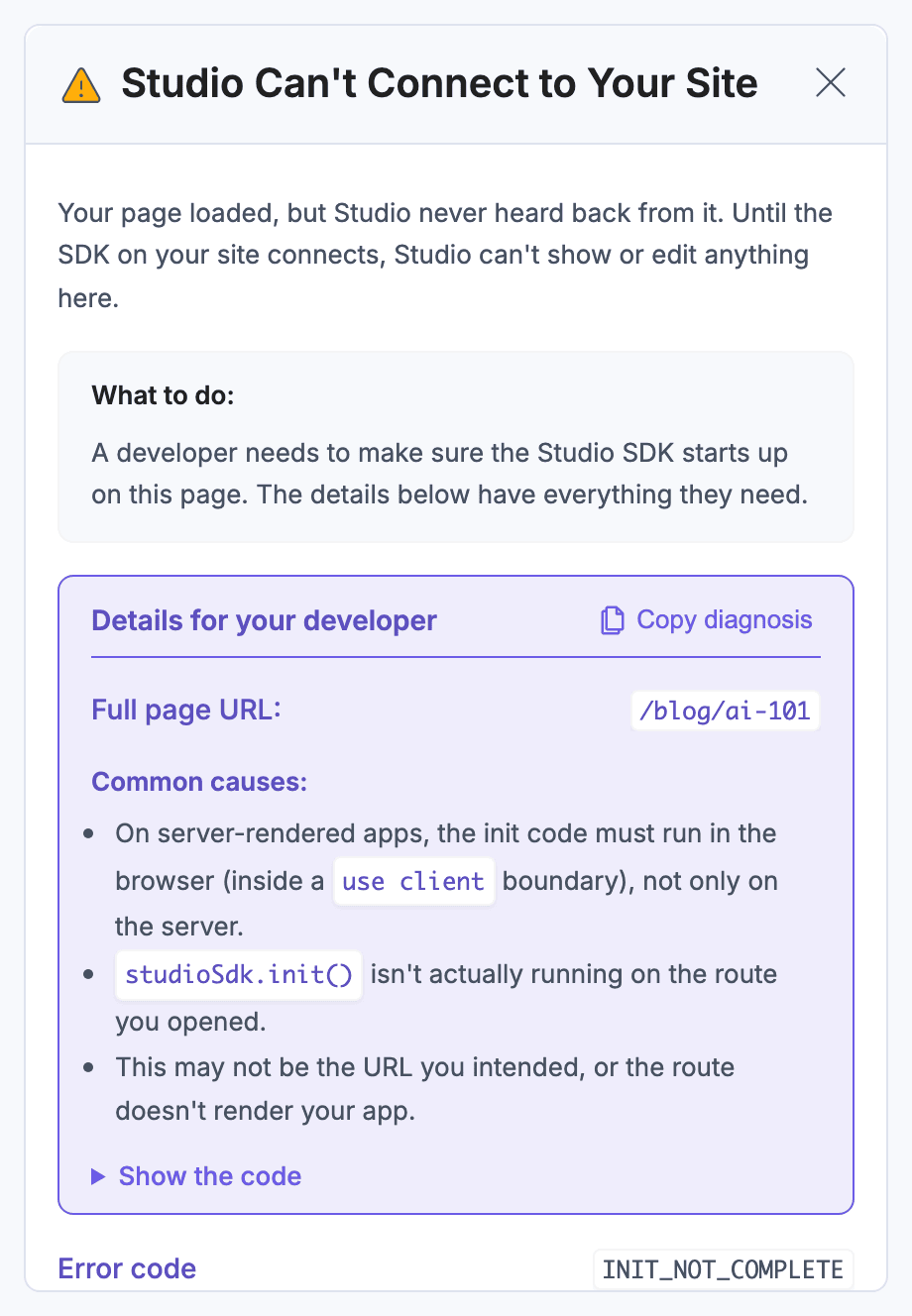
The Studio SDK on your page never finished starting. Inside Studio, Studio waits 30 seconds for the SDK to answer, then shows this card. Outside Studio there's no card. If your page asks for a template, its log shows the same code once the SDK still hasn't started 30 seconds later. Either way, the cause is in how your page starts the SDK.
In Studio
In a log
[Contentstack Studio] INIT_NOT_COMPLETE: A composition was requested before studioSdk.init() finished, and it hadn't finished after 30 seconds.
Studio can't see inside your page, so work down this list.
| Check | Read |
|---|---|
| The Base URL doesn't load in a browser tab of its own | The site isn't running |
| The browser console or server log shows an error from your code before any Studio message | The site crashes before the SDK starts |
| The console says the page refused to be shown in a frame | The site refuses to load in a frame |
Nothing the route loads imports src/studio.ts | The SDK isn't started on this route |
| The card disappears on its own after a while | The SDK starts too late |
Your site renders on the server, and only server code imports src/studio.ts | The SDK starts only on your server |
Your site renders on the server, and only your not-found page logs INIT_NOT_COMPLETE | Your not-found page doesn't start the SDK |
Your log says the SDK hadn't finished starting
Outside Studio you get no card, only this line in your browser console or server log:
[Contentstack Studio] INIT_NOT_COMPLETE: A composition was requested before studioSdk.init() finished, and it hadn't finished after 30 seconds.
Your page asked for a template, and studioSdk.init still hadn't finished 30 seconds later. Only some of the causes above can log it, because the page has to run far enough to ask for a template. Check these first:
- The SDK isn't started on this route, when no code on the route calls
studioSdk.init. - The SDK starts too late, when
studioSdk.initwaits for something slow. - Your not-found page doesn't start the SDK, when your site renders on the server and only the not-found page logs it.
The site isn't running
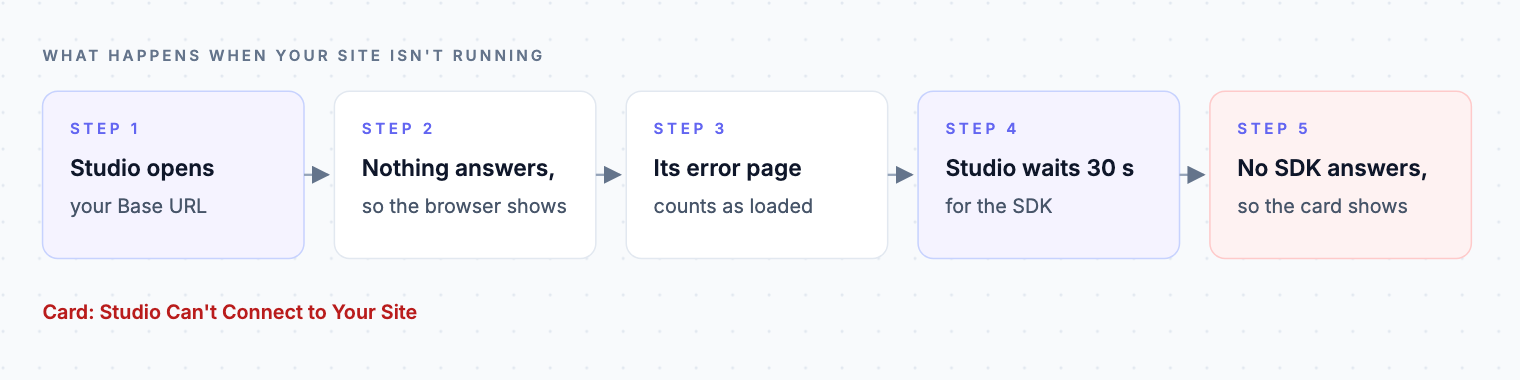
Nothing answers at the Base URL, because your dev server is stopped or your deployment is down. Your browser then shows its own error page inside the canvas. That error page still counts as a loaded page, so Studio waits 30 seconds for the SDK, which never answers. If your server stopped right after it started, read The site crashes before the SDK starts instead.
A stopped site still looks loaded to Studio:
-
Copy the Full page URL from the card, and open it in a new browser tab.
-
If the tab shows a browser error instead of your site, start your site, such as with
npm run dev, or bring your deployment back. -
Open the Full page URL again. Your site loads in the tab.
-
Reload the canvas. The card goes away.
If the tab opens a different site, the address is wrong, not the site. Check the Base URL and Canvas URL in Configure your project.
The site crashes before the SDK starts
Your site throws an error while it starts, so studioSdk.init never runs. To confirm it, open the Full page URL from the card in a new tab. A page rendered in the browser comes up blank, with the error in the browser console. A page rendered on the server logs the error in your server log, and your server can stop.
The most common cause is a delivery setting the Delivery SDK refuses in contentstack.stack(). Find the message in your console or server log, and read its section.
| The message | Read |
|---|---|
API key for Stack is required. | The API key is blank |
Delivery token for Stack is required. | The token is blank |
Environment for Stack is required | The environment is blank |
Invalid region: followed by your value | The region isn't one the Delivery SDK knows |
The site also crashes when a studioSdk.init setting has the wrong type, such as debug given as text. The console then shows TypeError: The Config passed is invalid. and names the setting to fix.
The site refuses to load in a frame
Studio shows your site inside a frame on the Contentstack app. Your site can send a security header that forbids that: a Content-Security-Policy whose frame-ancestors rule leaves out Contentstack, or X-Frame-Options. The browser then blocks your page, so the SDK never starts.
First, confirm it:
-
In the Studio tab, open your browser's developer tools, then the Console.
-
Look for a message like one of these, with your site's address in it:
Refused to frame 'http://localhost:3000/' because an ancestor violates the following Content Security Policy directive: "frame-ancestors 'self'".Refused to display 'http://localhost:3000/' in a frame because it set 'X-Frame-Options' to 'sameorigin'. -
To see the header itself, run this with your site's address. You can also open the Network tab, reload the canvas, select the request for your page and read its response headers.
curl -sI http://localhost:3000/ | grep -i -E "content-security-policy|x-frame-options"If neither header is there, this isn't your cause. Go back to the checks for this card.
Then let Contentstack frame your site:
-
Add the Contentstack app's address for your region to
frame-ancestors, and keep your own site in it. Set it where your site sets its other headers, such asheaders()innext.config.jsor your hosting provider's settings.Content-Security-Policy: frame-ancestors 'self' https://app.contentstack.comRegion Contentstack app address North America https://app.contentstack.comEurope https://eu-app.contentstack.comAustralia https://au-app.contentstack.comAzure North America https://azure-na-app.contentstack.comAzure Europe https://azure-eu-app.contentstack.comGCP North America https://gcp-na-app.contentstack.comGCP Europe https://gcp-eu-app.contentstack.comWhere you set the header depends on what serves your site:
Your site runs on How to set a header Next.js Custom headers, the headersoption innext.config.jsVite dev server Server headers, the server.headersoptionVercel Project headers, the headersoption invercel.jsonNetlify Custom headers Cloudflare Pages Headers, set in a _headersfileExpress Helmet, which sets frame-ancestorsthrough itscontentSecurityPolicyoptionFor what the
frame-ancestorsrule accepts, see its reference on MDN. -
If your site sends
X-Frame-Options, remove it. Browsers followframe-ancestorswhen both are set, so the old header only gets in the way. See the X-Frame-Options reference on MDN. -
Restart or redeploy your site, then run the
curlcommand again. The header now lists Contentstack. -
Reload the canvas. The card goes away.
The SDK isn't started on this route
Studio hears from your site only when the page it opens runs studioSdk.init in the browser. In the Blog example, that call is in src/studio.ts, and it runs only when a file the page loads imports it. If nothing imports it, or only another route does, the page looks normal but never starts the SDK. After 30 seconds, Studio shows this card.
First, check whether the SDK starts on this page:
-
Add a temporary line at the end of
src/studio.ts, right afterstudioSdk.init:console.log("Studio SDK started"); -
Copy the Full page URL from the card, open it in a new browser tab, and open the browser console.
-
Look for the line:
- It's in the browser console. The SDK starts on this page, so this isn't your cause. Go back to the checks for this card.
- It's only in your terminal, not in the browser. Read The SDK starts only on your server.
- It's nowhere. Nothing on this page imports
src/studio.ts, so carry on below.
Then import it where every page loads it:
-
Open your app's entry file. In a Vite app such as the Blog example, that's
src/main.tsx. In the Next.js Pages Router it'spages/_app.tsx, and in Remix it'sapp/root.tsx. -
Add the import at the top, before anything renders:
import "./studio";In the Next.js App Router, the root layout runs on the server. Import the start file from a small
"use client"component that the layout renders, as Install the Studio SDK shows. -
If some routes must not load Studio, import it in the layout your Studio routes share, not in the entry file.
-
Remove the
console.logline, restart your site and reload the canvas. The card goes away.
The SDK starts too late
studioSdk.init waits for something slow, such as a config request, before it runs. Call it before any slow work in src/studio.ts.
The SDK starts only on your server
Studio hears from the SDK only when it starts in the browser, inside the canvas. If only your server code imports src/studio.ts, the browser never starts it. Import it from code that runs in the browser as well. In the Next.js App Router, that's a small "use client" component that your root layout renders. Keep the server import too, because your server fetches use it. The steps are in Install the Studio SDK.
Your not-found page doesn't start the SDK
This happens on a site that renders on the server, such as a Next.js App Router site. Your template route starts the Studio SDK in the browser, but your not-found page doesn't. So when Studio opens an address with no template, the page that renders has no SDK to report why. Inside the canvas you see Studio can't connect to your site, and the real reason stays in your server log.
Start the SDK on every page, and let the SDK decide when a page is missing:
- Find the component that starts the SDK in the browser. In the Next.js App Router, it's a small
"use client"component that importssrc/studio.ts, as in Install the Studio SDK. - Render that component in your root layout,
app/layout.tsx, not in your template route. Next.js rendersapp/not-found.tsxinside the root layout, so the SDK now starts on your not-found page too. In another framework, put it in the code every page shares, such as your app shell. - Call
notFound()only in thecatcharoundfetchCompositionData, and only whenisCompositionNotFound(error)istrue. Don't look up the entry yourself first. Inside the canvas,fetchCompositionDatareturns the failure instead of throwing it, so your route renders the reason and Studio receives it. - Restart your site and reload the canvas. Studio now names the real problem, such as
NO_COMPOSITION_FOR_URL, with what to do. Outside Studio,/blog/not-a-poststill shows your not-found page with a 404 status.
The steps for answering with a 404 are in Render on the server.
The website didn't load
Code: WEBSITE_DID_NOT_LOAD
Studio replaced the whole canvas because your page didn't finish loading within 30 seconds. The site is down or slow.

The page is slow
The Base URL loads in its own tab, but slowly. Click Retry first, because a server's first start can take this long. If you use a dev server, open the page once in its own tab before you open Studio. If it's still slow, look for a slow request that runs before the page renders.
If your server fetches from Contentstack before it renders, a delivery host that never answers holds the page for 30 seconds too. Open the page outside Studio and read your server log. For what to check, read The request timed out.
The site is down
Your server accepts the request but never finishes the page, such as a stuck deployment or a hung dev server. A site that's stopped completely shows Studio can't connect to your site instead, because the browser's error page loads at once.
- Open the Base URL in a new browser tab. If it keeps loading and never shows the page, the server is stuck.
- Restart your dev server, or redeploy your site.
- Click Retry on the canvas.
No stack was given to Studio
Code: STACK_SDK_MISSING
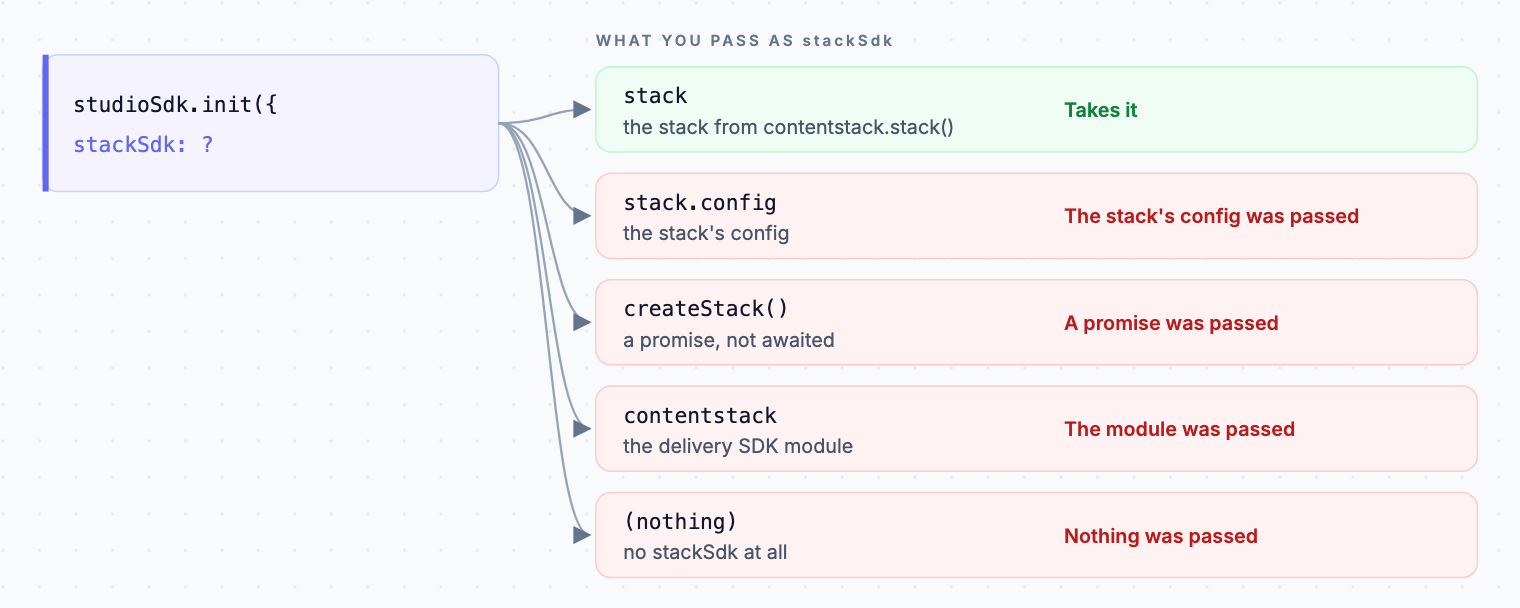
The Studio SDK needs the Contentstack stack your site creates, passed to studioSdk.init as stackSdk. It got nothing, or something else. The card and the log both say what it got.
stackSdk takes one thing, the stack your site creates. Four other values look like it:
In Studio
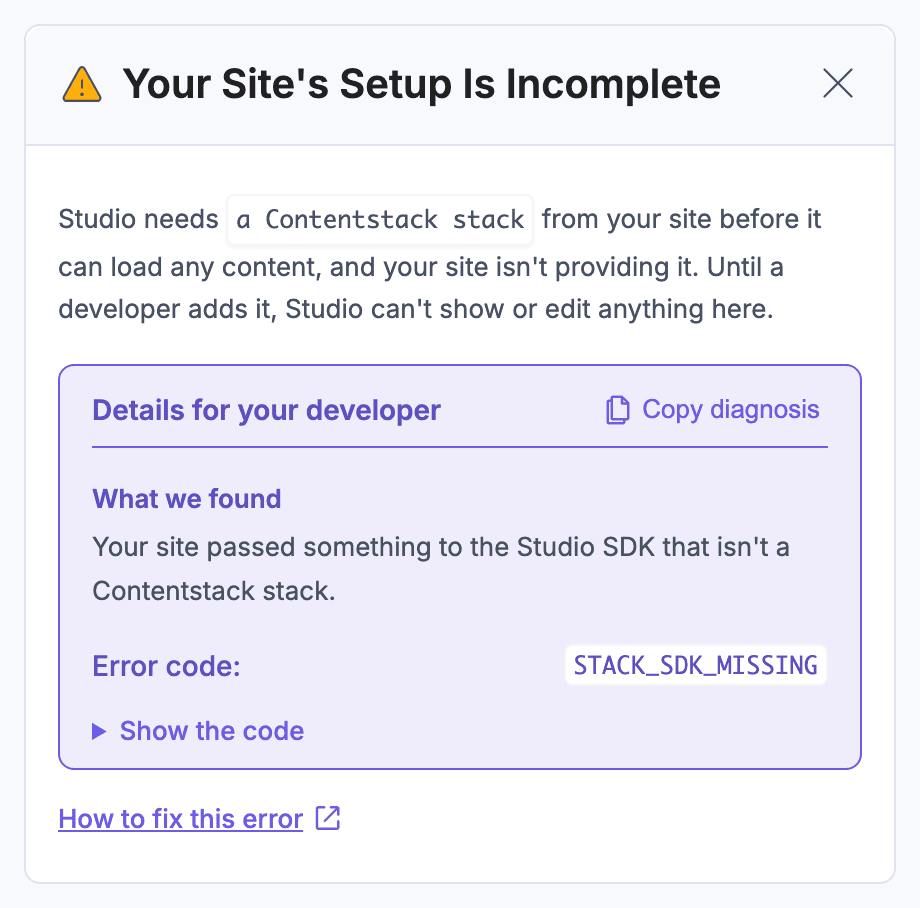
In a log, for example
The wording depends on what the SDK received. The code is always STACK_SDK_MISSING.
[Contentstack Studio] STACK_SDK_MISSING: stackSdk is the stack's config object (stack.config), not the stack.
| It received | Read |
|---|---|
stack.config | The stack's config was passed |
| A promise | A promise was passed |
| The delivery SDK module | The module was passed |
| Nothing | Nothing was passed |
The stack's config was passed
Live Preview's setup takes stack.config, but Studio's takes the stack itself. Both settings are called stackSdk, so it's easy to copy the wrong one. Pass the stack in src/studio.ts:
studioSdk.init({ stackSdk: stack, contentTypeUid: "compositions" });
A promise was passed
An async function creates the stack, and its result wasn't awaited. Await it before you pass it:
studioSdk.init({ stackSdk: await createStack(), contentTypeUid: "compositions" });
The module was passed
stackSdk got the imported contentstack module instead of a stack made from it. Create the stack and pass that:
const stack = contentstack.stack({
  apiKey: import.meta.env.VITE_CONTENTSTACK_API_KEY,
  deliveryToken: import.meta.env.VITE_CONTENTSTACK_DELIVERY_TOKEN,
  environment: "production",
});
studioSdk.init({ stackSdk: stack, contentTypeUid: "compositions" });
Nothing was passed
The SDK can't tell which of these happened, so check them in order.
- If
studioSdk.inithas nostackSdk, add it. - If the stack is created after
studioSdk.initruns, move its creation above the call. - If its creation is wrapped in
tryandcatch, the console shows the delivery SDK's own error, such asAPI key for Stack is required.Fix the value it names.
Your site asks for the wrong content type
Code: CONTENT_TYPE_UID_INVALID
Your site tells the Studio SDK which content type holds its templates, in contentTypeUid. That value doesn't match the Blog project's, so the SDK reads templates from the wrong place, or from nowhere. Inside Studio, the card names both values. A log only knows what your site sent.
Two values have to match, the content type the project uses and the one your site sends:
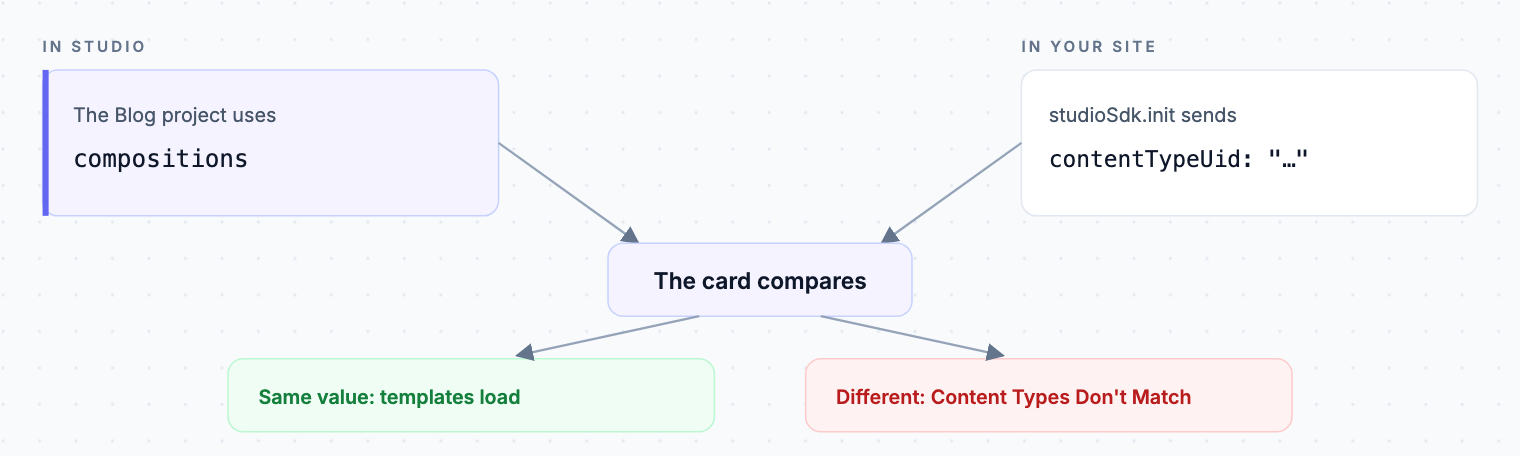
In Studio
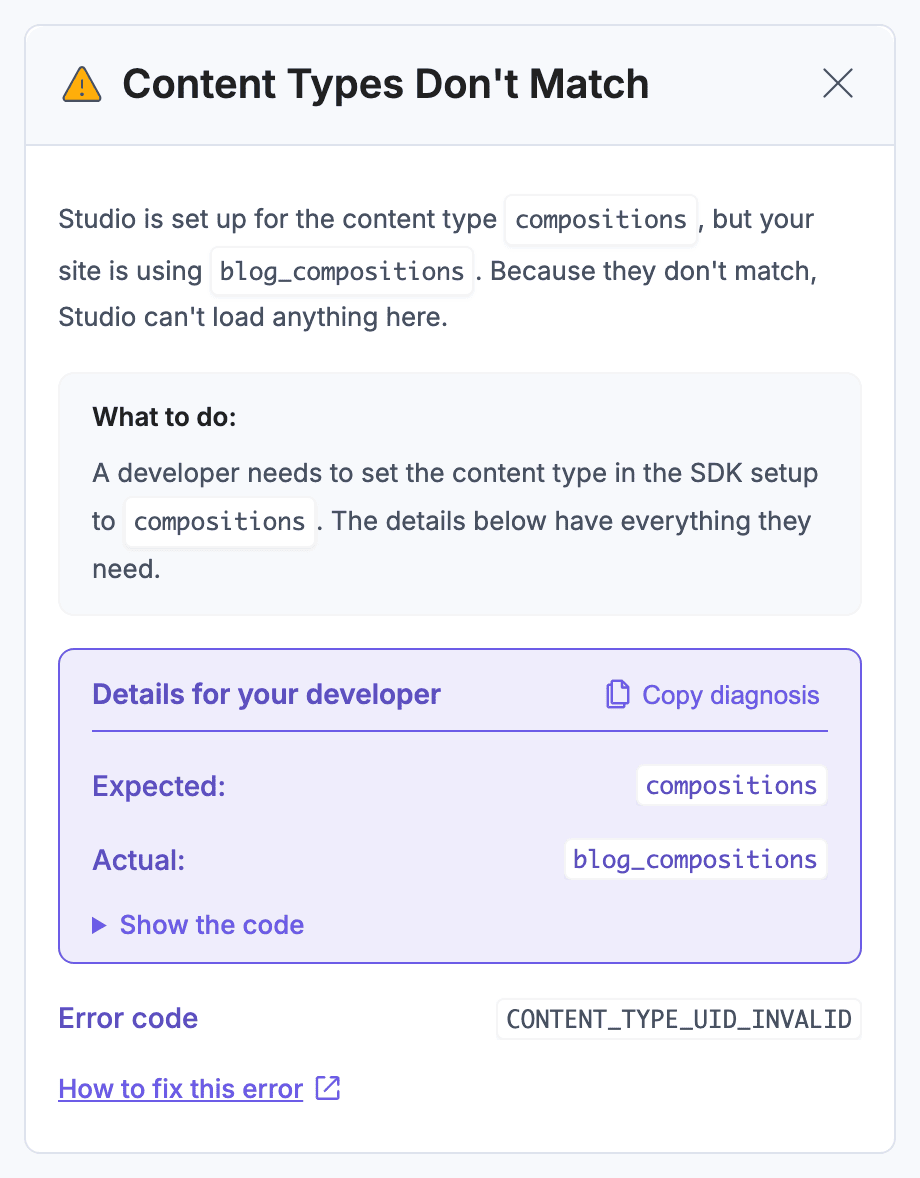
In a log, for example
The wording depends on your case. The code is always CONTENT_TYPE_UID_INVALID.
[Contentstack Studio] CONTENT_TYPE_UID_INVALID: No content type "compositons" on this stack.
| You see | Read |
|---|---|
| The card names two real content types | Another content type is set |
The card says your site uses compositions, and your code never sets it | It was never set |
| A log says the content type doesn't exist on the stack | The value is mistyped |
| The two values on the card look the same | The value has spaces or quotes |
| The card says your site's value is empty | The value is empty |
| A log says the content type lacks the fields Studio needs | It isn't a Studio content type |
| The value is right, but your site is on another stack | Your site is on another stack |
| Your code sets the right value, but the card still shows another | Your Base URL opens another site |
| Your site renders on the server, and the server and browser start the SDK separately | Your server and browser send different values |
If both the content type and the API key are wrong, this card shows first. Fix it, reload, and read Delivery settings errors if a card is still there.
Another content type is set
The setup was usually copied from a second Studio project on the same stack. Set contentTypeUid to the value the card gives for the project:
studioSdk.init({ stackSdk: stack, contentTypeUid: "compositions" });
It was never set
Without the setting, the Studio SDK uses compositions, and your project uses another content type. Add contentTypeUid to studioSdk.init with the value the card gives.
The value is mistyped
There's a typo in contentTypeUid or in the environment variable that sets it. If Studio showed you the card, copy the project's value from it. If you saw the error in a log, check these in order.
- Open the Blog project in Studio. Its settings show the content type it uses. Copy it exactly.
- If that doesn't fix it, your site may be on another stack.
- If it still fails, the content type may have been deleted. Restore it from the stack's trash.
The value has spaces or quotes
The card says the values differ only by spaces, or by quotes around your site's value. Remove them from the environment variable that sets contentTypeUid.
The value is empty
The environment variable exists in your deployment but holds nothing, so the SDK's default never applies. Give it the project's value. If the project uses compositions, you can remove the variable instead.
It isn't a Studio content type
contentTypeUid points at an ordinary content type, such as blog_post. Point it at the project's compositions content type, compositions.
Your site is on another stack
The value matches the project's, but your site's API key belongs to a different stack. Point your site at the Blog stack. The steps are in The API key belongs to another stack.
Your Base URL opens another site
The card names the content type of whichever site the Base URL opens. If that's a site set up for another Studio project, it reports that project's content type, even though your code is right. Check the Base URL in the Blog project's project settings. It comes from the environment, so if it opens another site, change the environment's URL in Contentstack. If it opens the Blog site, the fix is Another content type is set.
Your server and browser send different values
The card compares only the value your browser sends, so a wrong value on the server doesn't show it. Your server's fetches fail on their own instead. Use one value on both sides: read contentTypeUid from one environment variable, or start the SDK from one shared file.
A component isn't registered
Code: COMPONENT_NOT_REGISTERED
The template uses a component, here BlogHero (blog-hero), that the running site never registered. A red box appears where it should be, and your browser console shows the same code.
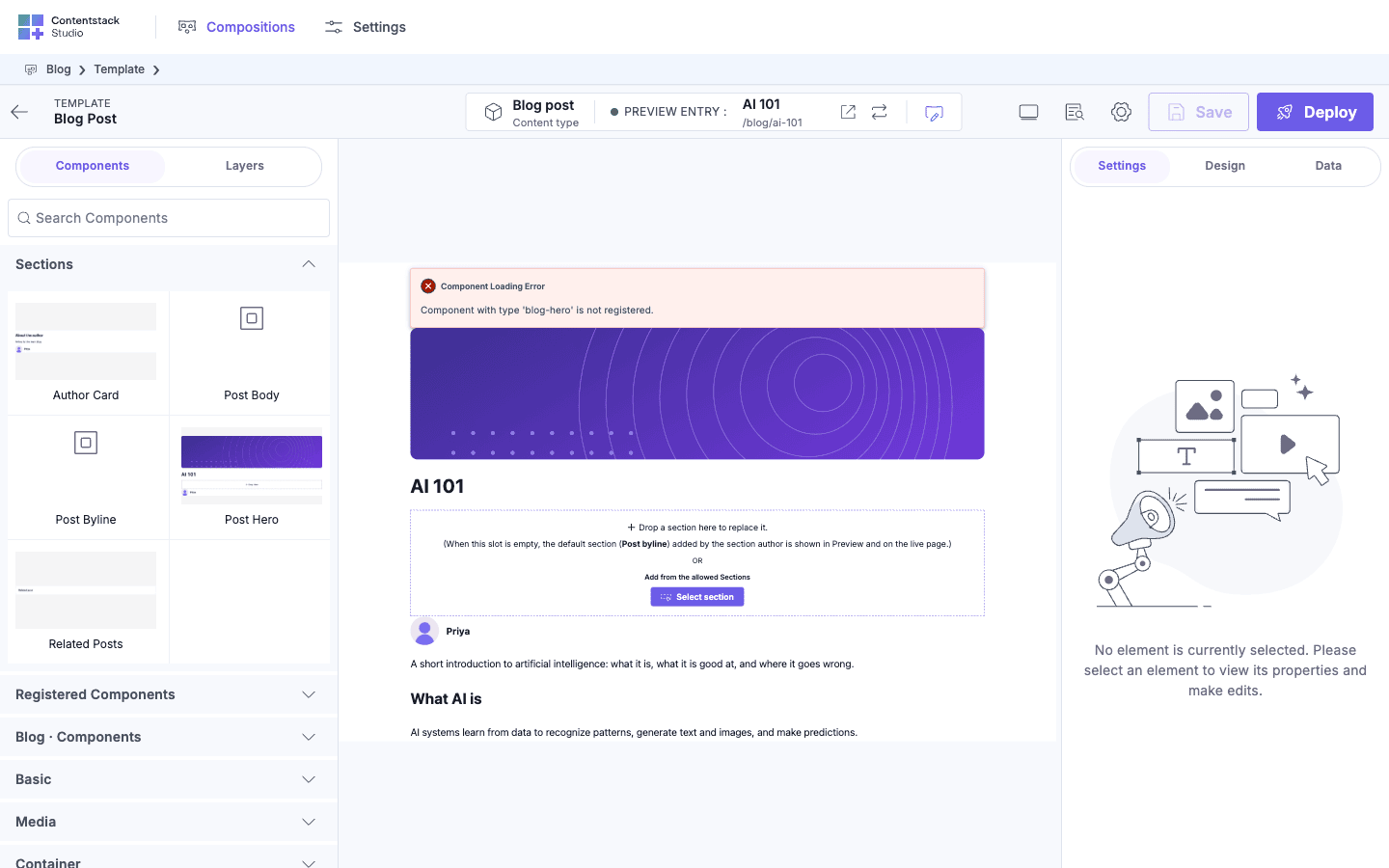
| Check | Read |
|---|---|
| The deployed site doesn't include the code that registers BlogHero | The deployed build is behind |
| BlogHero appears after you reload the page | It registers too late |
The error lists Studio's own components, such as repeater | Studio's built-in components aren't registered |
The box says the component isn't registered, and your server log shows Error while rendering component | The component is missing from your server render |
The deployed build is behind
BlogHero was added to the template before the build that registers it went live. Deploy that build, or remove BlogHero from the template until it's live.
It registers too late
The code that registers BlogHero runs after the first template is fetched. Register your components next to studioSdk.init in src/studio.ts, before the first fetch.
Studio's built-in components aren't registered
Studio's built-in components, such as Repeater, need no setup of their own. The init code from Initialize the Studio SDK imports studioSdk from @contentstack/studio-react, and that import is what loads them when a template needs them. So this error means the code that fetches the template never loads your init file. The SDK doesn't log this one, so you see it wherever your app logs fetch errors.
- Find the file that fetches the template, such as your route or its data loader.
- Make sure it, or a file it imports, loads your init file,
src/studio.tsin the Blog example. The SDK isn't started on this route shows how to check that and where to add the import. - Reload the page. The template renders, and the error is gone.
The component is missing from your server render
Your server renders the template without your component registrations. Each component it can't find shows the Component Loading Error box, and your server log shows Error while rendering component. The box has no code yet. Import your registrations where the server renders. In the Next.js Pages Router that's pages/_app.tsx, as in Next.js Pages Router. In the App Router, it's your TemplateRenderer, as in Next.js App Router.
Still stuck
Use Copy diagnosis on the card, or copy the log line, and paste it into your AI assistant or a support ticket.