How Studio matches an address to a template
Read this page when an address on your site shows the wrong template, or nothing, or before you set up your Template URLs. It explains how Studio picks a template for an address, and how to fix each card the canvas shows about one.
It picks up from Wire template preview routes. There, your catch-all route passes the address to Studio, and Studio finds the template, then the entry.
The example on this page is the Blog post template at /blog/{{entry.slug}}, previewing AI 101 at /blog/ai-101, and the Featured post template at /blog/featured. The names come from the team blog.
Studio matches the address exactly
Studio compares the address your route passes with each Template URL. A template counts only when its whole pattern fits the whole address. The fixed text has to be the same, and the variables fill the rest.
Capital letters count, so /Blog/ai-101 doesn't match /blog/{{entry.slug}}. A trailing slash counts too, so /about doesn't match /about/. /blog/ai-101/ matches the Blog post template, but Studio then looks for an entry whose slug is ai-101/, finds none, and shows nothing.
A variable can take more than one segment. /blog/{{entry.slug}} also matches /blog/featured/ai-101, and looks for an entry whose slug is featured/ai-101.
A slug made only of a number, such as 2024, isn't found. Studio looks the value up as the number 2024, and a text field holding 2024 doesn't match it. Add a letter to such slugs, such as report-2024.
Studio doesn't remove anything from the address your route passes: no trailing slash, no base path, no language. So your route passes only the part the Template URL describes, and takes off anything your base URL adds in front, such as a base path or a language. See Pass Studio only the path the Template URL describes.
Studio ignores the query string and the #fragment when it matches, so /blog and /blog?topic=ai find the same template. Still, pass Studio the path only, as url. A template whose URL comes from the content type's URL pattern compares its entries' URL field with the whole url, query string included.
Because matching ignores the query string, a listing template can read it instead. Its Pinned Query can filter or page the list from the address, such as /blog?topic=ai. A Template URL can carry a query string too, so the canvas has a value to preview. See Filter or page a list from the address.
A language or a Personalize variant never changes which template an address matches, only the content the template shows. To put the language in the address, see Put the language in the address, and for variants, Fetch a Personalize variant.
Pass Studio only the path the Template URL describes
Your route passes Studio only the part of the address the Template URL describes. Anything in front of that part comes from your base URL, so take it off before you pass the path as url:
- A base path your site runs under, such as
/docs. - A language your environment's URL carries, such as
/fr-frinhttps://staging.example.com/fr-fr. Pass it as thelocaleoption instead. See Put the language in the address. - Anything a Custom Preview URL base URL adds, such as the language in the alias
Local by language,http://localhost:3000/{{locale}}. See Base URLs with and without variables.
Keep what the Template URL itself describes. If the Template URL is /{{locale}}/blog/{{entry.slug}}, the language is part of it, so the path keeps it. Make the slash at the end follow your Template URLs too: if they end with /, pass the path with it, and if they don't, pass it without. Do it once, in one place. The catch-all is that place, because every template's address goes through it.
In the Next.js App Router, build url from the catch-all's params.slug. With trailingSlash: true, params.slug for /blog/ai-101/ is still ["blog", "ai-101"], so the slash at the end isn't in it. If your Template URLs end with /, add it when you build url. usePathname() and window.location.pathname keep the slash, so take it off if your Template URLs don't end with one.
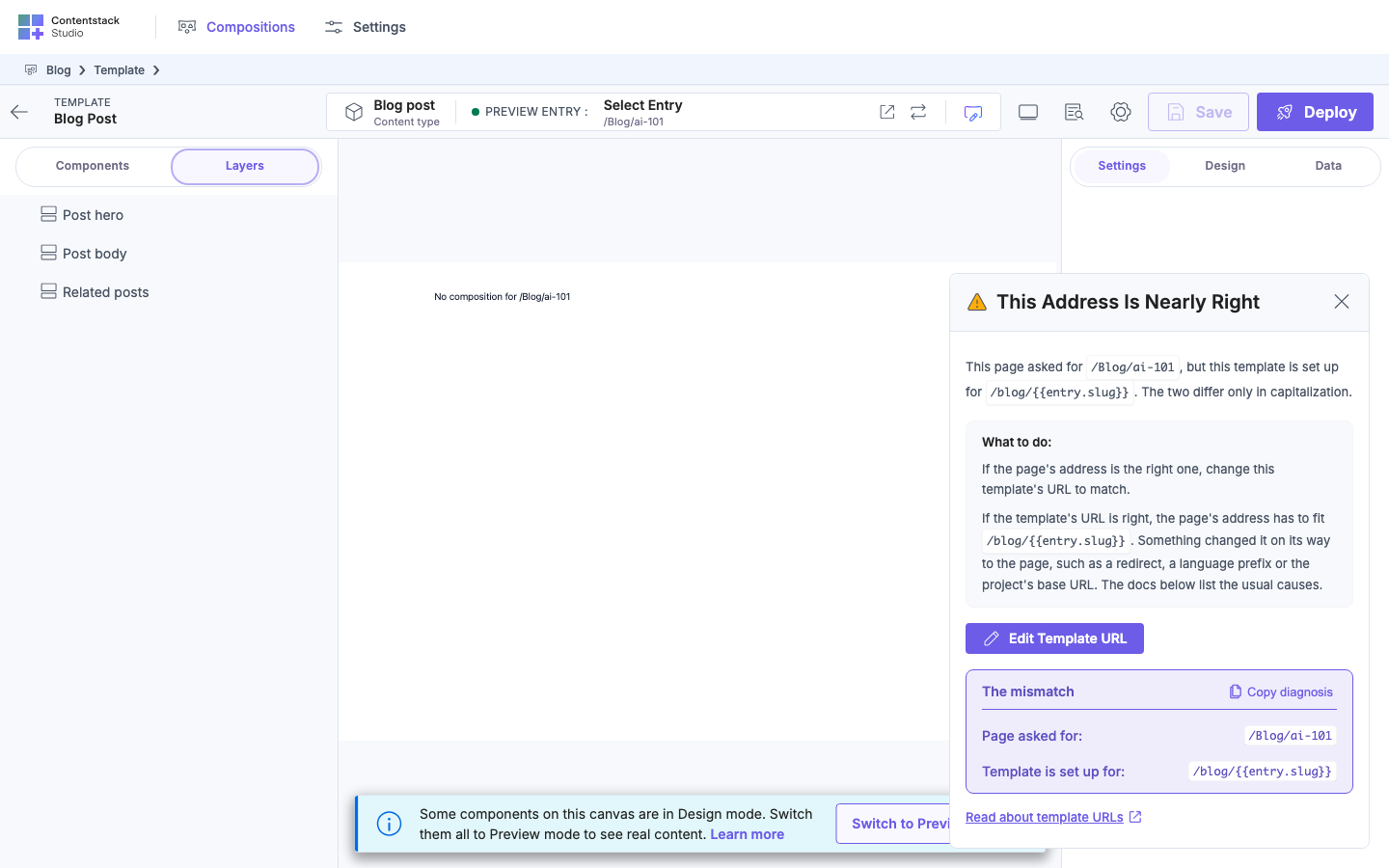
When the path is close to a Template URL but not exact, the canvas shows This Address Is Nearly Right.
Which template wins when several match
Studio picks the template for an address in two steps. The first step decides when it leaves one template. The second runs only when the first leaves more than one.
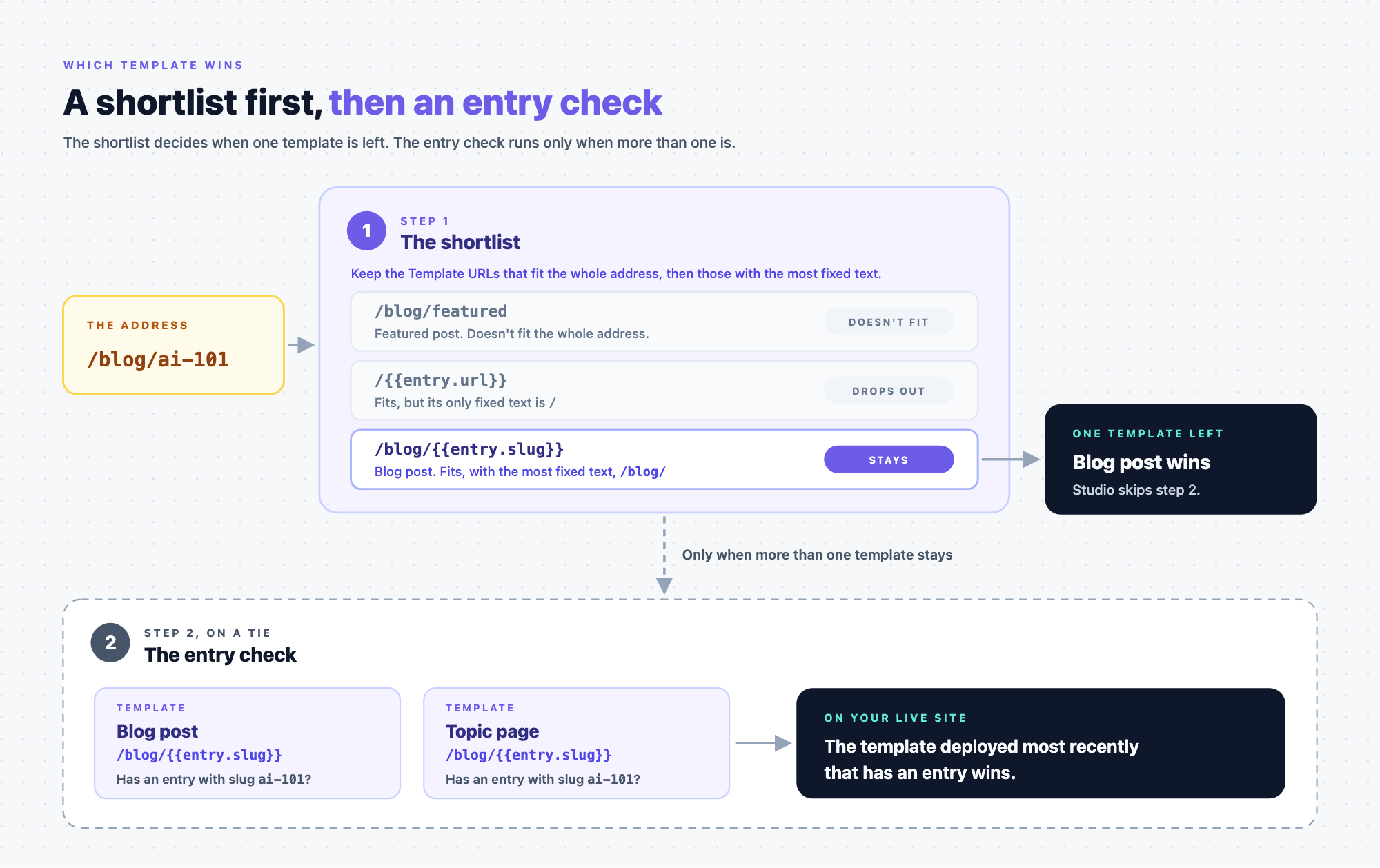
1. The shortlist. Studio keeps only the templates whose Template URL fits the whole address. Of those, it keeps the ones with the most fixed text, and variables count for nothing. Say you add a Featured post template with the Template URL /blog/featured. For /blog/featured, it beats Blog post's /blog/{{entry.slug}}, because it has more fixed text.
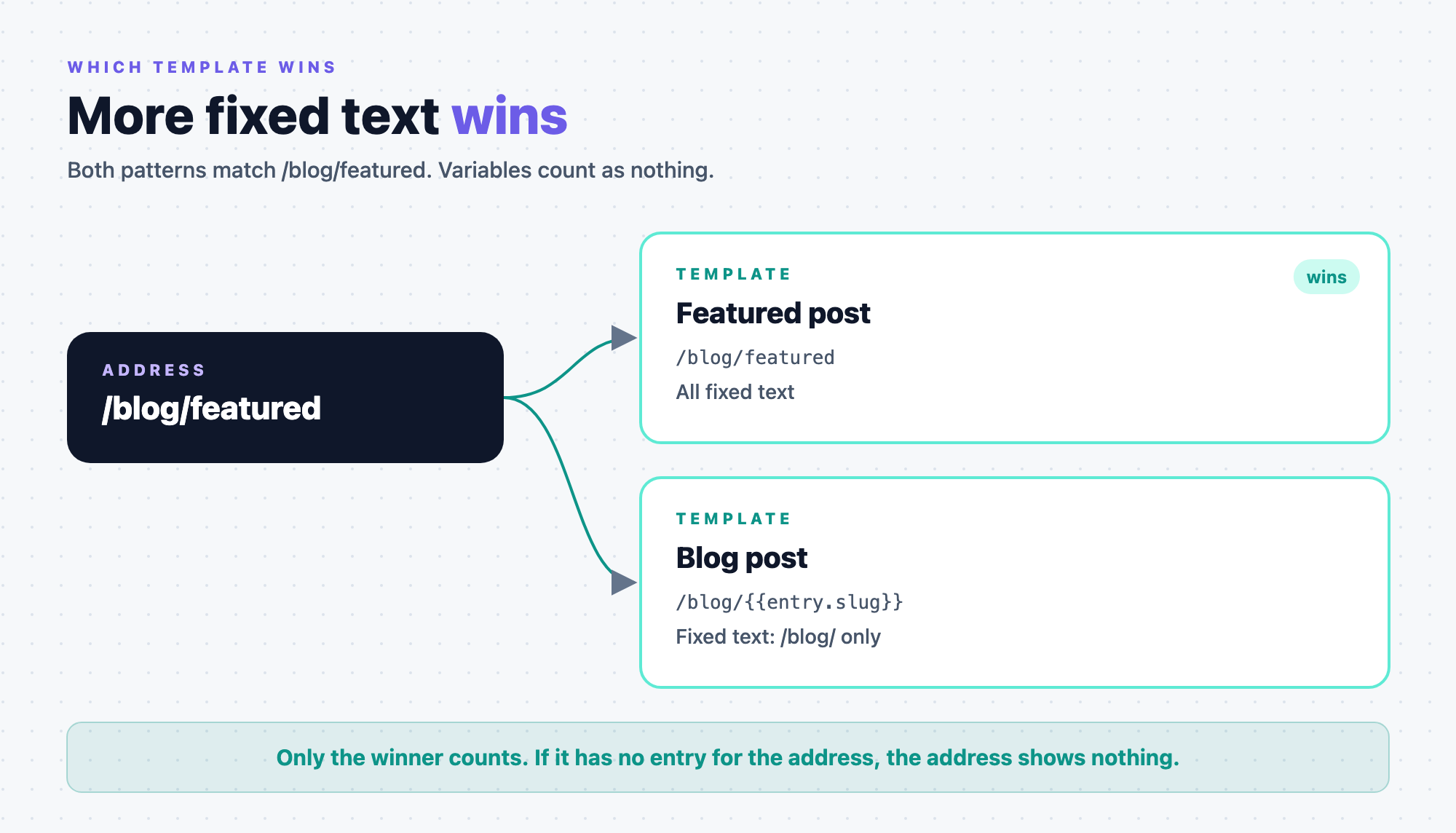
Only the shortlist goes on. Studio never falls back to a template with less fixed text. So when the shortlist is one template and it has no entry for the address, the address shows nothing, and the fetch fails with CONNECTED_ENTRY_NOT_FOUND.
2. The entry check, when the shortlist has more than one template. Studio checks whether each template on the shortlist has an entry for the address. A freeform template always counts as having one, but that doesn't mean it always wins. See A freeform template and a connected template at one address.
- On your live site, visitors get the template that was deployed most recently and has an entry. Saving a template doesn't change that; deploying it does.
- Inside Studio, the template you're editing wins over another template on the same content type, when it has an entry.
- If none of them has an entry, the fetch fails with
URL_MATCHED_NO_ENTRY.
Deploy blocks two live templates with the same Template URL on one content type. So on your live site, step 2 comes from templates on different content types. It also comes from Template URLs written differently that fit the same address, such as /blog/{{entry.slug}} and /blog/{{entry.title}}. See When two templates share a URL. To keep the shortlist to one template, see Plan your Template URLs.
If Studio can't settle which template owns an address, the fetch fails with a server error, not a not-found. That happens in two cases:
- Every entry check on a tie fails:
URL_OWNERSHIP_PROBE_FAILED. - The search for a matching template stops at its limit before it finds one:
SEARCH_INCOMPLETE.
The error's errorClass is SERVER_ERROR, not NOT_FOUND, so don't answer it with a 404. It doesn't mean the page is missing.
Two templates on different content types, or a freeform template and another template, can match an address equally and both have an entry for it. Then Studio shows the notice Multiple Templates Use This URL on the canvas. Your live site serves only one of them at that address, the one deployed most recently. Two templates on the same content type don't trigger the notice, see Two templates on the same content type. Neither does a template that wins because its pattern is more specific, like Featured post. To fix it, see Multiple Templates Use This URL.
Two templates on the same content type
Two templates on one content type share a Template URL when you create the second one, because their URL comes from the same Custom Preview URL row or URL pattern. Inside Studio, the template you're editing wins, and the canvas shows no notice. Deploy keeps one of them live at the URL: when you deploy the other, Studio asks Swap main template?. This is how you redesign a template. For what each tool shows and how to choose, see When two templates share a URL.
A freeform template and a connected template at one address
A freeform template usually wins its address. That comes from how its URL is written, not from being freeform. Its Template URL can't use entry fields, so it's all fixed text. Say the freeform About template is at /about, and a connected Landing page template is at /{{entry.url}}. Both fit /about, but About has more fixed text, so it wins at the shortlist. Studio doesn't check Landing page for an entry, even if one has the URL /about.
A freeform template doesn't win when another template's Template URL is the same fixed text, such as a connected template also at /about. Then both go to the entry check. The freeform template always passes it, because it has no entry to look for. The connected template passes when Studio finds an entry for the address on its content type. When both pass:
- On your live site, visitors get the one deployed most recently. That can be the connected template.
- Inside Studio, the canvas shows the one updated most recently, even while you edit the other, with the notice Multiple Templates Use This URL. The template you're editing wins only over another template on the same content type, and a freeform template has no content type.
Deploy doesn't catch this, because it checks only templates on the same content type. So don't give any other template the same fixed Template URL as a freeform template. For how this compares with two templates on one content type, see When two templates share a URL.
Why entry.url matches the whole address
Most variables stand for one part of the address. With /blog/{{entry.slug}}, AI 101's slug has to be ai-101, the part after /blog/.
{{entry.url}} works differently. Wherever a Template URL uses it, Studio compares the entry's URL field with the whole address. For /blog/ai-101, Studio looks for the entry whose URL field holds /blog/ai-101. The fixed text in front of the variable, such as /blog/, doesn't change that lookup. A Template URL you typed, or one from the Custom Preview URL or the default URL, also finds an entry whose URL field holds only ai-101.
Because Studio compares the whole address:
- Your home page can't use
{{entry.url}}./{{entry.url}}can't match/, because a variable needs at least one character. Give the home page the Template URL/. See Start every Template URL with/. - The fixed start is a boundary. If someone changes an entry's URL field to something outside
/blog, the Blog post template can't reach that entry anymore.
Put a prefix in front of entry.url when it's nested
Because {{entry.url}} matches the whole address, /{{entry.url}} fits every address on your site. Give one template at most a top-level Template URL like that, such as Landing page for /pricing, and give every nested template a fixed prefix, such as /blog/{{entry.url}}. The template with the prefix then wins its addresses at the shortlist. For the rule, a worked site map and how to add a prefix from each source, see Plan your Template URLs.
Set up your URLs so they match
Set up your Template URLs before you create templates, so every address finds the template you expect. In short: one template at the top level, a prefix for everything nested, every Template URL starting with /, and the home page at /. The rules, a worked site map, and how to add a prefix from each source are on Plan your Template URLs.
If it doesn't work
When a template doesn't load at an address, Studio shows a card on the canvas that explains why. Find the card's title below.
This Address Is Nearly Right
The address differs from the Template URL only slightly. The difference is a trailing or double slash, the encoding, capital letters, or one extra segment at the start. A site can add a language prefix, a trailing slash or a redirect on the way. Update the Template URL to match, or open the address Studio suggests when it offers one. If your route adds the difference, fix the route so it passes the path the template expects.
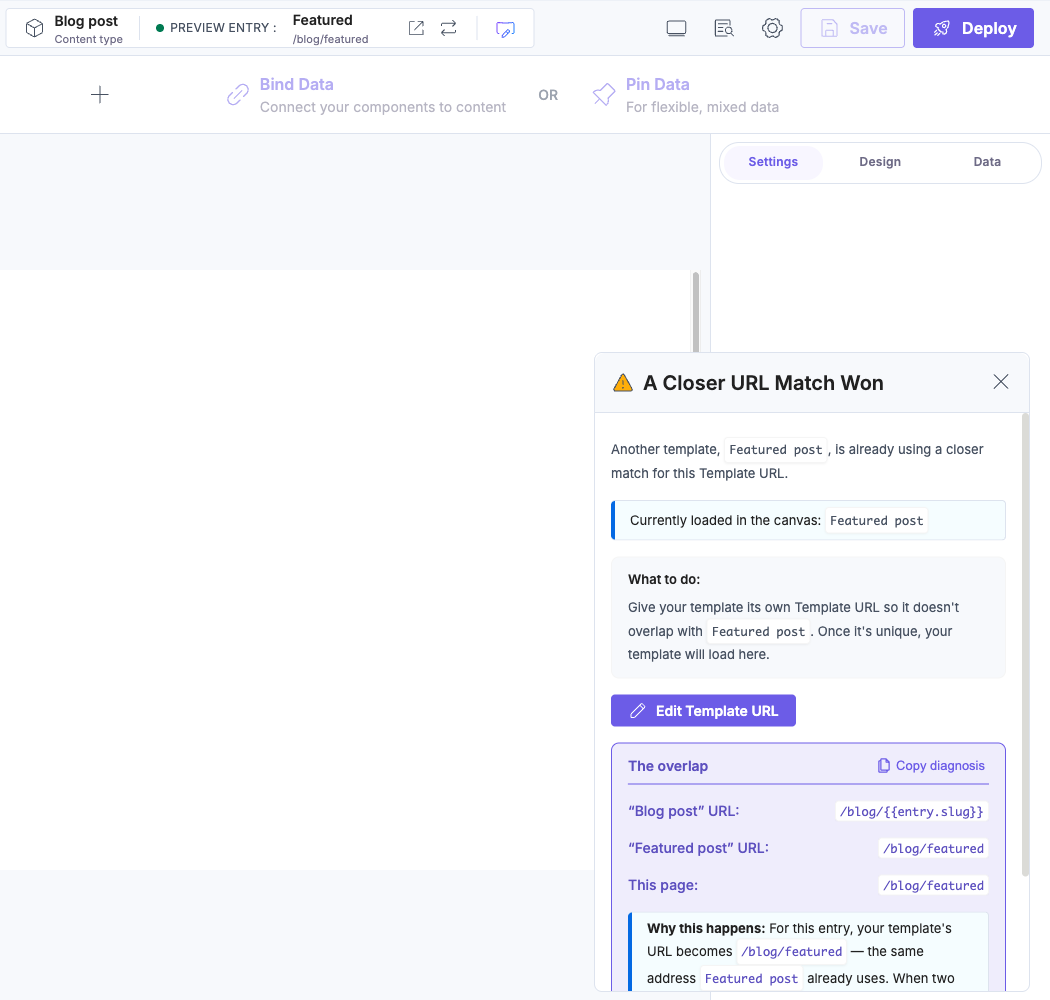
A Closer URL Match Won
Another template has more fixed text in its pattern for this address. Give your template its own URL. See Which template wins when several match.
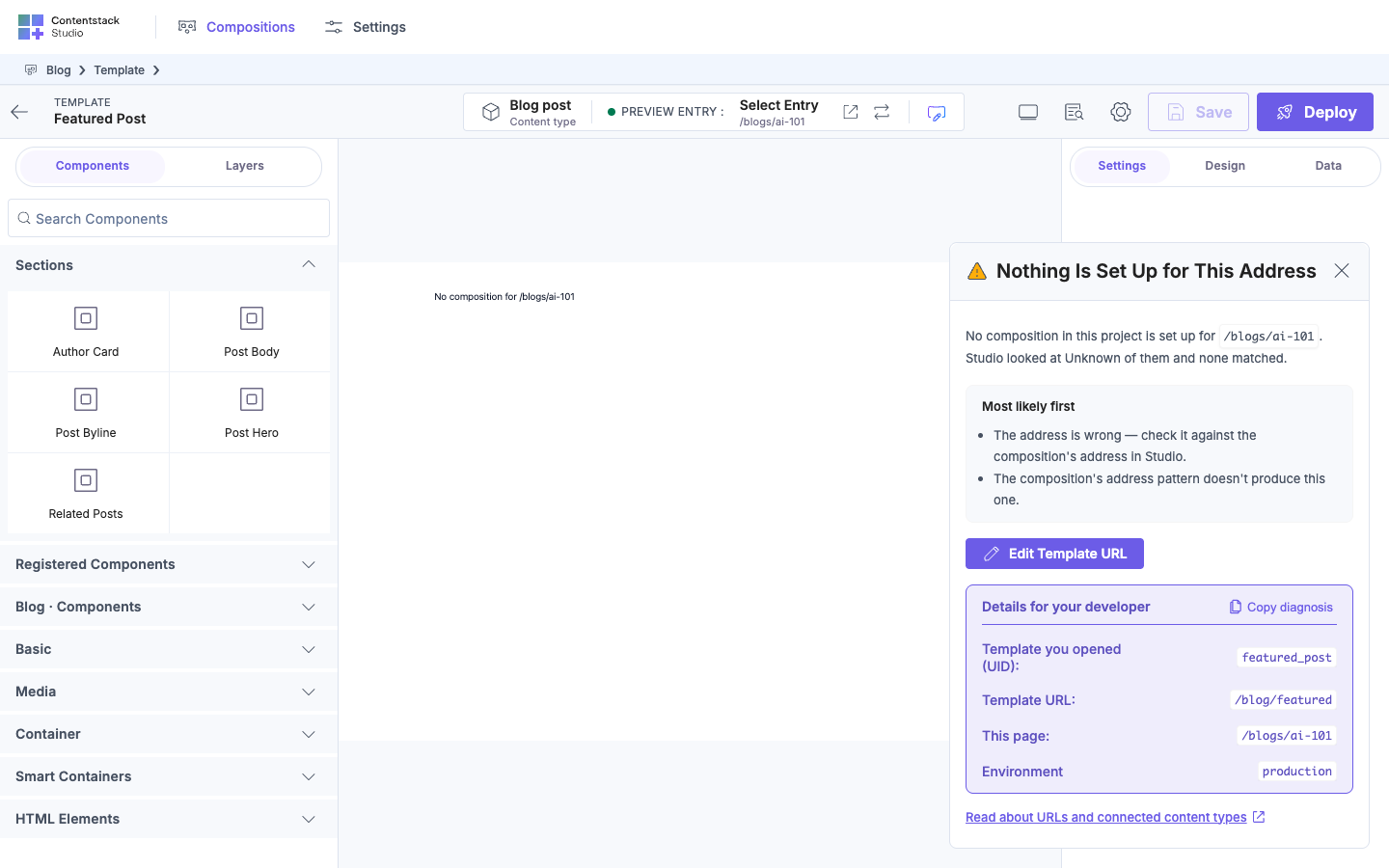
Nothing Is Set Up for This Address
No template's pattern produces this address. Check the address against the Template URL. The same title also shows when the address asks for a language the stack doesn't have.
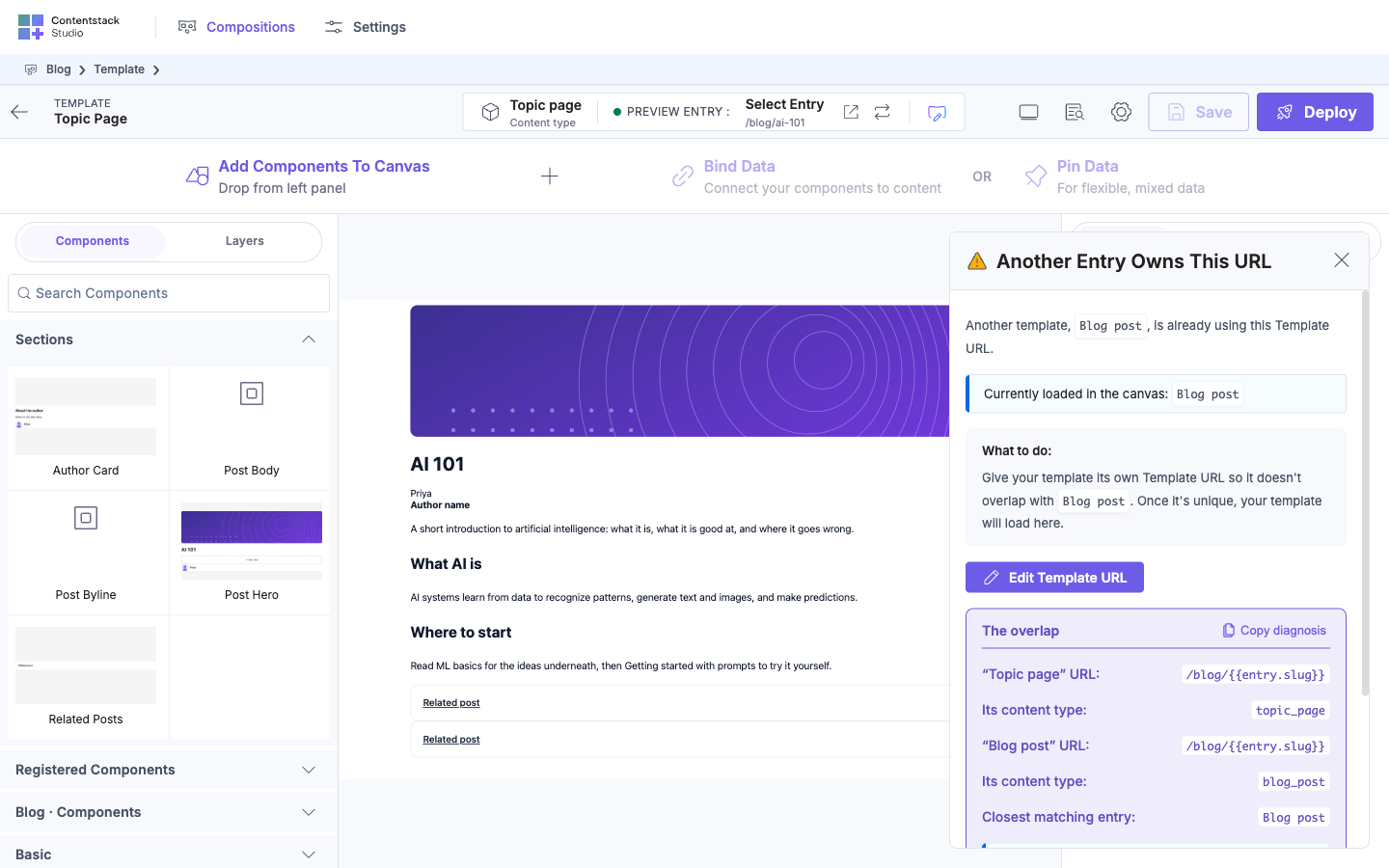
Another Entry Owns This URL
Two templates match this address equally, and only the other one has an entry for it. Give your template its own URL.
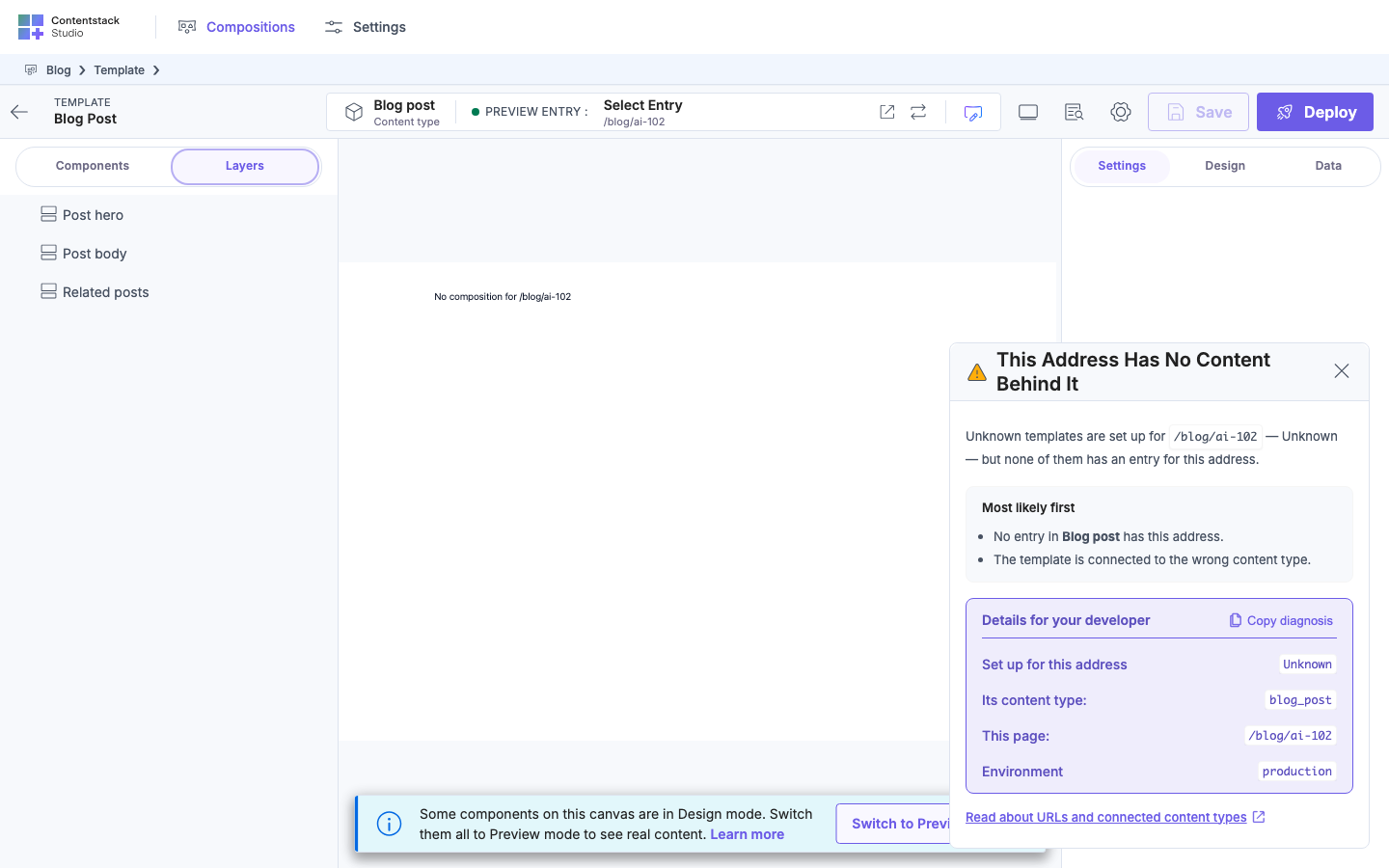
This Address Has No Content Behind It
Two or more templates match this address equally, and none of them has an entry for it. Check the entry's fields, and check that each template is connected to the right content type. On your live site, also check that the entry is published to that environment. When only one template matches, the card is "This Page Has No Content to Show" instead. See Create a template.
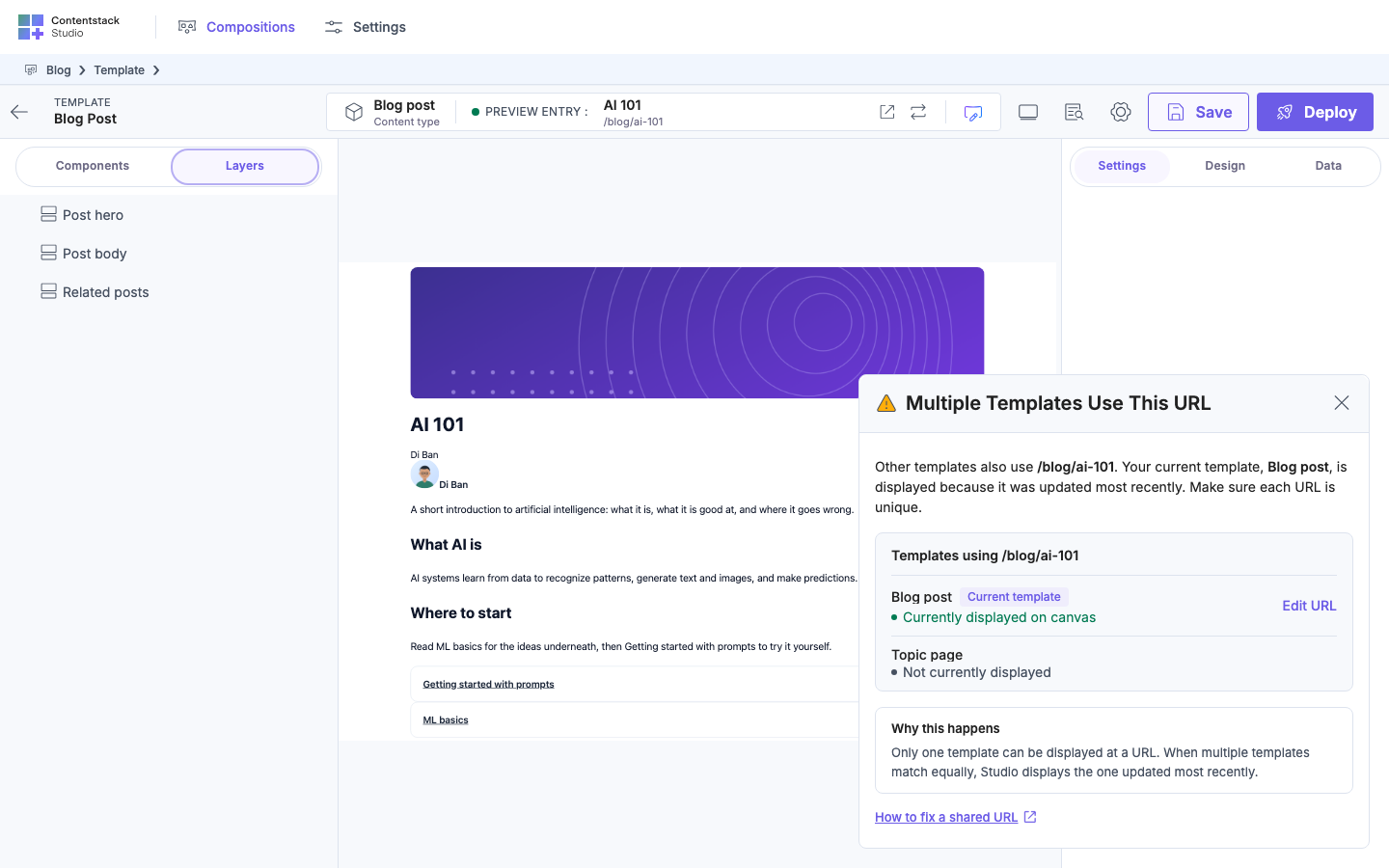
Multiple Templates Use This URL
Another template on a different content type, or a freeform template, matches the same address equally and has an entry for it too. The canvas shows this card on both templates, over the one that didn't load. The notice lists the templates that use the URL and marks the one the canvas displays. Your live site serves only one of them at that address. Edit URL opens the dialog, and Open opens the other template. Give each template its own URL. See Templates on different content types, or freeform templates. Closing the notice hides it. It shows again when you reopen the template or reload the canvas.
The notice shows for two templates on the same content type. Your app's Studio SDK is 2.0.1 or older. Upgrade @contentstack/studio-react, and the notice no longer shows for them. See When two templates share a URL.
Where to go next
- Fetch by UID instead. When the address can't name the entry, your route can pass the template and the entry by UID. See Ways to fetch a template.
- Keep your own routes working. Your routes answer an address before Studio sees it. Strip a base path or a language prefix before you ask Studio. See Keep your own routes ahead of the catch-all.
- Change a Template URL: Edit or reset a Template URL.