Edit or reset a Template URL
Change a Template URL when the derived URL Studio gave it doesn't fit your site. Reset it to go back to the derived URL. You do both from the Edit URL dialog on the canvas.
You come here from Create a template, when a new template's derived URL isn't the one you want. Until you change it by hand, Studio works that URL out again each time you open the template. It takes it from the Custom Preview URL, the content type's URL pattern or a default. Where the Template URL comes from explains each source.
The example on this page is a Blog post content type whose entries live under /blog. Its entry AI 101 has the slug ai-101 and the URL /blog/ai-101. The names come from the team blog.
Prerequisites
- A template open on the canvas. Sections don't have URLs, so this doesn't apply to them.
- A pattern in mind. Studio matches the address exactly, and the template with the most fixed text wins, so give each template its own prefix, such as
/blog/. If you're not sure what to write, read Plan your Template URLs first.
What this is and what you get
The Template URL is the pattern that decides which addresses show this template. When you're done, the canvas uses the new URL right away. Your live site uses it after you deploy.
To add a prefix such as /blog/ to every template on a content type, set it on the content type instead, in its Custom Preview URL row or its URL field's Prefix. Studio picks it up for every template, and the URL keeps following its source. A URL you type here stops following it. See Set the prefix where the URL comes from.
Editing your Template URL
You edit the URL from the canvas. The templates list doesn't show URLs.
-
Click Edit URL, the pencil next to the URL in the top bar. The Edit URL dialog opens. You can also open it from the Edit Template URL button on a diagnostic card.

-
In Preview URL Pattern, type the Template URL, such as
/blog/{{entry.slug}}. To add a variable at the cursor, click one of the Insert options.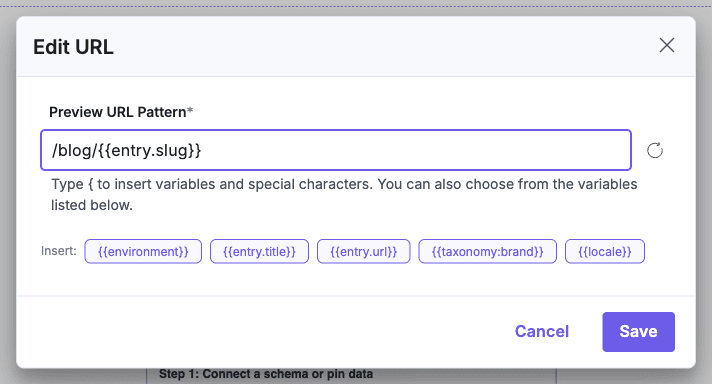
-
Click Save, or press Enter. The URL next to the pencil updates, and the canvas loads the new address.

After you save, the canvas previews the most recently updated entry that has a value for every variable in the Template URL. So the entry on the canvas can change. The canvas opens the project's base URL plus the Template URL, filled in from that entry, such as http://localhost:3106/blog/ai-101. See How the canvas opens a template.
Save stays off until you change the Template URL. It's also off while Studio saves, while an error message shows, and, for a connected template, until the content type has loaded.
Once you change the URL by hand, it's yours, and Studio stops working it out for you. It no longer follows changes to the Custom Preview URL or the content type. Transformation rules come only with a URL from the Custom Preview URL, so a URL you type gets none. It's filled with each field's stored value, even if you type the same text. See Transformation rules.
Say Blog post's Custom Preview URL is /blog/{{entry.title}}, with rules that lowercase the title and replace spaces with -. The template opens AI 101 at /blog/ai-101. If you type /blog/{{entry.title}} in Edit URL and save, it opens /blog/AI%20101. To follow the Custom Preview URL again, reset the URL.
If another template on the same content type is already live at the URL you type, the dialog says so. Say Blog post is deployed to production at /blog/{{entry.slug}}, and you give Featured post the same URL. The dialog shows "Blog post is already live at this URL on production." You can still save. The note names primary templates only, not secondary ones, so a template deployed as secondary at the URL doesn't show in it. The two templates now share the URL. The canvas shows whichever one you open. When you deploy Featured post, Studio opens Another template is primary at this URL and asks how to deploy it. See When another template is primary at the URL. For what each tool shows until then, see When two templates share a URL.

A template on another content type, or a freeform template, at that URL gets no note, and Deploy doesn't ask. The canvas then shows Multiple Templates Use This URL. See Fix a shared URL between different content types or freeform templates. To avoid it, see Keep two templates off one URL.
The Insert options depend on the template.
| Template | Insert options |
|---|---|
| Connected | {{environment}}, {{entry.title}}, {{entry.url}}, {{taxonomy:brand}}, {{locale}} |
| Freeform | {{composition_uid}} |
{{taxonomy:brand}} is a sample. Change brand to your taxonomy's UID, such as topic for AI 101.
{{locale}} puts the language in the Template URL, such as /{{locale}}/blog/{{entry.slug}}. Your route then passes the whole path, with the language in it. Put the language here or in the base URL, never both. See Put the language in the address.
For everything else you can type, see URL variables.
Go back to the derived URL
To throw away a URL you changed by hand, reset it. The template goes back to the derived URL, and Studio derives it again from then on. For a connected template, Studio checks the same three places as before. It tries the Custom Preview URL first, then the content type's URL pattern, then the default. A freeform template goes back to the default.
- Open Edit URL.
- Hover over Sync Pattern, the refresh icon next to Preview URL Pattern. Its tooltip shows where the URL goes back to, such as "Go back to the URL from Custom Preview URL: /blog/{{entry.slug}}".
- Click Sync Pattern. The field shows that URL, and the "Auto-generated from" note is back. Nothing is saved yet.
- Click Save. The URL next to the pencil updates.
If the URL came from a Custom Preview URL with transformation rules, the rules apply again after you save.
Sync Pattern works on a URL you changed by hand, and on a legacy URL, which older templates have. A legacy URL can't come back once you change it. On a URL that already comes from its source, Sync Pattern is greyed out. You don't need it there, because Studio works that URL out again each time you open the template. See When the Custom Preview URL or the content type changes.
Put the new URL on your live site
Saving changes the template's draft. Your live site answers to the new URL only after you deploy the template. Until then, it keeps serving the template at the URL on the deployed version. See Save, preview, deploy.
If another template on the content type is primary at the new URL, Studio opens Another template is primary at this URL when you deploy. You choose whether this template goes out as secondary or becomes primary. See When another template is primary at the URL.
Deploy doesn't check templates on other content types, or freeform templates. Your live site then serves the one deployed most recently. See Fix a shared URL between different content types or freeform templates.
Studio matches the new URL exactly, so test the address you expect, with the same capital letters, and a slash at the end only if the URL has one. For AI 101 at /blog/{{entry.slug}}, open /blog/ai-101. See How Studio matches an address to a template.
If it doesn't work
Studio won't save the Template URL
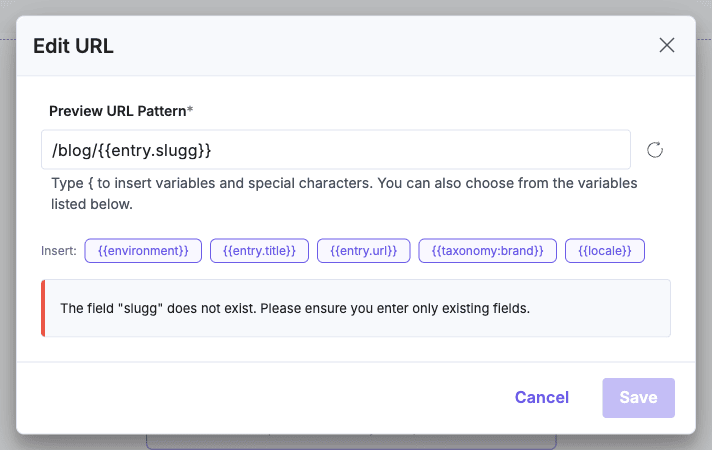
Studio checks the Template URL when you save. Typing again clears the message. These are common ones.
| Message | What's wrong |
|---|---|
| The field "…" does not exist. Please ensure you enter only existing fields. | The content type has no field with that name. |
| The variable "…" is not recognized. Check the syntax and spelling. | In a connected template, a misspelt prefix, such as {{entr.title}}. |
| The variable "…" is invalid. Please check for typos. | A variable Studio doesn't know, such as {{slugg}}. In a freeform template, this also covers a misspelt prefix. |
| You cannot use "…" in a freeform composition because no connected content type exists to query. | An entry, taxonomy or content_type_uid variable in a freeform template. The message names only entry or taxonomy. |
| The variable "…" is not allowed. Date variables and other pseudo variables are not supported. | A date variable, such as {{entry_created_date:year}}. |
For every message, see URL variables.
Studio says your URL no longer follows the Custom Preview URL
The Edit URL dialog shows "You changed this URL, so it no longer follows the Custom Preview URL, and its rules won't apply to the variables. Use reset (↻) to follow it again."
You changed the URL by hand, and the Custom Preview URL has a transformation rule on a field your URL uses. The rules come only with a URL from the Custom Preview URL. Studio, Visual Editor and Live Preview fill your URL with each field's stored value. To use the rules, reset the URL. See Transformation rules.
Studio says Template URL not saved
When you open a template, Studio shows "Template URL not saved" with a reason.
The Custom Preview URL or the content type changed, so Studio tried to save the template's new URL into its draft, and couldn't. The reason names the cause, such as a role that can't edit the template, or a workflow stage that blocks the change. The canvas still opens the new address. Ask someone who can edit the template to open it, or fix the reason in the message. See When the Custom Preview URL or the content type changes.
Common Template URL pitfalls
When a template doesn't load at an address, Studio shows a card that explains why. These cards are about how the address matched, so their fixes are on Template and section errors. Find the card's title below.
- This Address Is Nearly Right. The address differs from the Template URL only by a slash, encoding, capitals or a leading segment.
- A Closer URL Match Won. Another template has more fixed text in its pattern for this address.
- Nothing Is Set Up for This Address. No template's pattern produces this address.
- Another Entry Owns This URL. Two templates match equally, and only the other one has an entry for the address.
- This Address Has No Content Behind It. Two or more templates match equally, and none has an entry for the address.
- Multiple Templates Use This URL. This notice shows when a template on a different content type, or a freeform template, matches the same address equally and has an entry too. See When two templates share a URL.
It works in the canvas but not on your live site
The canvas previews entries that aren't published yet. Your live site only sees what's published to its environment. Check each of these.
- The template and the entry are published to the environment your site uses.
- You deployed after your last URL change. That includes a change Studio made when the Custom Preview URL or the content type changed.
- The published entry's field holds exactly the text in the address. The canvas can preview an entry whose draft differs from what's published.
- The address matches exactly, including capital letters and any trailing slash. See Studio matches the address exactly.
- If your Custom Preview URL has transformation rules on a field your URL uses, the route passes the template and the entry. Your live site can't apply the rules. See Pass the template and the entry.
For a card or log code this page doesn't list, find it on the Errors pages.
Where to go next
- Find out where a Template URL comes from: Where the Template URL comes from.
- Find out why an address shows the template it does: How Studio matches an address to a template.
- Look up every variable and rule: URL variables.
- Deploy the change: Save, preview, deploy.