Template and section errors
These errors are about one template or one section. The cause is its route, its Template URL, the Canvas URL, or the template your code asks for. If other templates work but this one, or this section, doesn't, start here. The example is the Blog project, previewing AI 101 on the Blog post template, and the Blog app built with the Next.js App Router.
After you fix any of these, reload the canvas. The card goes away when the fix worked. For an error you only see in a log, reload the page and check the log line is gone.
Your routes and settings, line by line
A template or section reaches the canvas through three settings in Studio and two routes in your app. Find the piece your card names, check it, then read its section.
// app/[[...slug]]/page.tsx, your catch-all route. It serves every template.
const specOptions = await sdk.fetchCompositionData({ url, searchQuery });

// app/[[...slug]]/template-renderer.tsx renders what the fetch returned.
return <StudioComponent specOptions={specOptions} />;

// app/canvas/page.tsx, your canvas route. It serves every section.
return <StudioCanvas />;
| Piece | Where you set it | If it's wrong |
|---|---|---|
| Base URL | The environment's URL for the language, in Contentstack. Studio shows it on Settings > Configuration. | The Base URL ends in a path, The Base URL points at the canvas page |
| Template URL | Edit URL in the canvas top bar | The Template URL is missing or can't be used, Two templates claim the same address, No template has this address |
| Canvas URL | Settings > Configuration > Canvas URL | Sections don't open at the Canvas URL |
| The route that answers the address | app/[[...slug]]/page.tsx, unless another route answers first | The template's route has no Studio code |
| What the route asks for | The first argument of sdk.fetchCompositionData | The route always shows another template, Your code doesn't say which template to fetch, The address is nearly right |
| The component a template renders with | <StudioComponent />, in template-renderer.tsx | The wrong Studio component renders it |
| The component a section renders with | <StudioCanvas />, in app/canvas/page.tsx | Sections don't open at the Canvas URL |
The whole catch-all is in Fetch the template in a Server Component. The canvas route is in Render StudioCanvas on the route. How the canvas joins the Base URL with the Template URL or Canvas URL is in URLs and routes.
Find your error
If the card is about Live Preview, such as Unpublished Templates Can't Load Here, read Live Preview errors.
The template's route has no Studio code
Code: ROUTE_RENDERS_NO_TEMPLATE
Studio opened the template's address and waited, and nothing on the page asked Studio for a template. After about 12 seconds the card No Studio Code on This Route appears. Your live page is unaffected and logs nothing, so you only see this inside Studio.
Studio renders a template only when your route passes it the address, as URLs and routes explains.
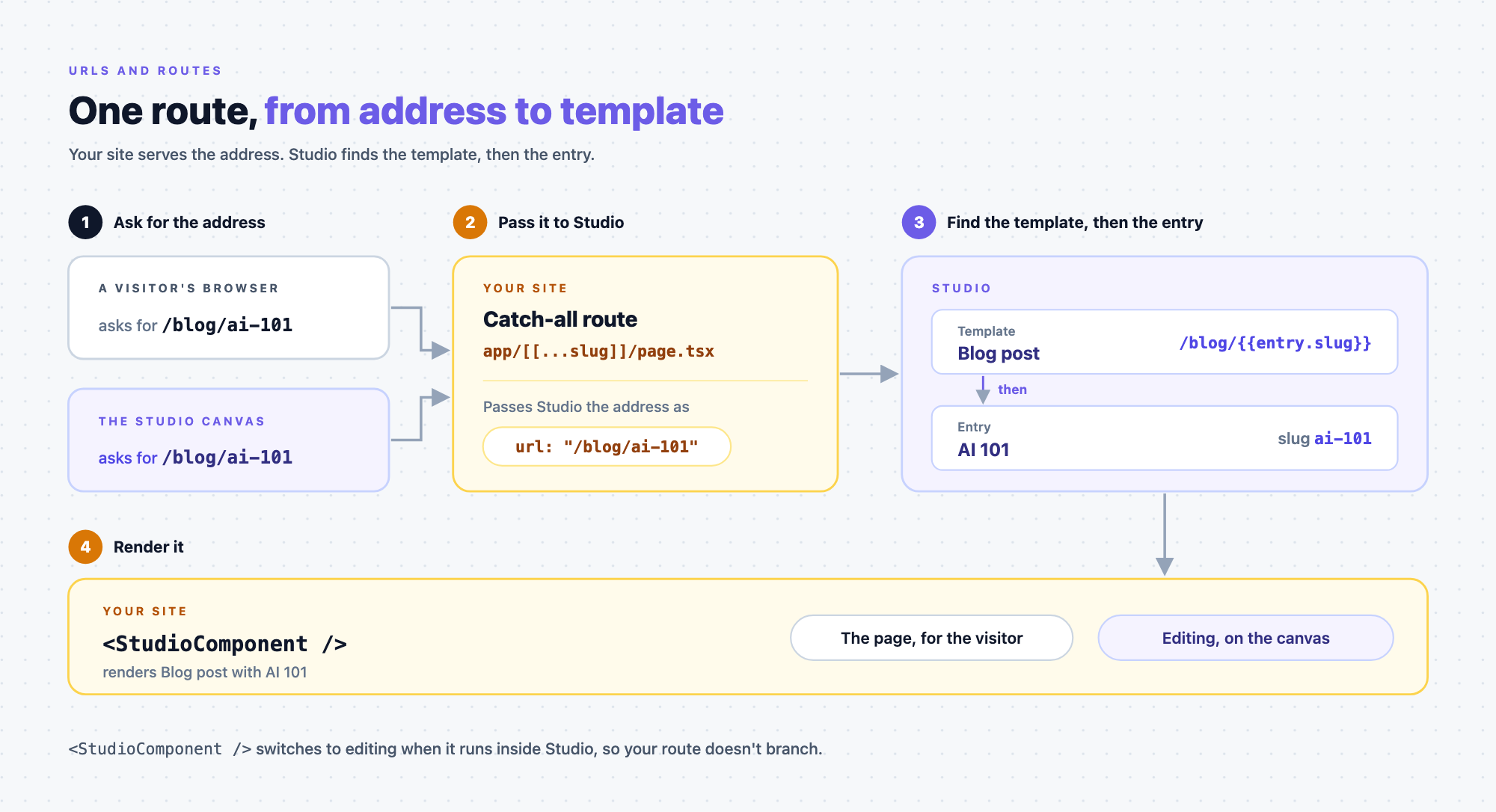

Studio can't tell these two apart, so check your route code.
| Check | Read |
|---|---|
The route renders its own content, with no <StudioComponent /> | The route is built without Studio |
The route has <StudioComponent />, but stops before it renders | The route returns before Studio renders |
The route has <StudioComponent />, and code in the browser changes the page's address | Your page drops Studio's query string |
The route is built without Studio
A route your app builds by hand answers the template's address, so the catch-all never sees it. In Next.js, a more specific route, such as app/blog/[slug]/page.tsx, answers before app/[[...slug]]/page.tsx.
- Find the file that answers the address on the card, such as
/blog/ai-101. In the App Router, look for a folder that matches it, such asapp/blog/[slug]/. If onlyapp/[[...slug]]/matches, read The route returns before Studio renders instead. - If that address should show the Studio template, delete the route, so the catch-all answers it. To keep a route of its own, make it fetch the template and render
<StudioComponent />, as Give one template its own route shows. - If the address isn't meant for Studio, change the template's Template URL instead, with Edit URL in the canvas top bar. See Edit or reset a Template URL.
Which routes answer before the catch-all is in Keep your own routes ahead of the catch-all.
The route returns before Studio renders
The route answers the address, but stops before it asks Studio for the template. A redirect(), a notFound() or an early return runs first.
- Open the route that answers the address, such as
app/[[...slug]]/page.tsx. - Look at the code that runs before
sdk.fetchCompositionData. If aredirect(),notFound()orreturnruns for this address, this is your cause. - Move it after the fetch, or make it skip this address. Call
notFound()only when the fetch fails with a not-found, as Send a 404 when no template matches shows.
Your page drops Studio's query string
Studio adds a query string to the address it opens, and the Studio SDK reads it from the page's address to know it's inside Studio. When code in the browser removes the query string, the SDK can't tell, and the canvas shows a card that doesn't name the real cause:
- No Studio Code on This Route, when the page reloads without the query string before the SDK starts, such as
window.location.replace(location.pathname)or a language redirect done in the browser. - Couldn't Determine the Cause, when code tidies the address after the SDK starts, such as
history.replaceState(null, "", location.pathname).
-
Confirm it. In the canvas, open your browser's developer tools, pick your page's frame in the Console's context menu, and run
location.search. If it's empty, this is your cause. -
Find the code that changes the address. Search your app for
location.replace,location.href =,location.assignandhistory.replaceState. -
Keep the query string when it builds the new address, such as
window.location.replace(newPath + location.search), or leave the address alone. -
Reload the canvas. The template renders, and the card goes away.
The route always shows another template
Code: ROUTE_PINNED_TO_ANOTHER_TEMPLATE
The route at this address fetches one template by its Template UID, compositionUid, instead of by the address. So whatever template you open there, the route shows the one in its code. With one UID, the card is URL Pinned to Another Template and names that template. With several, it's Other Templates Load Here and names them all. Changing your Template URL can't fix it, because the route never reads the address. Your live page renders the pinned template and logs nothing.

-
Find the Template UID of the template the card names, such as About. On the Templates tab, open About's row action menu and choose Edit. The Edit Template dialog shows its Template UID, such as
about.
-
Search your app for that UID, such as
compositionUid: "about". The file it's in is the route that answers this address, such asapp/blog/[slug]/page.tsx. -
If the route should serve whichever template owns the address, delete it so
app/[[...slug]]/page.tsxanswers. To keep the route, make it fetch by address instead:// app/blog/[slug]/page.tsxconst { slug } = await params;const specOptions = await sdk.fetchCompositionData({url: `/blog/${slug}`, // was compositionUid: "about"searchQuery,}); -
If the route must serve one template only, put your template's UID in place of the other one, such as
compositionUid: "blog_post_template". Passurltoo, so Studio finds the entry, as Give one template its own route shows. -
Reload the canvas. It shows the template you opened, and the card goes away.
Which way to fetch fits each route is in Ways to fetch a template.
Your code doesn't say which template to fetch
Code: COMPOSITION_IDENTIFIER_MISSING
Your site asked Studio for content without compositionUid, url or templateContentTypeUid, so there was nothing to look for. The template may well exist. Inside Studio, the card is Your Site's Setup Is Incomplete, and it says Studio needs "a composition to load". It isn't a missing template, so don't answer it with a 404.
[Contentstack Studio] COMPOSITION_IDENTIFIER_MISSING: No composition was asked for.
Older SDK versions log one of these instead, with no code:
Either compositionUid, url, or templateContentTypeUid is required
No valid composition identifier provided. Please provide compositionUid, url, or templateContentTypeUid
No valid composition identifier found. Query should have compositionUid, url, or templateContentTypeUid
-
Open the route that answers the address, such as
app/[[...slug]]/page.tsx, and find itssdk.fetchCompositionDataoruseCompositionDatacall. -
Check the first argument. If it has none of
url,compositionUidortemplateContentTypeUid, or each one is empty, this is your cause. -
Pass one. A catch-all passes
url, built from the route's path:// app/[[...slug]]/page.tsxconst { slug = [] } = await params;const url = "/" + slug.join("/");const specOptions = await sdk.fetchCompositionData({ url, searchQuery });A route that knows its template passes
compositionUid. See Ways to fetch a template.
A canvas route that reads a section's UID from the address logs this when you open it outside Studio. See A section renders with StudioComponent, by a UID from the address.
Two templates claim the same address
Code: TEMPLATE_URL_CONFLICT
Studio finds every template whose Template URL fits the address, then picks one. When yours isn't the one picked, or yours hides another template, a card names the other one. You only see this inside Studio. Your live site serves one template and logs nothing.
Studio keeps the templates whose Template URL fits the whole address, then picks the one with the most fixed text, as How Studio matches an address to a template explains.
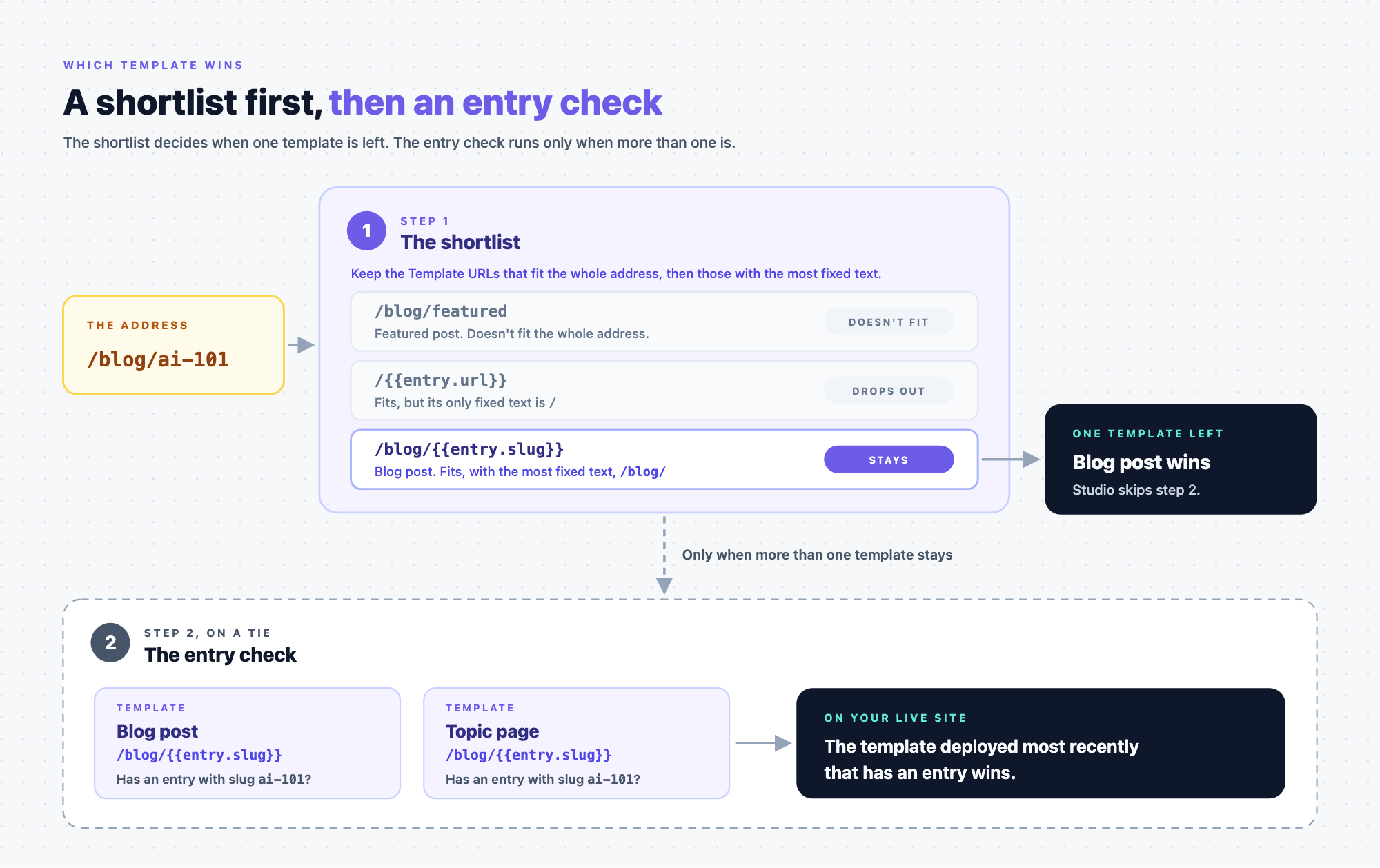

The card names both templates, so you don't need to confirm the cause. You change a Template URL with Edit URL in the canvas top bar:

How Studio picks is in Which template wins when several match.
| You see | Read |
|---|---|
| A Closer URL Match Won | A more specific Template URL wins |
| Another Entry Owns This URL | Another content type's entry has this address |
| Multiple Templates Use This URL, and the canvas shows the other template | Another template has the same Template URL |
| Multiple Templates Use This URL, and the canvas shows yours | Your template hides another one |
| One of these cards, while the canvas shows your site's error page | Another template matched first and failed |
A more specific Template URL wins
Another template's Template URL has more fixed text for this address, and Studio never falls back to a less specific one. Preview Featured on the Blog post template, and Featured post's /blog/featured beats /blog/{{entry.slug}}.
- If the other template is meant to own this address, nothing is broken. Preview another entry on your template, such as AI 101. See Preview with a different entry.
- Otherwise, click Edit URL and give your template a Template URL that doesn't overlap the other one.
Another content type's entry has this address
Your template and another one match the address equally, and only the other template's content type has an entry for it. Say the Topic page template had /blog/{{entry.slug}}. Topic page has no entries, so at /blog/ai-101 Blog post owns the address.

Click Edit URL and give your template its own fixed prefix, such as /topics/{{entry.slug}}.
Another template has the same Template URL
Another template matches the address equally, and both have an entry for it, so your live site serves only one. The card lists every template using the URL. It happens when:
- Two templates on one content type get the same Template URL.
- A Custom Preview URL row has no prefix.
- Two templates get the same fixed URL.
- Someone edits one Template URL so it overlaps another.
Say About, a freeform template, gets the Template URL /blog/featured. A freeform template always counts as having an entry, so it ties with Featured post.

The card lists the templates, so you don't need to confirm the cause. Pick the fix for what you want at the address.
| What you want | Read |
|---|---|
| Your template replaces the other one, and both are on one content type | Replace the live template |
| Both templates stay live | Give one its own URL |
| The other template isn't needed | Delete the other template |
Every template of a content type collides, because they share {{entry.url}} or a Custom Preview URL row with no prefix | Fix the shared source |
Replace the live template. This works only for two templates on the same content type.
- Open your template, click Deploy, and pick the environment, such as
production. - Studio opens Swap main template?, naming the template that's live at this URL. Click Swap and deploy.
- Studio says your template is deployed and the other was unpublished. Your live site now serves your template at that address.
See Swap the template that's live at a URL.
Give one its own URL.
- Pick the template that moves. For yours, click Edit URL on the card. For the other, click Open on the card, then Edit URL in its top bar.
- Give it a Template URL with fixed text of its own, such as
/aboutor/blog/featured/{{entry.slug}}, and save. - Reload the canvas on both templates. The notice doesn't show on either.
Delete the other template.
- On the Templates tab, open the other template's row action menu and choose Delete.
- Type
DELETEand click Yes, Delete. The template goes to your stack's Trash, so you can restore it. - Reload the canvas on your template. The notice doesn't show.
See Delete it.
Fix the shared source. When the Template URLs come from one source, fix it once, not template by template.
- If the Template URLs are
{{entry.url}}with no prefix, set a Prefix in the content type's URL field, under URL Properties, such as/blog/. See Always put a prefix in front of entry.url. - If they come from a Custom Preview URL row with no prefix, add one to the row. See The Custom Preview URL.
- A template whose URL you edited by hand keeps it. To make it follow the source again, reset it, as Go back to the derived URL shows.
- Reload the canvas. Each template opens at its own address, and the notice doesn't show.
Two templates on the same content type don't show this while the one you opened renders. Deploying settles which one is live. See Swap the template that's live at a URL.
Your template hides another one
Your template rendered, and another template matches the address just as well. The card says yours "is displayed because it was updated most recently", and lists the others. Your live site serves only one of them.
- Click Open on the card next to another template it lists.
- Click Edit URL in that template's top bar, and give it a Template URL with its own fixed text.
- Do the same for each template the card lists, then open your template again. The card goes away.
Another template matched first and failed
A more general template, such as one with /{{entry.url}}, matched the address and found no entry for it. The canvas shows your site's error page, but the card still names that template as the winner. Your log shows that template's missing entry.
- Click Open on the card to open the template it names.
- If its Template URL starts with a variable, such as
/{{entry.url}}, put a fixed prefix in front of it with Edit URL, such as/pages/{{entry.url}}. See Always put a prefix in front of entry.url. - If that template should own the address, give it an entry for it instead. See The entry isn't found.
The address is nearly right
Code: TEMPLATE_ADDRESS_NEARLY_MATCHES
Studio compared the address your page asked for with your template's Template URL, and they differ by one small thing. The card This Address Is Nearly Right shows both addresses. It names no cause, because Studio can't see what changed the address. Your site's log only shows NO_COMPOSITION_FOR_URL for the changed address.

Studio spots four differences: an extra part at the start, a missing part at the start, capitals, or a slash or encoding. A Template URL that starts with a variable, such as /{{entry.url}}, never gets this card. With Live Preview off, the Live Preview card shows first.
| Check | Read |
|---|---|
| The template previews the address in its entry's URL field | The entry's URL field gives another address |
Your environment's Base URL ends in a path, such as /en | The Base URL ends in a path |
| Your site redirects, or adds a language to the address | Your site redirects or adds a prefix |
| Your route passes Studio a fixed address | Your code passes a hardcoded address |
| The card says the two differ only in capitalization, or are written differently | The capitals, slashes or encoding differ |
| You came from a link, such as the Visual Editor's Open in Studio | Someone typed or pasted the address |
The entry's URL field gives another address
With the older entry URL setting, Studio opens the address in the entry's URL field, not the Template URL. To confirm it, open the entry in Contentstack, such as AI 101, and compare its URL field with the address on the card. If they match, this is your cause.
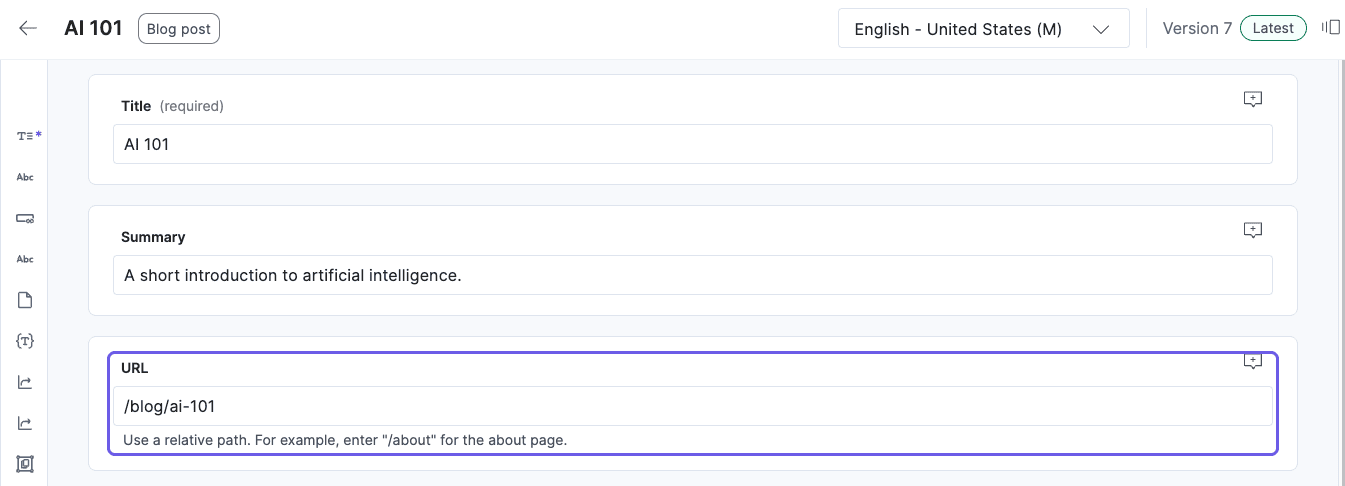
- If the entry's URL field holds the right address, click Edit URL and change the Template URL to match it.
- Otherwise, change the entry's URL field to the address the Template URL makes, such as
/blog/ai-101, and save the entry.
Which source Studio used for the Template URL is in See which source Studio used.
The Base URL ends in a path
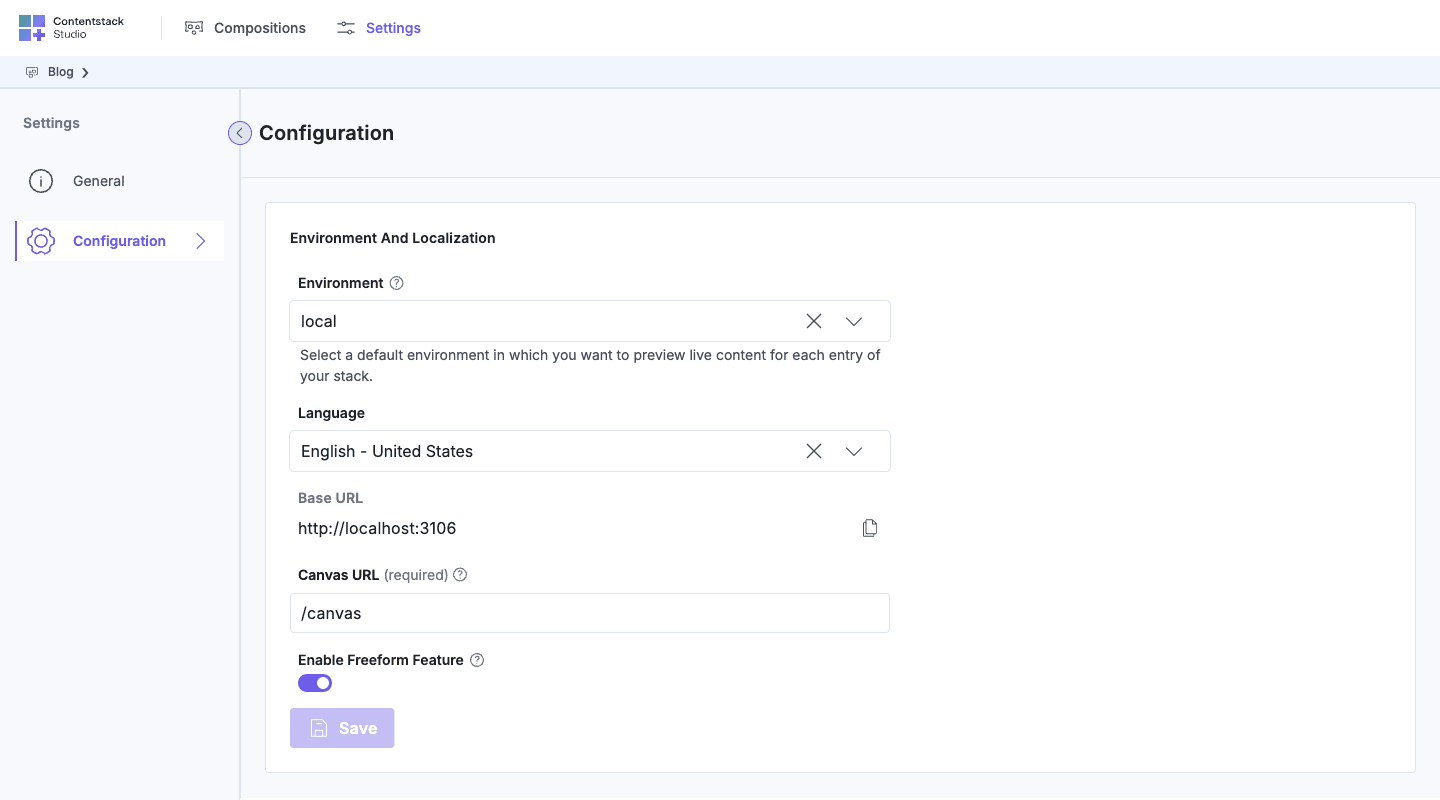
Your environment's Base URL ends in a path, such as /en, and Studio doesn't remove it from the address. To confirm it, open Settings > Configuration in Studio. If the Base URL ends in a path, such as https://www.example.com/en, this is your cause.
The canvas joins the Base URL and the Template URL, so a path at the end of the Base URL ends up in the address.
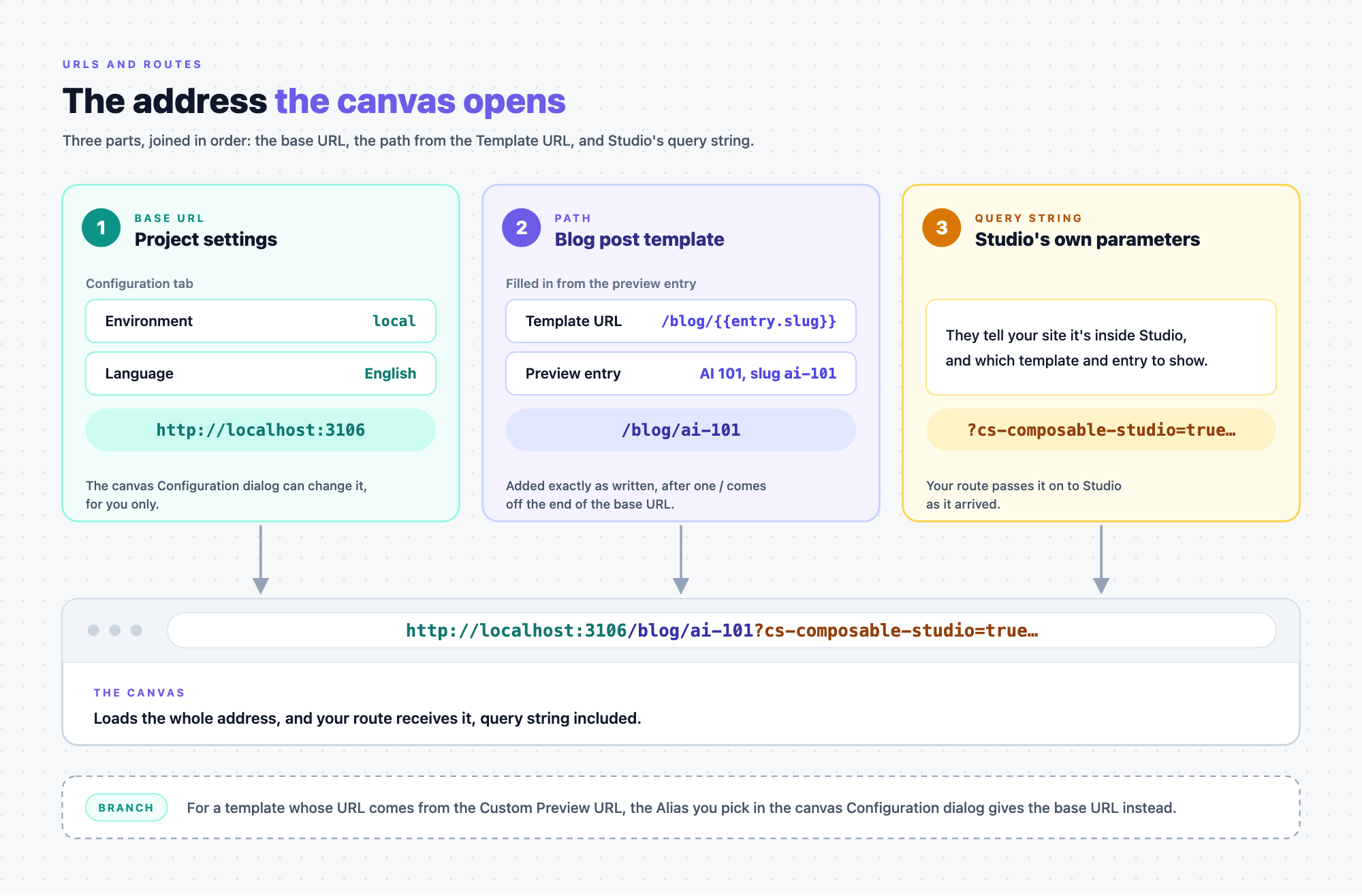
- In your catch-all,
app/[[...slug]]/page.tsx, take the path off before you passurl. For a language, pass it as thelocaleoption instead. - Reload the canvas. The two addresses on the card now match, and the card goes away.
How to build url is in Pass Studio only the path the Template URL describes. Where the Base URL comes from is in Check the Base URL.
Your site redirects or adds a prefix
Your site sends the request on to another address, such as /en/blog/ai-101, before the route runs. Studio can't see the redirect, but your page reports the address it asked for. To confirm it, open the template's address in a new tab, such as http://localhost:3000/blog/ai-101. If the address bar changes to a prefixed one, this is your cause.
- Keep the redirect if your site needs it. A redirect to another address on your own site is fine.
- In your catch-all, take the prefix off before you pass
url, and pass a language as thelocaleoption. See Put the language in the address. - Check the redirect keeps the query string. See Keep Studio's query string.
Your code passes a hardcoded address
Your route passes Studio a fixed address instead of the one it was given. Only a fixed address that's close to the Template URL gets this card. To confirm it, open the route and look at url in its sdk.fetchCompositionData call. If it's a fixed text, such as "/Blog/ai-101", this is your cause.
Build url from the route's path:
// app/[[...slug]]/page.tsx
const { slug = [] } = await params;
const url = "/" + slug.join("/"); // was "/Blog/ai-101"
The capitals, slashes or encoding differ
Studio matches addresses exactly, so capitals, a trailing or doubled slash, and encoding all count. /Blog/ai-101 doesn't match /blog/{{entry.slug}}. The card shows both, so you don't need to confirm it.
- If the address is right, click Edit URL and change the Template URL to match it.
- If the Template URL is right, fix what produces the other address. That's a link with capitals, or your catch-all adding or dropping a slash at the end.
See Studio matches the address exactly.
Someone typed or pasted the address
The Visual Editor's Open in Studio passes the page's whole address to Studio. If your site serves it with a prefix, Studio opens the prefixed address. A link you click inside the canvas never changes the card.
- Compare the address in the canvas top bar with the Template URL on the card.
- If the address is the right one, click Edit URL and change the Template URL to match it.
- Otherwise, fix what adds the prefix, as in Your site redirects or adds a prefix. Then open the template from the Templates tab, not from the link. The card goes away.
The Template URL is missing or can't be used
Code: TEMPLATE_URL_INVALID
Studio builds the canvas address from the Template URL before it loads your site. When it can't, a message fills the canvas in place of your site. Nothing is logged, because your site never loads.

| You see | Read |
|---|---|
| The URL is not present for this composition | The template has no Template URL |
| Invalid Custom URL | The Base URL alias doesn't make a valid address |
The template has no Template URL
A freeform template has no Template URL, so the canvas shows The URL is not present for this composition.
- Click Edit URL in the canvas top bar.
- Type a Template URL that starts with
/, such as/about, and save. - The canvas loads your site at that address, such as
http://localhost:3000/about.
See Edit or reset a Template URL.
The Base URL alias doesn't make a valid address
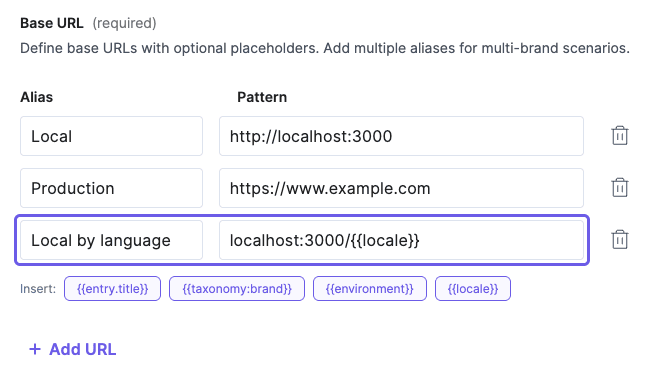
The template uses a Custom Preview URL with a Base URL alias. Filled in for the entry, the alias isn't a full http or https address. The message names the alias and the address it made. It says "Check the alias in Visual Experience settings, under Preview URL > Base URL, or pick another alias in the Base URL settings."
-
In Contentstack, open your stack's Settings > Visual Experience, then Preview URL > Base URL.
-
Find the alias the message names, such as Local by language. Fix its URL so it fills in to a full address, such as
http://localhost:3000/{{locale}}, or pick another alias.
If the alias leaves a variable empty, see No entry fills the URL pattern. How aliases work is in Base URL aliases.
The template opens on the canvas route
Code: TEMPLATE_ADDRESS_IS_CANVAS_ROUTE
A setting sends the template to your Canvas URL, /canvas, where <StudioCanvas /> renders it. Editing works, but visitors to that address see nothing. The card is Use Studio Component, and it says to ask your developer. The cause is a setting you can change yourself.
Your canvas route is for sections. A template opens at its own address on your site, as URLs and routes explains.
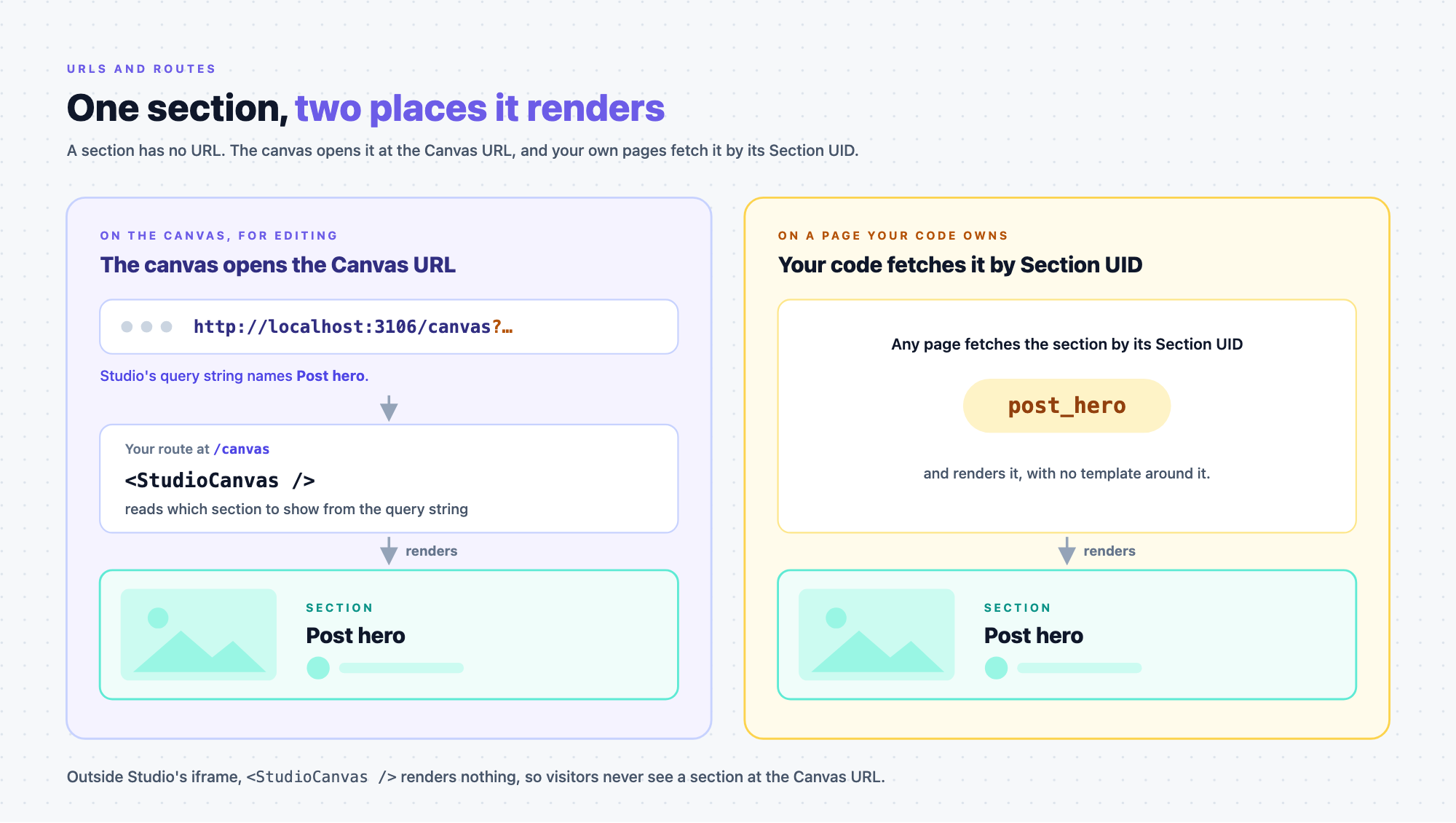
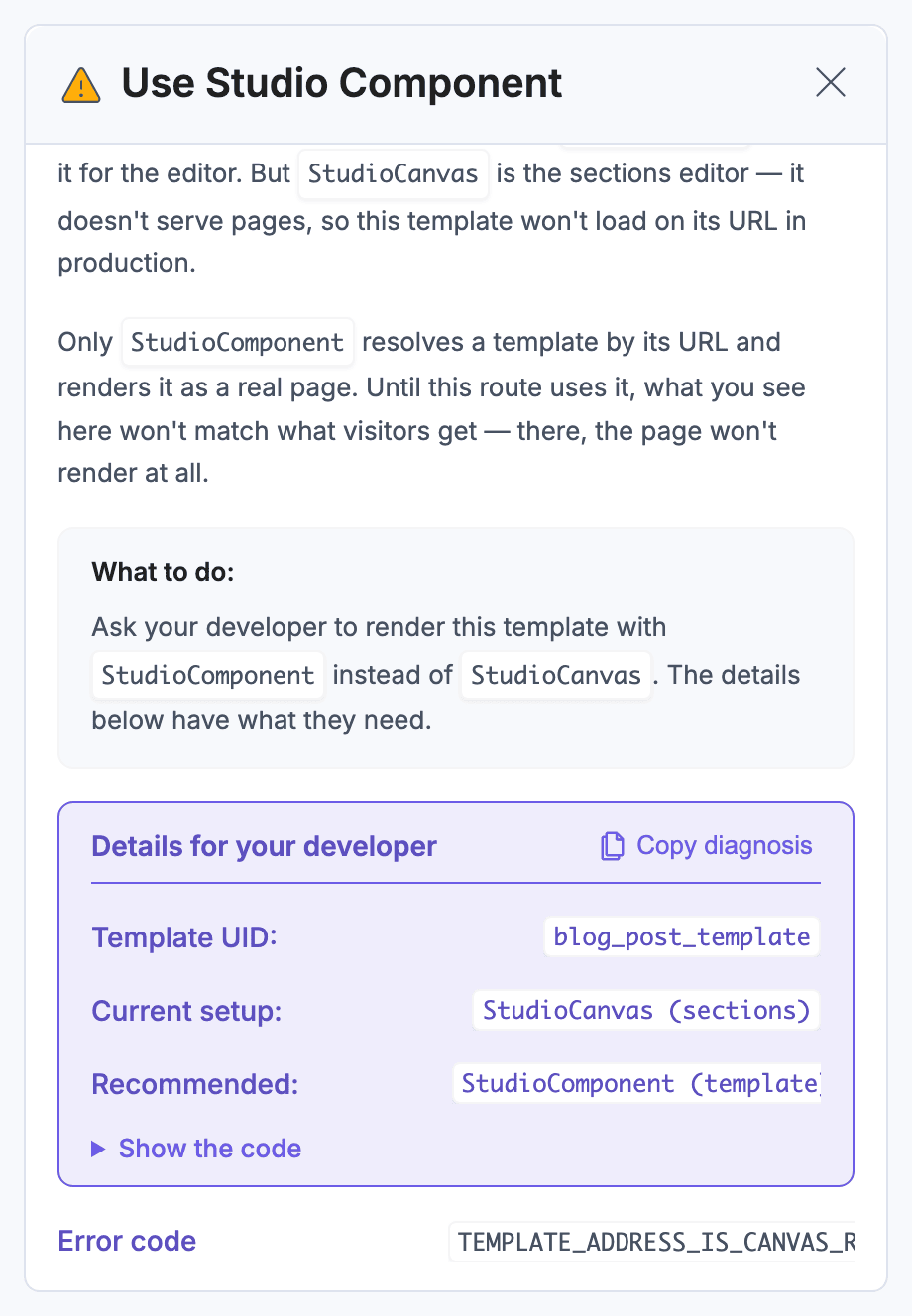
Inside Studio nothing is logged. Opened outside Studio, a development build logs this warning, and a production build logs nothing:
[StudioCanvas] is editing-only and renders nothing outside Studio. Mount it on a
dedicated route (the Canvas route in Studio Settings), never a wildcard.
Studio can't tell which setting it is, so check each one.
| Check | Read |
|---|---|
The template's Template URL is /canvas | The Template URL is the Canvas URL |
Your environment's Base URL ends in /canvas | The Base URL points at the canvas page |
The entry's URL field is /canvas | The entry's URL field is the Canvas URL |
The Template URL is the Canvas URL
The template's Template URL is the same as the Canvas URL, so Studio opens it on the canvas route.
- Look at the address next to Edit URL in the canvas top bar. If it's
/canvas, this is your cause. - Click Edit URL, and give the template its own Template URL, such as
/blog/{{entry.slug}}. - The canvas opens the template at its own address, such as
/blog/ai-101, and the card goes away.
The Base URL points at the canvas page
Your environment's Base URL ends in the canvas path. Only a template at / gets this card. Any other template opens at /canvas followed by its own URL, and gets This Address Is Nearly Right.
-
Open Settings > Configuration in Studio. If the Base URL ends in
/canvas, this is your cause. -
In Contentstack, open your stack's Settings > Environments, and set the environment's URL to your site's root, such as
https://www.example.com.
See Check the Base URL.
The entry's URL field is the Canvas URL
The template previews the address in its entry's URL field, and that field holds /canvas.
- Open the entry in Contentstack, such as AI 101. If its URL field is
/canvas, this is your cause. - Change the URL field to the entry's own address, such as
/blog/ai-101, and save the entry. - Reload the canvas. The template opens at that address.
The wrong Studio component renders it
Code: WRONG_STUDIO_RENDERER
Templates need <StudioComponent />, and sections need <StudioCanvas />. Your route renders the wrong one, so editing works in Studio, but your live site behaves differently. For a template, the card is Use Studio Component. For a section, it's Sections Need StudioCanvas, called Use Studio Canvas Component in older Studio versions.
Sections open on your canvas route, where StudioCanvas renders them for editing. Your own pages render with StudioComponent, as URLs and routes explains.

Opened outside Studio, a route with <StudioCanvas /> logs the editing-only warning in a development build, shown under The template opens on the canvas route. Studio can tell a template from a section, but nothing more, so check your route code.
| Check | Read |
|---|---|
Your catch-all route renders <StudioCanvas /> | StudioCanvas is on your catch-all route |
| The template's route renders both components | The route renders both StudioCanvas and StudioComponent |
The route picks a component with isStudioCanvas() | The route swaps components with isStudioCanvas() |
Your site redirects Studio's requests to /canvas | Studio's requests are redirected to the canvas route |
<StudioCanvas /> is on an address visitors use | StudioCanvas is on a path visitors use |
| A section is open, and the canvas route reads its UID from the address | A section renders with StudioComponent, by a UID from the address |
| A section is open, and the canvas route always asks for one UID | A section renders with StudioComponent, by a fixed UID |
StudioCanvas is on your catch-all route
Every address goes to <StudioCanvas />, so templates edit fine, but visitors get a blank page. An unpublished template doesn't return a 404 either.
-
Open the component your catch-all renders,
app/[[...slug]]/template-renderer.tsx. If it renders<StudioCanvas />, this is your cause. -
Render
<StudioComponent />with thespecOptionsthe page fetched:// app/[[...slug]]/template-renderer.tsx"use client";import { StudioComponent, type StudioComponentSpecOptions } from "@contentstack/studio-react";import "@/studio/register-components";export function TemplateRenderer({ specOptions }: { specOptions: StudioComponentSpecOptions }) {return <StudioComponent specOptions={specOptions} />; // was <StudioCanvas />} -
Keep
<StudioCanvas />only inapp/canvas/page.tsx, as Render StudioCanvas on the route shows.
The route renders both StudioCanvas and StudioComponent
Whichever component reports to Studio last decides the card, so it flashes briefly, stays, or never shows. Your live page still renders the template.
- Search the template's route and the components it renders for
StudioCanvas, such as inapp/[[...slug]]/. If you find it, this is your cause. - Remove
<StudioCanvas />there, and keep<StudioComponent />. - Reload the canvas. The card stays away.
The route swaps components with isStudioCanvas()
The route renders <StudioCanvas /> inside Studio and <StudioComponent /> outside it. Your live page works, but Studio edits the template through the section editor.
- Search the template's route for
isStudioCanvas(). If it picks the component, this is your cause. - Remove the check, and render
<StudioComponent />in both places, as in StudioCanvas is on your catch-all route. - Reload the canvas. The card goes away, and the template opens in the template editor.
Studio's requests are redirected to the canvas route
Your site sends Studio's requests to /canvas, so <StudioCanvas /> renders the template there. Your live page still works.
- Look in
next.config.js, underredirects()andrewrites(), and in your proxy file,proxy.tsormiddleware.ts. If a rule sends the template's address to/canvas, this is your cause. - Remove the rule, so the template's own route answers.
- Reload the canvas. The address in the top bar is the template's own, such as
/blog/ai-101.
StudioCanvas is on a path visitors use
<StudioCanvas /> sits on an address your visitors open, so they get a blank page there. An unpublished template doesn't return a 404 either.
- Move
<StudioCanvas />to a route of its own, such asapp/canvas/page.tsx. See Pick a path for the route. - In Studio, open Settings > Configuration, and set Canvas URL to the same path, such as
/canvas. See Set the Canvas URL to the same path. - Open a section, such as Post hero. It renders on the canvas, and the old address shows your own page again.
A section renders with StudioComponent, by a UID from the address
Every section opens in Studio, but visitors who open the canvas route get a 404. Outside Studio, the route logs the missing-identifier error, because the address has no UID. To confirm it, open app/canvas/page.tsx. If it reads a UID from the address and passes it to <StudioComponent />, replace everything in it with <StudioCanvas />, which reads the section itself:
// app/canvas/page.tsx
"use client";

import { StudioCanvas } from "@contentstack/studio-react";

export default function CanvasPage() {
  return <StudioCanvas />;
}
Open a section, such as Post hero. It renders on the canvas, and the card goes away. See Mount the section preview route.
A section renders with StudioComponent, by a fixed UID
Only that one section opens in Studio, and any visitor sees the published section at the canvas route. Opening another section shows The canvas route always shows one section. Replace the fetch and <StudioComponent /> in app/canvas/page.tsx with <StudioCanvas />, as in A section renders with StudioComponent, by a UID from the address.
Sections don't open at the Canvas URL
Code: CANVAS_URL_INVALID
Studio opens a section at the Canvas URL in your project settings, and waits for <StudioCanvas /> there to pick it up. If no Canvas URL is set, a message fills the canvas. If nothing on the route answers, the card Studio Canvas Isn't on This Route shows after about 11 to 17 seconds. Its details name the section and the Canvas URL.
The canvas builds each address from parts: the Base URL plus a Template URL for a template, or plus the Canvas URL for a section, as URLs and routes explains.

Your site's log never mentions sections or the Canvas URL. Studio can't tell most of these apart, so check them in order.
| Check | Read |
|---|---|
| Canvas URL is not configured fills the canvas | The Canvas URL isn't set |
| Your app has no route at the Canvas URL, and a catch-all answers it | Your app has no canvas route |
The route exists, but doesn't render <StudioCanvas /> | The canvas route has no Studio code |
| The card shows Currently loaded in the canvas, with a template's name | The Canvas URL is a template's address |
The Canvas URL is / | The Canvas URL is your home page |
| The canvas shows a different section from the one you opened | The canvas route always shows one section |
The Canvas URL isn't set
You opened a section, and the project has no Canvas URL, so Canvas URL is not configured fills the canvas. Its text asks you to "configure the URL for this composition", but the missing value is the project's Canvas URL.
-
Click Configure Canvas URL.

-
Type the path of your canvas route, such as
/canvas, and save. -
The section opens on the canvas.
See Enter the Canvas URL.
Your app has no canvas route
Your catch-all answers the Canvas URL and fails, so the canvas shows your site's error page. Your log shows a not-found for that address. To confirm it, open the Base URL followed by the Canvas URL in a new tab, such as http://localhost:3000/canvas. If your not-found page shows, this is your cause.
- Create
app/canvas/page.tsxwith<StudioCanvas />, as in A section renders with StudioComponent, by a UID from the address. Next.js answers it before the catch-all. - Or change the Canvas URL to a route that already renders
<StudioCanvas />.
See Mount the section preview route.
The canvas route has no Studio code
The route exists, but doesn't render <StudioCanvas />, so Studio gets no answer and your log stays empty.
- Open the route's file, such as
app/canvas/page.tsx. If it has no<StudioCanvas />, this is your cause. Add it, as in A section renders with StudioComponent, by a UID from the address. - If it has
<StudioCanvas />, check the route loads the module that callsstudioSdk.init. In the example,app/layout.tsxrendersStudioInit, andapp/canvas/page.tsxsits under it. See Render StudioCanvas on the route. - Open a section, such as Post hero. It renders on the canvas.
The Canvas URL is a template's address
The Canvas URL is an address a template uses, such as /about, so the About template loads there. The card names it under Currently loaded in the canvas.
- In Studio, open Settings > Configuration, and set Canvas URL to a path of its own, such as
/canvas. Save. - Check your app has a route at that path that renders
<StudioCanvas />. If it doesn't, read Your app has no canvas route. - Open a section, such as Post hero. It renders on the canvas.
The Canvas URL is your home page
The Canvas URL is /, the address your visitors see first, so your home page answers it. Follow the steps in The Canvas URL is a template's address, and set Canvas URL to a path of its own, such as /canvas.
The canvas route always shows one section
The canvas route renders <StudioComponent /> with one fixed section UID, so it shows that section whatever you open. The card doesn't name the section it shows.
- Search
app/canvas/page.tsxforcompositionUid. If it has one, this is your cause. - Replace the fetch and
<StudioComponent />with<StudioCanvas />, which serves every section, as in A section renders with StudioComponent, by a UID from the address. - Open two different sections. Each one renders on the canvas.
Studio can't tell why your template or section didn't load
Code: TEMPLATE_DID_NOT_RENDER
Your template or section didn't load, and nothing Studio can see explains it. The card is Couldn't Determine the Cause. It asks a developer to check the browser console for a Studio SDK error, because "a failed lookup usually reports one there".
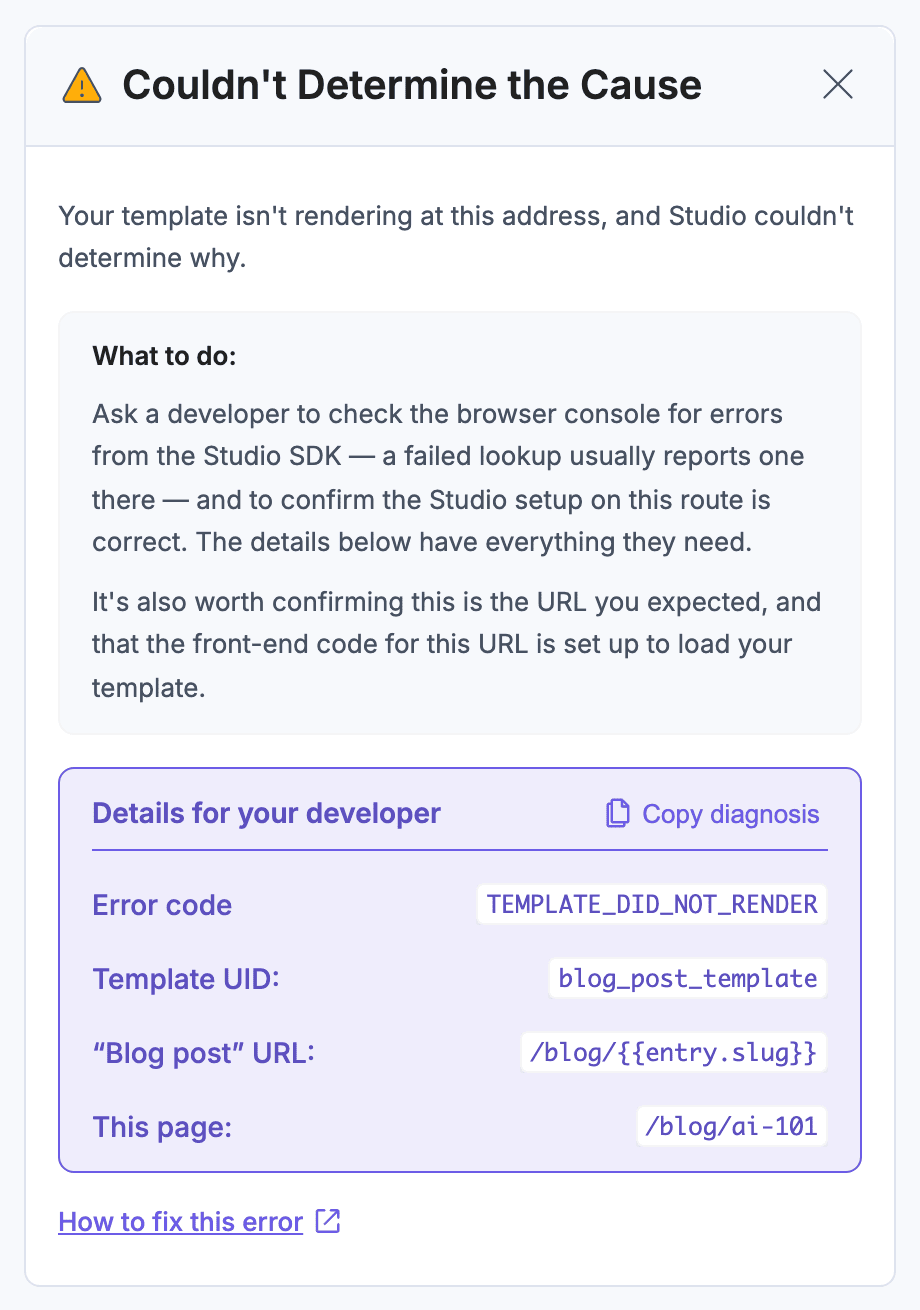
| You see | Read |
|---|---|
| The card says your template isn't rendering at this address | A template doesn't load and Studio can't tell why |
| The card says your section isn't loading in Studio | A section doesn't load and Studio can't tell why |
A template doesn't load and Studio can't tell why
Something on the page had your template in view, but it still didn't render. Check these in order.
- Look in the browser console or server log for a line starting
[Contentstack Studio], and search these pages for its code. - Check the address in the canvas top bar is the one you expected.
- Check the route for that address renders
<StudioComponent />, as in Render StudioComponent in the route. - If another template loaded, check your Template URL fits the address at all. See Studio matches the address exactly.
- Check your code doesn't remove Studio's query string from the address after the page loads, such as with
history.replaceState. See Your page drops Studio's query string.
A section doesn't load and Studio can't tell why
<StudioCanvas /> answered from the Canvas URL, but the section still didn't show. Check these in order.
- Look in the browser console for a line starting
[Contentstack Studio], and search these pages for its code. - Check the Canvas URL in Settings > Configuration is the one you expected.
- Check its route renders
<StudioCanvas />, as in Render StudioCanvas on the route.
The template UID your code asks for isn't found
Code: COMPOSITION_UID_NOT_FOUND
Your route fetches a template by its Template UID, compositionUid, and the stack has nothing with that UID. Inside Studio, the card is The Page Asks for a Missing Template, and its details show your template's UID. The log never says the template doesn't exist, because it can't tell a typo from an unpublished template.
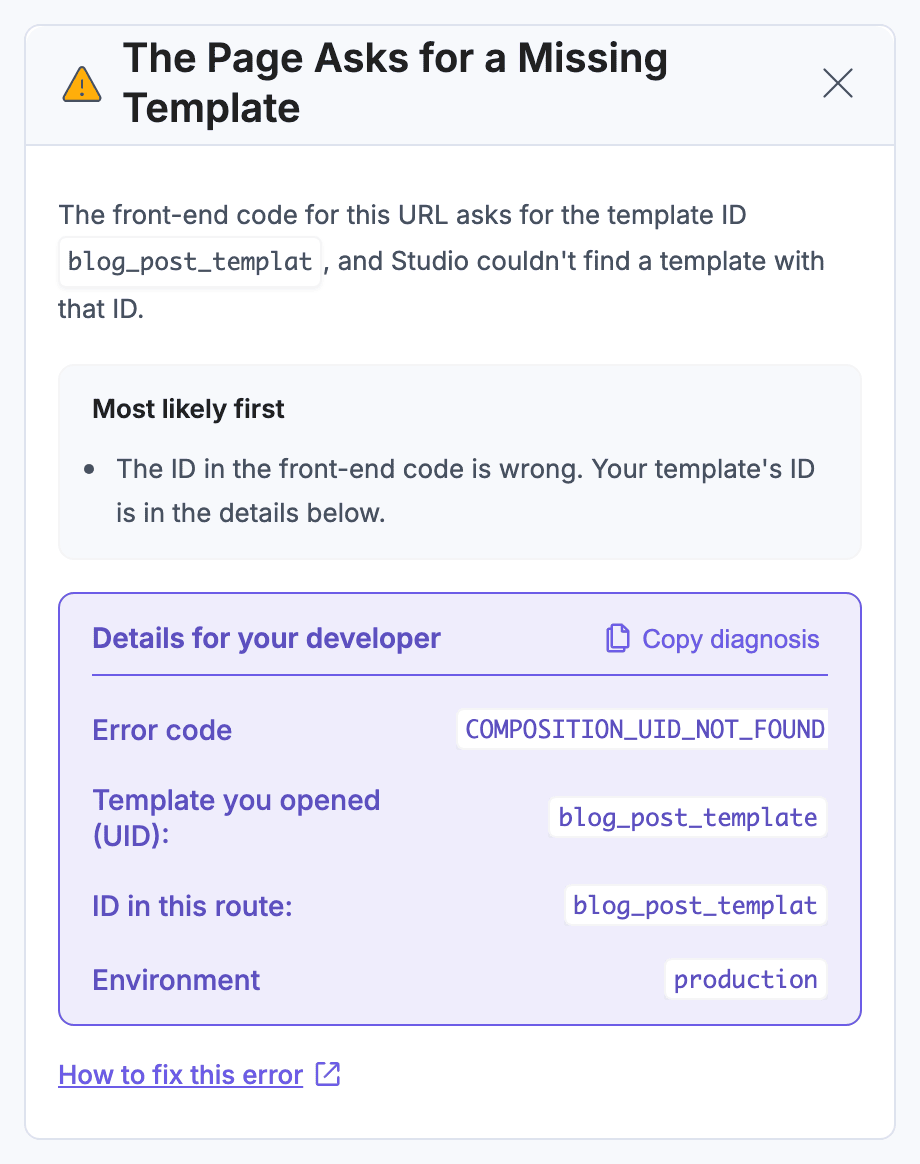
[Contentstack Studio] COMPOSITION_UID_NOT_FOUND: No composition with the uid
"blog_post_templat" in content type "compositions".
| Check | Read |
|---|---|
| The UID in your code differs from the one on the card | The UID in your code is mistyped |
| The log lists "may not be published", and your live site fails | The template isn't published |
| The UID is right, but your site uses another stack's API key | The UID comes from another stack |
The UID in your code is mistyped
The UID in the route doesn't match any template. Inside Studio, the card shows both UIDs, so you don't need to confirm it.
-
Copy the template's UID from the card's details, or from Template UID in the template's Edit Template dialog.
-
Search your app for the UID from the log, such as
blog_post_templat, and replace it:const specOptions = await sdk.fetchCompositionData({compositionUid: "blog_post_template", // was "blog_post_templat"url,searchQuery,});
The template isn't published
Your live site reads published content only, so an unpublished template isn't there. The log lists this cause only when published content answered. Inside Studio with Live Preview off, you see Unpublished Templates Can't Load Here instead. Deploy the template to the environment your site reads, such as production, as Deploy it shows. Then reload your live page.
The UID comes from another stack
The log names only the UID and the content type, so a UID from another stack's project reads the same as a typo. To confirm it, compare your site's API key with the Blog stack's key under Settings > API Credentials in Contentstack. If they differ, this is your cause. Point your site at the Blog stack, as The API key is wrong shows, or use the UID of a template in the Blog project.
The template your link asks for isn't available
Code: REQUESTED_COMPOSITION_UNAVAILABLE
A visitor's address names a template with cs-template, and that template can't be shown at this URL. Your site answers with a not-found. One message covers three causes, because Contentstack can't tell an unknown template from an unpublished one. You see this in your browser console or server log.
[Contentstack Studio] REQUESTED_COMPOSITION_UNAVAILABLE: Check that the composition
UID is correct and that it's published in this environment and locale.
Check these in order.
- Compare the UID in
cs-templatewith Template UID in the template's Edit Template dialog. If they differ, fix the link. - Check the template is published in this environment and language. If it isn't, deploy it from Studio, as Deploy it shows.
- Check the template is a secondary template of the primary template at this URL. If it isn't, deploy it as a secondary template, or open the URL without
cs-template.
See Deploy the redesign as a secondary template. Your site should answer a 404 for a link it can't serve. See Answer 404 for a link you can't serve.
Only secondary templates have this URL
Code: NO_PRIMARY_TEMPLATE_FOR_SECONDARY
A visitor's address names a secondary template with cs-template, and no primary template is published at this URL. The primary template was unpublished or deleted, or its URL changed. Your site answers with a not-found, and you see this in your browser console or server log.
[Contentstack Studio] NO_PRIMARY_TEMPLATE_FOR_SECONDARY: Templates are published at
this URL, but none of them is the primary one.
Deploy one of the secondary templates from Studio. With no primary template at its URL, it becomes the primary one. Then open the address again. It loads with and without cs-template.
See When no template is primary at the URL. Your site should answer a 404 for a link it can't serve. See Answer 404 for a link you can't serve.
No template has this address
Code: NO_COMPOSITION_FOR_URL
Your site asked for an address, Studio checked every Template URL, and none fits it. Inside Studio, the card is Nothing Is Set Up for This Address. This Address Is Nearly Right and the Live Preview cards show before it. On your live site this is a real not-found, so a 404 is the right answer.
Studio finds a template for an address in two steps, a shortlist and an entry check, as How Studio matches an address to a template explains. This error means the shortlist came out empty: no Template URL fits the address. A template that fits but has no entry for the address is a different error, The entry isn't found.

[Contentstack Studio] NO_COMPOSITION_FOR_URL: No composition matches
"/blogs/ai-101". Considered 4 compositions.
If the search stopped before it finished, the code is SEARCH_INCOMPLETE instead. See Your project has more than 2,000 templates. If a Template URL fits but no entry has the address, see The entry isn't found.
| Check | Read |
|---|---|
| The address, or a Template URL, is wrong | No Template URL fits the address |
| Your live site fails, and the log lists "may not be published" | The template isn't published |
| The log says "Considered 0 compositions", or Studio shows Content Types Don't Match | Your site asks for the wrong content type |
| The address is close to one of your Template URLs | The address nearly matches a Template URL |
No Template URL fits the address
No template is set up for this address. Inside Studio, the card shows the address next to your template's Template URL.
- If the address is wrong, fix the link or the code that produced it, such as
/blogs/ai-101for/blog/ai-101. - If the address is right, click Edit Template URL on the card, and set a Template URL that produces it. See Edit or reset a Template URL.
The template isn't published
Your live site reads published content only, so an unpublished template isn't there. The log lists this cause last, and only when published content answered. Inside Studio with Live Preview off, you see Unpublished Templates Can't Load Here instead. Deploy the template to that environment, as Deploy it shows. Then reload your live page.
Your site asks for the wrong content type
Your site reads templates from a content type other than the project's, so it finds none, or the wrong ones. The log never names the content type it searched. "Considered 0 compositions" is a strong sign. See Your site asks for the wrong content type.
The address nearly matches a Template URL
The log doesn't say how close the address came. Compare the address in the log with each Template URL by hand. Look for an extra part at the start, capitals, a trailing slash or encoding. Then follow The address is nearly right.
No template is connected to this content type
Code: NO_COMPOSITION_FOR_TEMPLATE_CONTENT_TYPE
Your route asks for the template connected to a content type, with templateContentTypeUid, and nothing in the project is connected to it. Inside Studio, the card is No Template Uses This Content Type, and it names the content type your code asked for. On your live site, the log also lists "may not be published" when published content answered.
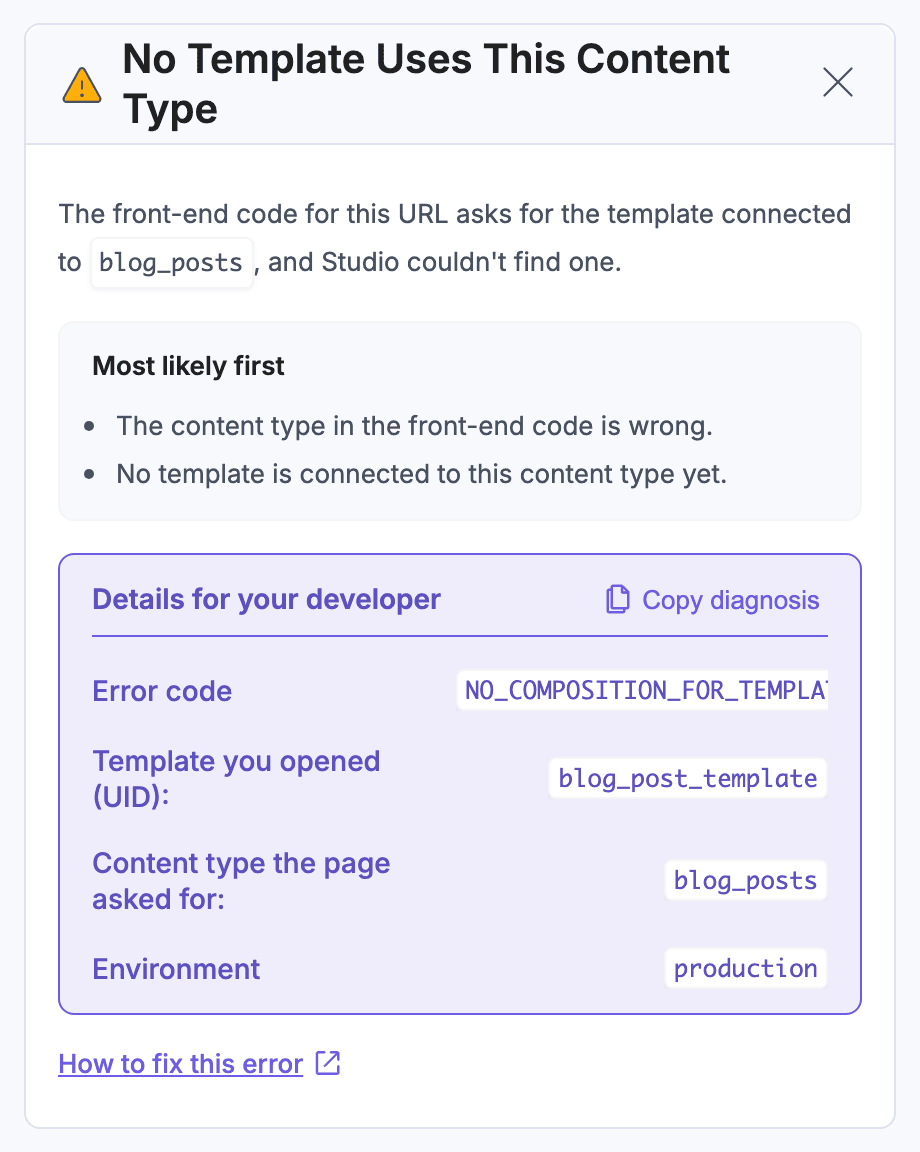
[Contentstack Studio] NO_COMPOSITION_FOR_TEMPLATE_CONTENT_TYPE: No composition is
connected to the content type "blog_posts".
- Compare the content type the card names with your templates' Connected Content Type, on the templates list in Studio. If the UID in your code is wrong, fix
templateContentTypeUid, such asblog_post. - If no template is connected to that content type yet, create one. See Create a connected template.
- If a connected template isn't published to that environment, deploy it, as Deploy it shows.
How a fetch by content type picks the template is in Fetch by content type.
The connected content type is gone
Code: CONNECTED_CONTENT_TYPE_MISSING
Studio couldn't read the entries of the content type your template is connected to, so it can't open the canvas. Connected Content Type Not Available fills the canvas, saying the content type "is no longer available". Studio shows the same message whenever that request fails, not only when the content type was deleted.

-
In Contentstack, open your stack's Settings > Trash. If the content type is there, such as Blog post (
blog_post), this is your cause. -
Restore the content type. Contentstack keeps deleted items for 14 days. See About Trash.
-
If it's not in the Trash, it's gone for good. A template's connected content type can't be changed, so create a new template connected to another content type. See Create a connected template.
-
If the content type was never deleted, the request failed for another reason. Reload the canvas, and if it keeps happening, report it.
The language in the address isn't on your stack
Code: URL_LOCALE_NOT_FOUND
The address asks for a language your stack doesn't have. The language came from the visitor's address, so it's a missing template, and a 404 is the right answer. Inside Studio, the card is Nothing Is Set Up for This Address, and it names the language. With Live Preview off, the Live Preview card shows first.

[Contentstack Studio] URL_LOCALE_NOT_FOUND: "/fr/blog/ai-101" asks for the language
"fr", which is not set up on this stack.
| Check | Read |
|---|---|
The Template URL starts with {{locale}} | The Template URL has a language variable |
Your router passes the language with each fetch, as the locale option | Your router passes the language |
If the language came from your SDK setup instead, see The language is wrong.
The Template URL has a language variable
The Template URL is /{{locale}}/blog/{{entry.slug}}, so the language in the address picks the content. The stack has en-us and fr-fr, so fr isn't one of its languages. To confirm it, look for the language under your stack's Settings > Languages in Contentstack.
- If the language should exist, add it, as Add a language shows.
- If a visitor mistyped the address, there's nothing to fix, because the 404 is right.
Your router passes the language
Your router takes the language from the address and passes it with the fetch. Today's SDK treats it as a setup error, LOCALE_NOT_CONFIGURED, and the card is This Language Isn't Set Up. The next SDK reports it as a missing template instead:
[Contentstack Studio] URL_LOCALE_NOT_FOUND: The language "fr" passed with this
fetch is not set up on this stack.
- If the language should exist, add it to the stack, as Add a language shows.
- Otherwise, make your router pass only languages the stack has, and answer other addresses with a 404. See Put the language in the address.
A template's layout can't be read
Code: SPEC_UNREADABLE
Studio found the template or section, but its stored layout is damaged and won't open. It isn't anything you did, and it isn't a version mismatch. Inside Studio, the card is Your Content Didn't Load. Don't answer it with a 404, because the template exists. A damaged section placed in a template is skipped with a warning, and the template still renders. Nothing in your project fixes it, so report it with the log line.
[Contentstack Studio] SPEC_UNREADABLE: The stored layout for blog_post_template
could not be read.
[Contentstack Studio] Skipping section post_hero: its stored layout could not be read.
The template you opened doesn't exist
Code: OPENED_COMPOSITION_NOT_FOUND
Studio couldn't fetch the template in the editor's address, so Composition Not Found fills the screen. The template was deleted, or the link is wrong. Studio shows the same screen whenever fetching the template fails. Click Go to Compositions, then open the template from the list. See Rename or delete a template or section.

Still stuck
Use Copy diagnosis on the card, or copy the log line, and paste it into your AI assistant or a support ticket.