Delivery settings errors
These errors come from the values your site passes to the Delivery SDK: the API key, delivery token, environment, delivery host, branch and language. If every template in Studio fails the same way, and the card or log names one of these values, start here. The example is the Blog project, previewing AI 101 on the Blog post template, with Studio started in src/studio.ts. The Blog stack is in the North America region.
After you fix any of these, restart your site, then reload the canvas. The card goes away when the fix worked. Outside Studio, the log line stops appearing.
Your delivery settings, line by line
Every setting on this page is one line of the contentstack.stack() call in your site. Find the line your card or log names, check it against where the value comes from, then read its section.
const stack = contentstack.stack({
  apiKey: import.meta.env.VITE_CONTENTSTACK_API_KEY,
  deliveryToken: import.meta.env.VITE_CONTENTSTACK_DELIVERY_TOKEN,
  environment: "production",
  region: "us",
  branch: "main",
  locale: "en-us",
});
| Setting | Where the value comes from | If it's wrong |
|---|---|---|
apiKey | Your stack's Settings > API Credentials, as View stack details shows | The API key is wrong |
deliveryToken | Your stack's Settings > Tokens > Delivery Tokens, as Create a delivery token shows | The delivery token is wrong |
environment | One of the token's Publishing Environments. Read About environments. | The environment is wrong |
region or host | Your stack's region. API endpoints lists every region's delivery host. | The delivery host is wrong |
branch | Your stack's Settings > Branches, and the token's Scope. Read About branches. | The branch is wrong |
locale | Your stack's Settings > Languages, as Add a language shows | The language is wrong |
Only apiKey, deliveryToken and environment are required. To set the stack up from the start, read Create the Delivery SDK stack.
Find your error
If every template fails but none of these match, read SDK setup errors or Live Preview errors.
Your drafts load, but your published site can't load content
Code: API_KEY_INVALID, HOST_INVALID, DELIVERY_TOKEN_INVALID or ENVIRONMENT_INVALID
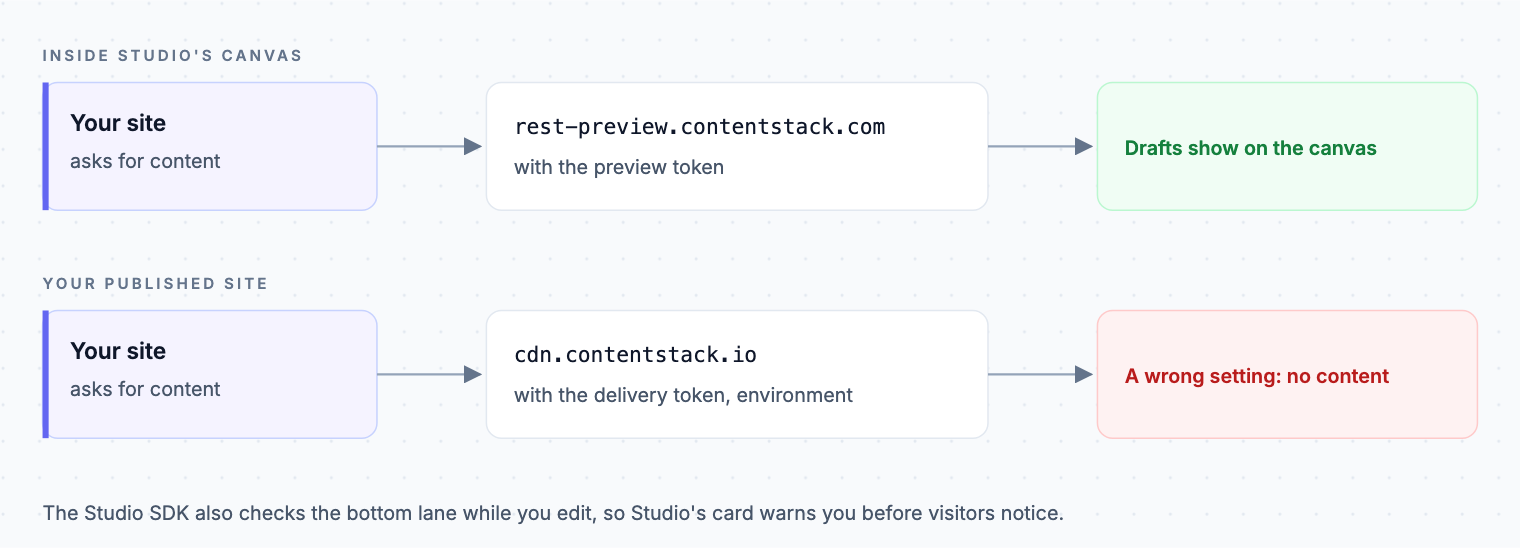
Inside Studio, Live Preview loads your drafts from the preview host with the preview token, as Install Live Preview sets up. Your published site uses the delivery host, delivery token and environment instead. So a wrong delivery setting doesn't stop the canvas, but it breaks every page of your published site. To catch this, the Studio SDK makes one extra request with your delivery settings each time the page loads in the canvas. When that request fails, Studio Can't Read Your Content opens with "Your drafts load here, but your published site can't load content."
Your canvas and your published site read content along two separate paths:

[Contentstack Studio] ENVIRONMENT_INVALID: Contentstack did not find the
environment "prodution".
The check runs in the browser. If your site creates its stack only on the server, Studio can't run it, so read your server log instead.
| The card's code | Read |
|---|---|
API_KEY_INVALID | The API key is wrong |
HOST_INVALID | The delivery host is wrong |
DELIVERY_TOKEN_INVALID | The delivery token is wrong |
ENVIRONMENT_INVALID | The environment is wrong |
BRANCH_INVALID | The branch is wrong |
LOCALE_INVALID | The language is wrong |
The API key is wrong
Code: API_KEY_INVALID
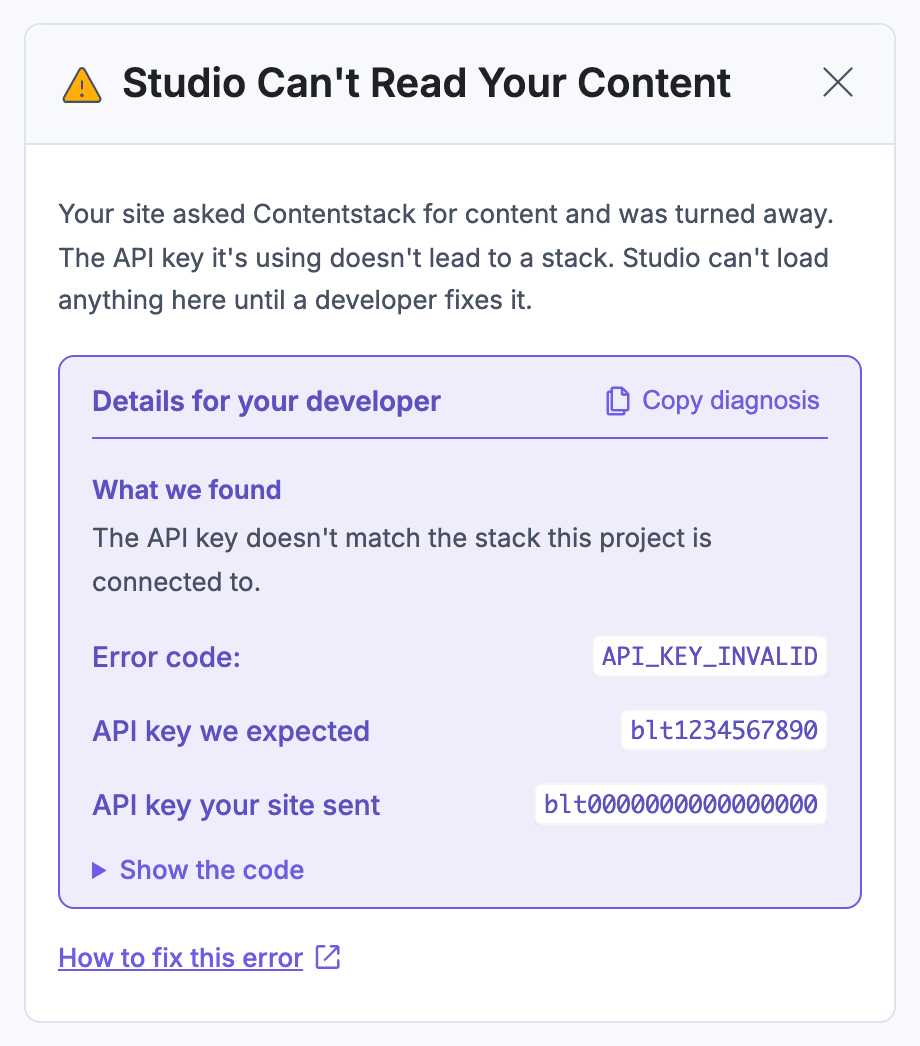
Contentstack didn't accept the API key your site sends, or your site sends none. Inside Studio, the card shows the key the Blog project expects next to the key your site sent. A log can't always tell a wrong key from a host in the wrong region, so it lists both.
[Contentstack Studio] API_KEY_INVALID: Contentstack did not find a stack
for this API key on cdn.contentstack.io.
| Check | Read |
|---|---|
| The log says the API key is required, or Your Site's Setup Is Incomplete names it | The API key is blank |
| The card says the API key doesn't match, or the log says no stack was found | No stack has this API key |
| The card says your site is using an API key that isn't this project's | The API key belongs to another stack |
| The card says the API key is right, but the region is wrong | The host is in another region |
The API key is blank
Your site passes an empty API key, often from an environment variable that's defined but empty. The Delivery SDK, @contentstack/delivery-sdk, then stops your site before Studio starts. So the canvas shows Studio can't connect to your site after 30 seconds, not a card about the key.
First, confirm it:
-
Open your browser console. If your site renders on the server, open your server log instead.
-
Look for this message:
API key for Stack is required.If you don't see it, this isn't your cause. Go back to the checks for this card.
Then set the key:
- Copy the API key from your stack's Settings > API Credentials.
- Set it in
VITE_CONTENTSTACK_API_KEY. If the variable already has a value, check that your site reads it, as in Check the Delivery SDK values are set. - Restart your site, such as with
npm run dev. The console no longer showsAPI key for Stack is required. - Reload the canvas. The template loads.
Your Site's Setup Is Incomplete naming the API key appears only with the older JavaScript Delivery SDK, contentstack. Its log says the stack "has no api key", and the card's Show the code gives the Blog project's key. The fix is the same. Contentstack recommends the TypeScript Delivery SDK instead, so consider migrating from the JavaScript Delivery SDK.
No stack has this API key
Contentstack answers with status 412 when no stack on the host your site calls has the key. A mistyped key causes it. So does the right key sent to a host in another region, and Contentstack's reply is the same for both.
Inside Studio, the card compares your site's key with the Blog project's key, so it proves which one it is:
-
Under What we found, the card says "The API key doesn't match the stack this project is connected to." If it says the API key is right, read The host is in another region instead.
-
Copy the value under API key we expected.
-
Paste it into
VITE_CONTENTSTACK_API_KEY, and restart your site, such as withnpm run dev. -
Reload the canvas. The card goes away.
From a log, first confirm it:
-
Find a line like this one in your browser console or server log. Your host replaces
cdn.contentstack.io, and the codeAPI_KEY_INVALIDstays the same.[Contentstack Studio] API_KEY_INVALID: Contentstack did not find a stackfor this API key on cdn.contentstack.io. -
Compare the key your site sends, in
VITE_CONTENTSTACK_API_KEY, with the key under your stack's Settings > API Credentials. If they match, this isn't your cause. Read The host is in another region.
Then fix the key:
- Copy the key from Settings > API Credentials into
VITE_CONTENTSTACK_API_KEY, and restart your site. - Load the page again. The log line no longer appears.
The API key belongs to another stack
Your site sends the API key of a stack other than the Blog stack, often a setup copied from another project. Studio compares your site's key with the Blog project's key as soon as your site connects. So it catches this even when every request your site makes works.
The card says "Your site is using an API key that isn't this project's, so its request for content failed." It can show the code DELIVERY_TOKEN_INVALID, because Contentstack also refuses the token sent with another stack's key. With Live Preview on, the card can say instead that "the site is connected to a different stack."
- Copy the value under API key we expected on the card. That's the Blog stack's key.
- In the Blog stack, copy a delivery token from Settings > Tokens > Delivery Tokens, and note one of its Publishing Environments, such as
production. - Set
VITE_CONTENTSTACK_API_KEYandVITE_CONTENTSTACK_DELIVERY_TOKENto those values, and setenvironmentinsrc/studio.ts. All three must come from the Blog stack. - Restart your site, then reload the canvas. The card goes away.
Outside Studio, a key from another stack looks like a refused delivery token. Read The browser doesn't say why.
The delivery host is wrong
Code: HOST_INVALID
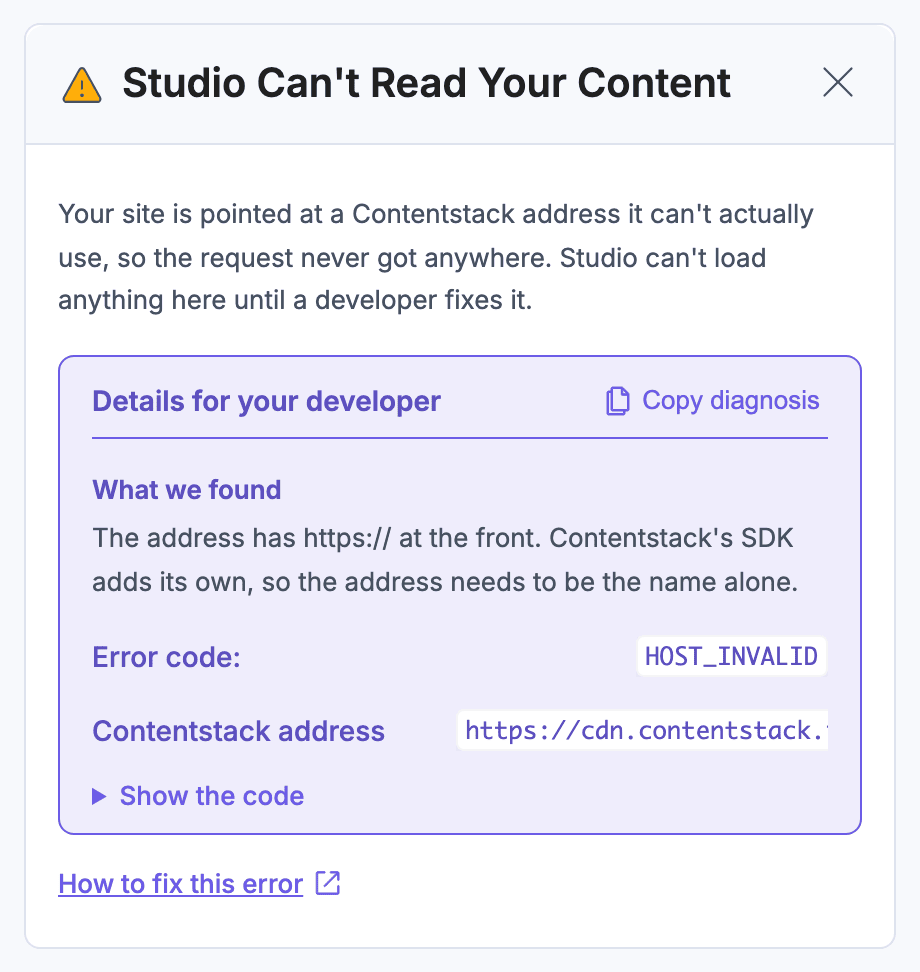
The delivery host is the Contentstack address your site's stack sends requests to, such as cdn.contentstack.io. If you don't set host, the Delivery SDK uses the host for your region. If you set host, the Delivery SDK ignores region. The Studio SDK can only prove that a host can't work as written, so suspect the host only if your site sets one. Inside Studio, the card shows the value under Contentstack address.
[Contentstack Studio] HOST_INVALID: The Contentstack host
"https://cdn.contentstack.io" cannot be used: it includes a scheme, and
the delivery SDK adds its own, so the request goes nowhere.
| Check | Read |
|---|---|
The value starts with https:// | The host starts with https:// |
| The value is inside quotes, or has spaces | The host has quotes or spaces |
| The log says the host "is not a valid address" | The host isn't a host name |
| The card says the API key is right, but the region is wrong | The host is in another region |
The value starts with http:// | The host starts with http:// |
The log says Invalid region | The region isn't one the Delivery SDK knows |
The host starts with https://
The Delivery SDK puts https:// in front of the host itself. A host that brings its own scheme becomes https://https//…, so the request goes nowhere. The Studio SDK spots this before any request goes out. The card says "The address has https:// at the front."
-
Find the bare host in the log. The SDK reads it from your value, so it's always right. In the Blog example, the log ends like this:
1. The host was set with its scheme, as copied from a URL. Set the hostto the bare name "cdn.contentstack.io". -
Set
hostinsrc/studio.tsto that name, withouthttps://:const stack = contentstack.stack({apiKey: import.meta.env.VITE_CONTENTSTACK_API_KEY,deliveryToken: import.meta.env.VITE_CONTENTSTACK_DELIVERY_TOKEN,environment: "production",host: "cdn.contentstack.io",}); -
Restart your site, such as with
npm run dev, then reload the canvas. The card goes away, and the log no longer showsHOST_INVALID.
The host has quotes or spaces
Your environment file loader kept the quotes around the value, so the host isn't a valid name. A space in the host breaks it the same way, such as cdn contentstack.io, or a value with spaces at either end. The card lists two possible causes, but the value under Contentstack address shows the real one.
First, confirm it:
-
Look at the value under Contentstack address on the card, or in the log. With quotes, the log shows them inside its own pair:
[Contentstack Studio] HOST_INVALID: The Contentstack host""cdn.contentstack.io"" cannot be used: it is not a valid address. -
If the value has quotes or a space in it, this is your cause. If it doesn't, this isn't your cause. Go back to the checks for this card.
The Delivery SDK doesn't trim the host, so a value with spaces sends no request. If your own code also fetches with that stack, its error is misleading: status 0, NETWORK_ERROR, and "Cannot read properties of undefined (reading 'retryCount')".
Then clean the value:
- Remove the quotes and spaces from the environment variable or line that sets
host. - Restart your site, then reload the canvas. The card goes away.
The host isn't a host name
The value can't be read as a host name, because it has characters a host name can't contain. The Studio SDK checks this before any request goes out, so nothing reaches Contentstack.
First, confirm it:
-
Find a line like this one in your browser console or server log. Your value appears in place of
<your host>, and the codeHOST_INVALIDstays the same:[Contentstack Studio] HOST_INVALID: The Contentstack host "<your host>"cannot be used: it is not a valid address. -
If the value has quotes or spaces, read The host has quotes or spaces. If the log doesn't say "not a valid address", this isn't your cause. Go back to the checks for this card.
Then replace the value:
- Find your stack's region in the table under The host is in another region.
- Set
hostinsrc/studio.tsto that region's delivery host, written as the name alone, such ascdn.contentstack.io. - Restart your site, then reload the canvas. The card goes away.
The host is in another region
An API key only works on the region its stack is in. On another region's host, the right key gets the same reply as a wrong one. Inside Studio, the card says "The API key is right, but your site is calling Contentstack in the wrong region."
The same key finds its stack only on its own region's host:
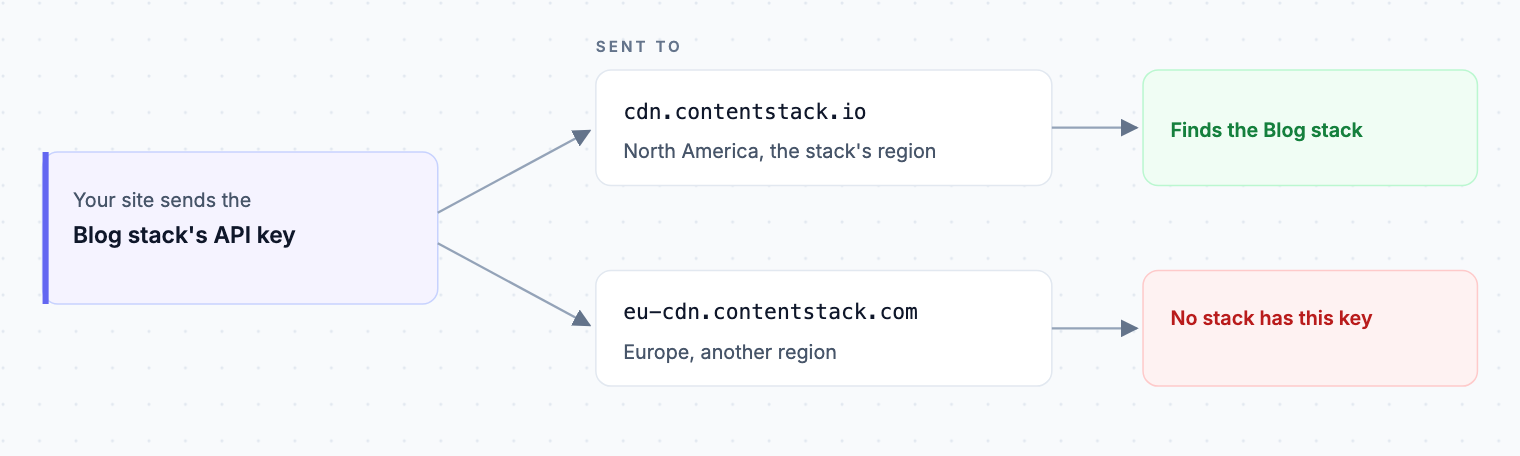
Inside Studio, the card proves it, because your site's key is the Blog project's key. The card doesn't name the right region, so look it up:
- Find your stack's region in the table below. The Blog stack is in AWS North America.
- In
src/studio.ts, setregionto that region's value, such asus. If your site also setshost, set it to that region's delivery host, or remove it. - Restart your site, such as with
npm run dev, then reload the canvas. The card goes away.
A log can't tell a wrong region from a wrong key, so it names the key first and the region second. From a log, first confirm it:
-
Find the host in the log line, after "on". In the Blog example, it's
eu-cdn.contentstack.com:[Contentstack Studio] API_KEY_INVALID: Contentstack did not find a stackfor this API key on eu-cdn.contentstack.com. -
Find your stack's region in the table below. If the host in the log is that region's delivery host, this isn't your cause. Read No stack has this API key.
-
Then set
regionorhostas in steps 2 and 3 above. The log line no longer appears.
| Region | region | Delivery host |
|---|---|---|
| AWS North America (the default when you set neither) | us | cdn.contentstack.io |
| AWS Europe | eu | eu-cdn.contentstack.com |
| AWS Australia | au | au-cdn.contentstack.com |
| Azure North America | azure-na | azure-na-cdn.contentstack.com |
| Azure Europe | azure-eu | azure-eu-cdn.contentstack.com |
| GCP North America | gcp-na | gcp-na-cdn.contentstack.com |
| GCP Europe | gcp-eu | gcp-eu-cdn.contentstack.com |
The hosts come from Contentstack's API endpoints, which also lists each region's other hosts.
The host starts with http://
The Studio SDK treats http:// like https://, because the Delivery SDK puts its own scheme in front of the host. The log says the host "includes a scheme". The card says the address has https:// at the front, even though yours starts with http://.
- Find the bare host the log gives you, such as
cdn.contentstack.io. - Set
hostinsrc/studio.tsto that name, withouthttp://. The Delivery SDK always uses https, so you don't lose anything. - Restart your site, then reload the canvas. The card goes away, and the log no longer shows
HOST_INVALID.
The region isn't one the Delivery SDK knows
Your site sets region to a name the Delivery SDK doesn't know, such as europe. The Delivery SDK then stops your site before Studio starts, so the canvas shows Studio can't connect to your site after 30 seconds. This only happens when your site doesn't set host, because with host set the Delivery SDK ignores region.
First, confirm it:
-
Open your browser console. If your site renders on the server, open your server log instead.
-
Look for a message like this one, with your value after the colon:
Invalid region: europeIf you don't see it, this isn't your cause. Go back to the checks for this card.
Then fix the value:
- Set
regioninsrc/studio.tsto one of the values in the table under The host is in another region, such aseu. Upper case and_in place of-also work, such asAZURE_NA. - Restart your site. The console no longer shows
Invalid region. - Reload the canvas. The template loads.
The delivery token is wrong
Code: DELIVERY_TOKEN_INVALID
Contentstack refused the delivery token your site sends, or your site sends none. Inside Studio, the card says so, and it never shows the token. Outside Studio, the Delivery SDK hides the refusal, so your log shows TRANSPORT_FAILED instead. Read The browser doesn't say why for that log.
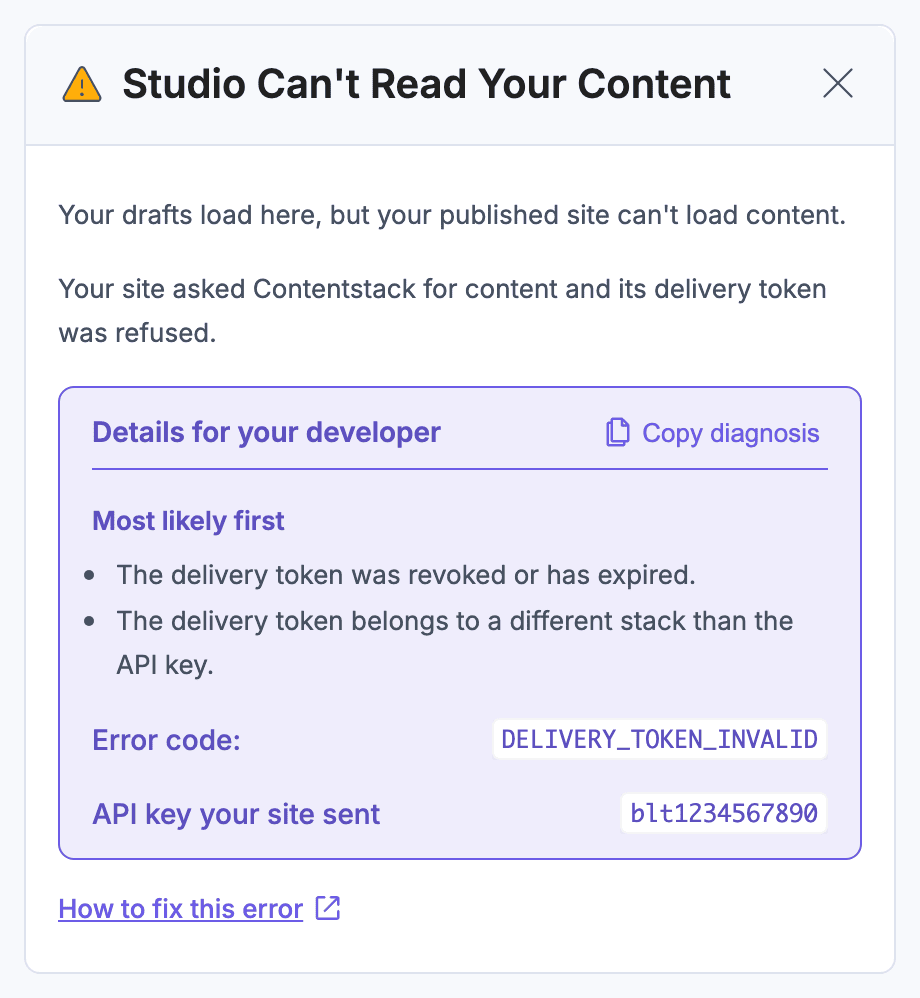
[Contentstack Studio] DELIVERY_TOKEN_INVALID: Contentstack refused the
delivery token for this API key on cdn.contentstack.io.
| Check | Read |
|---|---|
| The log says the delivery token is required, or Your Site's Setup Is Incomplete names it | The token is blank |
| You copied or typed the token by hand | The token is mistyped |
| The token worked before and nobody changed your site | The token was regenerated |
| Your site takes the token and the API key from different places | The token is from another stack |
| Your site's host is a Content Management API host | Your site calls the Management API host |
The token is blank
Your site passes an empty delivery token, often from an environment variable that's defined but empty. The Delivery SDK then stops your site before Studio starts. So the canvas shows Studio can't connect to your site after 30 seconds, not a card about the token.
First, confirm it:
-
Open your browser console. If your site renders on the server, open your server log instead.
-
Look for this message:
Delivery token for Stack is required.If you don't see it, this isn't your cause. Go back to the checks for this card.
Then set the token:
- Copy the delivery token from your stack's Settings > Tokens > Delivery Tokens.
- Set it in
VITE_CONTENTSTACK_DELIVERY_TOKEN. If the variable already has a value, check that your site reads it, as in Check the Delivery SDK values are set. - Restart your site, such as with
npm run dev. The console no longer showsDelivery token for Stack is required. - Reload the canvas. The template loads.
Your Site's Setup Is Incomplete naming the delivery token appears only with the older JavaScript Delivery SDK, contentstack. Its log says the stack "has no delivery token." The fix is the same. Contentstack recommends the TypeScript Delivery SDK instead, so consider migrating from the JavaScript Delivery SDK.
The token is mistyped
Contentstack answers a token it doesn't know with status 401. Inside Studio, the card says "Your site asked Contentstack for content and its delivery token was refused." The card and the log never show the token, so you can't spot a typo there. Copy it again and see whether the card goes away.
-
In the Blog stack, open Settings > Tokens > Delivery Tokens, open your token and copy its value.
-
Paste it into
VITE_CONTENTSTACK_DELIVERY_TOKEN, and restart your site, such as withnpm run dev. -
Reload the canvas. If the card goes away, the token was mistyped.
If the card stays, the token may belong to another stack. Read The token is from another stack.
The token was regenerated
Someone regenerated or revoked the token in Contentstack, and your site still sends the old one. A token that worked before and stopped while nobody changed your site points here.
First, confirm it:
- Open your token under Settings > Tokens > Delivery Tokens.
- Compare its value with the one your site sends in
VITE_CONTENTSTACK_DELIVERY_TOKEN. If they're the same, this isn't your cause. Go back to the checks for this card.
Then update your site:
- Copy the current value into
VITE_CONTENTSTACK_DELIVERY_TOKEN, and update it wherever your deployed site reads it. - Restart or redeploy your site, then reload the canvas. The card goes away.
The token is from another stack
The delivery token and the API key come from different stacks, so Contentstack refuses the token. It happens when a token is copied from one stack and the key from another.
First, confirm it:
- Open the Blog stack's Settings > Tokens > Delivery Tokens.
- Look for a token whose value matches the one in
VITE_CONTENTSTACK_DELIVERY_TOKEN. If you find it, this isn't your cause. Go back to the checks for this card.
Then take both values from the Blog stack:
- Copy a delivery token from that page, and the API key from Settings > API Credentials.
- Set
VITE_CONTENTSTACK_DELIVERY_TOKENandVITE_CONTENTSTACK_API_KEYto them. - Restart your site, then reload the canvas. The card goes away.
Your site calls the Management API host
The Content Management API host, such as api.contentstack.io, isn't a delivery host. It doesn't accept a delivery token, so it answers status 401 with "You're not allowed in here unless you're logged in." That's the same status as a mistyped token. The Delivery SDK hides the 401, so your site's own error says only status 0 and UNKNOWN_ERROR.
First, confirm it:
- Find the line that sets
hostinsrc/studio.ts, or the environment variable it reads. - If the host starts with
api.or contains-api., this is your cause. If it doesn't, this isn't your cause. Go back to the checks for this card.
Then point your site at the delivery host:
- Set
hostto your region's delivery host from the table under The host is in another region, such ascdn.contentstack.io. - Restart your site, then reload the canvas. The card goes away.
The environment is wrong
Code: ENVIRONMENT_INVALID
Contentstack didn't find the environment your site asks for, or your site sets none. Inside Studio, the card names the environment your site sent. Contentstack gives the same reply when the environment is missing and when the token doesn't cover it. So the card and the log list both causes.
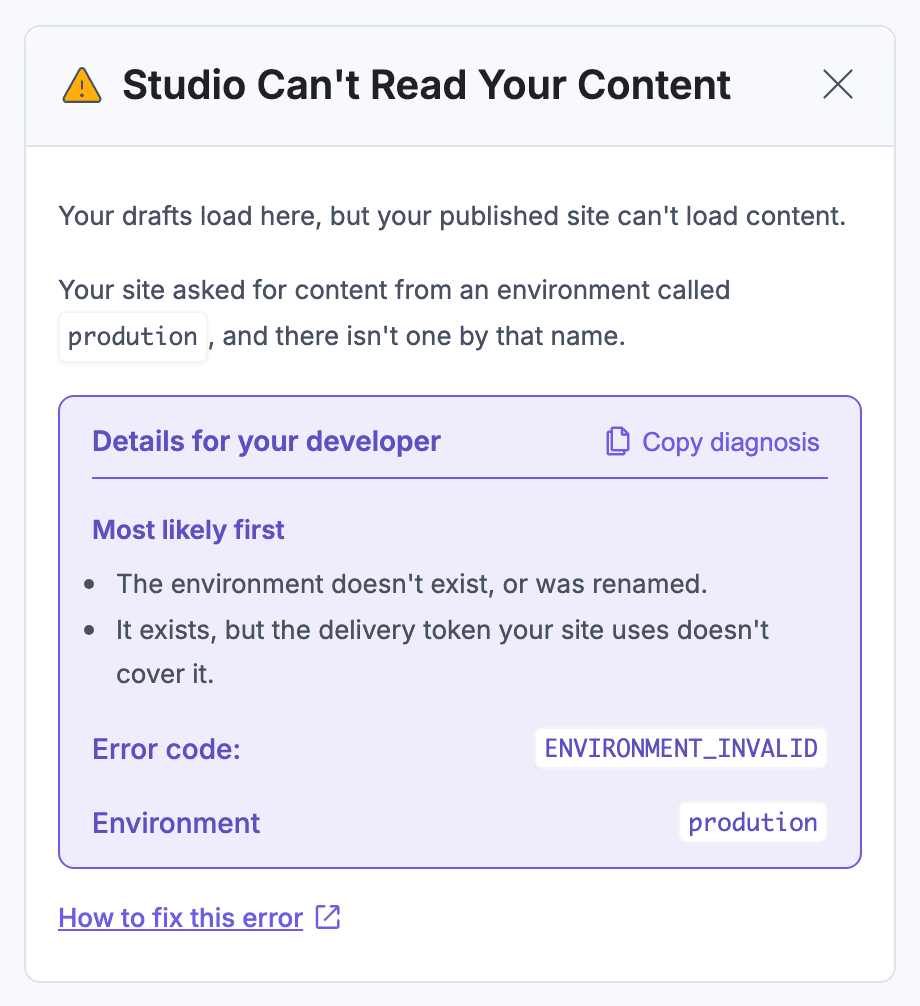
[Contentstack Studio] ENVIRONMENT_INVALID: Contentstack did not find the
environment "prodution".
| Check | Read |
|---|---|
| The log says the environment is required, or Your Site's Setup Is Incomplete names it | The environment is blank |
| The environment on the card has a typo | The environment is mistyped |
| The environment worked before and nobody changed your site | The environment was renamed |
| The environment exists on the stack | The token doesn't cover the environment |
The environment is blank
Your site passes no environment, or an empty one. The Delivery SDK then stops your site before Studio starts. So the canvas shows Studio can't connect to your site after 30 seconds, not a card about the environment.
First, confirm it:
-
Open your browser console. If your site renders on the server, open your server log instead.
-
Look for this message:
Environment for Stack is requiredIf you don't see it, this isn't your cause. Go back to the checks for this card.
Then set the environment:
- Set
environmenton the stack insrc/studio.ts, such asproduction. Use one of your delivery token's Publishing Environments. - Restart your site, such as with
npm run dev. The console no longer showsEnvironment for Stack is required. - Reload the canvas. The template loads.
Your Site's Setup Is Incomplete naming the environment appears only with the older JavaScript Delivery SDK, contentstack. Its log says "Studio queries published content per environment, so this is required." The fix is the same. Contentstack recommends the TypeScript Delivery SDK instead, so consider migrating from the JavaScript Delivery SDK.
The environment is mistyped
The name your site sends doesn't match any environment on the stack. The card names the environment your site sent, so you can compare it with the stack's list.
First, confirm it:
-
Read the environment on the card. The card says "Your site asked for content from an environment called prodution, and there isn't one by that name." A log names it too, as in
Contentstack did not find the environment "prodution". -
Open your stack's Settings > Environments. The Blog stack has
productionandstaging. -
If the name is in that list exactly, this isn't your cause. Read The token doesn't cover the environment.
Then fix the name:
- Set
environmentinsrc/studio.tsto the name in the list, such asproduction. - Restart your site, such as with
npm run dev, then reload the canvas. The card goes away.
The environment in your Studio project only picks which site the canvas loads, as Pick the environment explains. Changing it doesn't fix this.
The environment was renamed
Someone renamed the environment in Contentstack, and your site still sends the old name. An environment that worked before and stopped while nobody changed your site points here.
First, confirm it:
- Read the environment on the card, or in the log line.
- Open your stack's Settings > Environments. If the name is there, this isn't your cause. Go back to the checks for this card.
Then use the new name:
- Set
environmentinsrc/studio.tsto the environment's new name, and update it wherever your deployed site reads it. - Restart or redeploy your site, then reload the canvas. The card goes away.
The token doesn't cover the environment
A delivery token covers only the environments chosen for it. Contentstack answers a token that doesn't cover the environment as if the environment were missing, so the card can't tell this from a typo.
First, confirm it:
-
Open your token under Settings > Tokens > Delivery Tokens, and look at its Publishing Environments.
-
If the environment on the card is in that field, this isn't your cause. Go back to the checks for this card.
Then let the token cover it:
- Add the environment to the token's Publishing Environments and save. Or use a token that covers it, in
VITE_CONTENTSTACK_DELIVERY_TOKEN. Read About delivery tokens. - Restart your site if you changed the token, then reload the canvas. The card goes away.
The branch is wrong
Code: BRANCH_INVALID
Contentstack refused the branch your site asks for. Either the branch doesn't exist, or your delivery token doesn't cover it, and Contentstack's reply doesn't say which. Inside Studio, the card names the branch your site sent, under Branch your site asked for. A log names it too.
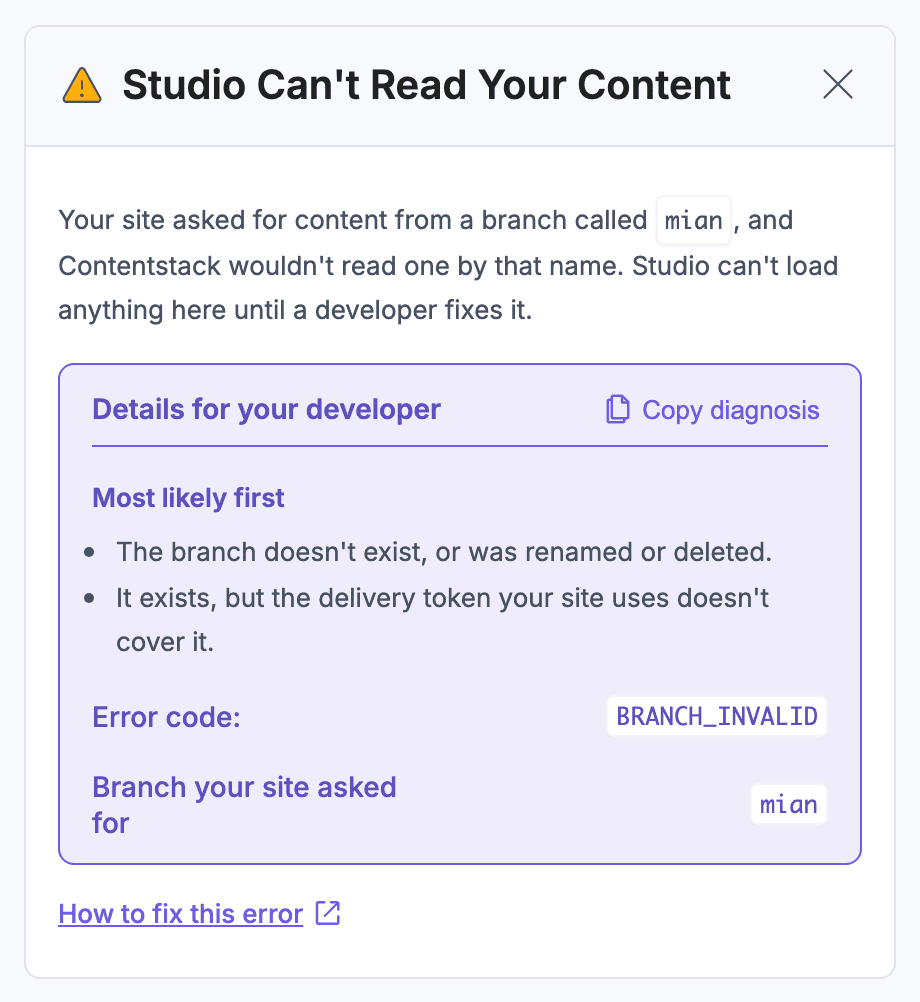
[Contentstack Studio] BRANCH_INVALID: Contentstack has no branch "mian" on
this stack, or this token cannot read it.
Check the branch name first, then the token:
- Open your stack's Settings > Branches, and look for the branch the card or log names.
- If it isn't there, fix the name of
branchinsrc/studio.ts, such asmain. You can also remove the setting to read frommain. - If the branch is there, open your token under Settings > Tokens > Delivery Tokens and look at its Scope. If the branch isn't covered, add it to the token, or use a token that covers it.
- Restart your site, such as with
npm run dev, then reload the canvas. The card goes away.
Read About branches for how branches and aliases work.
The language is wrong
Code: LOCALE_INVALID
Your site's setup asks for a language the stack doesn't have. Inside Studio, you see This Language Isn't Set Up, naming the language your site asked for. If the language comes from the address instead, read The language in the address isn't on your stack.
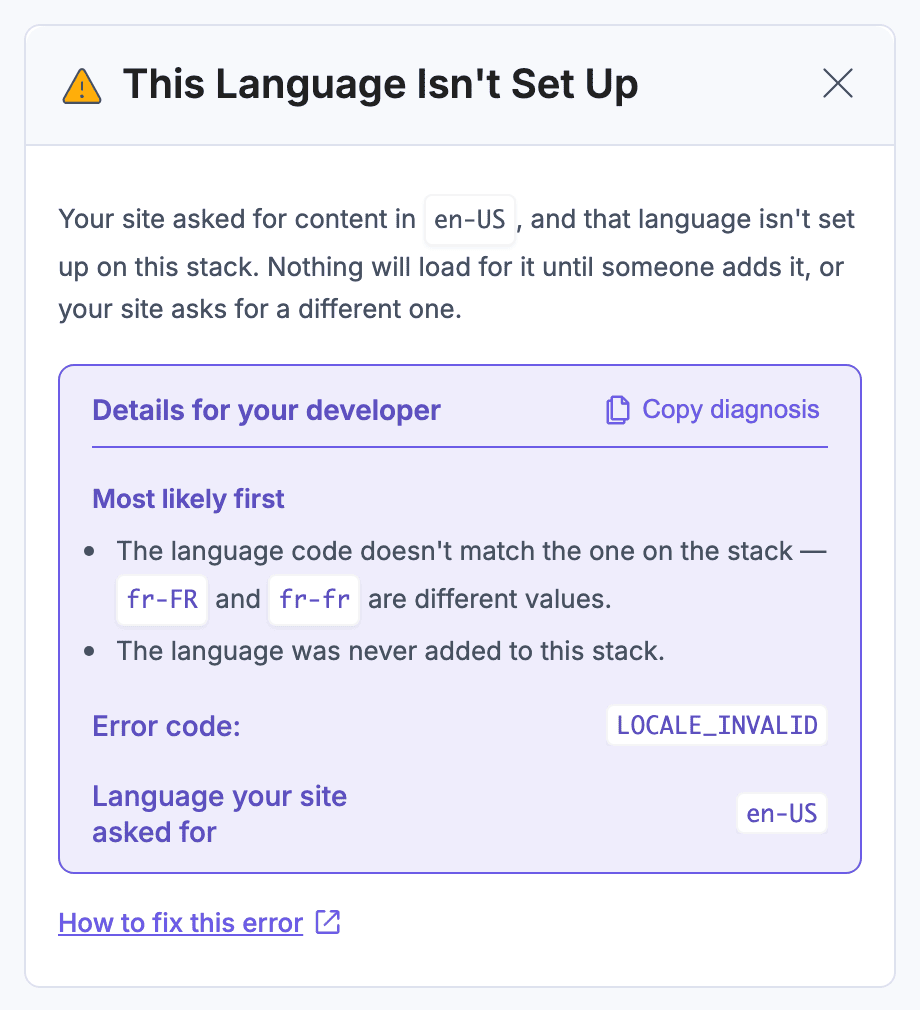
[Contentstack Studio] LOCALE_INVALID: Contentstack did not find the
language "en-US" on this stack. The locale came from the SDK
configuration.
| Check | Read |
|---|---|
| The language isn't in the stack's list | The language isn't on the stack |
| The language matches one on the stack except for capitals | The language code has the wrong case |
Your code sets the language only in contentstack.stack() | The language is set only on the Delivery SDK |
The language isn't on the stack
Your site asks for a language nobody added to the stack. The card and the log name the language, so you can look for it in the stack's list.
First, confirm it:
-
Read the language on the card, under Language your site asked for, or in the log line.
-
Open your stack's Settings > Languages. The Blog stack has
en-usandfr-fr. -
If the language is in the list except for capitals, read The language code has the wrong case. If it's there exactly, this isn't your cause. Go back to the checks for this card.
Then pick one:
- Add the language to the stack, as Add a language shows. Or set
localeinsrc/studio.tsto a language the stack has, such asen-us. - Restart your site, such as with
npm run dev, then reload the canvas. The card goes away.
The language code has the wrong case
Language codes must match exactly, so en-US and en-us are different values. The code looks right at a glance, which is why it's easy to miss.
First, confirm it:
-
Find the log line. When your code has capitals, the first cause shows it next to the lower-case form:
1. The code may not match the one on the stack — "en-US" and "en-us" aredifferent values. Compare it with the languages in Contentstack, exactlyas they are written there. -
Open your stack's Settings > Languages. If the code there is written exactly like yours, this isn't your cause. Go back to the checks for this card.
Then match the case:
- Set
localeinsrc/studio.tsto the code as the stack writes it, such asen-us. - Restart your site, then reload the canvas. The card goes away.
The card always shows a fr-FR and fr-fr example, even when your code has no capitals. Go by the log line instead.
The language is set only on the Delivery SDK
Your code sets locale in contentstack.stack(), and Studio uses that language for its requests. The log still says the locale "came from the SDK configuration", which points at studioSdk.init.
First, confirm it:
- Search your code for
locale. - If it's set in
contentstack.stack()and not instudioSdk.init, this is your cause. If it isn't, go back to the checks for this card.
Then fix it where it's set:
- In
contentstack.stack(), changelocaleto a language the stack has, such asen-us, or remove it. - Restart your site, then reload the canvas. The card goes away.
Contentstack refused the request or is down
Code: UPSTREAM_ERROR
Contentstack answered your site's request with an error that has no code of its own. Inside Studio, the card shows the status Contentstack returned. A status from 400 to 499 means Contentstack turned down something your site sent. A status from 500 to 599 means Contentstack failed. Check your delivery settings before you wait and retry. Contentstack's Content Delivery API errors list what each status means.
[Contentstack Studio] UPSTREAM_ERROR: Contentstack answered this request
with 403.
| Check | Read |
|---|---|
| The status is from 400 to 499 | Contentstack refused the request |
| The status is from 500 to 599 | Contentstack is down |
Contentstack refused the request
Contentstack turned down the request, so a value your site sends doesn't match this stack. The reply has no code of its own, so nobody can say which value. The log's own advice is to retry, but try these first. After each change, restart your site and reload the canvas.
- Check that the host is your region's delivery host, as The delivery host is wrong shows. If the card goes away, that was the cause.
- Copy the delivery token again, as The token is mistyped shows. If the card goes away, that was the cause.
- Check the API key, as No stack has this API key shows. If the card goes away, that was the cause.
- If the card stays, report it with the status and code. Use Copy diagnosis on the card.
Contentstack is down
Contentstack couldn't answer, and nothing in your project caused it. There's nothing to fix in your setup.
- Wait a few minutes.
- Reload the canvas. The card goes away once Contentstack answers again.
- If it keeps happening, report it with the status and code. Use Copy diagnosis on the card.
The request didn't reach Contentstack
Code: TRANSPORT_FAILED
Your site sent a request and got no reply it could read. A server log names the reason, such as ENOTFOUND. A browser can't tell a wrong host, a dropped connection and a refused token apart, so check your setup before you retry. Inside Studio, the card shows the address and what the network reported. If the delivery host is the one that didn't answer, Studio Can't Read Your Content says "Your site's address for Contentstack didn't answer."
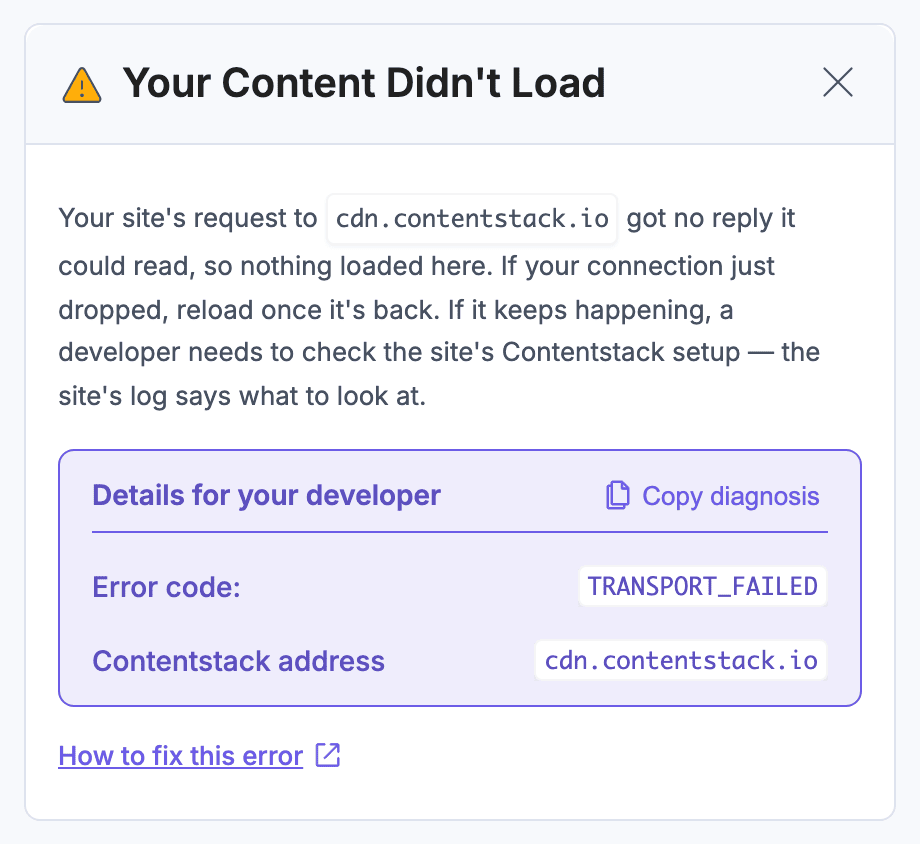
[Contentstack Studio] TRANSPORT_FAILED: The request to cdn.contentstack.io
got no reply the site could read.
| What the network reported | Read |
|---|---|
ENOTFOUND, EAI_AGAIN or ECONNREFUSED | The host doesn't exist |
ECONNRESET | The connection dropped |
ETIMEDOUT or ECONNABORTED | The request timed out |
ERR_NETWORK, UNKNOWN_ERROR or nothing | The browser doesn't say why |
The host doesn't exist
The host name doesn't lead anywhere, often because of a typo. The request never reaches Contentstack, so nothing about it says Contentstack is down.
First, confirm it:
-
Look for one of these. In a browser, the console shows this line. On a server, the card's What the network reported row and your server log show
ENOTFOUNDorEAI_AGAIN.Failed to load resource: net::ERR_NAME_NOT_RESOLVED -
If you see neither, this isn't your cause. Go back to the checks for this card.
Then fix the host:
- Compare the host in the log with your region's delivery host in the table under The host is in another region, such as
cdn.contentstack.io. - Set
hostinsrc/studio.tsto that name, or remove it to use yourregion's host. - Restart your site, then reload the canvas. The card goes away.
On a server, ECONNREFUSED means the name worked, but nothing accepted the connection. Check the address and port, and any proxy that should answer there.
The connection dropped
The network between your site and Contentstack dropped the request. There's nothing to fix in your setup.
First, confirm it:
- Look for a dropped connection. A browser can show
net::ERR_NETWORK_CHANGEDon the request. On a server, the card's What the network reported row showsECONNRESET. - If you see neither, go back to the checks for this card.
Then wait for the network:
- Reload the canvas once your connection is back. The template loads.
- If it keeps happening, check outbound network access and any proxy in front of your site.
The request timed out
Contentstack didn't answer in time. On a server, the card's What the network reported row shows ETIMEDOUT or ECONNABORTED. Nothing proves why it was slow, so try these in order.
- Reload the canvas. If the template loads, the delay was a passing one.
- If it keeps happening, check your network and any proxy in front of your site, then reload again.
- Check the host, as The host doesn't exist shows. If the card goes away, the host was the cause.
A host that never answers holds each request for the Delivery SDK's 30-second timeout. It can be an internal IP, a typo that resolves to one, or a firewall, VPN or proxy that drops outbound requests without an error. The What the network reported row can then be empty or show UNKNOWN_ERROR. To check that your server can reach the host, run curl -I https://cdn.contentstack.io on the server, with your host in place of cdn.contentstack.io.
Inside Studio, a page rendered on the server that takes too long shows We couldn't load your website. Studio's check of your delivery settings gives up after 10 seconds. A slow delivery host then shows "Your site's address for Contentstack didn't answer."
The browser doesn't say why
A browser reports a wrong host, a dropped connection and a refusal without CORS headers all the same way. A refused delivery token, or another stack's API key, also lands here. The Delivery SDK reports those refusals with status 0, so they look like no reply at all. Your browser's network tab still shows what really happened.
First, find the real answer:
-
Open your browser's developer tools, then the Network tab, and reload the page.
-
Select the failed request to Contentstack, such as one to
cdn.contentstack.ioor, with Live Preview on,rest-preview.contentstack.com. Read its status. The console can also show a line like these:Failed to load resource: the server responded with a status of 401 ()Access to XMLHttpRequest at 'https://rest-preview.contentstack.com/...' from origin'http://localhost:3006' has been blocked by CORS policy: No'Access-Control-Allow-Origin' header is present on the requested resource.
Then read the case it points to:
- Status 401: read The token is mistyped and The API key belongs to another stack.
- Status 412: read No stack has this API key.
net::ERR_NAME_NOT_RESOLVED: read The host doesn't exist.- Blocked by CORS policy: Contentstack refused the request. Check that the API key and delivery token belong to this stack.
- None of these: reload once your connection is back. If it keeps happening, check outbound network access and any proxy in front of your site.
When you've fixed the cause, reload the page. The request shows status 200, and the log line no longer appears.
Not caused by your setup
These errors don't come from a value your site sends. Changing your settings won't fix them. None of them means your page is missing, so your site shouldn't answer with a 404.
Contentstack's reply couldn't be read
Code: RESPONSE_UNUSABLE
Something answered at your host, but not with Contentstack content. It can be a proxy's error page, a gateway's reply, or a reply cut off on the way. Studio shows Your Content Didn't Load.
- Open your browser's developer tools, then the Network tab, and reload the page.
- Select the request to your host, such as
cdn.contentstack.io, and look at its response. If it's a web page instead of JSON, something in between answered. - Check anything that sits between your site and Contentstack, such as a proxy, a gateway or an offline page, and fix or bypass it.
- Reload the page. The request returns JSON, and the log line no longer appears.
- If there's nothing in between, report it with the full log line. Use Copy diagnosis on the card.
[Contentstack Studio] RESPONSE_UNUSABLE: The reply from cdn.contentstack.io
is not a usable delivery response.
Your project has more than 2,000 templates
Code: SEARCH_INCOMPLETE
To match an address, the Studio SDK looks through your project's templates, up to 2,000 of them. It found no match before that limit, so it stopped without finishing. This only happens when your site asks for a template by its address. Studio shows Your Content Didn't Load. Nothing you change fixes it.
- Use Copy diagnosis on the card, or copy the full log line.
- Report it, with the address your site asked for, such as
/blog/ai-101.
[Contentstack Studio] SEARCH_INCOMPLETE: Stopped after considering 2000
compositions without finding a match for "/blog/ai-101". The search did
not finish, so this is not a 404.
Studio couldn't check which template owns the address
Code: URL_OWNERSHIP_PROBE_FAILED
Several templates are set up for the same address, so the Studio SDK asks Contentstack which one has an entry there. Every one of those requests failed. Studio shows Your Content Didn't Load. If a request failed because of a wrong setting, you see that setting's code instead.
- Wait a minute, then reload the canvas. If the template loads, the failure was a passing one.
- If it keeps happening, report it with the full log line. Use Copy diagnosis on the card.
[Contentstack Studio] URL_OWNERSHIP_PROBE_FAILED: Could not check which
composition owns "/blog/ai-101" — every ownership check failed.
Something went wrong in Studio
Code: STUDIO_FAILED
Studio itself failed, not your site. The canvas can show "Something went wrong" with "Please try again later. If the issue persists, please contact support." A part of Studio, such as the canvas or a side panel, can instead show "This part of Studio ran into a problem and couldn't be shown." Only that part stops, and the rest of Studio, including saving, keeps working.
- Reload the page. Your saved work isn't affected. Opening another template also clears the message.
- If the message comes back, open your browser console and copy the lines that start with
Studio, includingComponent stack:. - Report it with those lines.
Your site's SDK is newer than Studio
Code: any code this page and the other error pages don't list
Studio ships separately from your site's Studio SDK, so a newer SDK can send a code this Studio doesn't know yet. Studio then shows Your Site Reported a Problem, with the code, the error class and the SDK version. Until Studio is updated, the card can't explain the code, but these pages can.
- Copy the code from Error code on the card.
- Search these error pages for it, and follow the case it leads to.
- If no page lists it, open your browser console or server log. The Studio SDK's own message for the code says what to do.
- Fix the cause, then reload the canvas. The card goes away.
Still stuck
Use Copy diagnosis on the card, or copy the log line, and paste it into your AI assistant or a support ticket.