URLs and routes
Studio shows your site inside the canvas, in an iframe, at your site's own address. So the address, and the route on your site that answers it, decide what Studio shows and what your visitors see. This topic explains how an address reaches a template, and how the canvas opens templates and sections.
Set up Studio takes you through the common case: Configure your project, Wire template preview routes, then Create a template. Each page in this topic covers one case in detail.
The example on this page is the Blog post template, previewing AI 101 at /blog/ai-101, and the Post hero section. The names come from the team blog.
Four URLs that are easy to mix up
Studio and Contentstack use four different URLs.
| URL | What it is | Where it's set |
|---|---|---|
| Template URL | The pattern that decides which addresses show this template | On the template, in Studio |
| Base URL | The domain in front of every address, such as https://www.example.com | In Contentstack, on each environment, one for each language |
| Custom Preview URL | A stack setting that tells Live Preview and Visual Editor where each entry lives. Studio can take a Template URL from it. | In Contentstack, under Settings, then Visual Experience, then Preview URL |
| Canvas URL | The one address where Studio opens sections for editing | On the Configuration tab of your Studio project settings |
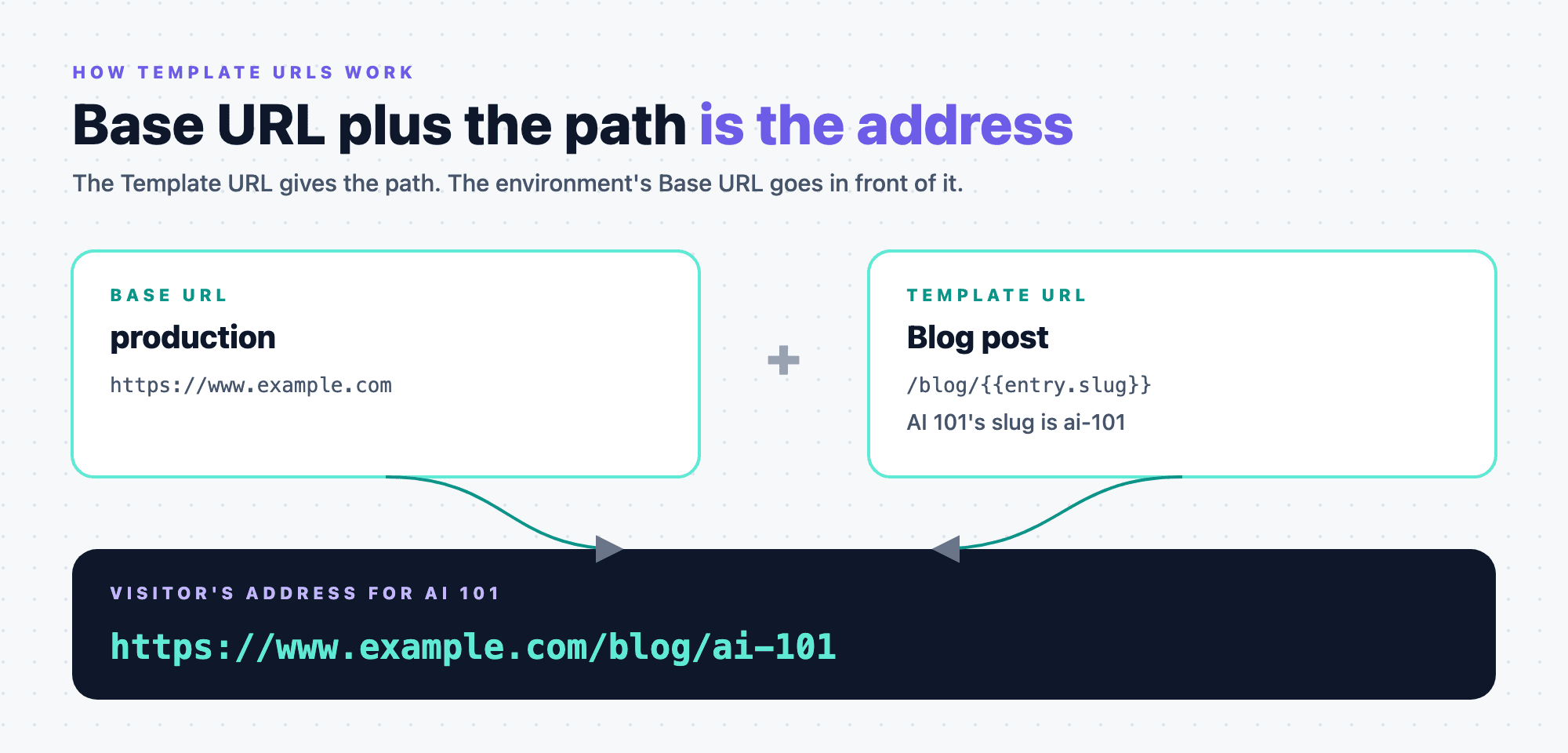
A visitor's address is the Base URL plus the path the Template URL produces. So https://www.example.com plus /blog/ai-101 gives https://www.example.com/blog/ai-101.
How an address becomes a template on your site
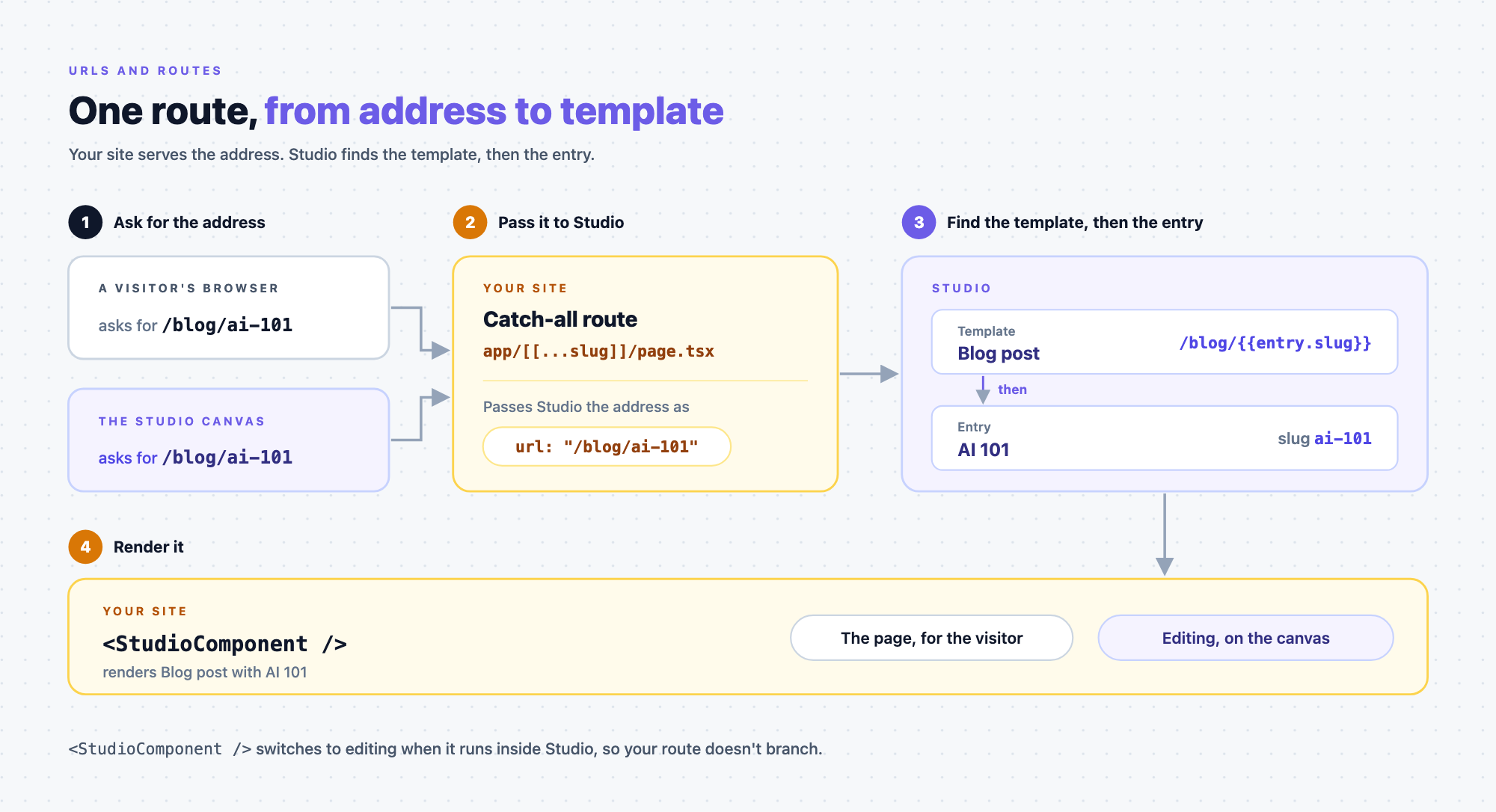
Studio stores your templates, and your site serves them. One route on your site answers every address a template can have:
- A visitor's browser, or the Studio canvas, asks your site for
/blog/ai-101. - Your catch-all route passes that address to Studio as
url. A route can also ask for a template by its UID. - Studio finds the template whose URL matches, Blog post, and then the entry for the address, AI 101.
<StudioComponent />renders the Blog post template with AI 101.
The same route serves visitors and the canvas. <StudioComponent /> switches to editing when it runs inside Studio, so your route doesn't branch.
Outside Studio, your site reads published content. It reads drafts only when a Live Preview hash arrives in the address's query string, as it does on the canvas.
When several templates could match an address, the one with the most fixed text in its URL wins. Studio matches the address exactly, so capital letters and a trailing slash count. How Studio matches an address to a template explains the rules, and fixes each card the canvas shows about an address.
A route doesn't have to fetch by address. When your route already knows the template and the entry, it can ask for them by UID. Ways to fetch a template shows each way, and when it fits.
How the canvas opens a template
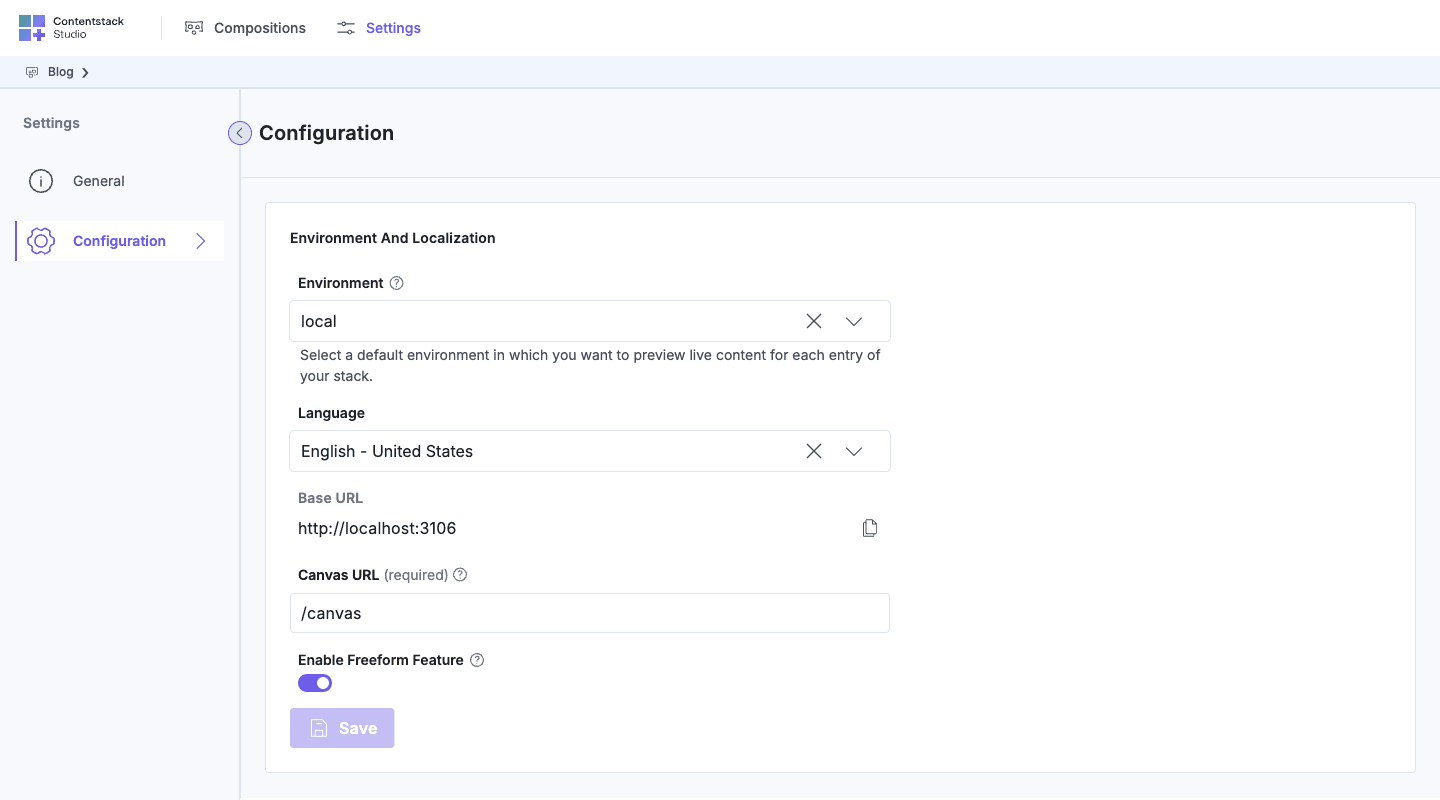
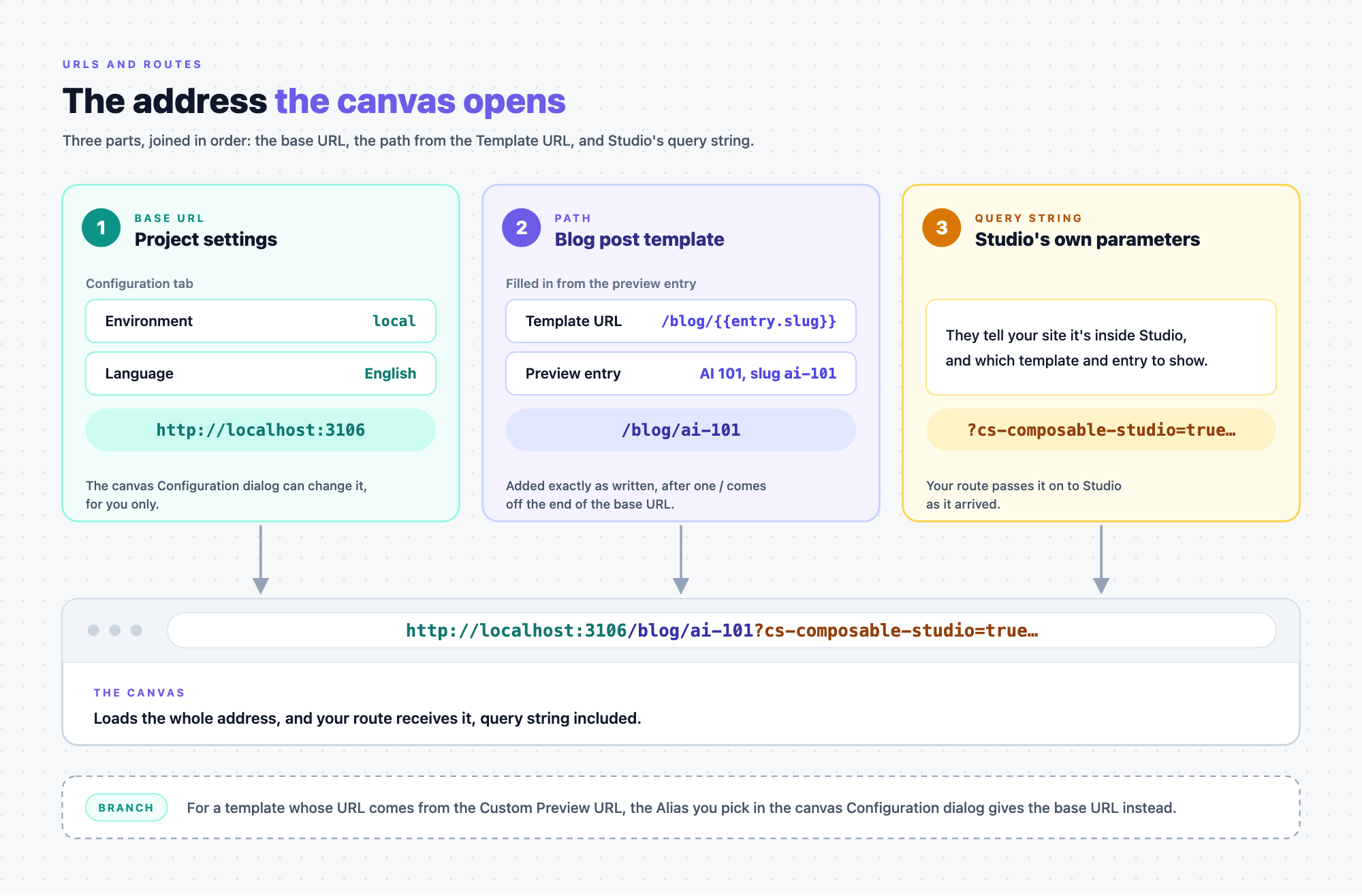
When you open a template, the canvas loads your project's base URL and adds the Template URL, filled in from the preview entry. The base URL is the environment's URL for the project's language. You set both for the whole project in Settings, on the Configuration tab. In the Blog project, Environment is local and Language is English, so the base URL is http://localhost:3106. The Blog post template previewing AI 101 opens at http://localhost:3106/blog/ai-101.
To preview another environment or language without changing it for everyone, use Configuration in the canvas toolbar. Your pick is saved in your browser only. Reset puts the project's settings back in the dialog, and Save uses them again. See How the canvas Configuration dialog differs.
How the base URL and the Template URL join
Studio builds the address in two steps. It takes one / off the end of the base URL, if there is one. Then it adds the Template URL exactly as written, with nothing between them. Studio never adds a / of its own.
| Base URL | Template URL | The canvas opens |
|---|---|---|
http://localhost:3106 | /blog/{{entry.slug}} | http://localhost:3106/blog/ai-101 |
http://localhost:3106/ | /blog/{{entry.slug}} | http://localhost:3106/blog/ai-101, the same: the base URL's / is taken off |
http://localhost:3106/ | blog/{{entry.slug}} | http://localhost:3106blog/ai-101, a broken address |
http://localhost:3106 | / | http://localhost:3106/, your home page |
So the / between the two always comes from the Template URL. Start every Template URL with /. Give your home page the Template URL /, because Studio doesn't accept an empty one. Your site works the same way: your route passes paths that start with /, such as /blog/ai-101, and Studio matches them exactly. See Plan your Template URLs.
When the Custom Preview URL lists base URLs, a template whose URL comes from it opens on one of them instead, such as Local. Aliases are base URLs listed in the Custom Preview URL, and you pick one in the Configuration dialog. See Use a Custom Preview URL with Studio.
Studio also adds query parameters of its own to the address, such as cs-composable-studio=true. They tell your site that it's inside Studio, and which template and entry to show. Your route passes the query string on to Studio as it arrived, and doesn't read it. On the server, code that rebuilds the address without its query string drops them. See Keep Studio's query string.
How the canvas opens a section
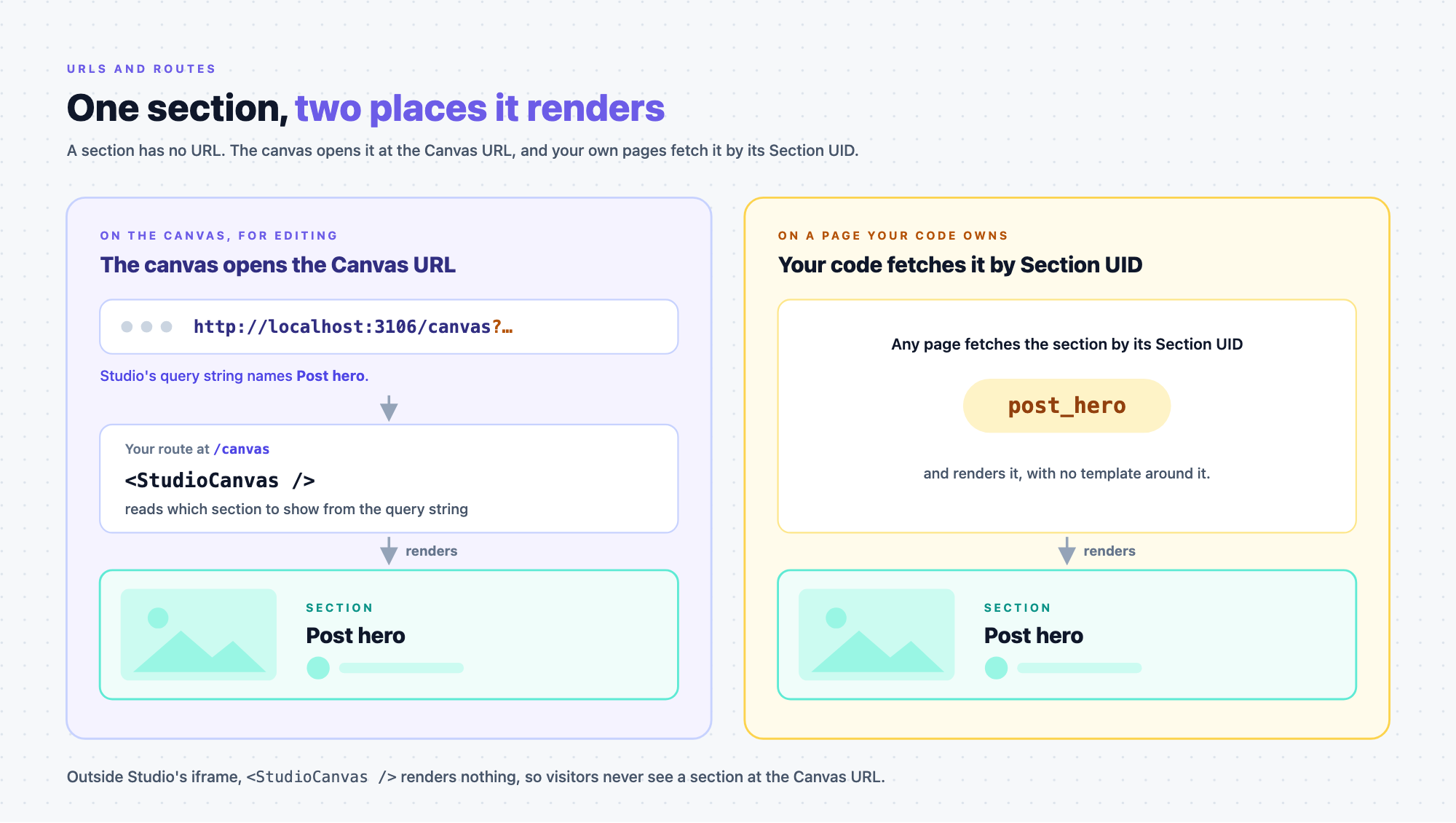
A section is a part you place inside templates. Visitors never open it on its own, so it has no URL.
Studio opens every section at the base URL plus the project's Canvas URL, such as http://localhost:3106/canvas. It's one address for every section, and it's only for editing. The query string names the section, and <StudioCanvas /> reads which section to show from it.
You set the Canvas URL in the project's Settings, on the Configuration tab, in Canvas URL, under Base URL in the screenshot above. It's a path, such as /canvas, and it's saved on the project for everyone. Changing Canvas URL in the canvas Configuration dialog changes it for everyone too, unlike the environment and language there. See Configure your project.

So the Canvas URL is the one home where every section opens for editing. Outside Studio's iframe, <StudioCanvas /> renders nothing, so visitors never see a section there. Keep the route on any site whose address Studio opens.
Your site needs a route of its own at the Canvas URL, never the catch-all. If the catch-all claims the address, the canvas shows a page or nothing instead of the section. See Mount the section preview route.
Studio never matches an address against sections, inside Studio or out. A section reaches visitors in one of two places:
- On a template. A section appears on your live site wherever a deployed template uses it, such as Post hero on Blog post.
- On a page your code owns. Any page can fetch a section by its Section UID and render it, with no template around it. See Use sections in pages outside Studio.
A section also has no SEO fields. Those belong to the template that holds it.
Pages in this topic
- Plan your Template URLs: one template at the top level, a prefix for everything nested, and a worked site map, so every address fits one template.
- Where the Template URL comes from: the three places Studio takes a Template URL from, how to see which one it used, and what happens when that source changes.
- How Studio matches an address to a template: which template and entry an address shows, what happens when two templates match, and how to set up your Template URLs so every address finds its page.
- When two templates share a URL: what the canvas, Visual Editor, Deploy and your live site do when two templates have one Template URL, and the ways to redesign a template.
- Primary and secondary templates: show a new template on your live address before it replaces the one visitors see, then swap it in, or swap back if it has a problem.
- Edit or reset a Template URL: change a Template URL by hand, or put it back on its source.
- Use a Custom Preview URL with Studio: base URL aliases and transformation rules, and how your site fetches an address the rules shaped.