Live Preview errors
These errors come from your site's Live Preview setup, which is how the canvas reads drafts. If the canvas loads but your draft edits don't show, or Studio shows a card about Live Preview, start here. The example is the Blog project, previewing AI 101 on the Blog post template, with Studio started in src/studio.ts.
Live Preview reaches your drafts in four steps, and each error on this page stops one of them. Find the step where yours stops, then read its heading below.
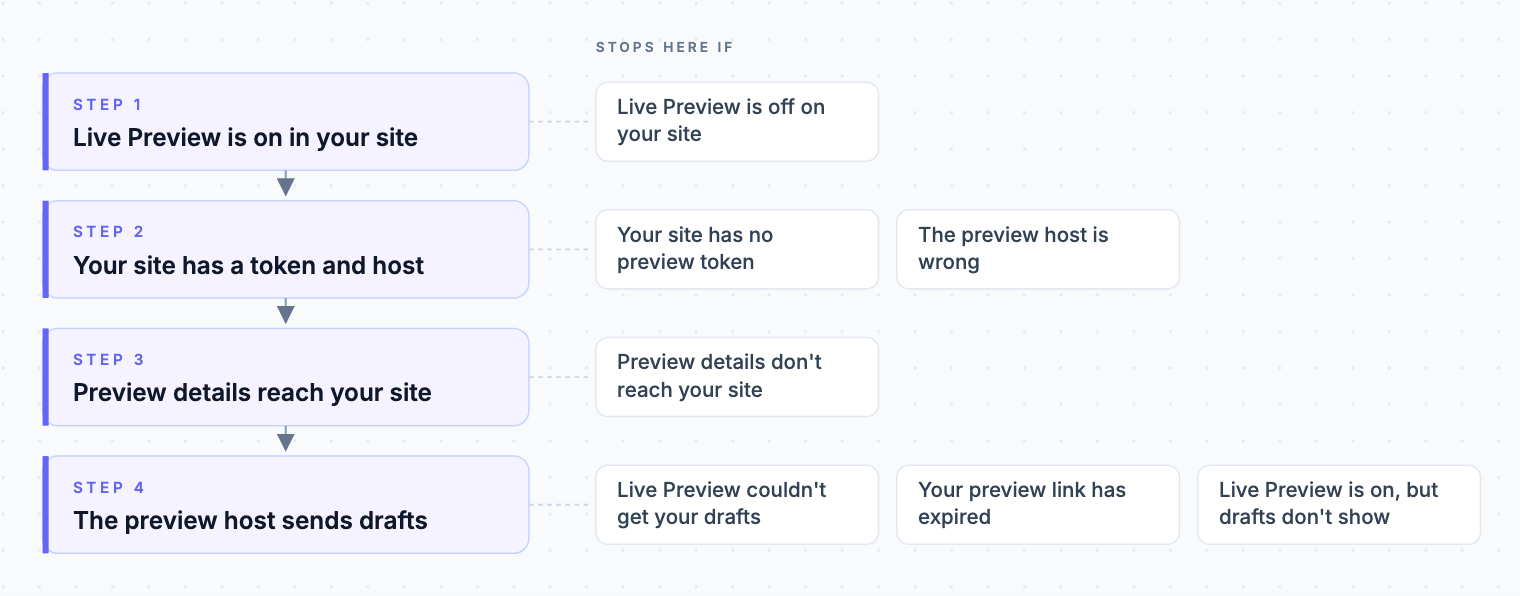
Studio shows these cards only inside the canvas. Outside Studio, your site logs the SDK's own error, such as NO_COMPOSITION_FOR_URL, and nothing more.
After you fix any of these, reload the canvas. The card goes away when the fix worked.
Find your error
| You see | Code |
|---|---|
| Unpublished Templates Can't Load Here, Unpublished Sections Can't Load Here, or Live Preview Is Off | LIVE_PREVIEW_OFF |
| Live Preview Has No Preview Token | PREVIEW_TOKEN_INVALID |
| Live Preview Has No Preview Host, or Live Preview Is Pointed at Published Content | PREVIEW_HOST_INVALID |
| Live Preview Couldn't Get Your Drafts | PREVIEW_REQUEST_FAILED |
| Preview Details Aren't Reaching Your Site | PREVIEW_HASH_NOT_RECEIVED |
| A log line saying the preview host refused the preview hash | PREVIEW_HASH_REFUSED |
| Live Preview Isn't Returning Drafts | PREVIEW_NOT_SERVING_DRAFTS |
Every card ends with "Your edits are saved", so you haven't lost anything.
If none of these match, and every template fails the same way, read SDK setup errors or Delivery settings errors.
Live Preview is off on your site
Code: LIVE_PREVIEW_OFF
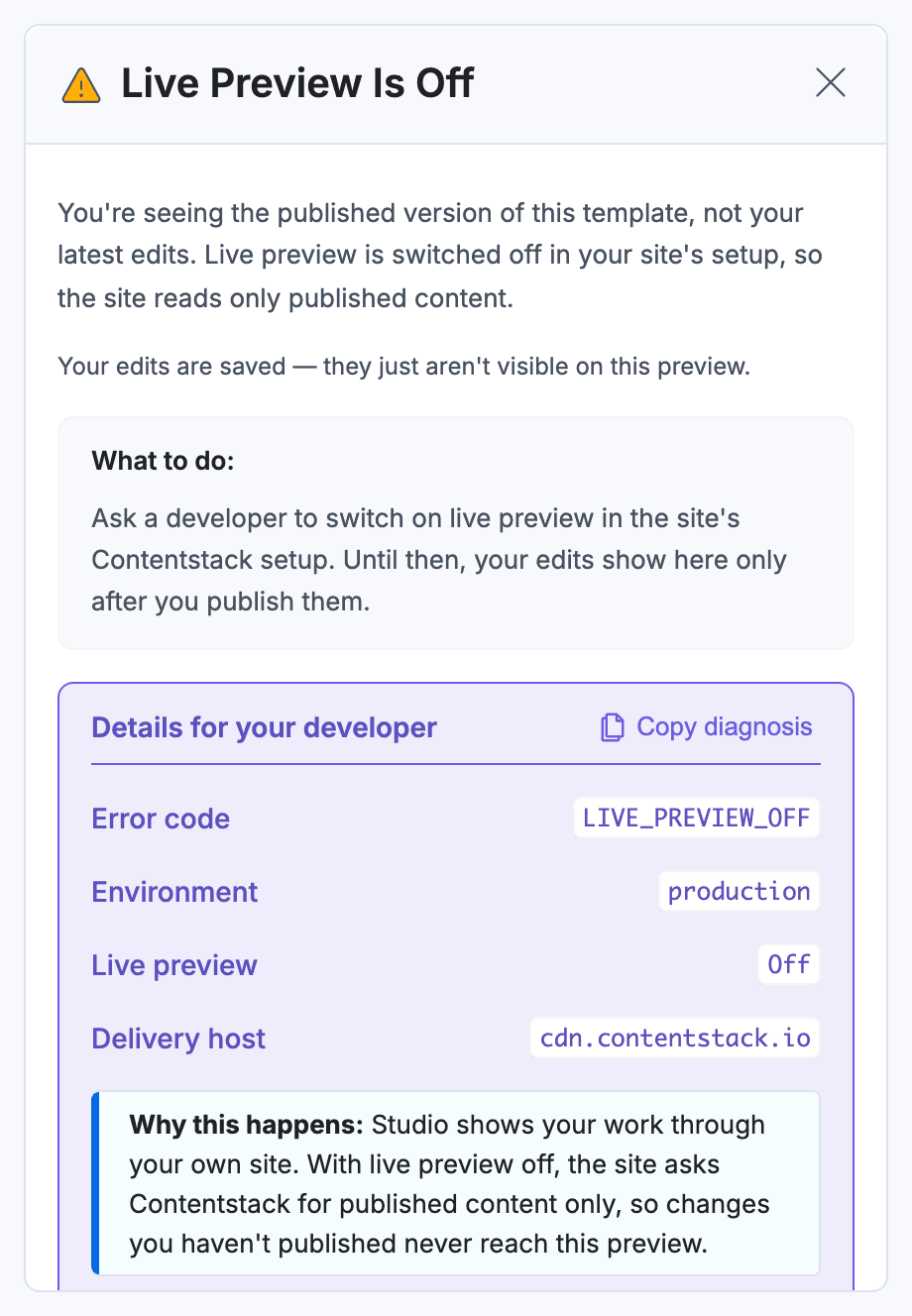
Live Preview is switched off in your site's setup, so your site reads published content only. If the template isn't published, it doesn't load at all. If it is, the canvas shows the published version, not your latest edits. Studio's card names the case and shows Live preview: Off. Your site's log shows only the SDK's not-found error.
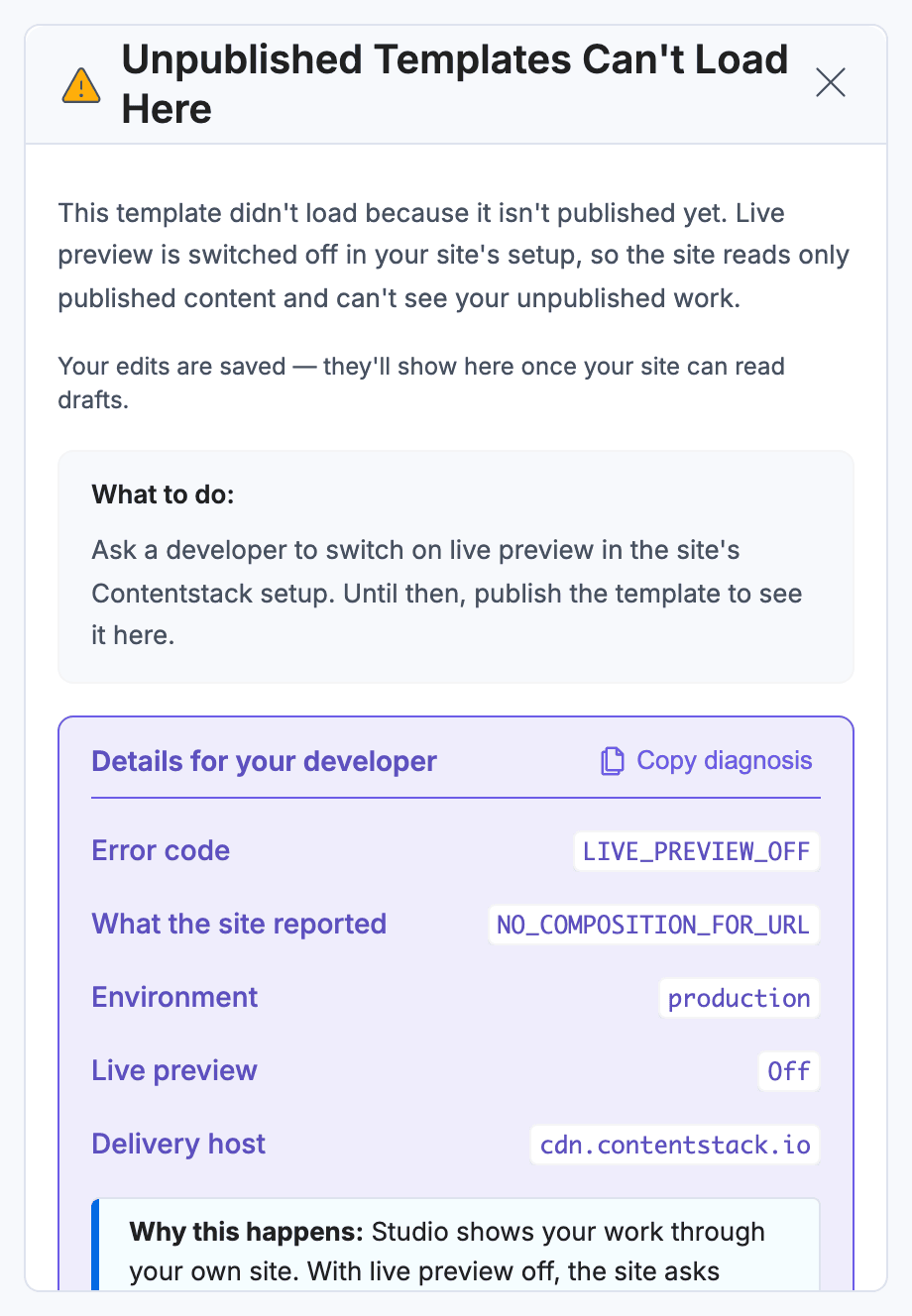
For example, from a template that isn't published. The address and the count change with your site. On a server-rendered site the code can be COMPOSITION_UID_NOT_FOUND instead.
[Contentstack Studio] NO_COMPOSITION_FOR_URL: No composition matches "/blog/ai-101". Considered 3 compositions.
| You see | Read |
|---|---|
| Unpublished Templates Can't Load Here | The template isn't published |
| Unpublished Sections Can't Load Here | The section isn't published |
| Live Preview Is Off, and the template shows its published content | The template shows its published version |
Each case below turns Live Preview on with this block on the stack in src/studio.ts:
const stack = contentstack.stack({
  apiKey: import.meta.env.VITE_CONTENTSTACK_API_KEY,
  deliveryToken: import.meta.env.VITE_CONTENTSTACK_DELIVERY_TOKEN,
  environment: "development",
  live_preview: {
    enable: true,
    preview_token: import.meta.env.VITE_CONTENTSTACK_PREVIEW_TOKEN,
    host: import.meta.env.VITE_CONTENTSTACK_PREVIEW_HOST,
  },
});
The template isn't published
The Blog post template isn't published, and with Live Preview off your site can't see unpublished work. To your site, an unpublished template looks the same as one that doesn't exist, so it finds nothing. The card says the template "didn't load because it isn't published yet". You can turn Live Preview on, which shows every draft, or publish the template, which shows only what you deploy.
To turn Live Preview on:
-
Open
src/studio.tsand add thelive_previewblock above tocontentstack.stack. If the block is there, setenabletotrue. -
Add the preview token and your region's preview host to your app's
.envfile:VITE_CONTENTSTACK_PREVIEW_TOKEN=<your-preview-token>VITE_CONTENTSTACK_PREVIEW_HOST=rest-preview.contentstack.comThe preview token is a separate value from the delivery token. For other regions' hosts, see The preview host is wrong.
-
Restart your site with
npm run dev. -
Reload the canvas. The Blog post template loads with your draft edits, and the card goes away.
Or, to publish the template instead:
-
In Studio, open the Blog post template and click Deploy.
-
Under Select Target Environments, tick your site's environment,
developmentin the example, and deploy. -
Publish AI 101 to the same environment in Contentstack. Deploy publishes the template only, not its entry.
-
Reload the canvas. The template loads with its published content. Later edits show only after you deploy them again.
The section isn't published
The section you opened isn't published, and with Live Preview off your site can't see it. The card says "Unpublished Sections Can't Load Here", so Studio has already ruled out the other causes. Turn Live Preview on so the canvas shows the section's draft.
- Open
src/studio.tsand add thelive_previewblock above tocontentstack.stack, or set itsenabletotrue. - Set
VITE_CONTENTSTACK_PREVIEW_TOKENandVITE_CONTENTSTACK_PREVIEW_HOSTin your app's.envfile, as in The template isn't published. - Restart your site with
npm run dev. - Reload the canvas. The section loads with your draft edits, and the card goes away.
If you'd rather not turn Live Preview on, deploy the section to your site's environment instead. The canvas then shows the section as it was deployed.
The template shows its published version
The template loads, but your site reads it with Live Preview off, so it gets the published content. An edit you saved but didn't publish, such as AI 101's new title "AI 101 for beginners", doesn't show. Nothing fails, so your site logs nothing. The card says "Live Preview Is Off" and shows Live preview: Off.
- Open
src/studio.tsand add thelive_previewblock above tocontentstack.stack, or set itsenabletotrue. - Set
VITE_CONTENTSTACK_PREVIEW_TOKENandVITE_CONTENTSTACK_PREVIEW_HOSTin your app's.envfile, as in The template isn't published. - Restart your site with
npm run dev. - Reload the canvas. The title reads "AI 101 for beginners", and the card goes away.
Your site has no preview token
Code: PREVIEW_TOKEN_INVALID
Live Preview is on, but your site gives it no preview token. Contentstack's preview service only answers requests that carry one, so your site can't read drafts. Studio's card says "Live Preview Has No Preview Token" and shows Preview token: Not set. Your site's log blames the address instead, because the browser can't read the preview service's refusal.
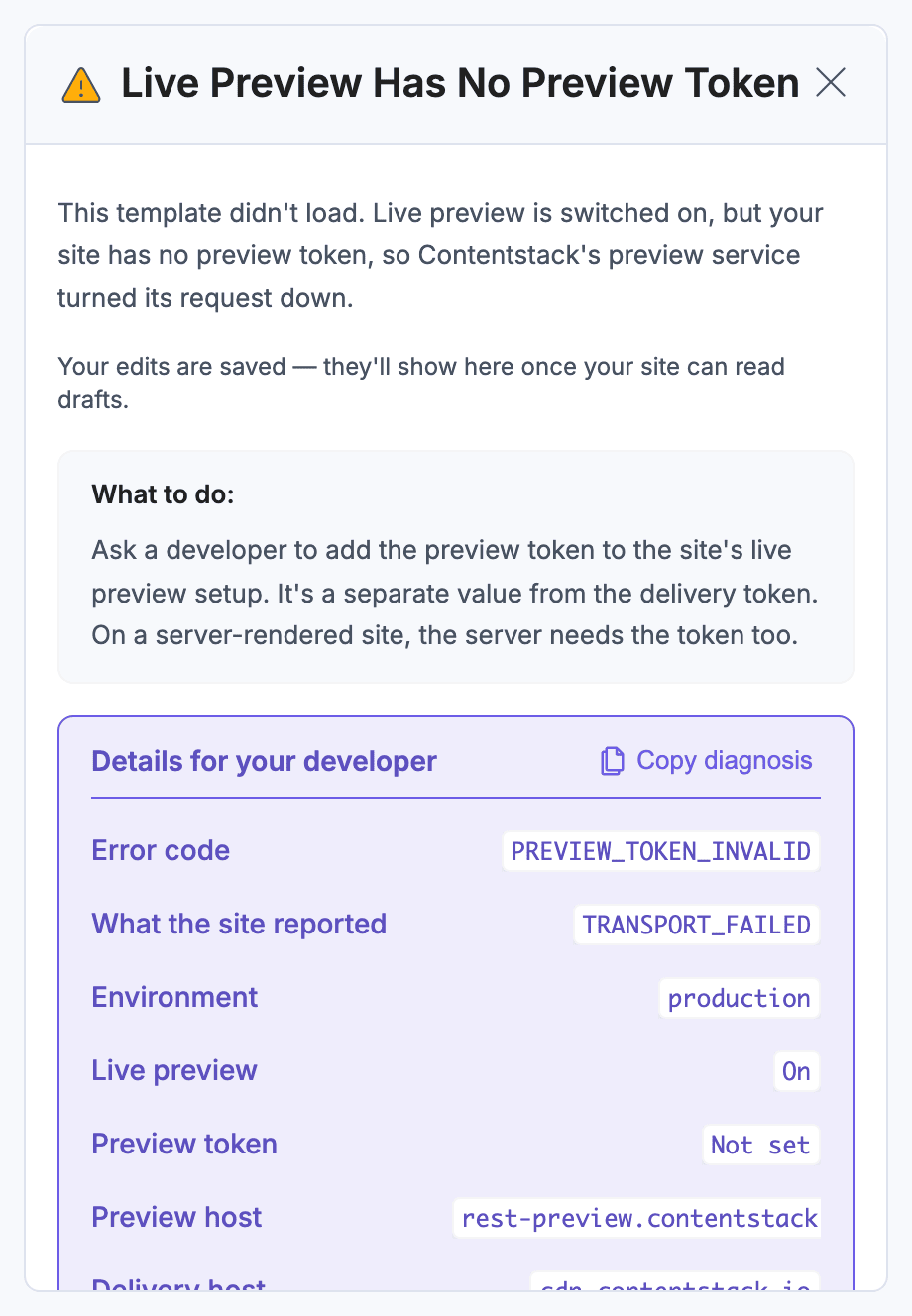
For example, with the North America preview host. The host changes with your setup, and TRANSPORT_FAILED stays the same.
[Contentstack Studio] TRANSPORT_FAILED: The request to rest-preview.contentstack.com got no reply the site could read.
| You see | Read |
|---|---|
| Preview token: Not set, and the preview host is right | The preview token isn't set |
| Preview token: Not set, and the Preview host row shows your delivery host or nothing | The preview token and preview host are both wrong |
The preview token isn't set
The variable that holds the preview token is empty or missing, so preview_token in src/studio.ts reads nothing. The card shows Preview token: Not set, so Studio has already confirmed it. Even with the right preview host, the preview service refuses the request.
-
Copy the preview token for the Blog stack from Contentstack. It's created with the delivery token, as a separate value.
-
Add it to your app's
.envfile:VITE_CONTENTSTACK_PREVIEW_TOKEN=<your-preview-token> -
Check that
src/studio.tsreads it into thelive_previewblock, aspreview_token: import.meta.env.VITE_CONTENTSTACK_PREVIEW_TOKEN. -
If your site renders on the server, give your server the same variable. The server's requests need the token too.
-
Restart your site with
npm run dev. -
Reload the canvas. The card goes away, and the Blog post template shows your draft edits.
The preview token and preview host are both wrong
Studio checks the preview token before the preview host, so the card names the token first. The details still show the Preview host your site sent. If that row shows your delivery host, or Not set, the host is wrong too.
-
On the card, read the Preview host and Delivery host rows in the details.
-
Set
VITE_CONTENTSTACK_PREVIEW_TOKENin your app's.envfile, as in The preview token isn't set. -
Set
VITE_CONTENTSTACK_PREVIEW_HOSTto your region's preview host, such asrest-preview.contentstack.comfor the Blog stack. The other regions are in The preview host is wrong. -
Restart your site with
npm run dev. -
Reload the canvas. The card goes away, and the template shows your draft edits.
The preview host is wrong
Code: PREVIEW_HOST_INVALID
Live Preview is on, but the preview host is empty or set to your delivery host. Published content and drafts come from two services at two addresses, so your site can't reach drafts. Studio's card names the case and shows the Preview host it got. Your site's log shows a request that got no reply.
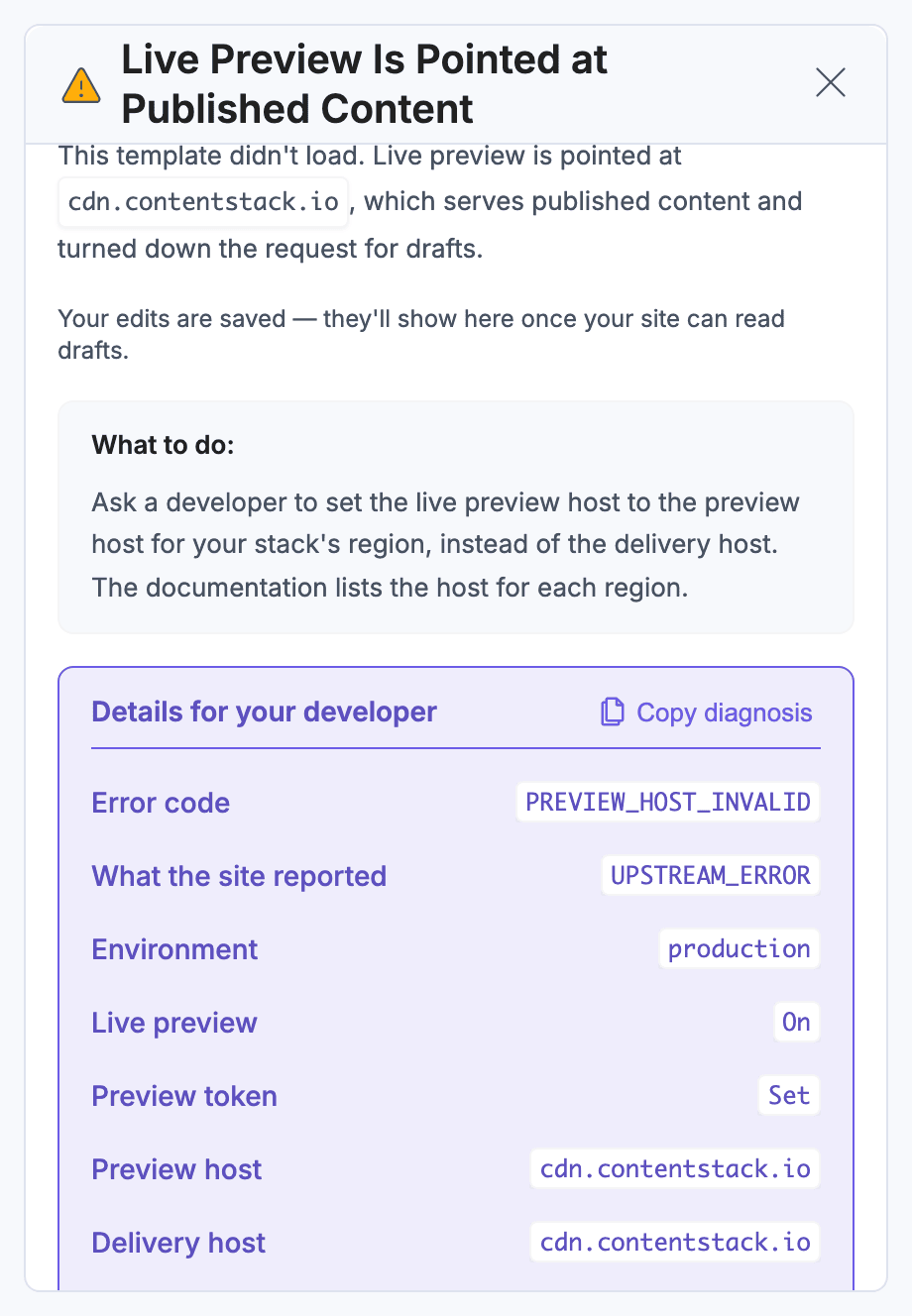
[Contentstack Studio] TRANSPORT_FAILED: The request to got no reply the site could read.
| You see | Read |
|---|---|
| Live Preview Has No Preview Host, and Preview host: Not set | The preview host is empty |
Live Preview Is Pointed at Published Content, and the host has no https:// | The preview host is the delivery host |
Live Preview Is Pointed at Published Content, and the host starts with https:// | The preview host is the delivery host with https:// |
Set VITE_CONTENTSTACK_PREVIEW_HOST, which src/studio.ts reads into host, to your region's preview host. The Blog stack is in North America, so it uses rest-preview.contentstack.com.
| Region | Preview host |
|---|---|
| North America | rest-preview.contentstack.com |
| Europe | eu-rest-preview.contentstack.com |
| Australia | au-rest-preview.contentstack.com |
| Azure North America | azure-na-rest-preview.contentstack.com |
| Azure Europe | azure-eu-rest-preview.contentstack.com |
| GCP North America | gcp-na-rest-preview.contentstack.com |
| GCP Europe | gcp-eu-rest-preview.contentstack.com |
The preview host for each region is in Contentstack's region list, under preview.
The preview host is empty
No preview host is set, so your site has nowhere to send its request for drafts, and the request never leaves your site. The card shows Preview host: Not set, so Studio has already confirmed it. The log names an empty address, "The request to got no reply".
-
Add your region's preview host to your app's
.envfile. The Blog stack is in North America:VITE_CONTENTSTACK_PREVIEW_HOST=rest-preview.contentstack.com -
Check that
src/studio.tsreads it into thelive_previewblock, ashost: import.meta.env.VITE_CONTENTSTACK_PREVIEW_HOST. -
Restart your site with
npm run dev. -
Reload the canvas. The card goes away, and the template shows your draft edits.
The preview host is the delivery host
The preview host holds your delivery host, which serves published content and turns down requests for drafts. The card names the host and shows the same value in both rows, so Studio has already confirmed it. On a server-rendered site, the server log says "Contentstack answered this request with 403." and suggests a retry, which won't help.
-
On the card, compare the Preview host and Delivery host rows. They match.
-
In your app's
.envfile, setVITE_CONTENTSTACK_PREVIEW_HOSTto your region's preview host from the table above, such asrest-preview.contentstack.com. Leave the delivery host as it is. -
Restart your site with
npm run dev. -
Reload the canvas. The card goes away, and the template shows your draft edits.
The preview host is the delivery host with https://
The preview host holds your delivery host written with https://. Studio ignores the https:// when it compares the two hosts, so it's still the delivery host and can't return drafts. The card shows the host with https:// in the Preview host row.
- In your app's
.envfile, replaceVITE_CONTENTSTACK_PREVIEW_HOSTwith your region's preview host from the table above, such asrest-preview.contentstack.com. - Restart your site with
npm run dev. - Reload the canvas. The card goes away, and the template shows your draft edits.
Live Preview couldn't get your drafts
Code: PREVIEW_REQUEST_FAILED
Your site's Live Preview setup looks complete, but its request to Contentstack's preview service failed. The preview service sends its refusals in a form the browser can't read. So a wrong token, another region's host and a dropped connection all look the same, and Studio can't tell which it is. The card names the preview host your site asked. Your site's log shows a request that got no reply.
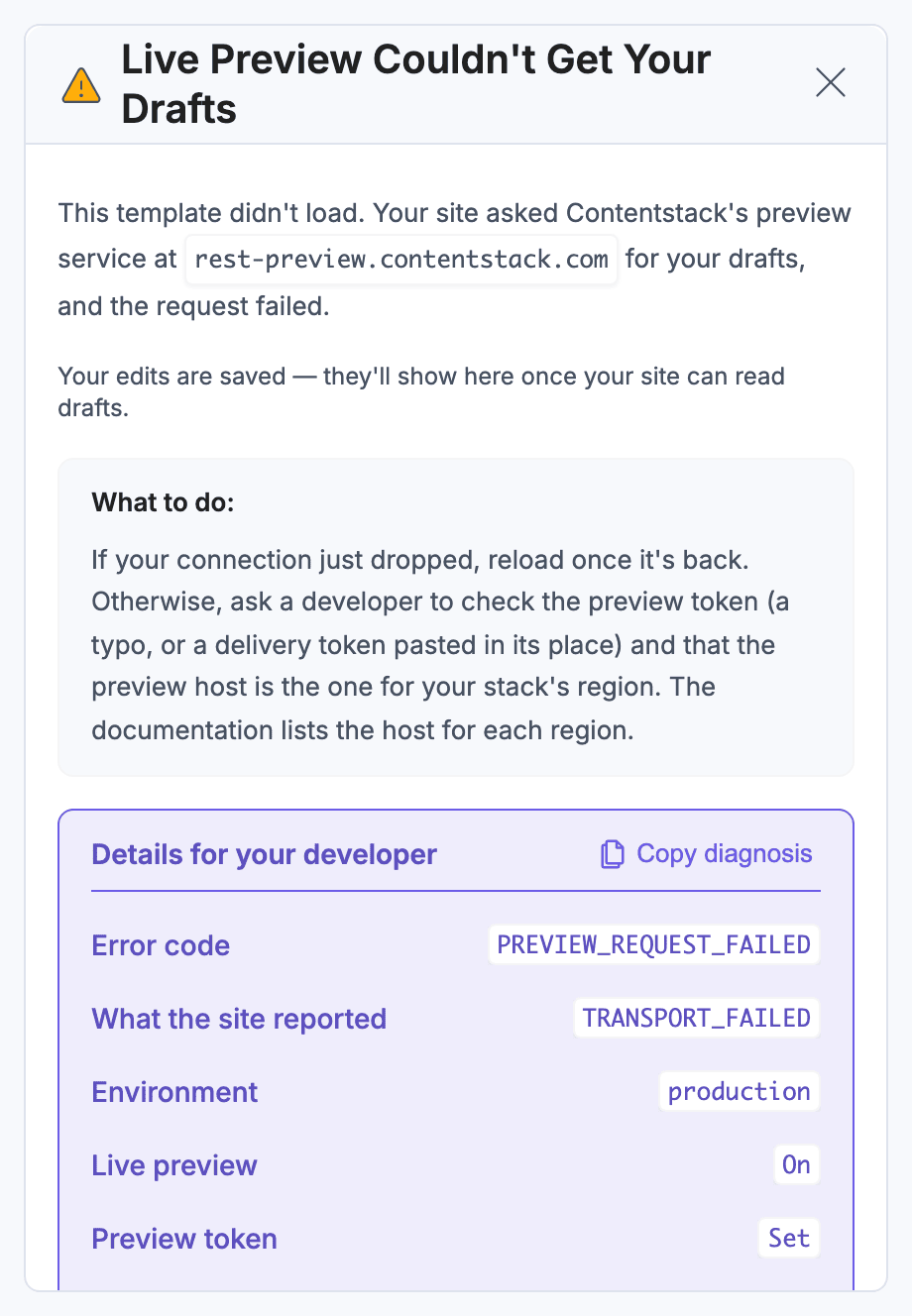
For example, with the North America preview host. The host changes with your setup, and TRANSPORT_FAILED stays the same.
[Contentstack Studio] TRANSPORT_FAILED: The request to rest-preview.contentstack.com got no reply the site could read.
If your connection just dropped, reload once it's back. Otherwise, check these in order.
| Check | Read |
|---|---|
| The preview token differs from the one in the stack | The preview token is mistyped |
preview_token holds the delivery token | The preview token is your delivery token |
| The host on the card is misspelled | The preview host is mistyped |
| The host on the card is for another region | The preview host is for another region |
| The preview token comes from another stack | The preview token is from another stack |
The preview token is mistyped
One wrong character in the preview token is enough for the preview service to refuse it. The browser can't read the refusal, so neither Studio nor the log can say the token is the cause. Try a fresh copy, and see whether the card goes away.
-
Copy the preview token for the Blog stack from Contentstack again.
-
Paste it over the old value in your app's
.envfile:VITE_CONTENTSTACK_PREVIEW_TOKEN=<your-preview-token> -
Restart your site with
npm run dev. -
Reload the canvas. If the token was the cause, the card goes away and the template shows your draft edits.
If the card is still there, the token wasn't the cause. Go back to the checks for this card.
The preview token is your delivery token
preview_token holds your delivery token, and the preview service refuses it. The two tokens are separate values, and they're easy to swap when you copy them.
First, confirm it:
-
Open your app's
.envfile. -
Compare
VITE_CONTENTSTACK_PREVIEW_TOKENwithVITE_CONTENTSTACK_DELIVERY_TOKEN. If they hold the same value, this is your cause.If they differ, this isn't your cause. Go back to the checks for this card.
Then put the right token in:
- Copy the preview token for the Blog stack from Contentstack. It's created with the delivery token, as a separate value.
- Set it as
VITE_CONTENTSTACK_PREVIEW_TOKEN, and leaveVITE_CONTENTSTACK_DELIVERY_TOKENas it is. - Restart your site with
npm run dev. - Reload the canvas. The card goes away, and the template shows your draft edits.
The preview host is mistyped
The preview host has a typo, so the request goes to an address that doesn't exist. The card shows the host as your site sent it, so you can see the typo there. Here the log points at the right cause. Its first step says the address may be mistyped.
First, confirm it:
-
Read the host the card names, in "Your site asked Contentstack's preview service at" followed by the host.
-
Compare it, letter by letter, with your region's host in the table under The preview host is wrong. If they differ, this is your cause.
If they match, this isn't your cause. Go back to the checks for this card.
Then correct it:
- In your app's
.envfile, setVITE_CONTENTSTACK_PREVIEW_HOSTto the host from the table, such asrest-preview.contentstack.com. - Restart your site with
npm run dev. - Reload the canvas. The card goes away, and the template shows your draft edits.
The preview host is for another region
The preview host is a real one, but for a different region from your stack's. This happens when a stack outside North America keeps rest-preview.contentstack.com. On a server-rendered site, the server log names your delivery host, though the preview host refused the request.
First, confirm it:
-
Find your stack's region from the address you open Contentstack at.
app.contentstack.comis North America, andeu-app.contentstack.comis Europe. The other regions are in The site refuses to load in a frame. -
Find the host the card names in the table under The preview host is wrong. If its region isn't your stack's, this is your cause.
If the regions match, this isn't your cause. Go back to the checks for this card.
Then use your region's host:
- In your app's
.envfile, setVITE_CONTENTSTACK_PREVIEW_HOSTto your region's host, such aseu-rest-preview.contentstack.comfor a stack in Europe. - Restart your site with
npm run dev. - Reload the canvas. The card goes away, and the template shows your draft edits.
The preview token is from another stack
The preview token has to come from the same stack as your API key. A token copied from another stack, such as a second project's, doesn't work for the Blog stack. Nothing on the card or in the log names this cause, so try the right token and see whether the card goes away.
- Copy the preview token from the Blog stack, the same stack your API key comes from.
- Set it as
VITE_CONTENTSTACK_PREVIEW_TOKENin your app's.envfile. - Restart your site with
npm run dev. - Reload the canvas. If the token was the cause, the card goes away and the template shows your draft edits.
If the API key is the one from another stack, read The API key belongs to another stack instead.
Preview details don't reach your site
Code: PREVIEW_HASH_NOT_RECEIVED
When Studio opens your site, it adds preview details to the address, as the hash query parameter. Your site passes them to Contentstack to get drafts. If something drops them on the way, the request reads published content, so an unpublished template doesn't load. The card says "Preview Details Aren't Reaching Your Site", with Preview details from the address: Not received.
| You see | Read |
|---|---|
A server-rendered route, and your server log shows NO_COMPOSITION_FOR_URL | Your server leaves out the query string |
| A redirect, rewrite, proxy, CDN or edge setting sits between Studio and your route | Your router leaves out the query string |
When code in the browser removes the whole query string, Studio loses more than the preview details, so you see another card. Read Your page drops Studio's query string.
Your server leaves out the query string
Your server log shows a not-found for a template that exists:
[Contentstack Studio] NO_COMPOSITION_FOR_URL: No composition matches "/blog/ai-101". Considered 14 compositions.

What to do, most likely first:
  1. The address "/blog/ai-101" may not be the one the composition is set up for. Compare it with the composition's URL in Studio.
  2. The composition's URL pattern may not produce this address. Open the pattern in Studio and check it against the address.
  3. The composition may not be published to "production". Check its publish status in Contentstack.
Your server calls fetchCompositionData without the request's query string, so it never gets the preview details and reads published content. If your page fetches the template again in the browser, the drafts show there, and Studio shows no card.
-
Open the file that fetches the template on your server. In the Next.js App Router, that's your catch-all route,
app/[[...slug]]/page.tsx. On an Express server, it's the route handler that callsfetchCompositionData. -
Find the
sdk.fetchCompositionDatacall. If it has nosearchQuery, passes""for a real request, or builds the query from a few parameters it picks, this is your cause.If it already passes the request's whole query string, this isn't your cause. Go back to the checks for this card.
-
Pass the request's whole query string as
searchQuery. Don't read or build the parameters yourself. In the App Router, read it from the page'ssearchParams:// app/[[...slug]]/page.tsxconst getTemplate = cache(async (url: string, searchQuery: string) => {try {return await sdk.fetchCompositionData({ url, searchQuery });} catch (error) {if (isCompositionNotFound(error)) return null;throw error;}});async function loadTemplate({ params, searchParams }: Props) {const { slug = [] } = await params;const url = "/" + slug.join("/");const searchQuery = new URLSearchParams(await searchParams).toString();return getTemplate(url, searchQuery);}The whole file is in Fetch the template in a Server Component. On an Express server, pass the request URL's
search:const { pathname, search } = new URL(requestUrl, "http://localhost:3106");const specOptions = await sdk.fetchCompositionData({ url: pathname, searchQuery: search });That call is in Fetch the composition with fetchCompositionData, and why it needs the whole query string is in Forward the request's query string as searchQuery.
-
Restart your site and reload the canvas. The unpublished template loads, and your server log no longer shows
NO_COMPOSITION_FOR_URLfor it.
Your router leaves out the query string
Something between Studio and your route drops the query string, and the preview details with it. Your code does it when it builds a new address from the path alone, such as new URL("/blog/ai-101", request.url) in a proxy. A CDN or edge network does it when it's set to remove or ignore query strings before the request reaches your server.
-
Confirm what your route receives. Log the query string once in the route, such as
console.log(new URLSearchParams(await searchParams).toString())inapp/[[...slug]]/page.tsx. Reload the canvas. If the log has nohash=, this is your cause. Remove the log when you're done.If the log has
hash=, this isn't your cause. Go back to the checks for this card. -
If your code builds the address, copy the original query string onto it:
// proxy.ts (middleware.ts before Next.js 16)const target = new URL("/blog/ai-101", request.url);target.search = request.nextUrl.search; // keep Studio's query stringreturn NextResponse.redirect(target);In Next.js,
redirects()and thetrailingSlashredirect keep the query string already. -
If a CDN or edge network sits in front of your site, check its cache and query string settings. Let the whole query string through to your server, and don't serve a cached page in its place. Your provider's docs name the setting.
-
Reload the canvas. Your route's log shows
hash=, and the unpublished template loads.
See Keep Studio's query string.
Your preview link has expired
Code: PREVIEW_HASH_REFUSED
The address carries a preview link that has expired, was copied from an old preview, or was made up. Contentstack's preview host refuses it. A visitor who opens such a link gets the published template instead. So you only see this inside Studio's canvas, or when that published fetch fails too.
First, confirm it:
-
Look where your app logs a failed fetch: the browser console, or your server log on a server-rendered site. The SDK doesn't log this error itself.
-
Look for this line:
[Contentstack Studio] PREVIEW_HASH_REFUSED: The preview host refused this request's preview hash: it has expired or does not exist.What to do, most likely first:1. The address carries a preview link that has expired, was copied from an old preview, or was made up. Open the page again from Live Preview, the Visual Editor or Studio for a new preview hash.If you don't see it, this isn't your cause. Go back to Find your error.
Then get a new preview link:
- Close the tab or bookmark that holds the old address.
- In Studio, open the Blog post template again from the project. Studio opens the canvas with a new preview link.
- The template loads, and your log no longer shows
PREVIEW_HASH_REFUSED.
Live Preview is on, but drafts don't show
Code: PREVIEW_NOT_SERVING_DRAFTS
Your site reports a complete Live Preview setup: Live Preview on, a preview token, a preview host and the preview details. Still, the template loads with its published content. Studio can't see the cause, so the card says "Live Preview Isn't Returning Drafts" and lists what your site reported. An older Studio SDK that doesn't report these details also gets this card. Your site logs nothing, because the request worked.
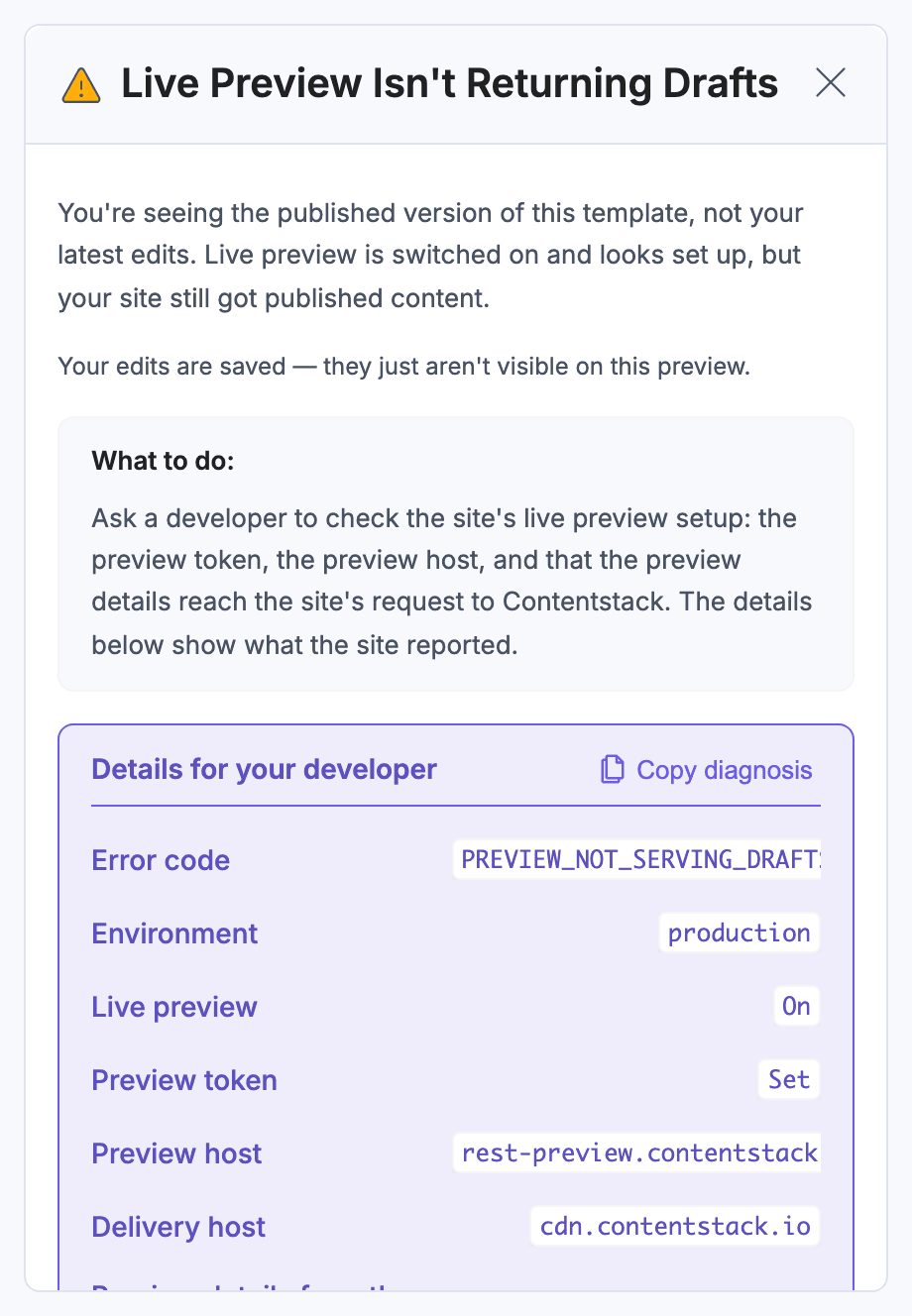
| Check | Read |
|---|---|
| Live Preview is off in the Blog stack's settings in Contentstack | Live Preview is off in the stack's settings |
If the stack's setting is on, check the values on the card against Your site has no preview token, The preview host is wrong and Preview details don't reach your site. If they're all right, go to Still stuck.
Live Preview is off in the stack's settings
Live Preview has two switches. One is the live_preview block in your site's setup, and the other is a setting on the stack in Contentstack. Your site reports its own switch as on, so the card can't see the stack's setting.
First, confirm it:
-
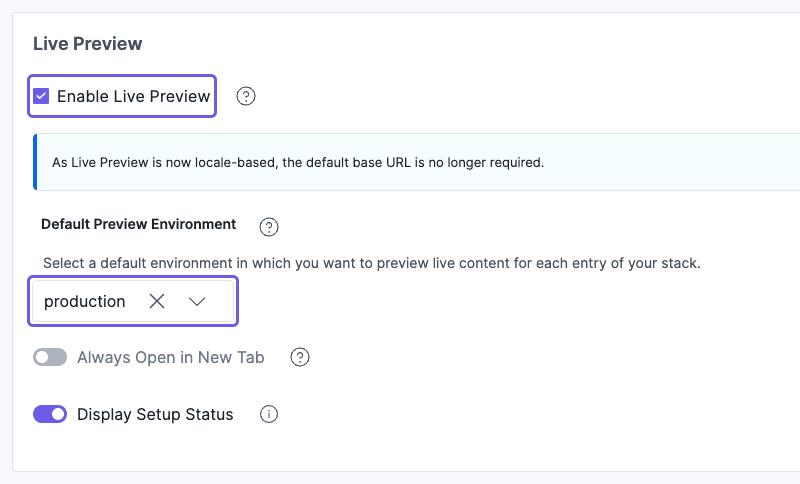
Open the Blog stack in Contentstack and go to Settings, then Visual Experience.
-
Look at the Enable Live Preview checkbox. If it's cleared, this is your cause.
If it's selected, this isn't your cause. Go back to the checks for this card.
Then turn it on:
-
Select the Enable Live Preview checkbox.
-
Choose the Default Preview Environment, and save.
-
Reload the canvas. The template shows your draft edits, and the card goes away.
Still stuck
Use Copy diagnosis on the card, or copy the log line, and paste it into your AI assistant or a support ticket. The copy never includes your preview token.