Slot Defaults & Allowed Sections
A Section Slot is an empty opening the next composer fills. Two optional settings let the section author shape that opening without giving up the “anything goes” flexibility:
- Slot default: one section that pre-fills the slot when a placement leaves it empty, so the section renders something useful before anyone touches it.
- Allowed sections: a whitelist of which sections a composer may drop into the slot.
Both are authored per slot and are entirely optional. A slot with neither behaves exactly as before: empty until filled, accepts anything.
Do It With a Skill
configure-slot-defaults sets both halves described here: the Default section that renders when a placement leaves the slot empty, and the Allowed sections whitelist that gates what a composer may drop.
curl -fsSL https://studio-documentation.contentstackapps.com/install.sh | sh
Where to Set Them
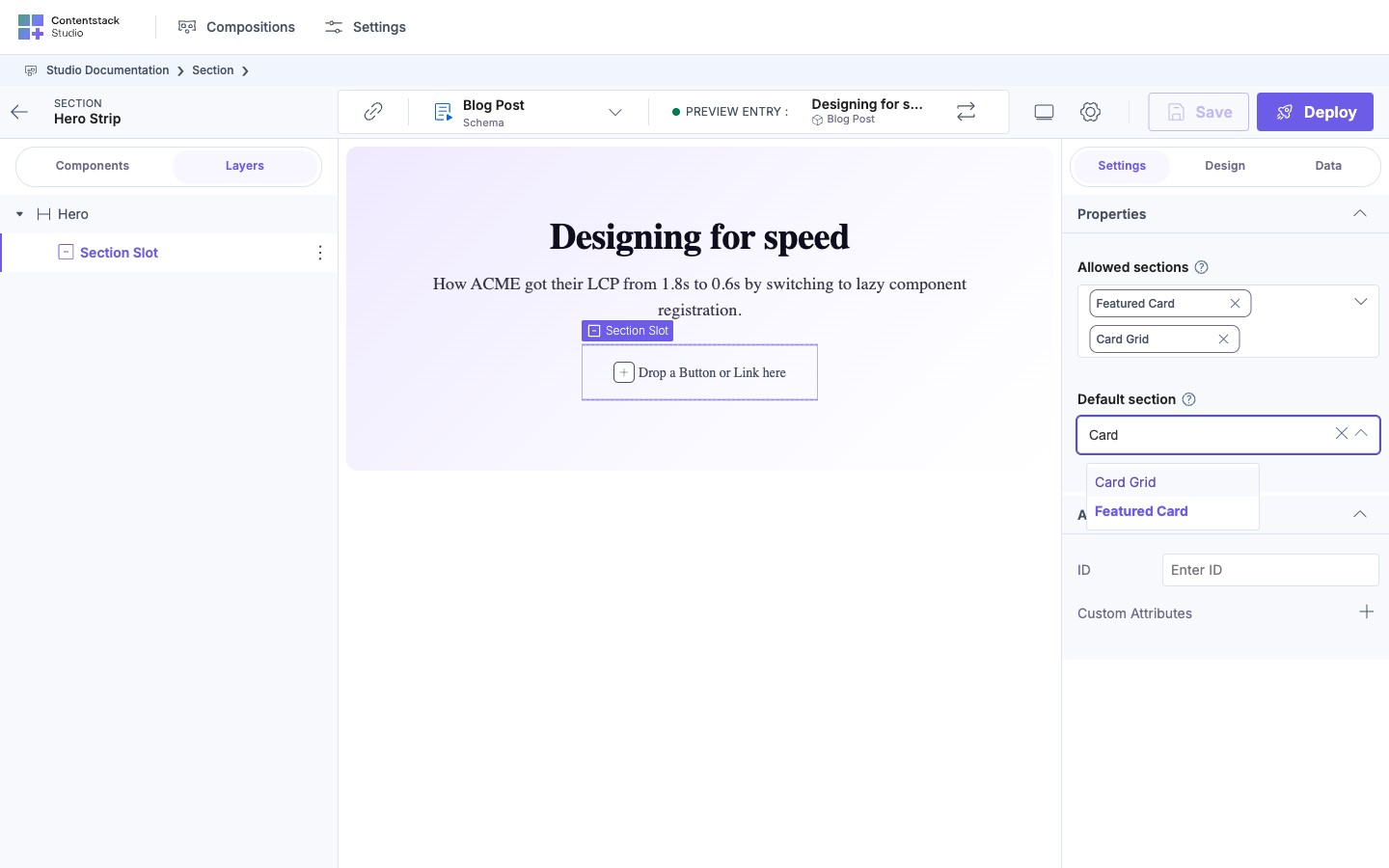
Author these while editing the section (not on a page). Select the Section Slot on the canvas, then in the right panel open Settings, then Properties. Two controls appear, in this order:
- Allowed sections: a multi-select dropdown (placeholder Select Sections). Pick zero or more sections.
- Default section: a single-select dropdown (placeholder Select a default section). Pick one section. Clear it to remove the default.
Both lists are searchable and page through your project’s sections as you scroll.
Set Allowed sections first when you want both: saving a non-empty whitelist clears a Default section that isn’t on it, so picking the default afterwards saves re-choosing it.
Slot Default
The default is a render-time fallback, never a copy. It shows in the slot only while that slot is empty, and only where content is live:
| Slot state | Section authoring / Design mode | Preview mode | Deployed site |
|---|---|---|---|
| Empty | Drop placeholder (default not shown) | Renders the default | Renders the default |
| Filled | Dropped content + drop affordances | Dropped content | Dropped content |
So a composer who drops the section and flips to Preview immediately sees a meaningful result. Dropping their own content into the slot replaces the default, and clearing the slot brings the default back. The default lives only as a setting on the slot. It is never written into the placement, so editing the default later updates every empty slot that points at it.
Worked example
You author a card section whose Media slot defaults to an image_placeholder section. On a page:
- Drop card. In Design mode the Media slot shows its drop placeholder.
- Flip to Preview and the Media slot renders image_placeholder.
- Drop a real product_media component into the slot, which replaces the placeholder.
- Delete that component and image_placeholder reappears.
The page composer never had to think about the empty state. The section shipped with a sensible one.
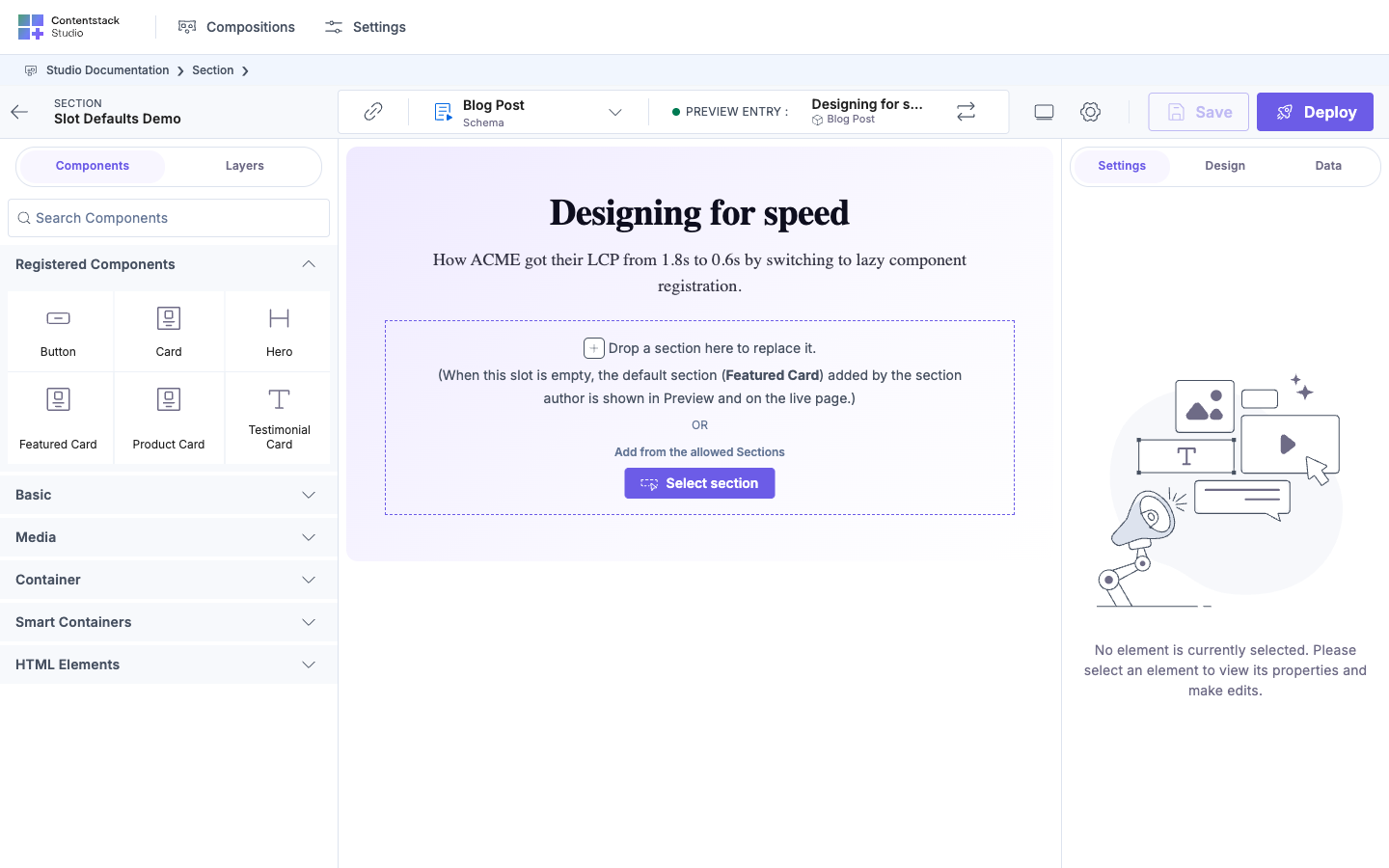
Here are steps 1 and 2 against a real section. In design mode the empty slot keeps its drop zone, and names the default so the composer knows what renders without it:
Flip the same placement to Preview and the slot renders the default instead: the Featured Card section, bound to the preview entry:
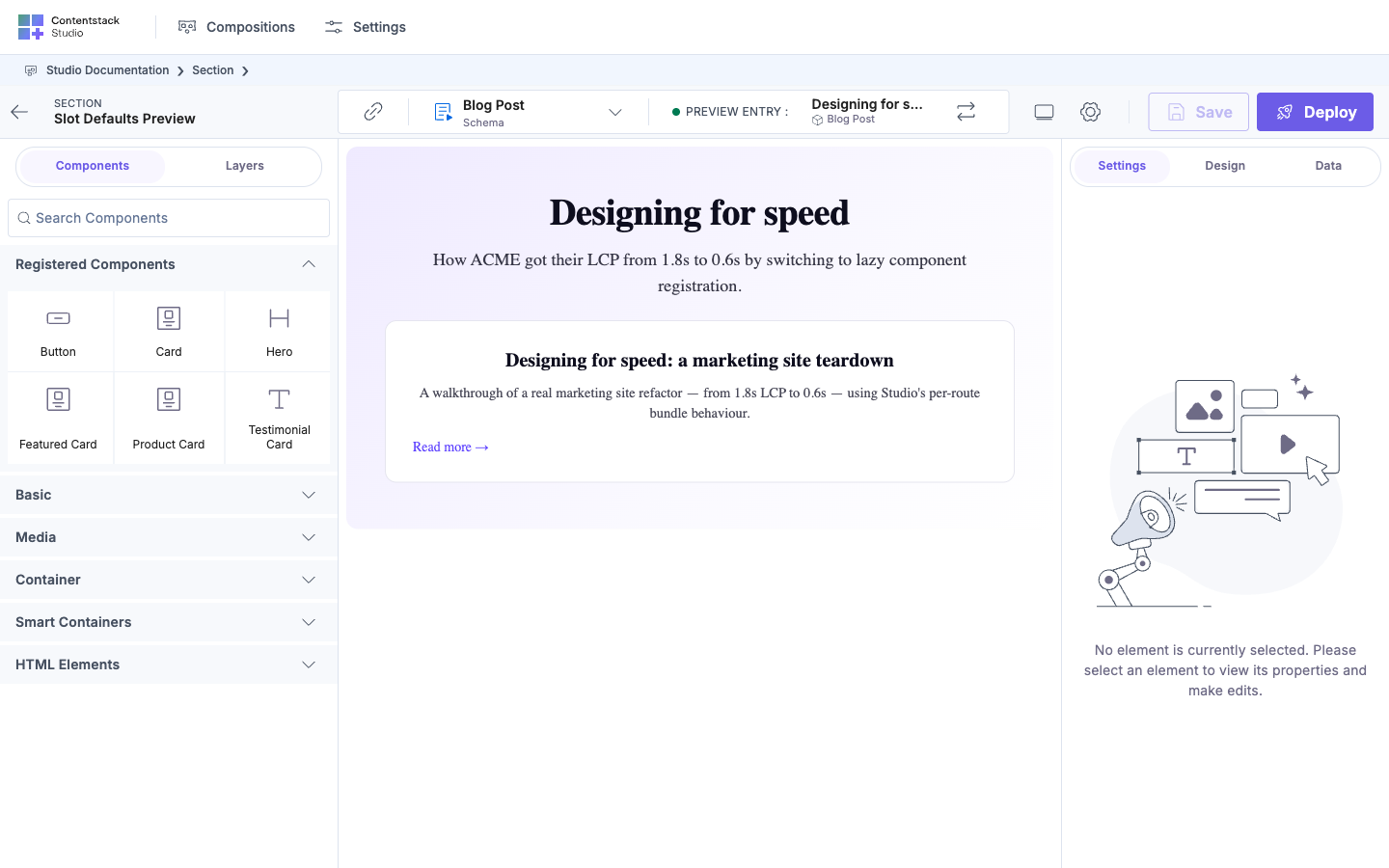
The default is never written into the placement, so nothing in the page’s own tree changed between these two shots. Only the mode did.
Nested defaults
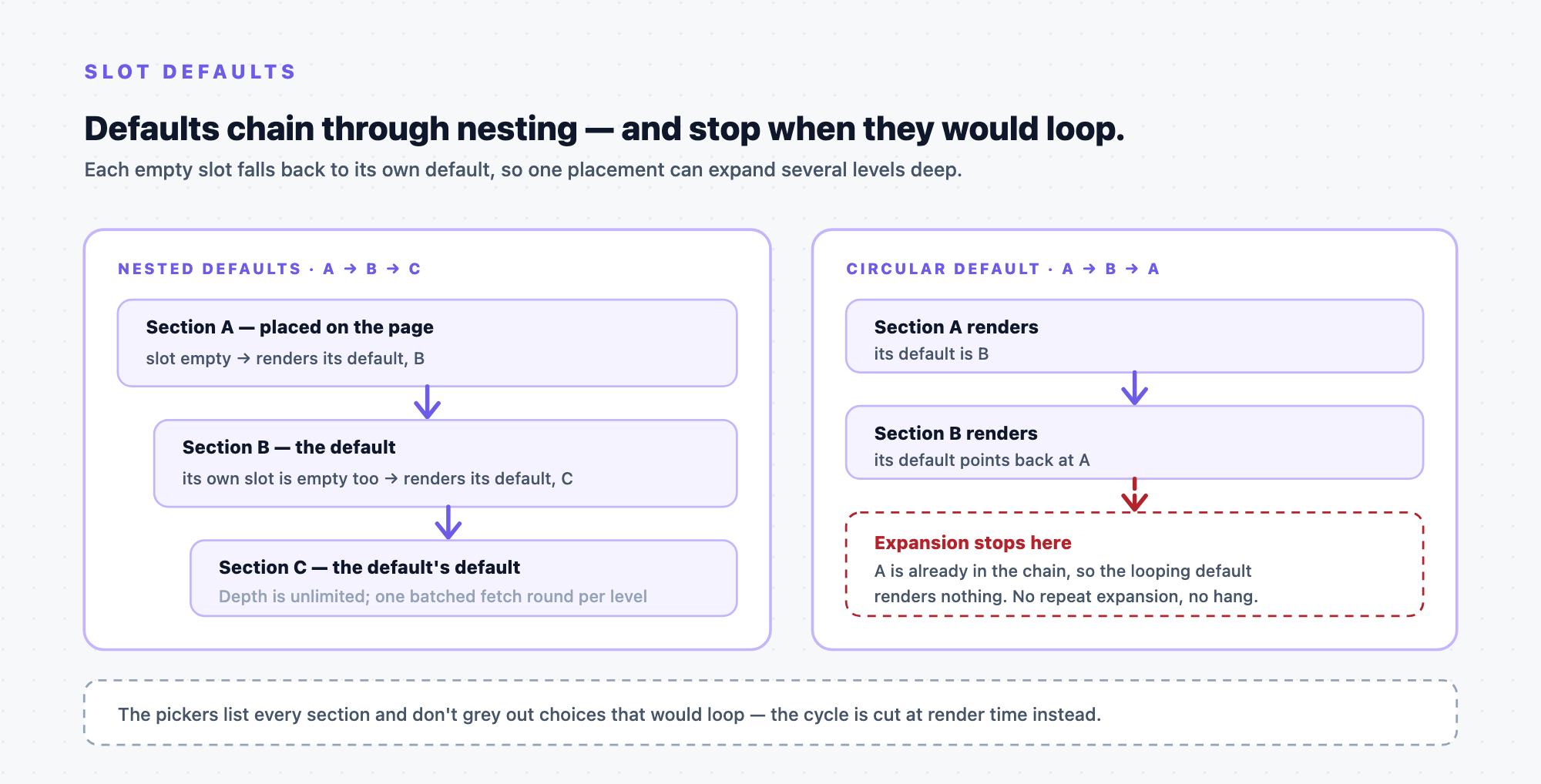
Defaults chain. If section A’s slot defaults to B, and B has a slot that defaults to C, then placing A and previewing expands the whole chain, A holding B and B holding C, each default filling the next empty slot. Depth is unlimited. There is no cap.
Studio keeps this cheap: the chain is resolved with a small, bounded set of batched fetches (one round per nesting level, not one per section), so a deep default tree doesn’t turn into a request storm.
Circular references resolve safely
Nothing stops you from pointing a default back at a section already in its own chain (A defaults to B, and B defaults back to A). The picker lists every section and doesn’t gray out the ones that would loop. A loop can’t break the page, though: Studio stops expanding the default chain at render time as soon as it would re-enter a section already in the chain. So the loop renders A, then B, then stops. The looping default (back to A) simply renders nothing. No repeated expansion, no hang.
Allowed Sections
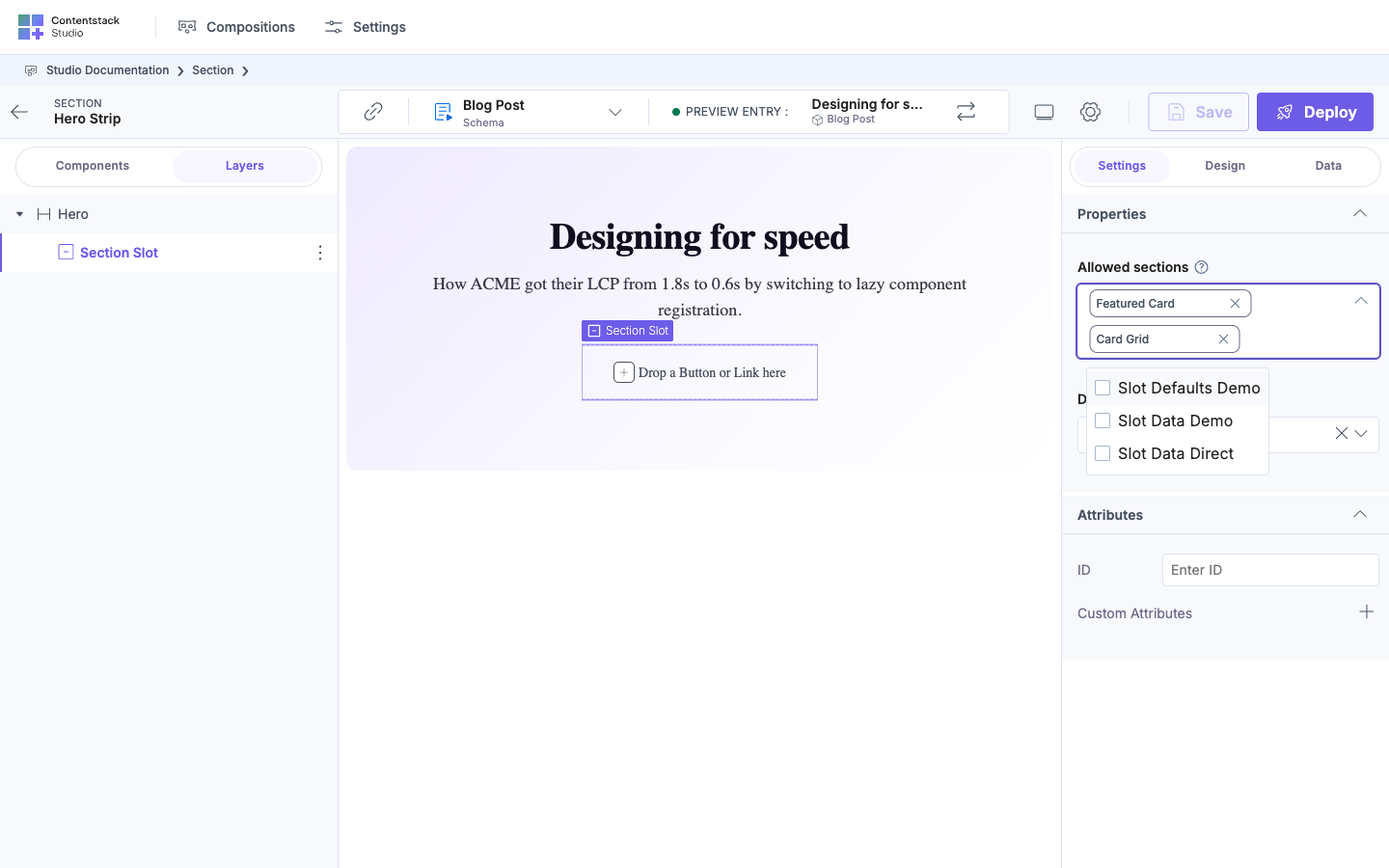
By default a slot accepts anything. Set Allowed sections to restrict which sections a composer may drop:
- A section whose type is not in a non-empty list is rejected at drop time with the message “This section isn’t allowed in this slot. Choose one of the slot’s allowed sections, or drop a different component.”
- Non-section components are always allowed: the whitelist gates sections only.
- An empty list means no restriction (the default). It is not “allow nothing”.
- The check runs only when a composer drops onto a page or template. It never affects how the slot renders.
When Allowed sections is non-empty, the Default section is constrained to that set: a default must be one of the allowed sections.
Edge Cases
| Scenario | What happens |
|---|---|
| Empty slot, Design mode | Drop placeholder shows. The default does not (design is for building, not previewing) |
| Empty slot, Preview / deployed | The default renders |
| Composer fills the slot | The default is hidden. Dropped content wins |
| Composer clears the slot | The default returns |
| Edit the default section later | Every empty slot pointing at it updates, nothing was copied |
| Default set, then removed | Empty slots go back to rendering nothing |
| Allowed list empty | Any section (and any component) may be dropped |
| Drop a disallowed section | Rejected with a warning. Nothing is placed |
| Drop a non-section component into a restricted slot | Allowed: the whitelist gates sections only |
| Default section dropdown lists bare uids instead of titles | The option list is built before the titles for the already-selected sections resolve. Type in the box to reload it, the labels come back as titles |
Troubleshooting
Symptom first. The edge-case table above says what should happen. This section covers what to do when it doesn’t.
The default doesn’t render on the page
Work through these in order. The first is almost always the answer:
- You’re in Design mode. Design mode always shows the drop zone. The default renders in Preview and on the live page. Flip modes before assuming anything is wrong.
- You’re looking at the section’s own canvas. While authoring the section that owns the slot, the slot is an inert labeled placeholder. The default never renders there. Drop the section onto a page or template to see it.
- The slot isn’t actually empty. Dropped content always wins. Check the slot’s contents in the right panel and clear them.
- The default section isn’t published to the environment you’re viewing. Publish it, then reload.
- The host section was saved before the default was set. A slot’s default is captured in the host section’s linked_sections at save time, which is what lets the nested fetch resolve it. Re-open the host section and save it again.
The default section renders blank, or an inner Repeater throws items.map is not a function
The default resolves, but the data it receives isn’t the shape it was built against. An empty slot’s default gets its data through a virtual instance scoped from the surrounding context, so a mismatch between the default’s linked schema and the scope the slot sits in surfaces here: a Repeater bound to a list receives a single object instead.
Fix:
- Compare the default section’s linked schema against the data scope at the slot’s position (page entry, or the iteration item if the slot sits inside a Repeater). See Auto-binding.
- Pick a default whose schema matches that scope. A section built against a list field can’t default a slot that sits in a single-item scope.
- If the slot is inside a Repeater, remember the scope is the item, not the collection.
I set Allowed sections and my Default section disappeared
Expected, and deliberate: a default must be one of the allowed sections. Saving a non-empty allowed list that doesn’t include the current default clears the default rather than leaving an unreachable one.
Fix: set Allowed sections first, then pick the Default section. The default picker then offers exactly the allowed set. Add the section to the allowed list if you want it as the default.
“This section isn’t allowed in this slot. Choose one of the slot’s allowed sections, or drop a different component.”
The slot has a non-empty whitelist and the dragged section isn’t on it. Nothing is placed.
Fix: drop one of the allowed sections, use the in-canvas Select section button (it offers only the allowed set), or add this section to the slot’s Allowed sections on the host section.
A section I didn’t allow dropped in anyway
The drop gate resolves the whitelist through the host section in the local catalog, and treats an unresolvable host as permissive, a missing or unparseable catalog entry lets the drop through rather than blocking all authoring.
Fix: reload Studio so the section catalog loads fully, then retry the drop. If it still passes, confirm the host section still exists and opens without error.
The whitelist doesn’t stop plain components
By design: Allowed sections gates sections only. Any registered component can still be dropped into a restricted slot. There is no component-level whitelist. Use the slot’s placeholder label to signal what belongs there.
An empty Allowed sections list allows everything
Also by design. Empty means no restriction, not “allow nothing”. To restrict the slot, list the sections explicitly.
I can’t find these settings on the page where the section is placed
They live on the section that owns the slot, not on the placement. Selecting a placed section’s slot on a page opens a different panel. It lists what the composer has put in the slot, and offers the picker.
Fix: open the host section itself, select its Section Slot, and in the Data tab open Settings, then Properties.
The section I want isn’t in either picker
Both pickers exclude the section you’re currently editing, so a slot can’t point directly at its own section. They also list only compositions placed as sections, and page through the project as you scroll.
Fix: search by title (the pickers are searchable). For recursion, point the default at a different section, nested defaults chain from there, and Studio stops the chain if it would re-enter a section already in it.
A circular default renders nothing at the deepest level
Expected. The pickers don’t gray out choices that would loop. Expansion stops at render time as soon as the chain would re-enter a section already in it. A → B → A renders A, then B, then stops. The looping level renders nothing rather than hanging.
Fix: nothing to repair unless you expected content there. Point that default at a section not already in the chain.
Selected sections show as raw uids, or the design-mode hint has no section name
Both are cosmetic. Titles are resolved best-effort: the panel looks them up separately and falls back to the uid, and the design-mode hint drops the name when the default isn’t in the locally-known catalog.
Fix: reload the panel. If a uid persists, confirm that section still exists, a deleted default leaves its uid behind on the slot.
Previewing a page with defaults is slow
Nested defaults chain, and each nesting level costs a fetch round (batched within the level, not per section). A deep chain multiplies rounds.
Fix: keep chains one or two levels deep. If a default’s own slot defaults to something that defaults again, consider whether the middle layer earns its place.
Next
- Section Slots: the placeholder these settings shape
- Expose Section Props: the value-level sibling
- Sections overview
- Troubleshoot setup: canvas, Live Preview and SDK-init failures underneath all of this