Embed a Studio-Managed Region Inside a Code-Owned Page
This recipe is for the bounded-zone use case: your app has a code-driven page (PDP, home, account, checkout) that you want engineers to keep owning end-to-end, except for one section, band, or shelf you want marketers to edit in Studio without touching code.
A typical example:
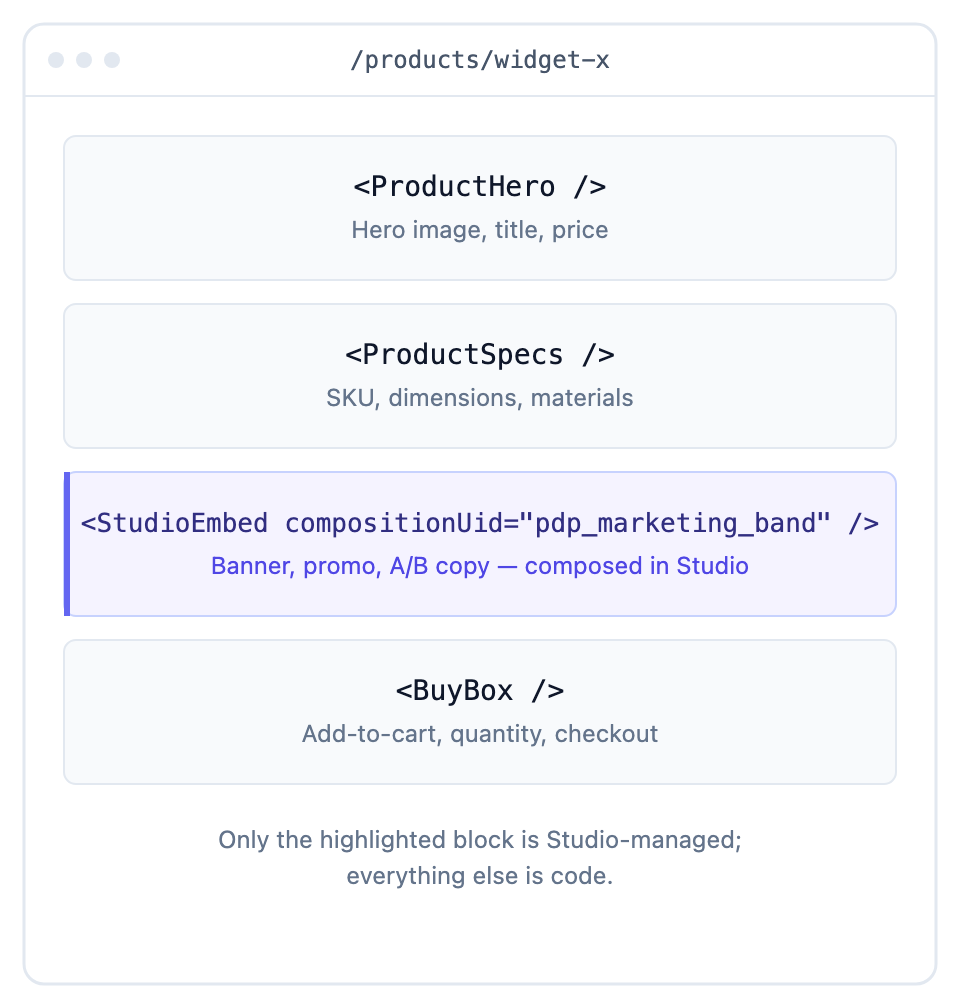
The PDP is functional + conversion-critical. Engineers keep it. But the marketing band changes every week: a marketer should be able to edit it in Studio’s canvas without a deploy.
This recipe shows the doc-aligned way to embed that band: render a known composition by compositionUid inside the code page.
What compositionUid accepts. The public-API param is compositionUid (singular). Its value is the composition’s slug, the composable_uid field on the compositions-CT entry (e.g. "card_grid", "pdp_marketing_band"), NOT the entry UID (blt5d57b…).
Do It With a Skill
embed-composition wires exactly this, as a Section-in-Slot rather than a raw component.
curl -fsSL https://studio-documentation.contentstackapps.com/install.sh | sh
When to Use This Recipe
| Situation | This recipe? |
|---|---|
| One small editable region inside an otherwise code-owned page | Yes |
| Two or three editable regions on the same code page | Yes: repeat the pattern, one compositionUid per region |
| Migrating from hand-coded routes: you want to ship each Section before the full Template is built | Yes: this is the interim ship between the hand-coded migration recipe Step 3 (build the Section) and Step 4 (build the Template). Embed the Section in the existing route (fetch it by compositionUid with useCompositionData, then render <StudioComponent specOptions={specOptions} />). Promote to a full route swap later. |
| You want to replace the whole page with Studio | No: use Migrate hand-coded pages or the partial-adoption recipe |
| You want every URL to flow through Studio | No: use the catch-all from template preview routes |
What Composition Flavor to Use for the Embed
Use a Section composition (place_composition_as: "section"). Reasons:
- Purpose-built for embedded regions. Sections are composition units meant to be dropped somewhere else: inside a Template, or (as in this recipe) inline into a code-owned page via compositionUid.
- Standard compositionUid render path. Call useCompositionData({ compositionUid }) (CSR) or csStudio.fetchCompositionData({ compositionUid, searchQuery }) (SSR), then pass the returned object straight in: <StudioComponent specOptions={specOptions} />. This resolves the Section’s spec and renders its full canvas (including bindings and any references) inside your code page.
- Author UX. The marketer opens the Section in Studio, composes the band, hits Save, and the next page load on the host route picks up the updated spec. No CT changes, no developer involvement.
End-to-End Walkthrough
Step 1: Create the Section composition in Studio
- In Studio, open Sections, then + New Section.
- Name it after the band’s job, e.g. pdp_marketing_band, home_promo_strip, cart_upsell_shelf. The composition’s composable_uid (kebab-case slug of the name) is what your code page will reference.
- Set Description: “Embedded band inside <ProductDetailsPage>‘s marketing slot. Edited by marketing. Rendered inline by code.”
- Save. Note the composable_uid Studio created. That’s your embed key.
Step 2: Drop content into the composition
In the canvas:
- Drop the components the band needs: a <PromoBanner>, a <MarketingCard>, whatever’s registered.
- Wire bindings via the Data Picker:
- Static values (author types text directly)
- Pinned Entry (a specific entry the marketer picks)
- Pinned Query (latest 3 announcements, etc.)
- Save the composition.
Step 3: Render it inline in the code-owned page
// app/products/[slug]/page.tsx — code-owned PDP
import { ProductHero } from "@/components/product/ProductHero";
import { ProductSpecs } from "@/components/product/ProductSpecs";
import { BuyBox } from "@/components/product/BuyBox";
import { MarketingBand } from "./MarketingBand";   // ← new

export default async function ProductDetailsPage({ params }) {
  const product = await fetchProductBySlug(params.slug);
  return (
    <>
      <ProductHero product={product} />
      <ProductSpecs specs={product.specs} />
      <MarketingBand />                           {/* ← Studio-managed band */}
      <BuyBox product={product} />
    </>
  );
}
// app/products/[slug]/MarketingBand.tsx — the Studio embed
"use client";
import { useCompositionData, StudioComponent } from "@contentstack/studio-react";

export function MarketingBand() {
  const { specOptions, isLoading, error } = useCompositionData({
    compositionUid: "pdp_marketing_band",     // ← the composable_uid from Step 1
  });

  if (isLoading) return null;                 // band is optional; don't blink the layout
  if (error || !specOptions?.spec) return null;
  return <StudioComponent specOptions={specOptions} />;
}
Step 3 (SSR variant): Server Component fetch
If your PDP is RSC + SSR:
// app/products/[slug]/page.tsx — Server Component
import { csStudio } from "@/lib/contentstack";
import { ProductHero } from "@/components/product/ProductHero";
import { MarketingBandClient } from "./MarketingBandClient";

export default async function ProductDetailsPage({ params }) {
  const product = await fetchProductBySlug(params.slug);
  const marketingBand = await csStudio.fetchCompositionData({
    compositionUid: "pdp_marketing_band",
    searchQuery: "",                          // required on server (no window.location.search)
  });
  return (
    <>
      <ProductHero product={product} />
      {marketingBand?.spec && <MarketingBandClient specOptions={marketingBand} />}
      {/* … rest of the page … */}
    </>
  );
}
// app/products/[slug]/MarketingBandClient.tsx
"use client";
import { StudioComponent } from "@contentstack/studio-react";
export function MarketingBandClient({ specOptions }) {
  return <StudioComponent specOptions={specOptions} />;
}
Step 4: Verify
- Open the PDP in a browser. The marketing band renders below the specs section.
- In Studio, open the pdp_marketing_band composition, make a change, and Save.
- Reload the PDP, and the change appears.
- (Optional) Open the composition in Studio’s canvas iframe. <StudioCanvas> renders the band in isolation, against whatever pinned data sources you configured.
How authors obtain the composable_uid
The composable_uid is Studio’s slug for the composition (kebab-case derived from the display name, editable on creation). Authors can find it three ways:
- Composition list: in Studio, open Templates and look at the row’s second column (composable_uid).
- URL: the canvas URL contains /canvas/<entry_uid> (not the composable_uid) but the composition’s metadata pane (in the right rail, open Settings) shows the composable_uid.
- Convention: for embedded bands, pick a stable kebab-case name when creating the composition (pdp_marketing_band, home_promo_strip). The dev who writes the embed code uses that same name. Don’t rename the composition after embedding: the embed code is hard-coded to the slug.
For larger teams: keep a STUDIO_EMBEDS.md in the repo listing every composable_uid you embed and which page renders it, so the marketer and the developer share a contract.
Multiple Bands on One Page
Repeat the pattern, one component per band, each with its own composable_uid:
<MarketingBand compositionUid="pdp_promo_top" />
<MarketingBand compositionUid="pdp_promo_middle" />
<MarketingBand compositionUid="pdp_recommendations" />
Generalize the embed by writing a thin wrapper component in YOUR codebase:
<StudioEmbed> is NOT an SDK export. It’s a convenience wrapper you write yourself, bundling the SDK’s hook (useCompositionData) + component (<StudioComponent />). The SDK ships only those two primitives. The wrapper exists purely to avoid repeating loading/error boilerplate on every embed. Name it whatever fits your codebase: <StudioEmbed>, <ManagedBand>, <EditableRegion>, etc.
// components/StudioEmbed.tsx — user-defined wrapper, not an SDK export
"use client";
import { useCompositionData, StudioComponent } from "@contentstack/studio-react";

export function StudioEmbed({ compositionUid }: { compositionUid: string }) {
  const { specOptions, isLoading, error } = useCompositionData({ compositionUid });
  if (isLoading || error || !specOptions?.spec) return null;
  return <StudioComponent specOptions={specOptions} />;
}
Then <StudioEmbed compositionUid="..." /> inline anywhere on any code page.
Common Pitfalls
| Pitfall | Why it bites | Fix |
|---|---|---|
| Embed renders nothing | The composition’s composable_uid doesn’t match what the code passes. | Verify exact spelling in Studio’s composition list (it’s case-sensitive). |
| Embed renders during SSR but disappears after hydration | Component is marked "use client" but its parent (RSC) didn’t pass specOptions through. | Fetch on the server, pass specOptions to the client wrapper. See Step 3 SSR variant. |
| Band shifts layout when it loads (CLS) | isLoading returns null: page reflows when content arrives. | Render a placeholder of the band’s expected height during loading instead of null. |
| Marketer edits the band but doesn’t see changes on PDP | Cache. <StudioComponent> fetches via CDA which respects publish-environment + cache headers. | Republish the composition (Save in Studio is draft. Publish is what visitors see). |
| Embed code points at a deleted composition | Studio doesn’t refuse the delete. The embed silently 404s. | Add a runtime warning in the StudioEmbed wrapper when error is non-null, gated behind an env var (dev/staging only). |
What This is NOT
- Not a section slot. Section slots are inside-a-composition placeholder that a Template fills. They don’t reach into a code page.
- Not a route. The catch-all route renders whole pages. This embed renders one component inline on a page you already own.
- Not Visual Editor. Visual Editor adds inline-edit affordances to existing CT-bound rendering. This recipe adds an entirely Studio-composed region to a non-Studio page.