CMS Binding
Binding is how Studio components get their data from Contentstack instead of from hard-coded values. Click a prop in the right panel, pick a field from the data picker, and the component now renders that field’s value, for whichever entry is the current preview.
This page consolidates binding across linked templates and sections. The concept is the same in both contexts. The available data sources differ.
Do It With a Skill
understand-auto-binding and understand-linked-schemas explain the two halves conversationally. When a binding misbehaves, troubleshoot-data-binding is the symptom-mapped diagnostic.
curl -fsSL https://studio-documentation.contentstackapps.com/install.sh | sh
What Binding Does
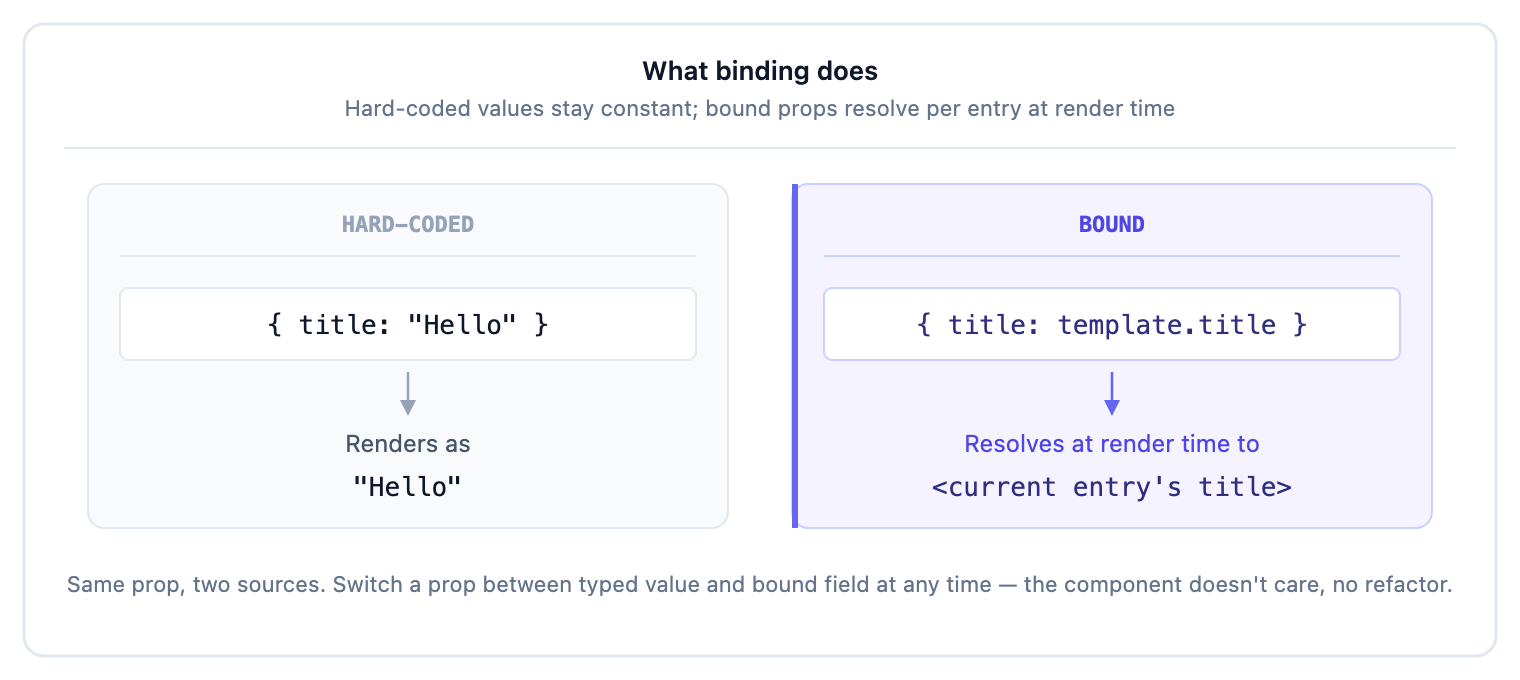
A bound prop is dynamic: the value comes from the connected entry, a pinned entry, a pinned query, or one of several other sources. Different preview entries produce different rendered values. One template, many pages.
The Data Picker is the UI you’ll use for every binding: click a prop’s binding chip and it opens the field tree for the current scope. Here’s what it looks like on a section linked to a Blogs content type:
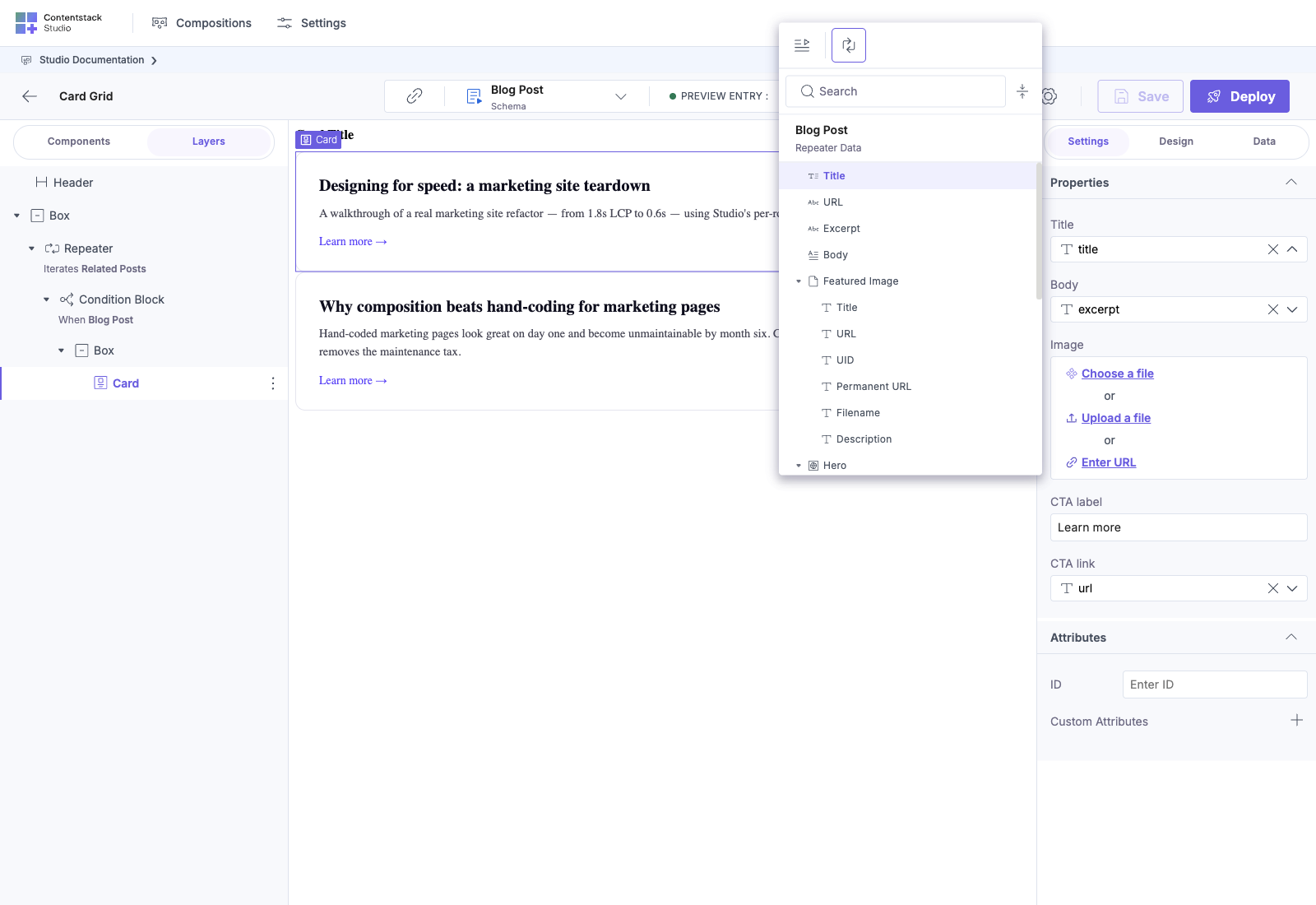
Details on the picker’s tabs, scoping, and type filtering are in The Data Picker below. The rest of this page is split into two halves:
- Binding concepts: what binding is, how sources scope, how the picker works (this page, top half).
- data-cslp tag emission, the second job the binding map does at render time: emitting the data-cslp tags Visual Editor consumes. See data-cslp tag emission, orthogonal to authoring. Skip on first read if VE isn’t installed.
Static Value Vs. Bound: Same Prop, Different Source
Every prop on every component has the same two halves in the right panel: a direct input and a binding chip. Use the input to type a literal value. Use the chip to bind the prop to a CMS field. You can switch a prop between the two whenever you want: the component doesn’t know or care which source produced its value, so there’s no refactor cost.
What changes when you switch is where the value comes from at render time:
| Where you pointed the prop | What the visitor sees |
|---|---|
| Typed value (the direct input) | Exactly what you typed, same string for every page, every entry, every render |
| Connected entry field (template.* on a Connected template) | The current entry’s value, different per render because the entry differs per URL |
| Repeater iteration item | The current item’s value, different for every iteration the Repeater renders |
| Reference field on the current entry | The referenced entry’s value |
Same component, same prop, different visitor experience depending on which source you picked.
What this lets you do
- Mix per prop on the same component. A Hero can have a typed ctaLabel: "Get started" and a bound headline: template.title at the same time. Two props, two sources, one instance.
- Re-bind without losing layout. Switching a prop from a typed value to a CMS field is one click on the binding chip, then pick a field and save. The component’s position, neighbours, and other props don’t move. There’s no rebuild.
- Use the same flow for Expose Props overrides. When a section author exposes a prop, the template author sees that prop in the section instance’s right panel with the same direct input + binding chip. They can type a literal, pick a template field, or pick an outer scope’s field, all from the same control.
data-cslp tag emission: Visual Editor consumes what Studio emits
The binding mapper has a second job most developers don’t realize it does: it auto-emits the data-cslp tags that Contentstack’s Live Preview / Visual Editor use to detect “this DOM node is bound to this CMS field.” You never write data-cslp in your component code. Studio derives it at render time from the binding map you authored in the canvas.
Studio itself has no inline-edit surface. All value edits inside Studio happen in the right panel. Inline click-to-edit is a separate feature provided by Visual Editor, which (if installed independently in the same app) reads the data-cslp tags Studio emits. This section describes tag emission only. The inline-editing capability is Visual Editor’s, not Studio’s.
| What you author in Studio | What ships at render time | Who consumes it |
|---|---|---|
| Hero.headline → template.title (binding in the canvas) | <h1 data-cslp="entry_uid.title">{title}</h1> (output of <StudioComponent />) | Visual Editor (if installed): draws the hover overlay + inline-edit affordance on the headline |
| Card.image → template.featured_image | <img data-cslp="entry_uid.featured_image" …> | Visual Editor (if installed): same, for the image field |
| Repeater of references with per-iteration bindings | data-cslp carries the iteration’s entry UID + field path | Visual Editor (if installed): inline editing follows iteration scope |
So building a Section in Studio produces the tags Visual Editor needs: no separate wiring step, no data-cslp prop threading through components, no hand-maintained cslp-util calls. The tag emission and the render both share one source of truth: the binding map.
What this means for teams already using Visual Editor. A pre-Studio app needs developers to plumb data-cslp tags through every component that renders a CMS field. With Studio, the prop-to-field map IS the source of truth for data-cslp emission: every Section / Template you build in Studio ships tags at render time, and Visual Editor’s inline editing works on those pages because the tags are present. Studio doesn’t provide, enable or “auto-wire” inline editing. That capability lives entirely in Visual Editor and requires Visual Editor to be installed and configured independently.
See Add Studio to a Visual Editor app for the full coexistence model.
Where Binding Happens
Every registered component prop has two halves in the right panel:
- A direct input: type a value, pick from a dropdown, choose a date, etc.
- A binding chip: click it to open the Data Picker. Pick a source field instead
Switch between them per prop. Some props are bound. Others use literal values. Authors decide per drop.
The Data Picker
Open it by clicking a prop’s binding chip. The picker shows tabs for each data source available in the current context.
Reading the tree above: this is the picker opened on a section linked to the Blogs content type. The tree mirrors the CT’s schema:
- Top-level scalar fields at one level (Title, URL, Excerpt)
- Group fields expanded to show their children (Featured Image contains Title, URL, UID, Permanent URL, Filename, Description)
- Reference fields as their own rows (Primary Author, Co-Authors)
- Self-references at the bottom (Related Blogs)
Click any field to bind the prop to it.
The data sources a binding can read
Six binding types. Each one names where the value comes from, and only two of them have to be declared on the composition.
| Data source | Binding type | Resolves at | Available in |
|---|---|---|---|
| Template — the entry in scope | template | dataSources.template | Connected templates, and Sections placed on them. Never on a freeform template. |
| Pinned Entries — specific entries pinned by UID, shown in the Data tab as Additional Entry Data | contentstack | dataSources.contentstack.* | Requires Freeform enabled on the project. Then available on freeform templates and Connected Templates. |
| Pinned Queries — a saved CDA query resolving to a list | contentstack_queries | dataSources.contentstack_queries.* | Requires Freeform enabled on the project. Then available on freeform templates and Connected Templates. |
| Repeater item — the current item inside a Repeater | repeater | dataSources.repeater.<repeaterUID>.context.* | Anywhere inside a Repeater |
| External Data / Component Default Data — runtime data your app passes in | component_props | the component’s own props | Anywhere: a registered defaultValue, or the Data tab’s External Data |
| Static value — a literal stored on the composition | static_value | static_value.<key> | Everywhere: connected, freeform and Sections |
template.* is one type covering two different origins. A Connected Template gets its scope from the connected entry, the one the preview URL resolves. A Section gets its scope from whatever field its linked schema matched at the drop location. Different mechanisms, identical representation: both land at dataSources.template, and both are authored as { "binding": { "type": "template", "value": { "path": … } } }.
That is what makes a Section portable. Its inner components bind to template.* once, against the shape the linked schema declares. Drop it on a Template and Studio points dataSources.template at the matching field on that Template’s content type; drop it elsewhere and the same bindings resolve against a different field. The bindings never change, only what template.* is aimed at. A Section’s scope is a slice of the page entry taken at the matched field, with references resolved, not the whole entry — so template.title inside a Section means the title of the matched field’s shape, not the page’s title.
Two consequences worth holding onto. Inside a Repeater, template.* refers to the iteration item, not the page or Section scope, because the Repeater re-points the namespace for everything nested in it. And a freeform template has no entry in scope at all, which is why Pinned Entries and Pinned Queries exist: they are how a page with no connected entry gets CMS data. Both are gated on the project’s Freeform switch rather than on the kind of template — with Freeform on, a Connected Template can pin entries and queries too, alongside its own template.* scope.
The two that must be declared
contentstack and contentstack_queries bindings only resolve if the entry or query is declared in the composition’s data_sources. Both live in the same array:
"data_sources": [
  {
    "uid": "contentstack",                                    // Pinned Entries
    "data": [{ "uid": "blt…", "_content_type_uid": "author" }]
  },
  {
    "uid": "contentstack_queries",                            // Pinned Queries
    "data": [
      {
        "uid": "query-1",
        "name": "Authors",
        "spec": {
          "contentType": "author",
          "sourceType": "content_type",
          "query": {},
          "params": { "limit": 10, "skip": 0, "desc": "created_at" }
        }
      }
    ]
  }
]
A binding of either type with no matching entry here does not resolve, and the component falls back to its default. The other four types need no declaration.
On the wire data_sources is a JSON-stringified array, not an object. Composition building blocks § Value sources has the full contract, every binding.value shape, and the encoding rules. Authoring these in the UI is covered by The page Data tab, Pinned Entries and Pinned Queries.
Data sources by context
| Context | Sources you’ll see |
|---|---|
| Connected template | template.* (connected entry), dataSources.contentstack.*, query data sources |
| Section | template.* (the section’s linked schema scope), plus all of the above |
| Inside a Repeater | The Repeater’s iteration item as template.*, with the outer scope accessible via dataSources.page.* |
| Inside a Condition Block | The narrowed iteration item: template.* knows which block / CT it’s inside |
| Component Default Data (any context, when a component is selected) | Whatever you pass via the data prop on <StudioComponent specOptions={...} data={...} />. This is the canonical hook for bringing external data into a composition (live pricing, geo, feature flags, weather, anything outside Contentstack). See Component Default Data: runtime data injection. |
The picker only shows what’s actually available: if a prop is inside a Repeater inside a Section, you’ll see the Repeater’s iteration scope first. If you specifically need the outer page’s data, you can switch to dataSources.page.*. The “Component Default Data” root only appears when a component is selected (it’s scoped per-component-instance).
Step-by-Step: Binding a Component
For a Heading component with a text prop on a blog_post template:
- Drop the Heading onto the canvas
- Click the Heading to select it
- In the right panel, open the Data tab
- Next to the text prop, click the binding chip (link icon)
- The Data Picker opens, showing the blog_post content type’s fields
- Pick title
- The Heading on the canvas re-renders with the current entry’s title
The right panel now shows text: template.title (or similar, UI varies). Switching the preview entry updates the heading’s rendered text.
Type Compatibility
Studio’s Data Picker filters fields by type. A string prop only shows fields that resolve to a string (text, single-line text, URL, etc.). An imageurl prop only shows file fields with image MIME types.
If the picker shows no fields, the prop’s type doesn’t match anything on the available data sources. Either:
- Pick a different field that does match
- Change the component’s prop type if you control the registration
- Add a transformation in your component code (but Studio’s binding stays string-to-string at the SDK level)
Binding Inside Repeaters
When you drop a Repeater bound to template.items[] and put a component inside it, template.* inside the Repeater refers to the current iteration item, not the page entry.
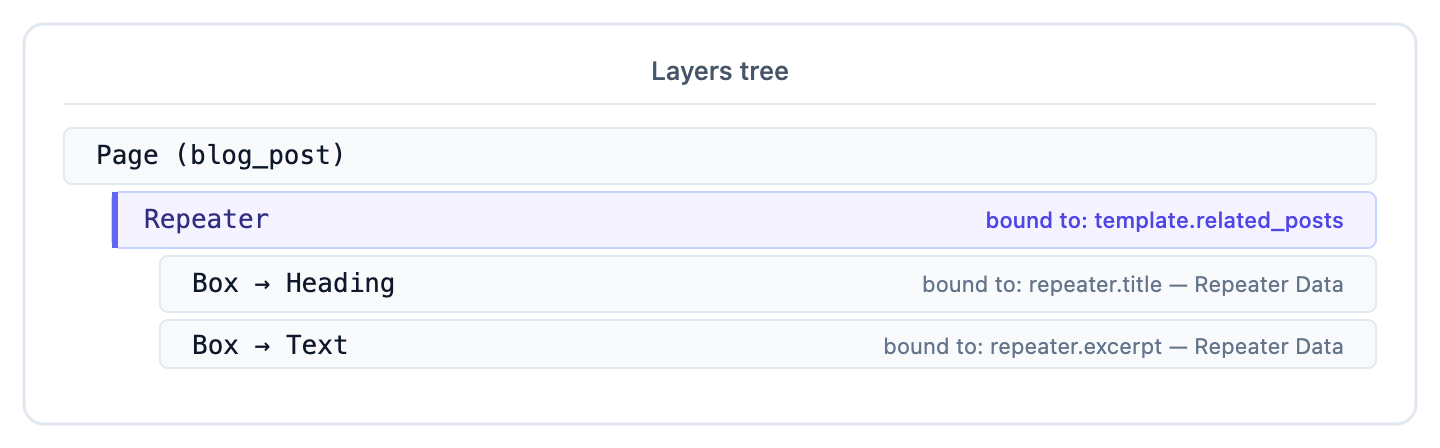
This is scope-aware binding. Studio’s picker knows which scope you’re in and shows the right fields: template.* inside the page root (the connected entry), repeater.* inside a Repeater (the iteration item, labeled “Repeater Data” in the picker). The SDK tags these as TemplateBindingValue vs RepeaterBindingValue (with repeaterUID) respectively.
Binding Inside Condition Blocks
Inside a Condition Block sitting inside a Repeater, repeater.* narrows to the matched block type or content type. The picker shows only fields that exist on that specific type.
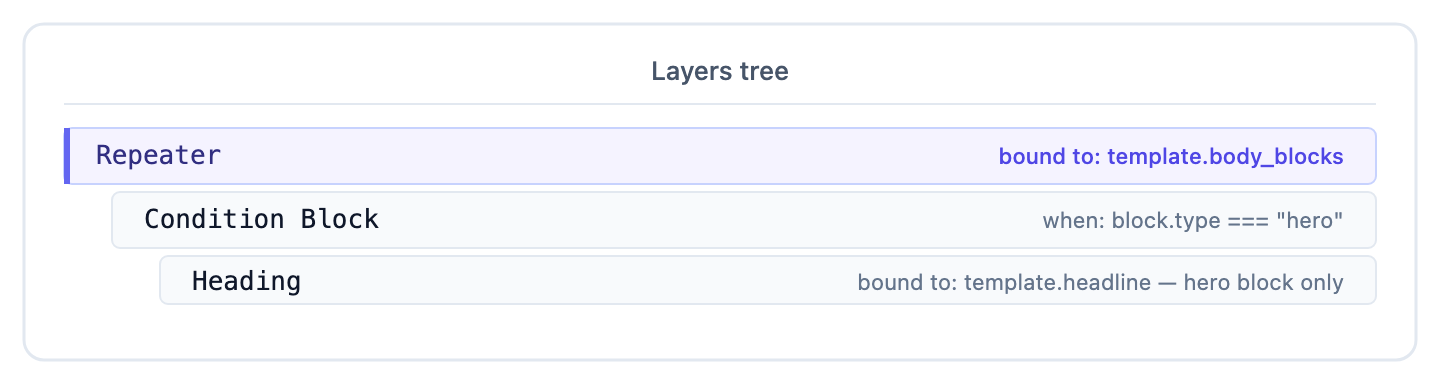
If you reorder a Condition Block such that it no longer matches what you expect, the bindings inside may render empty until the condition matches again.
Design-Side Binding
Studio also lets you bind design properties (background colors, image sources, padding values) to CMS data. The mechanism is the same: click the binding chip next to the design property in the Design panel and pick a field.
Useful for:
- Dynamic theming per entry (each entry’s brand_color drives the section’s background)
- Image-driven layouts where the asset comes from an entry field
- Spacing scales that vary per content type
See Design Panel UI for the design controls themselves.
Linked Compositions: Dynamic Templates
The most powerful use of binding: one Connected template renders every entry of the connected content type. Bindings inside the template resolve against the current entry. The entry changes per URL.
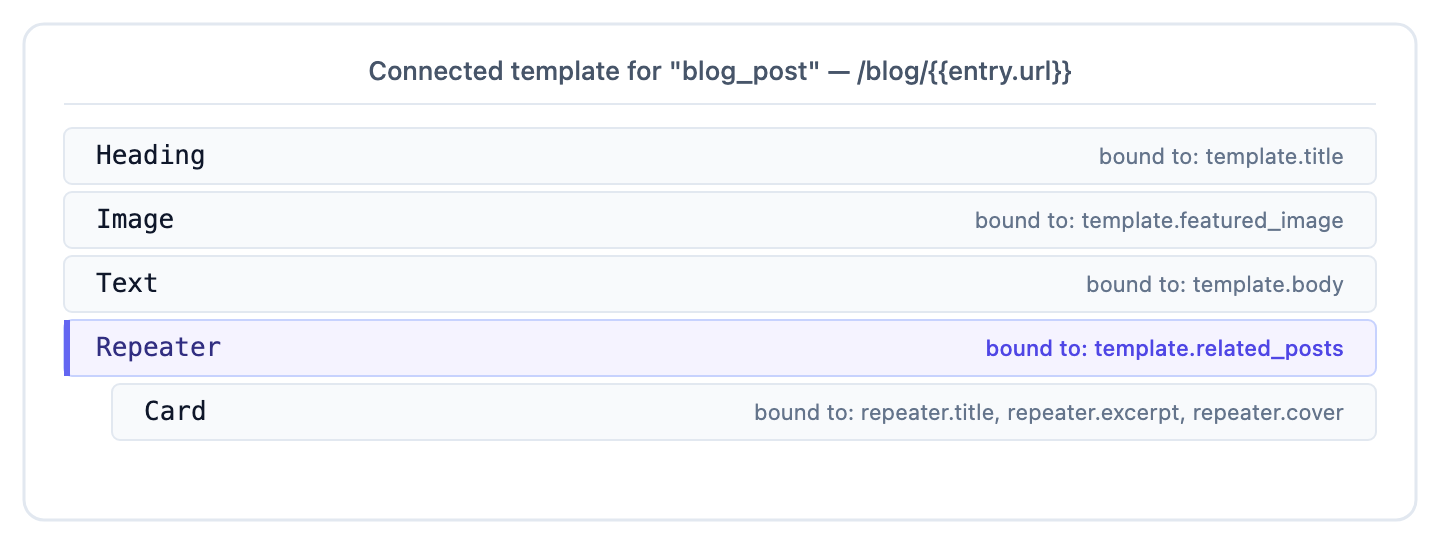
Visit /blog/ai-101, and all bindings resolve against the “AI 101” entry. Visit /blog/llm-economics, and all bindings resolve against the “LLM Economics” entry.
One template, N rendered pages, your components.
Personalization and Localization
Binding works natively with Contentstack’s localization and Personalize:
- Localization: passing locale: "fr" to useCompositionData fetches the French version of every bound field. Studio doesn’t need a separate binding flow
- Personalize variants: variantAlias does the same for variant-specific content
- A/B testing: variant aliases drive the rendered version per visitor
The bindings stay the same. The data behind them switches. See Install the Studio SDK: Fetch a composition for the locale / variantAlias options.
Static vs Bound: When to Use Which
| Situation | Use static | Use binding |
|---|---|---|
| Brand name in a footer (never changes) | Yes | |
| Header text on a blog post (varies per post) | Yes | |
| Button size variant (“large”, “medium”) | Yes | unless varies per content |
| Hero image (varies per page) | Yes | |
| Decorative SVG icon (fixed for the design) | Yes | |
| Product price (varies per product) | Yes |
A typical Connected template has 60 to 80% bound props (content that varies) and 20 to 40% static (styling, layout, design intent). Sections lean further to bound when they’re content-shaped, further to static when they’re purely decorative.
Common Pitfalls
| Symptom | Cause | Fix |
|---|---|---|
| Binding renders empty | The bound field isn’t populated on the current preview entry | Switch the preview entry (⇄ icon on the canvas toolbar) to one with data |
| Data Picker doesn’t show the field I want | Field type doesn’t match the prop type | Pick a compatible field or rebind to a different prop |
| Binding works in preview but renders empty in production | The content isn’t published in the production environment | Publish the entry to the target environment |
| Binding inside a Repeater resolves to the page-level value | The scope wasn’t the Repeater item | Re-open the Data Picker. It’ll start at the Repeater scope by default. You may have switched to dataSources.page.* |
| Two bindings on the same component conflict | One is in a parent scope, one in a child scope, both referencing template.* | Different scopes resolve to different items. Use dataSources.page.* to disambiguate when needed. |
Best Practices
Bind early, customize later. Drop a component, bind every prop that’s content, and only then start tweaking styles. This builds in the data dependency from the start.
Prefer simple paths. template.title is cleaner than template.featured.metadata.computed_title. Deep paths break when authors change CT structure.
Document your bindings. If a section relies on a specific field shape, mention it in the section’s description. New authors who use the section don’t always know which fields it expects.
Use the linked schema for sections. Sections binding via a linked schema automatically know what shape to expect. See Linked schema. Manual bindings fall apart faster than schema-driven ones.
See Also
- Templates: Connected content type: where template.* comes from
- Repeaters: iteration scope
- Condition Blocks: narrowing scope
- Install the Studio SDK: Fetch options: locale, variantAlias, etc.